
Pipelines is a feature of Paramify's Ticket Tracking Integrations that automatically creates tickets in your ticketing tool, such as Jira, for the Issues found in your scans. Instead of creating a ticket by hand for each finding, your team gets a linked external ticket for every new open Issue as soon as a scan is processed, so remediation work is tracked where your engineers already work.
This guide shows you how to turn on Pipelines for your Integration and what happens when you process a scan, using a Jira Integration as the example.
Enable Pipelines
1. Open Settings
Go to Settings.
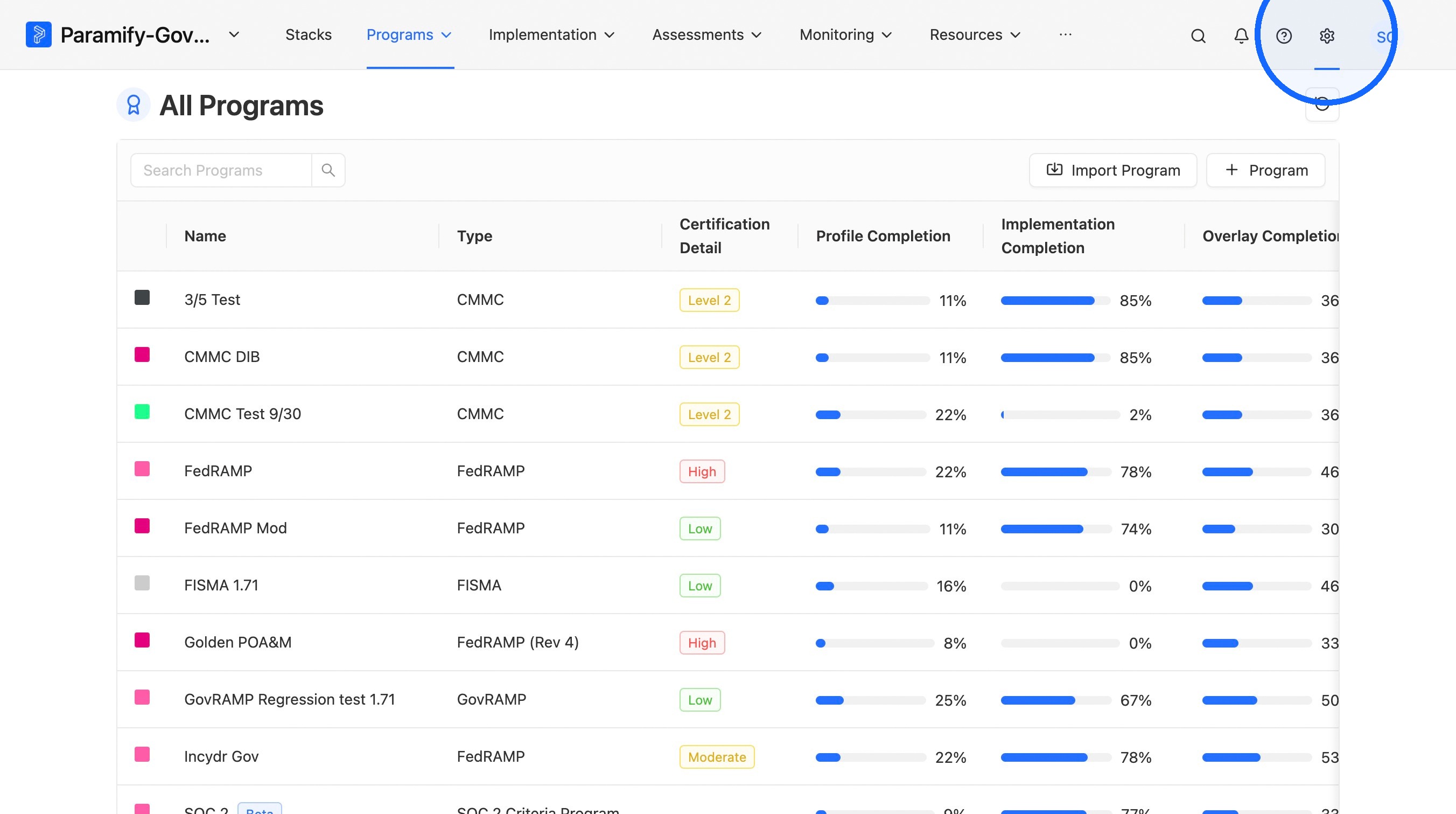
2. Open Integrations
Click "Integrations."
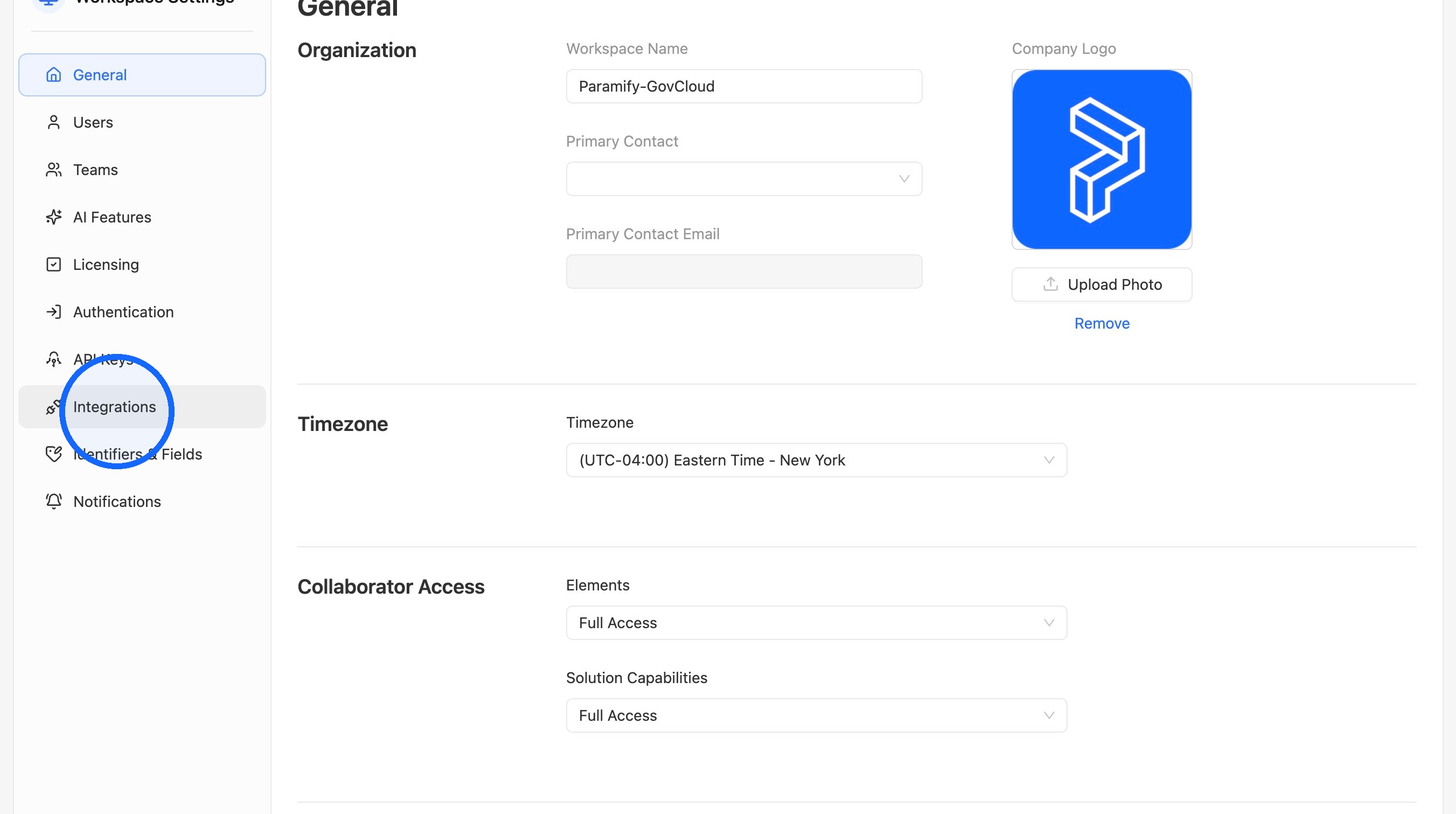
3. Edit your Integration
Click the "Edit Integration" button. This example uses a Jira Integration.
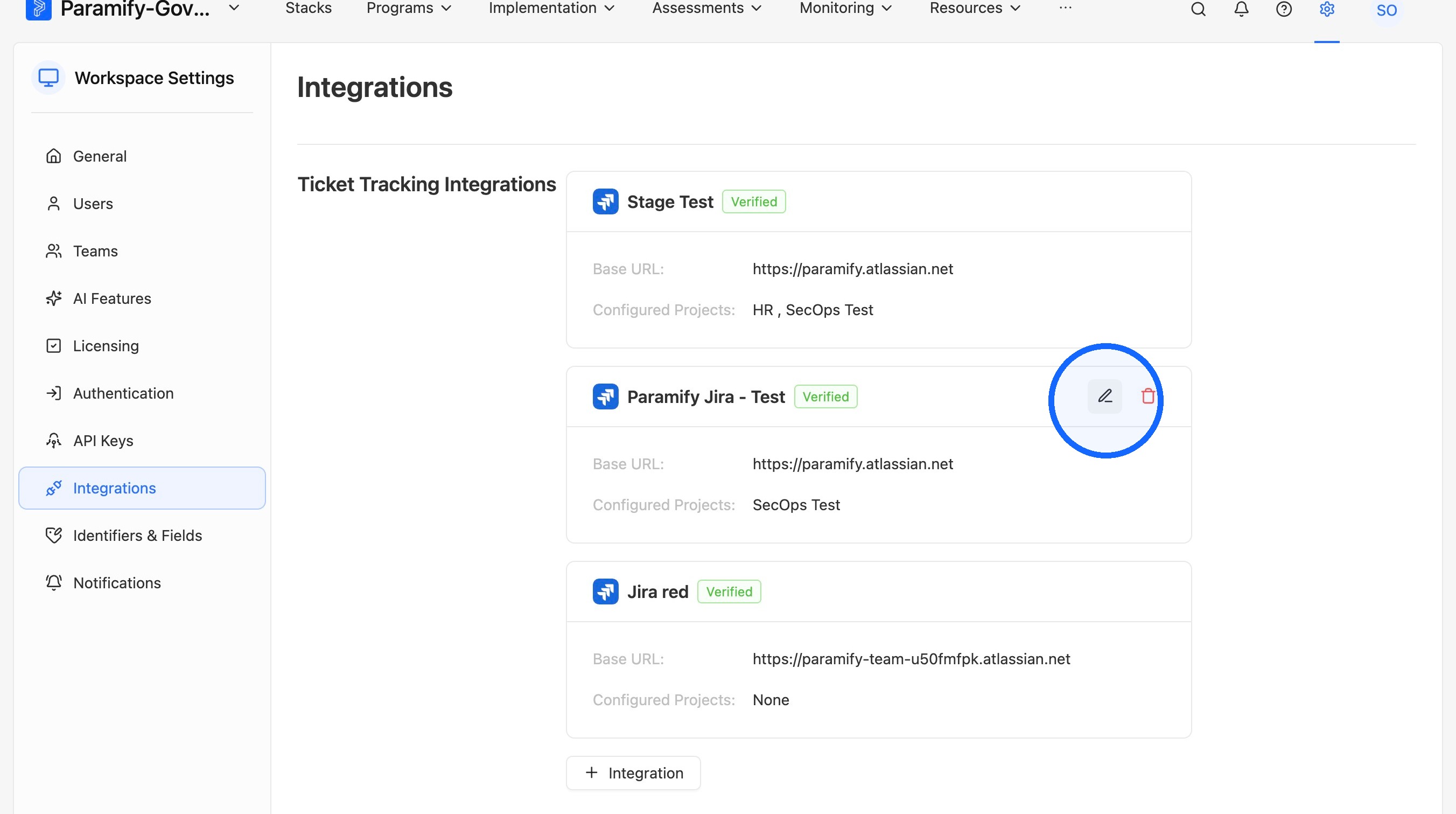
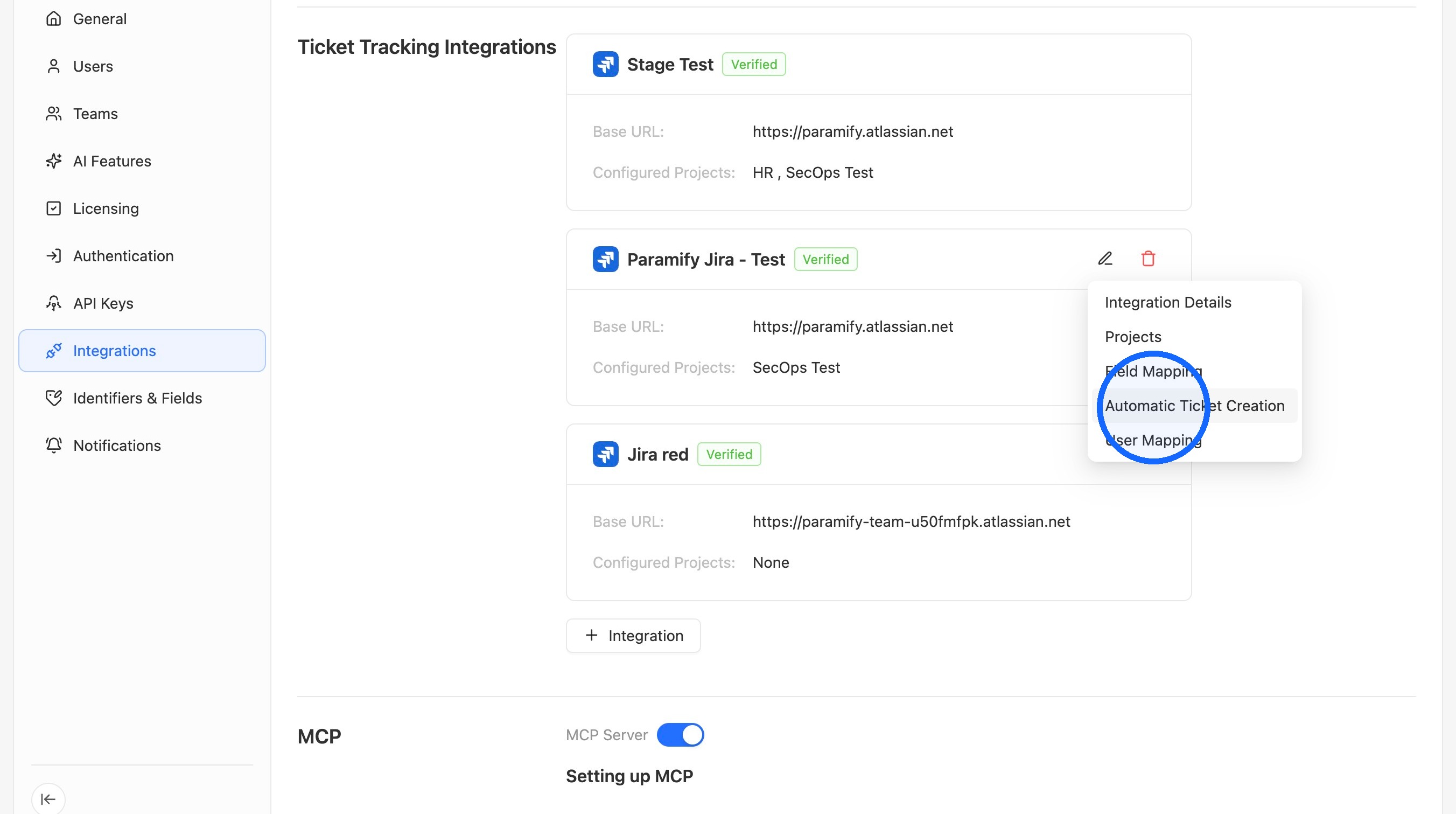
4. Open Automatic Ticket Creation
Click "Automatic Ticket Creation."
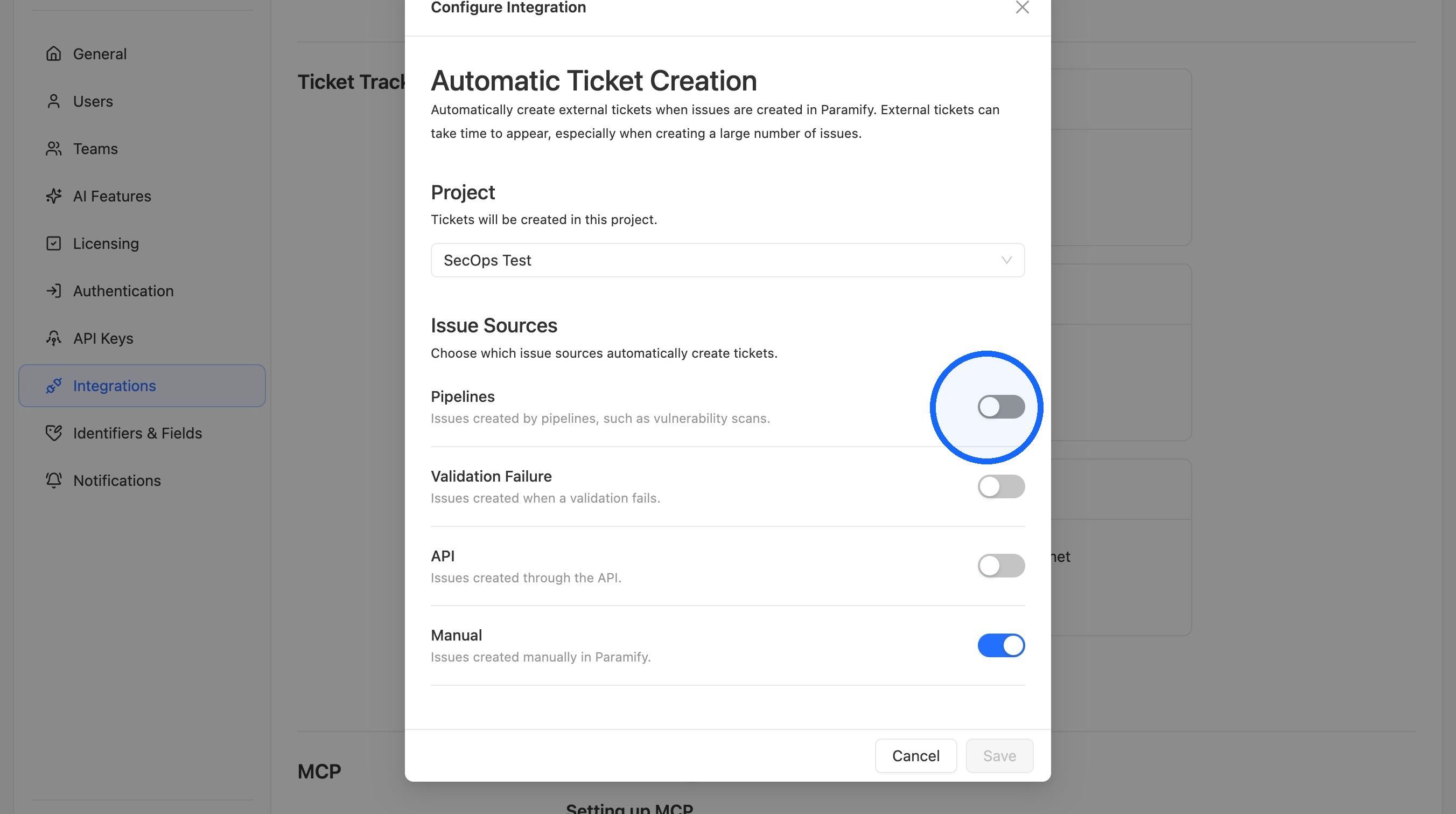
5. Enable Pipelines
Turn on "Pipelines."
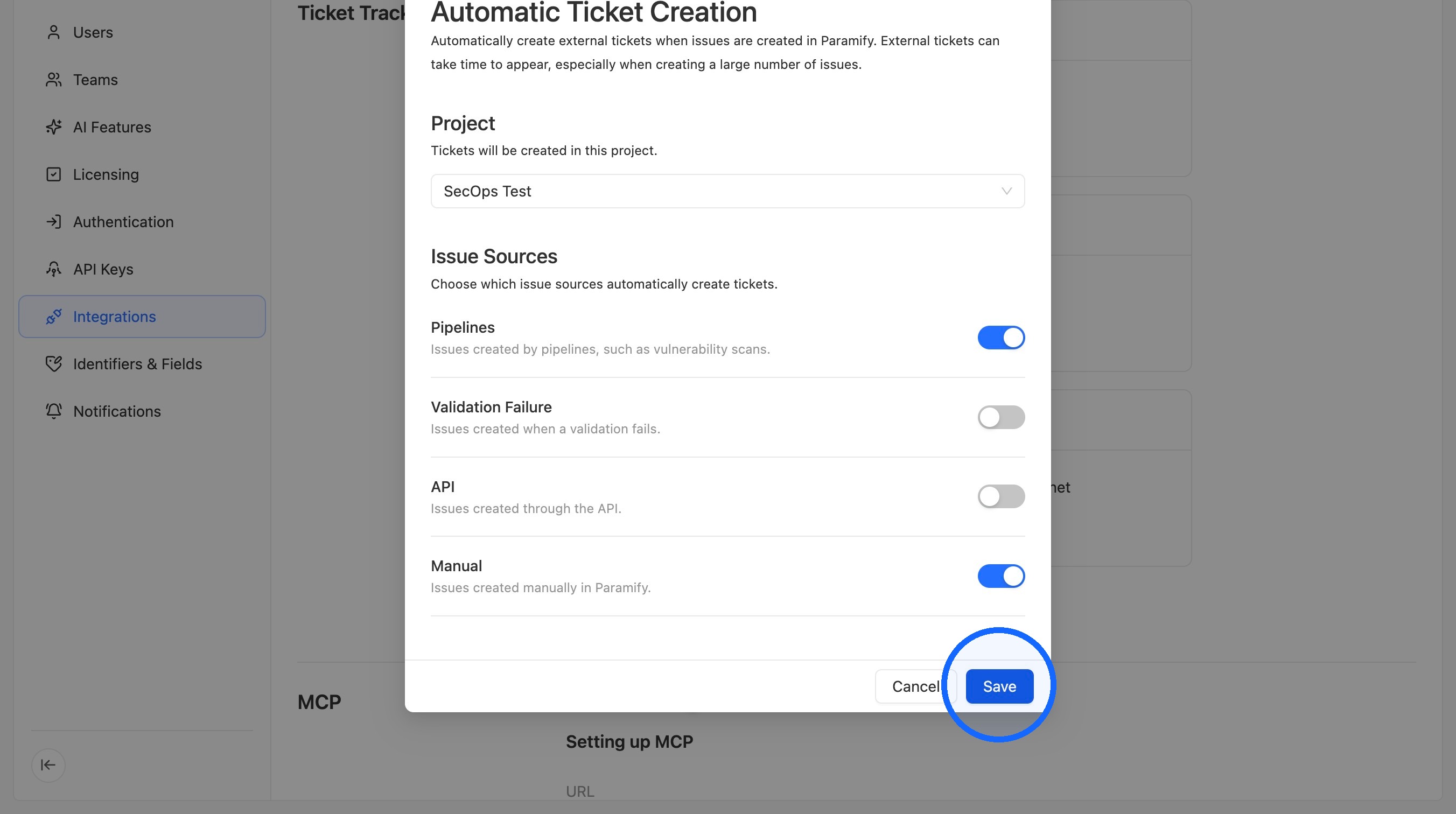
6. Save your changes
Click "Save."
Assessment Processing
NOTE
For this example, a Vulnerability Assessment was set up in advance. To learn how to set up an Assessment, check out this article: Create an Assessment in Paramify
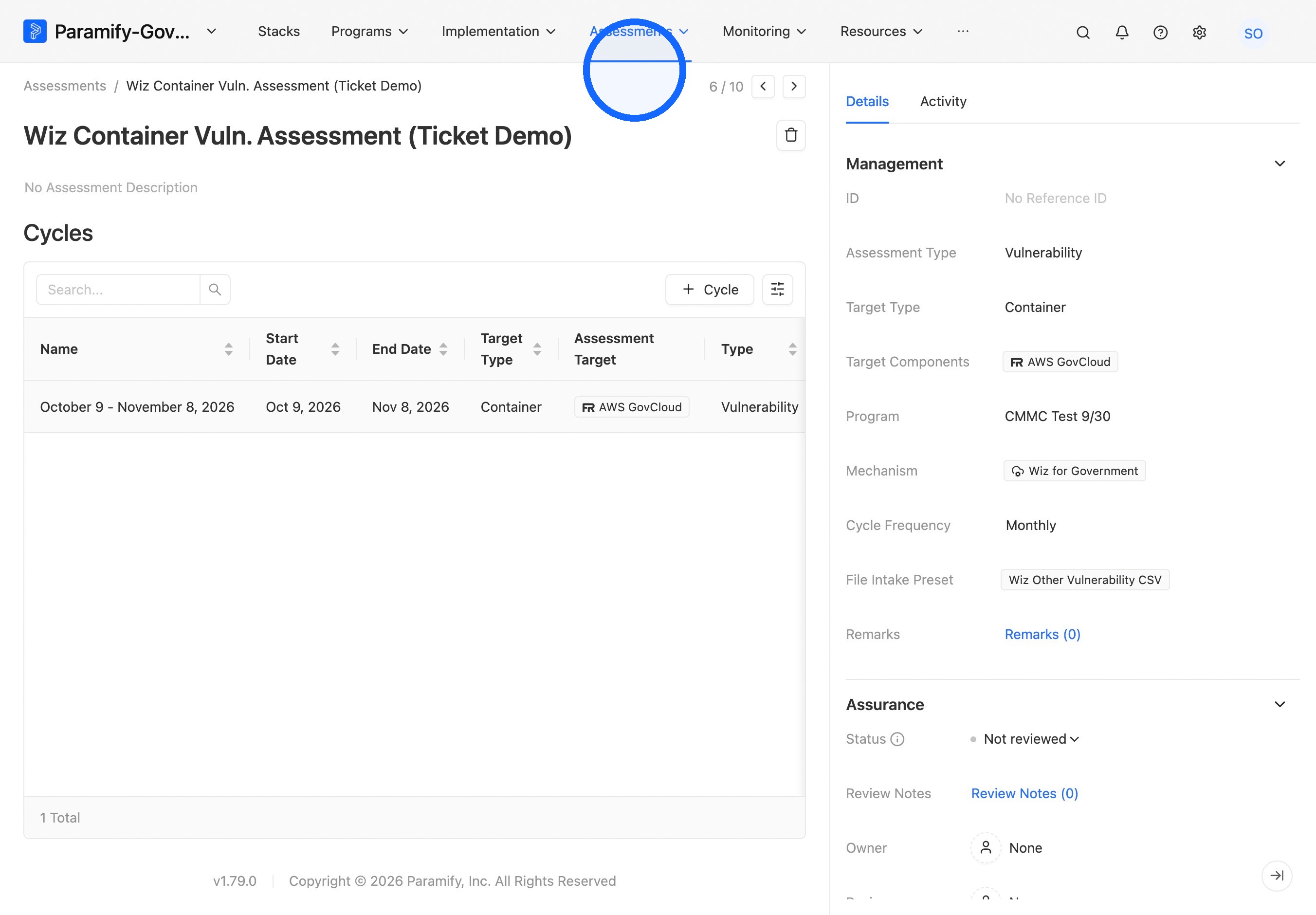
7. Select your Assessment
In Assessments, select your Assessment.
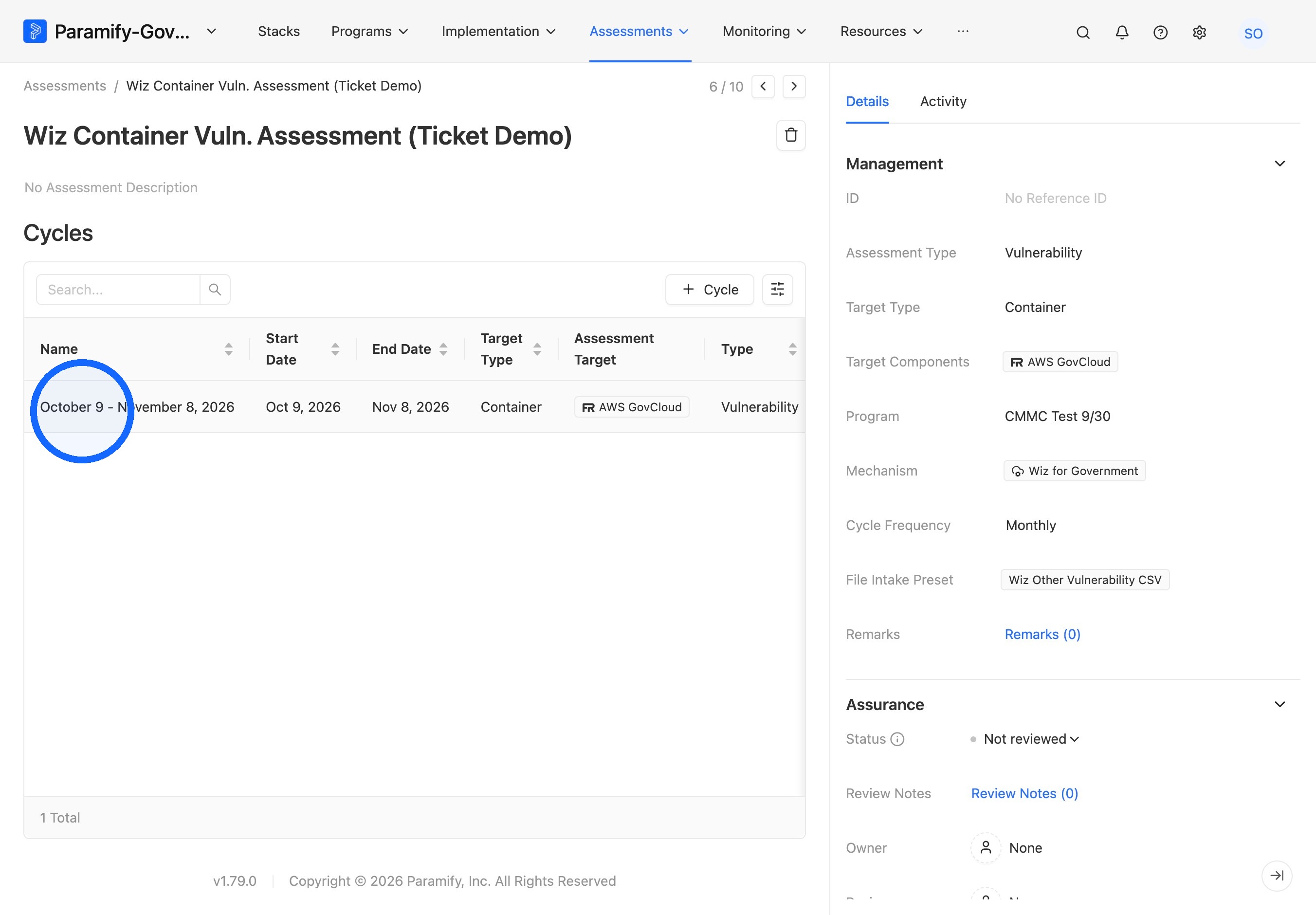
8. Select a Cycle
Select the Cycle you want to upload scan results to.
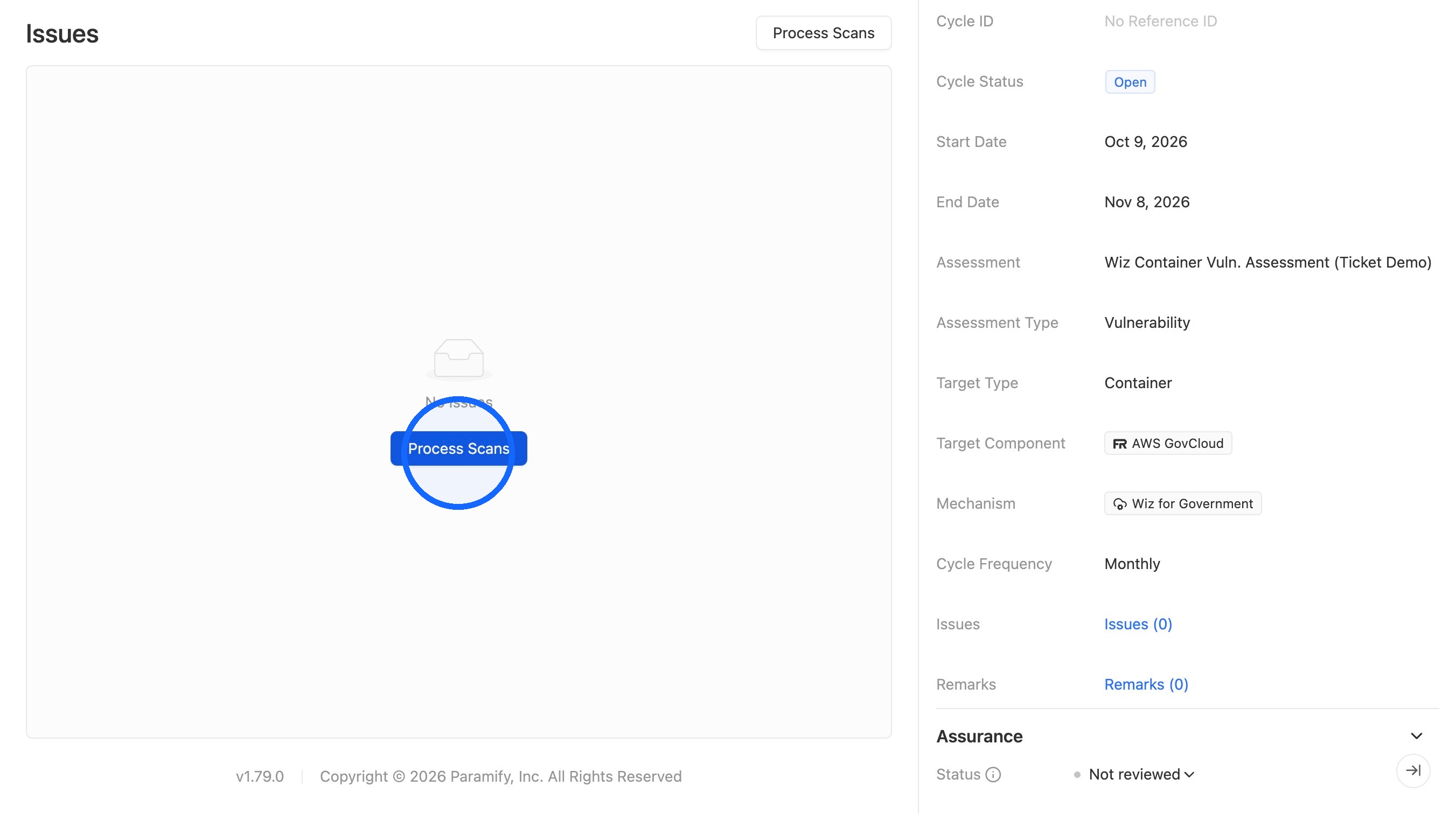
9. Start processing scans
Click "Process Scans."
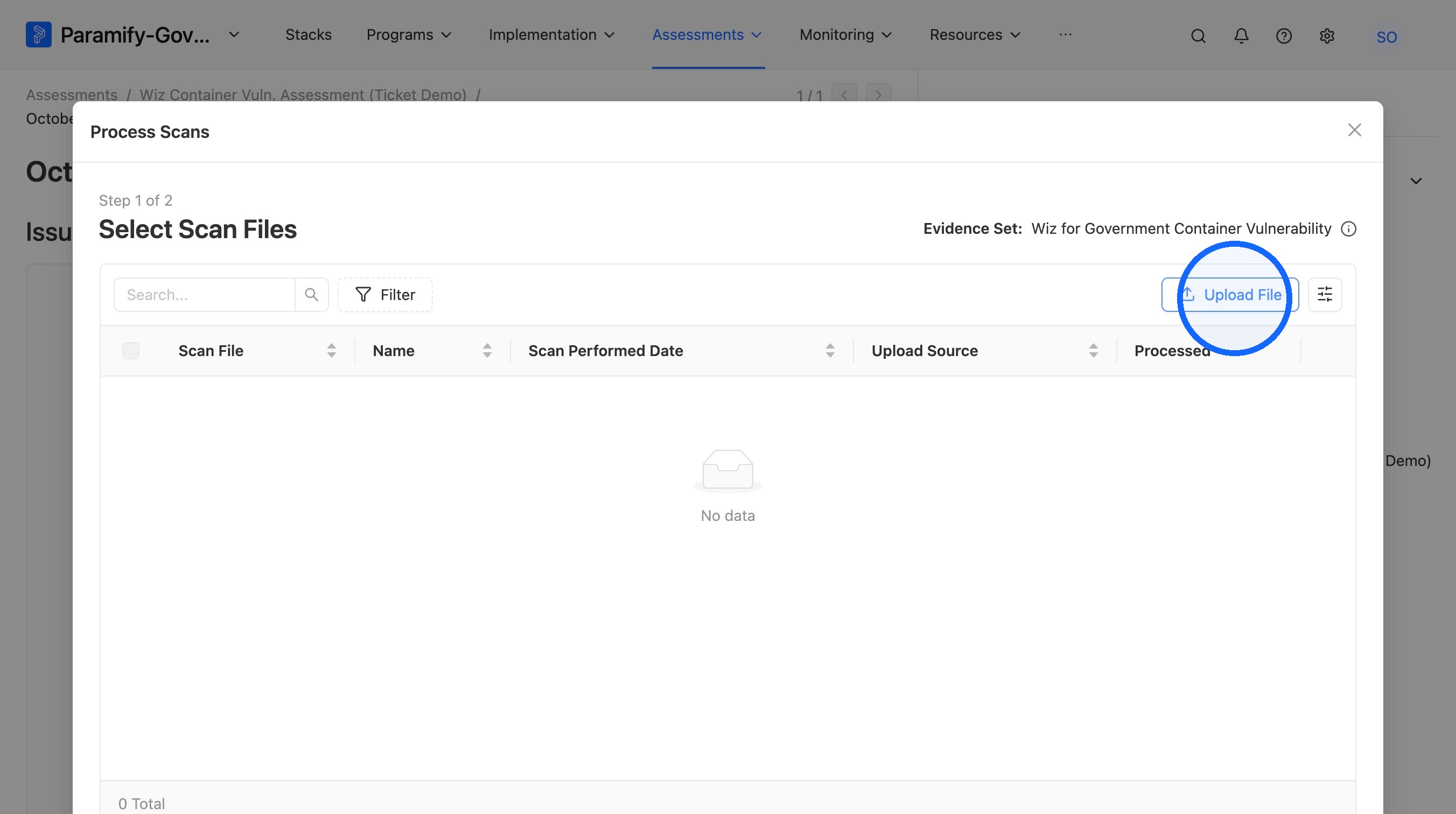
10. Upload your scan file
Click "Upload File."
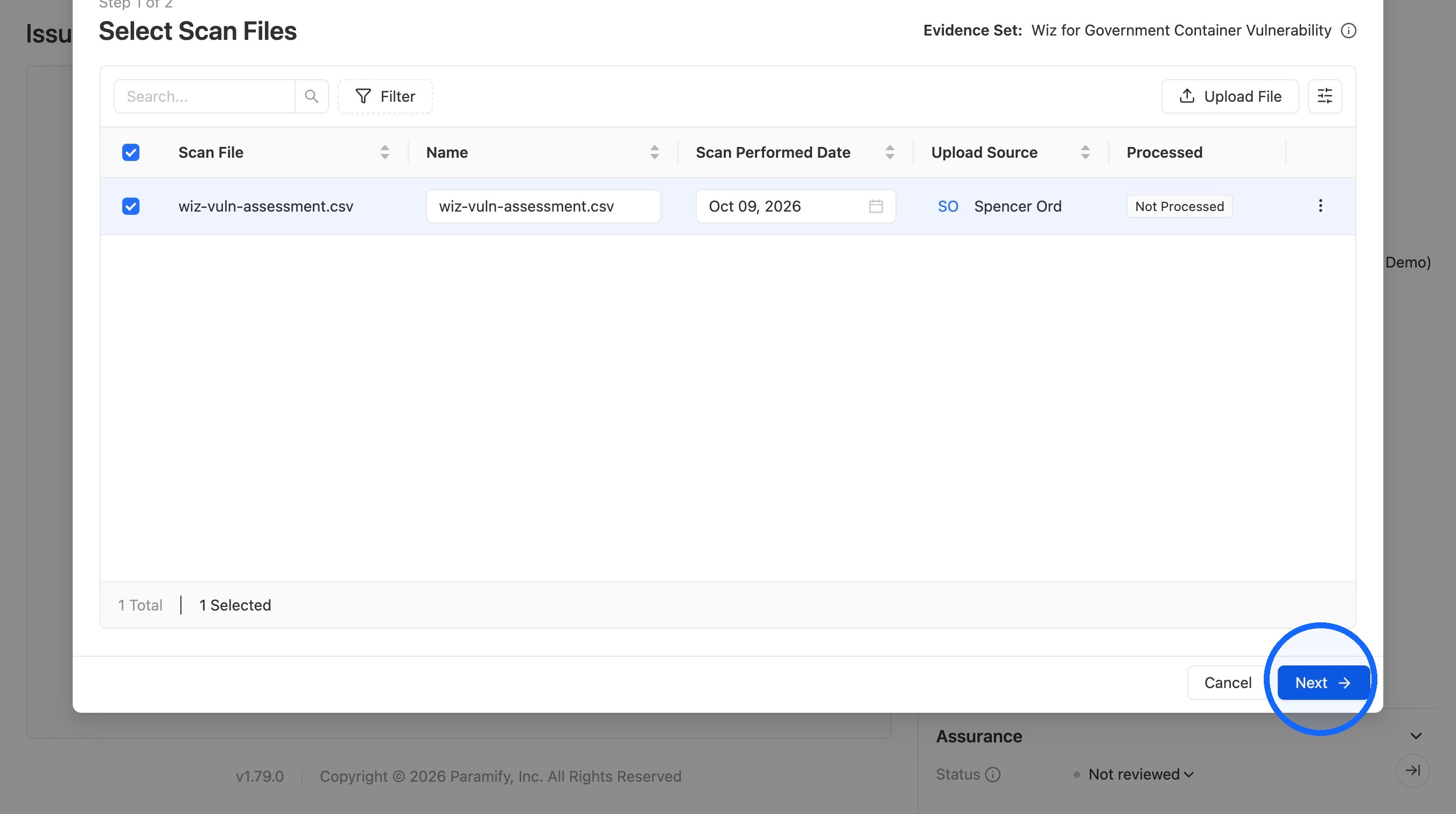
11. Continue to the next step
After your file uploads, click "Next."
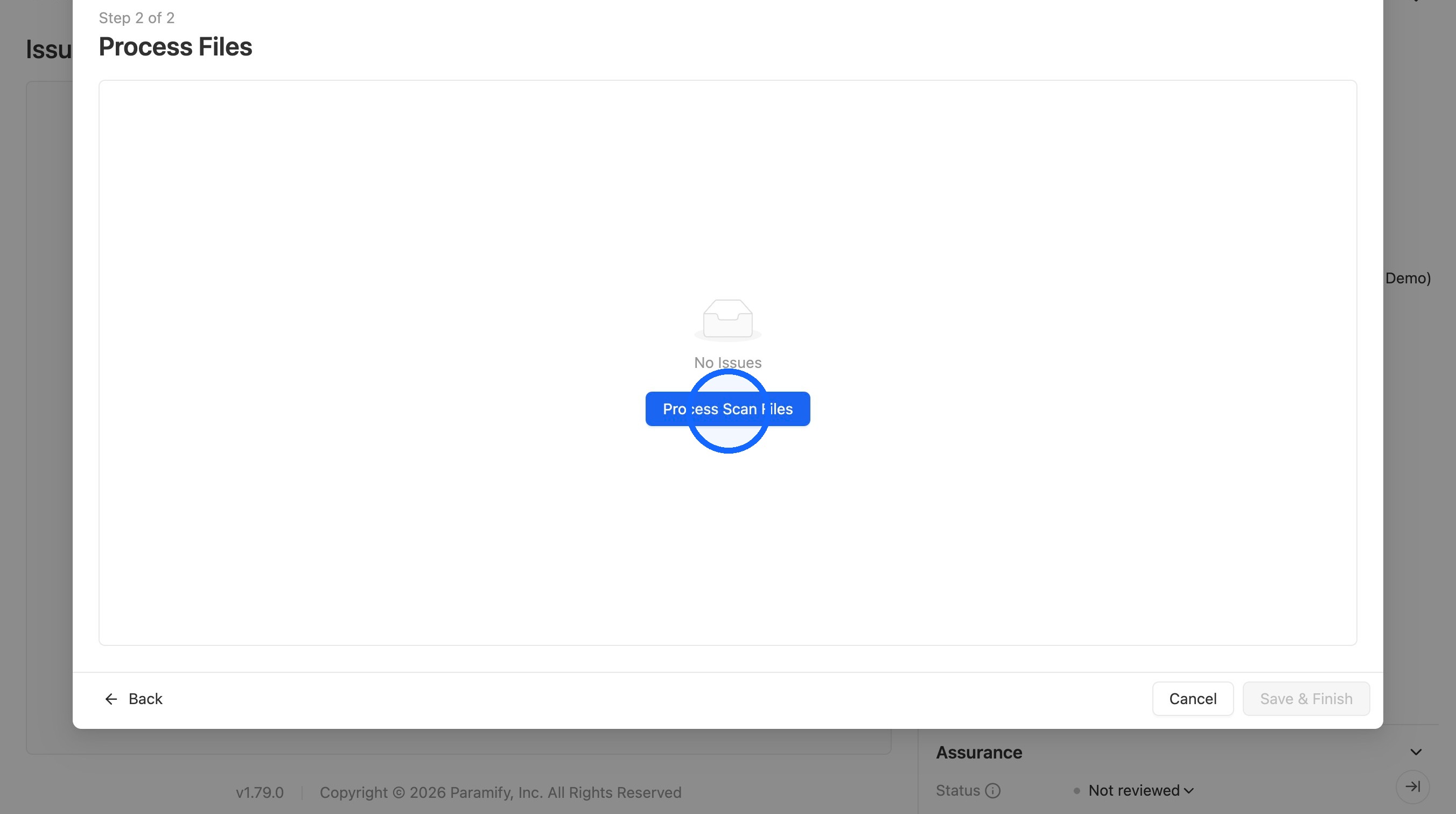
12. Process the scan files
Click "Process Scan Files."
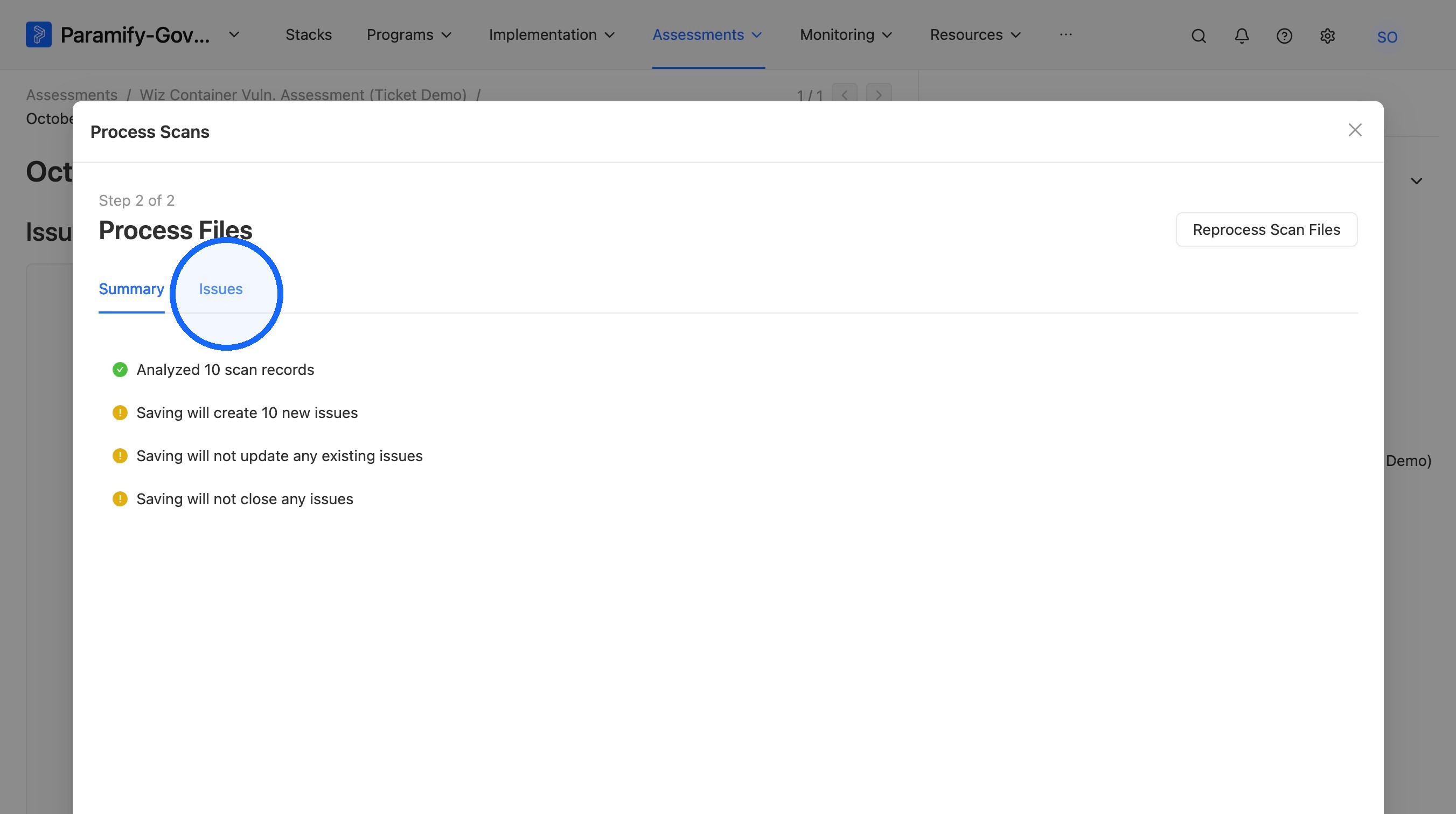
13. Review the processed Issues
Click "Issues" to see the Issues that were processed.
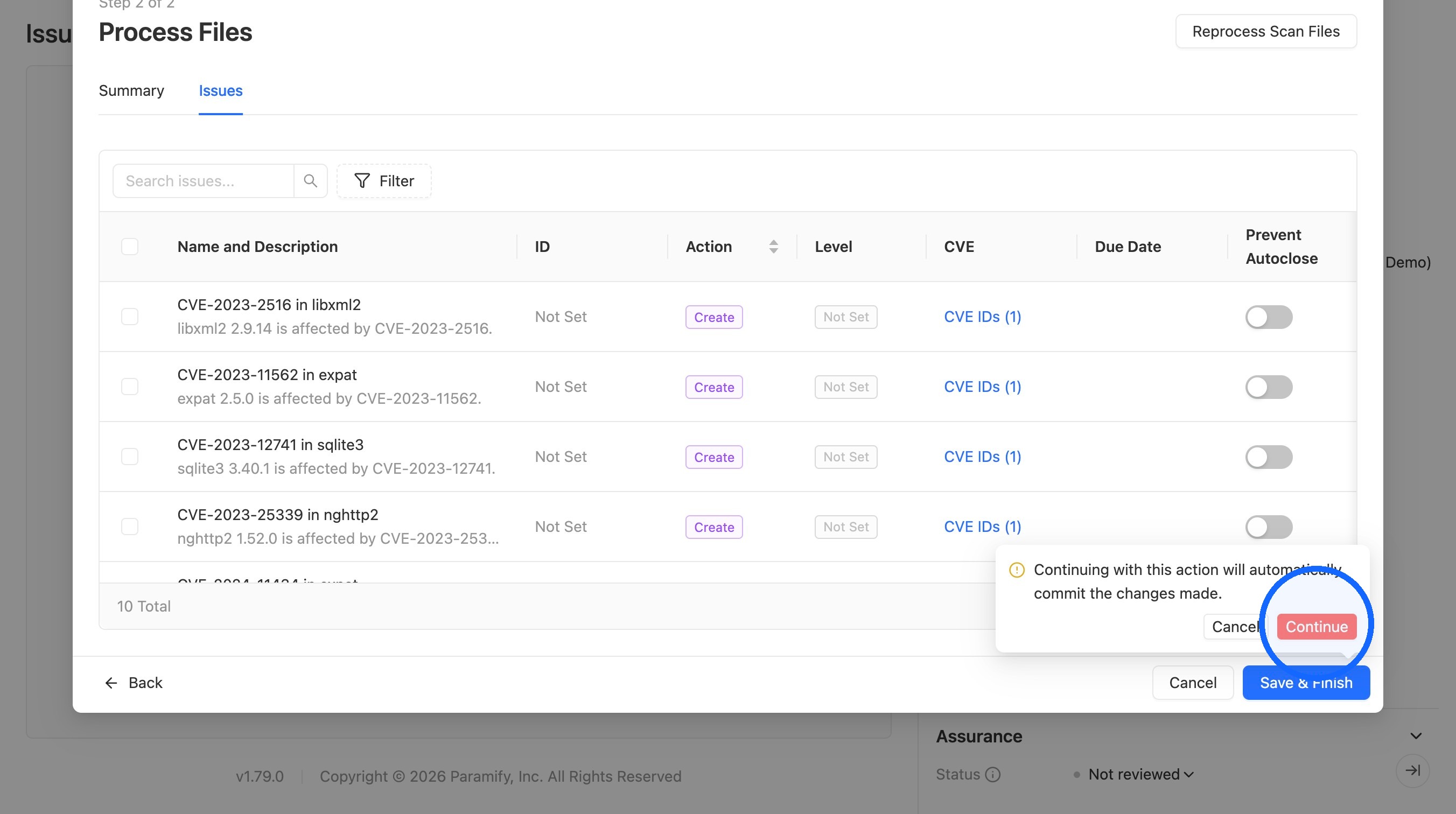
14. Save and finish
Click "Save & Finish," then select "Continue" when prompted.
NOTE
Tickets are created in the background, in batches, because of Jira's limits. If your scan has a lot of Issues, it may take up to a minute for all of the tickets to appear.
Issue Tickets
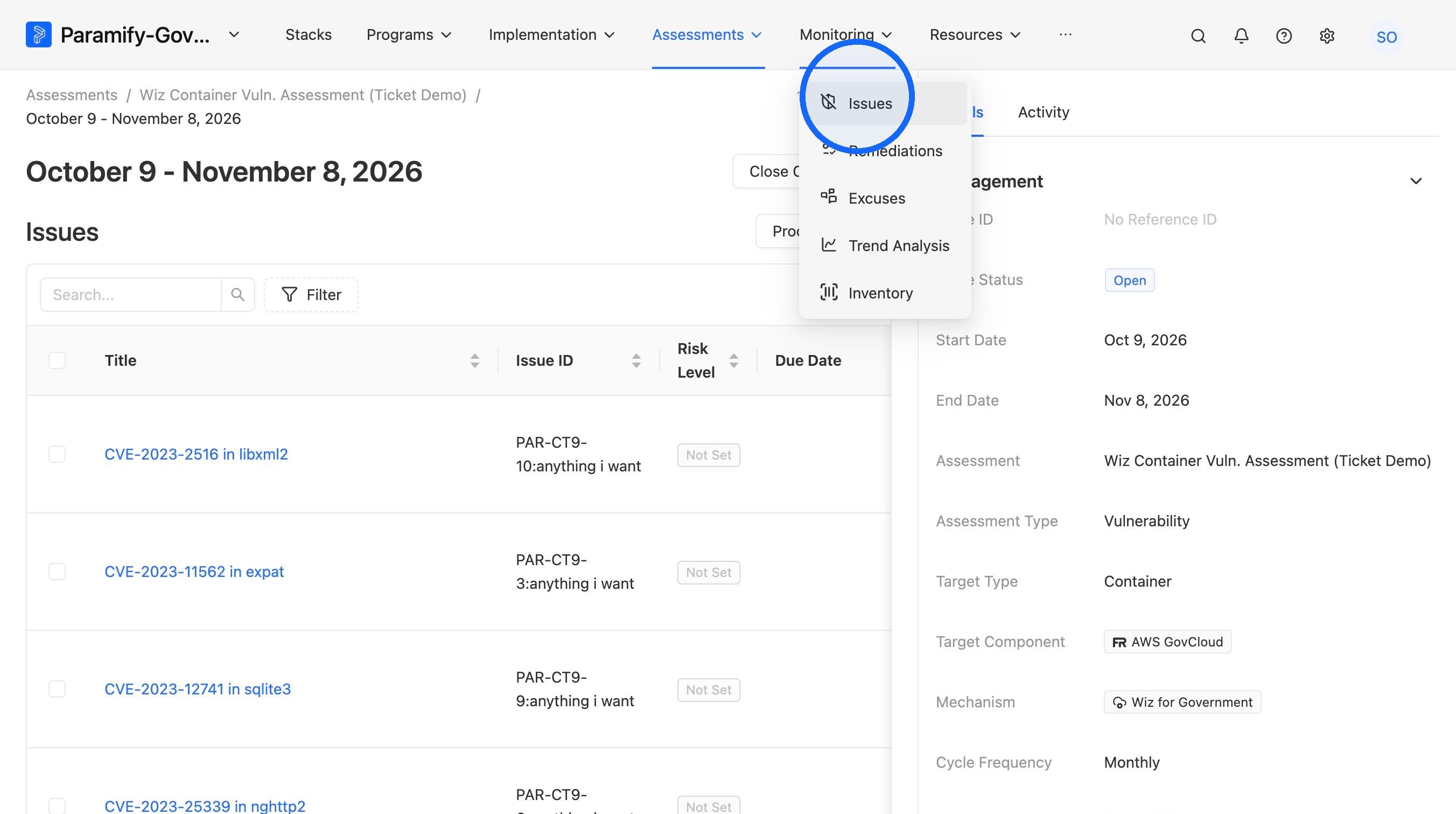
15. Open Issues
From the Monitoring drop-down menu, click "Issues" to see the Issues that were created.
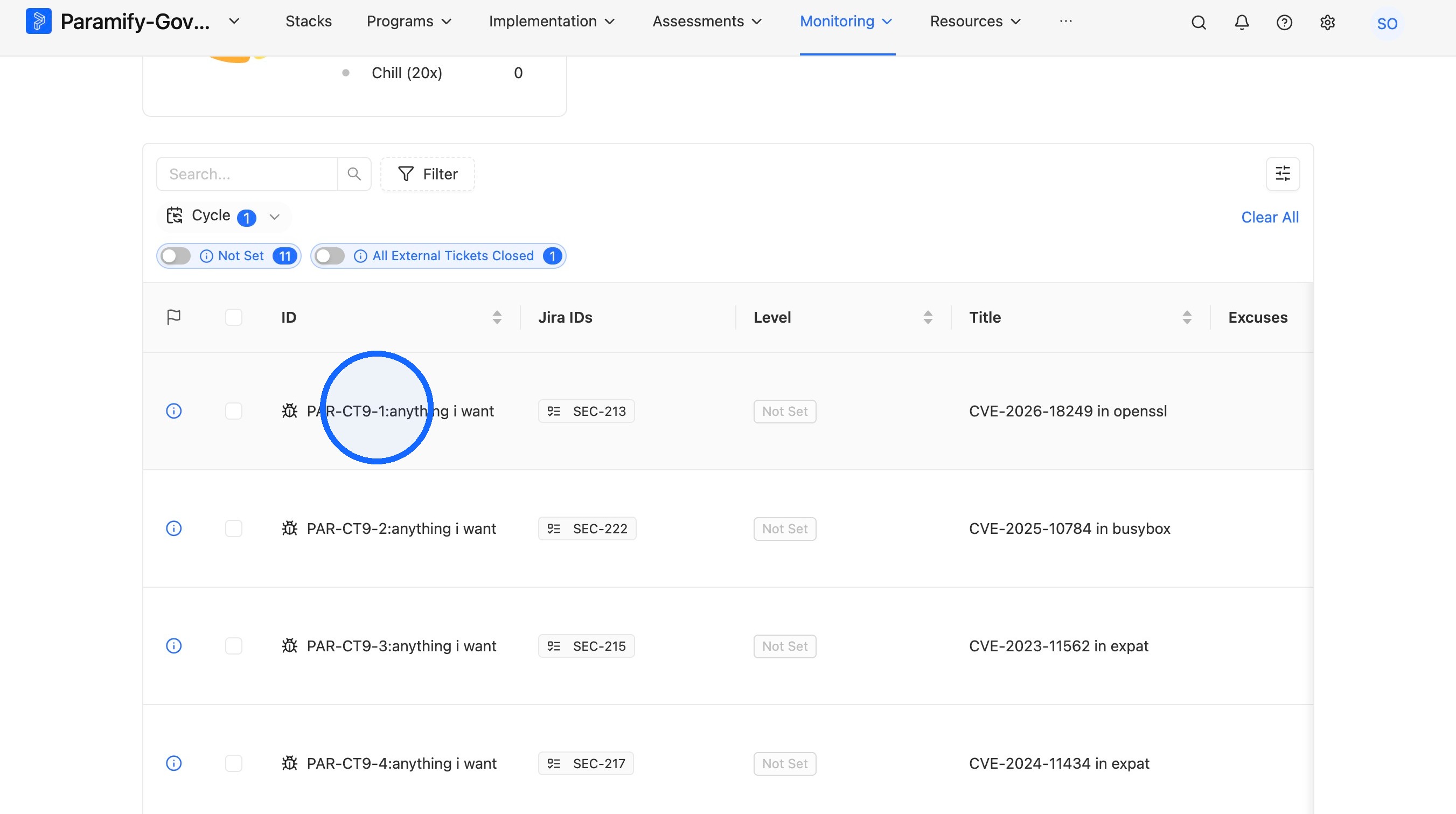
16. Select an Issue
Select one of the Issues that were just created.
NOTE
External Tickets are only created for open Issues. If the scan creates an Issue that's already closed, no External Ticket is created for it.
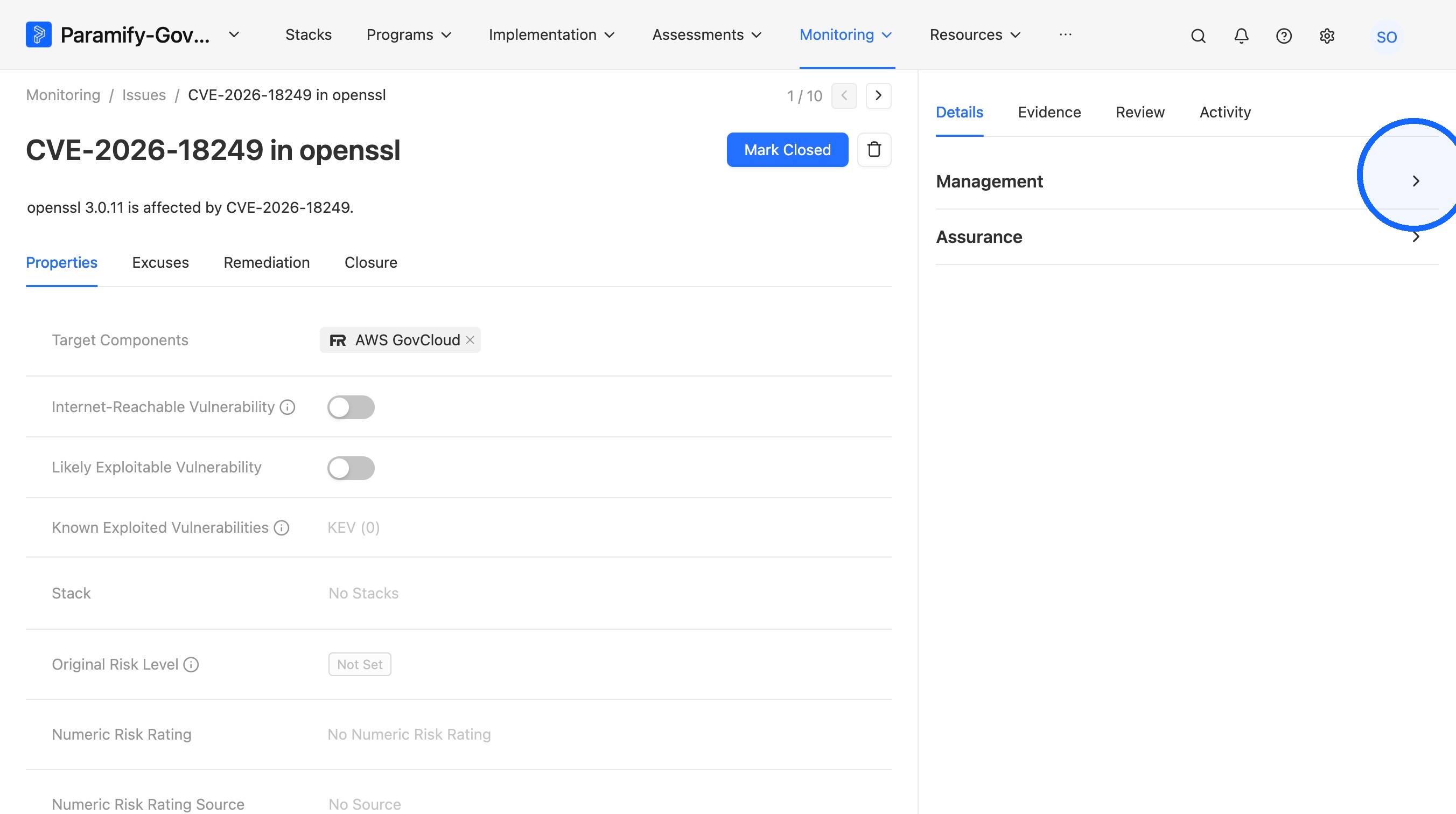
17. Expand the Management panel
Expand the Management panel on the Issue.
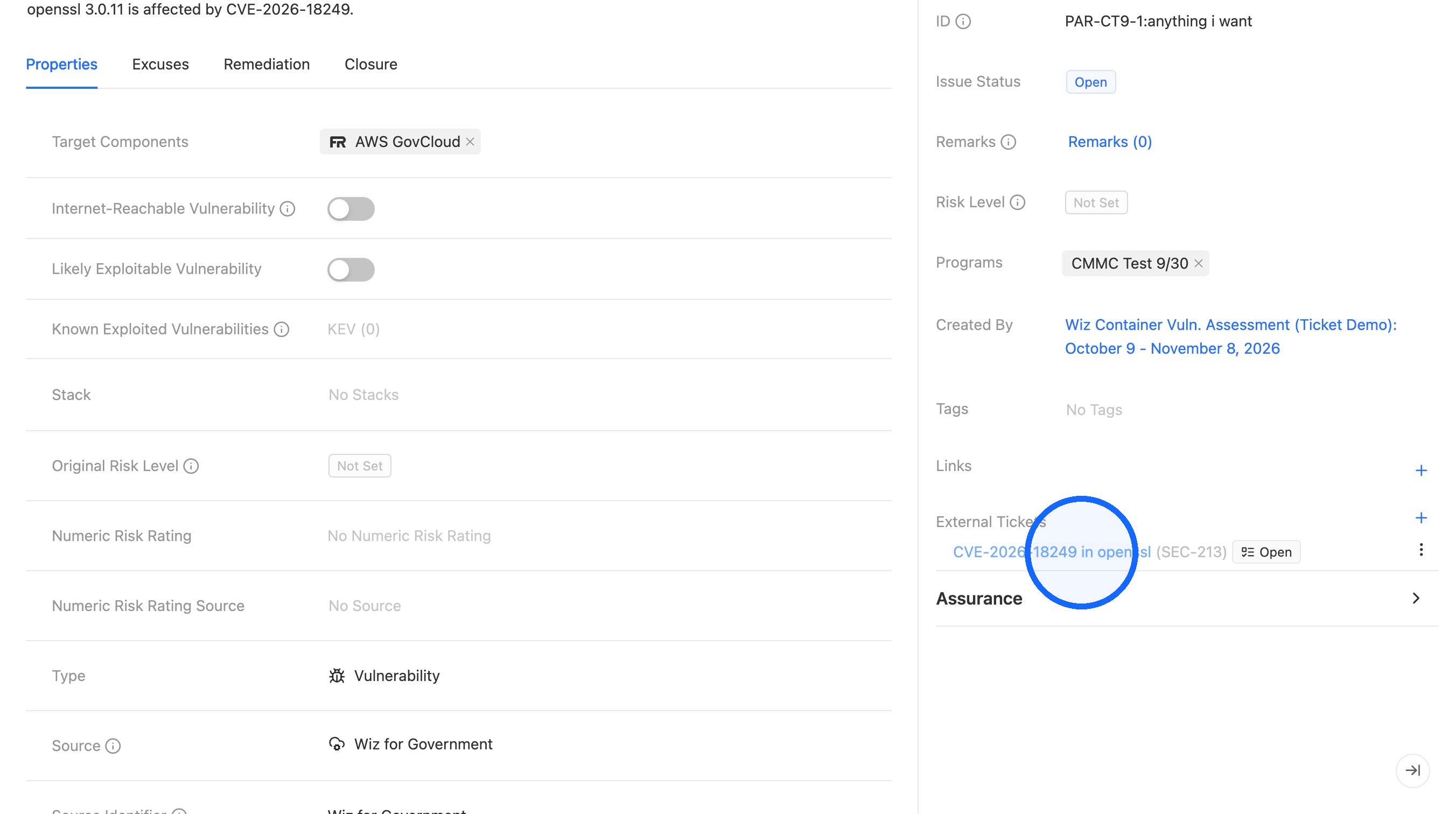
18. Open the External Ticket
The Pipeline already created an External Ticket in Jira. Click the link to open it.
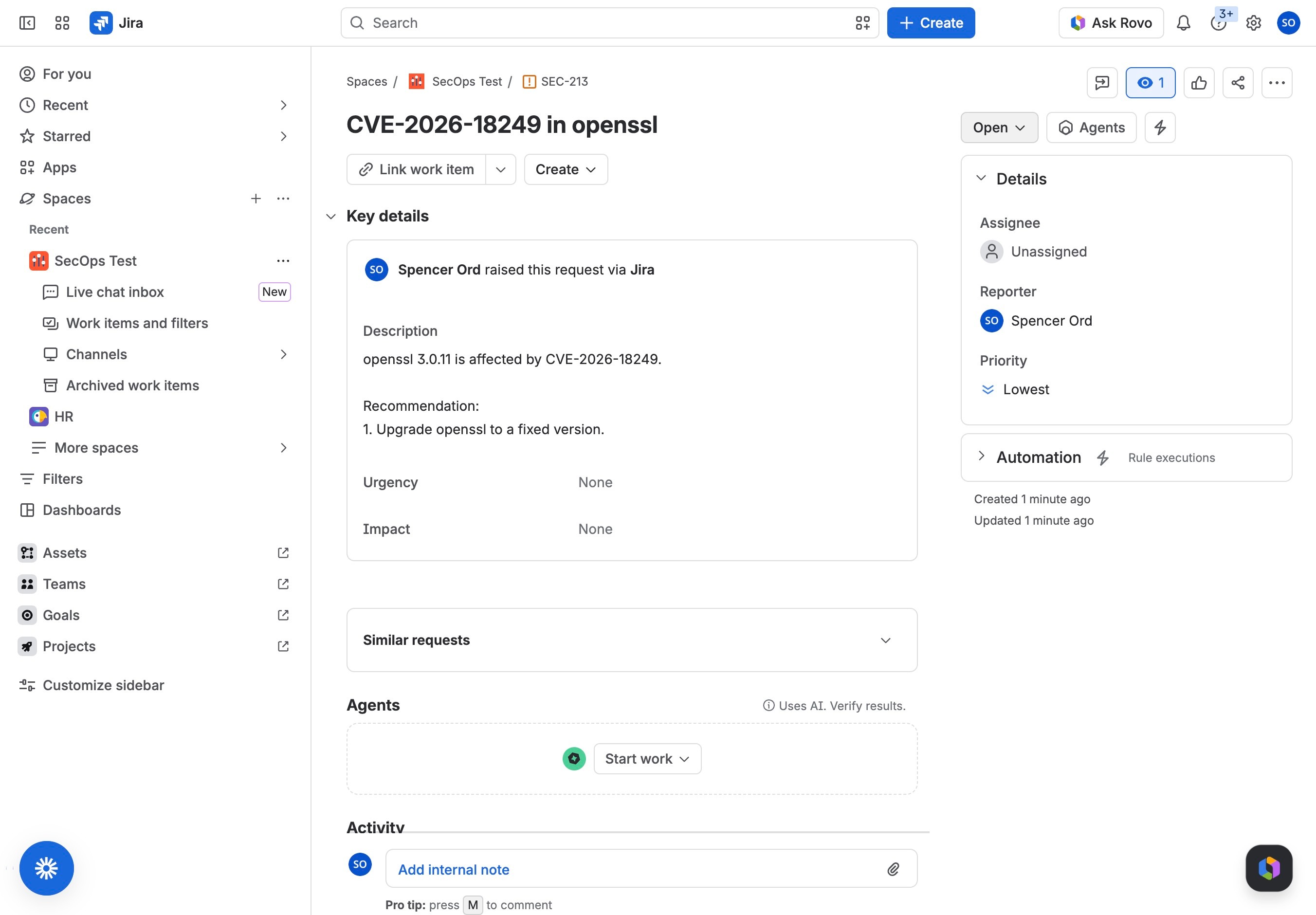
19. View the External Ticket in Jira
The External Ticket was created in Jira through the Pipeline.
Comments
0 comments
Please sign in to leave a comment.