
Paramify's AI-powered Implementation Summary feature helps you draft concise, control-level summaries that describe how your organization satisfies each control requirement. This article explains how to enable AI at the workspace level, turn on Implementation Summaries for a program, generate a summary from within a control, and run the bulk-generate action across multiple controls at once.
Enable AI at the workspace level
AI features in Paramify are gated at the workspace level. A workspace administrator must turn on the AI Enabled setting before any AI functionality — including Implementation Summary — becomes available to users in that workspace. If you disable AI after programs have already had Implementation Summary turned on, Paramify will display an informational notice explaining which programs are affected. Those programs retain their saved summaries, but AI generation will no longer be available until AI is re-enabled.
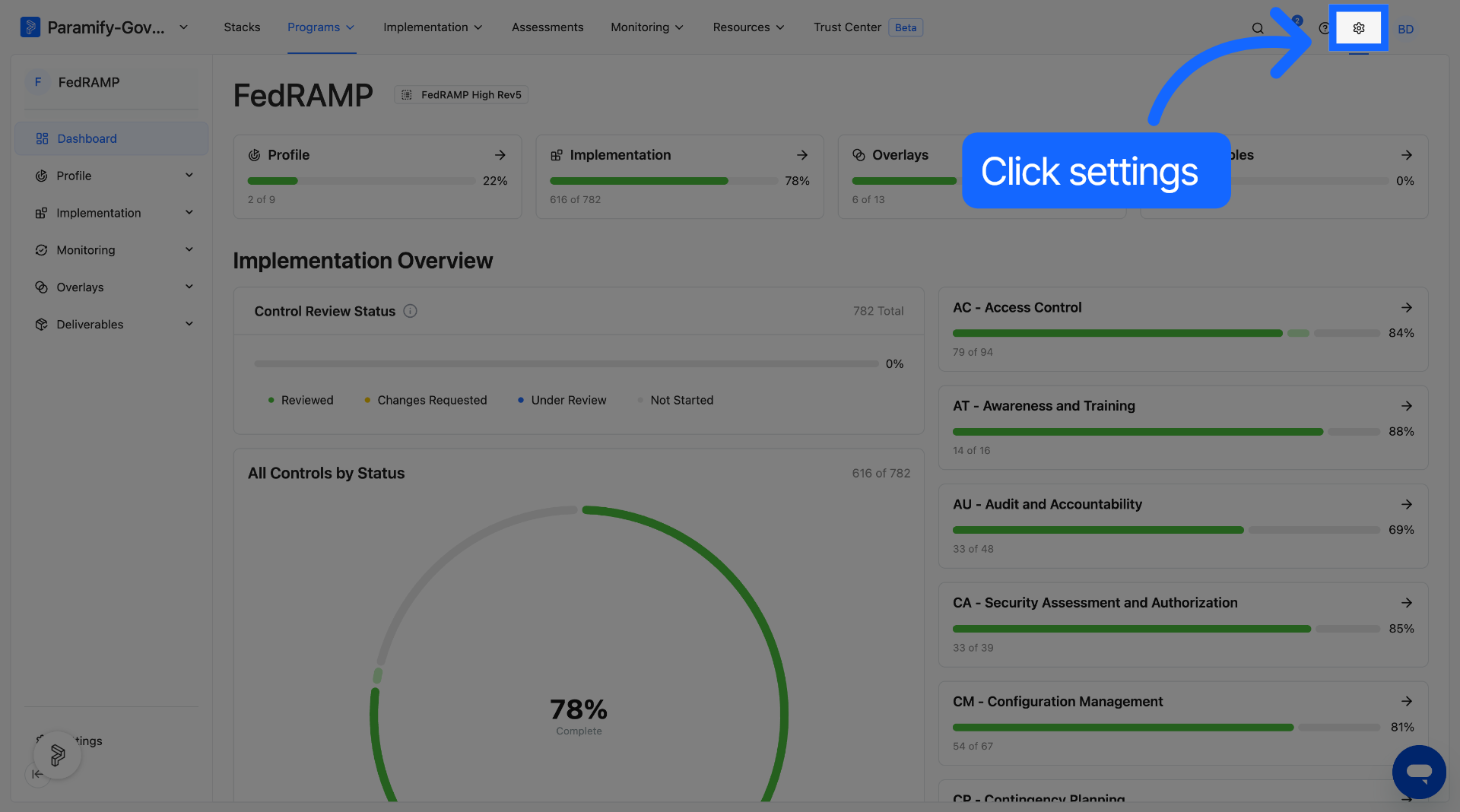
1. Open Workspace Settings
Navigate to Workspace Settings from the main navigation.
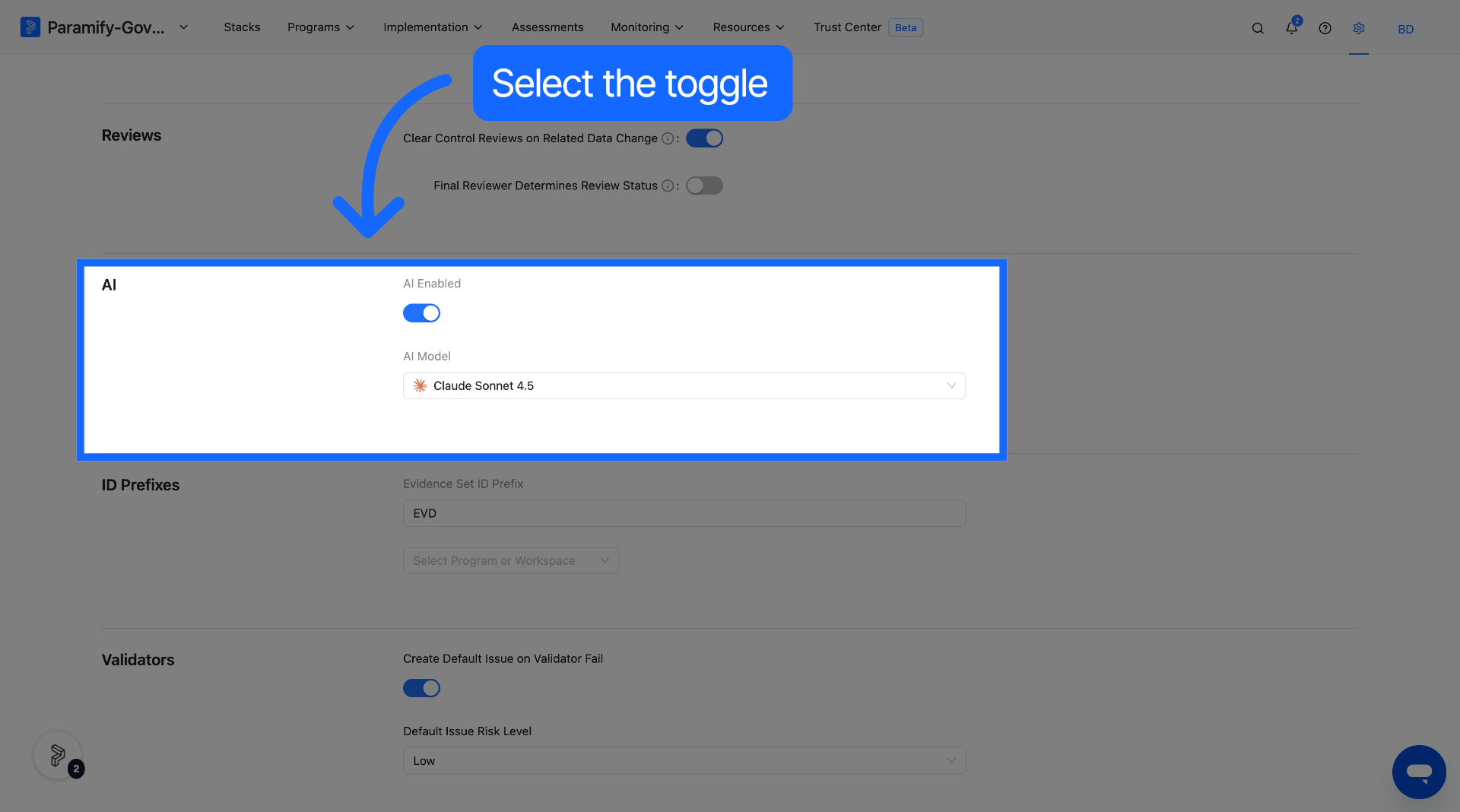
2. Toggle AI Enabled
Under the General tab in Workspace Settings, locate the AI Enabled toggle and switch it on. This setting is visible and editable only by workspace administrators.
Enable Implementation Summary in program settings
Implementation Summary is configured per program and must be explicitly enabled by an admin. Once enabled, each control's implementation view gains two tabs: Implementation Summary and Solution Implementation. Existing Custom Responses and Solution Capabilities are found under the Solution Implementation tab. When you export an SSP from this program, the Implementation Summary text is used in the OSCAL output in place of the individual custom responses.
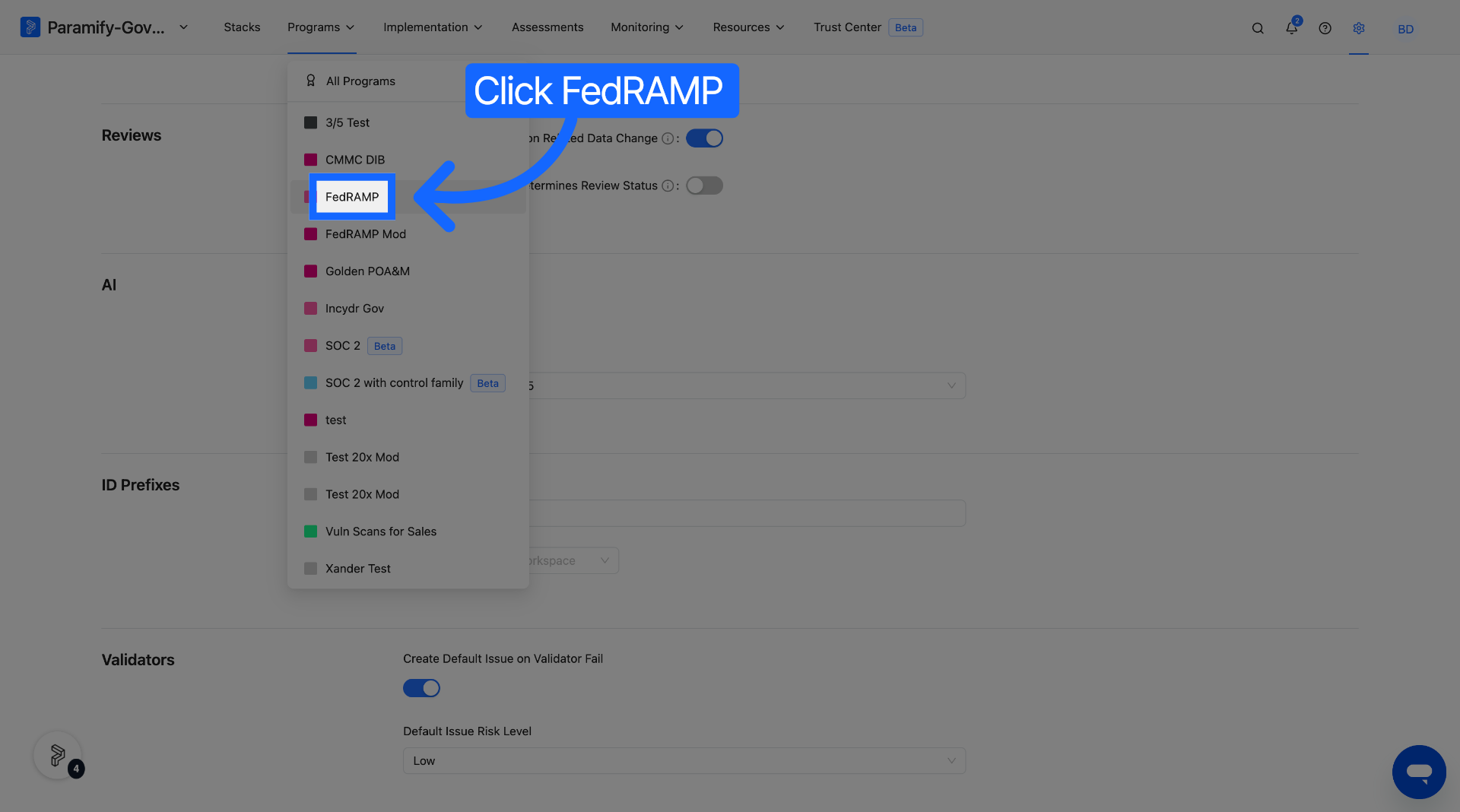
1. Open your program
Navigate to the program you want to configure.
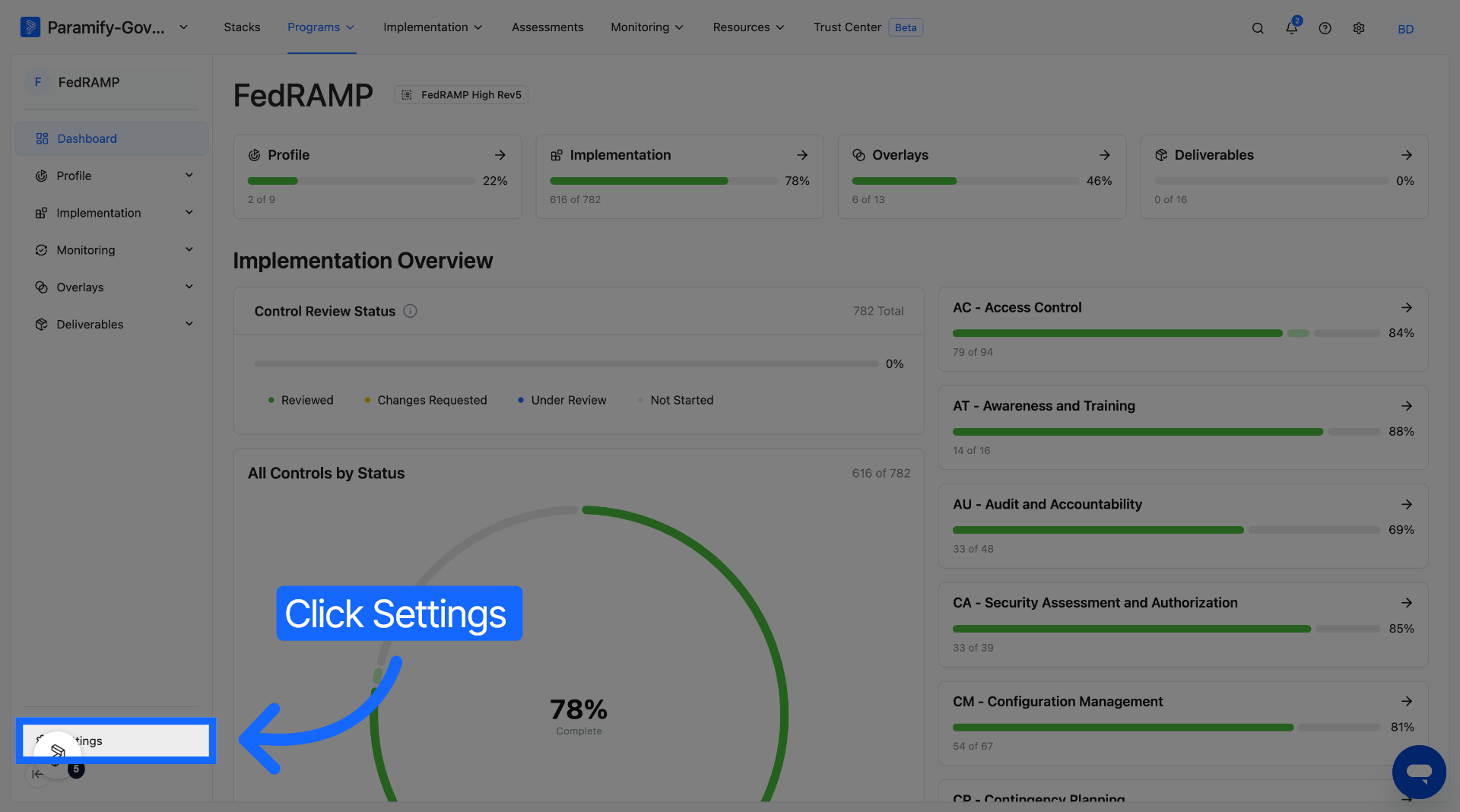
2. Go to Program Settings
Open the Settings tab within the program.
3. Enable Implementation Summary
Find the Implementation Summary toggle (marked Beta) and switch it on. The toggle defaults to off and is only visible when AI is enabled at the workspace level.
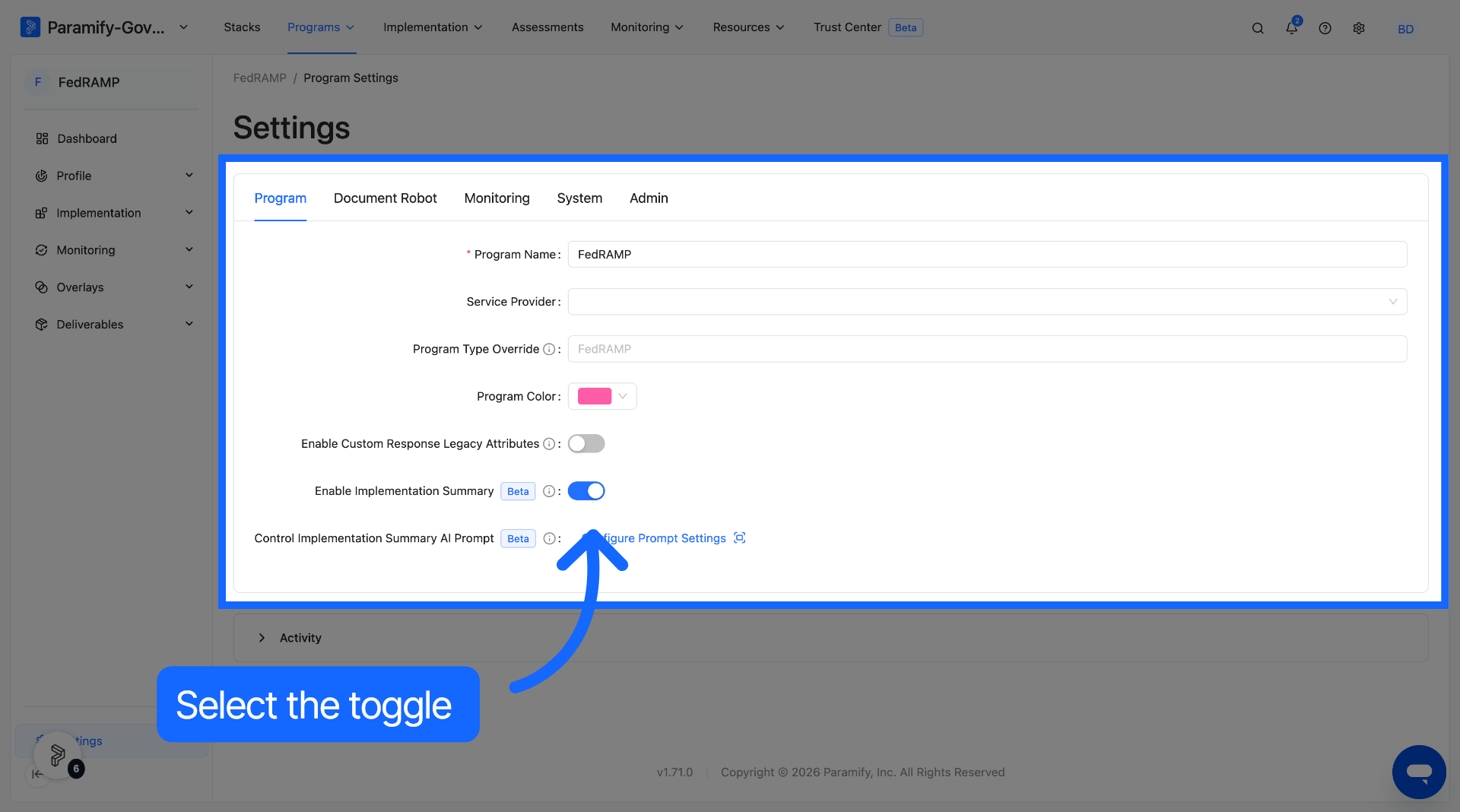
The general prompt can be configured by selecting the Configure Prompt Settings button.
Generate an Implementation Summary from a control
Once Implementation Summary is enabled for a program, you can generate or update a summary for any individual control directly from the control's implementation view. Generating or editing a summary will automatically reset the reviewer status on that control if it was previously marked as Reviewed, so the updated summary can be re-reviewed before the control is considered complete.
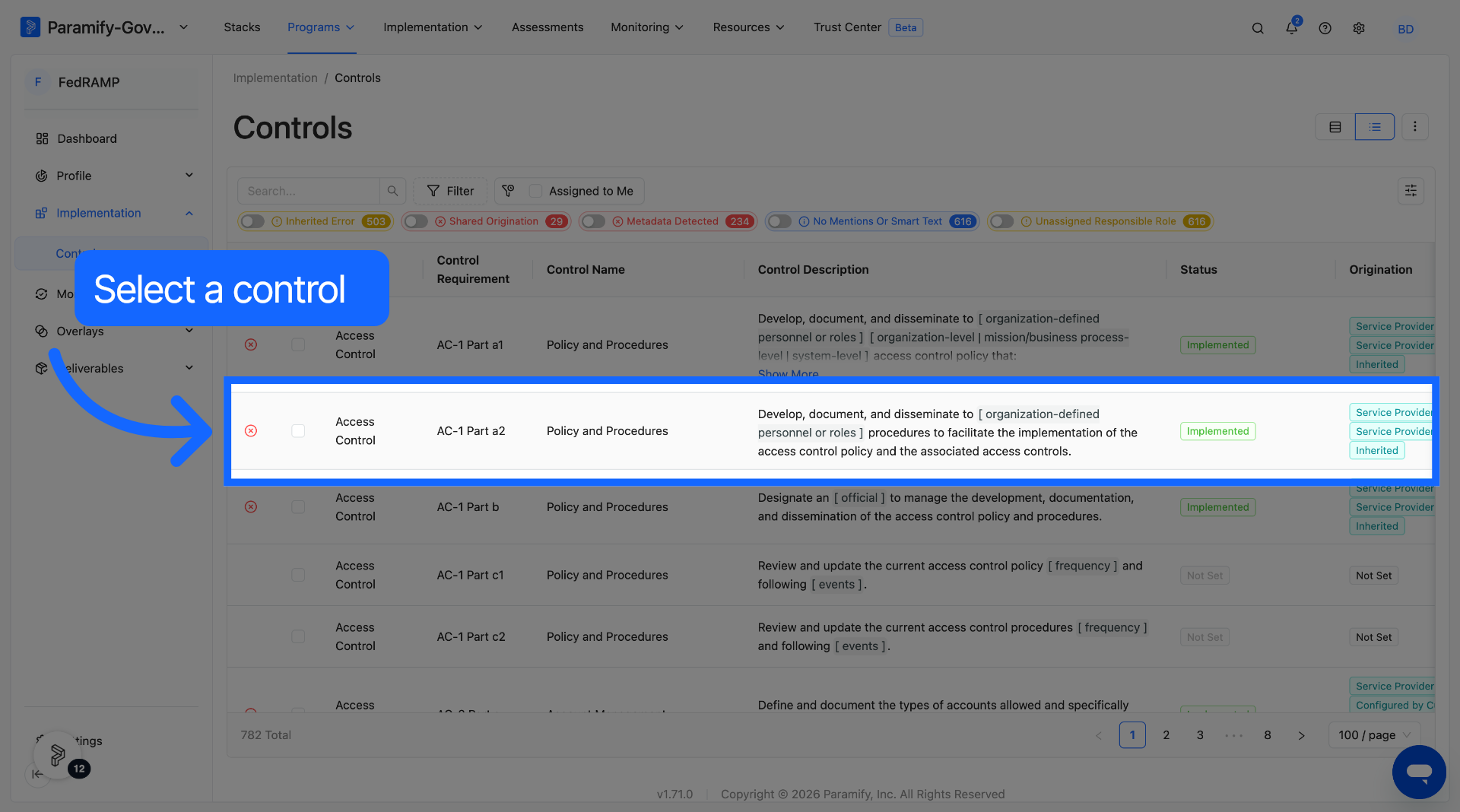
1. Open the control
Navigate to the control you want to document and open its implementation view.
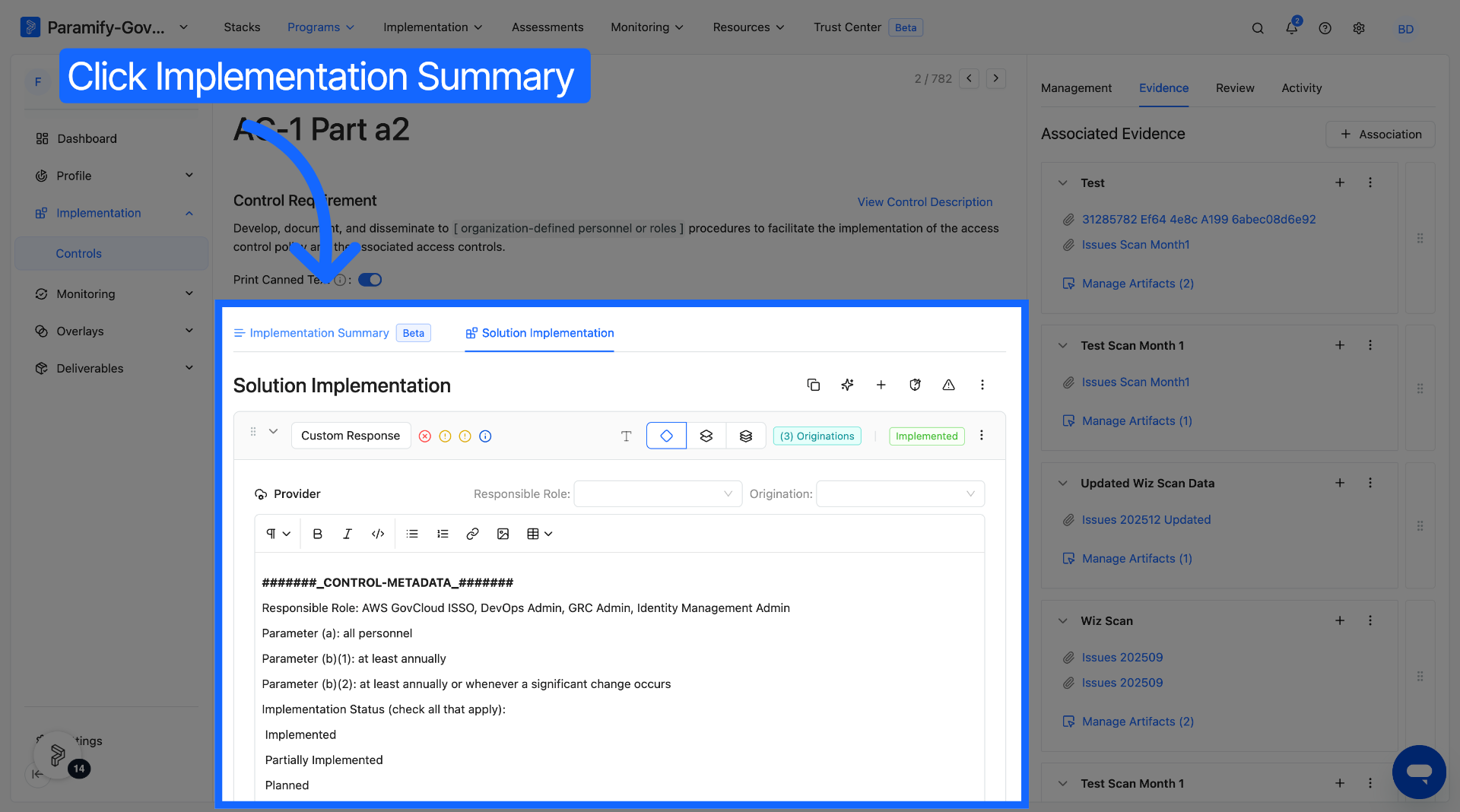
2. Select the Implementation Summary tab
Click the Implementation Summary tab at the top of the control implementation view.
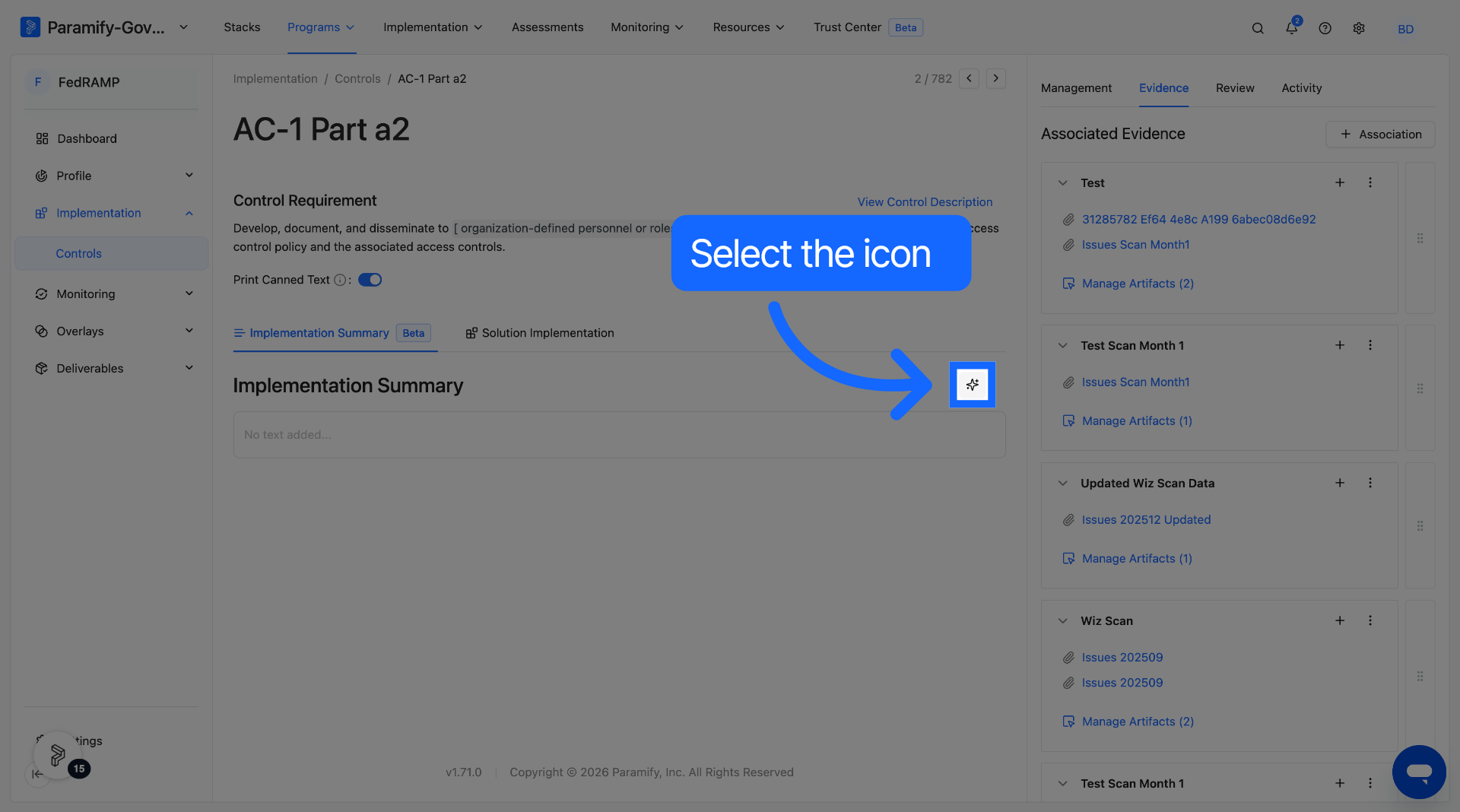
3. Generate the summary
Click the icon and select Generate Implementation Summary. Paramify's AI will analyze the control's requirements and your organization's solution data to draft the summary.
4. Review and edit
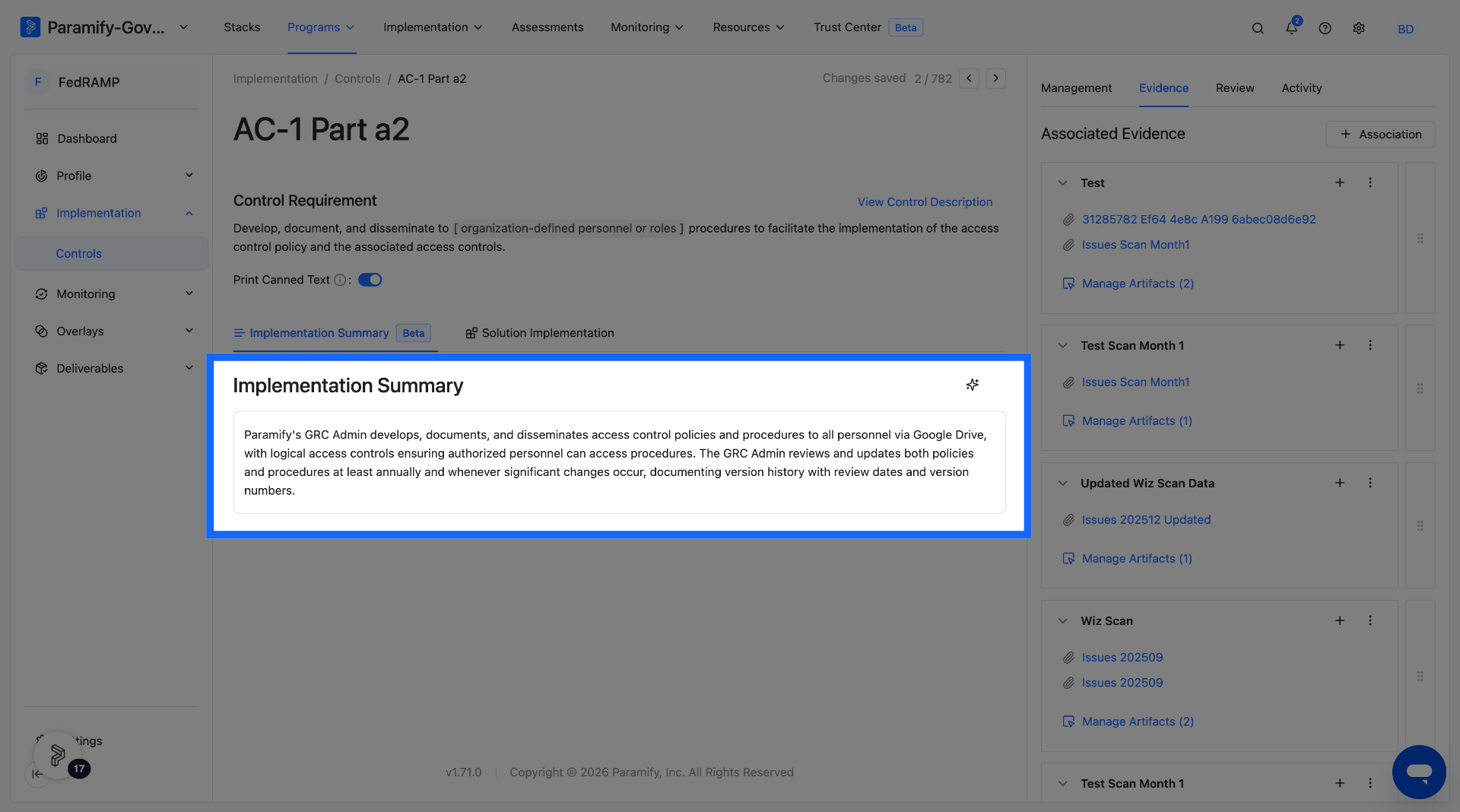
The generated text appears in the Implementation Summary tab as rich text. You can edit it directly before saving.
Bulk generate Implementation Summaries
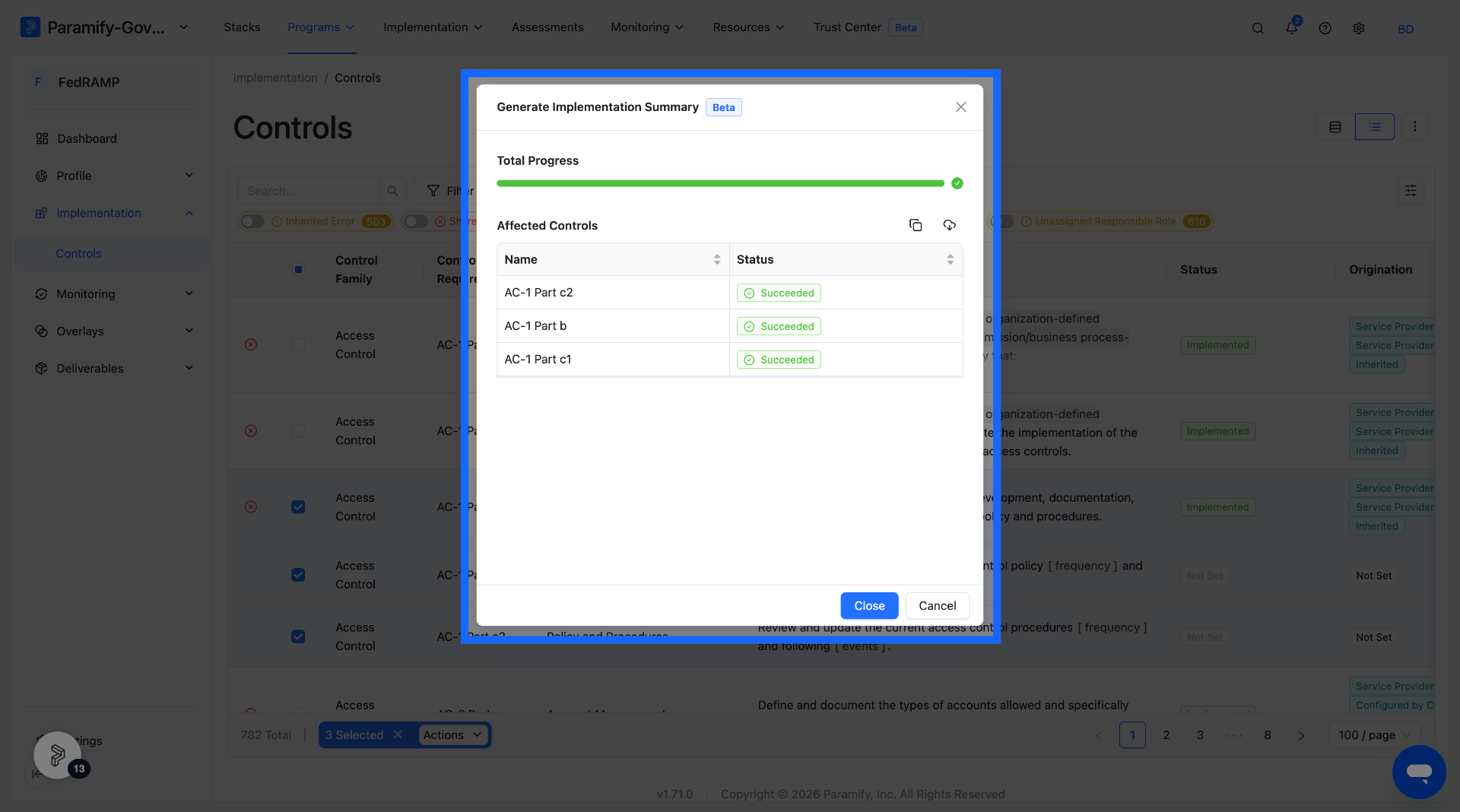
To save time, you can generate Implementation Summaries for multiple controls at once using the bulk action on the controls list view. Bulk generation uses the AI prompt configured for the program, will overwrite any existing summaries on the selected controls, and will reset reviewer statuses on affected controls.
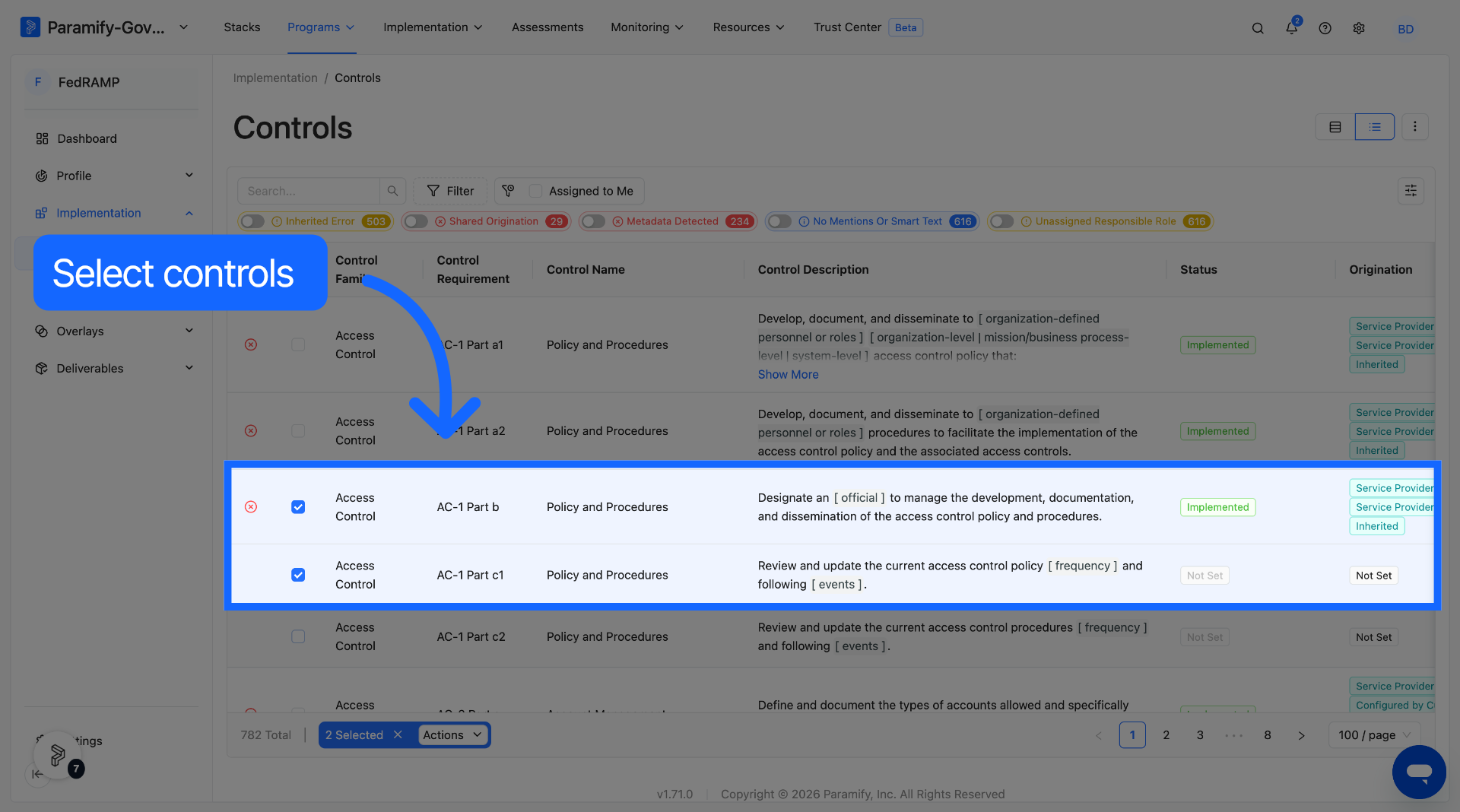
1. Select controls
On the controls list view, check the boxes next to the controls you want to generate summaries for. You can select all controls or a specific subset.
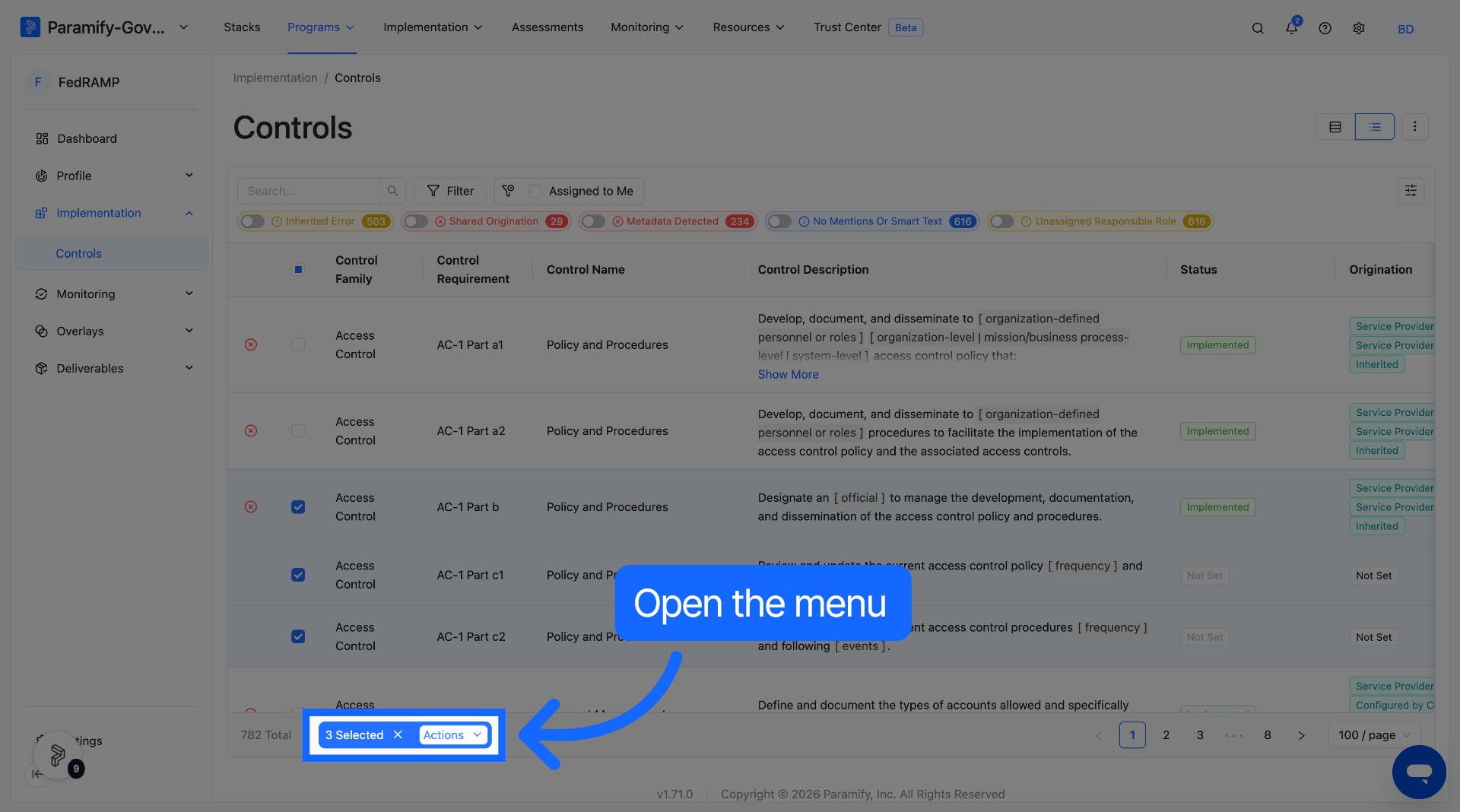
2. Open the bulk actions menu
With controls selected, open the bulk actions menu that appears at the bottom of the screen.
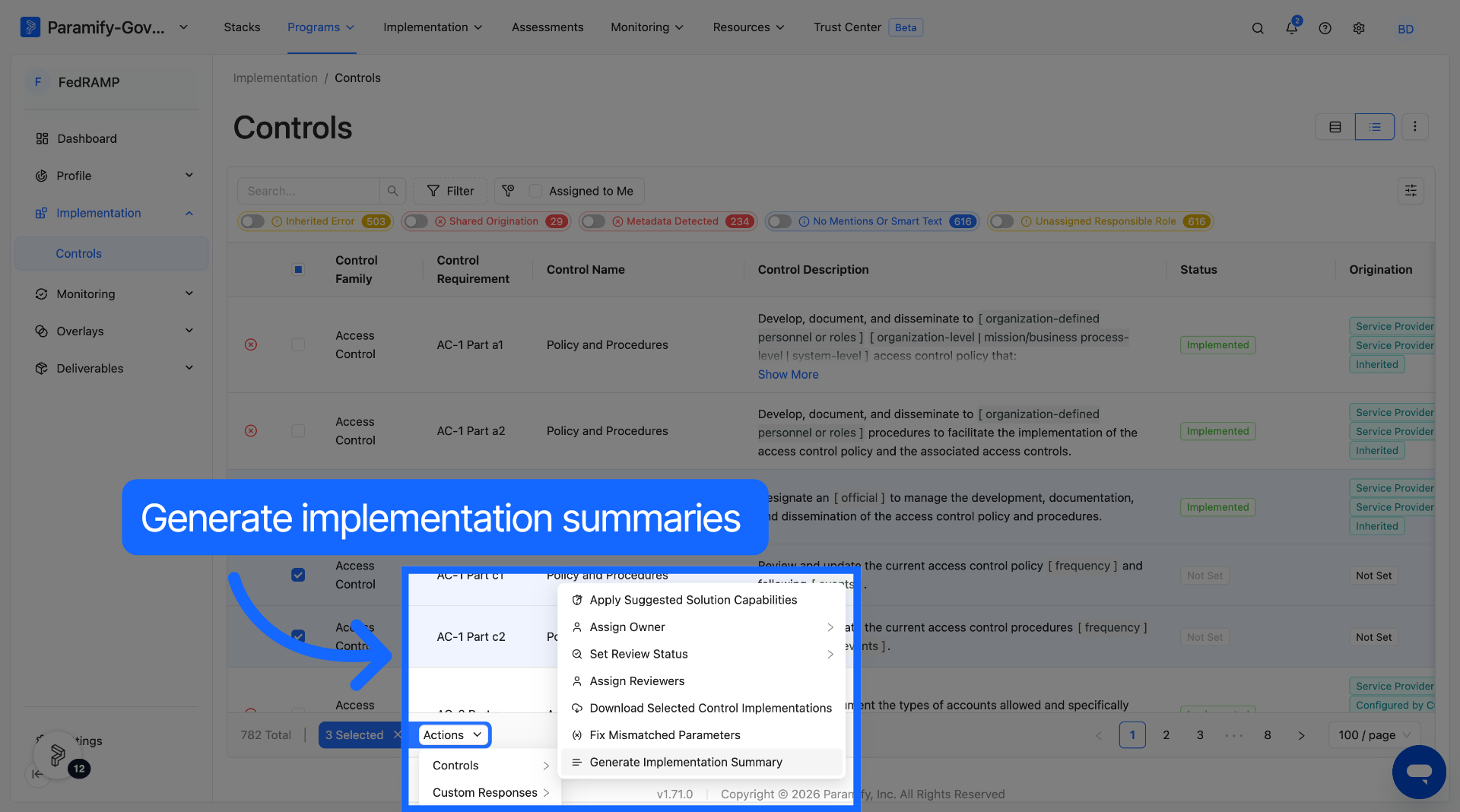
3. Choose Generate Implementation Summary
Select Generate Implementation Summary (marked Beta) from the bulk actions menu.
4. Monitor progress
Paramify will process each control in the background. A progress indicator shows the status of the operation — generation may take a few minutes depending on how many controls are selected.
Comments
0 comments
Please sign in to leave a comment.