
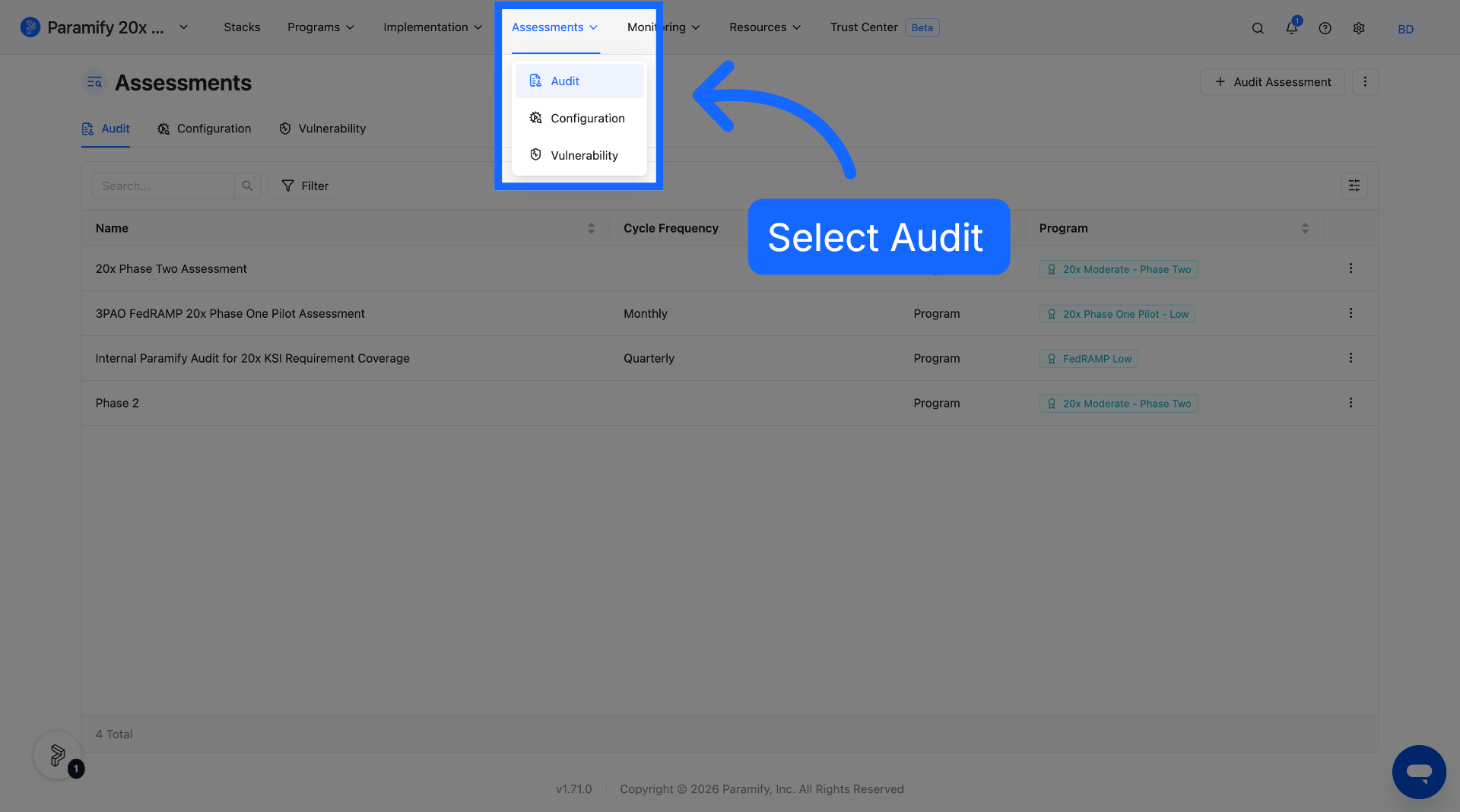
Select Assessments > Audit to enter the audit assessments page.
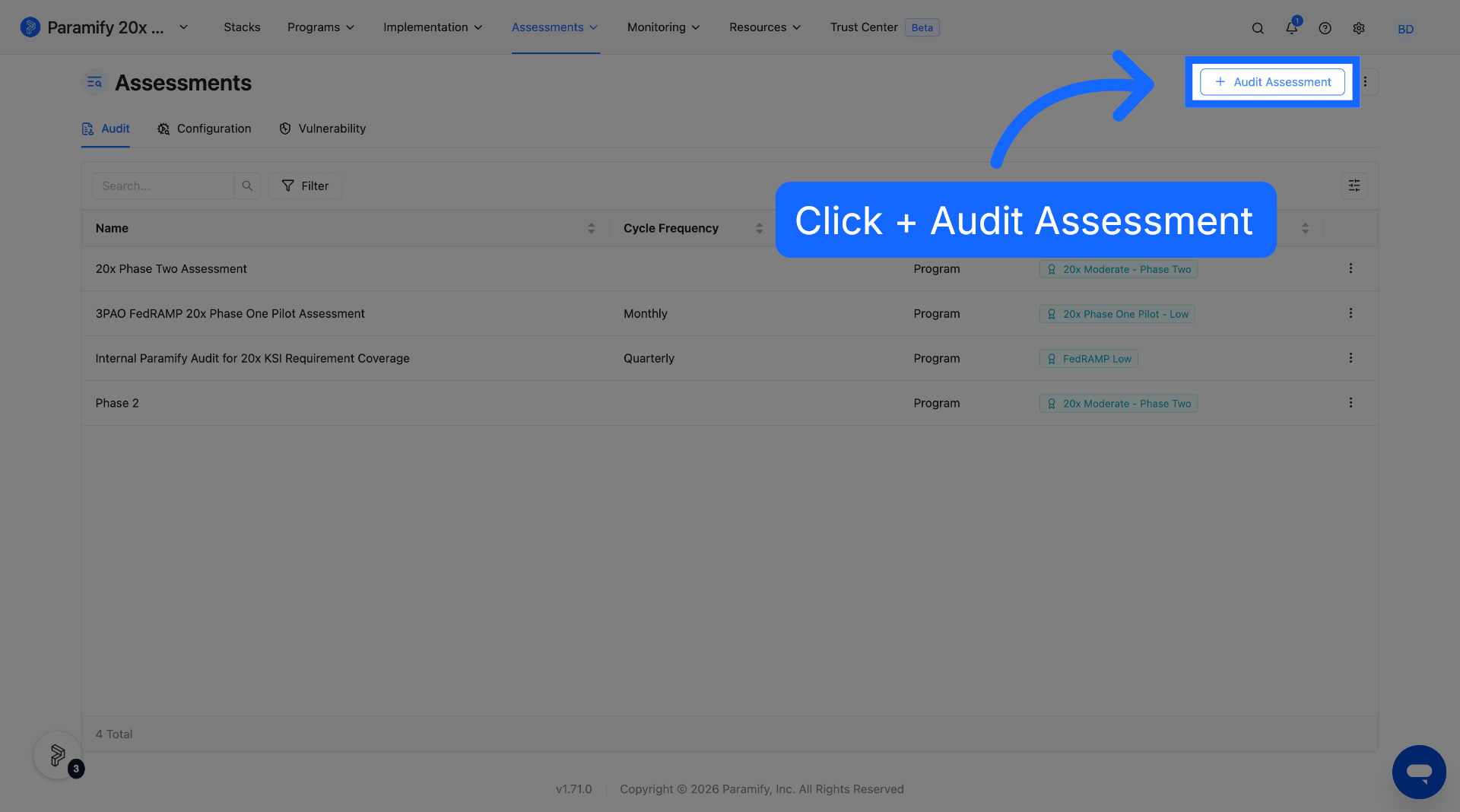
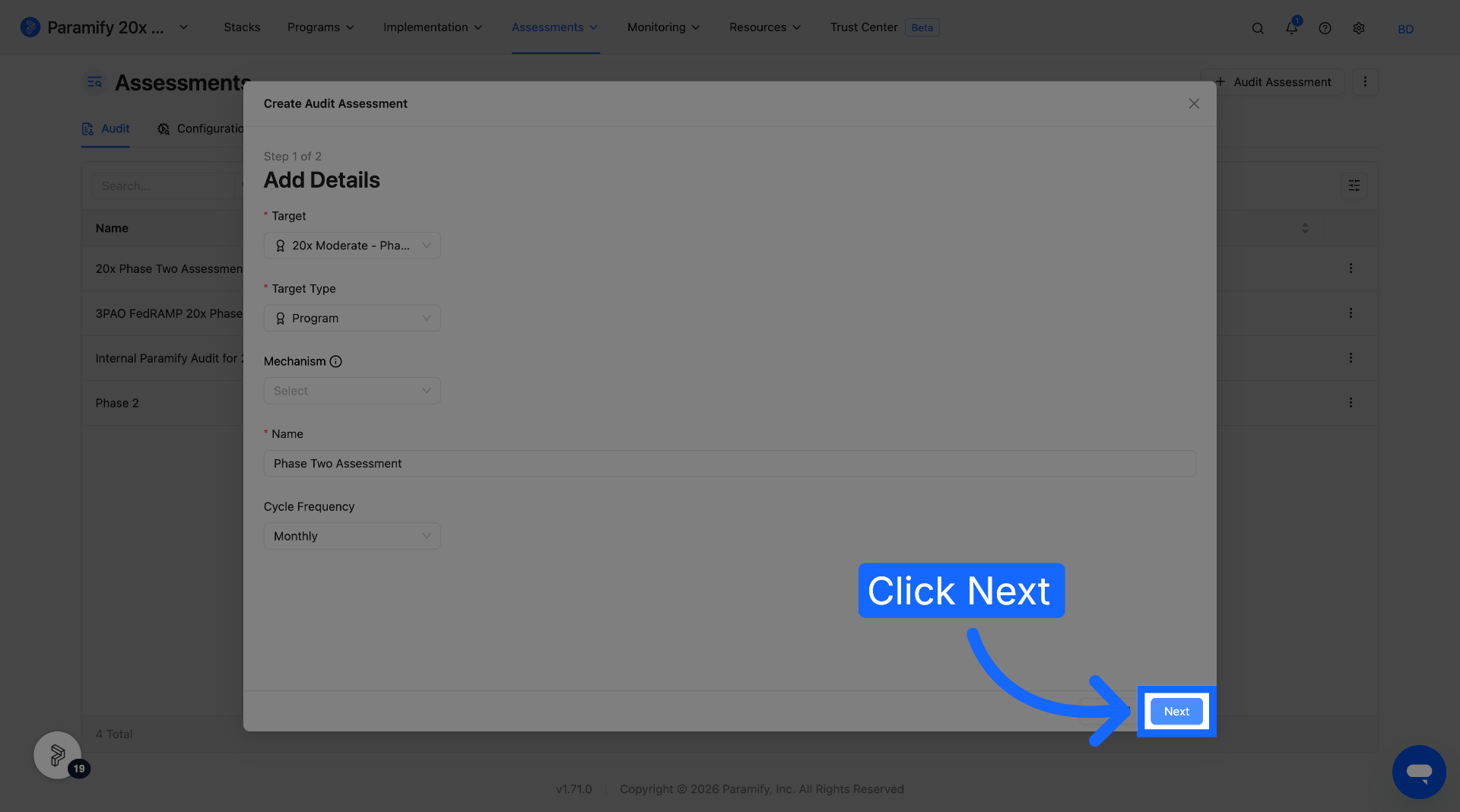
Click " + Audit Assessment" to begin creating the assessment.
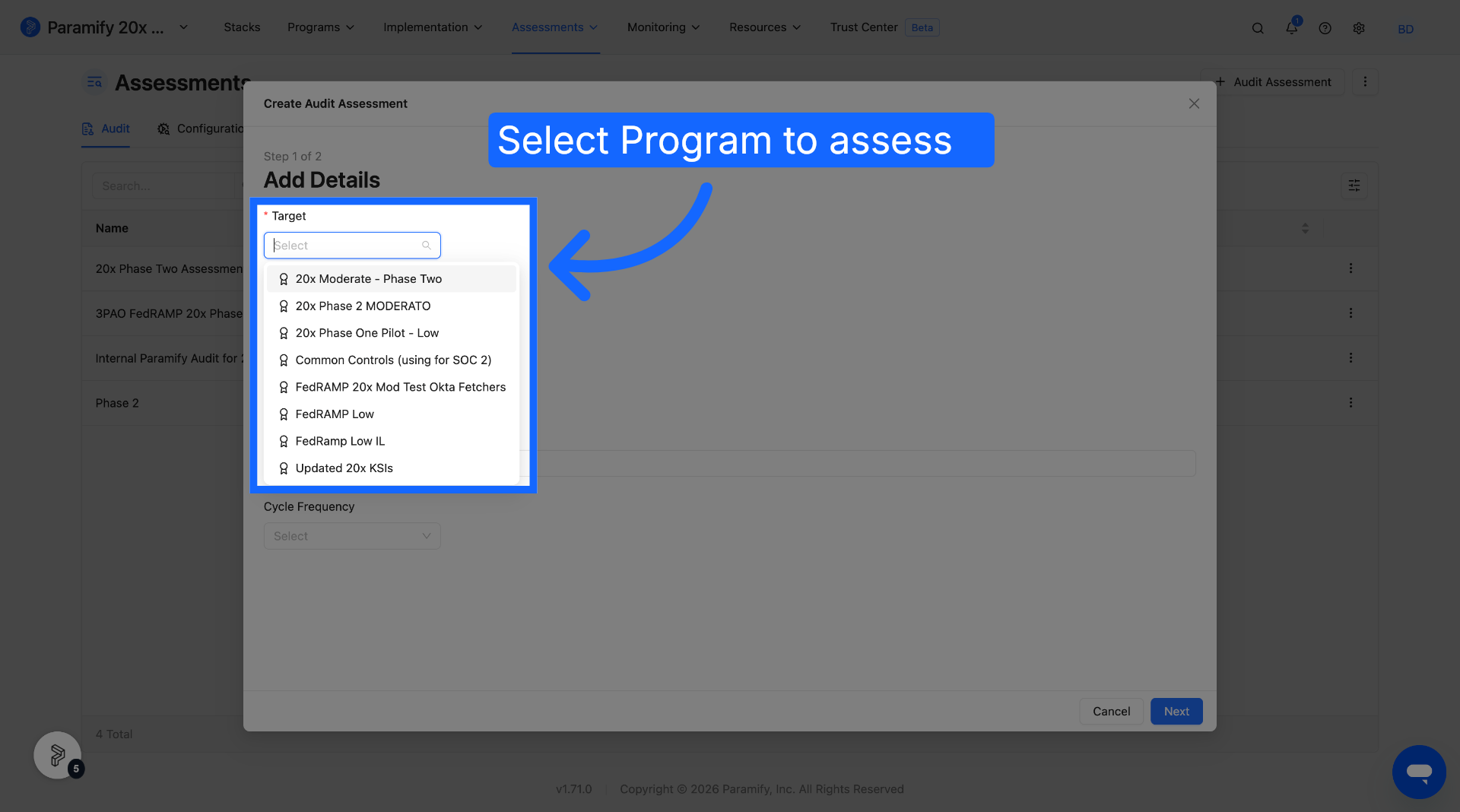
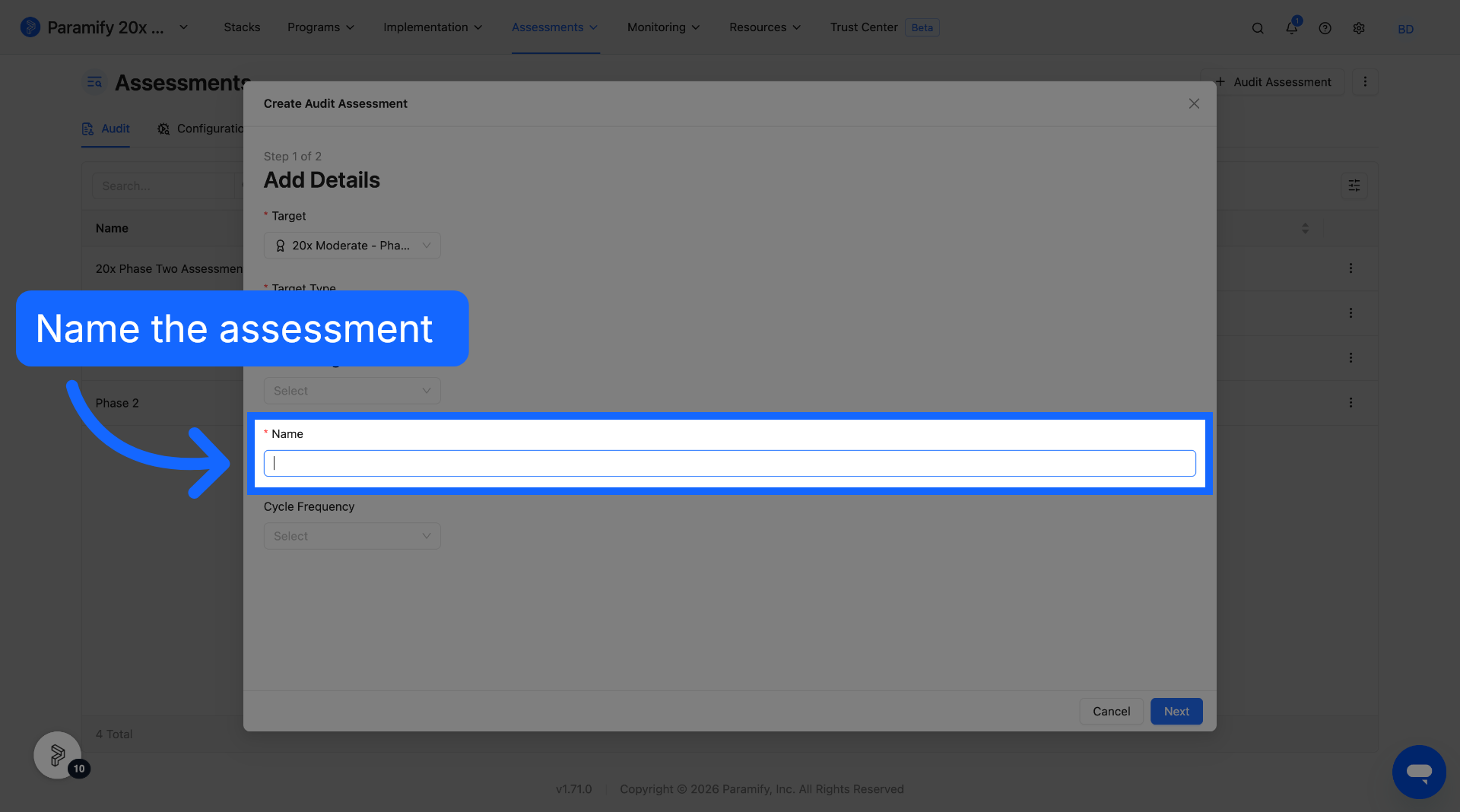
Select the program you want to assess from the list of programs in your workspace.
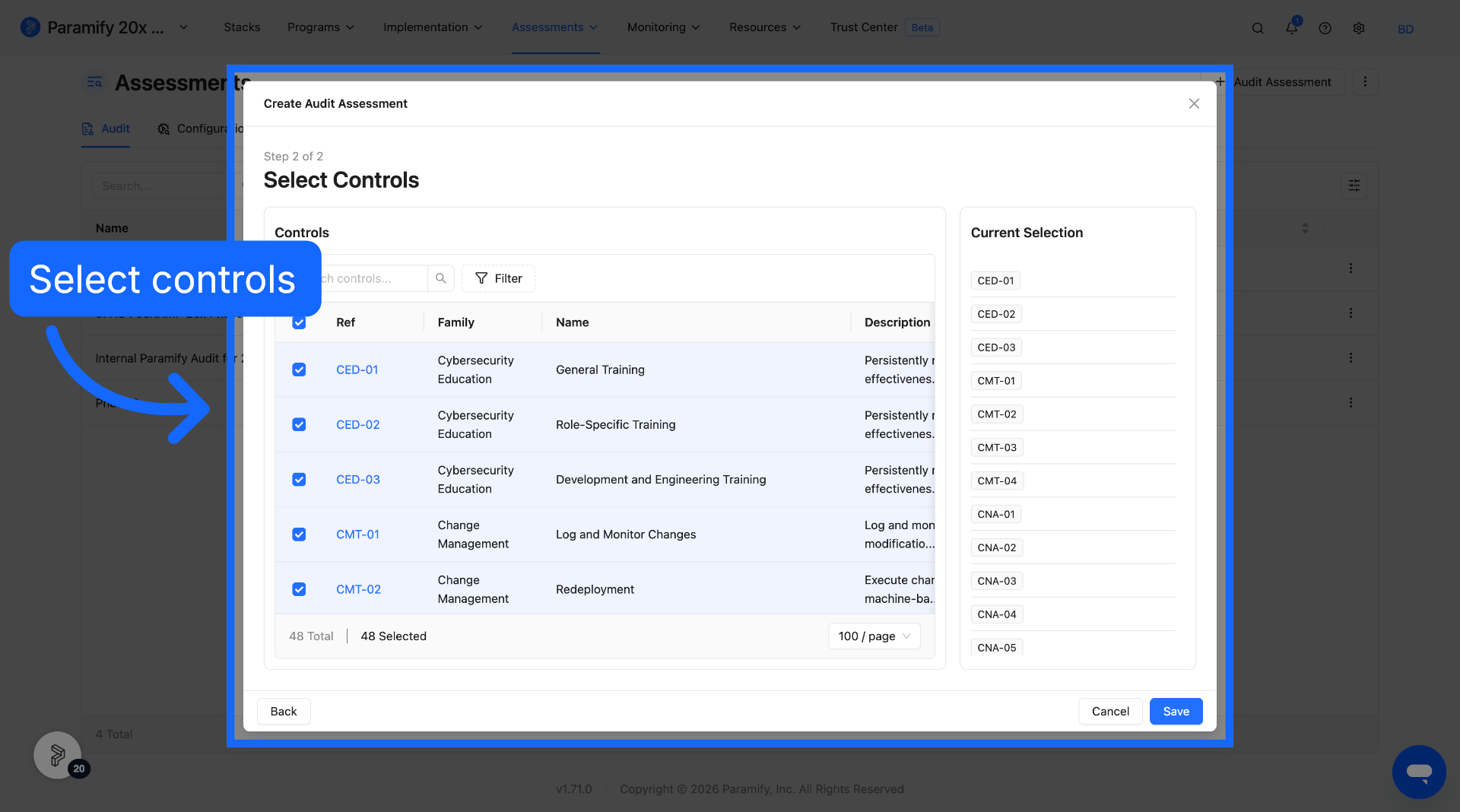
Select desired controls to be added to the assessment. The default selection includes all controls, and currently selected controls will appear in the list on the right of the modal.
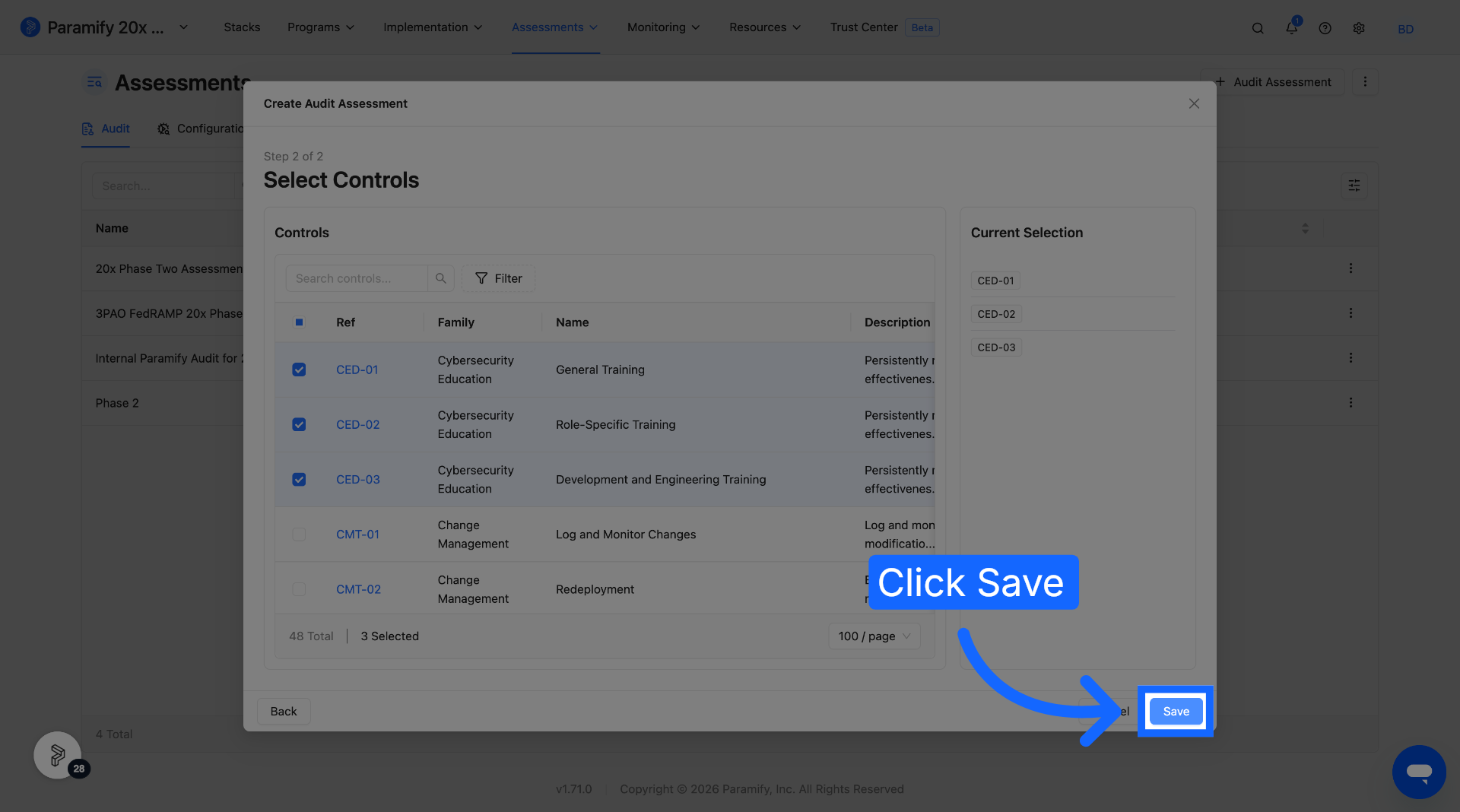
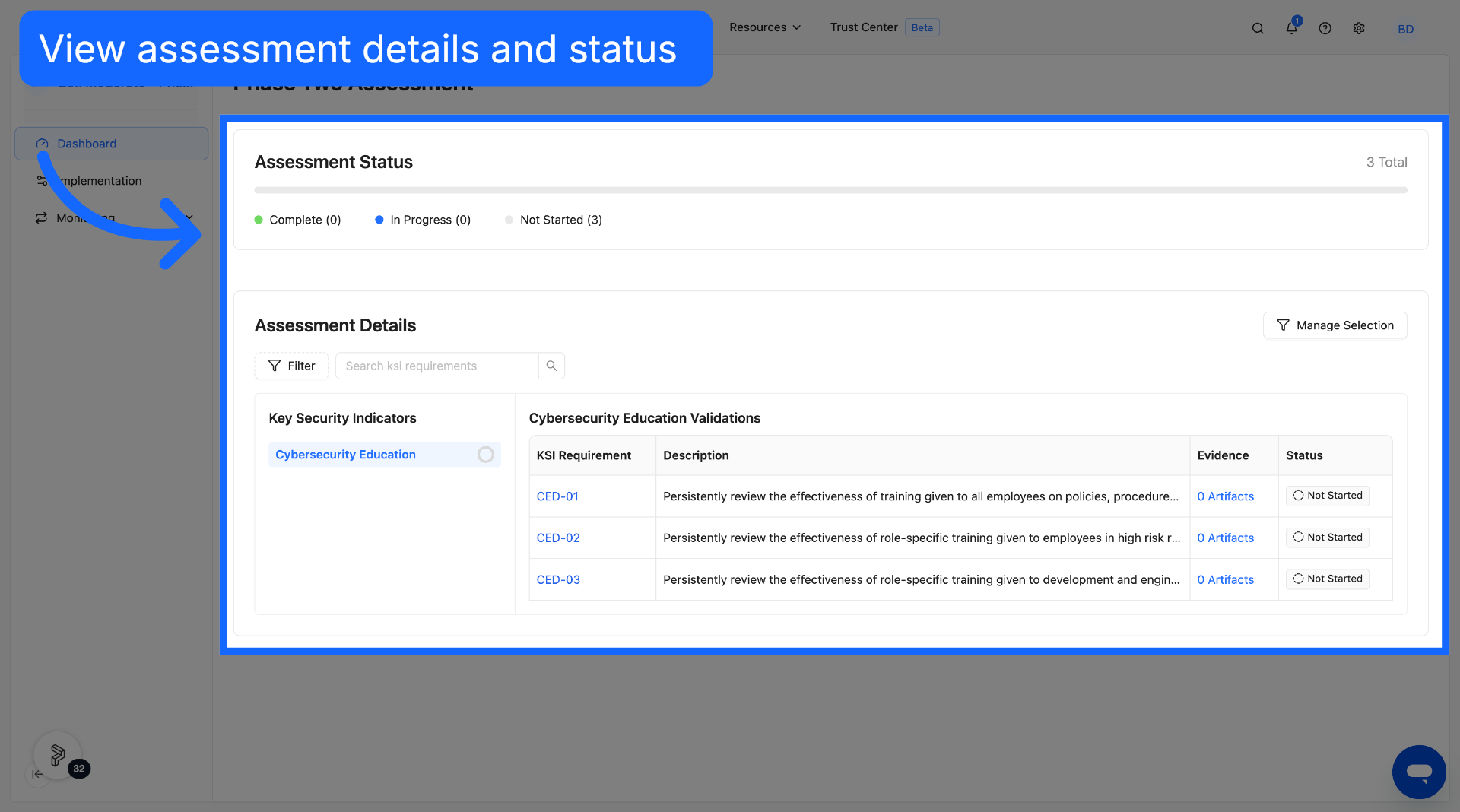
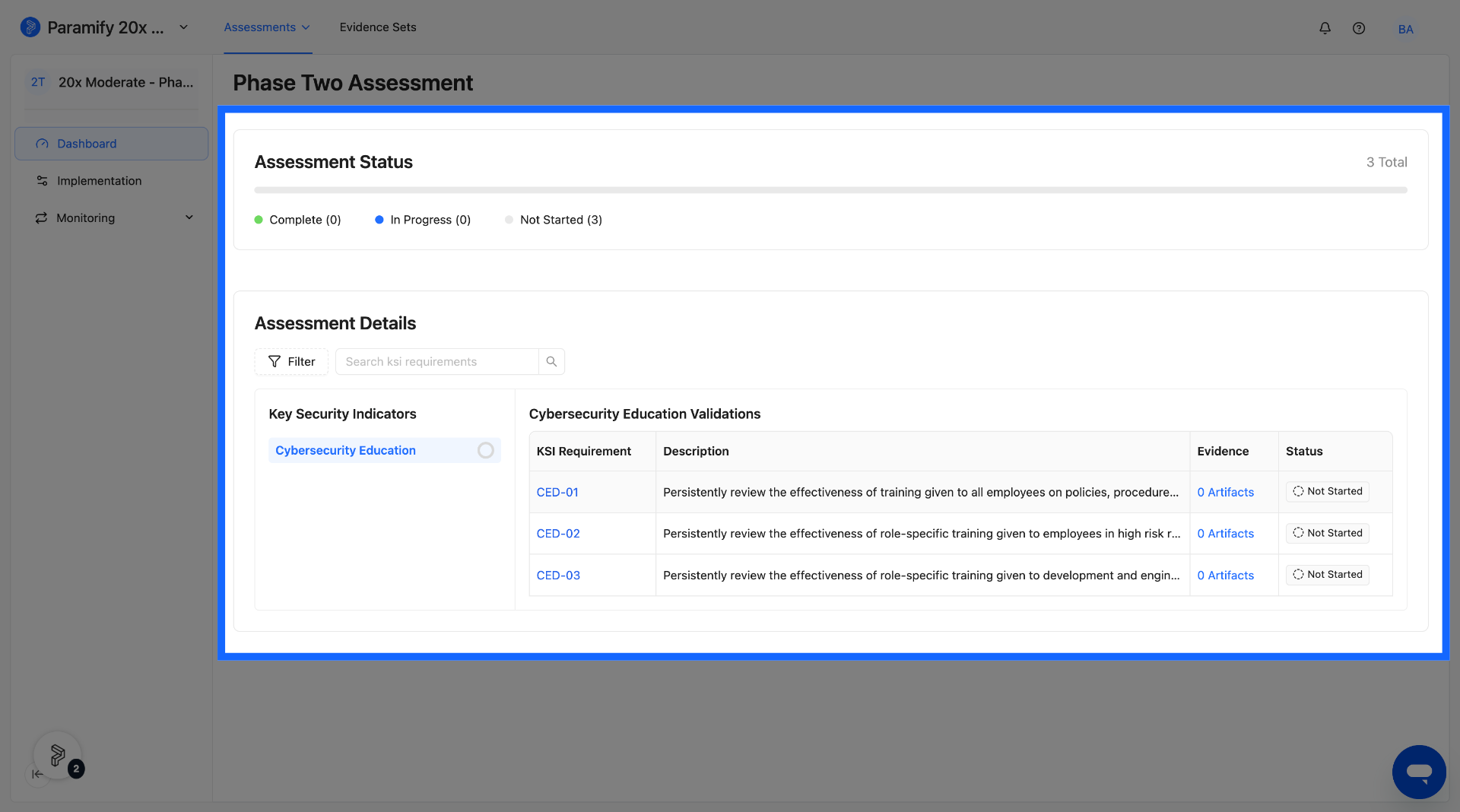
The created assessment can then we accessed and reviewed. A dashboard will show assessment status, as well as details including what controls are contained within the assessment.
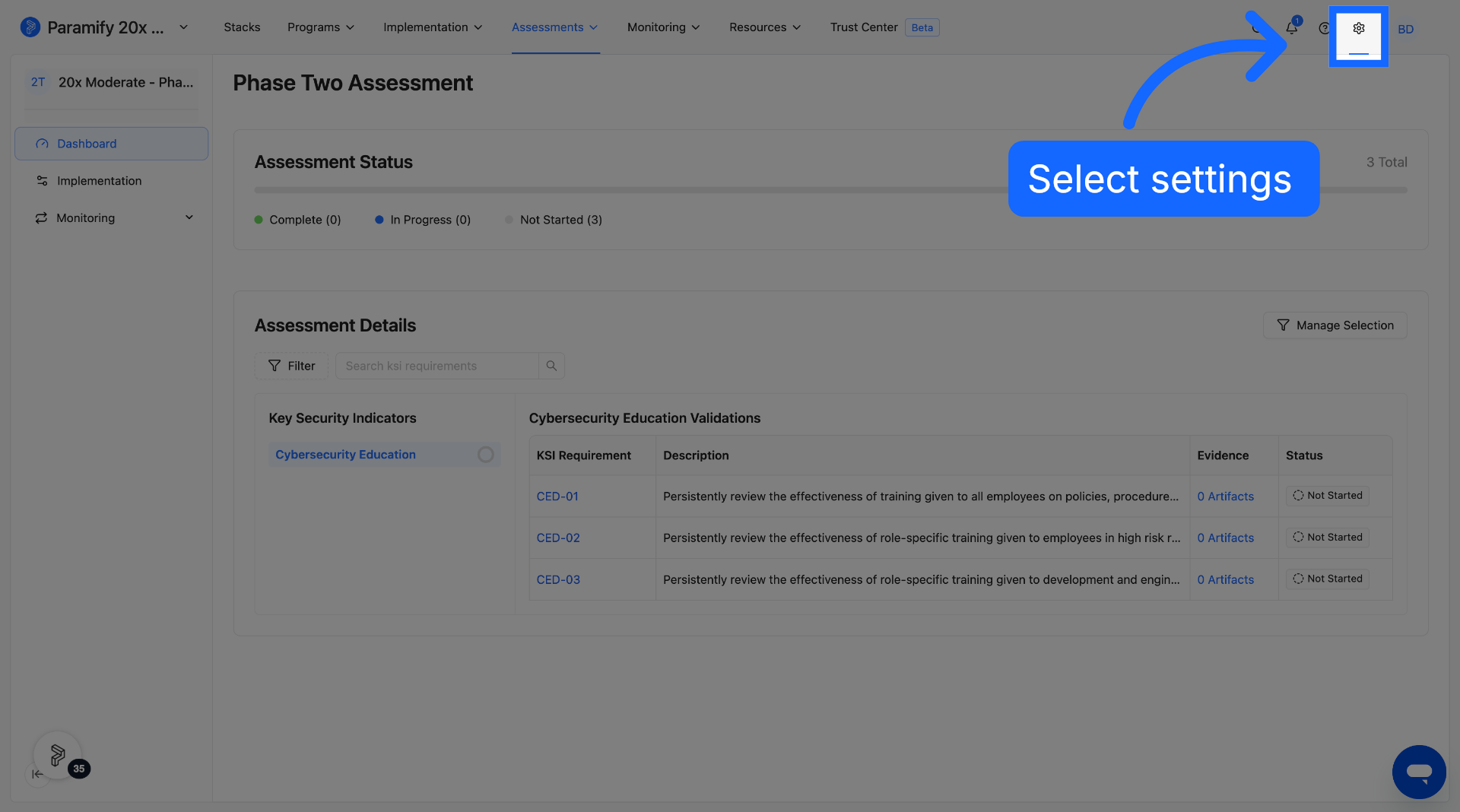
Once an assessment is created, assessors can be added to the workspace. Select the settings icon to begin adding assessors. To correctly provision Assessors, work with your Customer Success Manager (CSM) and follow this guide: How to Securely Add Assessors to your Workspace
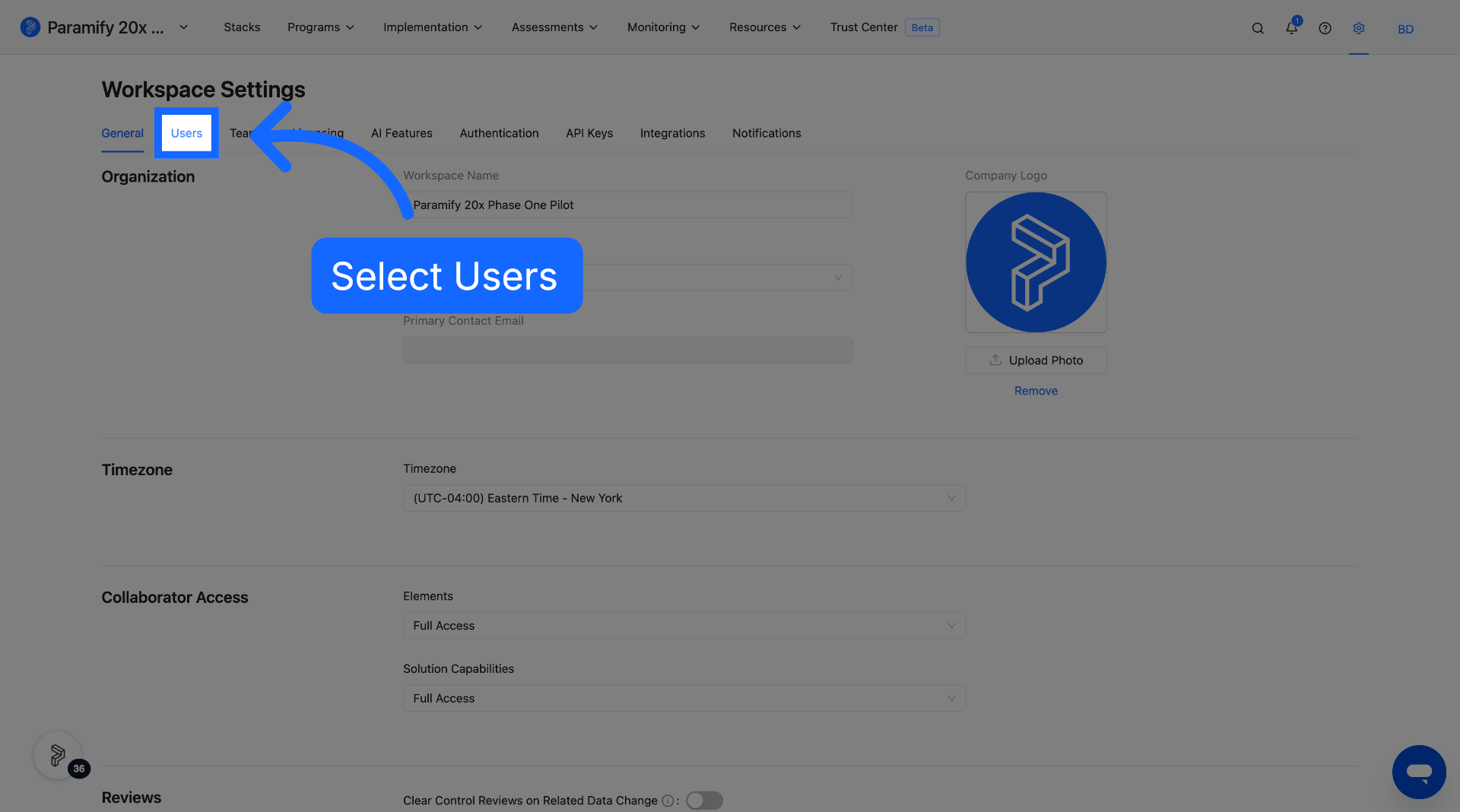
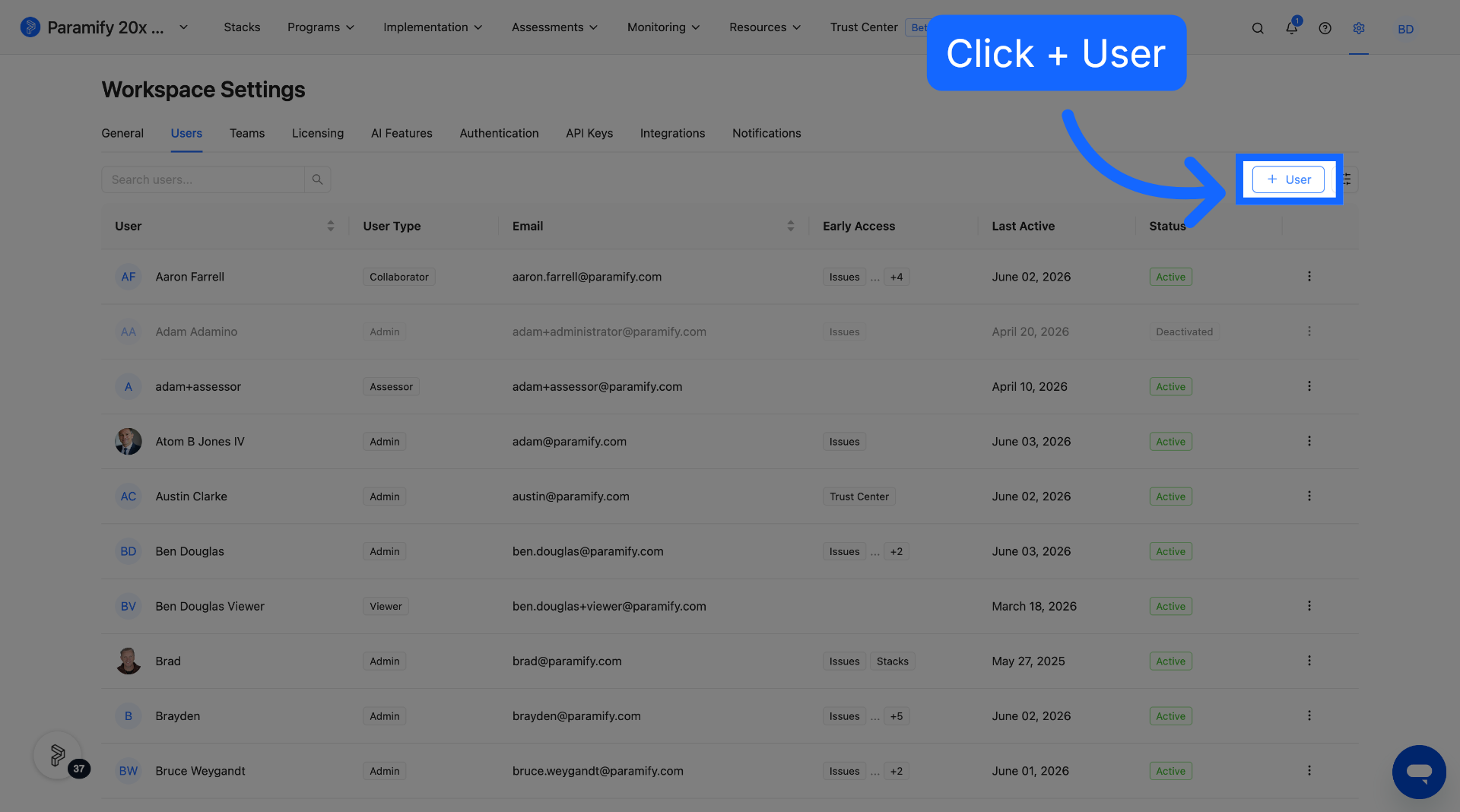
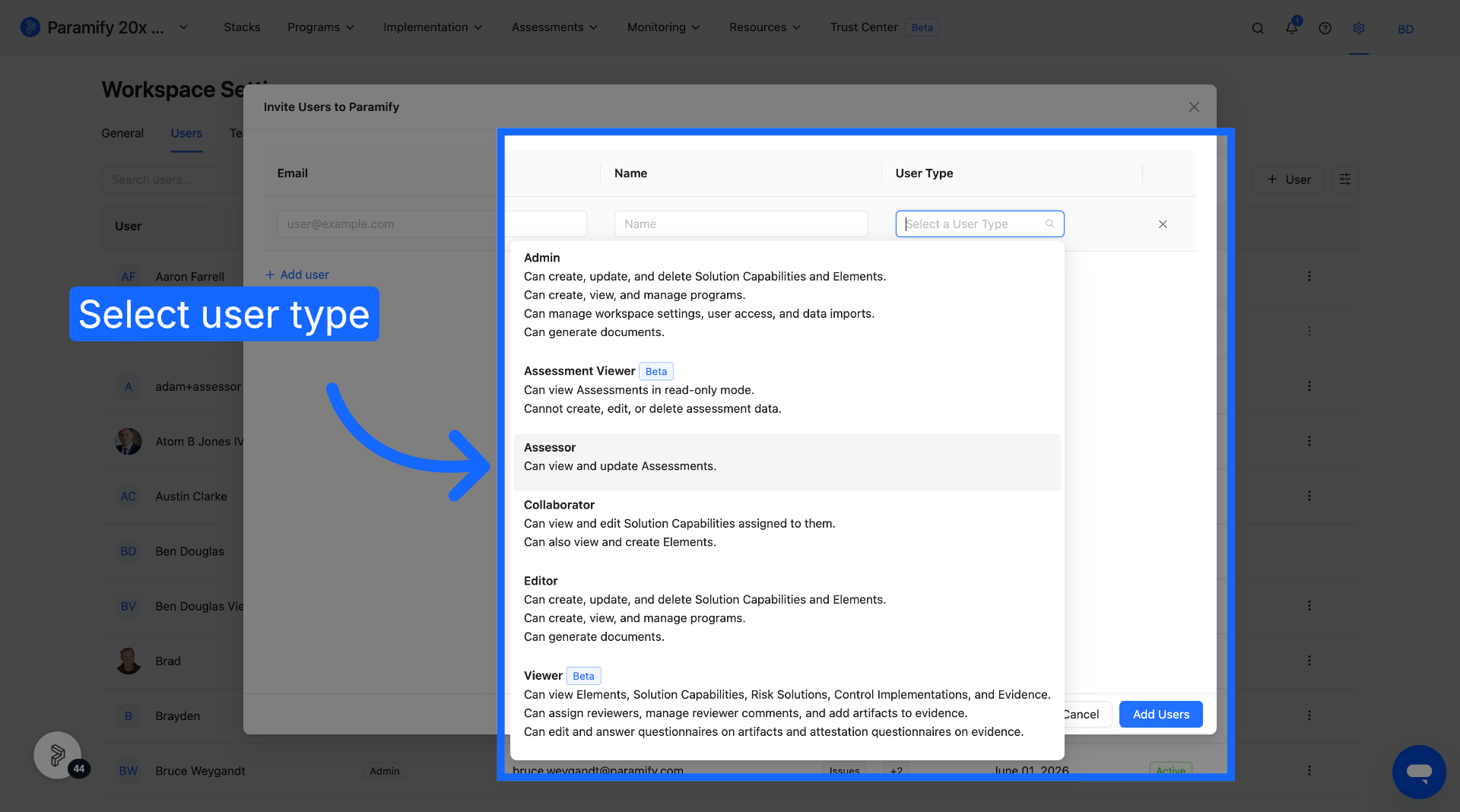
Add the user's email and name, and select the desired user type. In this case, select "Assessor" to add an assessor to the workspace.
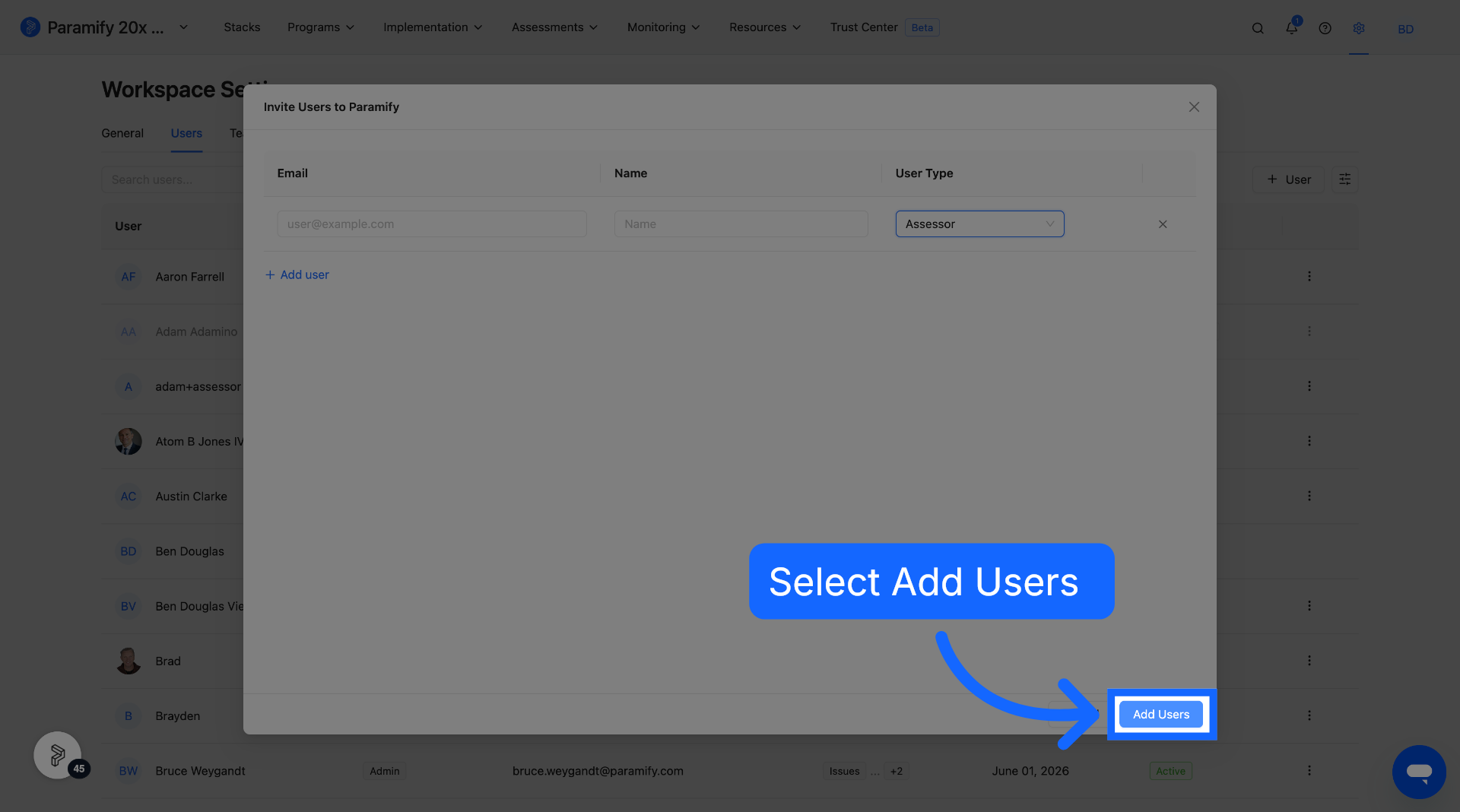
You have successfully created an audit assessments in Paramify and added assessors to the workspace. Once the assessors have been added to the workspace, they can begin auditing assessments within Paramify.
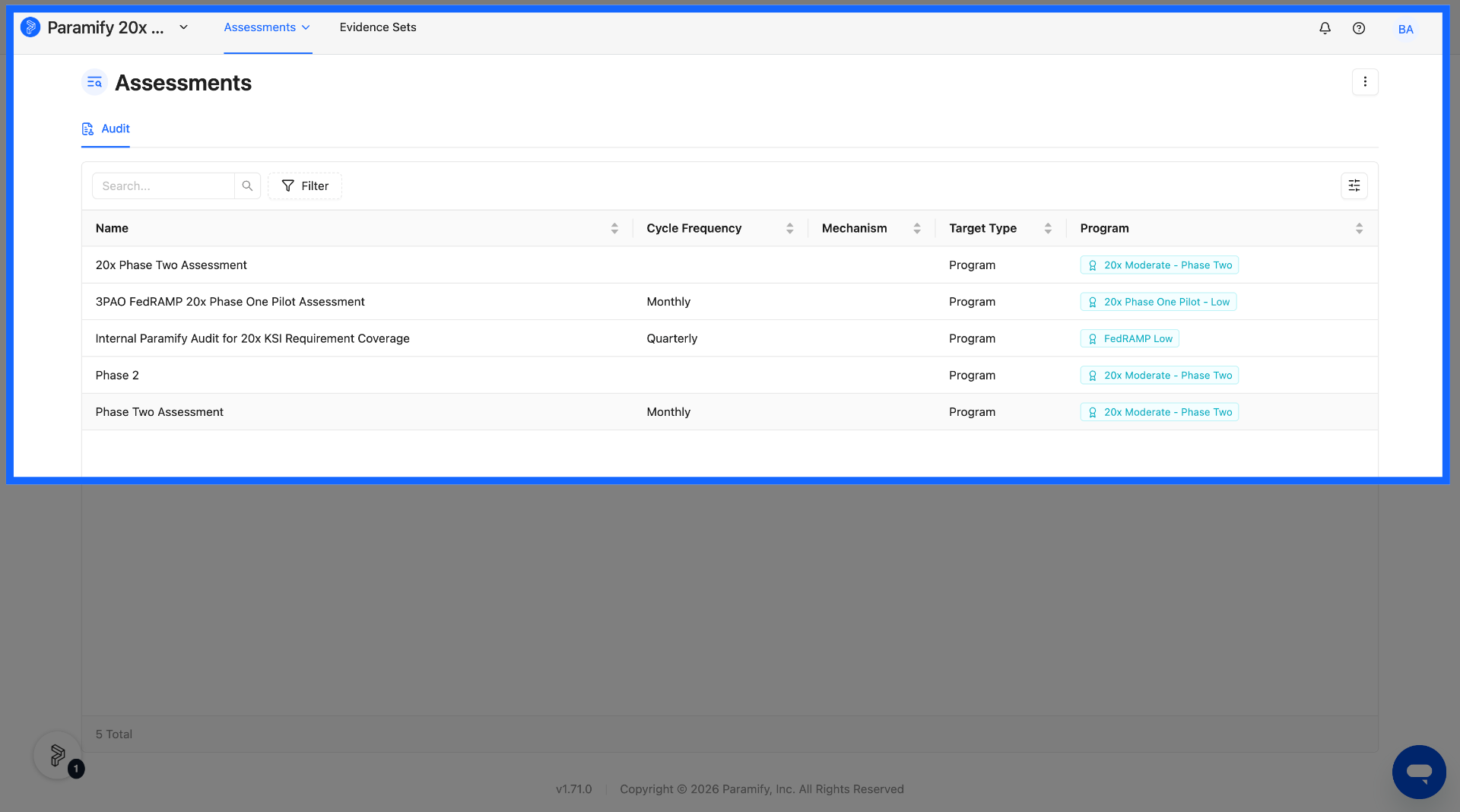
Once assessors log into Paramify, they will see a list of all current audit assessments within the workspace. They can then select the desired assessment. All audit assessments for the workspace can also be downloaded via the button with three dots in the corner of the screen.
The assessors can then see an overall dashboard for the assessment, outlining what controls need to be assessed, as well as a completion status visual.
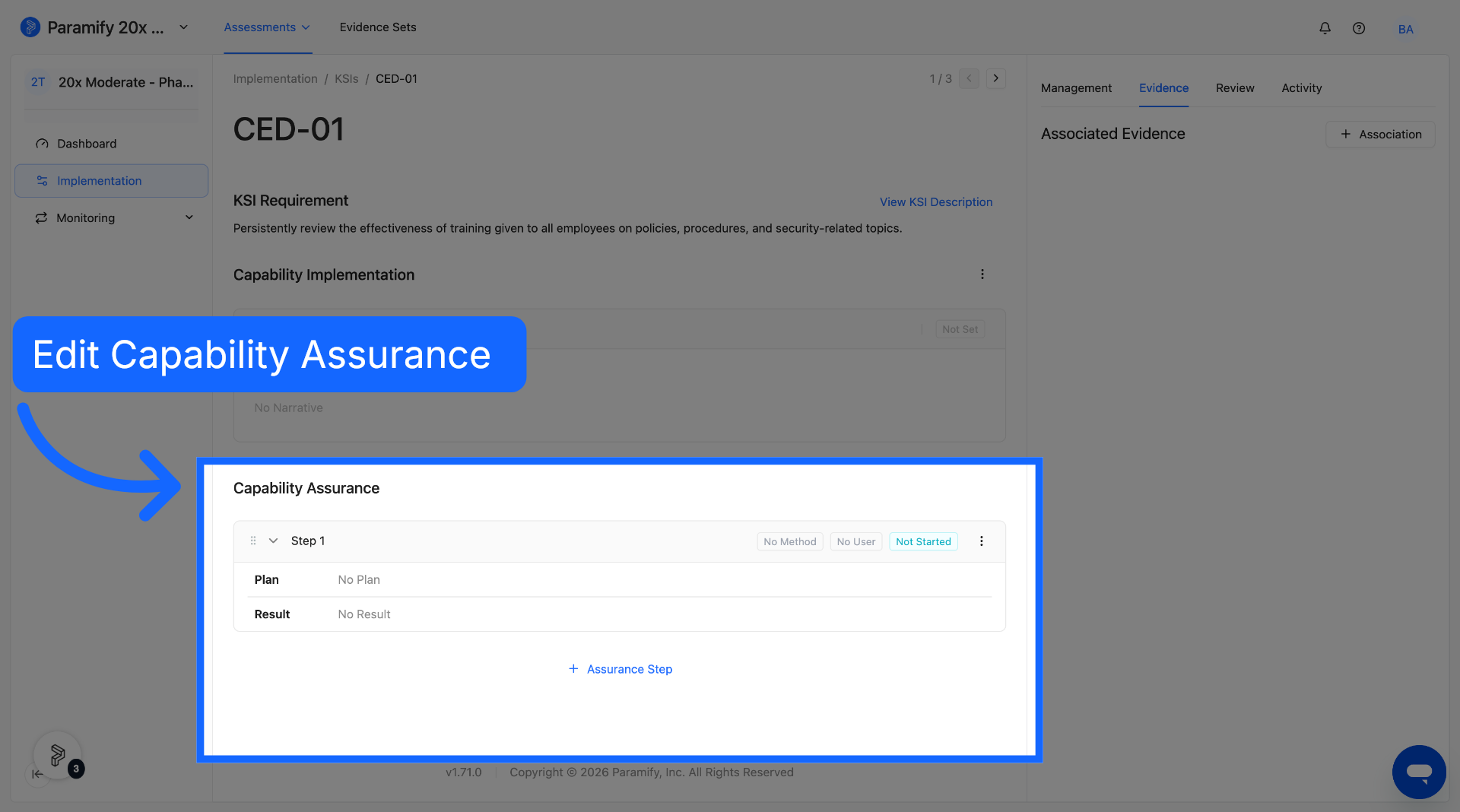
Assessors can select a control, review the capability implementation, and fill out the capability assurance section. This section includes a plan, result, method, user, and status. Assessors can also bulk assign assurance reviewers.
Comments
0 comments
Please sign in to leave a comment.