
Learn how to securely add assessors to your workspace. This guide walks you through the configuration process to ensure assessors have the correct permissions for assessments.
Authentication and MFA
1. Choose an authentication method
The Assessor needs to choose their preferred authentication method. To see which MFA options are available, follow the steps below.
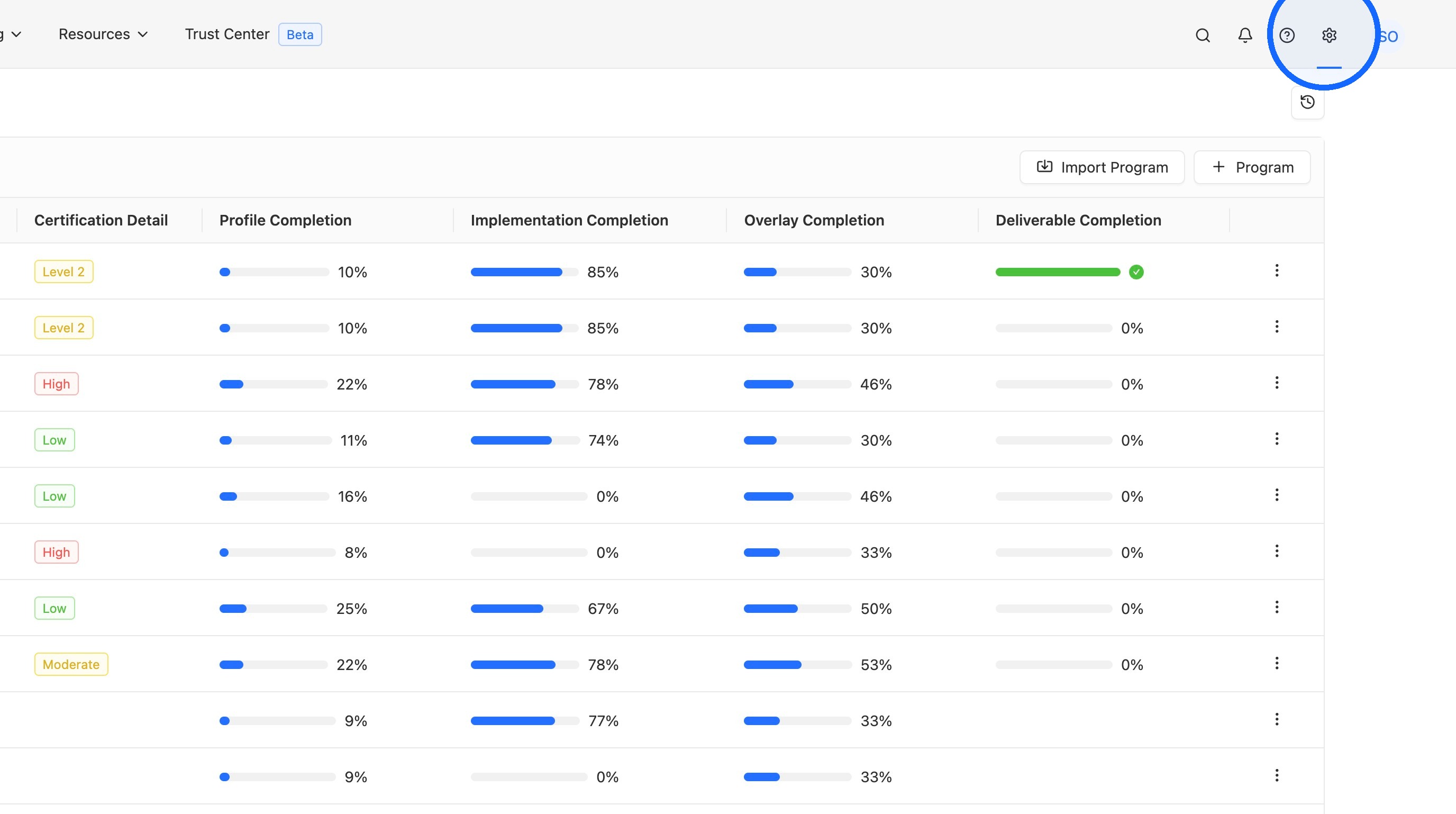
2. Go to Settings
Navigate to your workspace settings.
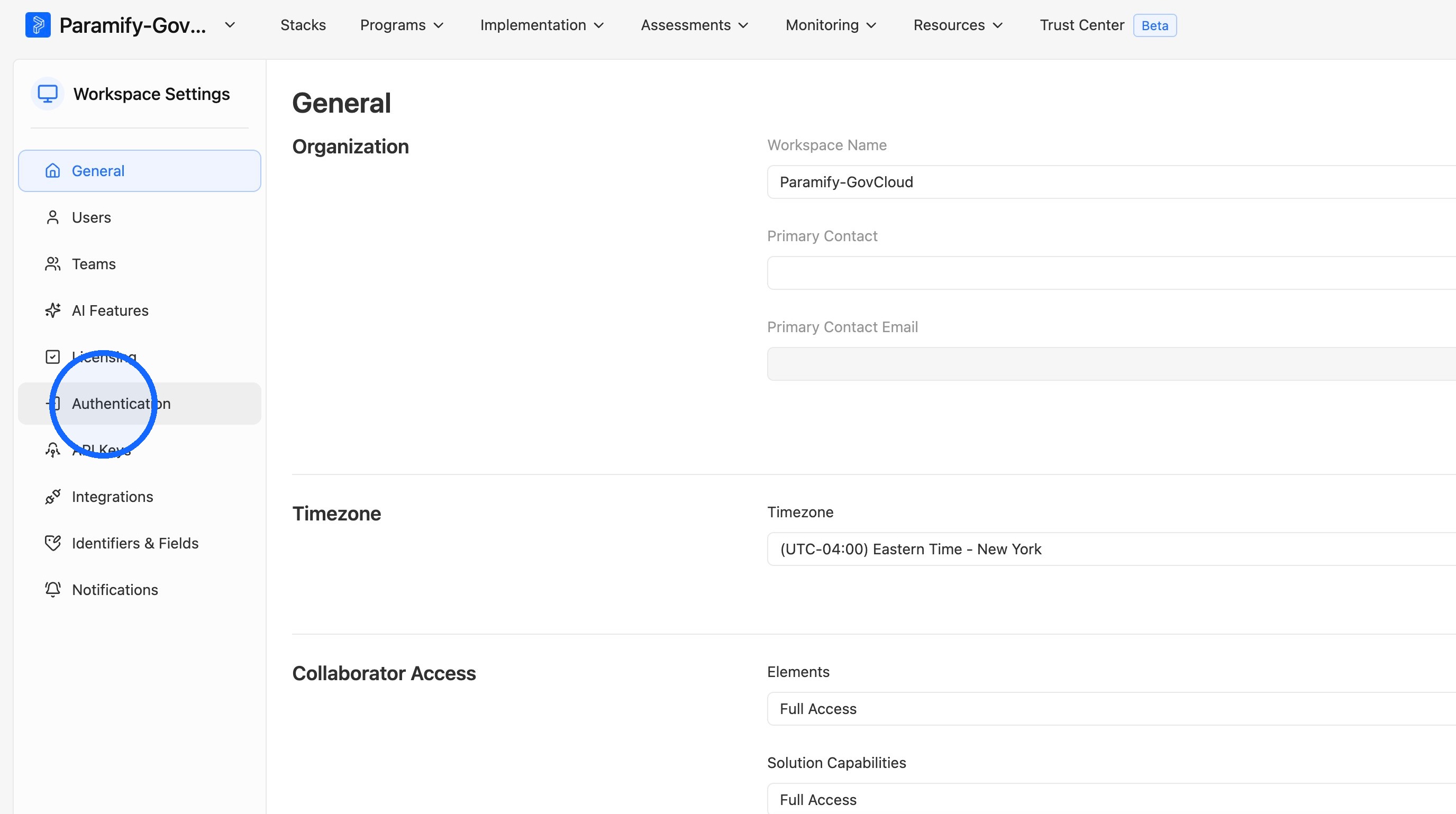
3. Click "Authentication"
Select the Authentication tab from the settings menu.
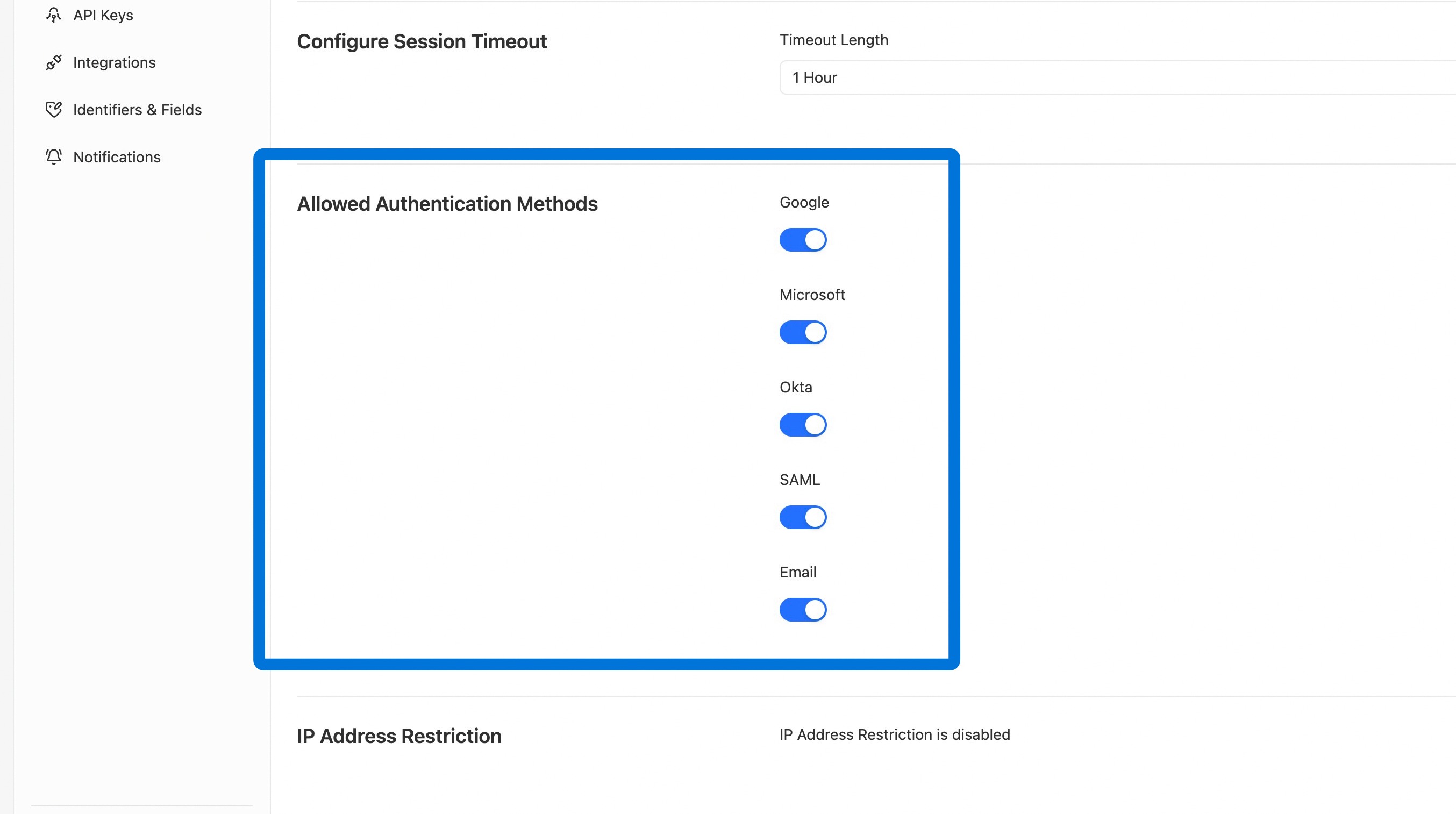
4. Review allowed authentication methods
The "Allowed Authentication Methods" section shows the available authentication options for your assessors.
ALERT
Email verification alone does not satisfy the MFA requirement under FedRAMP CR26's KSI-IAM-01, which requires phishing-resistant multi-factor authentication for all user access. Please select an authentication method that provides phishing-resistant MFA to remain compliant.
Working with Your Customer Success Manager (CSM)
5. Send assessor details to your CSM
Once you know which authentication method your assessor prefers, give your CSM the following information:
- Assessor email
- Authentication type
6. Let your CSM provision the account
Behind the scenes, your CSM will provision a workspace for your assessor to authenticate securely using the requested authentication type — no action is required on your end.
Add Assessor to Your Workspace
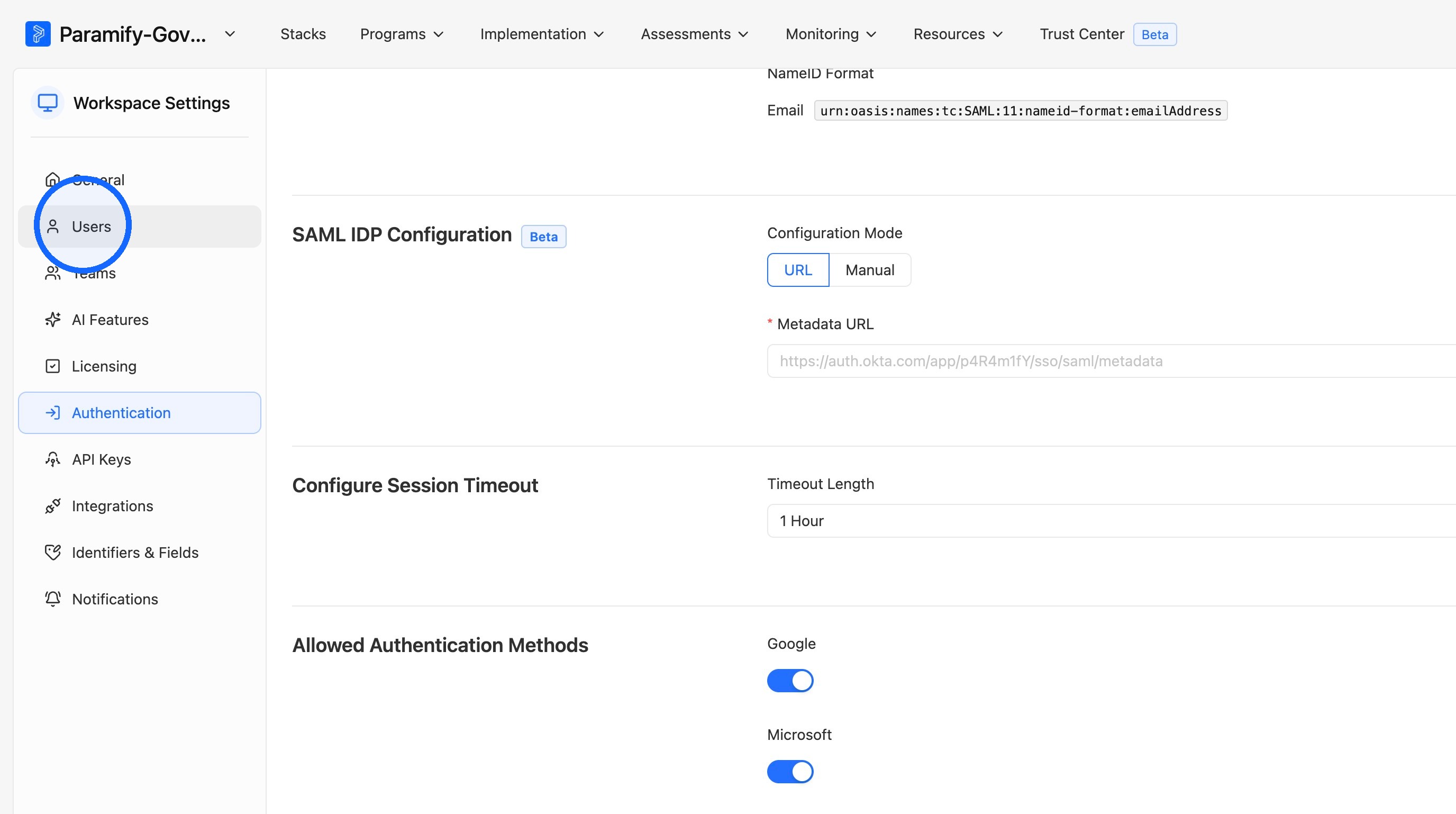
7. Open "Users" in settings
Once your CSM has set up the Assessor's Paramify account, select "Users" in your settings to add them to your workspace.
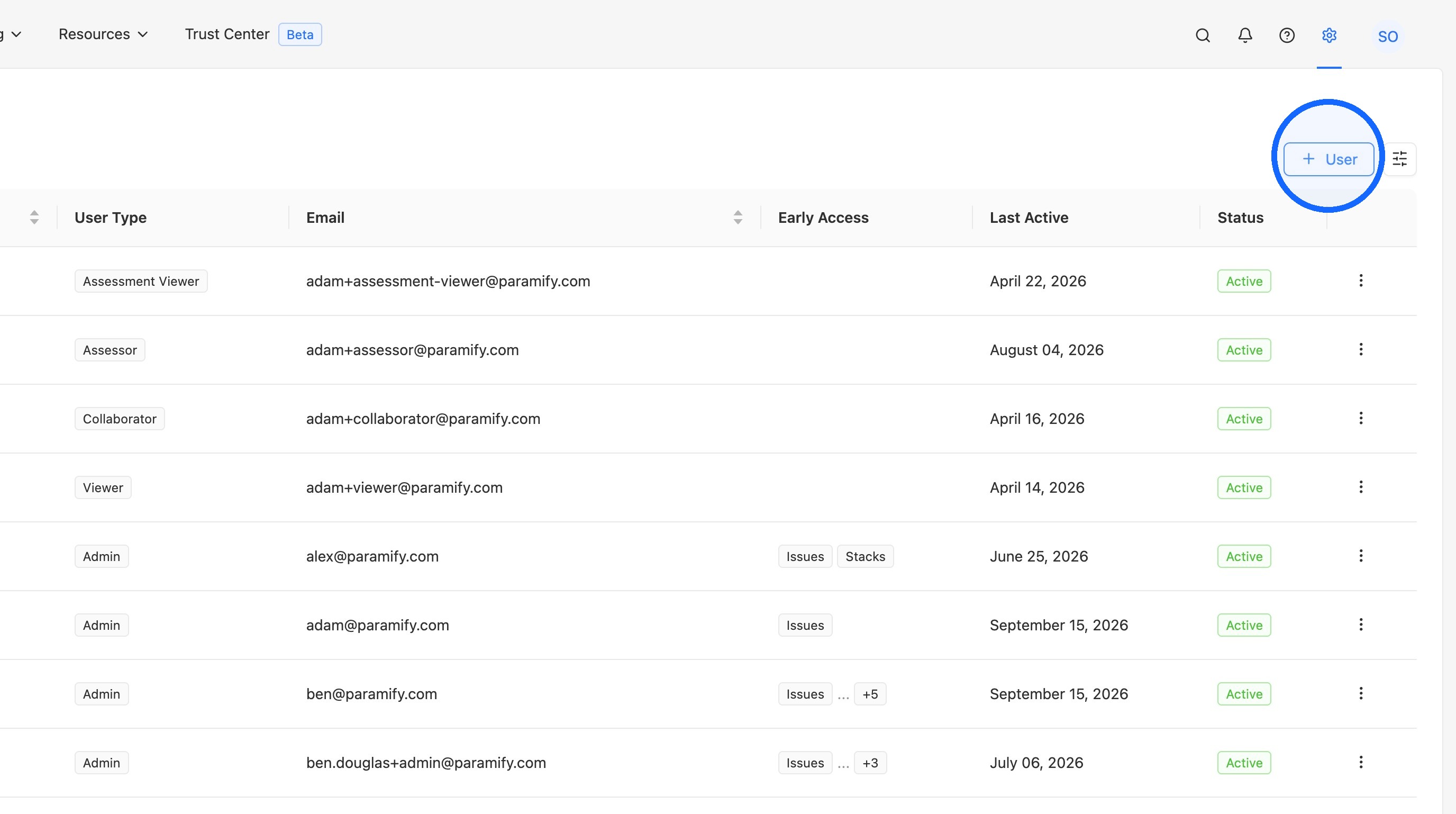
8. Click "+ User"
Start adding a new user to the workspace.
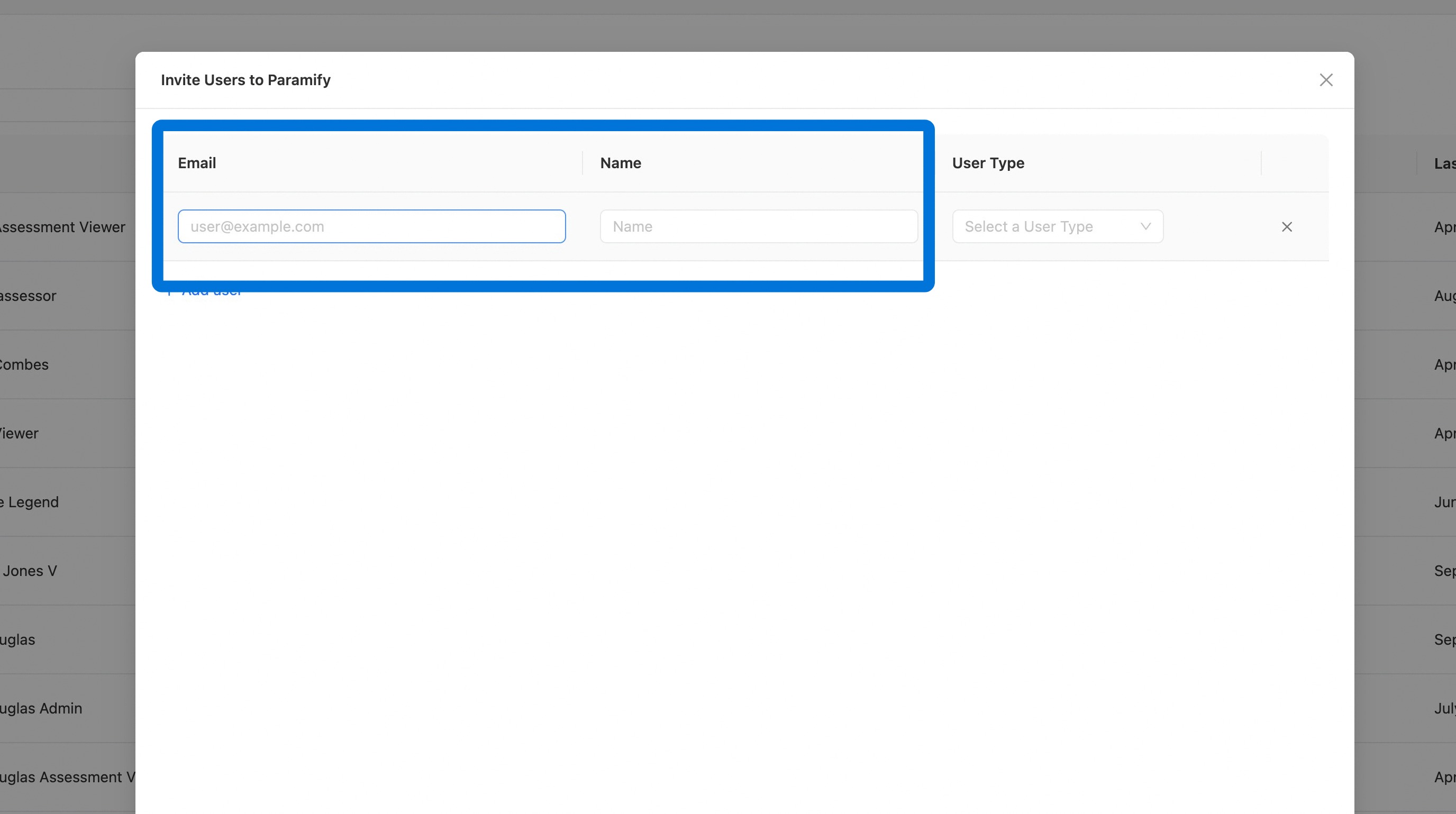
9. Enter the assessor's email and name
Fill in the "Email" and "Name" fields for the Assessor.
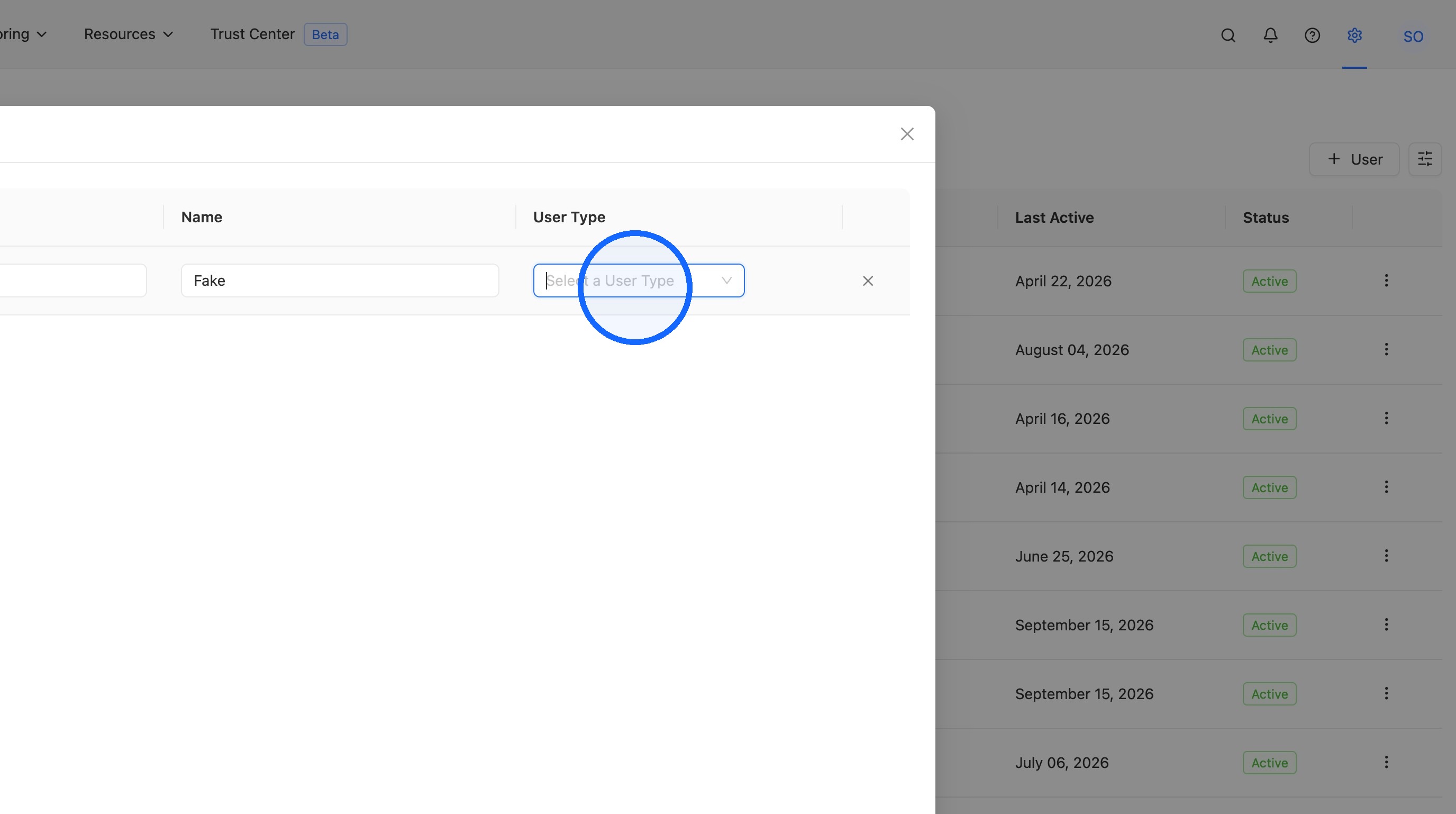
10. Open the User Type menu
Click the User Type dropdown to choose a role for the assessor.
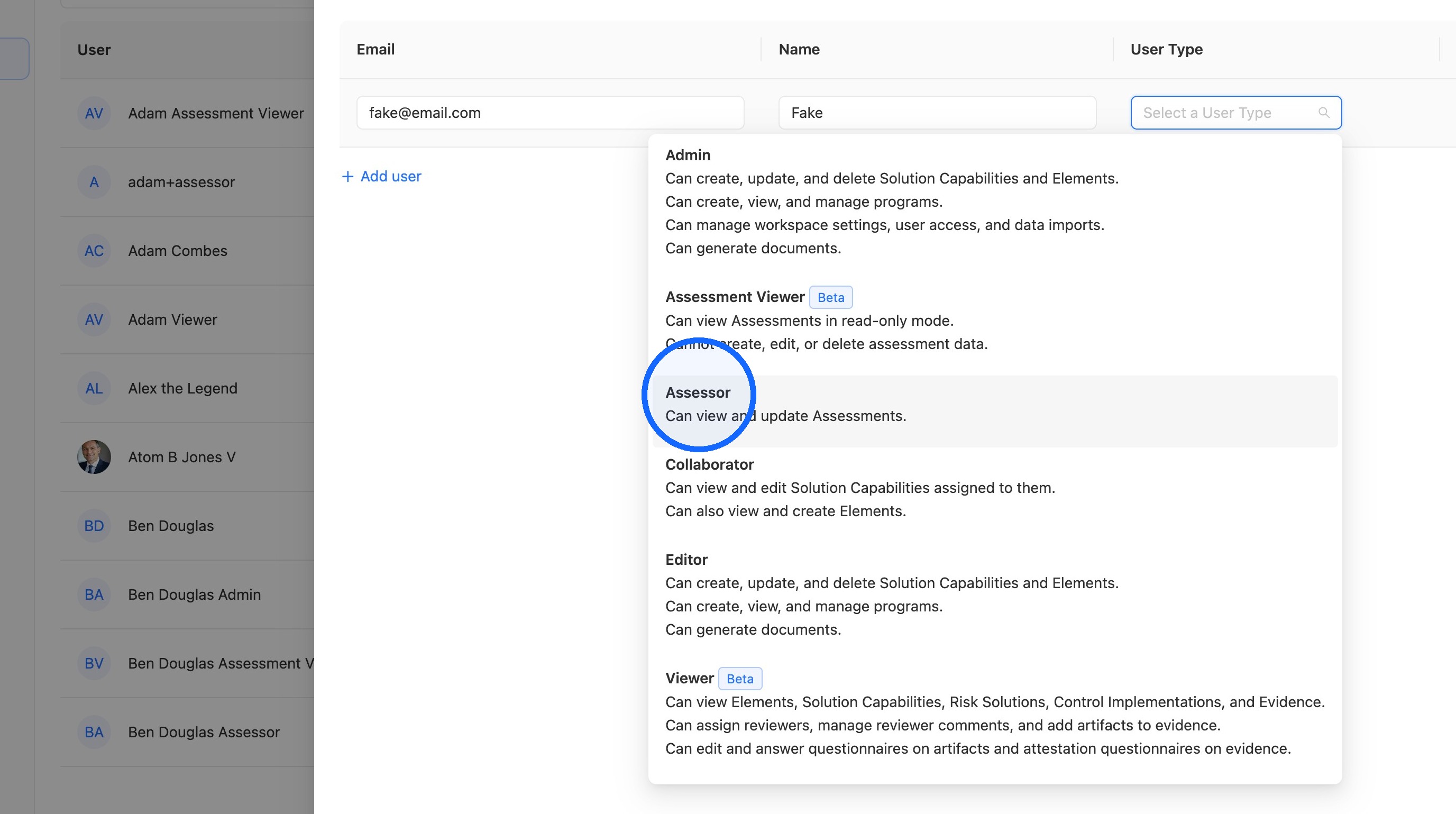
11. Select "Assessor"
Choose "Assessor" from the User Type dropdown.
TIP
The "Assessor" User Type will fulfill most use cases you'll encounter. You may also see the "Assessment Viewer" User Type in the dropdown — if chosen, the user will only be able to view assessments in read-mode.
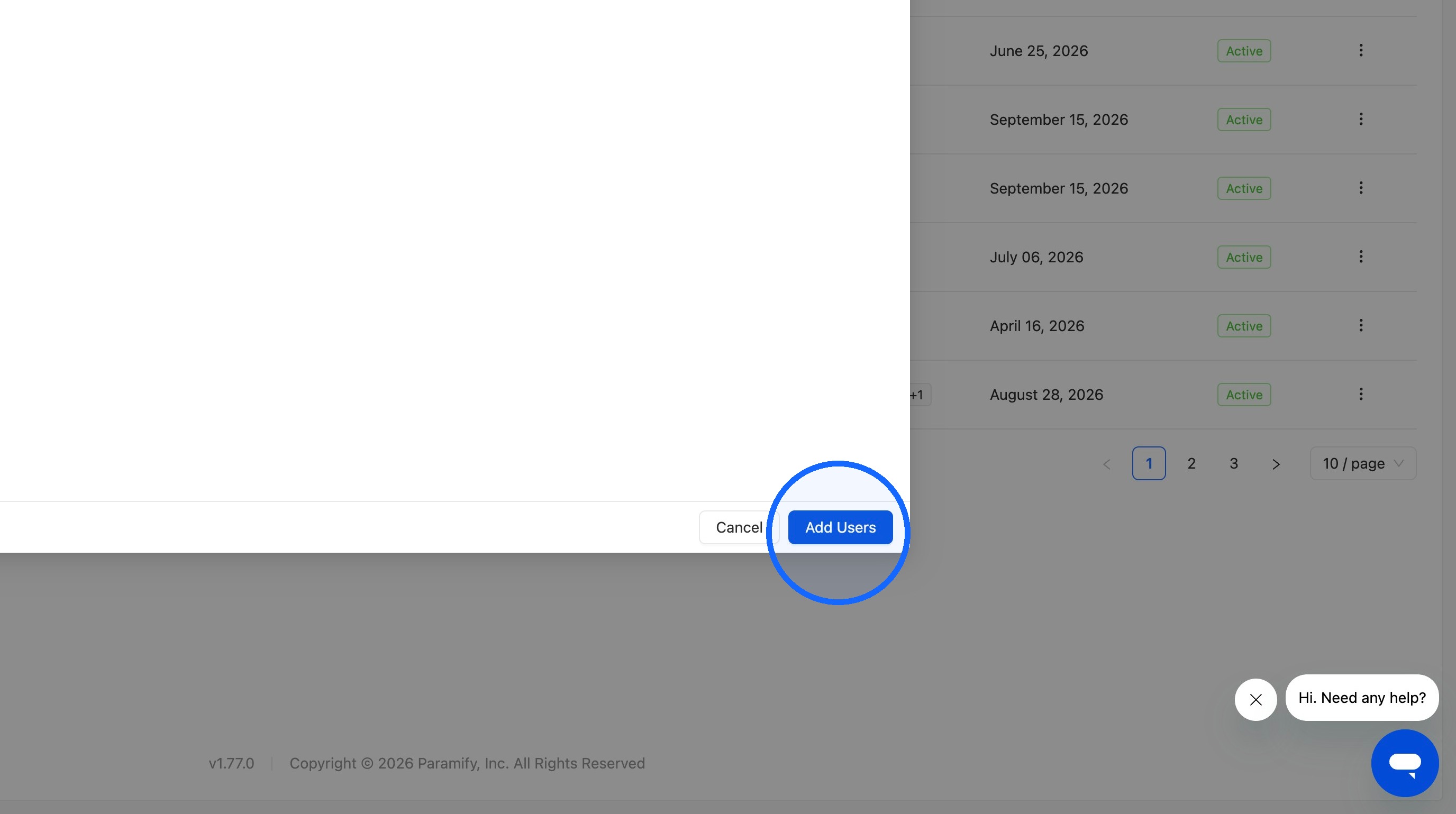
12. Click "Add Users"
Confirm and add the assessor to your workspace.
Comments
0 comments
Please sign in to leave a comment.