
Notifications in Paramify are very useful for managing tasks and boosting up productivity. You can configure the notification settings to connect with slack, create bulk notifications, and configure settings in ways that are best for your organization. This article will dive into the basic setting guides for notifications, specifically for the Workspace Level in the Paramify app.
Building Slack Integrations
1. Start integrating Slack
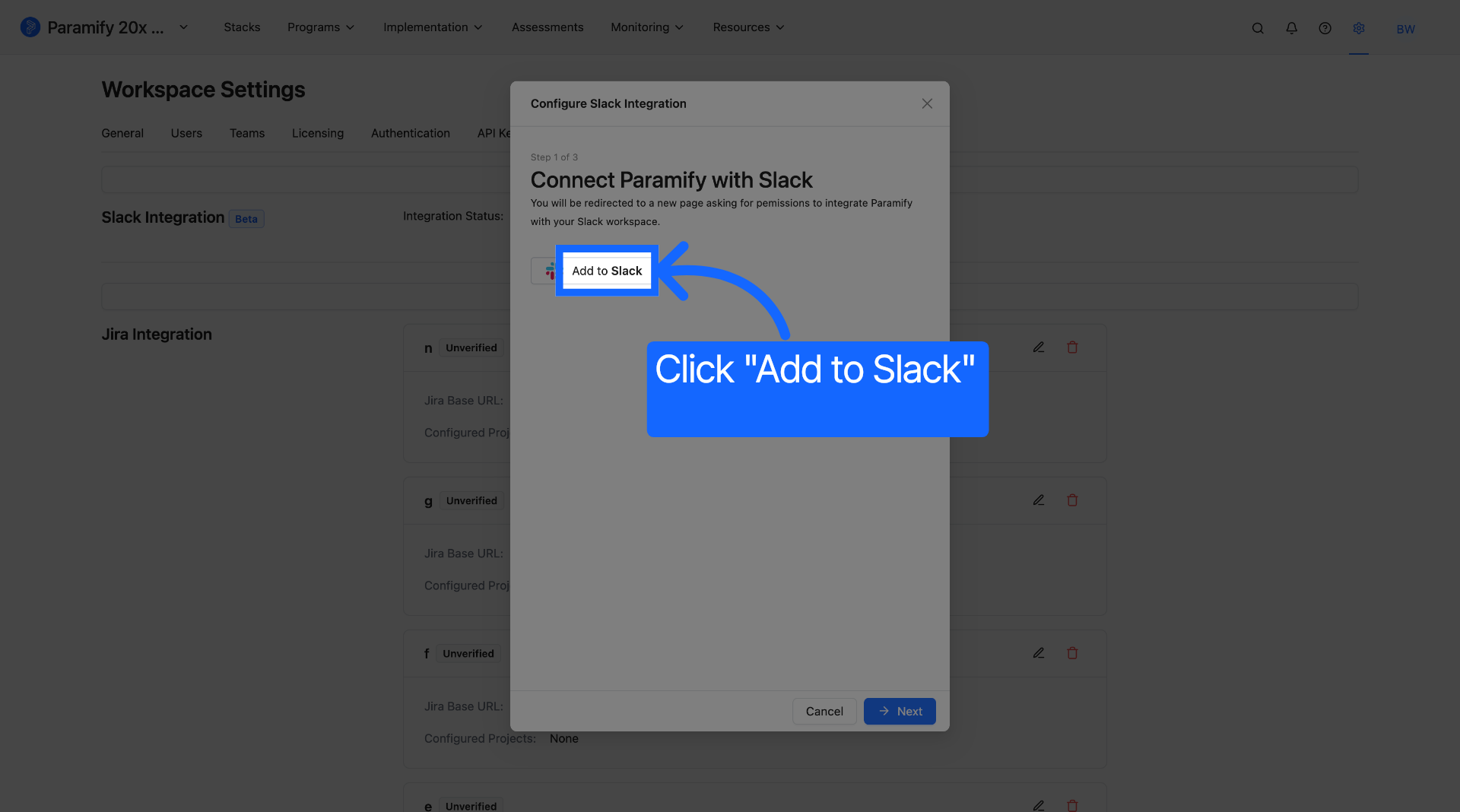
In the workspace Level settings, navigate to the "Integrations" page and click "Configure" to start the process of linking Slack to the Paramify app. Then, click "Add to Slack" to start connecting with your Slack Workspace. This will open a new tab for you.
2. Allow Paramify & Slack to link
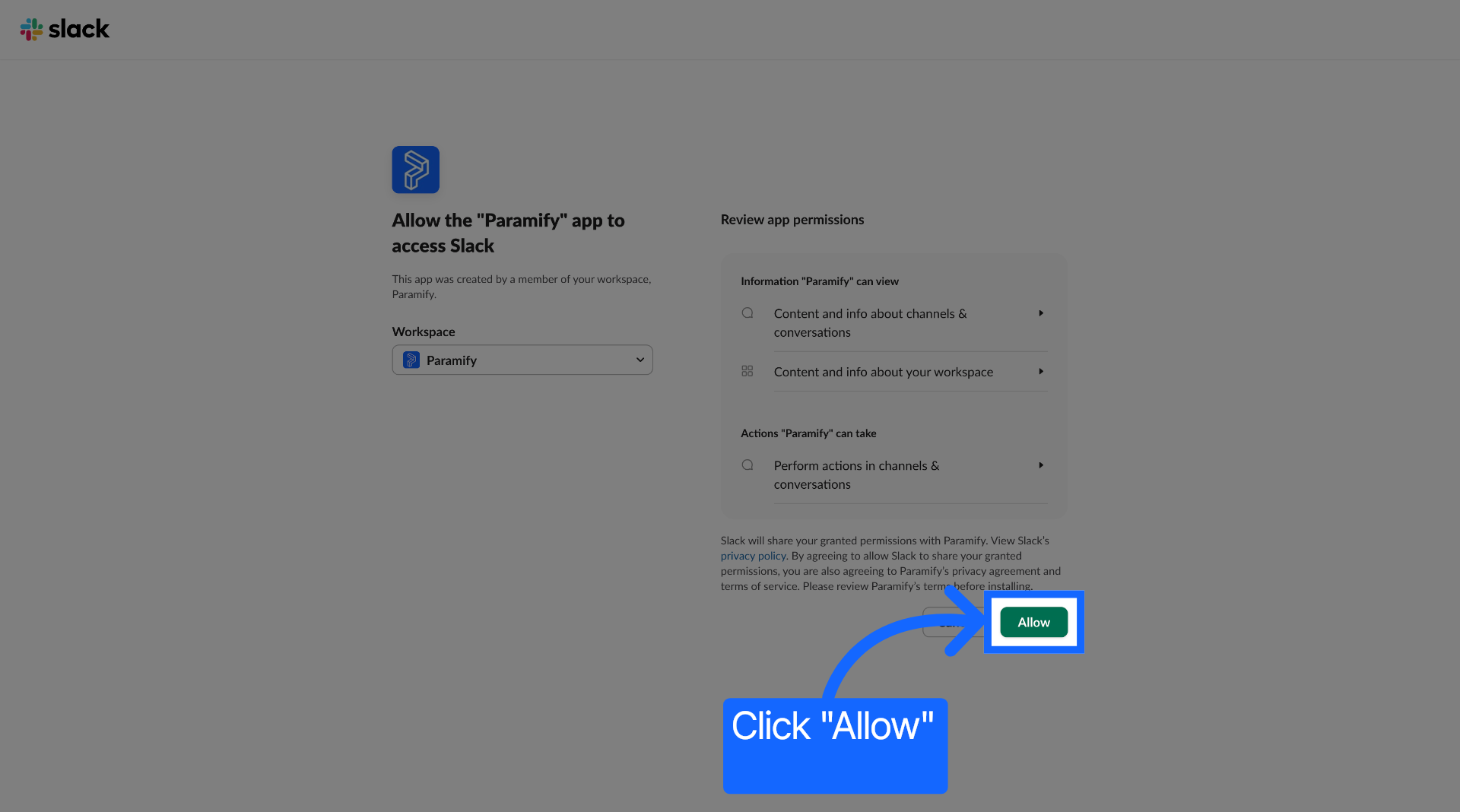
In the new tab, click "Allow" to grant the Paramify app permission to access your Slack Workplace.
3. Verify connection via Slack
A Token will be shown in a new page once the authorization is successful. You can see in your Slack Workspace that "Paramify" is added as an App. This is where you will receive Paramify notifications in your Slack Workspace. Make sure to copy the Access Token for the next step.
4. Verify connection via Paramify using Token
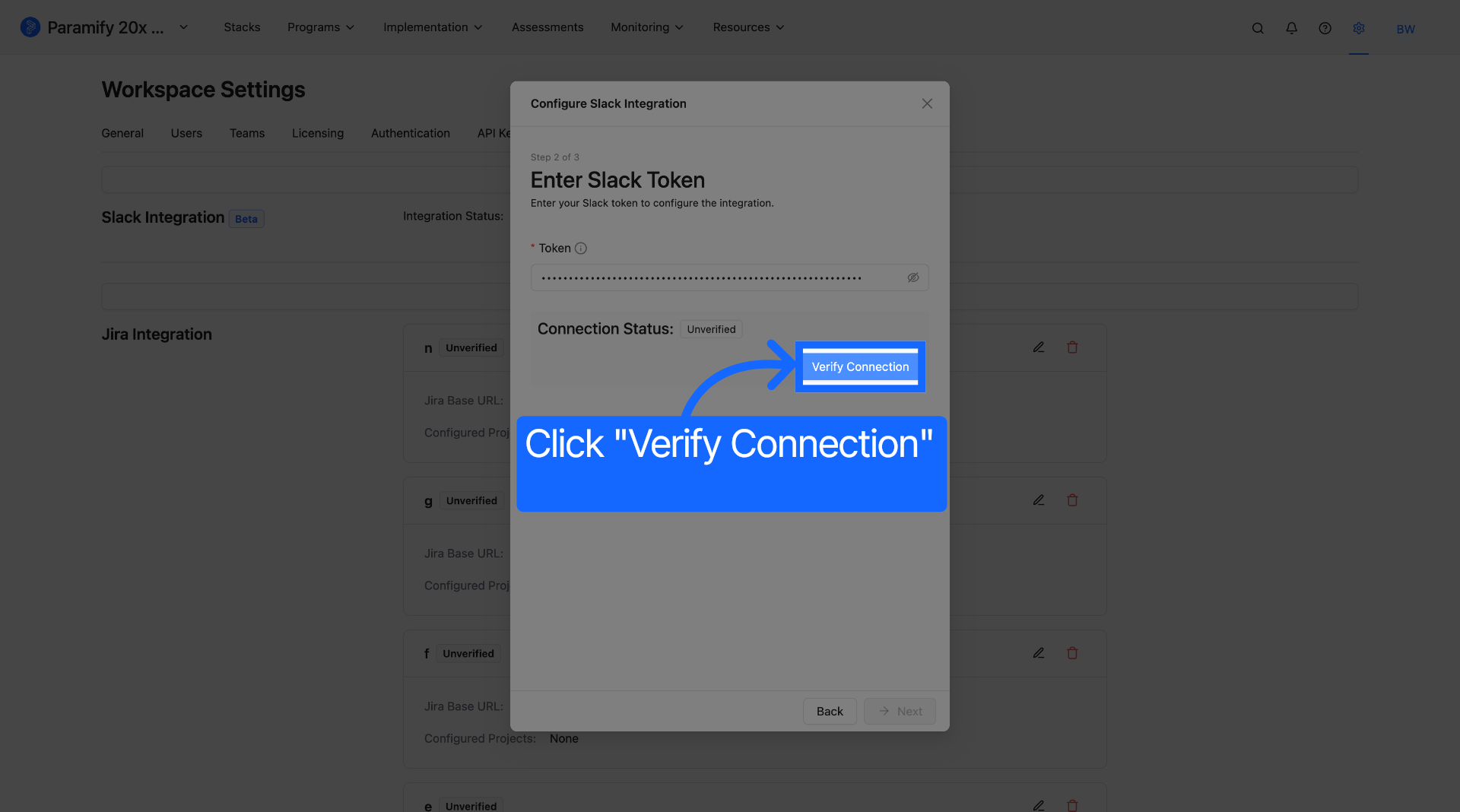
Copy and paste the Access Token and return to Paramify. Then, use the Access Token to verify the Slack integration by pasting the Token and clicking "Verify Connection".
5. Finishing up verifications
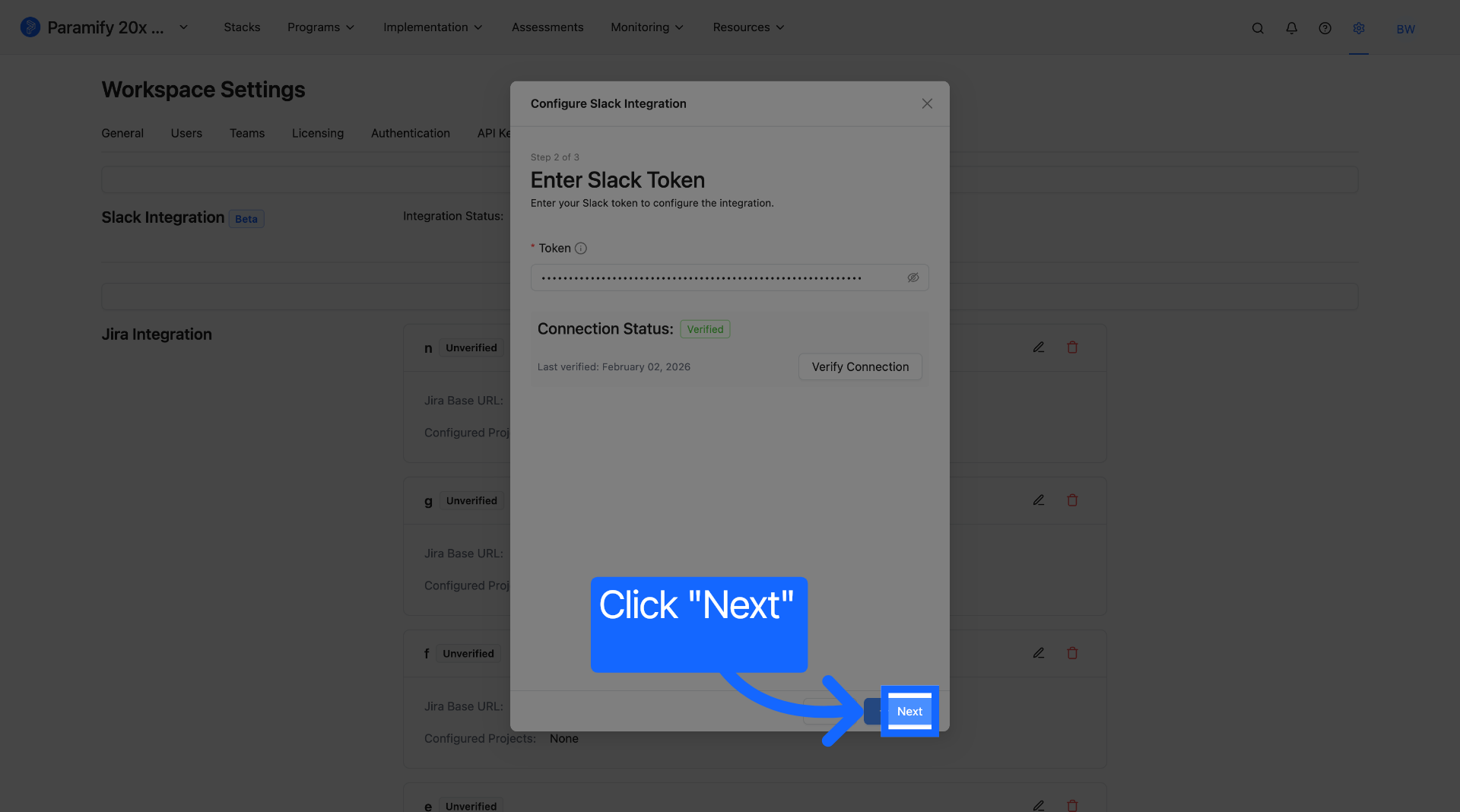
Click "Verify Connection" to check if your Slack integration is working. Once the connection is verified, click "next" to go to the 3rd step.
6. Final steps
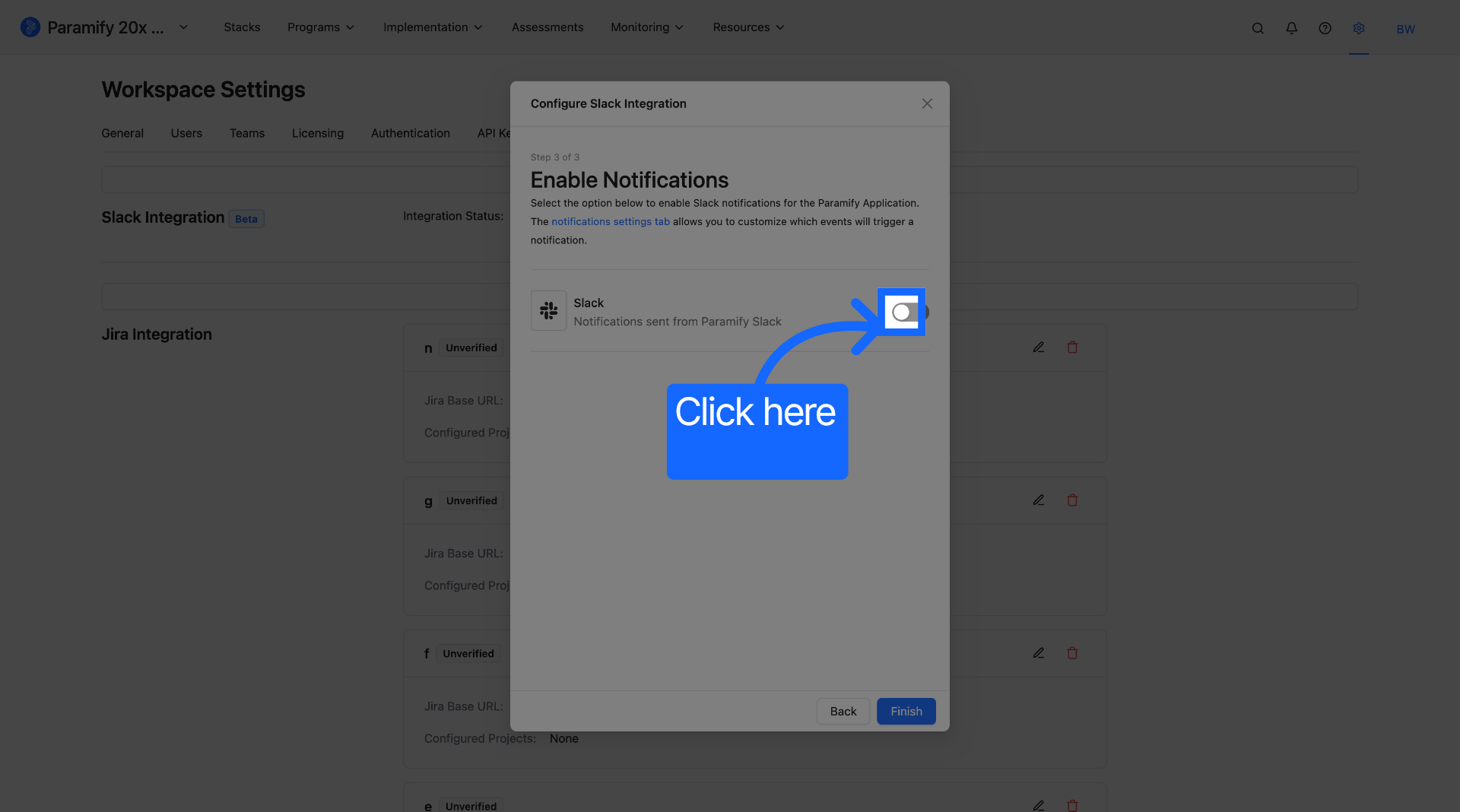
For the final step, you can choose to enable Paramify notifications to be sent to your Slack Workspace by clicking the toggle button. If you wish not to enable the notifications yet, you can leave the toggle unchecked. You can always change these enable/disable settings by going to the "Notifications" section in the Workspace Level settings. Then, you can click "Finish" to end the Slack integration session.
Notification Channels
In the Workspace Level settings, you can navigate to the "Notifications" section to access more configuration options. If you want to enable/disable Email and Slack notifications functions, use the toggles in the "Notification Channels" section to customize them.
Notification Preferences
The "Notification Preferences" feature can help you prevent receiving potentially overwhelming notifications by sending out notifications in bundles. This is accomplished by using two different types of categories: the Frequency and Delivery Time. The frequency has the following choice of selections.
| Frequency | Delivery Time |
|---|---|
| Daily | Everyday |
| Weekly | Every Monday |
| Bi-Weekly | Every other Monday |
| Monthly | First day of the month |
Once you select the frequency, you can choose the specific hour of the day when notifications will be sent out. This feature is very useful because it can prevent potentially overwhelming notifications by sending out notifications in bundles. You can also enable/disable this feature by using the toggle on the right side of the screen.
Comments
0 comments
Please sign in to leave a comment.