
Remediation activities, also known as Milestone Updates in the FedRAMP POA&M spreadsheet, are ways to deal with issues in Paramify. Remediation activities are listed in the Monitoring > Remediation page, and can be searched and filtered based on identifiers like timeframe, owner, issue, and more. Remediation activities can be created through the Monitoring navigation menu via the Issues and Remediation pages, as outlined below, and can also be edited and updated as needed.
Create a remediation activity through the Remediation page
1. Navigation
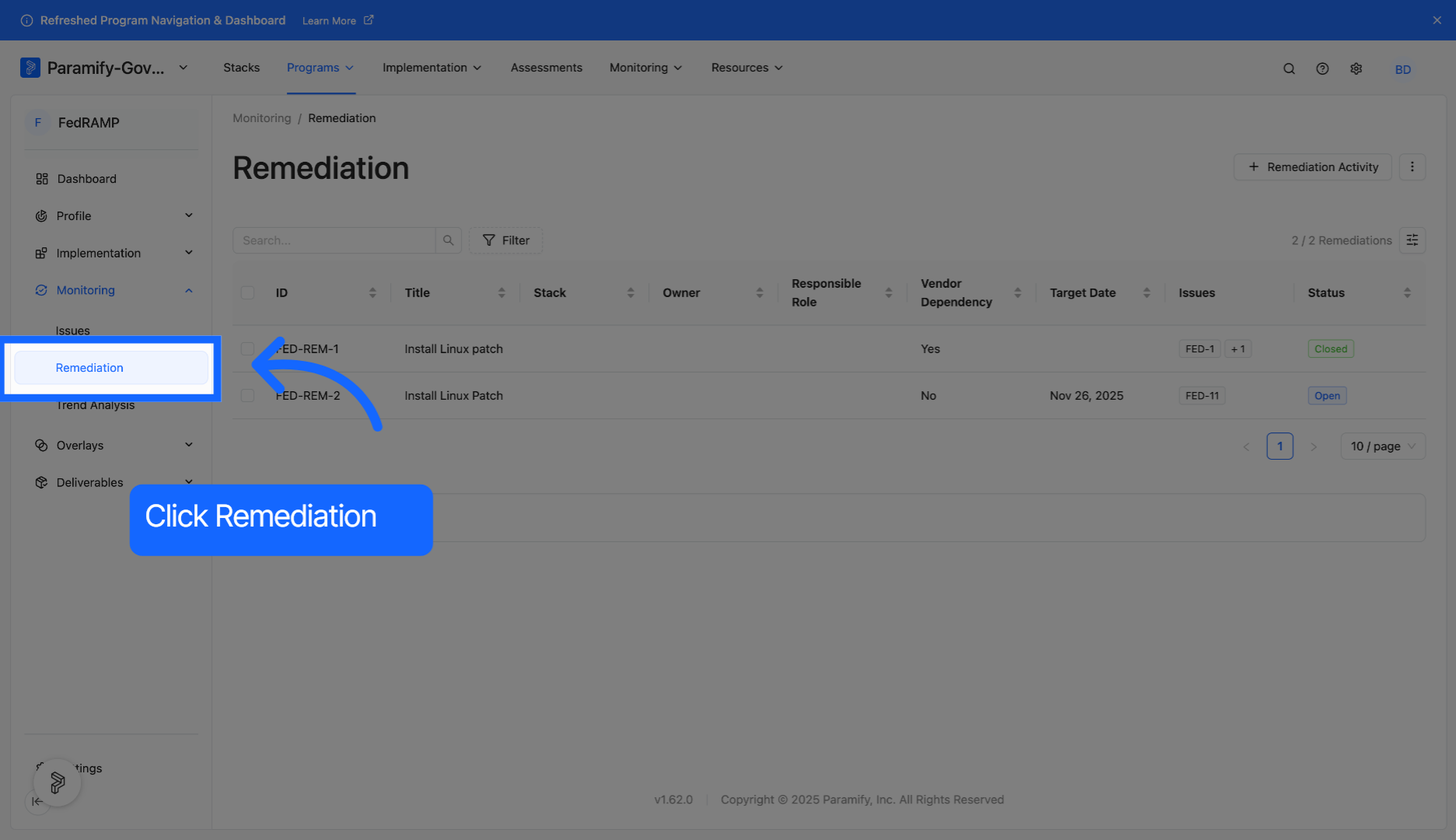
Within a program, click on Remediation, found under the Monitoring tab.
2. Create remediation activity
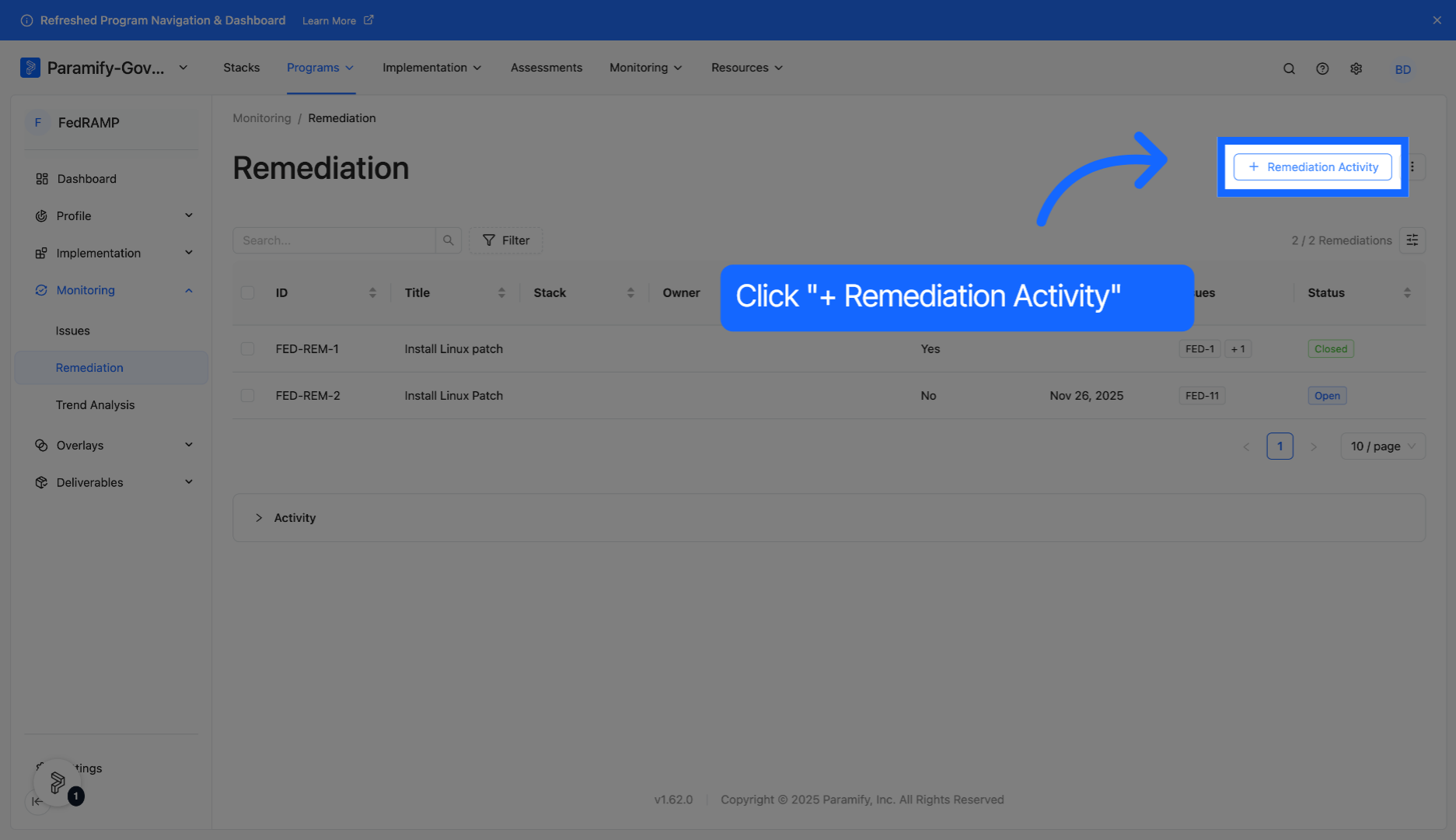
Click "+ Remediation Activity" to begin creating your remediation activity.
3. Select title field
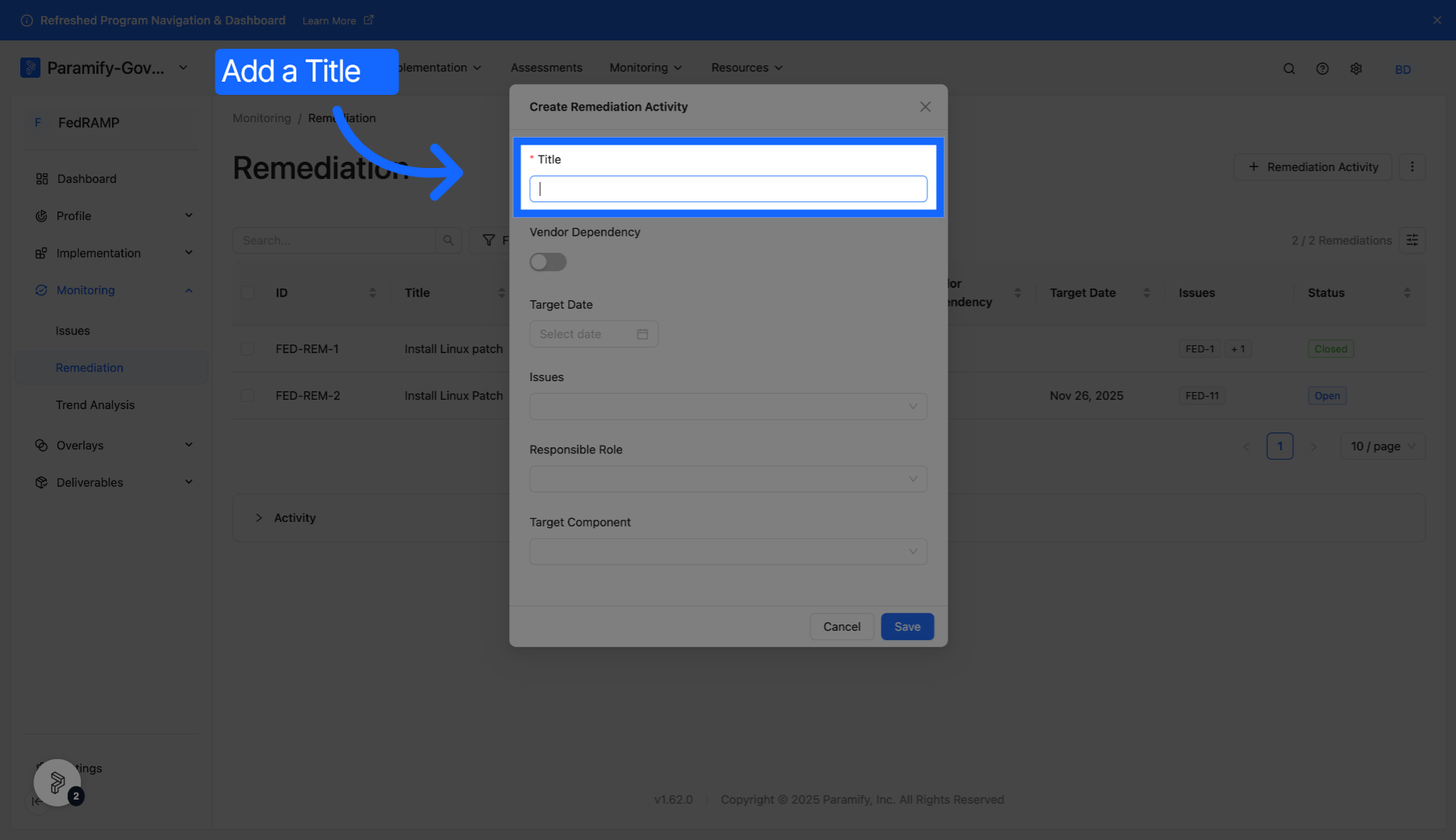
Click the Title field to specify the remediation activity's title.
4. Set vendor dependency
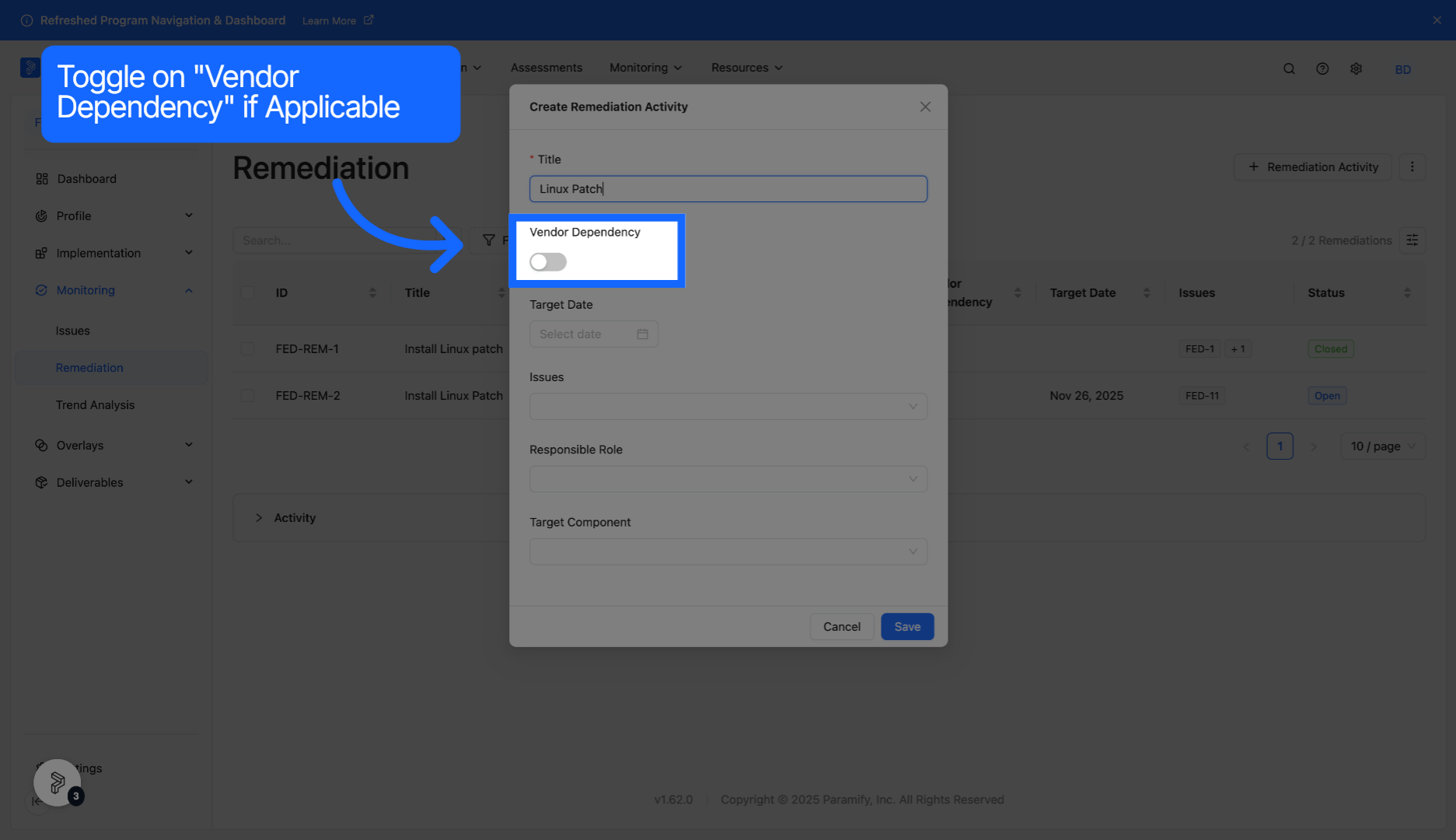
Optionally, toggle on "Vendor Dependency" if the remediation activity is handled by a vendor.
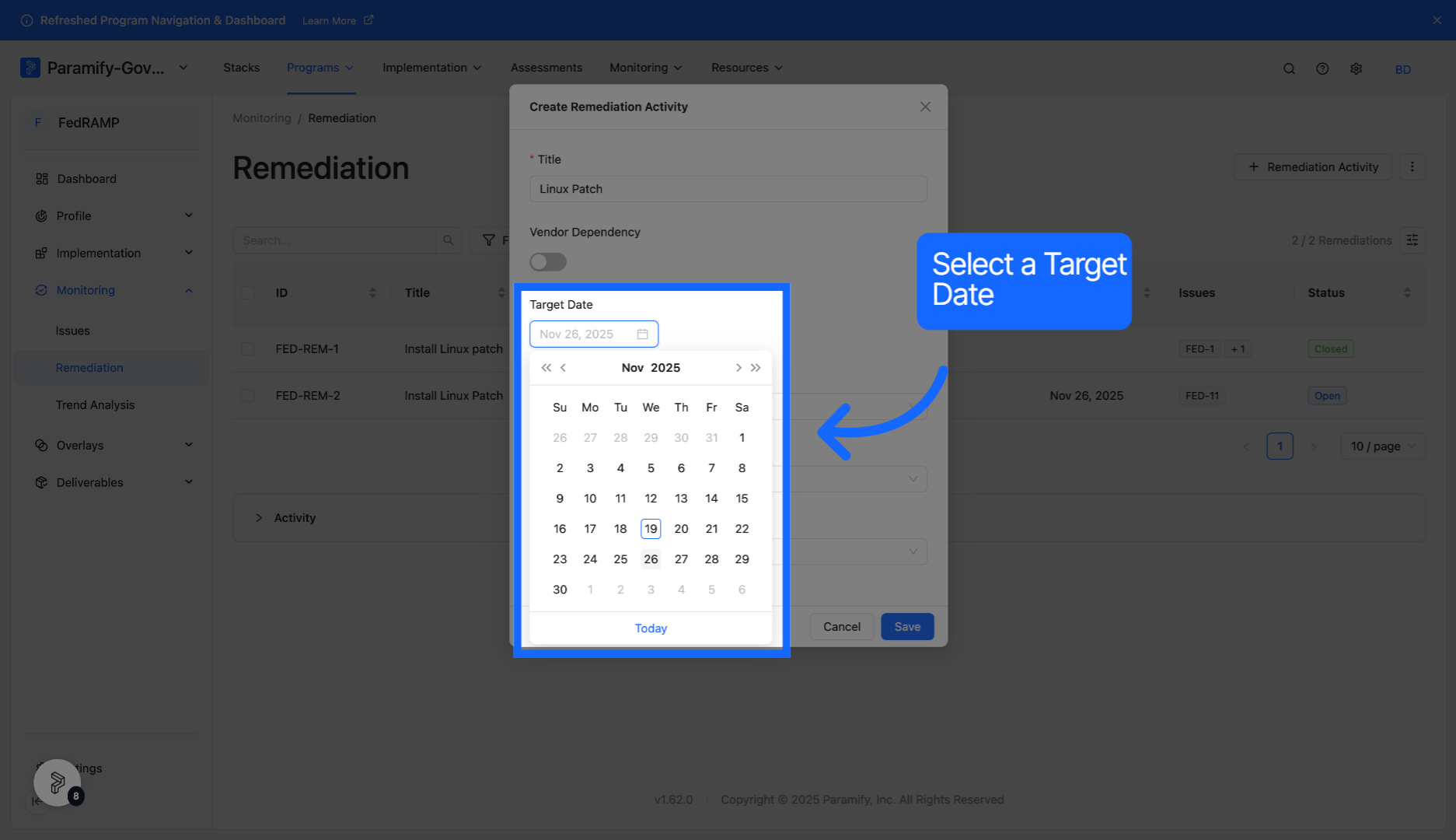
5. Choose target date
Select a target date for the remediation activity.
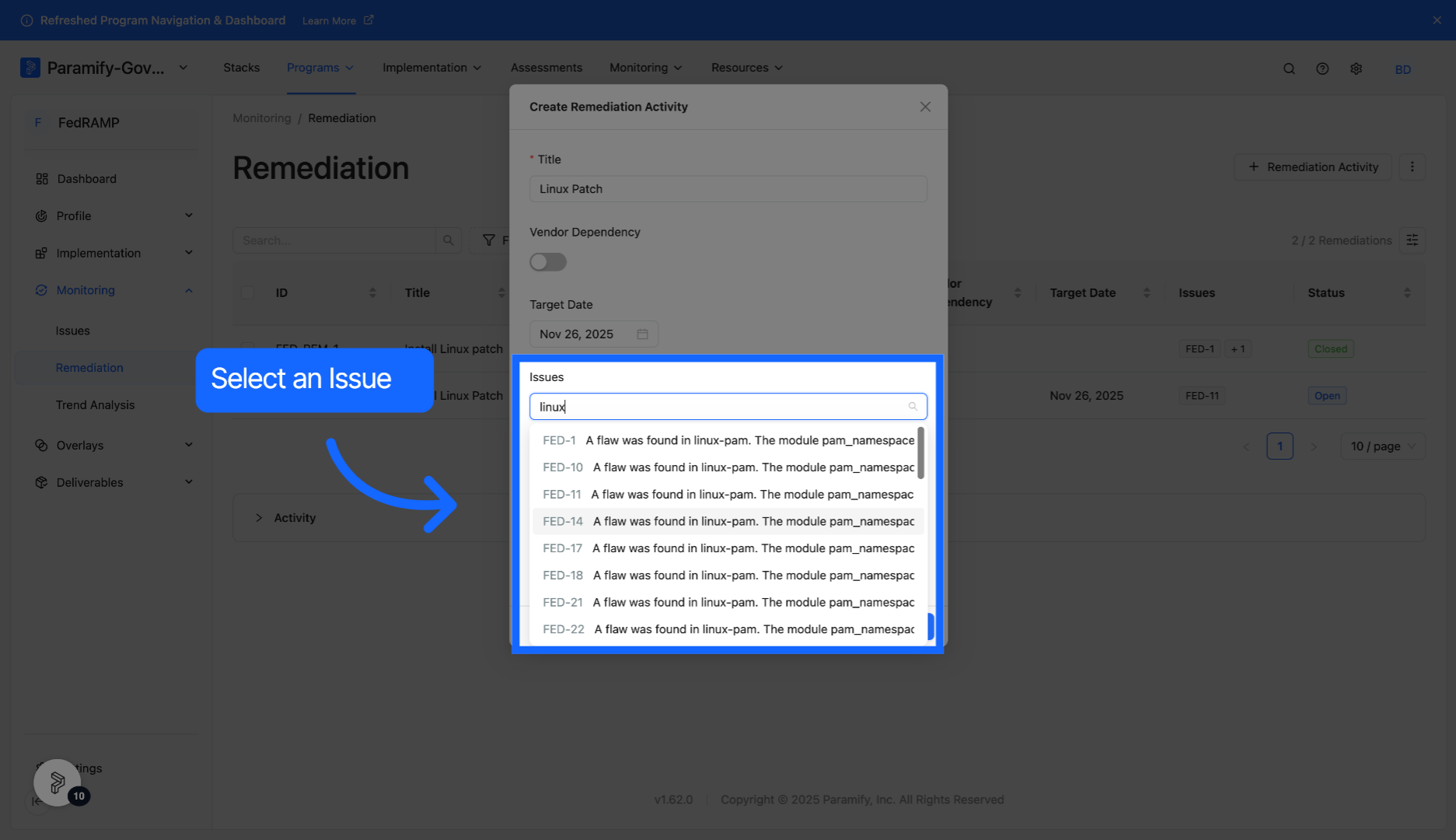
6. Select remediation issue
Select the issue for which you are creating the remediation activity.
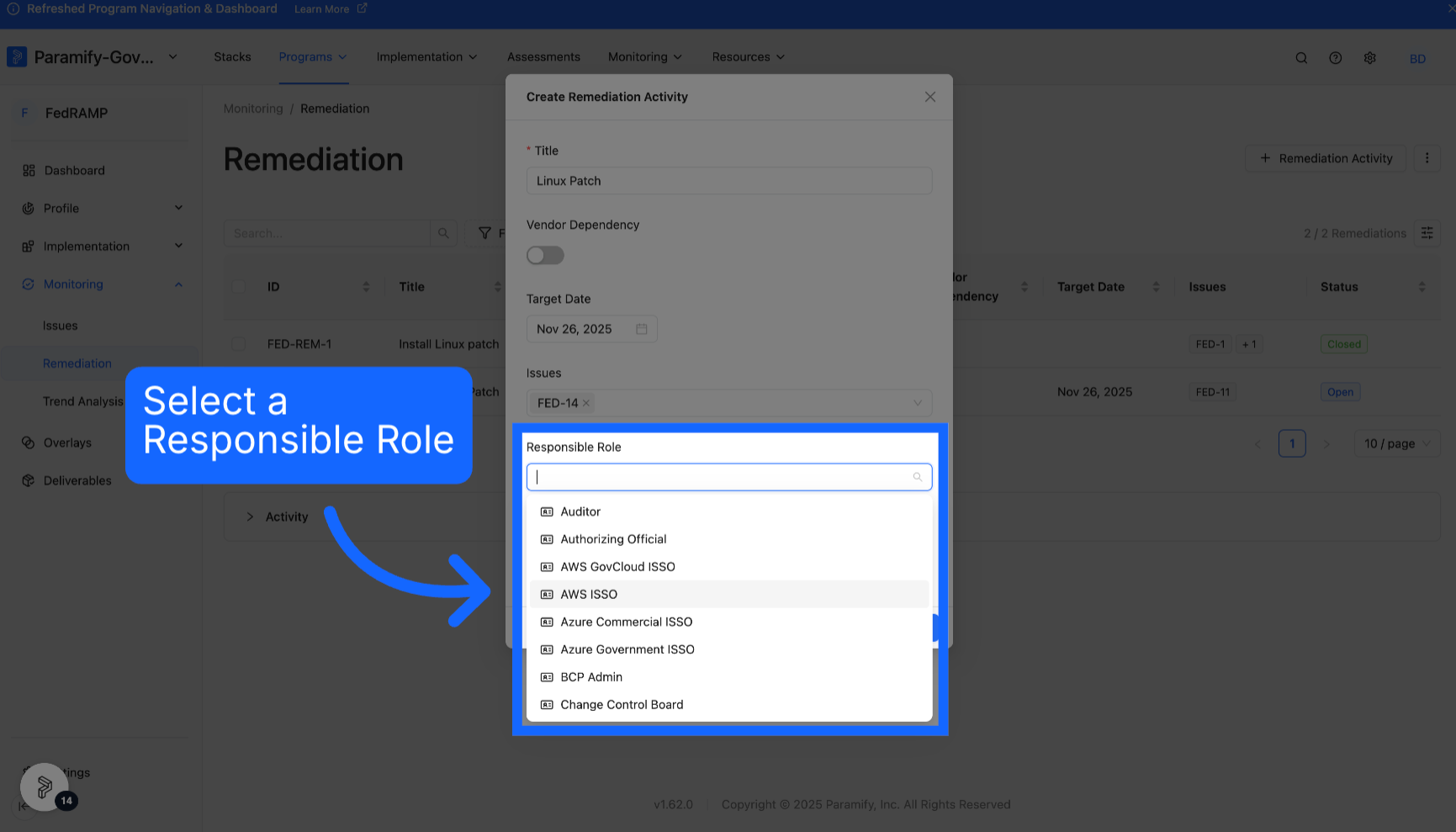
7. Select responsible role
Assign a responsible role to the remediation activity.
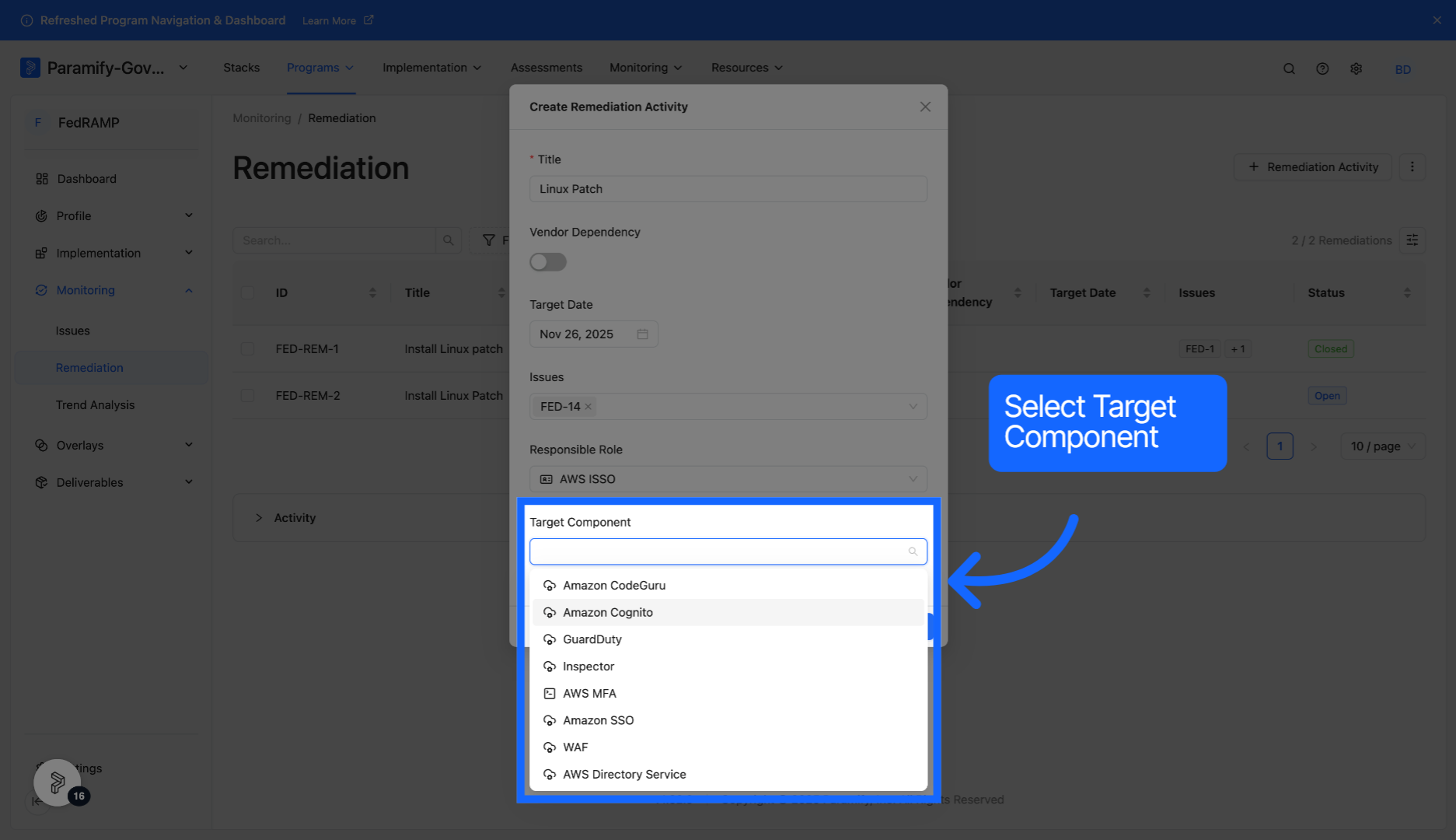
8. Select target component
Select a target component for the remediation activity.
9. Save remediation activity
Click Save to finalize the remediation activity you have created.
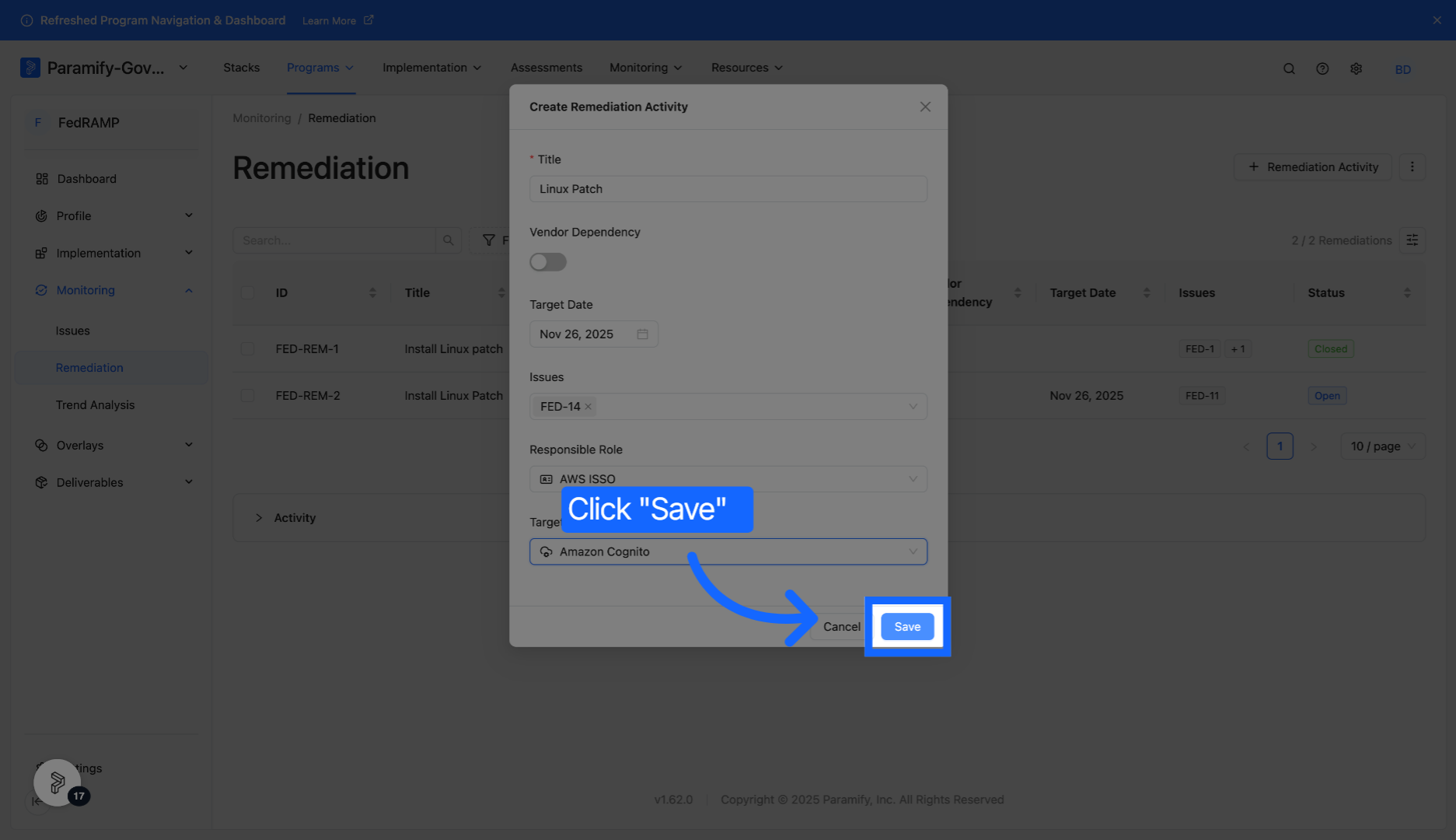
You have successfully created a remediation activity in Paramify.
Create a remediation activity through the Issues page
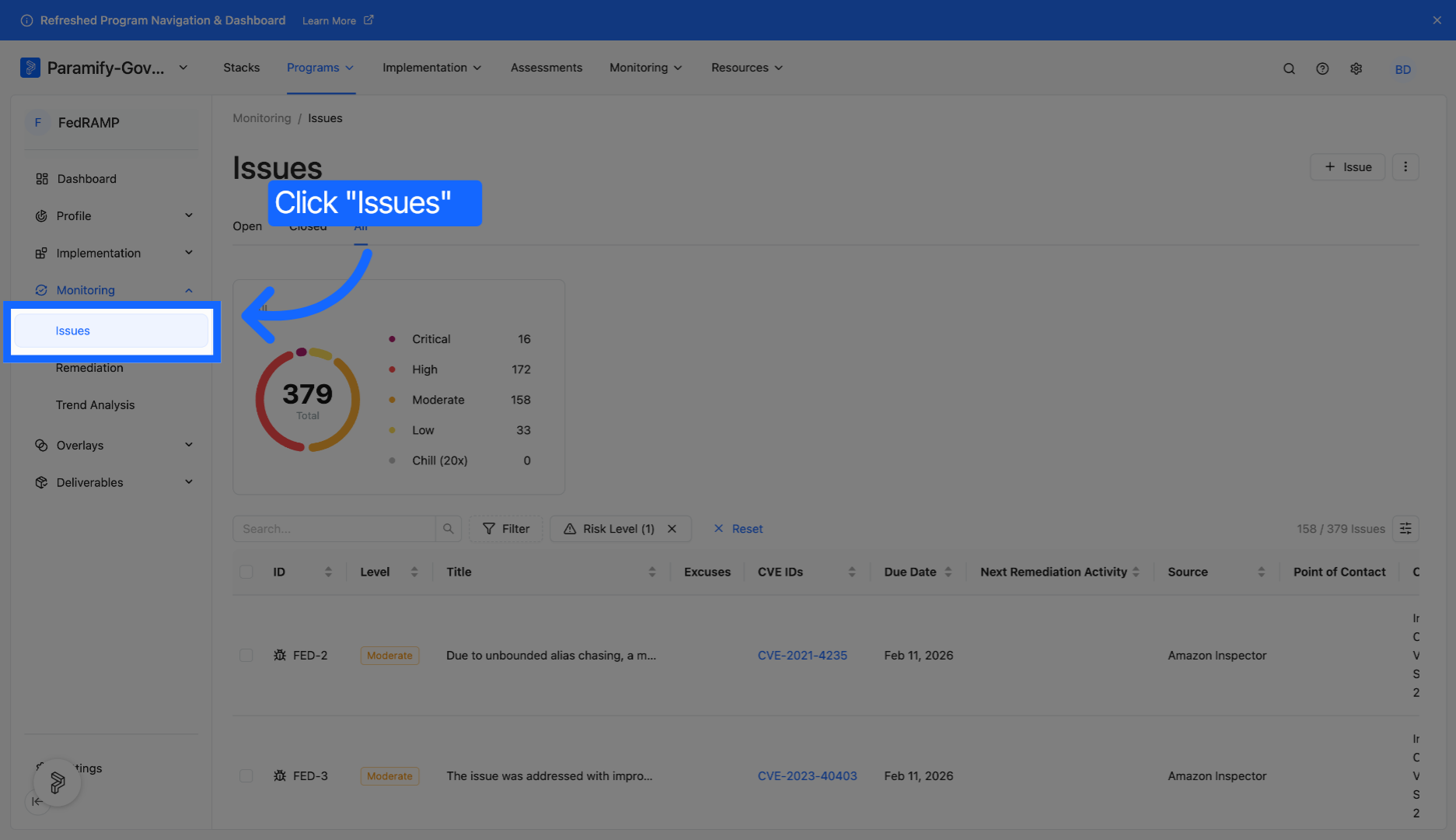
1. Navigate to the Issues page
Click the Issues section under Monitoring to access all current issues within a program.
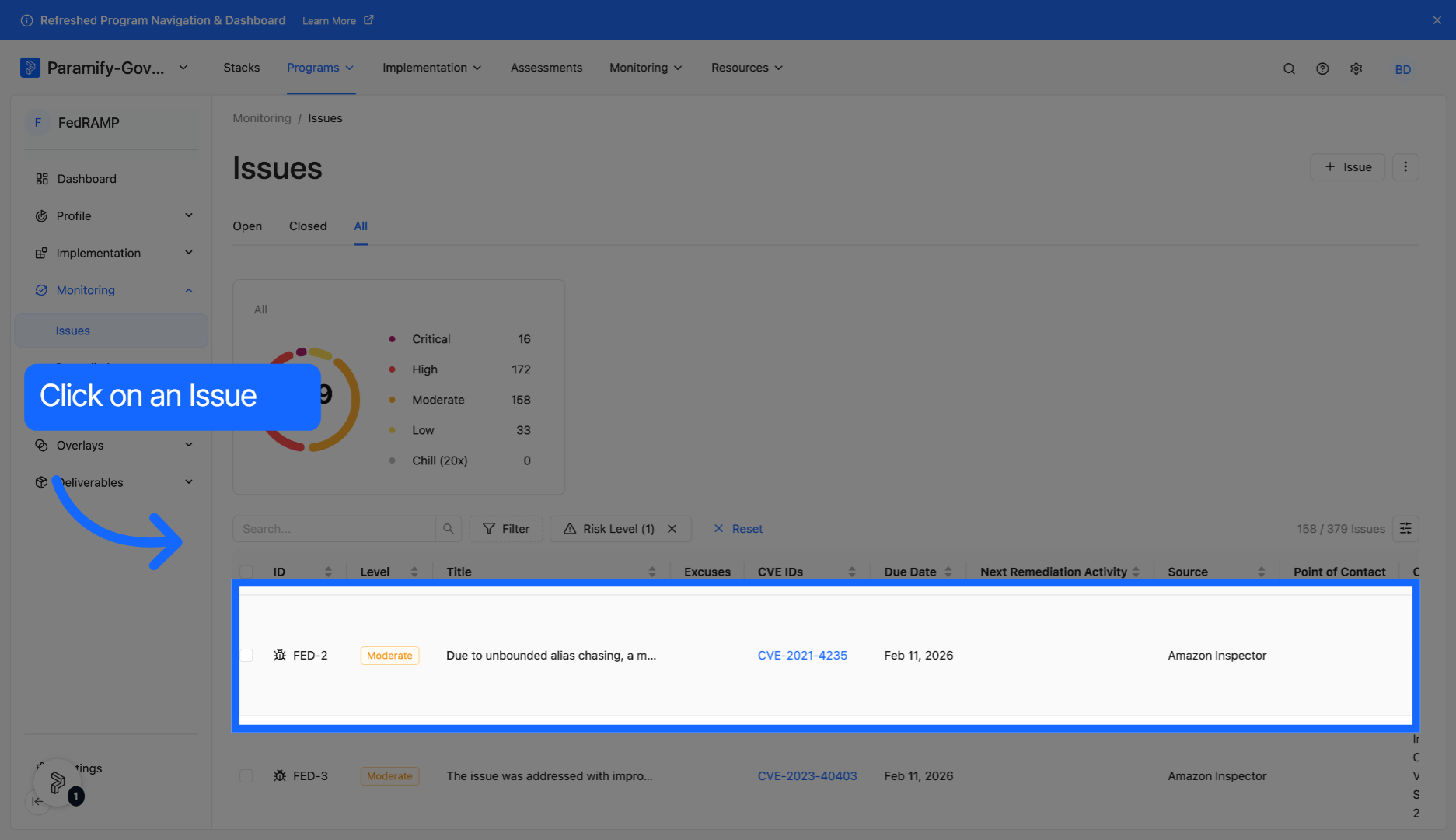
2. Access specific issue
Select a specific issue.
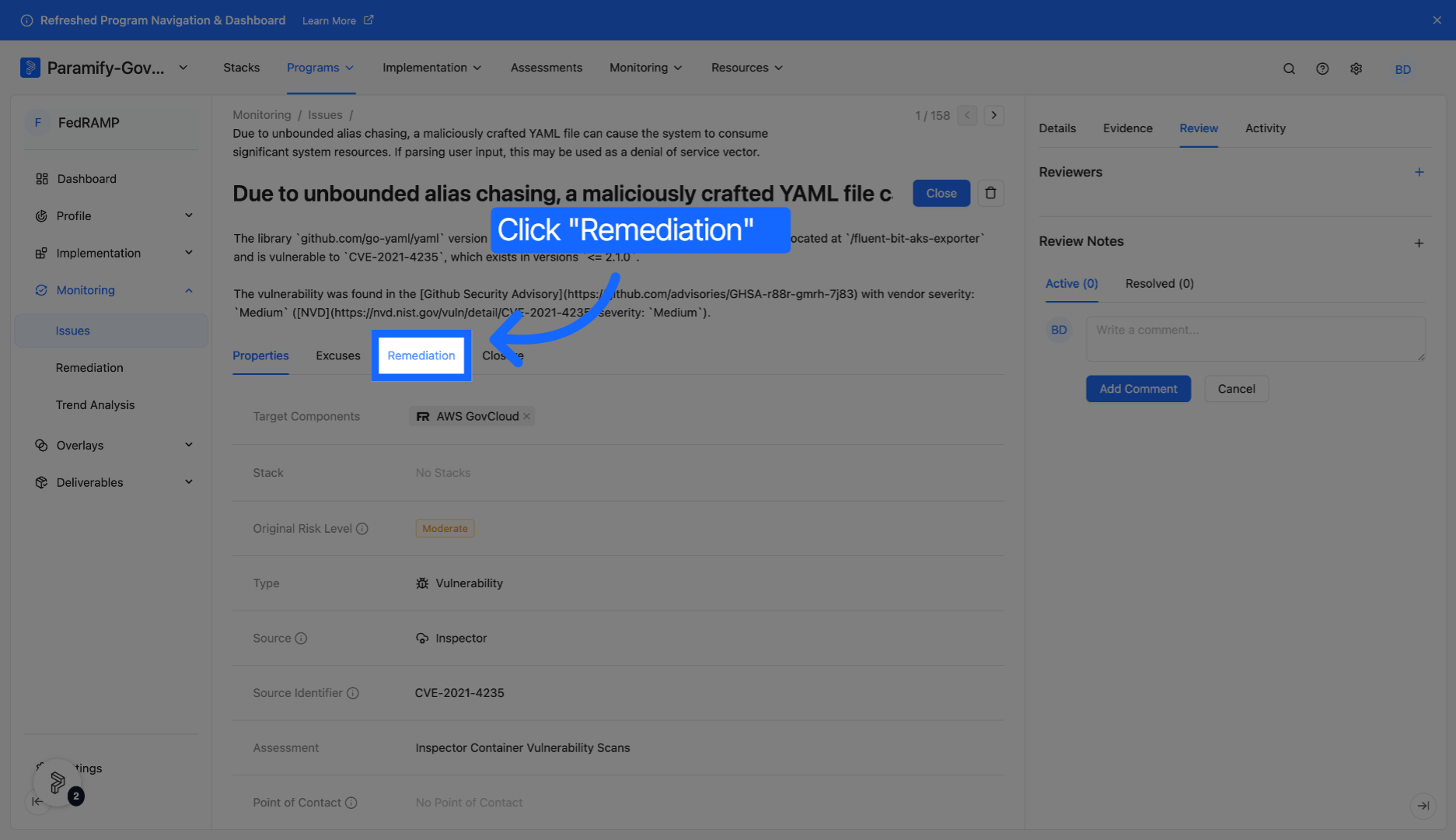
3. Select remediation tab
Click the Remediation tab to view remediation-related features.
4. Add a remediation activity
Click "+ Remediation Activity" to add a remediation activity.
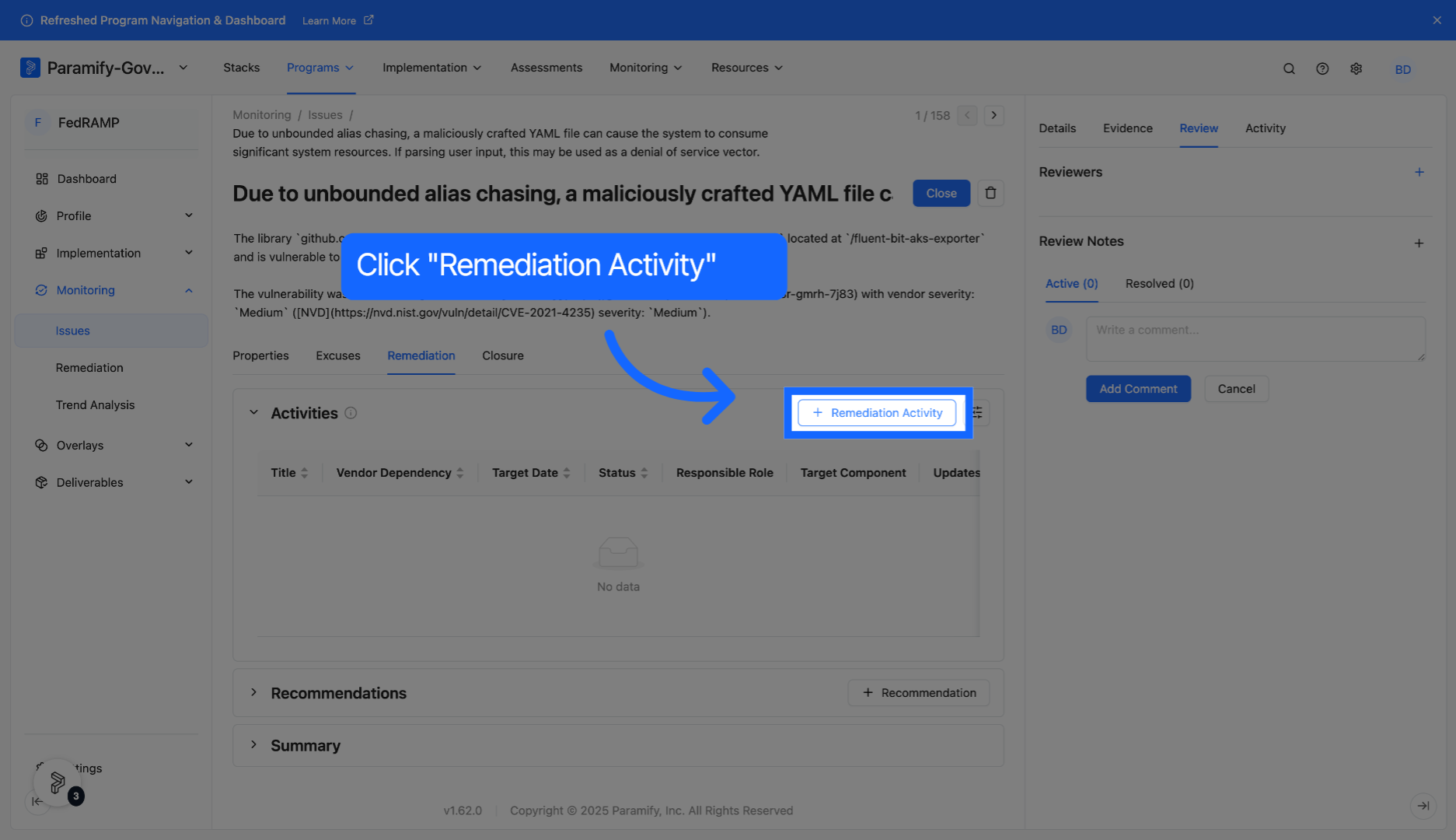
5. Create a new activity or link an existing activity
Click "Create New Activity" to create a new remediation activity through the same process as above, or click "Link Existing Activity" to link an existing activity to the issue.
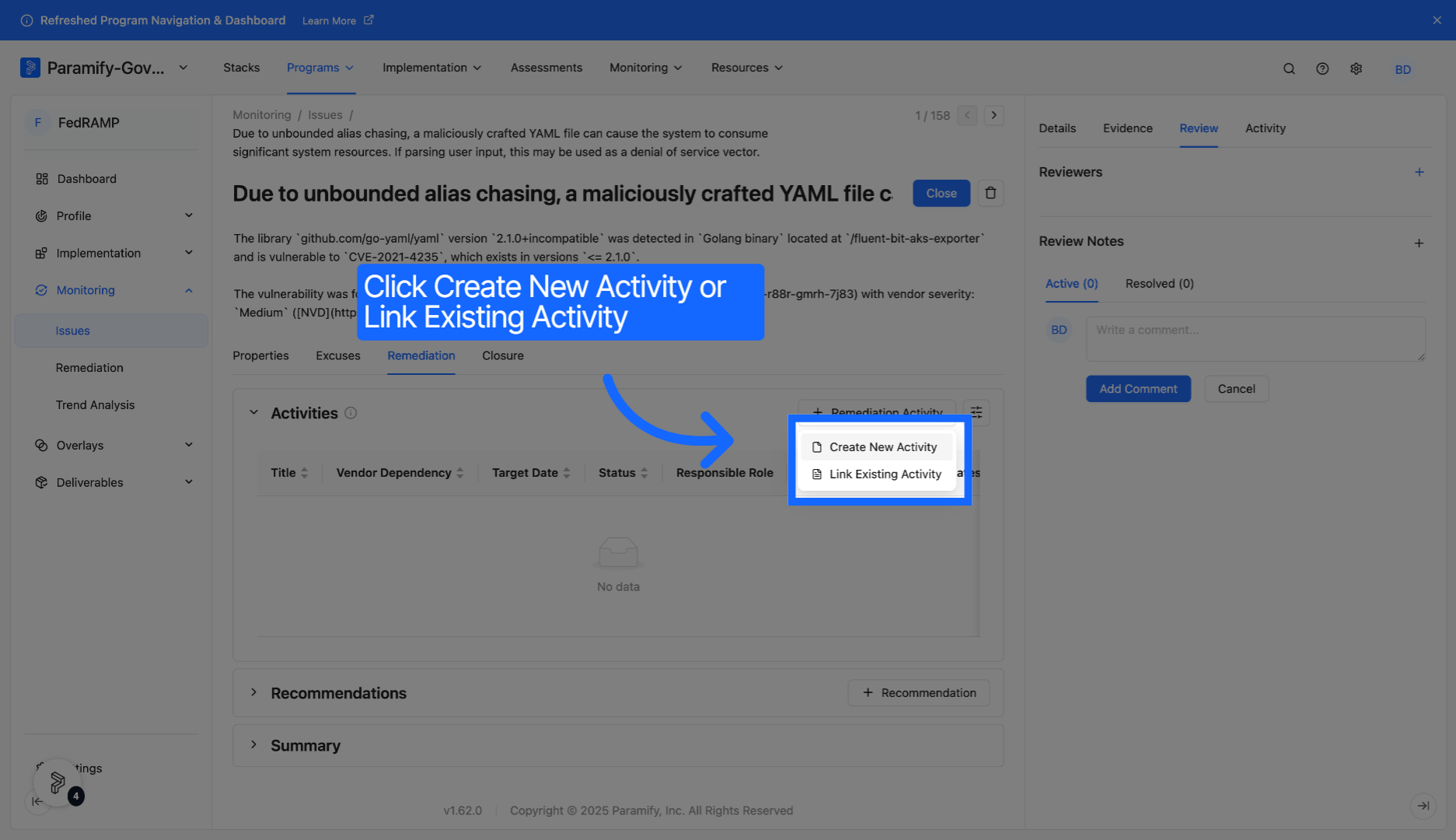
You have successfully created a remediation activity through the Issues page.
Edit or update a remediation activity
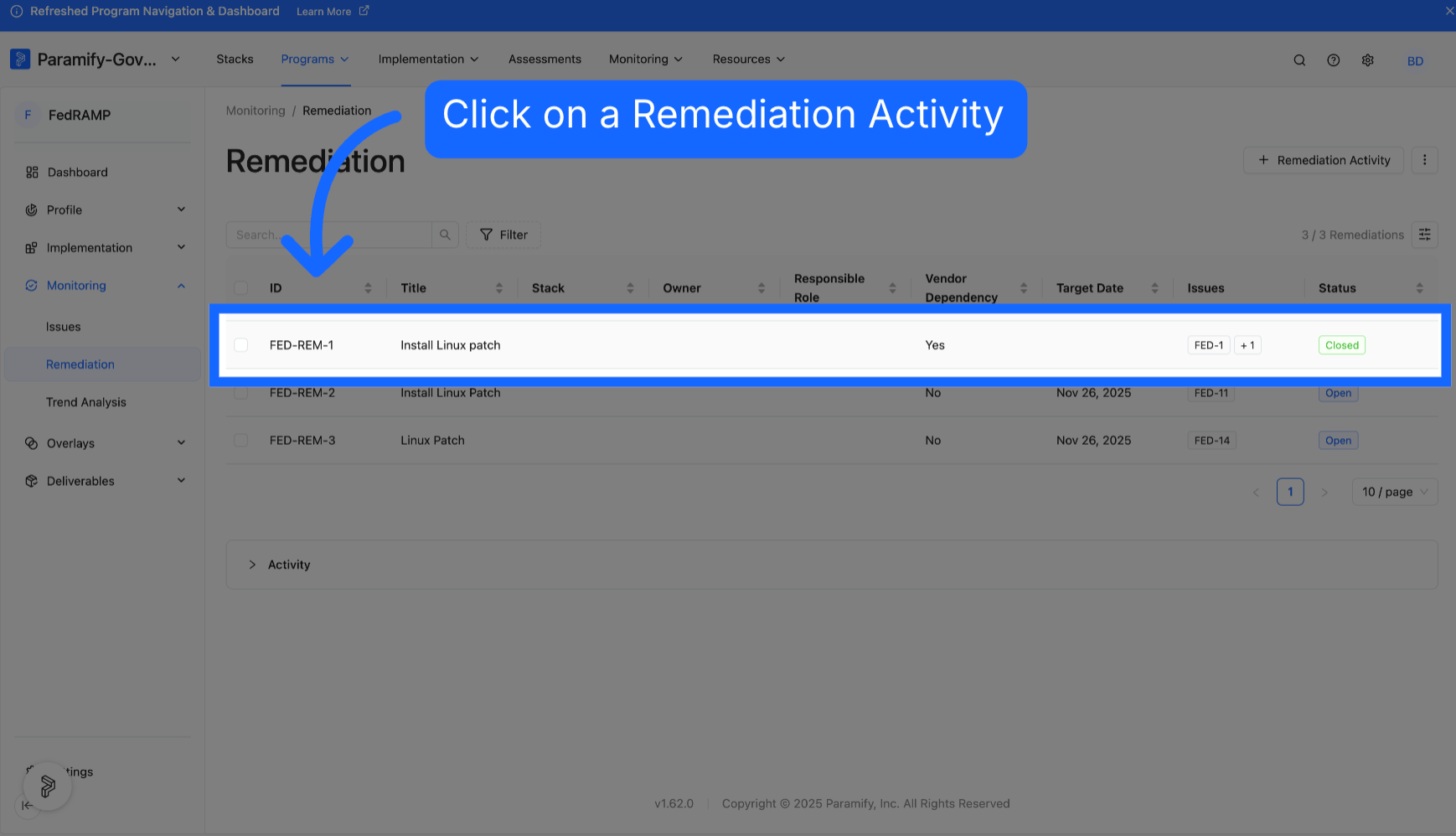
1. Open a remediation activity
Select a remediation activity to update or edit it.
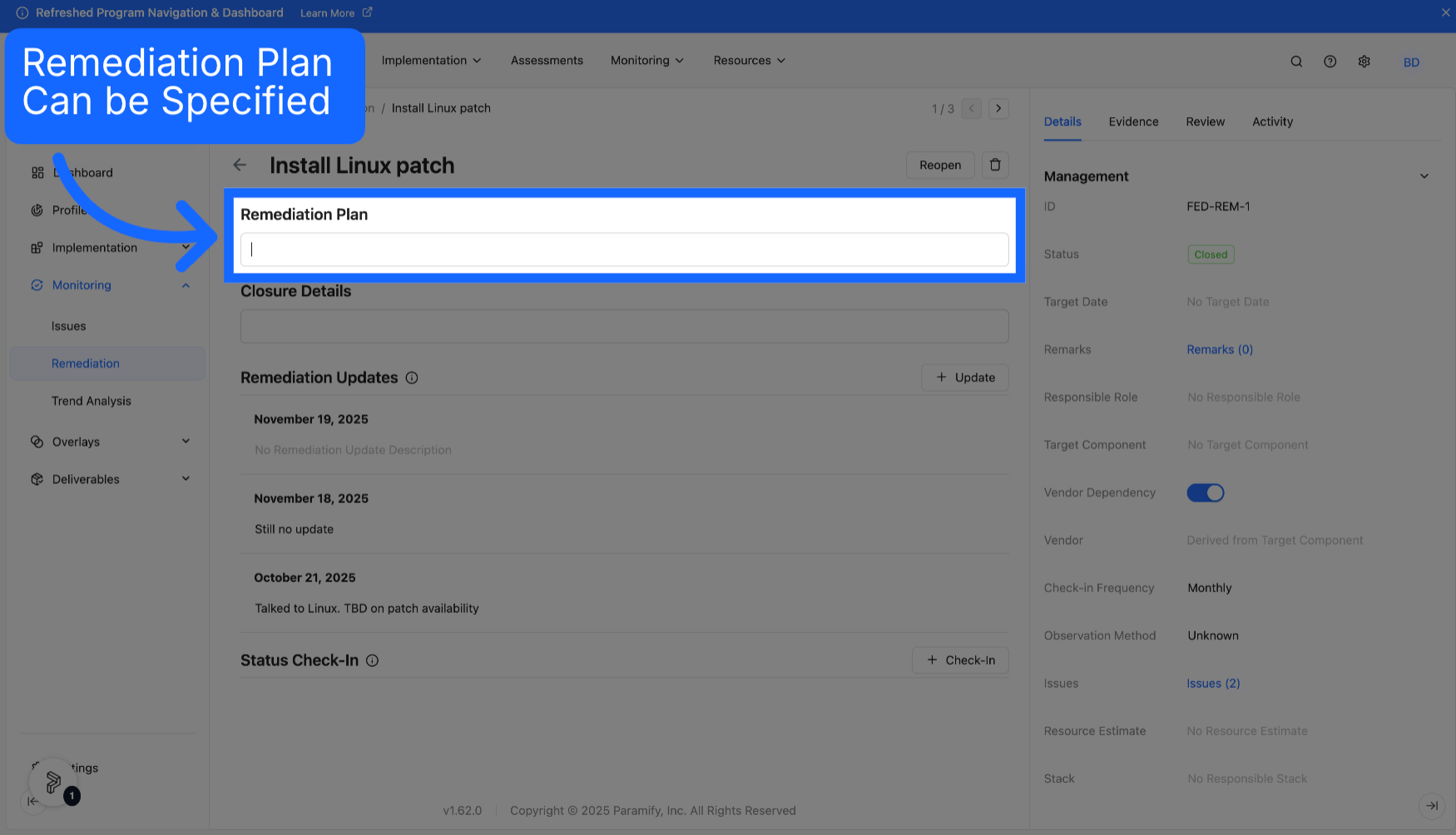
2. Access remediation plan
The Remediation Plan can be updated or specified.
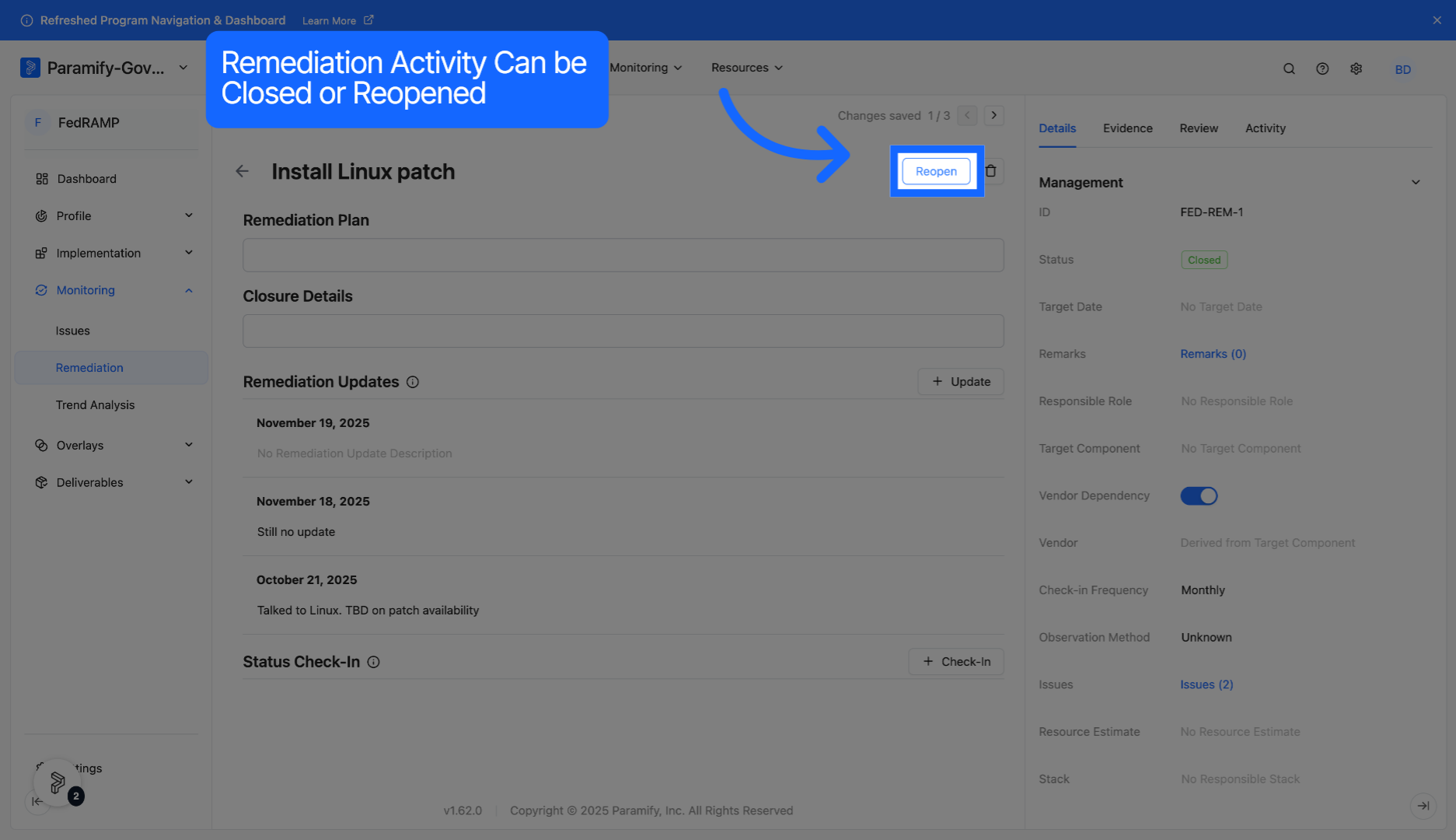
3. Close and reopen activities
Activities can be closed or reopened as needed.
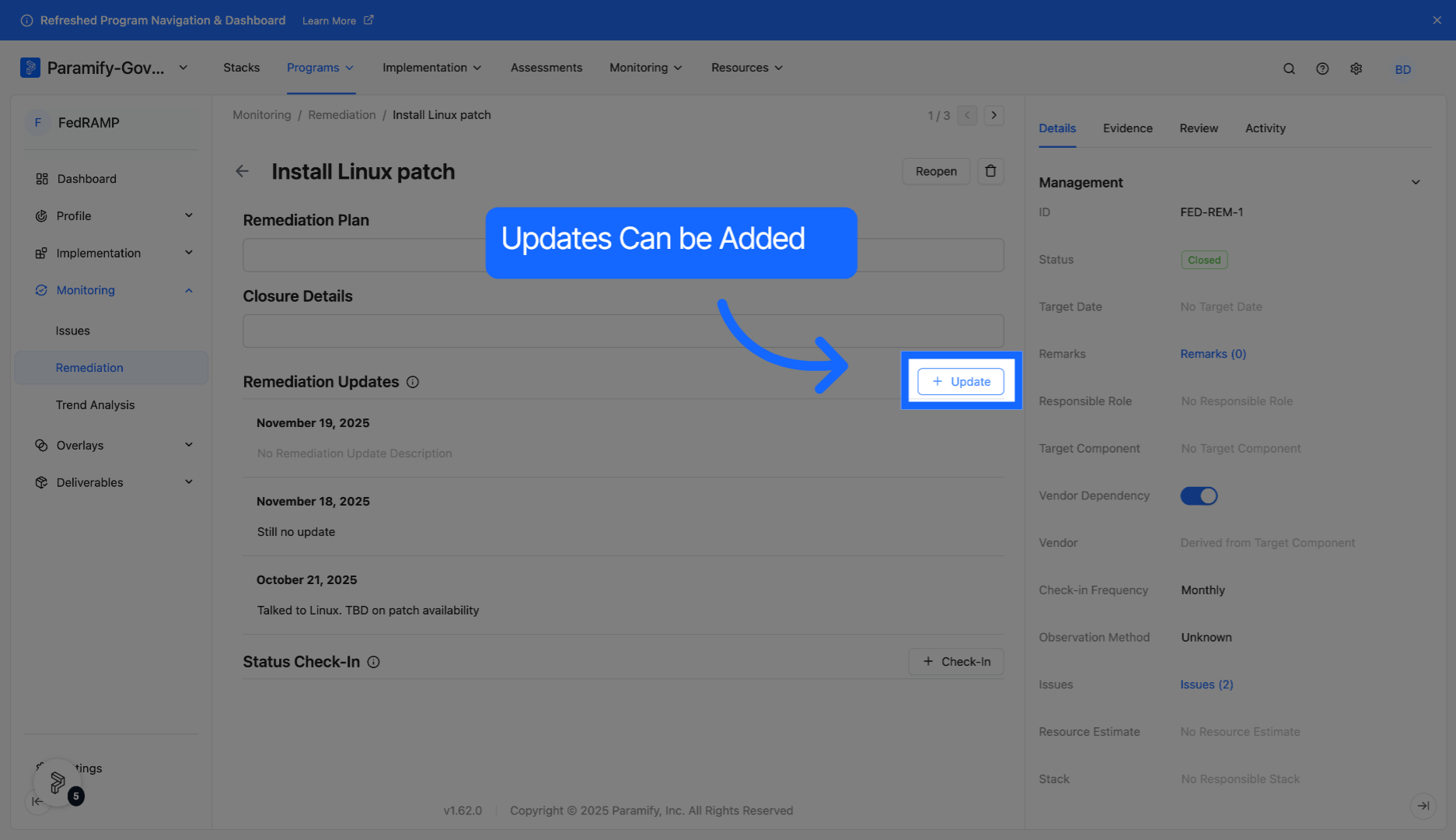
4. Add activity updates
Add updates to the remediation activity via the "+ Update" button.
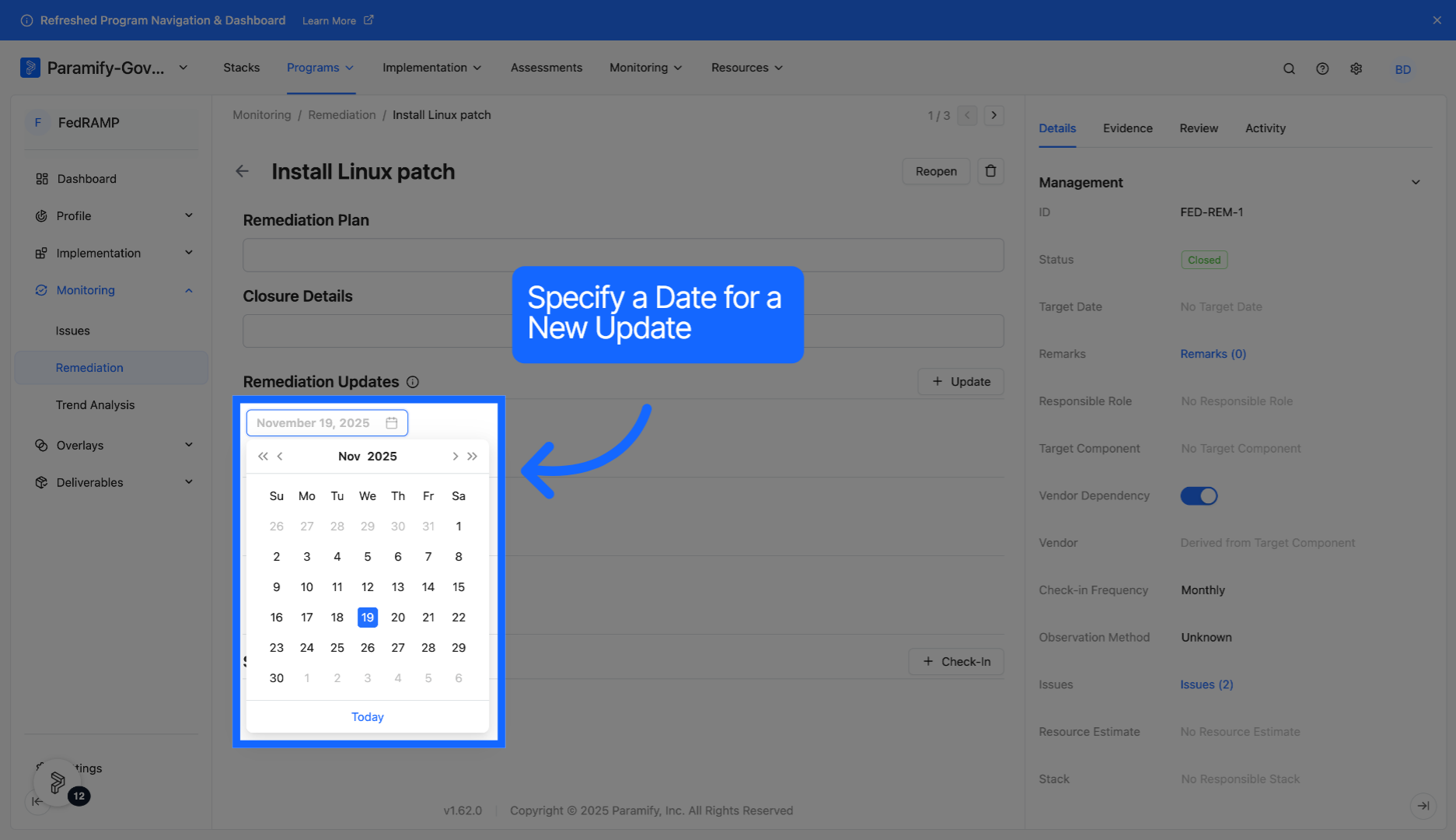
5. Select specific date
Always assign a date when creating a new update.
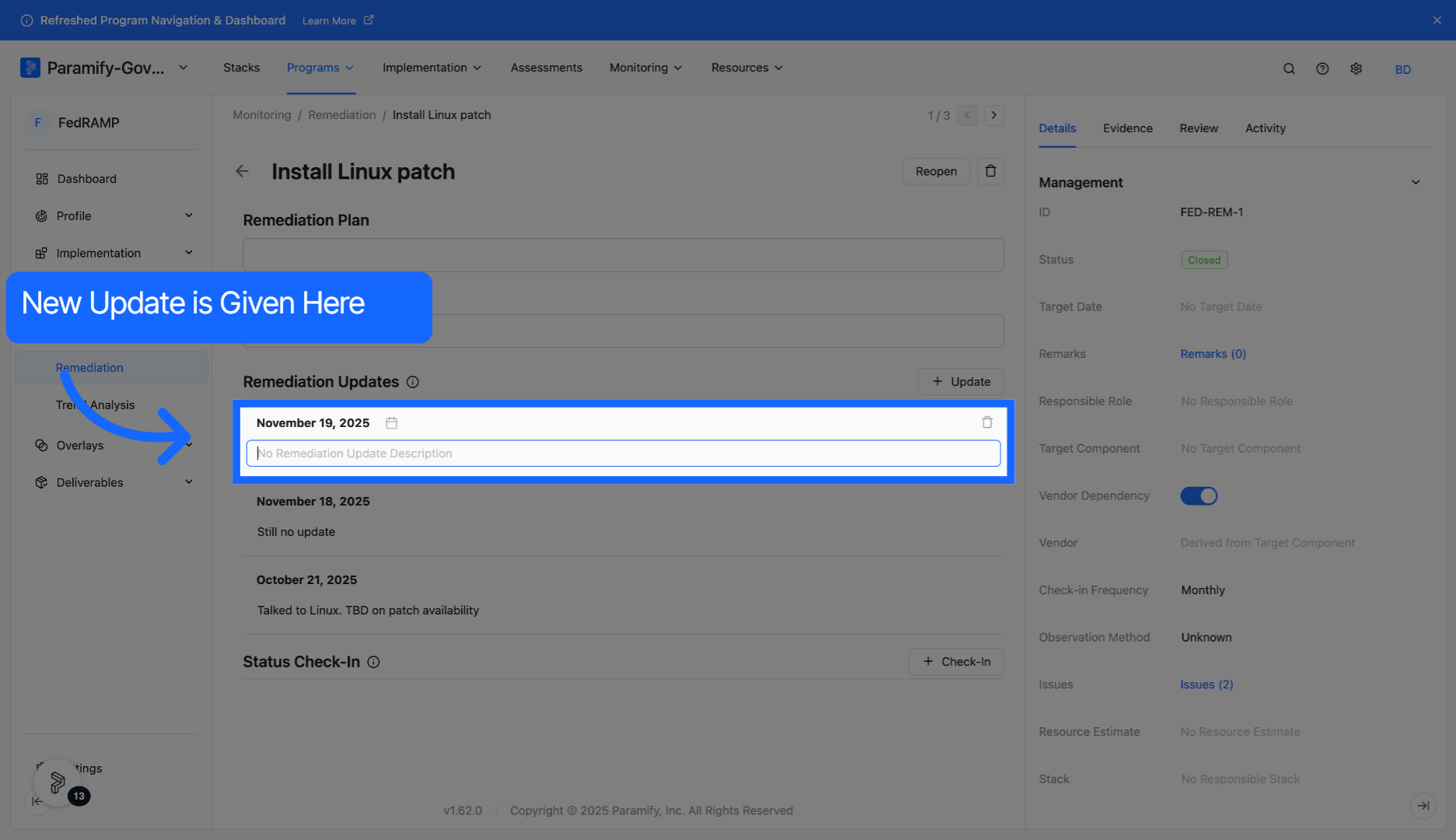
6. Specify update
Enter the update details in the provided field.
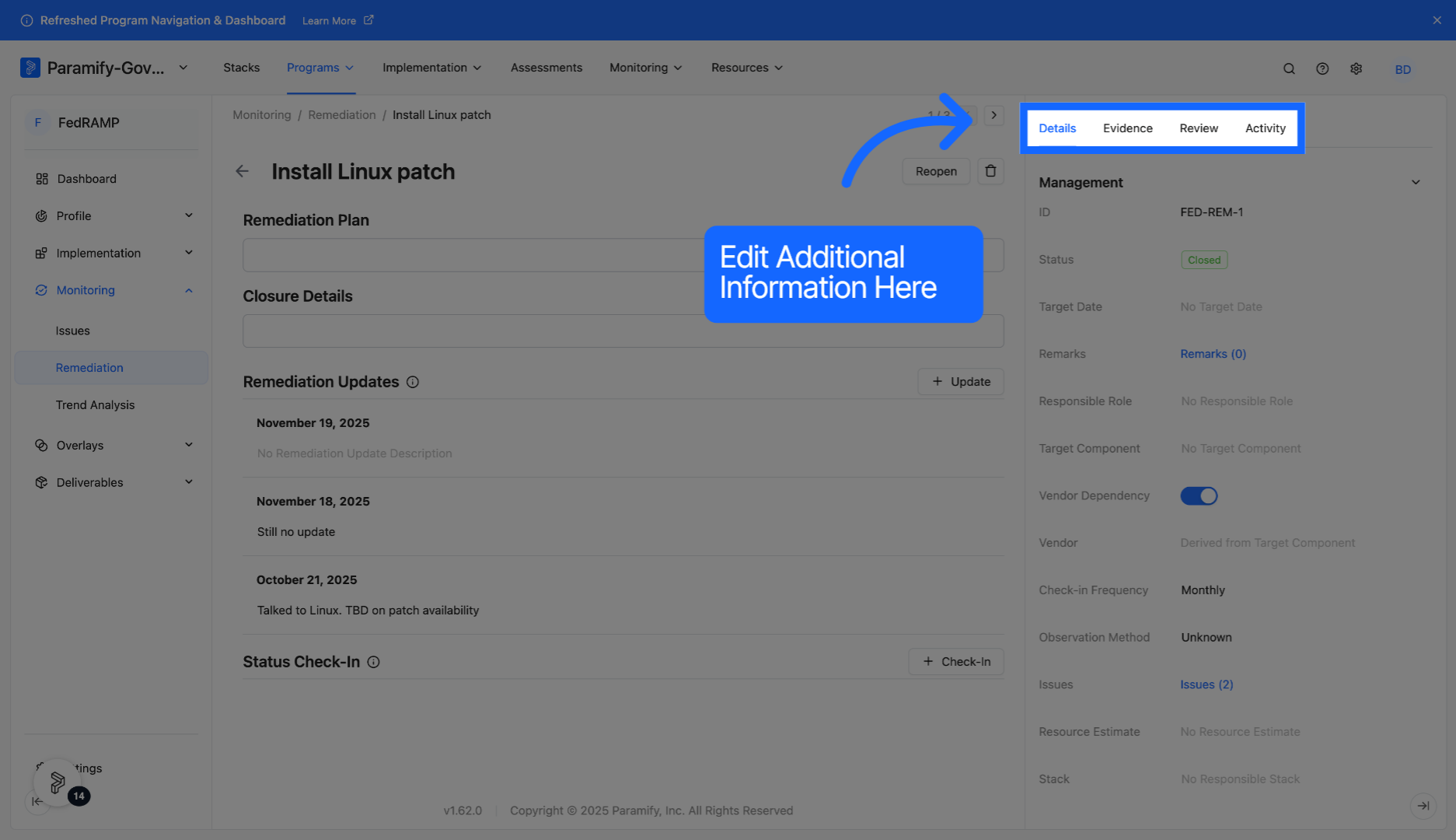
7. Edit additional information
Additional information such as adding evidence, assigning reviewers, and adding comments can also be managed from within a remediation activity.
You have successfully updated or edited a remediation activity.
Comments
0 comments
Please sign in to leave a comment.