
Overview
Risk Solutions are a crucial part of your security strategy. They represent solutions to the risks that your organization either currently possesses, plans to implement, or does not yet have. An implemented Risk Solution for Single-Sign-on, includes related capabilities that address risk. Learn about Solution Capabilities.
Importantly, Risk Solutions are framework-agnostic, meaning they can be applied to satisfy controls from any framework.
Elements can be converted into Risk Solutions for easier strategic planning and maintenance of your people, process, and tech. Learn about Elements.
You can identify your people, process, and tech in minutes with our innovative intake process.
Good to Know
If you are new to Paramify, you will likely do an Intake with our Client Success team. During the Intake process for the framework you are trying to cover, you will complete the process of creating a list of Risk Solutions specific for that framework. Here is a scenario you may run into that is worth noting.
Lets say you are doing an Intake for FedRAMP Class B and you are given an Excel Sheet that has 141 Risk Solutions. You will be asked to choose what technology you use for each Risk Solution. In reality, you will probably only use 41/141 Risk Solutions for FedRAMP Class B because the other 100 is only applicable to FedRAMP Class D. You may be thinking "Why did I do an additional 100 when I could have only done 41"?
Risk Solutions are framework-agnostic building blocks. The same Solution Capability you define once in Paramify. For example, your MFA tool, your vulnerability scanner, or your logging pipeline can be mapped to controls across FedRAMP Class B, FedRAMP Class C, FedRAMP Class D, NIST 800-53, NIST CSF, and beyond. By completing the full set during your initial Intake, you are not doing extra work; you are doing the work once instead of repeating it every time you pursue a new authorization or step up to a higher level.
If you decide six months from now to pursue FedRAMP Class C, those 100 "extra" Risk Solutions are already defined, documented, and ready to be mapped; turning what would have been a multi-week ramp-up into a same-day exercise. The same logic applies if you later expand to FISMA, StateRAMP, or any other framework Paramify supports.
In short: build the full list up front. Today's "unused" Risk Solutions are tomorrow's pre-built compliance assets.
Navigating to Risk Solutions
Risk Solutions are stored at the workspace level and can be applied to all relevant programs and stacks.
(If you have already imported an SSP, Risk Solutions can be created by importing your SSP and navigating the Generate Solution Capability or Create Elements workflow).
1. Navigate to Implementation Section
Click the Implementation section to begin configuring your Risk Solutions.
2. Access Risk Solutions Menu
Click Risk Solutions to view available risk management options.
Creating a Risk Solution
Here is an example of creating a new Risk Solution that covers Single Sign-On Authentication.
1. Navigate to "+ Risk Solution"
Click "+ Risk Solution" button to open the creation modal.
2. Select Risk Solution Label
Click the Risk Solution Label to access detailed configuration options.
3. Open Single Sign-On Authentication
Click Single Sign-On Authentication to manage your SSO settings.
4. Create name and Confirm Selection
Create a custom name for the Risk Solution. Then click OK to confirm your selection and proceed.
How to select a component for a Risk Solution
1. Change selected component
Click the Selected Component section to see the recommended Elements to be used for the Risk Solution.
2. Select a Component
Click an Element from the list of suggested components for the authentication provider.
Creating a Custom Component for a Risk Solution.
If you have a custom Component that you want to use for a Risk Solution, you can create one by following the instructions below.
1. Change Selected Component
Click the Selected Component section to start creating your custom Element to be used for your Risk Solution.
2. Enter Tool Name
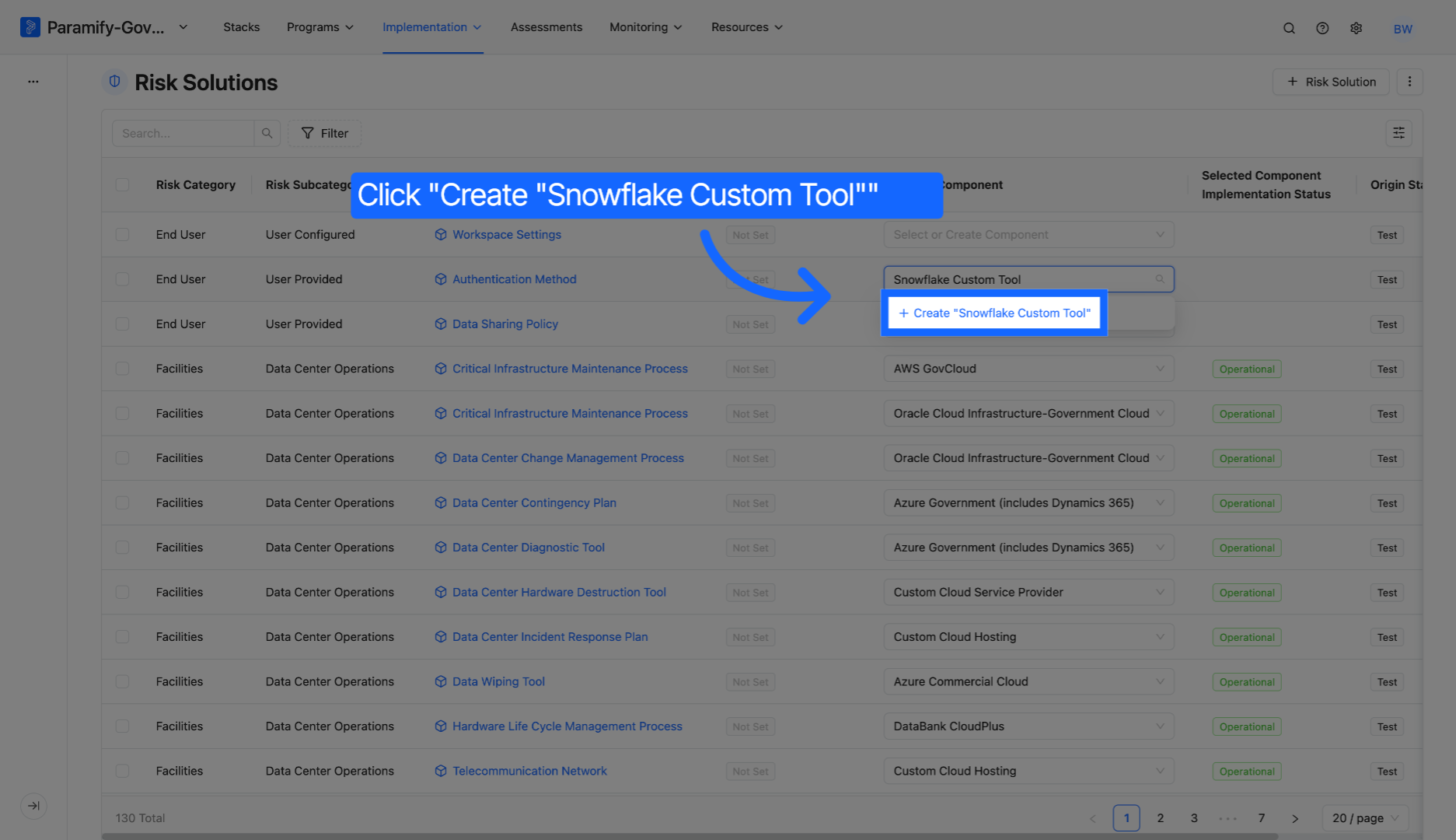
Enter the name(e.g. "Snowflake Custom Tool") of your custom tool to identify it within the system.
3. Create Custom Tool
Because your custom component does not exist, you have the option to click create and select the "Snowflake Custom Tool" as your Authentication Method solution.
Comments
0 comments
Please sign in to leave a comment.