
Overview
Selective Sync lets you choose exactly which fields to update when syncing a Workspace Solution Capability with its linked Template Solution Capability. Instead of an all-or-nothing resync that overwrites every field at once, you can now review each change individually, select only the fields you want to update, and leave the rest untouched.
Who can use this
Selective Sync is available to all workspace users who have permission to edit Solution Capabilities. The feature applies to Workspace Solution Capabilities that are linked to a Template Solution Capability.
Key concepts
When a Template Solution Capability is updated by your organization's template administrators, the linked Workspace Solution Capabilities may fall out of sync. Previously, resyncing meant accepting all template changes at once. With Selective Sync, you now have granular control over which fields to update.
The fields you can selectively sync include: name, family, subfamily, suggested mappings (grouped by catalog), applicable products, main components, and responsibility functions (provider, integrator, and end user including content, origination, and responsible role for each).
HOW SYNC STATUS WORKS
A Solution Capability is flagged as "out of sync" only when the rendered text of a field actually differs from the template. Cosmetic differences, such as orphaned mentions referencing deleted elements do not trigger false sync alerts.
How to use Selective Sync
From a Solution Capability detail page
1. Open a Solution Capability that has updates available
Navigate to Implementation > Solution Capabilities and open a Solution Capability. In the Management sidebar, look for the Link Status field. If the template has been updated since your last sync, you will see an Updates Available button instead of the usual "Synced" status.
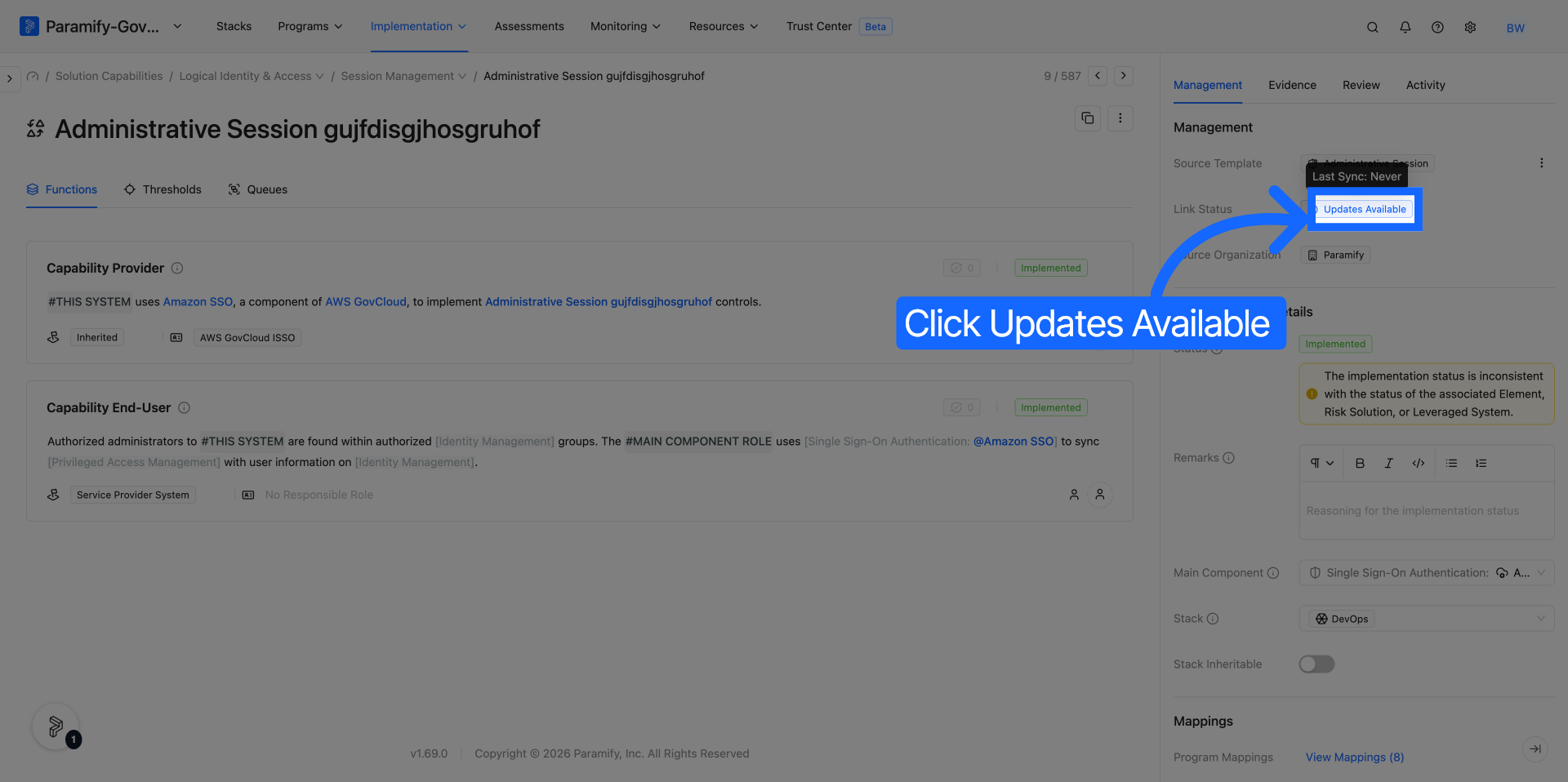
2. Review and select fields to sync
Click the Updates Available button. A modal opens titled Select Fields to Sync, showing every field that differs between your Workspace Solution Capability and the linked Template. The modal displays a table with three columns:
| Column | What it shows |
|---|---|
| Field | The name of the field that has changed (with a checkbox to select it) |
| Changes | A diff view showing what changed — current value in red strikethrough, new value in green |
| Final Result | The final state of the field after syncing |
Click anywhere on a row to select it — you do not need to click the checkbox directly. Selected rows are highlighted. You can also use the search bar at the top of the modal to filter fields by name.
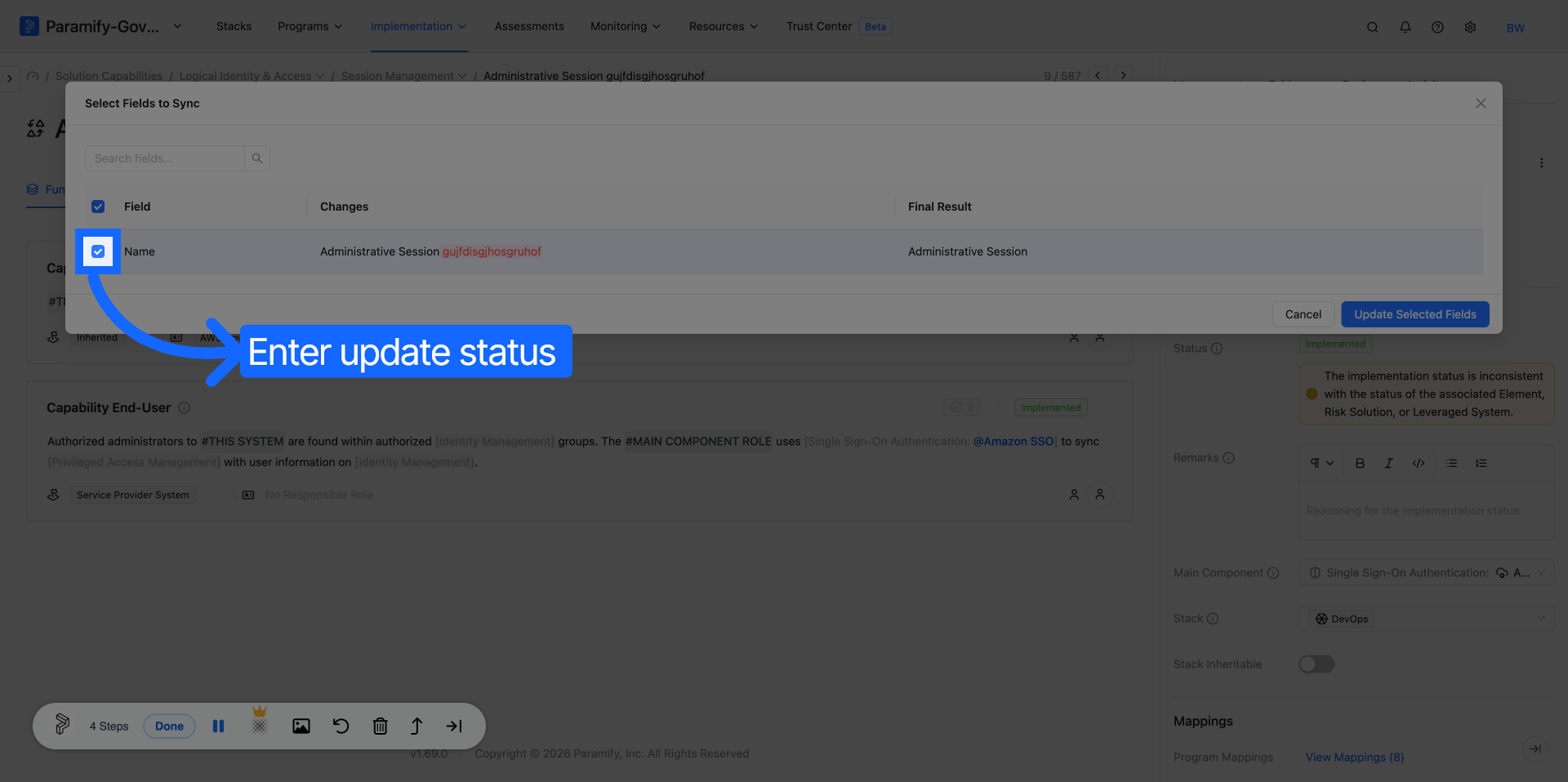
3. Apply your selected updates
Click the Update Selected Fields button to apply only your selected field changes. Unselected fields remain unchanged in your Workspace Solution Capability.
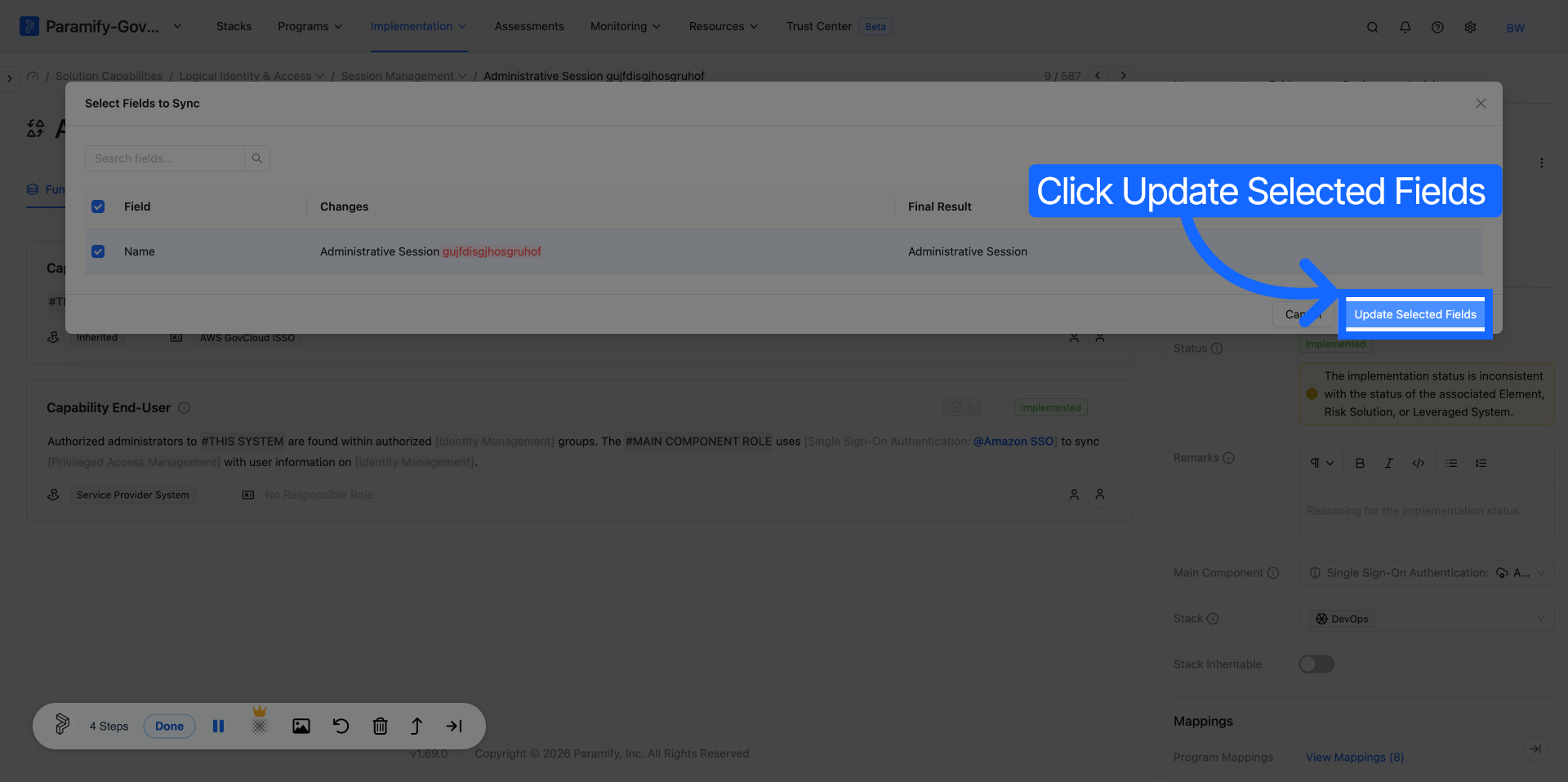
4. Confirm the sync result
After syncing, the Solution Capability detail page refreshes. If all fields are now in sync, the Link Status returns to Synced. If you left some fields unselected, the status will still show Updates Available until you sync the remaining fields.
From the Solution Capabilities list page
1. Select Solution Capabilities from the list
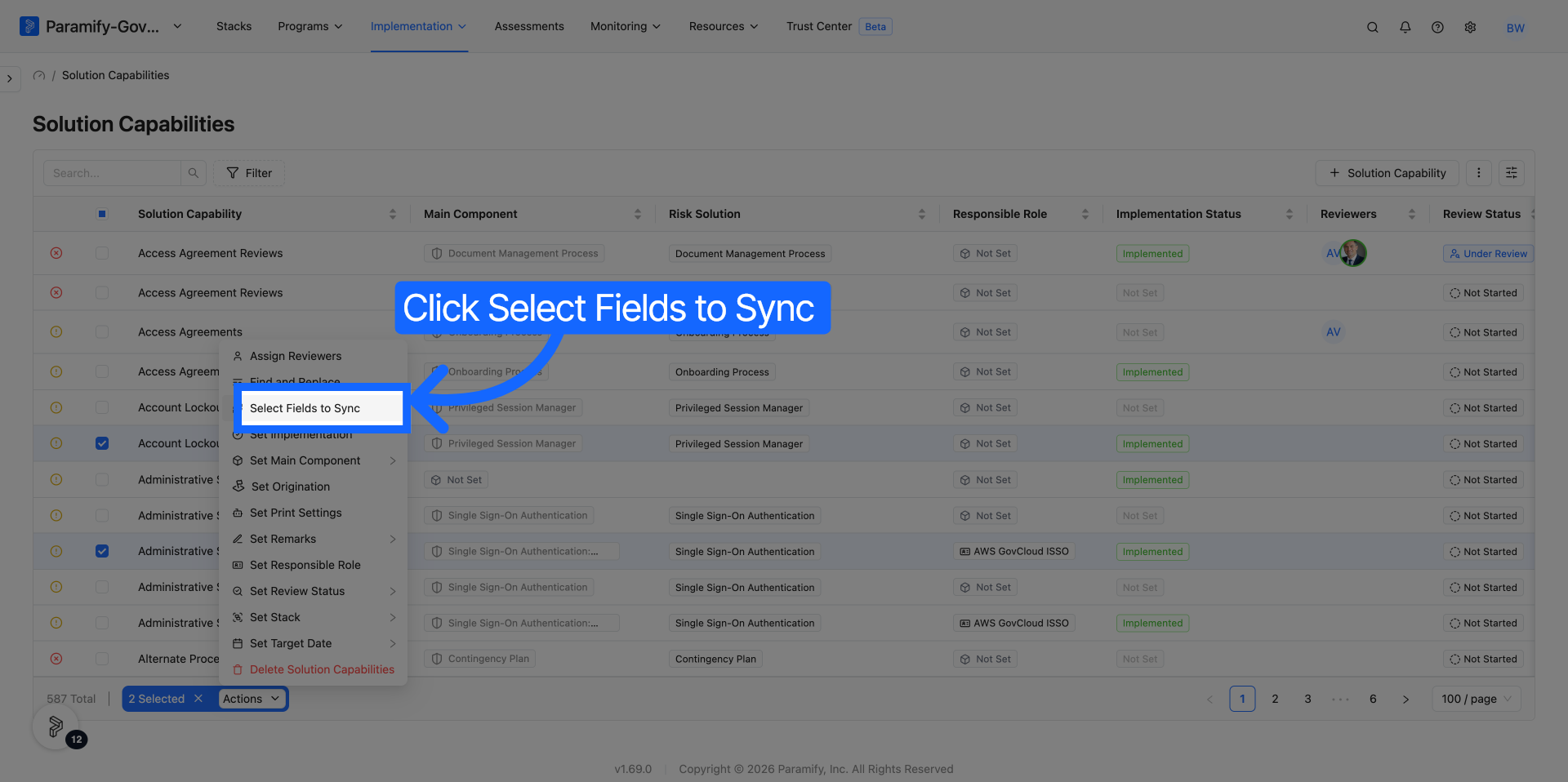
Navigate to Implementation > Solution Capabilities. Use the checkboxes to select one or more Solution Capabilities that you want to sync. Then click the Actions dropdown at the bottom of the list.
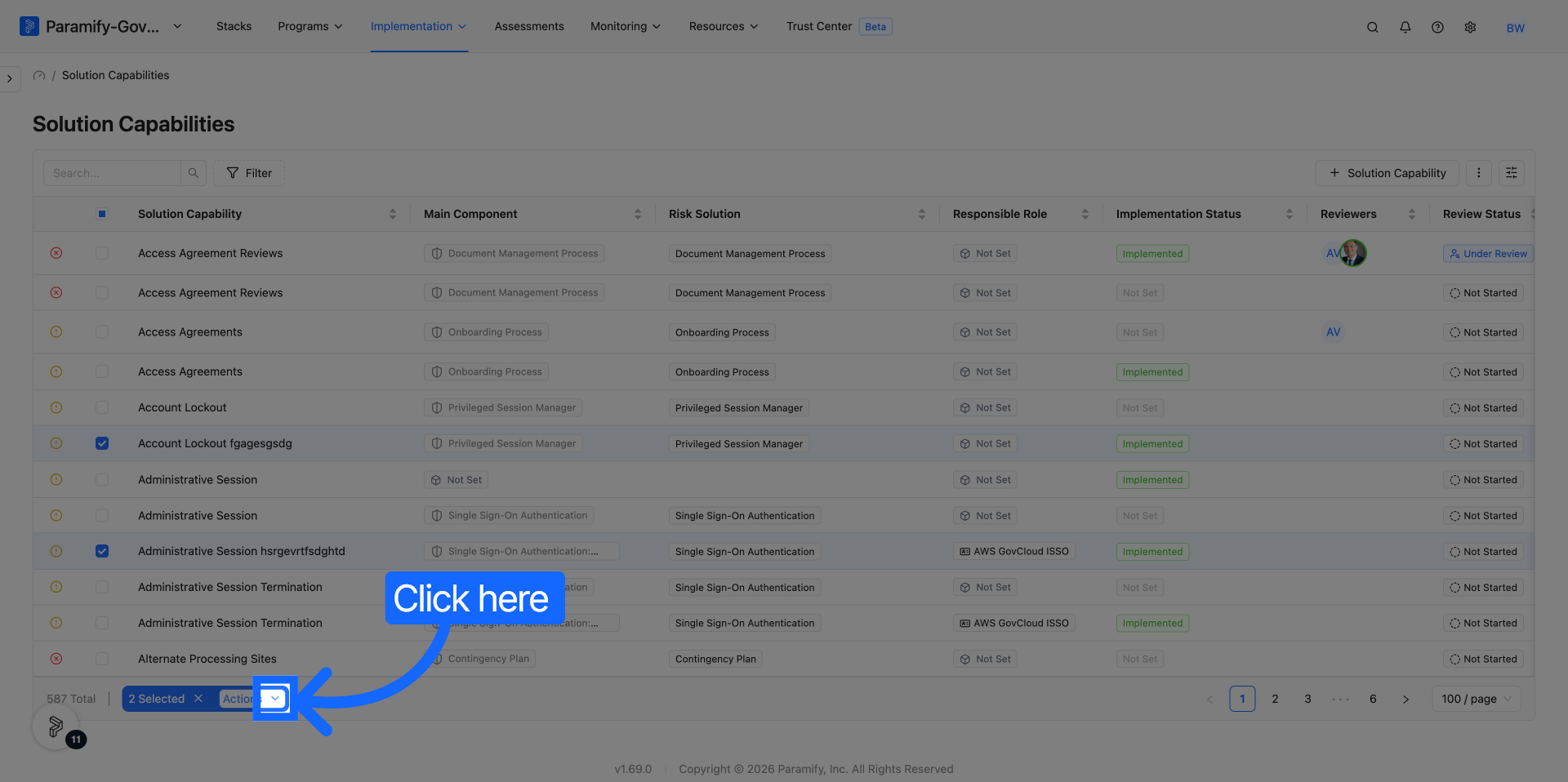
2. Click "Select Fields to Sync"
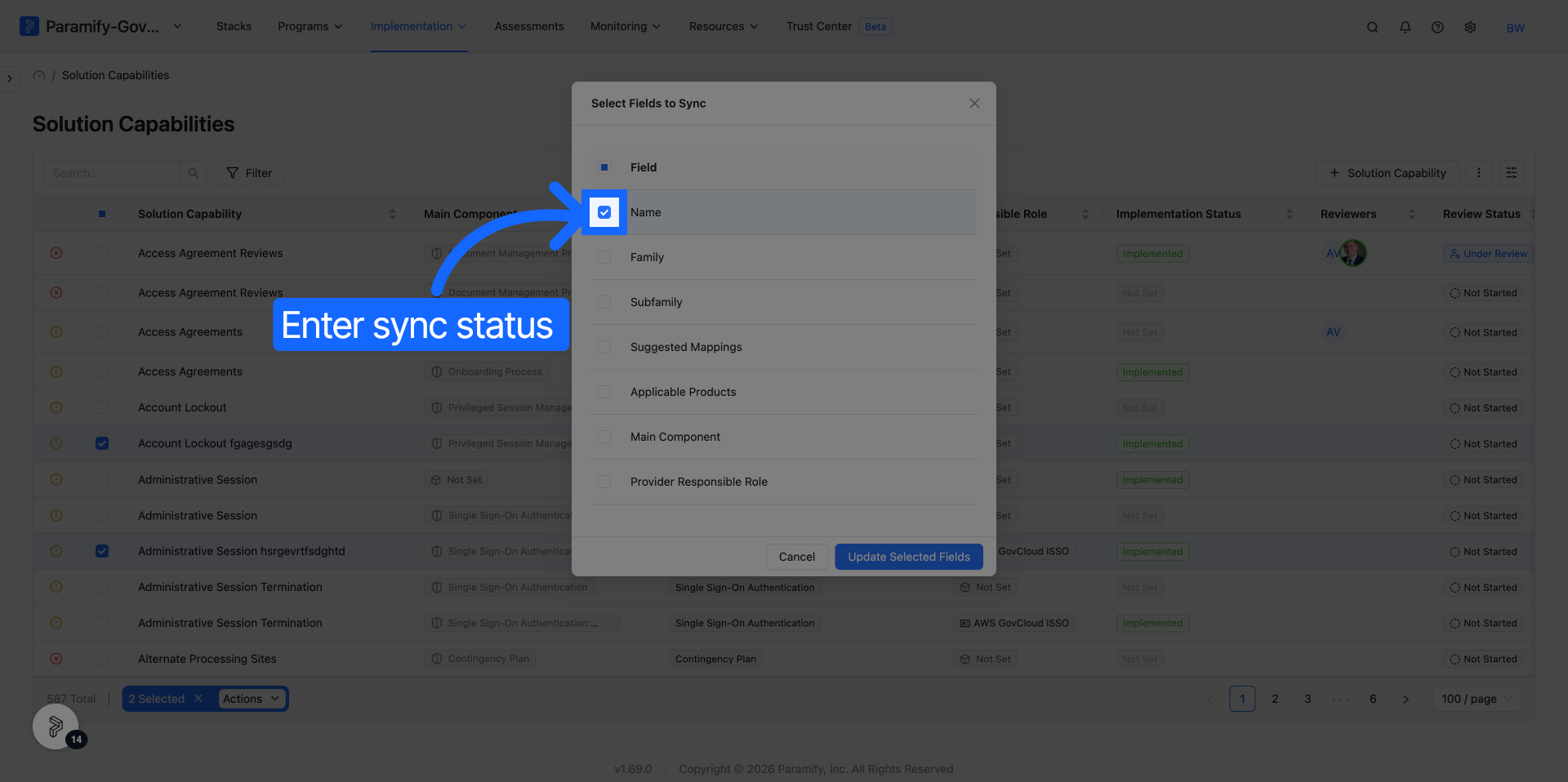
In the Actions dropdown, click Select Fields to Sync. This opens the Bulk Field Sync Modal, which lists all syncable fields: Name, Family, Subfamily, Suggested Mappings, Applicable Products, Main Component, and Provider Responsible Role.
3. Select fields and apply
Select the fields you want to sync across all chosen Solution Capabilities. In the example below, only the Name field is selected — this means only the name will be updated on the selected SCs, leaving all other fields untouched. Click Update Selected Fields to apply.
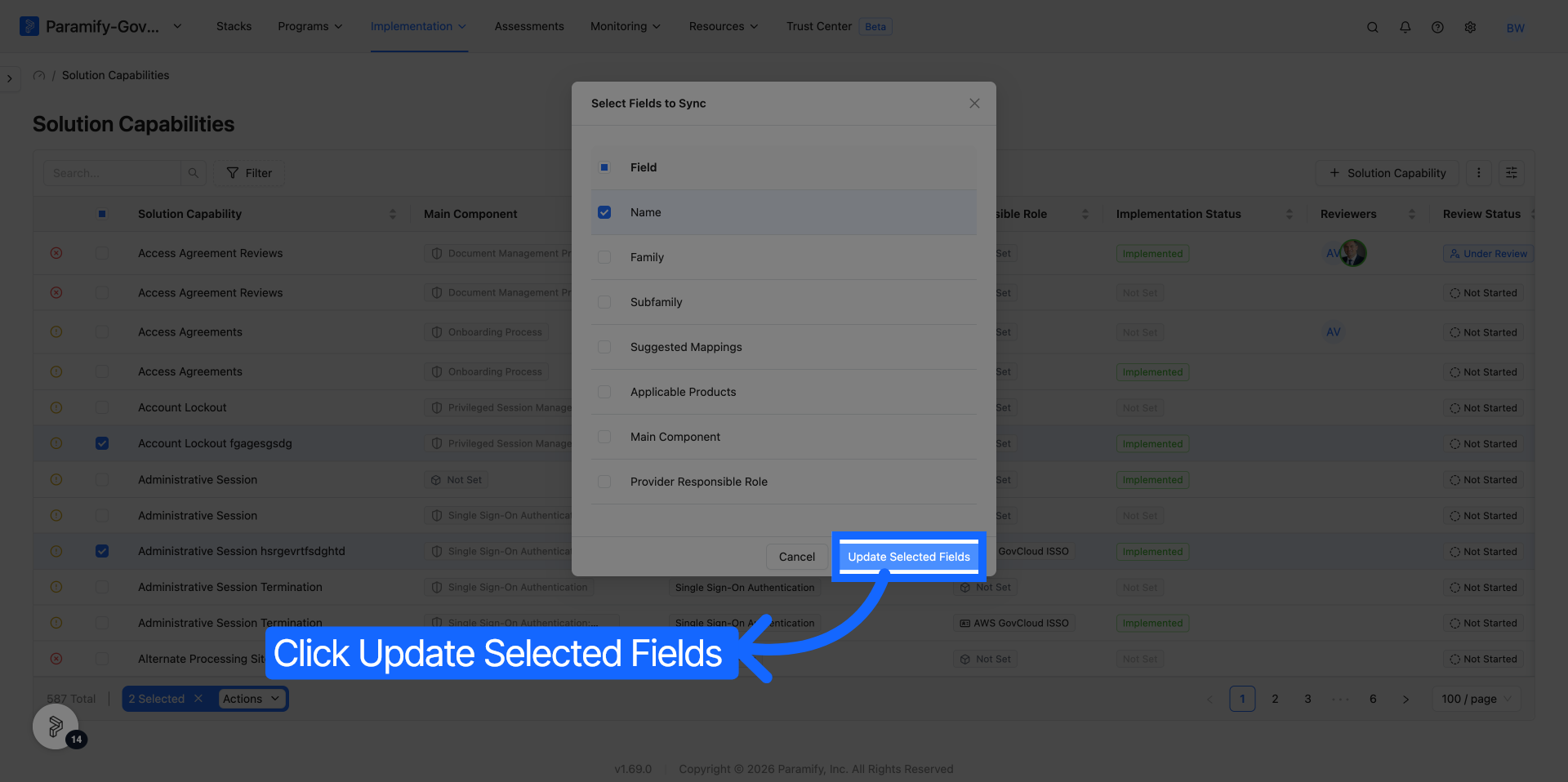
4. Finalize and confirm the bulk sync
Click Update Selected Fields to finalize and save all synchronization changes.
5. Verify the sync result
After syncing, the names of the selected Solution Capabilities revert to their original template values. The fields you selected are now synced with the Template Solution Capability for this program.
Suggested mappings behavior
Suggested mappings are now grouped by catalog in the Field Sync Modal, making it easier to review mapping changes at a glance. When you sync the suggested mappings field, the sync will:
| Scenario | What happens |
|---|---|
| Template added new mappings | Missing mappings are added to your Workspace SC |
| You manually added extra mappings | Extra mappings not in the template are removed to match the template |
| Template removed mappings | Those mappings are removed from your Workspace SC |
IMPORTANT
Syncing suggested mappings makes your Workspace SC's mappings match the linked Template SC exactly. Any mappings you added manually that are not in the template will be removed.
What to expect
After applying a selective sync:
| Outcome | Details |
|---|---|
| Selected fields | Updated to match the template values |
| Unselected fields | Remain unchanged — your local edits are preserved |
| Sync status | If unselected fields still differ from the template, the SC remains flagged as out of sync |
Understanding the Changes column
The Changes column in the Field Sync Modal uses arrows and labels to show exactly what will happen to each field:
| Current state | Update | Changes column shows |
|---|---|---|
| Not Set | New value added | Not Set → [New Value] |
| Has a value | Value replaced | [Old Value] → [New Value] |
| Has a value | Value cleared | [Old Value] → Not Set |
| Not Set | Containing function removed from template | Not Set → Removed |
| Has a value | Containing function removed from template | [Old Value] → Removed |
Limitations and known behaviors
| Behavior | Details |
|---|---|
| Structure changes | If you change an SC's structure (e.g. Standalone → Layered), the new functions won't trigger "Updates Available" until you start editing content in them. |
| Applicable products | Applicable product changes display as human-readable tags (not UUIDs) in the modal. |
| Invalid mentions | Orphaned mentions (referencing deleted elements) no longer cause false "Updates Available" alerts. Only actual text differences trigger the sync indicator. |
Comments
0 comments
Please sign in to leave a comment.