
Overview
The Assessment Viewer is a read-only user type that gives designated individuals access to view assessment records and evidence sets without the ability to create, edit, or delete any data. It is designed for stakeholders, auditors, or reviewers who need visibility into assessment progress without modifying it.
Who can use this
The Assessment Viewer role is assigned by a workspace Admin or Owner. Once assigned, the user can access the Assessments and Evidence Sets sections of the workspace. All other areas of the application (Programs, Implementation, Stacks, Monitoring, Resources) are not accessible to Assessment Viewers.
Assigning the Assessment Viewer role
1. Open Workspace Settings
Navigate to Workspace Settings and select the Users tab.
2. Invite or edit a user
Click + User to add a new user, or click an existing user's name to edit their type. In the User Type dropdown, select Assessment Viewer.
3. Save and confirm
If creating a new user, click Add Users. The user will now have read-only access to Assessments and Evidence Sets the next time they log in.
What Assessment Viewers can access
When logged in as an Assessment Viewer, the top navigation shows only two sections: Assessments and Evidence Sets. All other workspace areas are hidden.
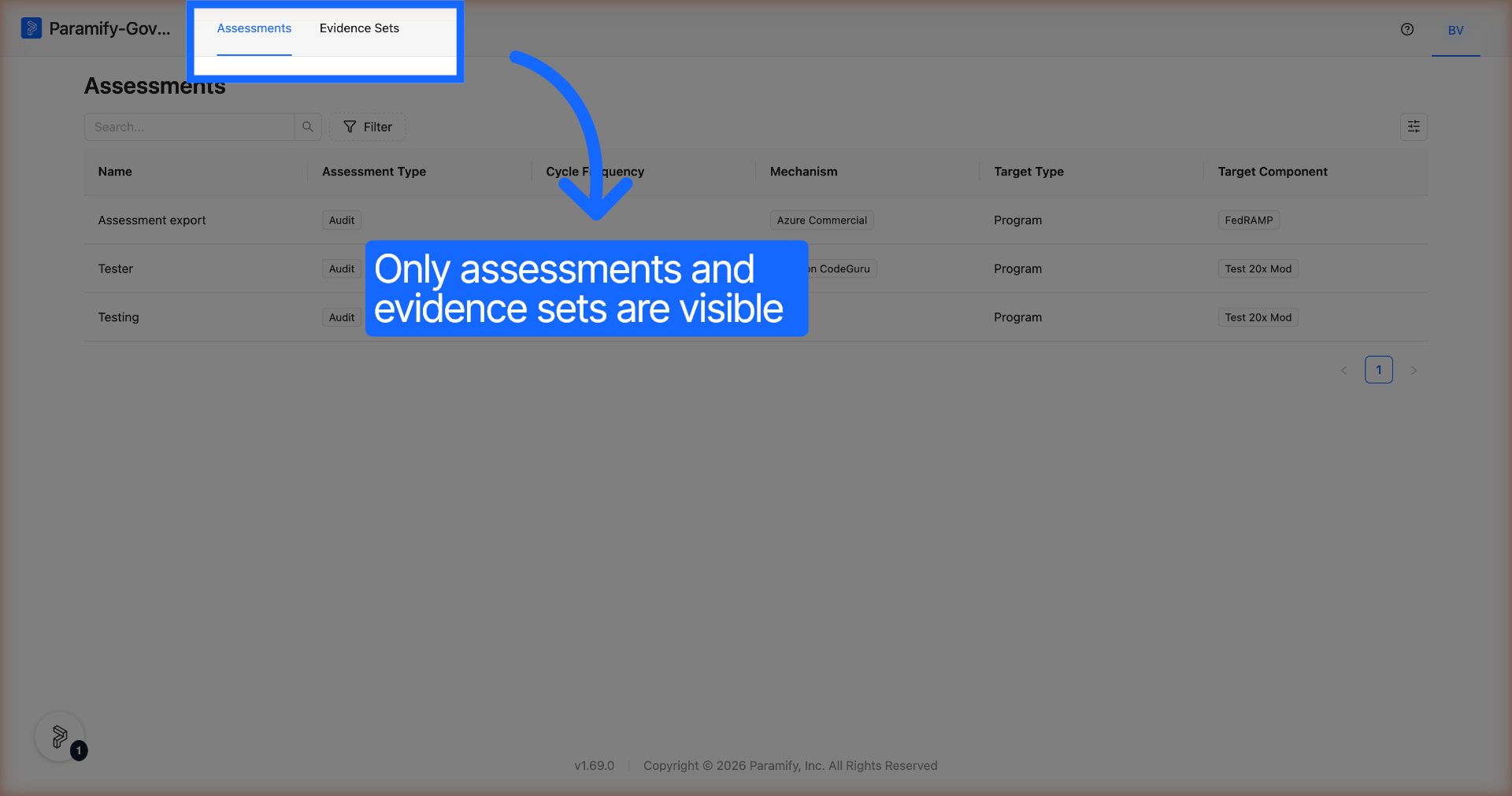
Assessments
Assessment list
Assessment Viewers can see all assessments they have been given access to. The list is read-only: there are no options to create a new assessment, select multiple records, or access row-level actions.
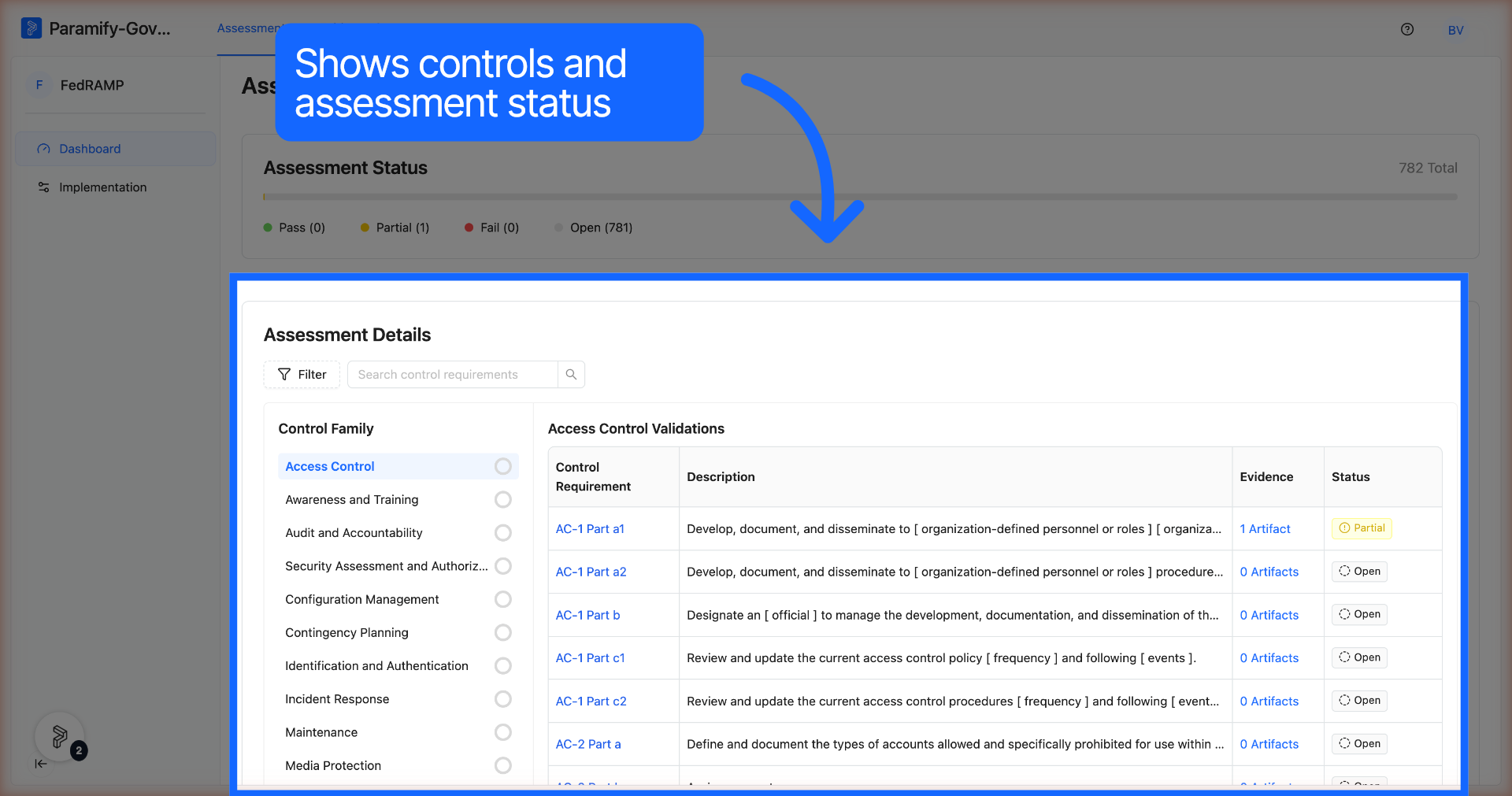
Assessment dashboard
Clicking into an assessment opens the Assessment Dashboard, showing overall status and the control requirement breakdown. The sidebar shows Dashboard and Implementation navigation items only — the Activity feed is not shown.
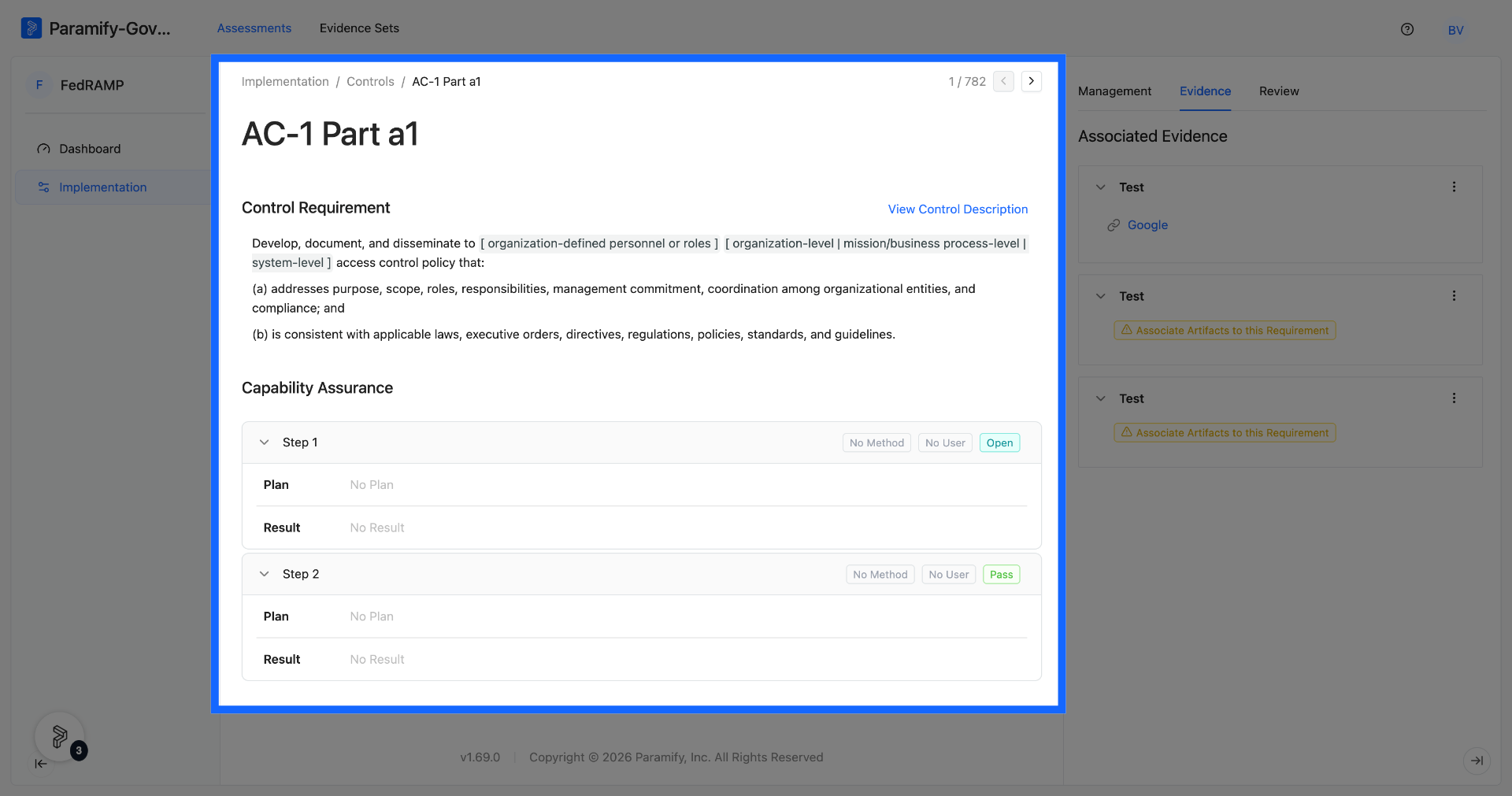
Control detail page
Clicking a control requirement opens its detail page. Assessment Viewers can read the control requirement text, view Capability Assurance steps, and open the Management, Evidence, and Review tabs. No fields are editable and no actions are available on individual steps.
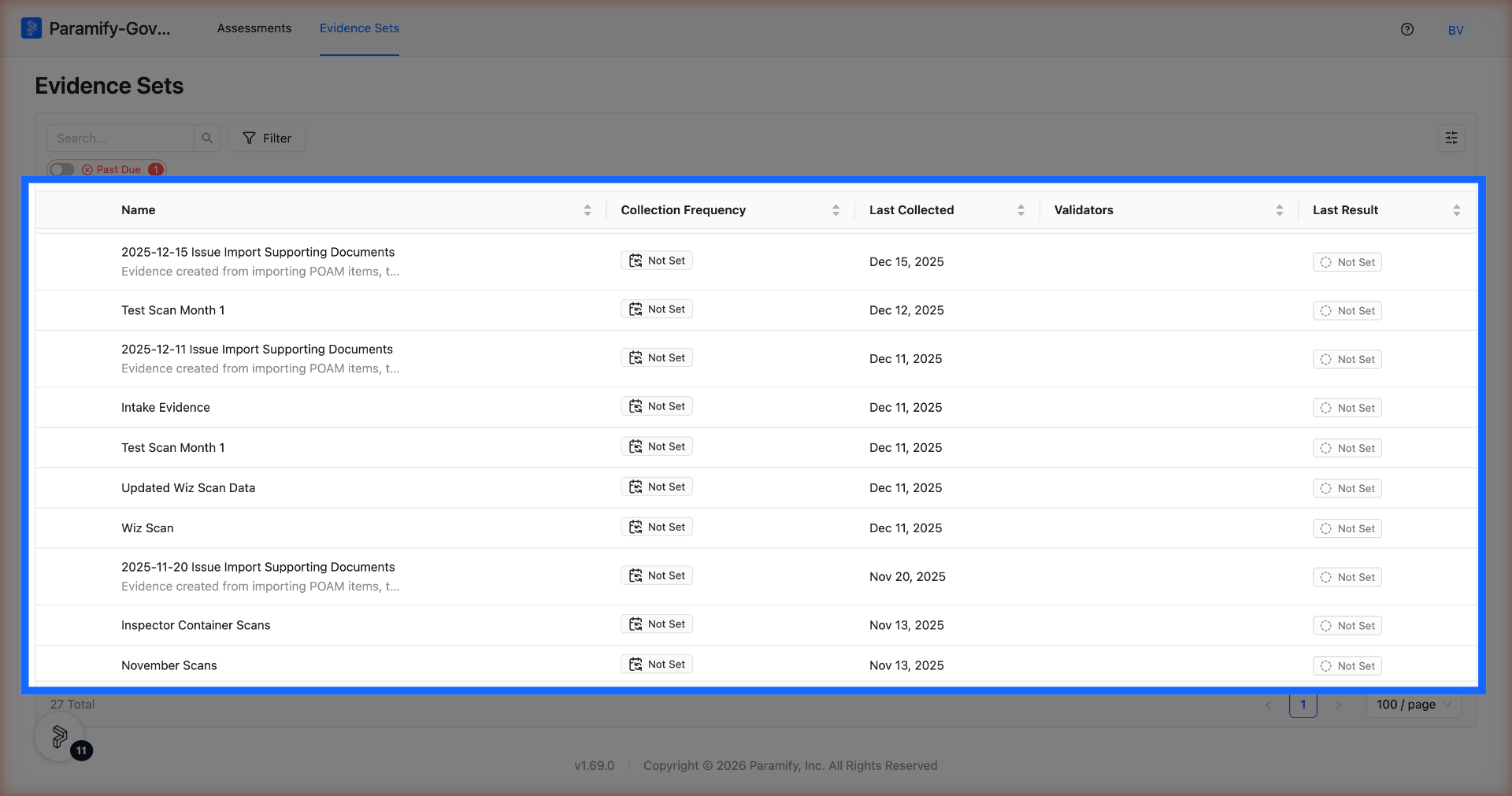
Evidence Sets
Evidence Sets list
The Evidence Sets page displays all evidence sets in the workspace. Assessment Viewers can browse and search the list but cannot add new evidence sets.
Evidence Set detail page
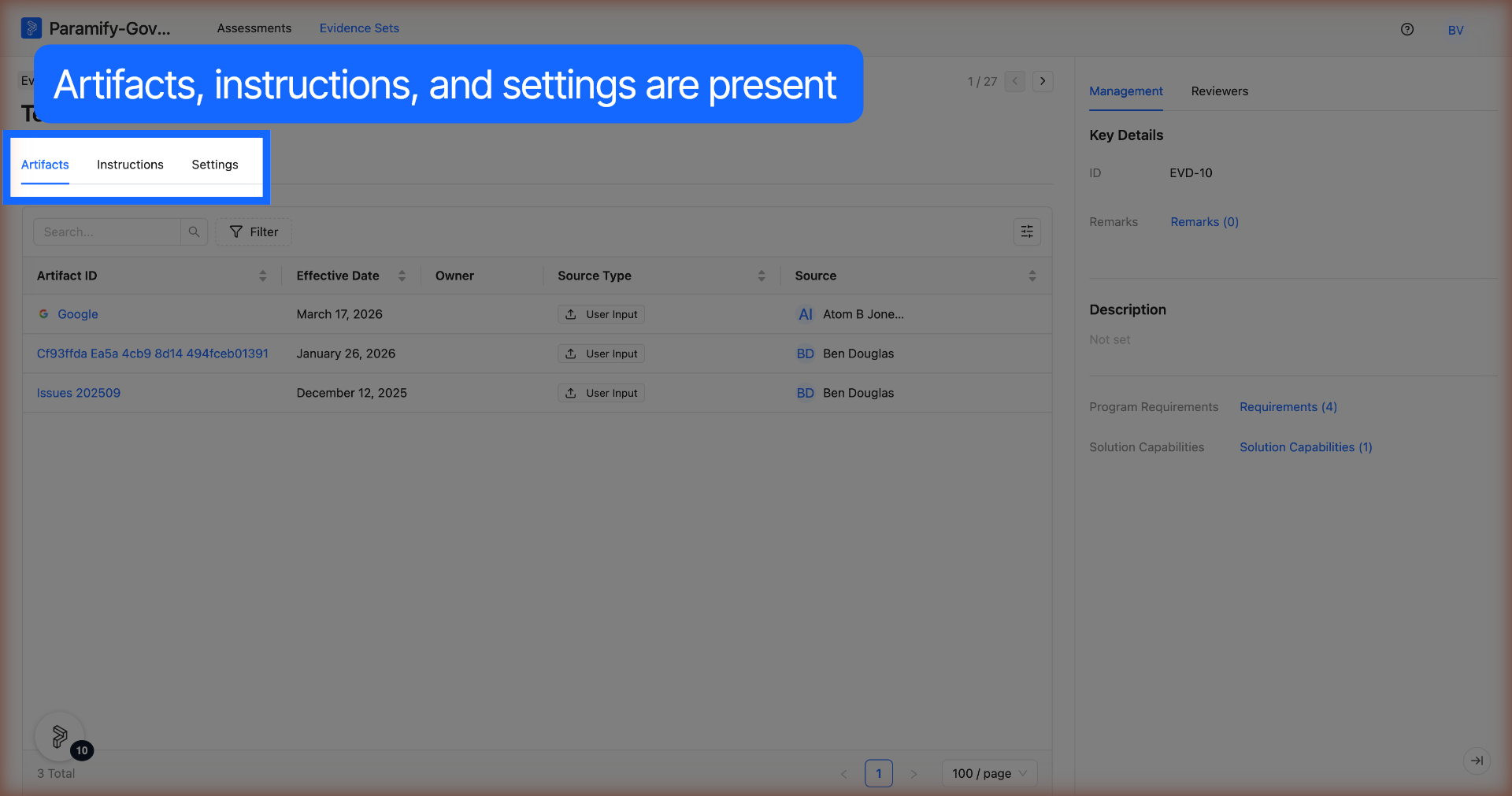
Opening an evidence set shows the Artifacts, Instructions, and Settings tabs. All tabs are viewable. Artifact rows do not have 3-dot action menus, and no fields can be modified.
Limitations
The following actions are not available to Assessment Viewers:
- Creating, editing, or deleting assessments, controls, evidence sets, or artifacts
- Accessing Programs, Implementation, Stacks, Monitoring, or Resources sections
- Viewing the Activity feed on assessments or evidence
- Editing remarks on controls or evidence
- Modifying review status or assurance ownership on controls
Comments
0 comments
Please sign in to leave a comment.