
Paramify now lets validators automatically drive a function's implementation status — no more manual updates each time new evidence comes in. This article explains how queues work, how to enable automatic status tracking via validation, and how to route artifacts to the right queue when you upload them.
How queues work
A queue in Paramify is created automatically — you don't create one manually. It appears whenever all three of the following are true for an evidence set:
- A validator is assigned to the evidence set, forming a Validator–Evidence (VE) pair.
- That VE pair is mentioned inside a solution capability function.
- The function has an owner assigned (a user or team).
Once those conditions are met, a queue is created for that function owner. The queue tracks artifacts collected for that evidence set, and the most recent artifact in the queue is what drives the "By Validation" implementation status (described below). If an evidence set is mentioned in multiple functions with different owners, each owner gets their own queue.
What's new
The following changes are now available:
- By Validation mode — a new option on a function's implementation status that syncs the status from the most recent validator result in the function's queue.
- Queues tab on evidence sets — a new tab on every evidence detail page showing all queues linked to that evidence.
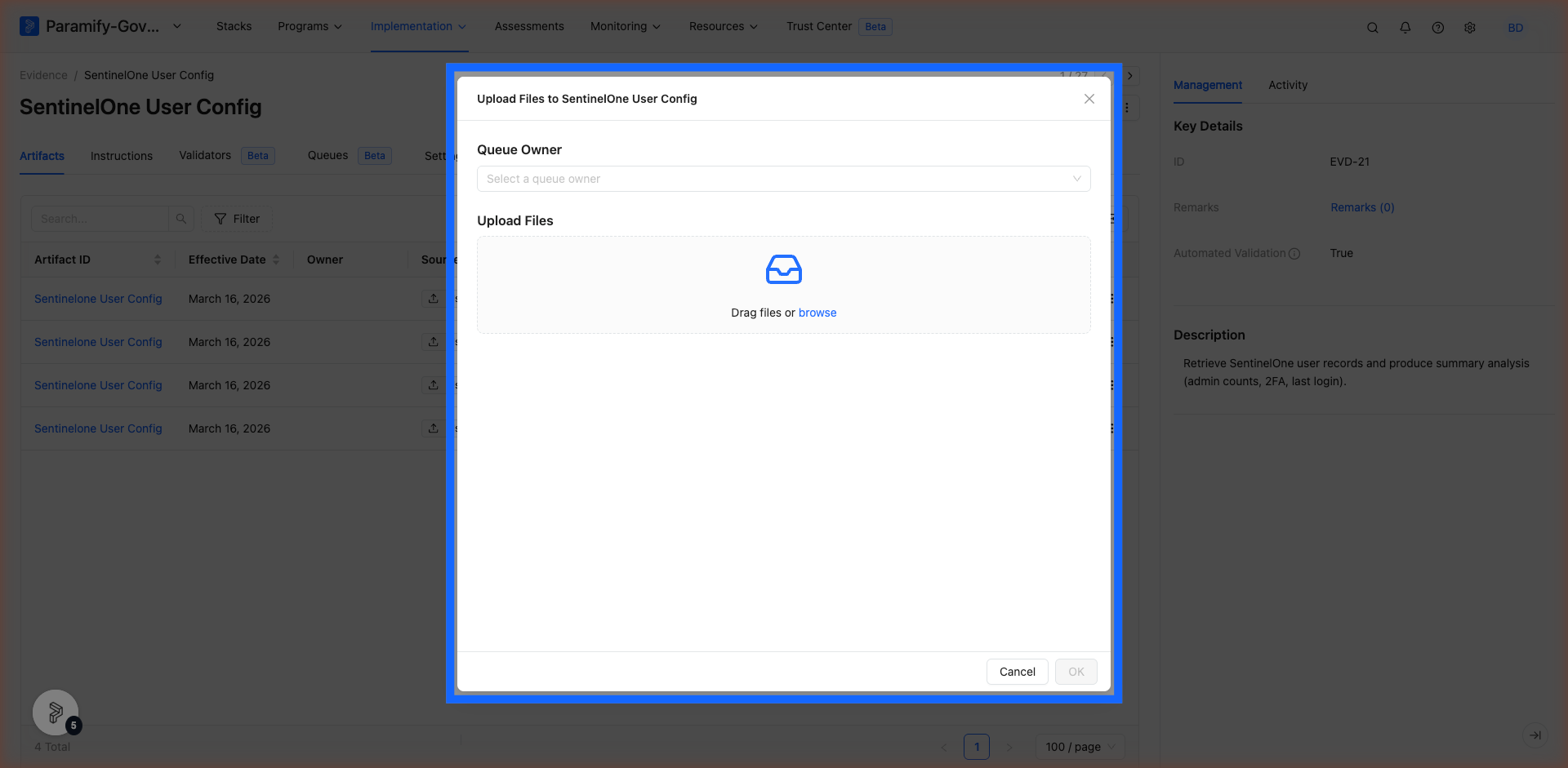
- Queue owner when uploading artifacts — when you upload a new artifact, you can now select which queue to route it to.
- Validator history in the Evidence side panel — the Evidence tab on a solution capability now shows a per-validator status and history timeline.
- Validator field renamed — the Description field on a validator has been renamed to Statement throughout the app.
- Validator mention popover — clicking a validator mention in a text field (edit mode) now opens a popover with quick-action links instead of navigating away from the page.
Enabling By Validation mode on a function
1. Open a solution capability
Navigate to Implementation → Solution Capabilities and open the capability you want to update.
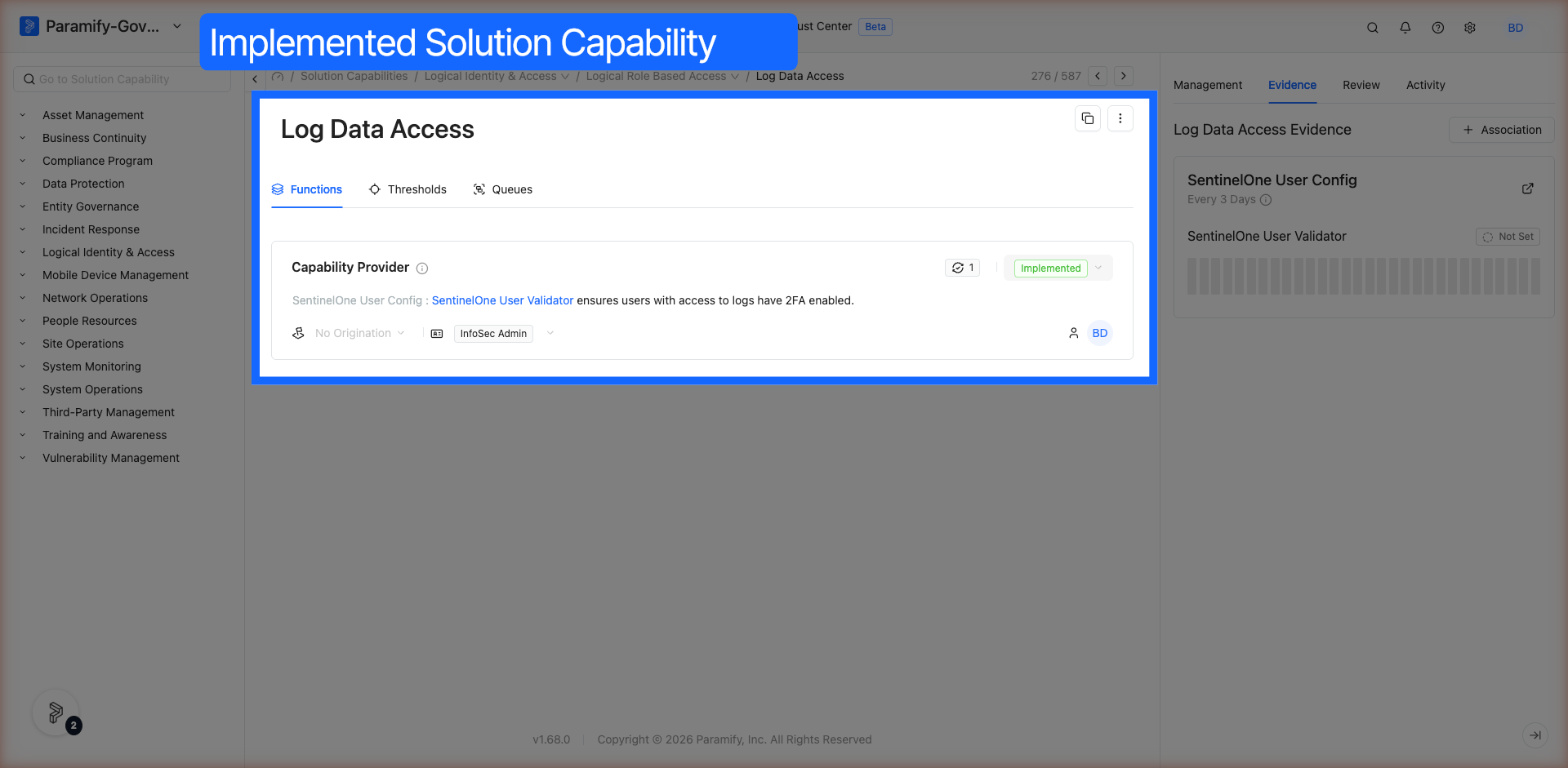
2. Click the implementation status on the function
On the Functions tab, click the implementation status badge (e.g., Implemented) on the function you want to set to automatic mode. A dropdown appears.
3. Toggle on By Validation
Under Set Implementation Status Automatically, flip the By Validation toggle on. The function's status will now sync automatically whenever a new artifact is processed for its queue.
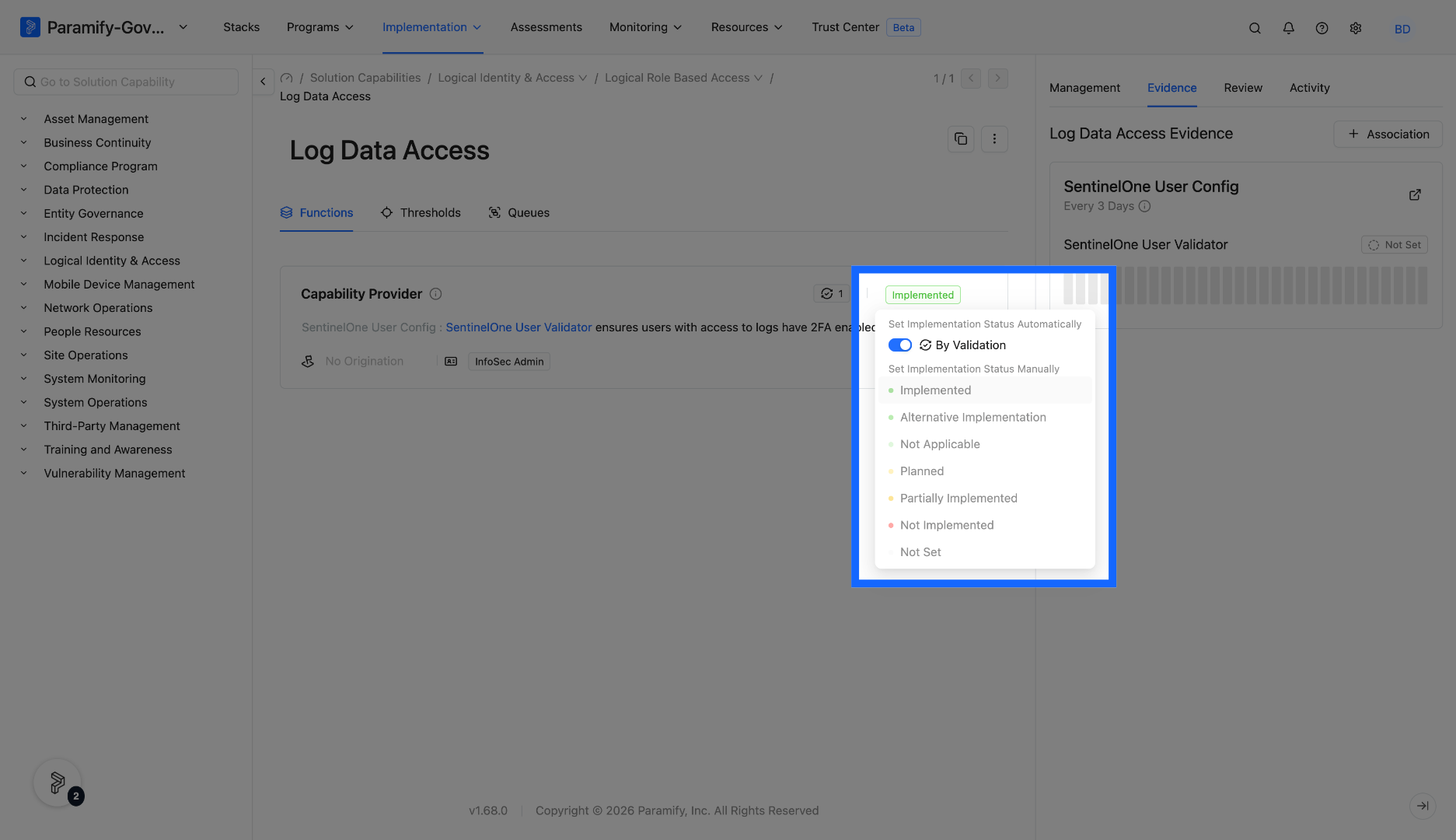
HOW THE STATUS IS DETERMINED
When By Validation is on, Paramify looks at the most recent artifact in the function's queue and reads the result of the specified validator on that artifact. The status re-syncs automatically when: the toggle is turned on, a new VE pair is added to the function, a new artifact finishes processing in the queue, or an existing artifact is re-run.
Viewing queues on an evidence set
1. Open an evidence set
Navigate to Implementation → Evidence and open the evidence set you want to inspect.
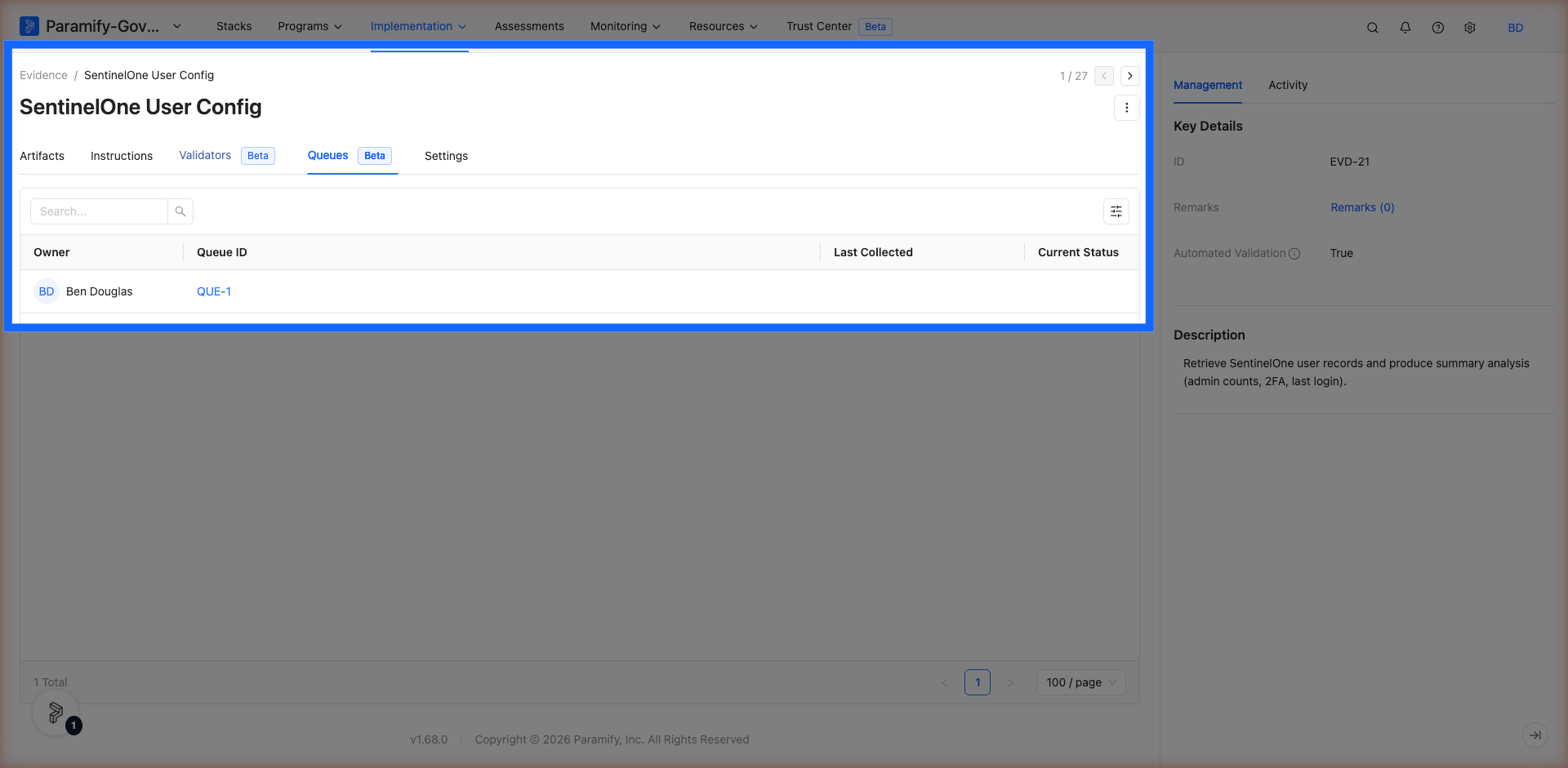
2. Click the Queues tab
Select the Queues tab. The table lists each queue associated with this evidence set, showing the queue owner, queue ID, when it was last collected, and its current status.
Routing an artifact to a queue
When an evidence set has queues, you can specify which queue an artifact belongs to at upload time. This ensures the right function owner's implementation status is updated.
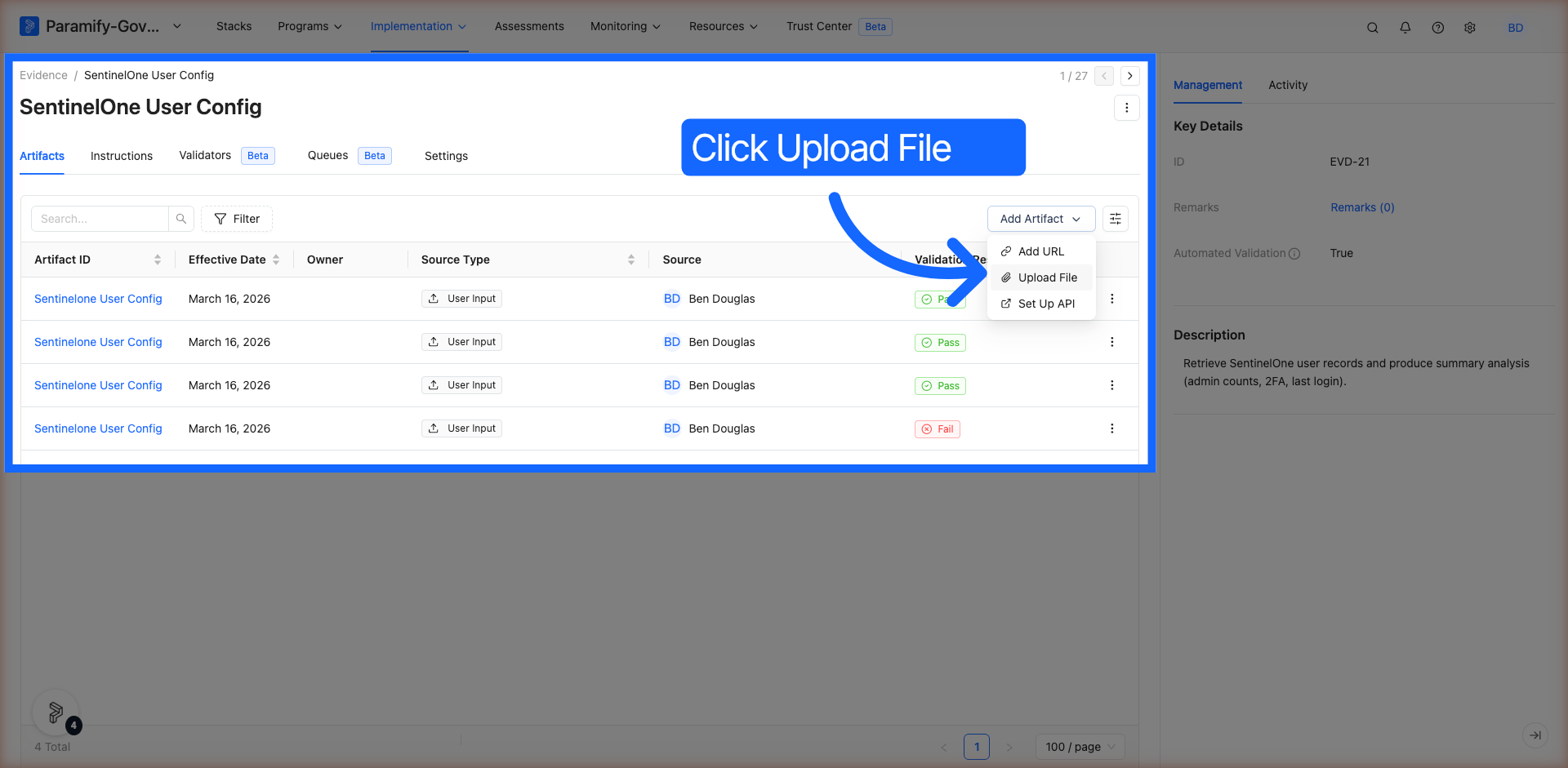
1. Open the evidence set and click Add Artifact
On the Artifacts tab, click Add Artifact → Upload File (or Add URL).
2. Select the queue owner
In the upload modal, use the Queue Owner dropdown to select the owner whose queue this artifact should be routed to, then complete the upload as normal.
NOTE
The Queue Owner dropdown only appears if the evidence set has at least one queue. If no validators are assigned or no VE pair has been mentioned in a function with an owner, the field will not appear.
Monitoring validator results on a solution capability
The Evidence side panel on a solution capability now shows per-validator results and a history timeline, so you can see at a glance whether recent artifacts passed or failed validation.
1. Open a solution capability and click the Evidence tab
Open any solution capability detail page and click the Evidence tab in the right-hand panel.
2. Expand a validator's history
Under each evidence set, you'll see the associated validators listed with their current result and a row of day-line bars showing recent artifact history. Hover over a bar to see the most recent artifacts from that day.
Viewing validators on an evidence set
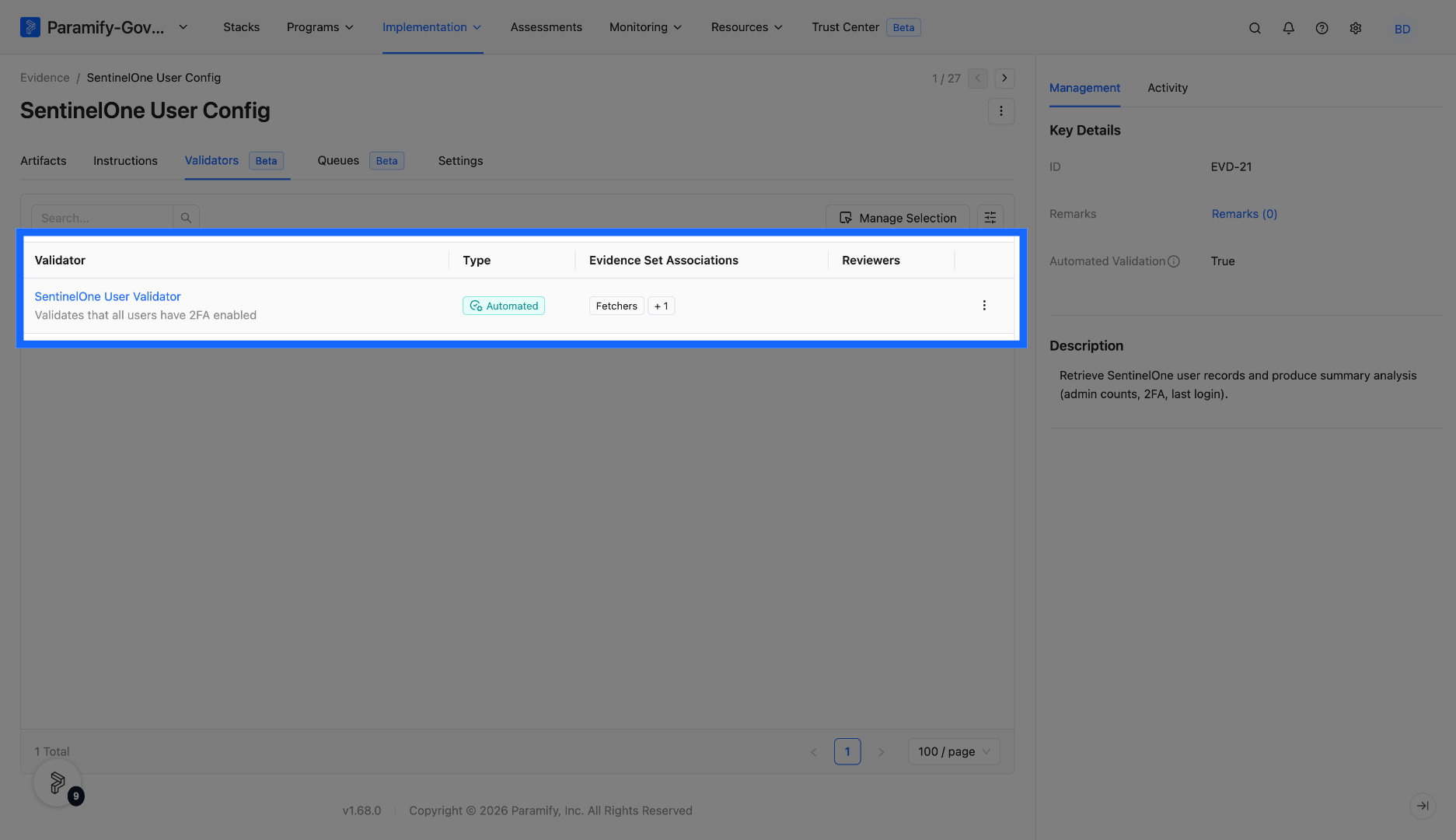
All validators associated with an evidence set are listed on the Validators tab of the evidence detail page. From here you can see each validator's type, its evidence set associations, and manage which validators are active.
Comments
0 comments
Please sign in to leave a comment.