
Procedures are parts of documents that can be reused and maintained within Paramify. Narratives make up procedures and can be accessed under Resources.
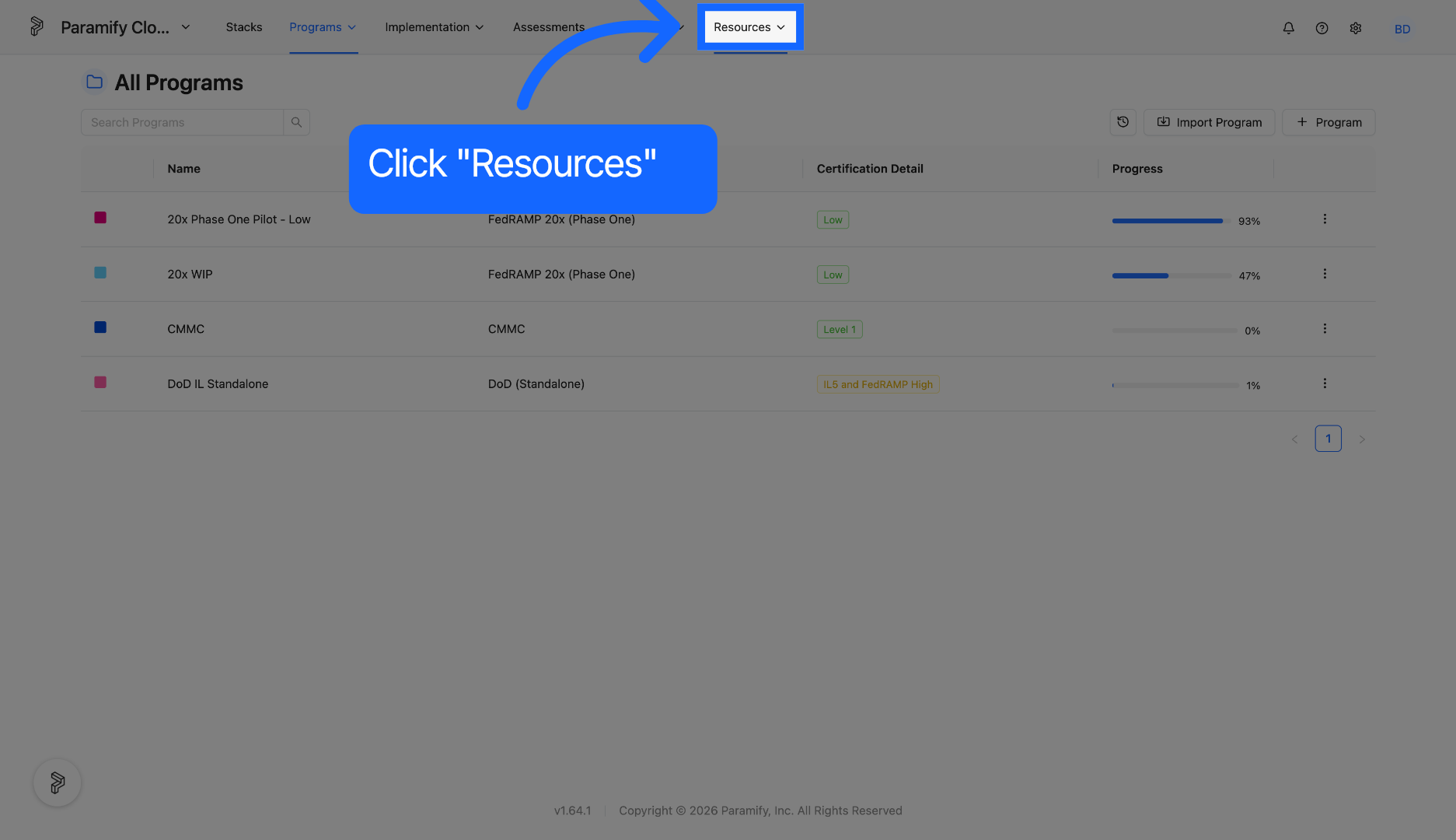
1. Click Resources Tab
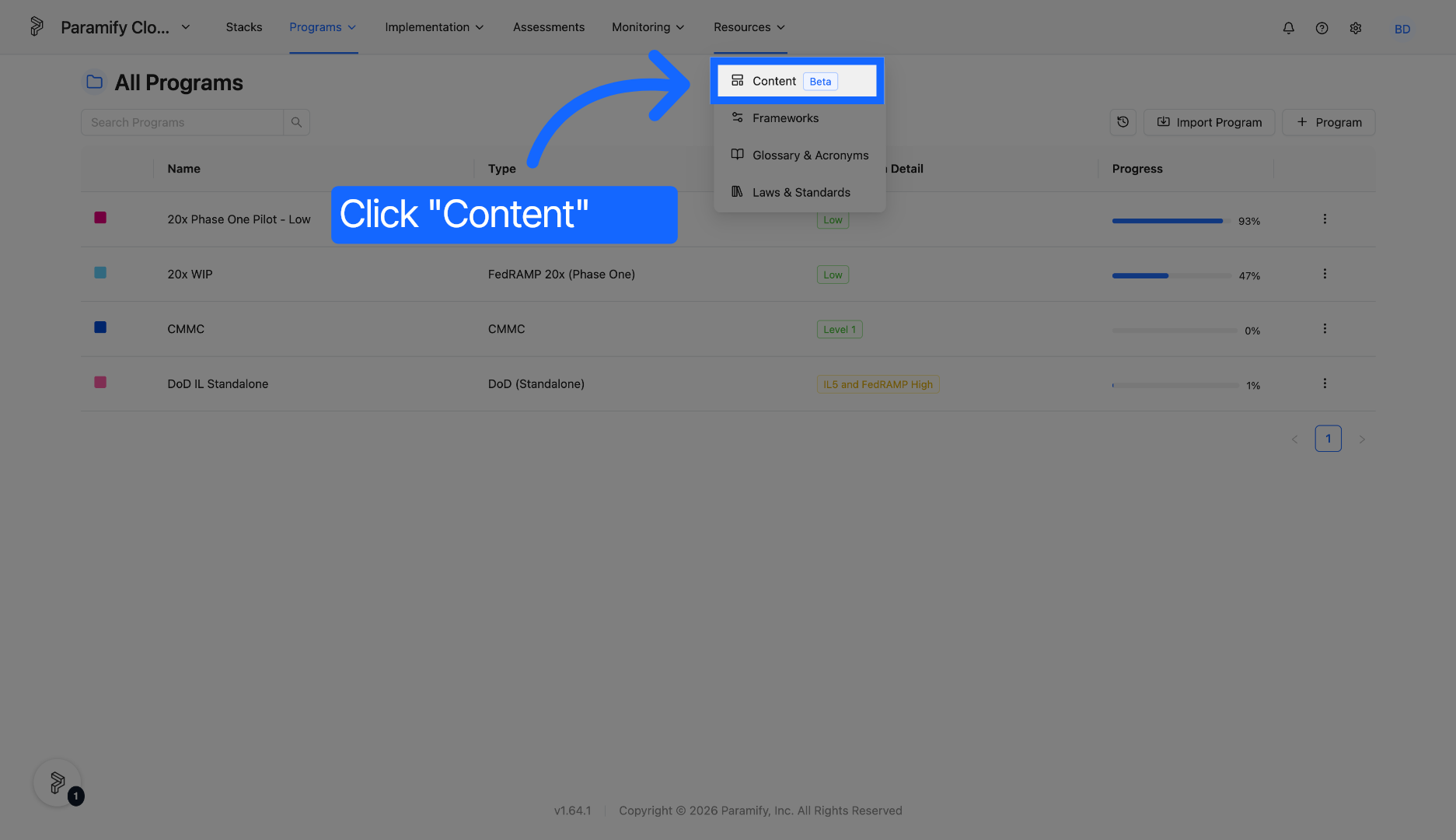
2. Select Content
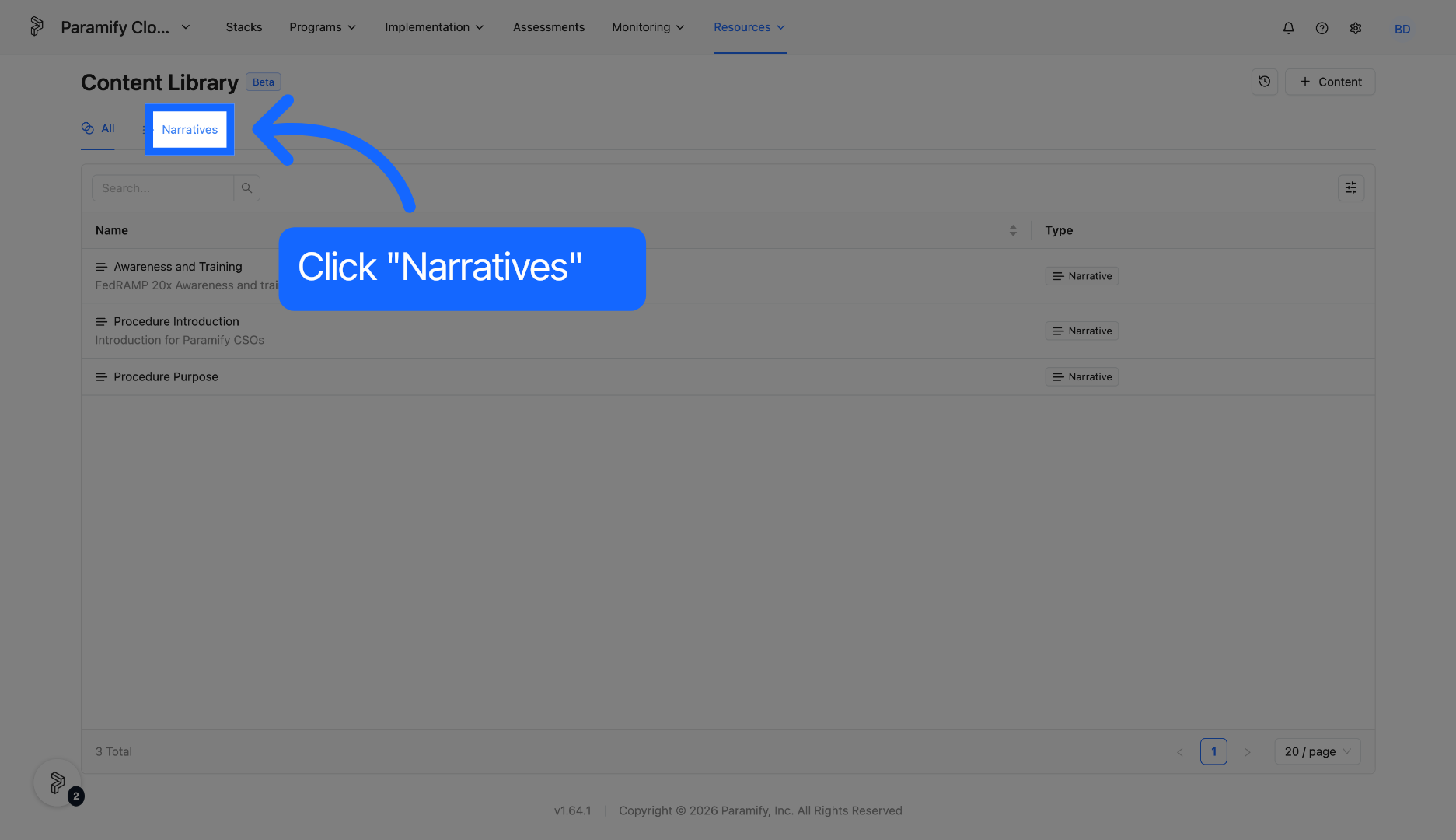
3. Open Narratives
Open the Narratives menu to view and manage narratives.
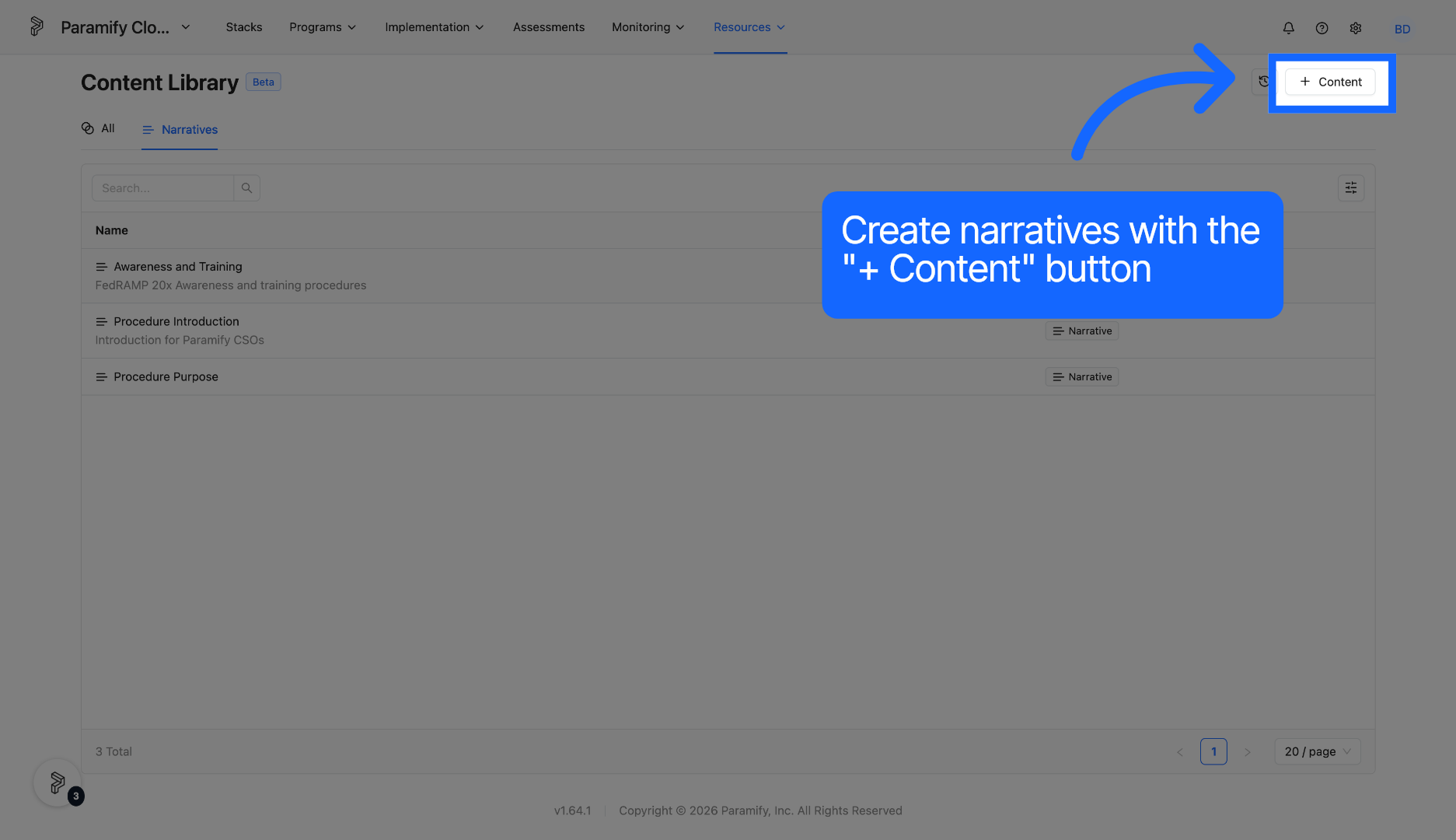
4. Create Narratives
Click '+ Content' to create a narrative.
5. Input Data Into Narrative
Enter the title and content into the narrative. Narratives support the use of rich text. This helps format the documents to desired specifications. Any text with a heading will be generated in the eventual documents with a corresponding section number and will be used to generate the table of contents.
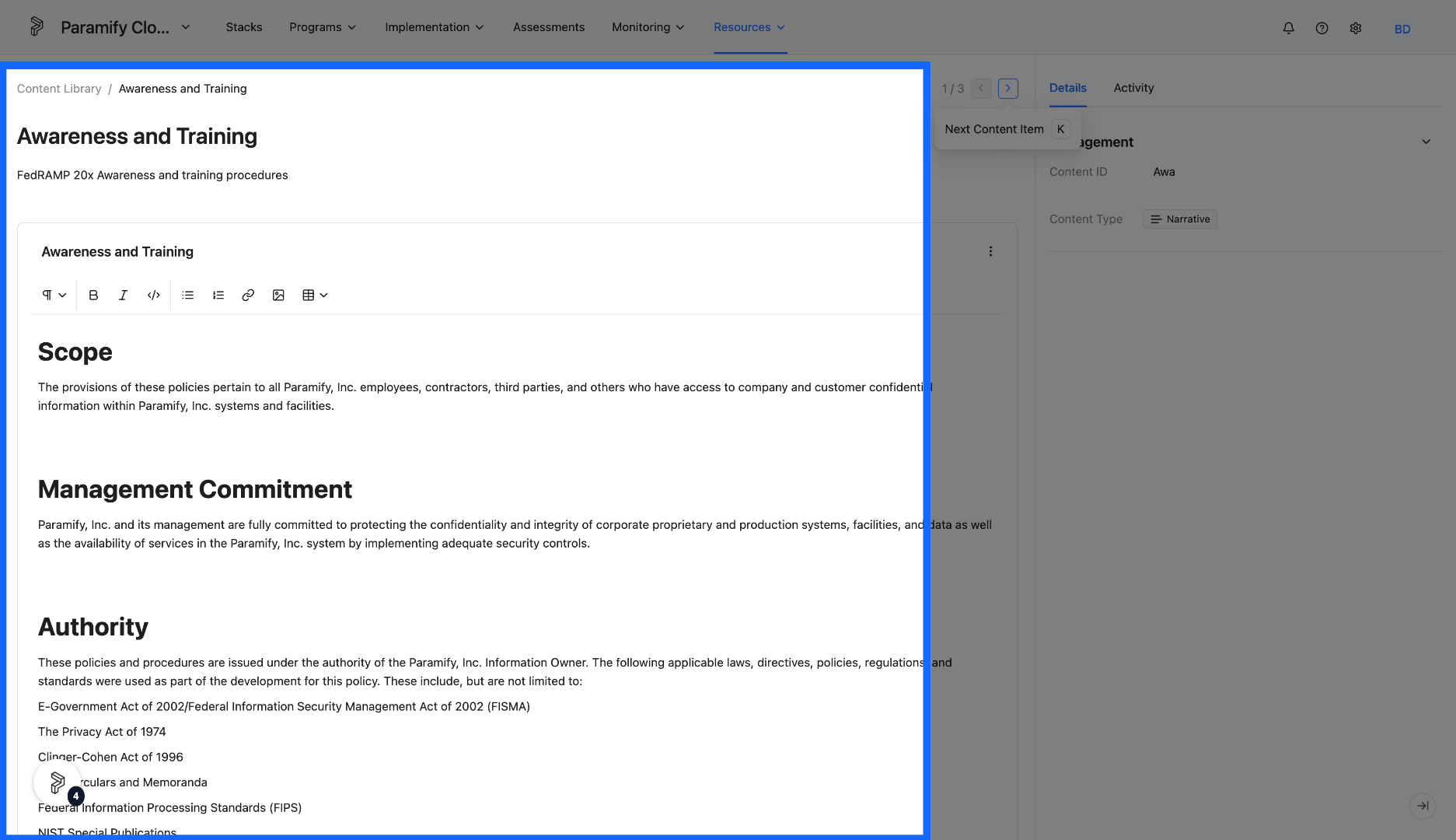
NOTE
Note: The title of a Custom Content record does NOT appear in the document generated by Document Robot.
6. Input Data Into Narrative
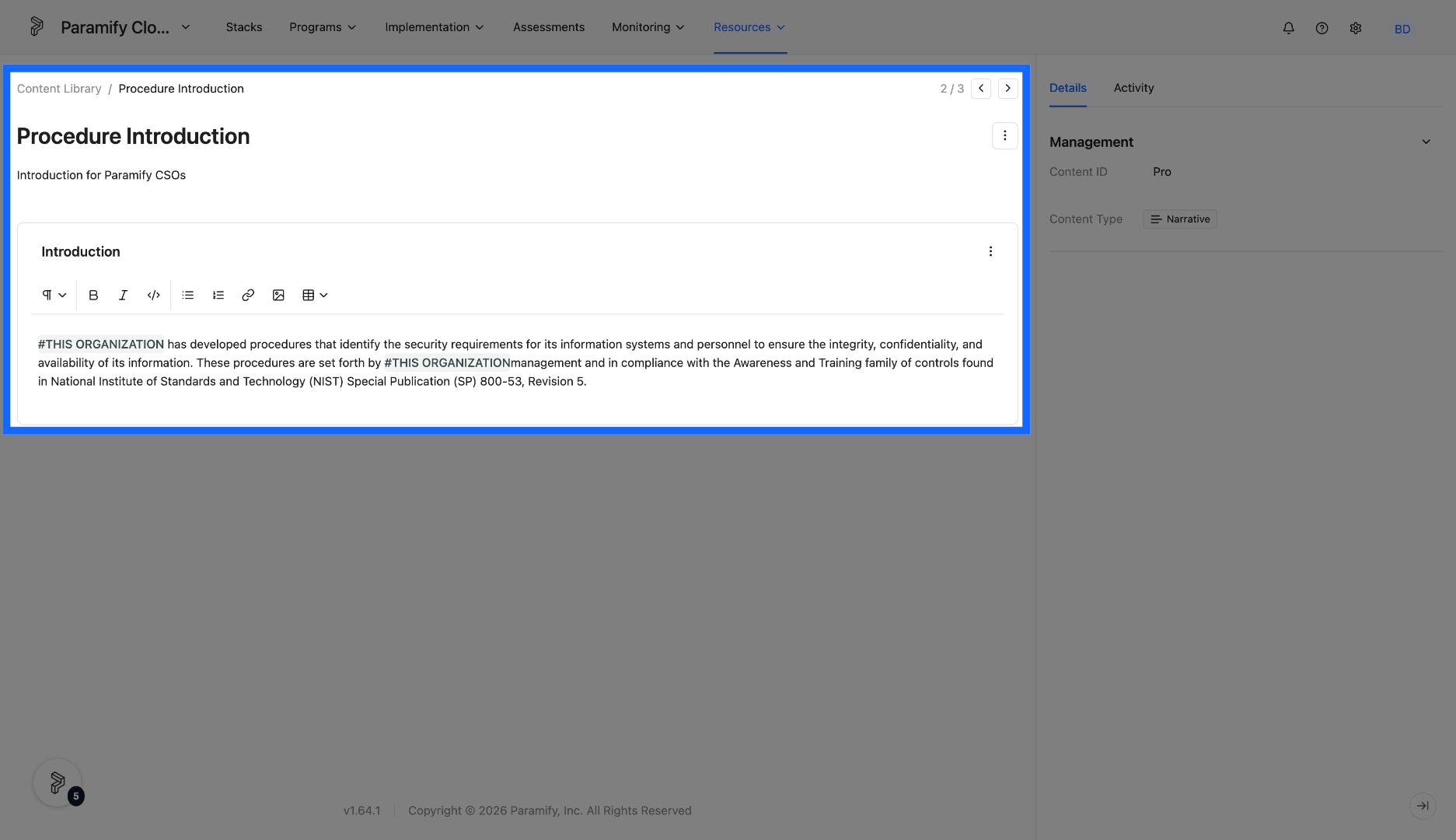
When creating and editing narratives, smart text (text preceded by a #) can be used to pull in project specific information upon document creation. This ensures flexibility and reusability of narratives.
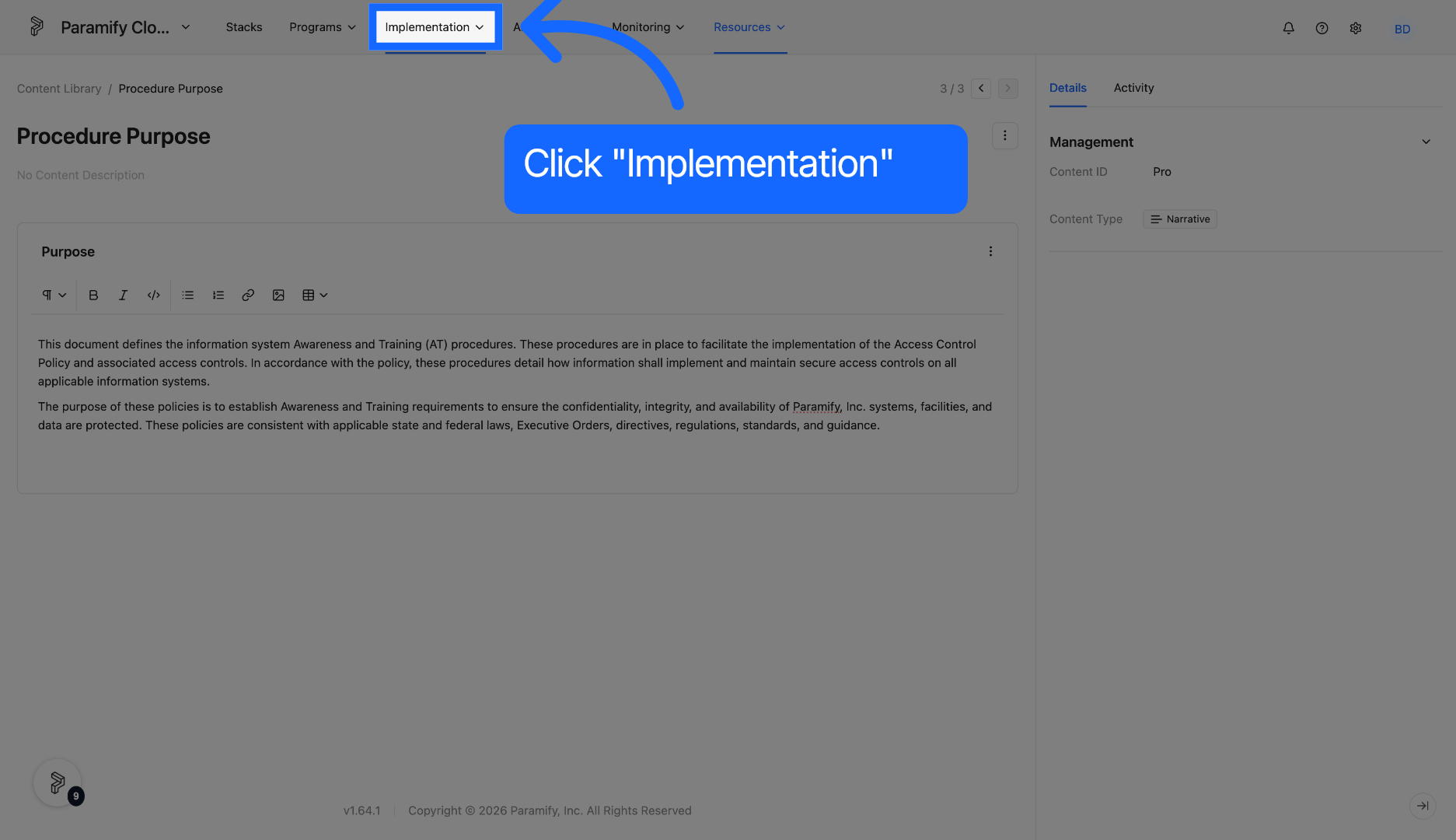
7. Open Implementation Section
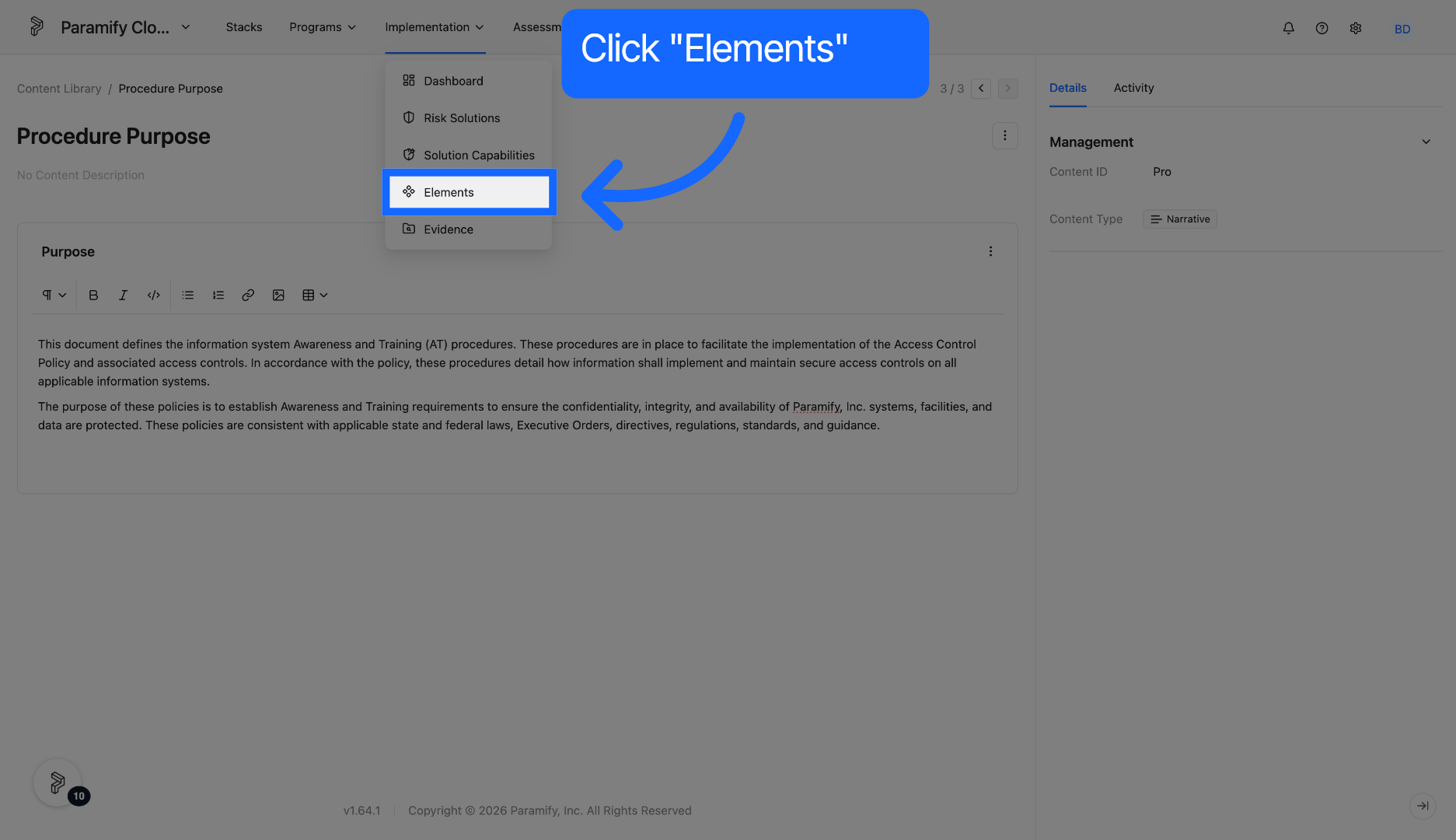
8. Open Elements
Click the Elements tab in the Implementation menu.
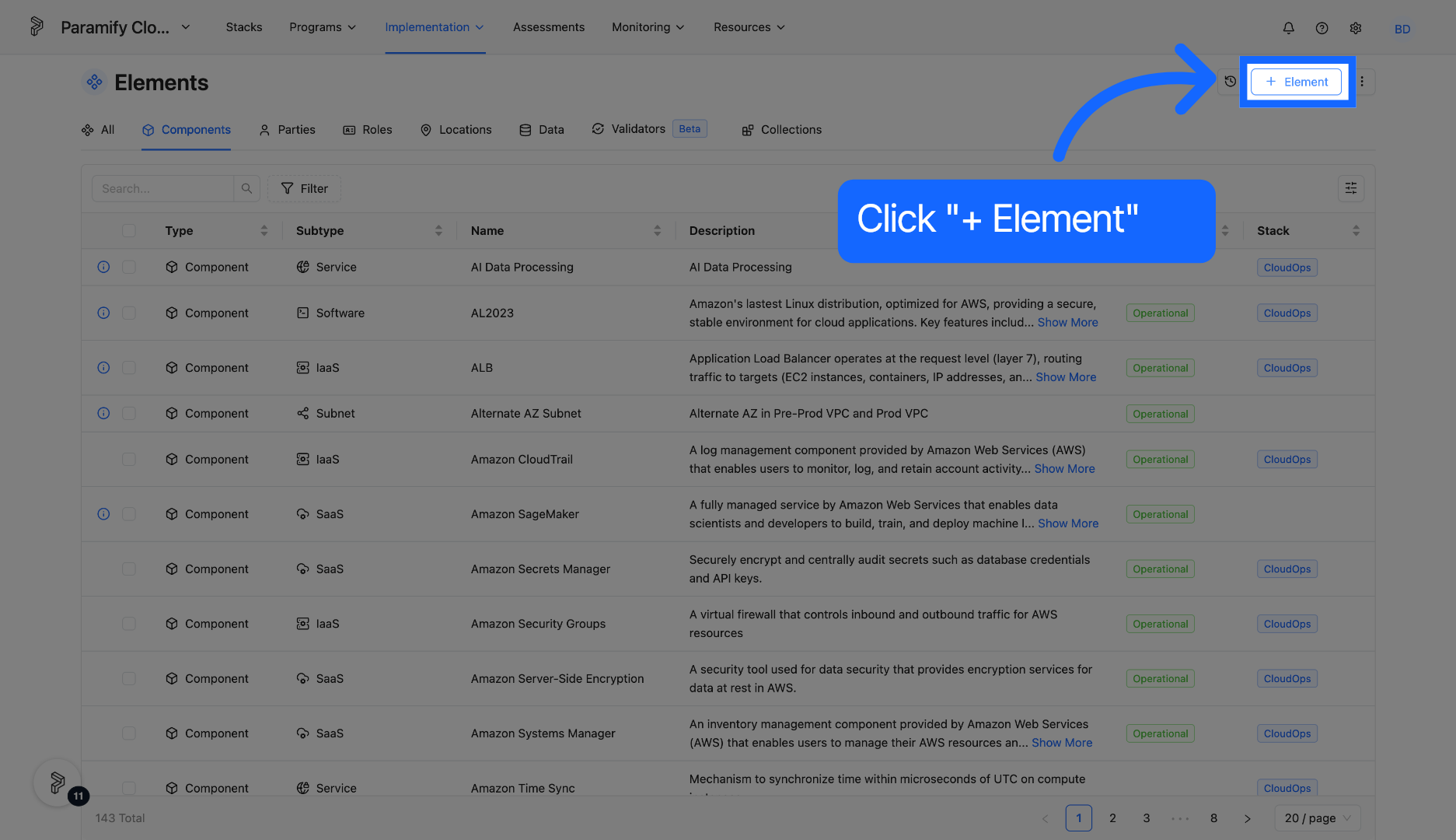
9. Create an Element
Select '+ Element' to create an element.
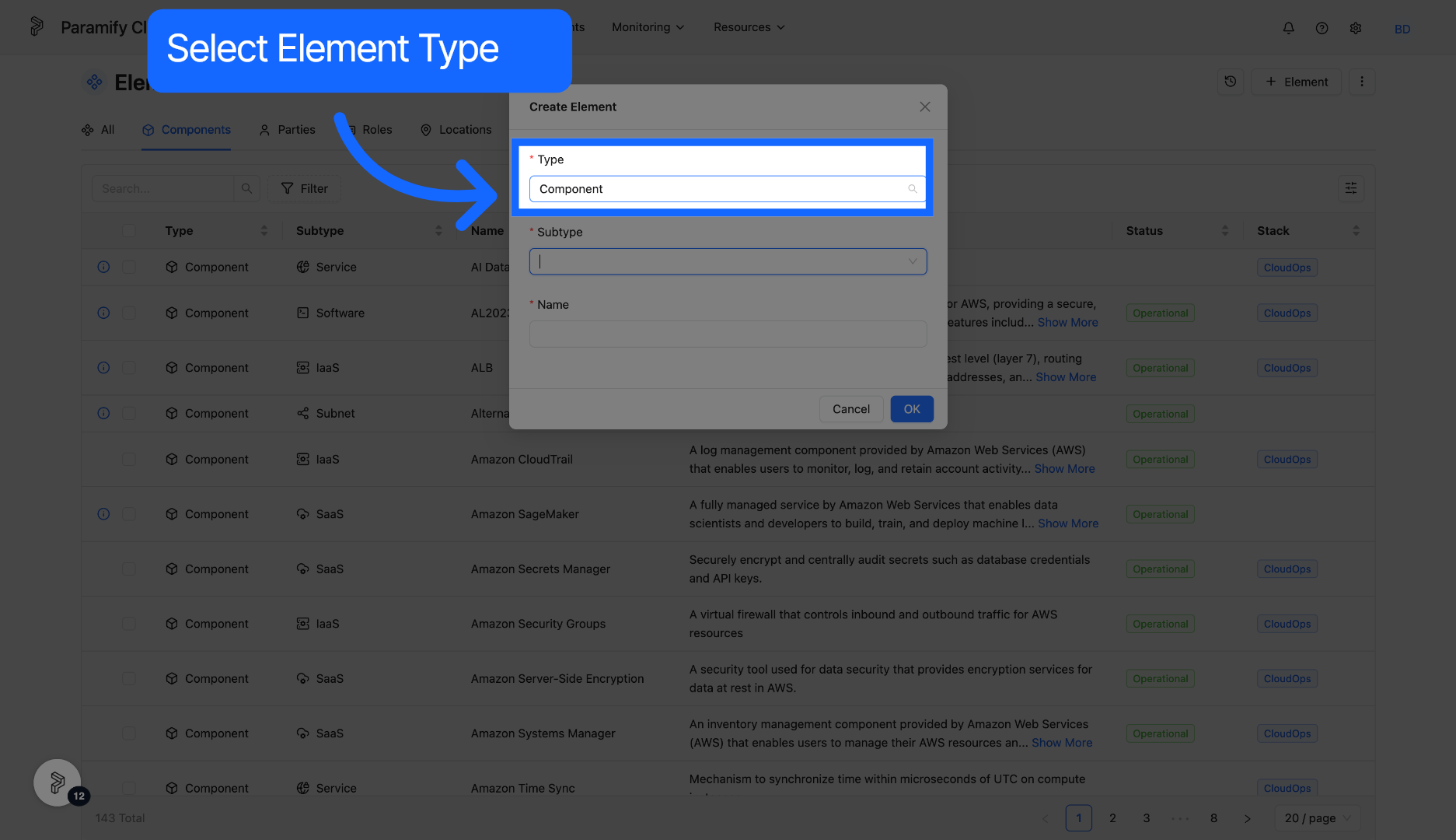
10. Choose Element Type
Select element type from the dropdown menu.
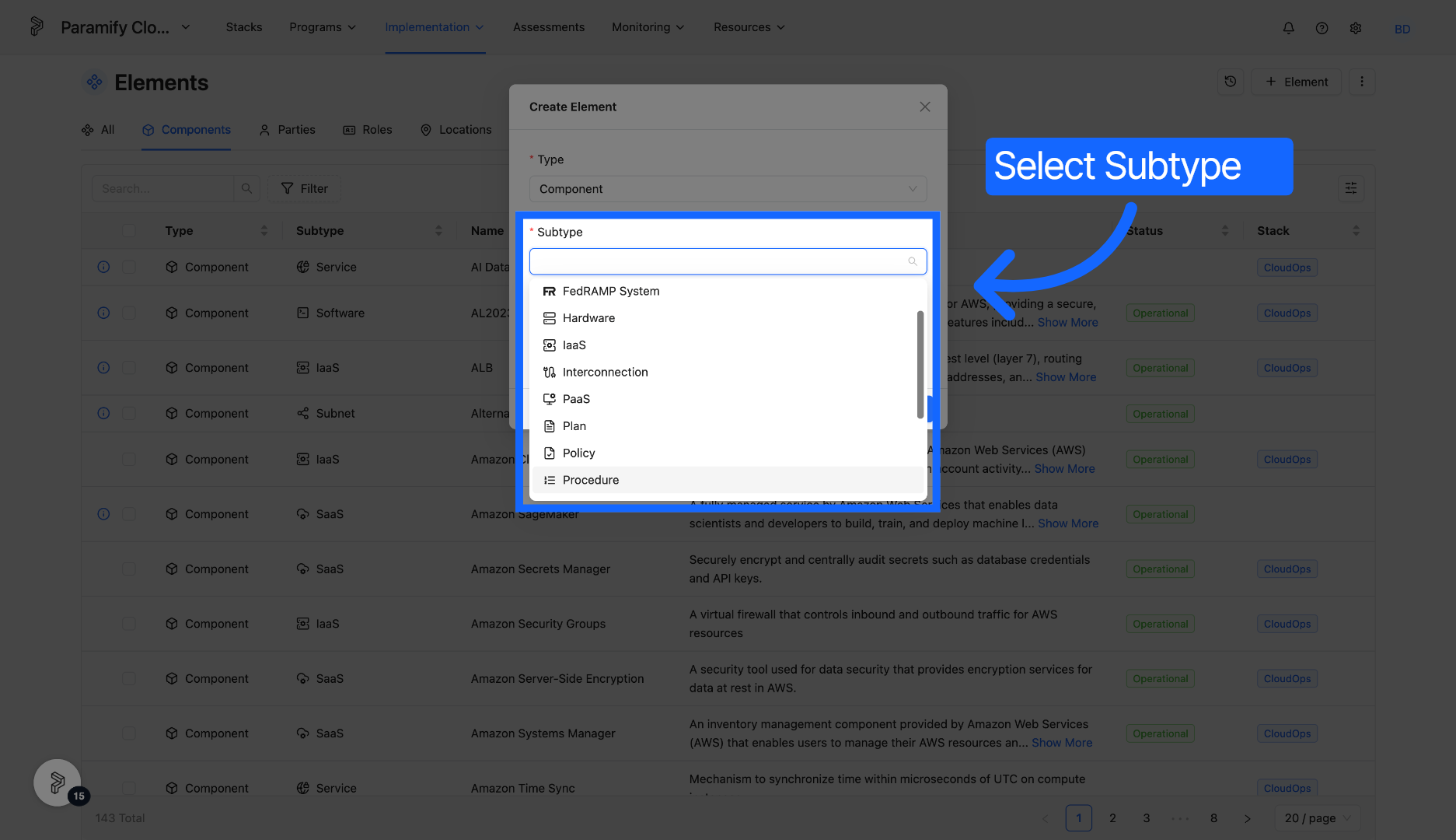
11. Choose Subtype
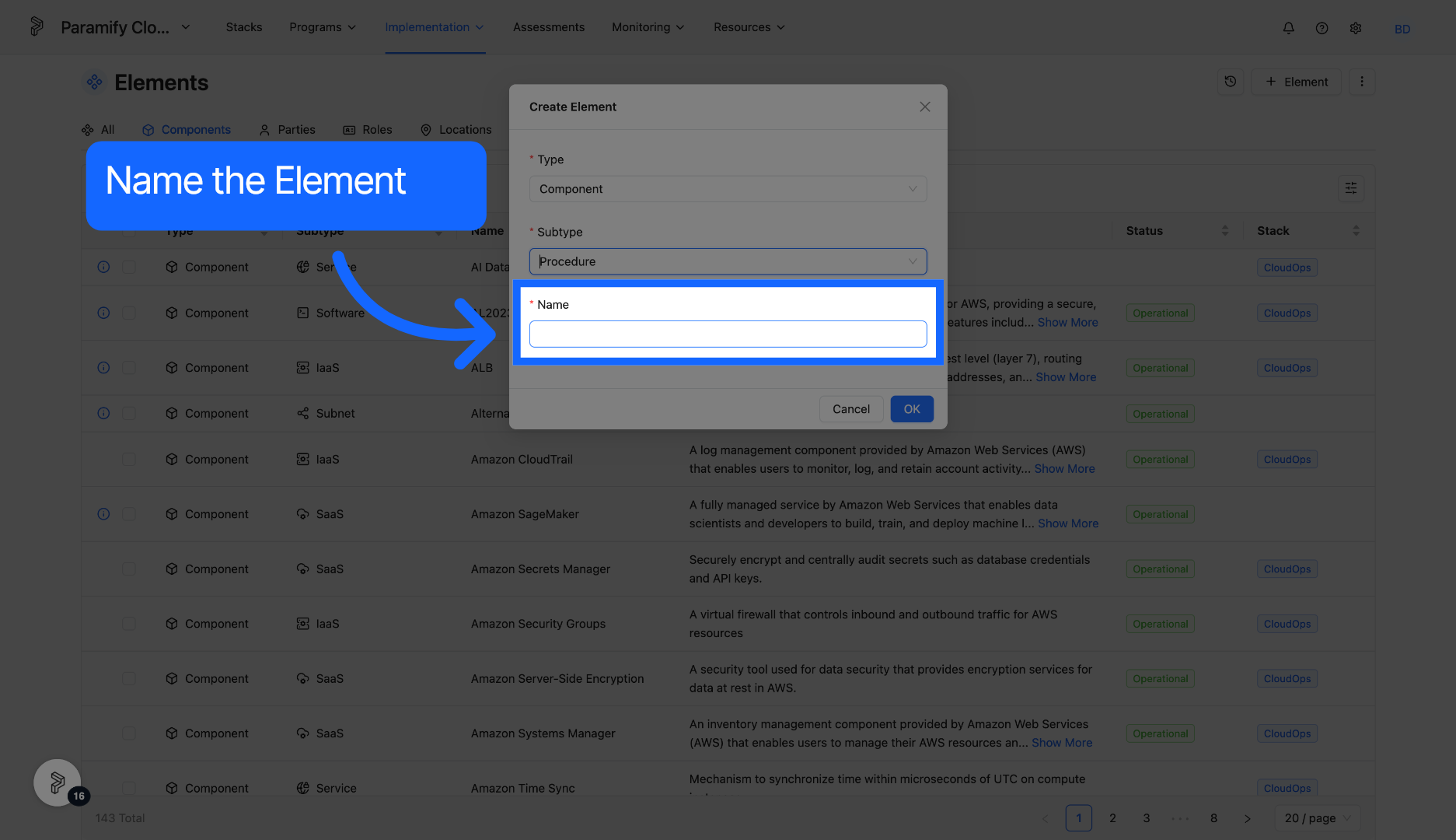
12. Name the Element
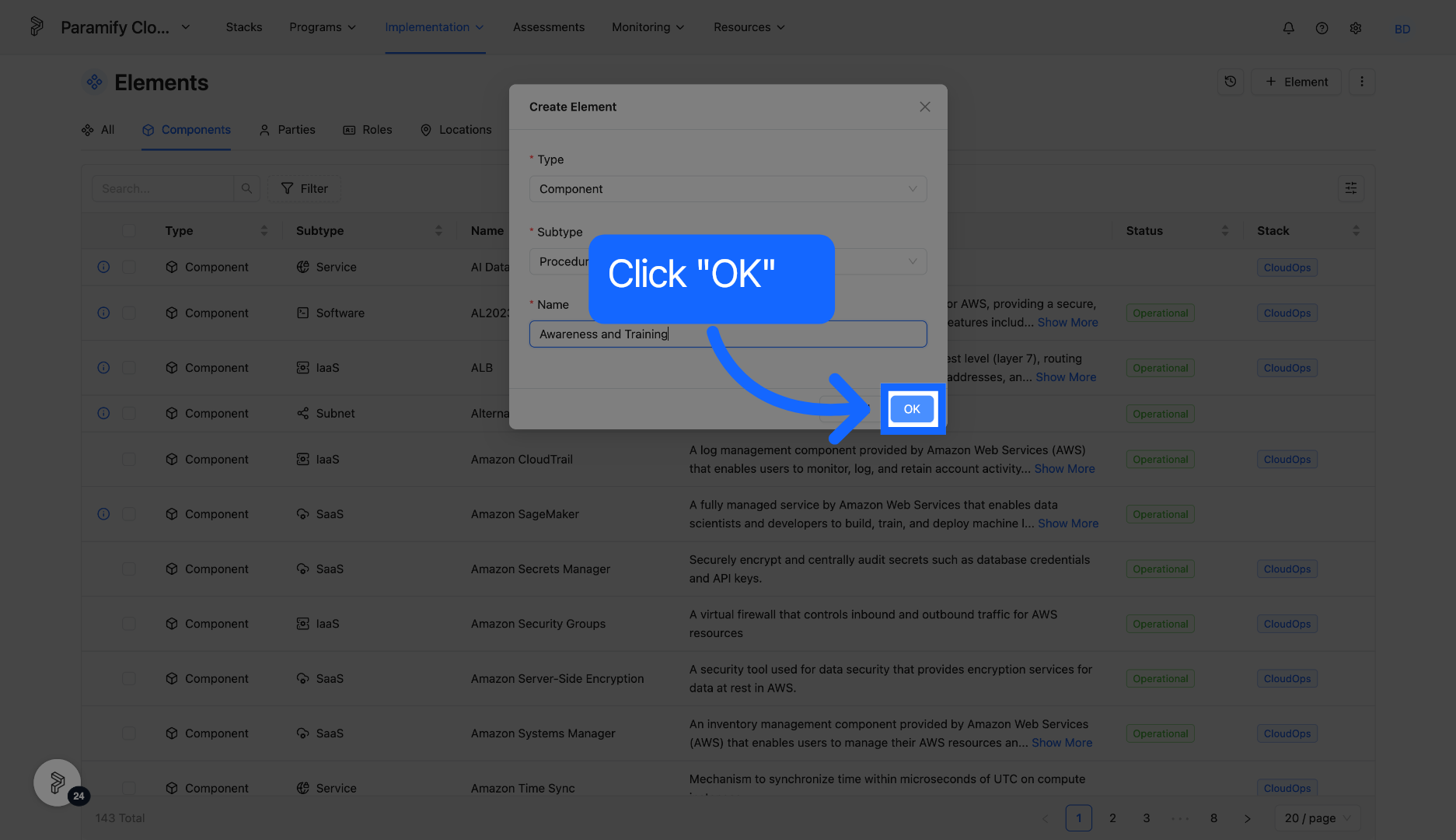
13. Click OK
Click the OK button to save the entered content.
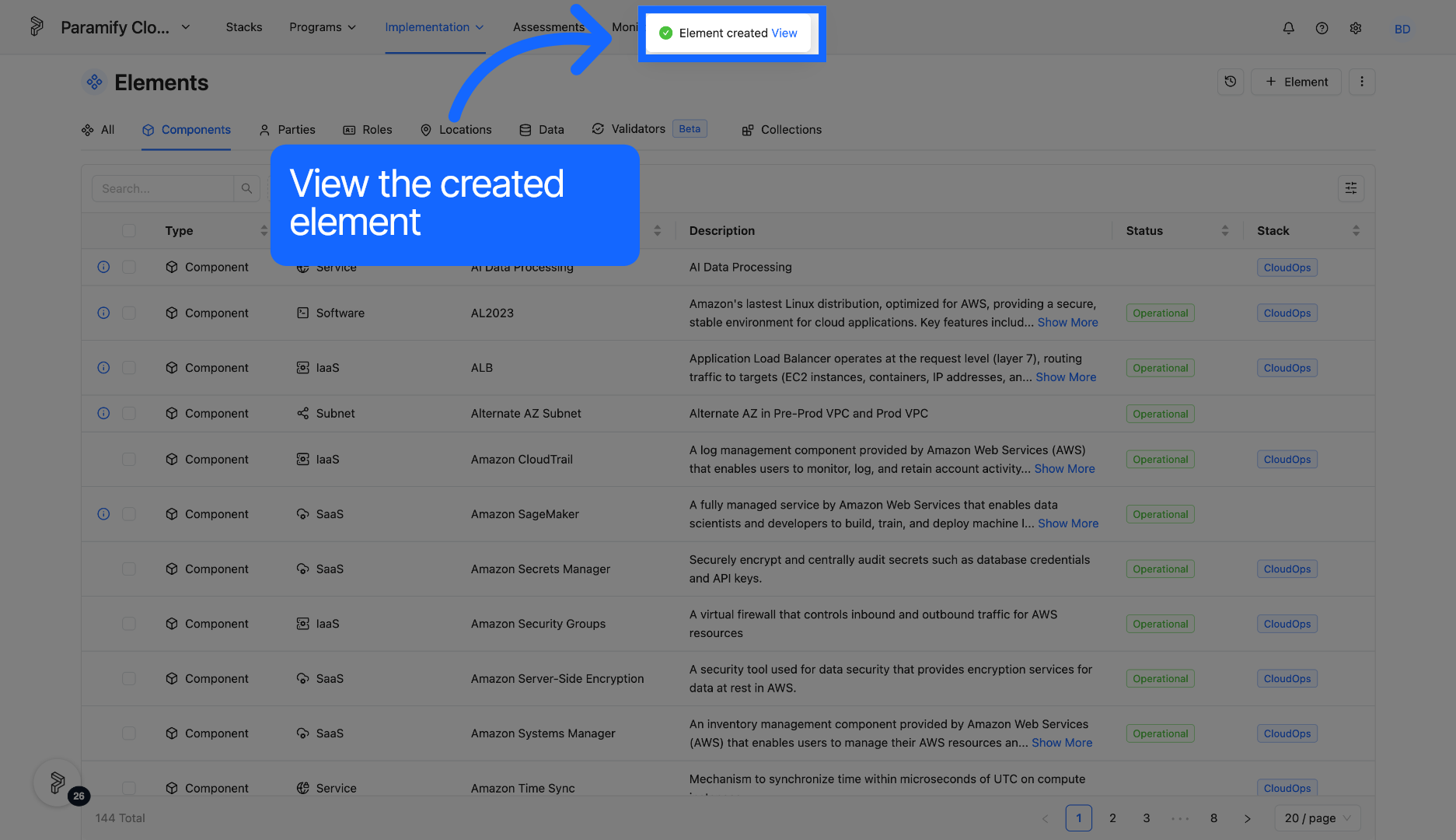
14. Click View
Click view to enter the created element.
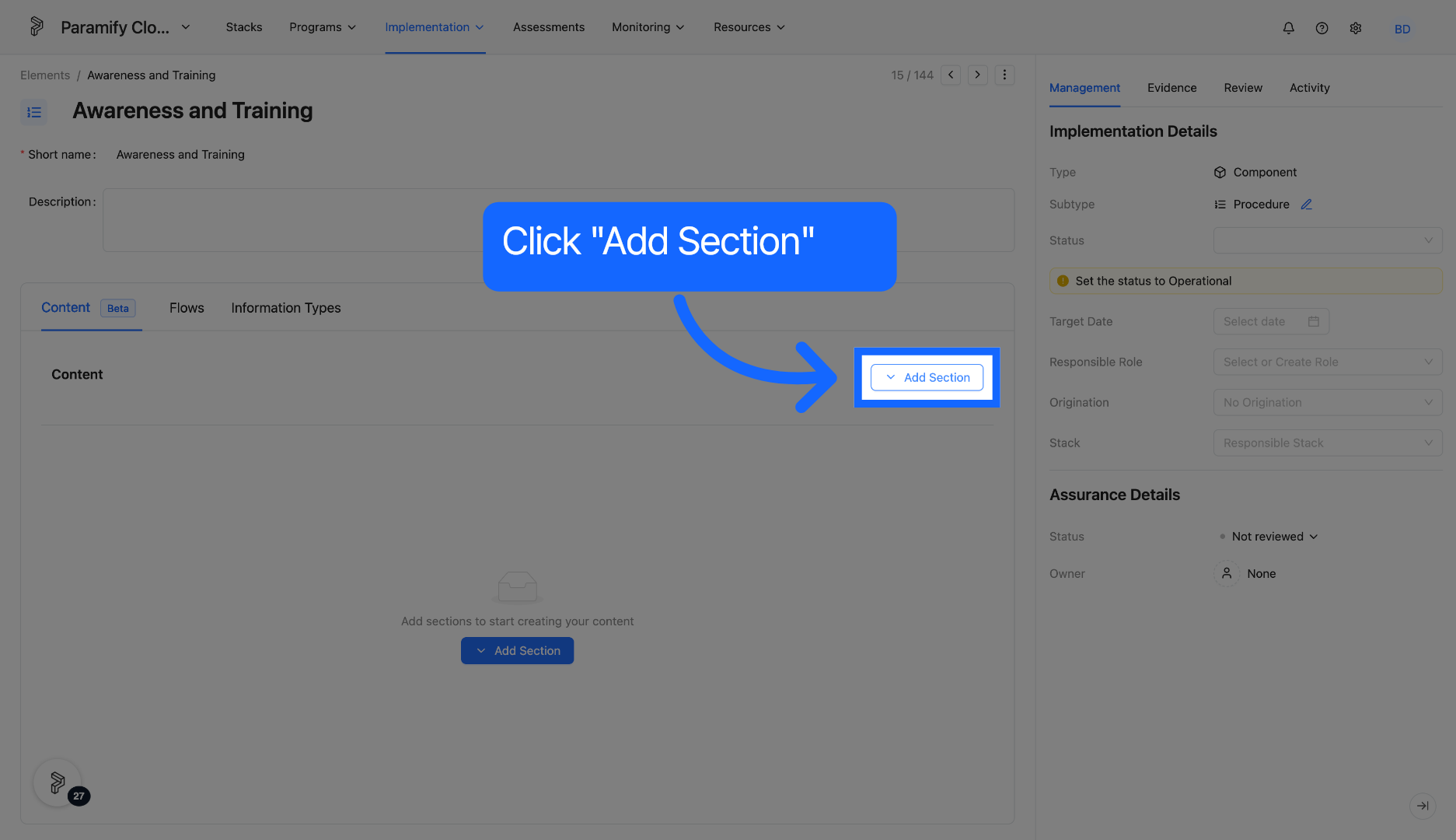
15. Add Content
Click Add Section to add content to the procedure element.
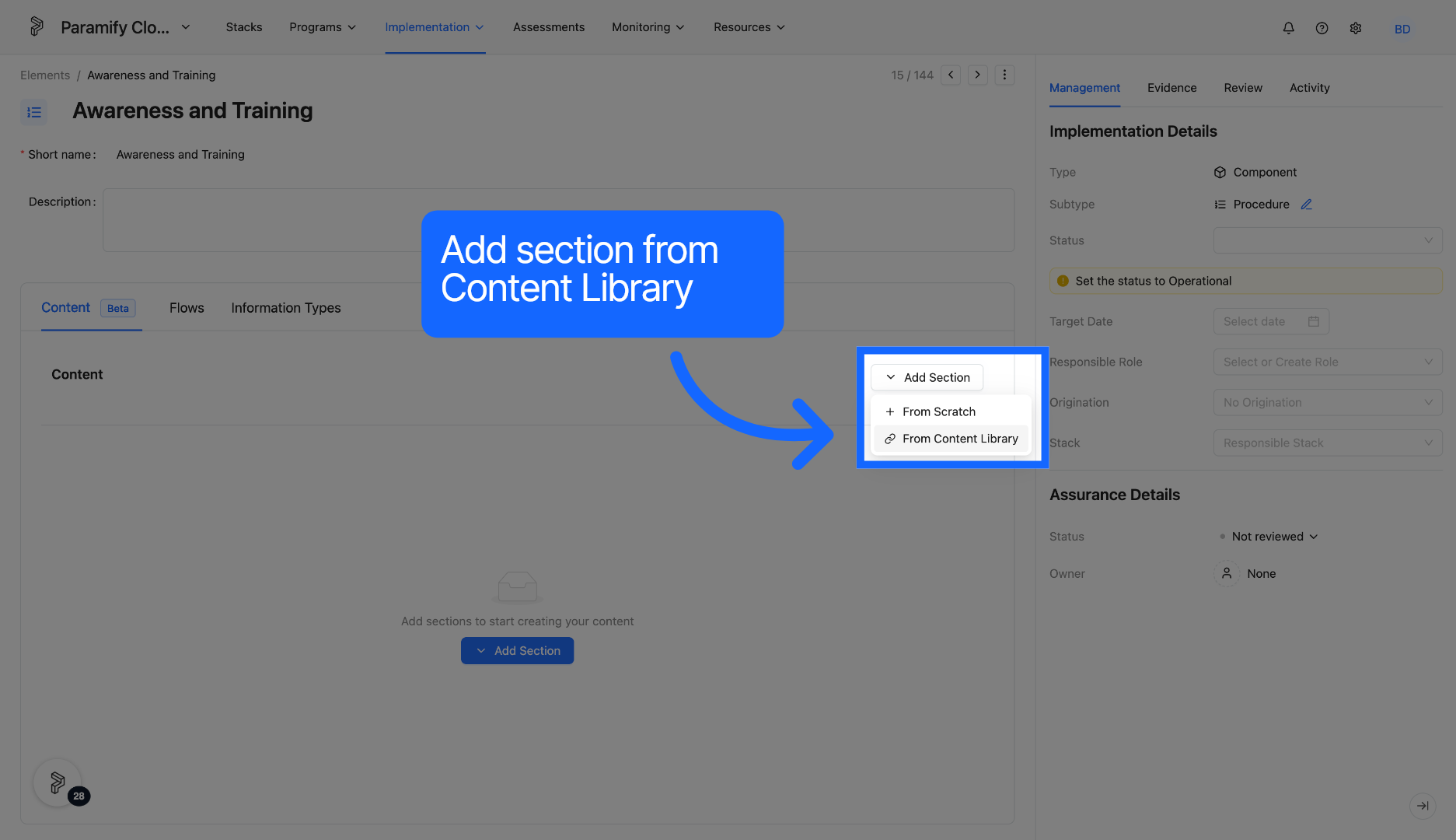
16. Select From Content Library
Click From Content Library to add content from existing content.
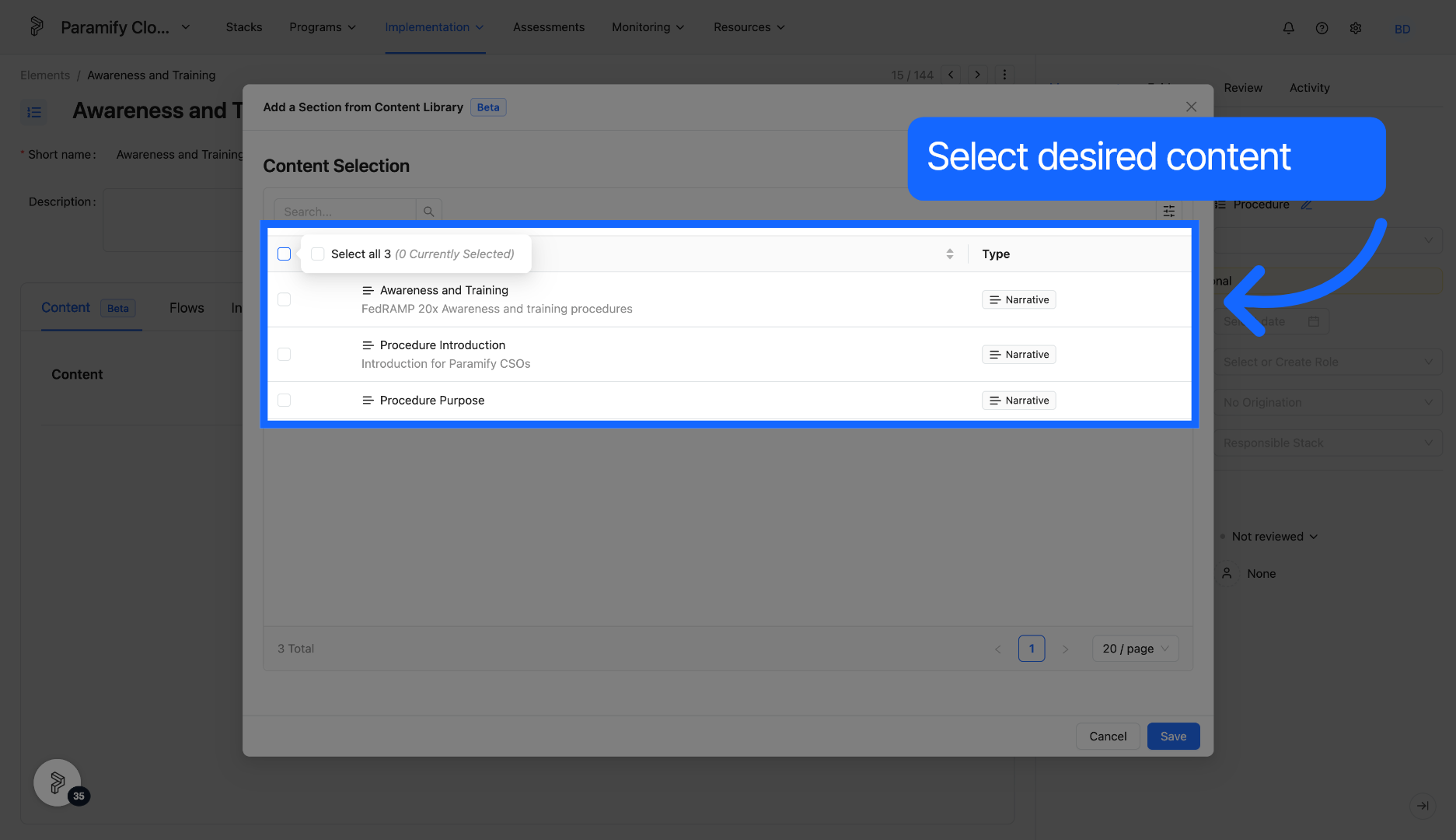
17. Select Content
Select desired content to be added to the procedure from the available options.
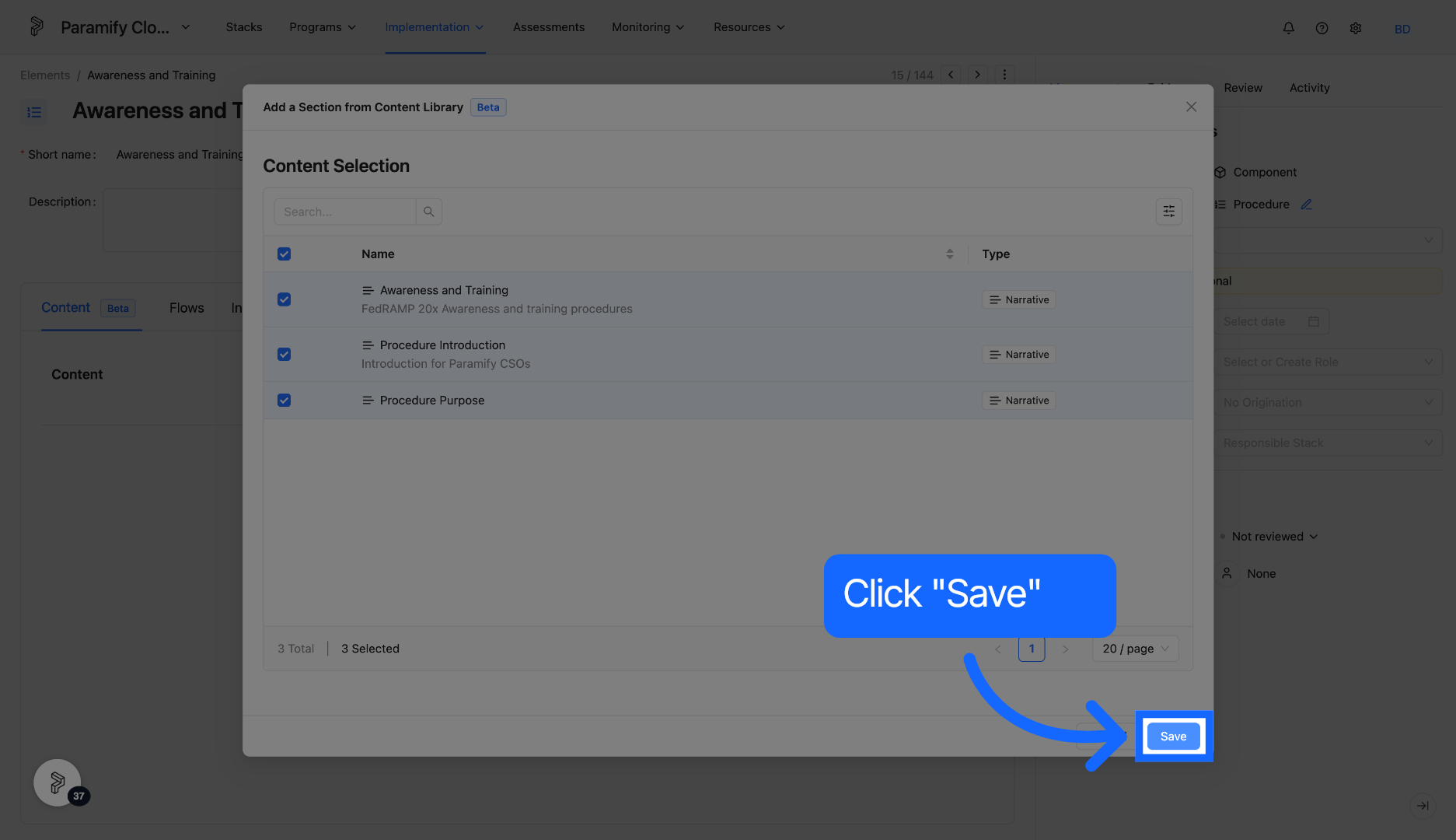
18. Click Save
Click Save to apply and store the content additions to the procedure.
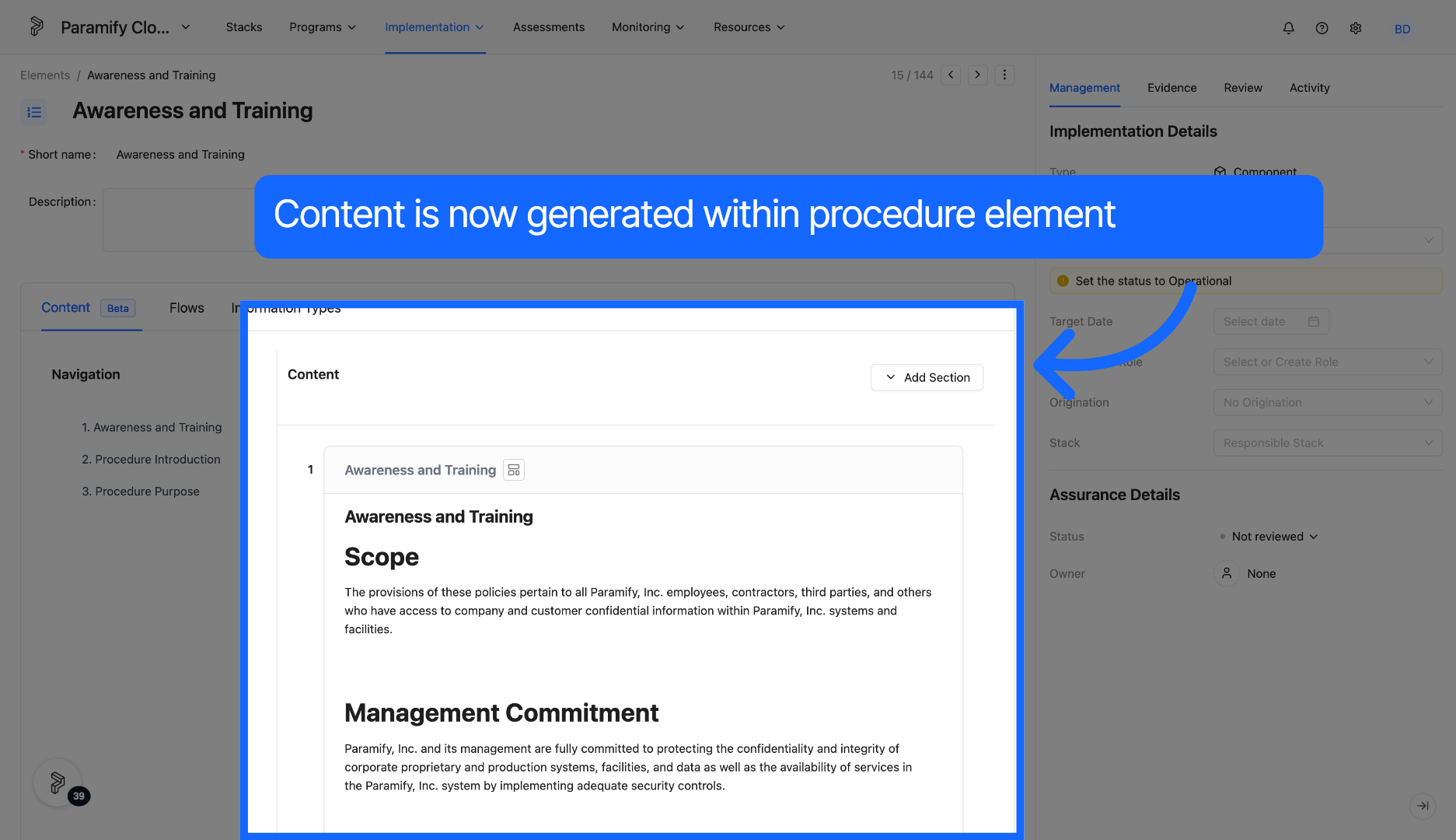
19. View Added Content
Added content is now generated in the procedure.
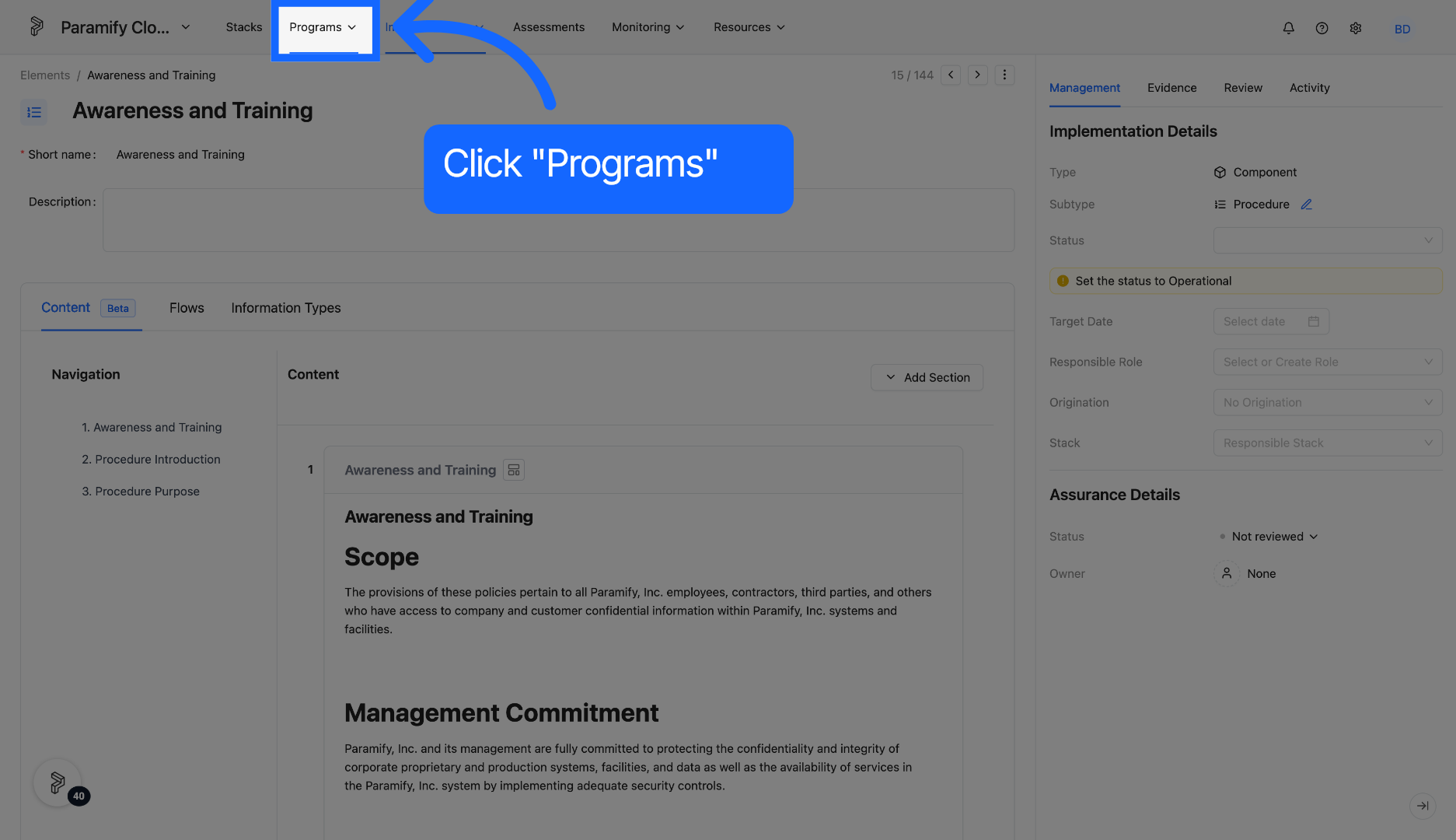
20. Access Programs
Now that you have created your custom procedure elements, select a program to link those procedures.
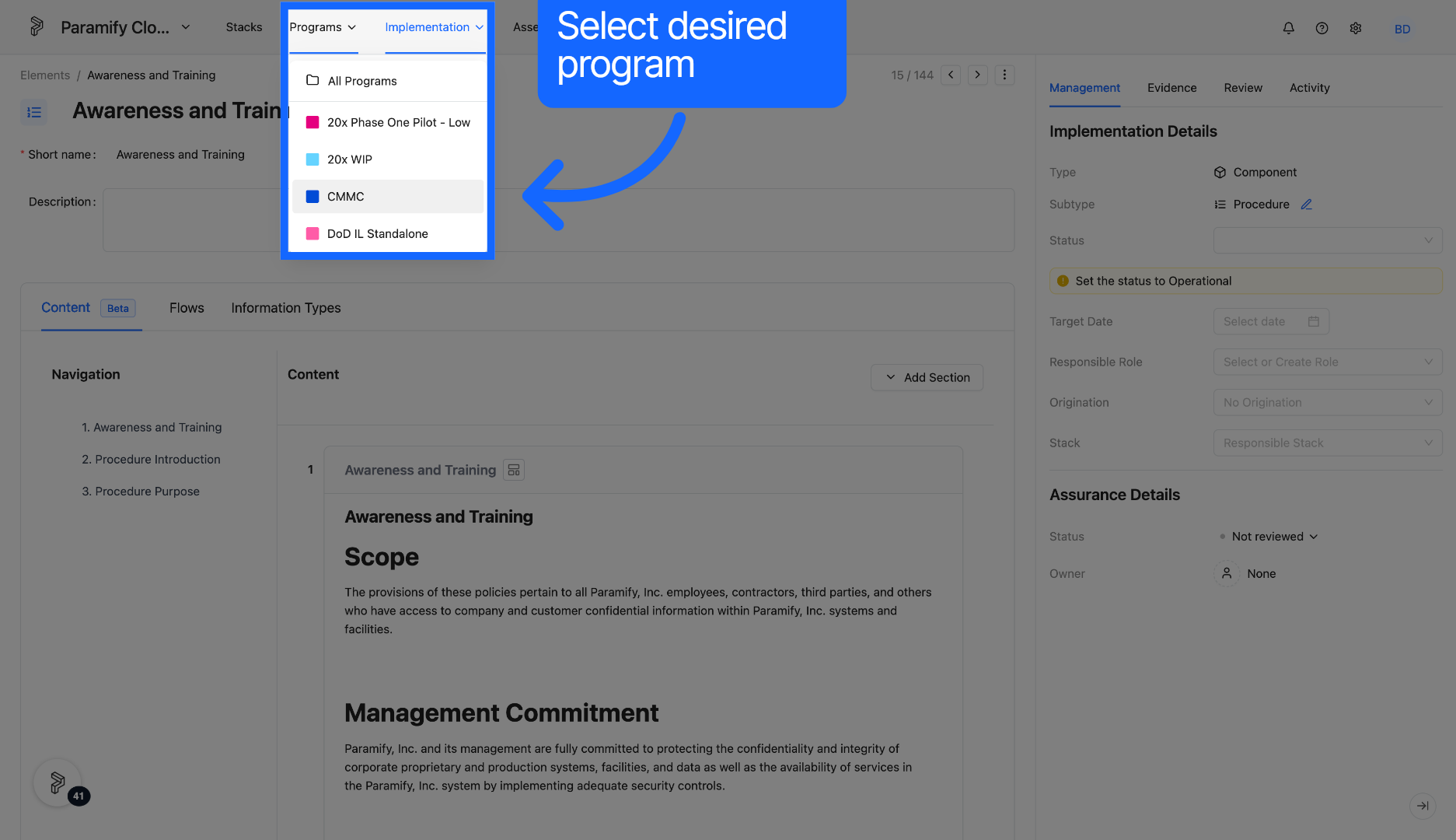
21. Select Program
Select desired program from the dropdown menu.
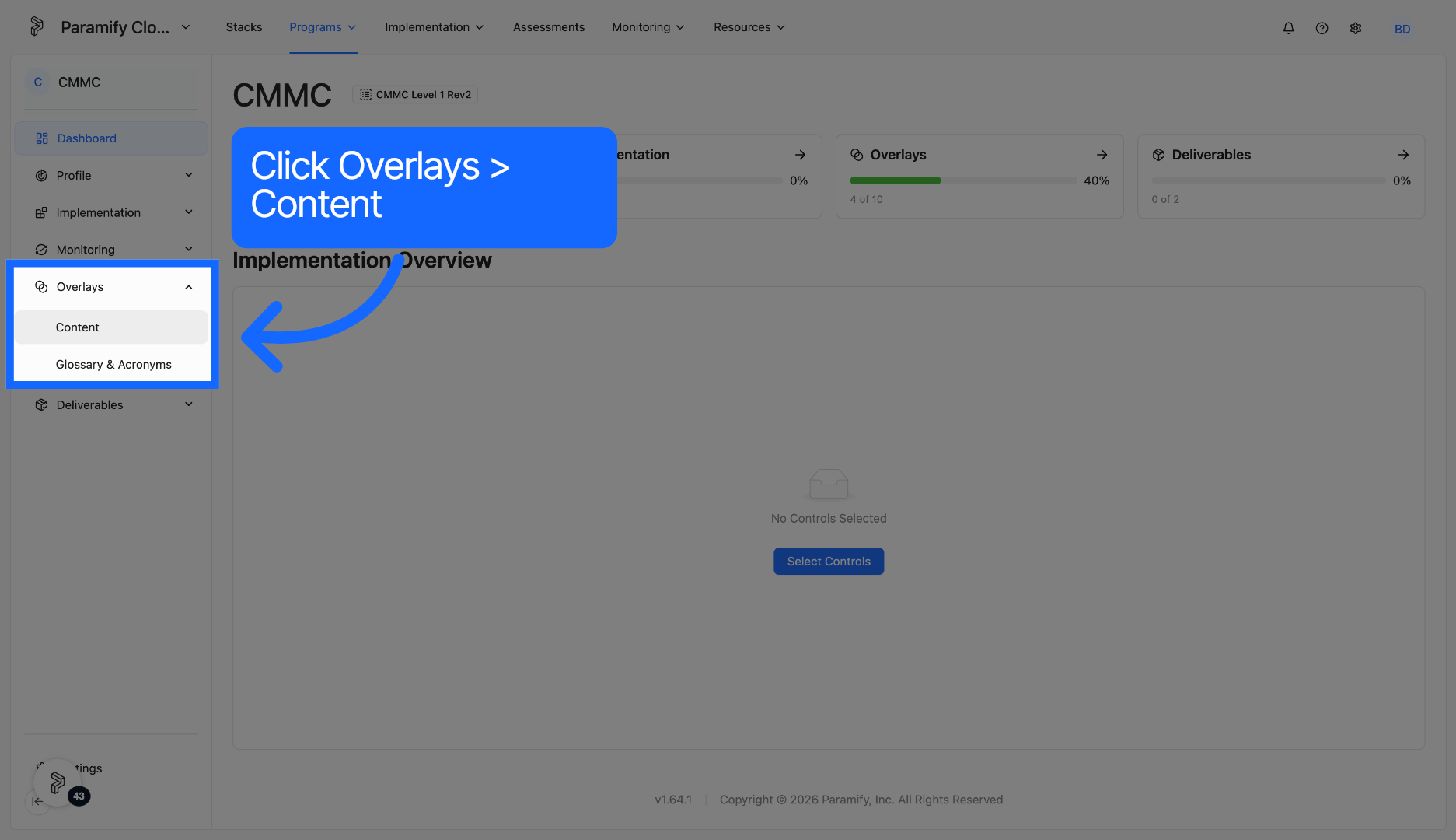
22. Click Content Tab
Click the content tab under Overlays.
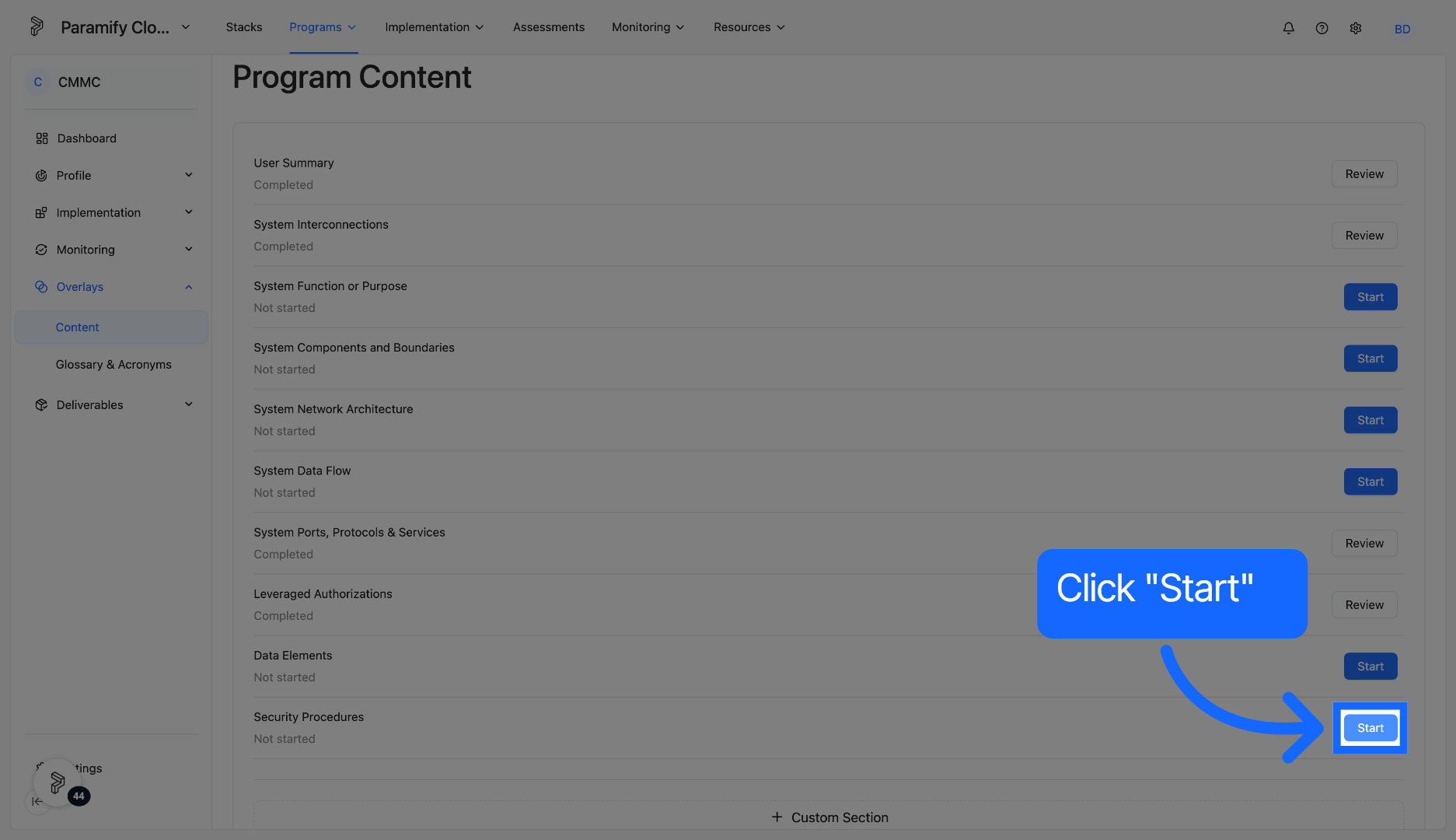
23. Start Security Procedures
Click Start under Security Procedures.
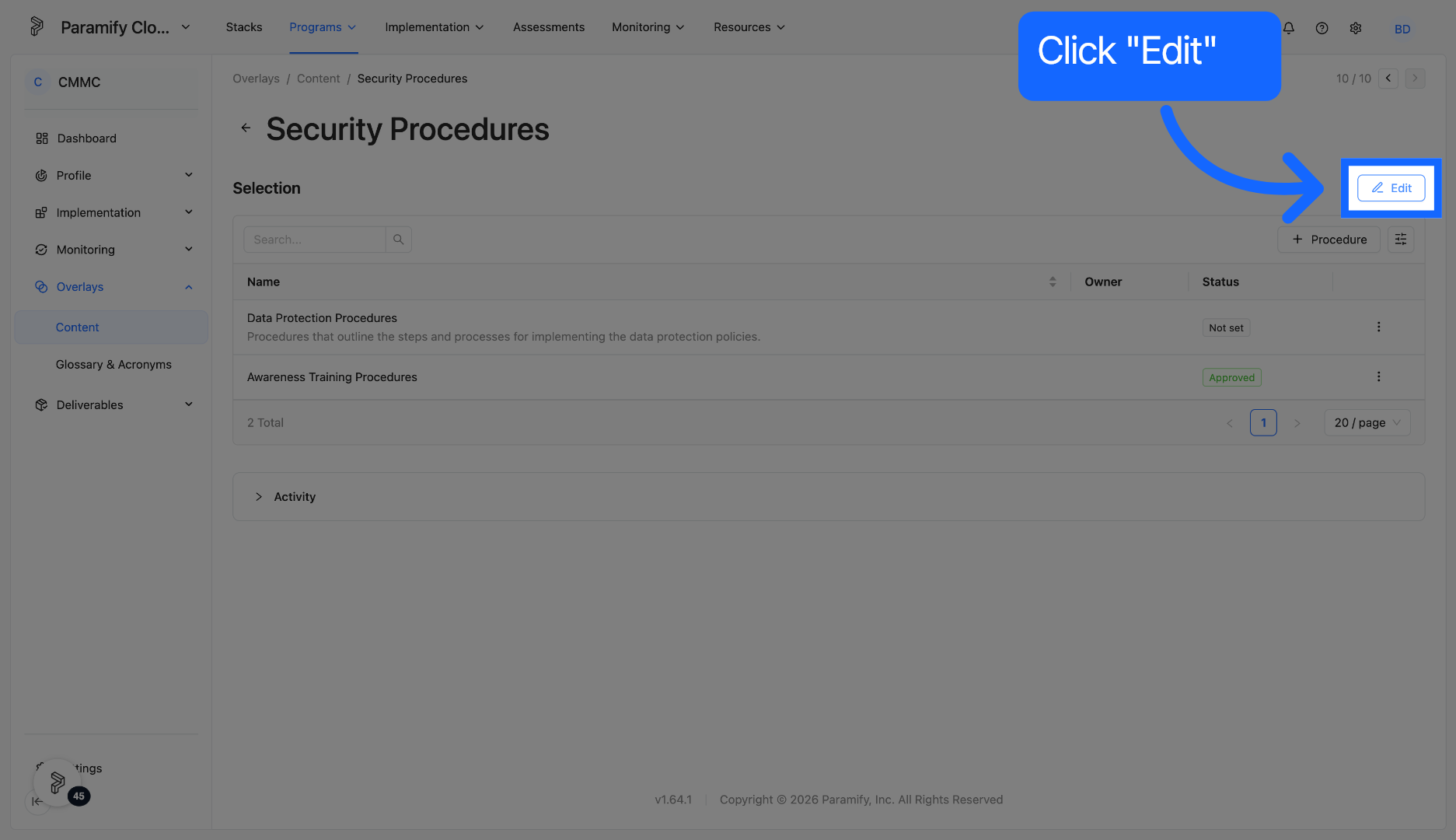
24. Edit Security Procedures
Click Edit to modify which procedures appear in the Security Procedures
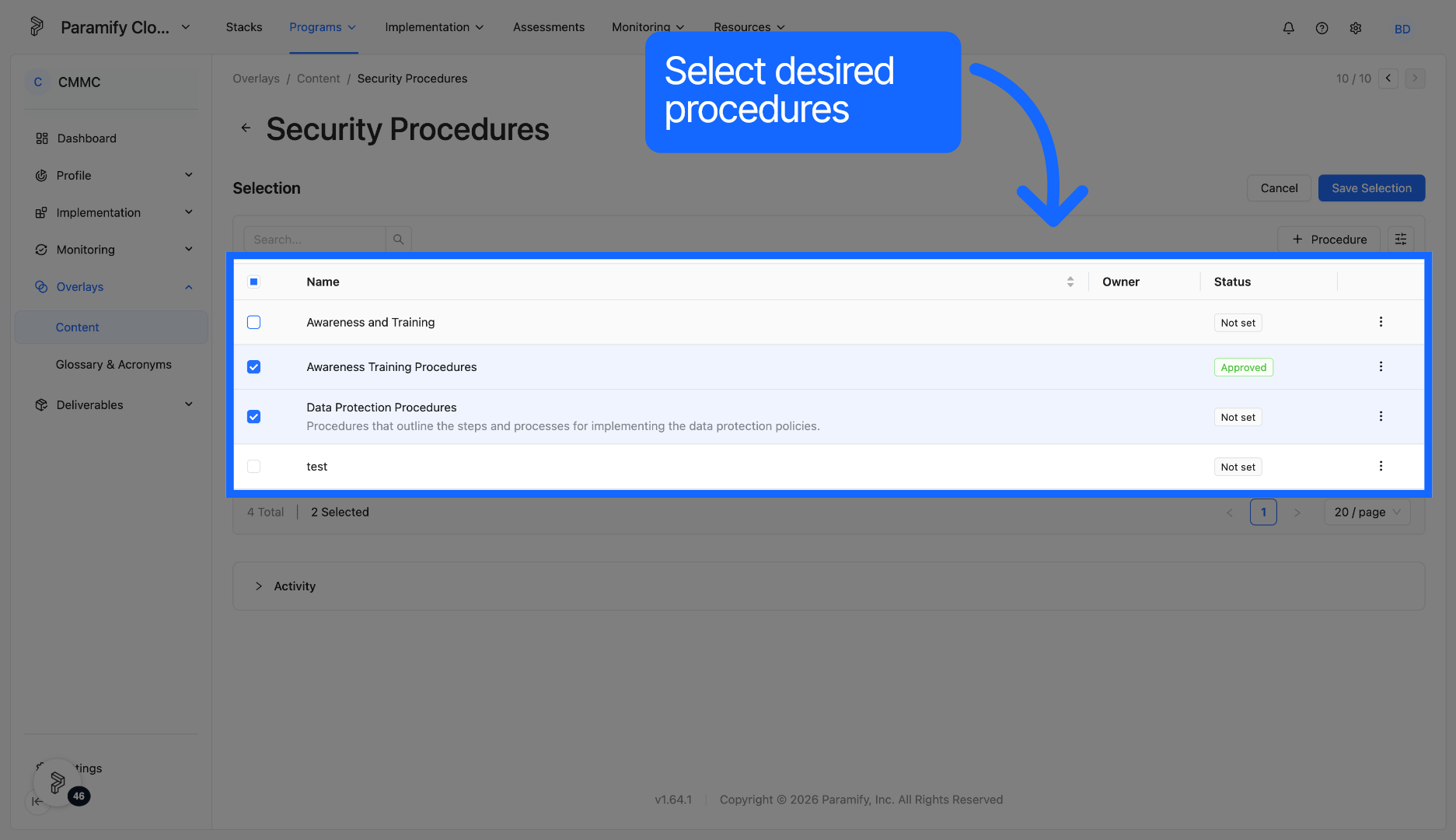
25. Select Procedures
Select desired procedures to be added to the Security Procedures.
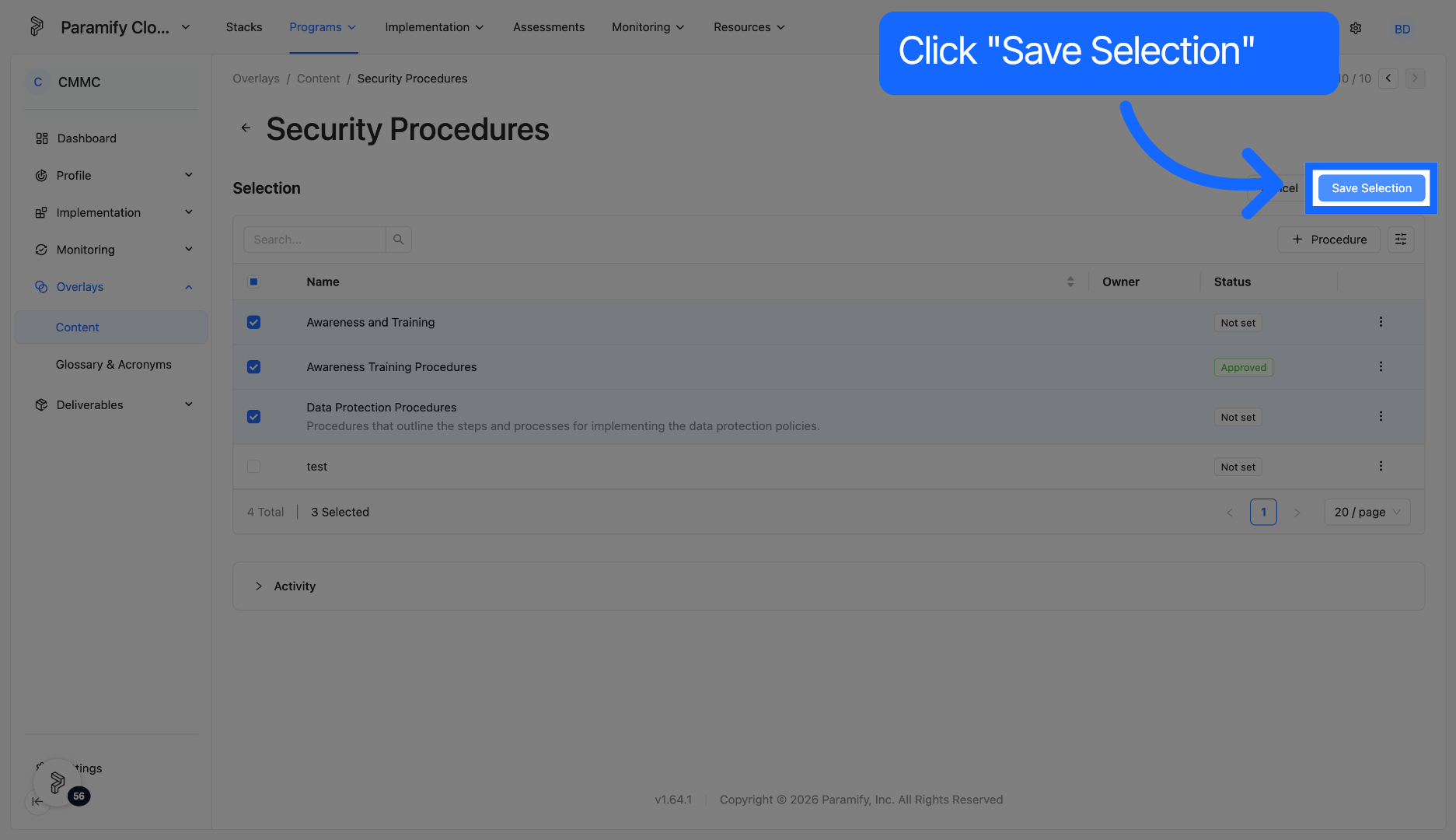
26. Save Selection Changes
Click Save Selection to apply and store the added procedures.
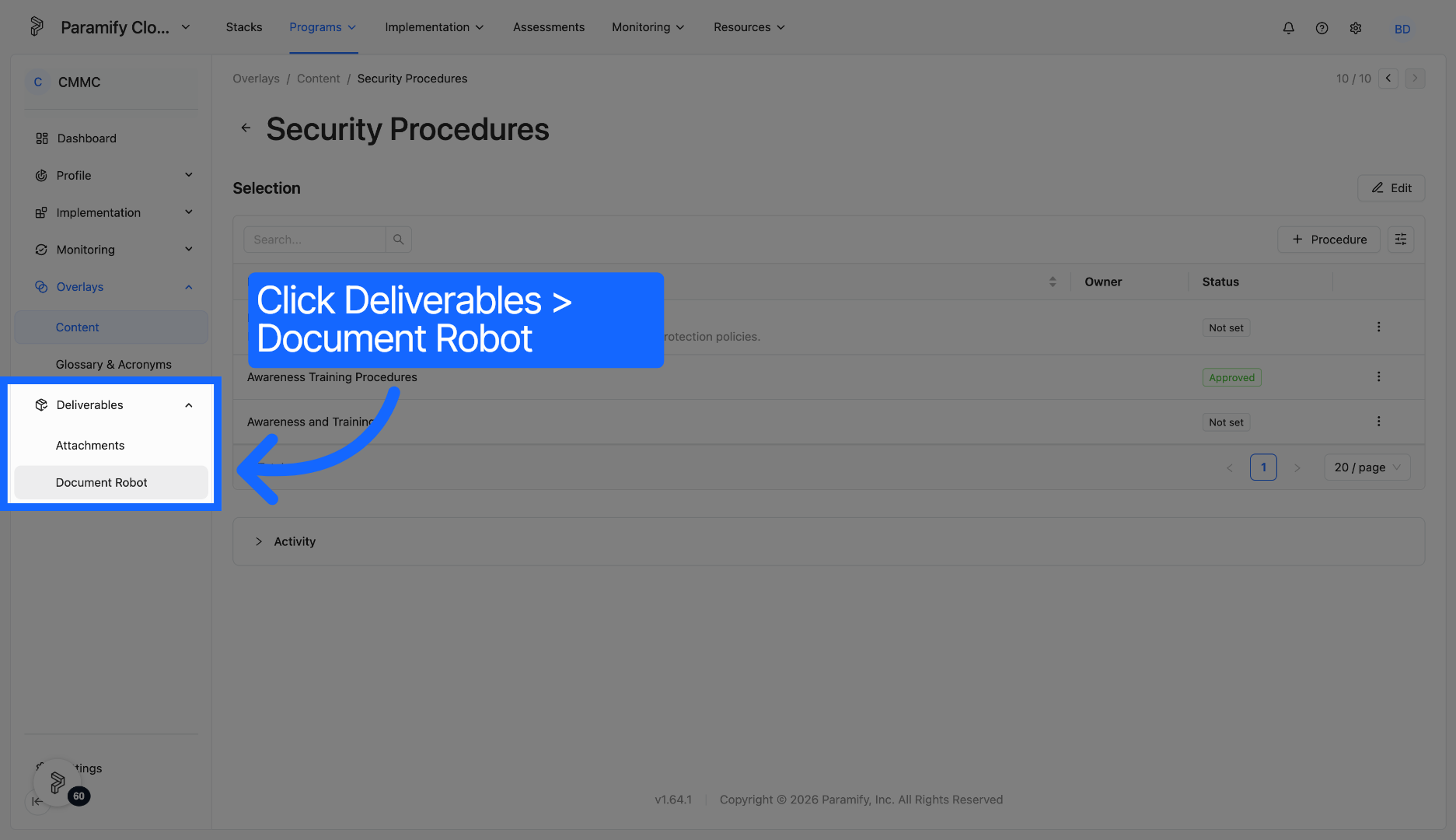
27. Open Document Robot
To generate the custom procedures you have created, click Document Robot under Deliverables
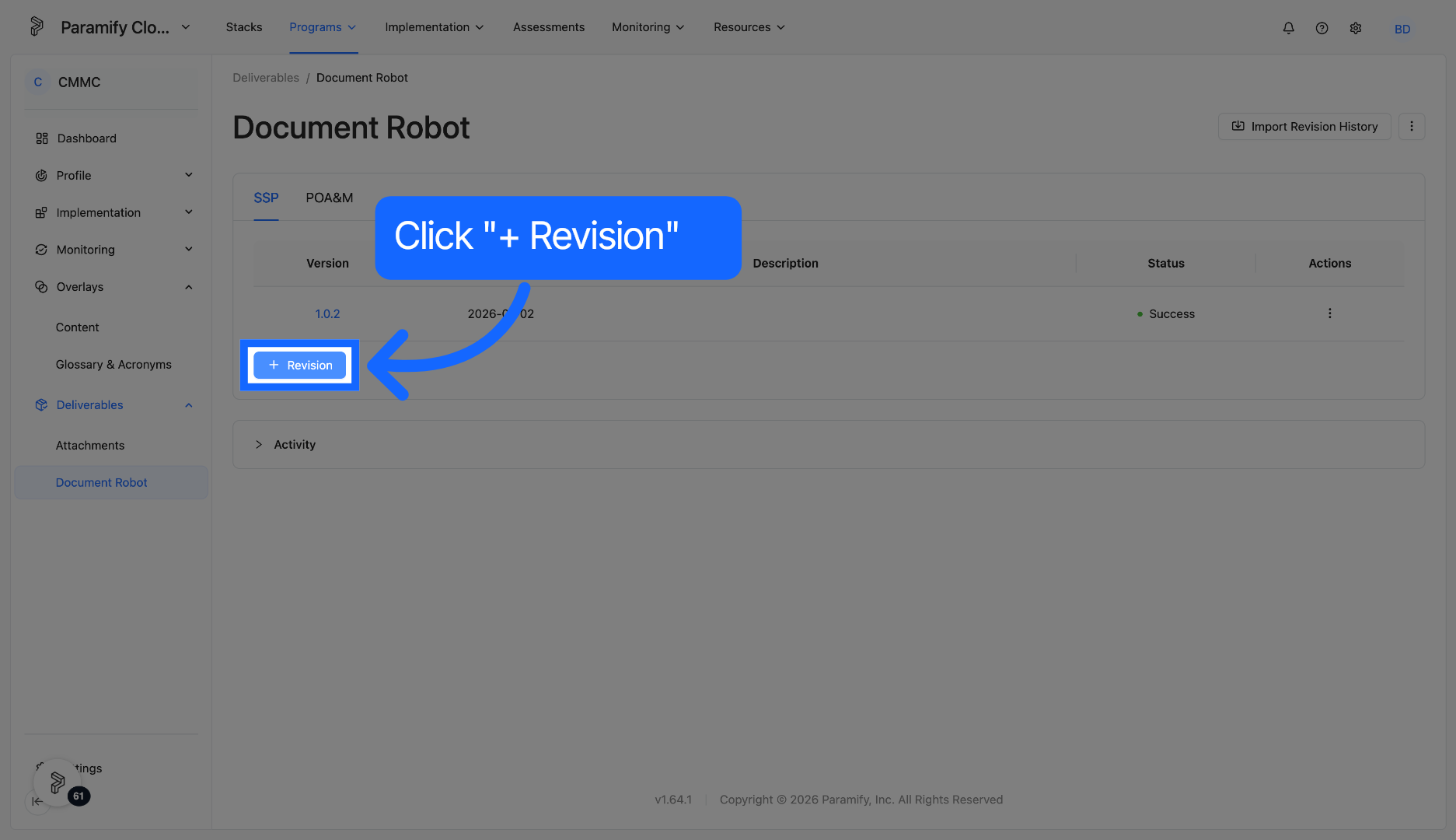
28. Click '+ Revision'
Click '+ Revision' to generate a desired document.
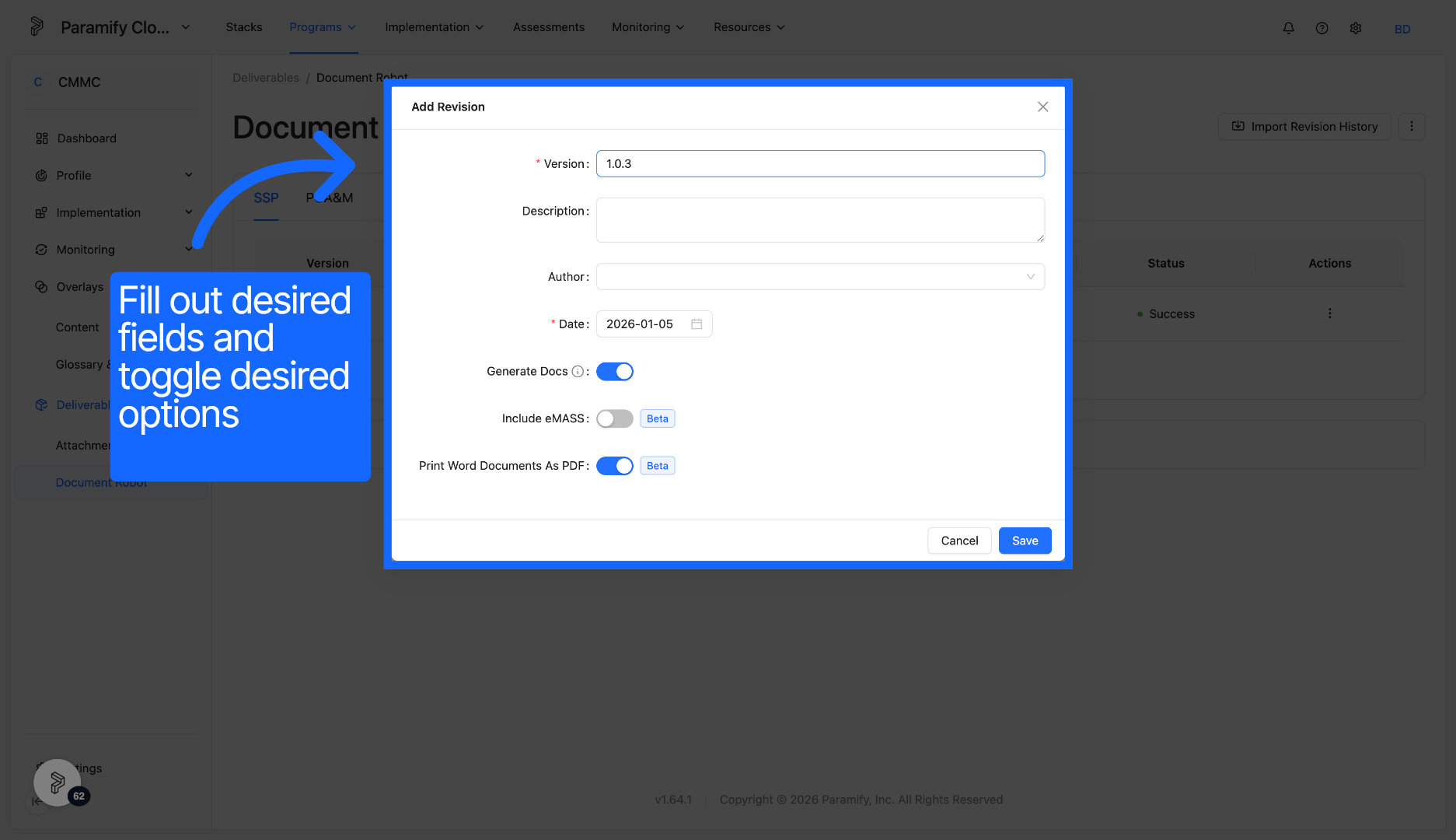
29. Name and Select Options
Name the version of the revision and toggle the desired options.
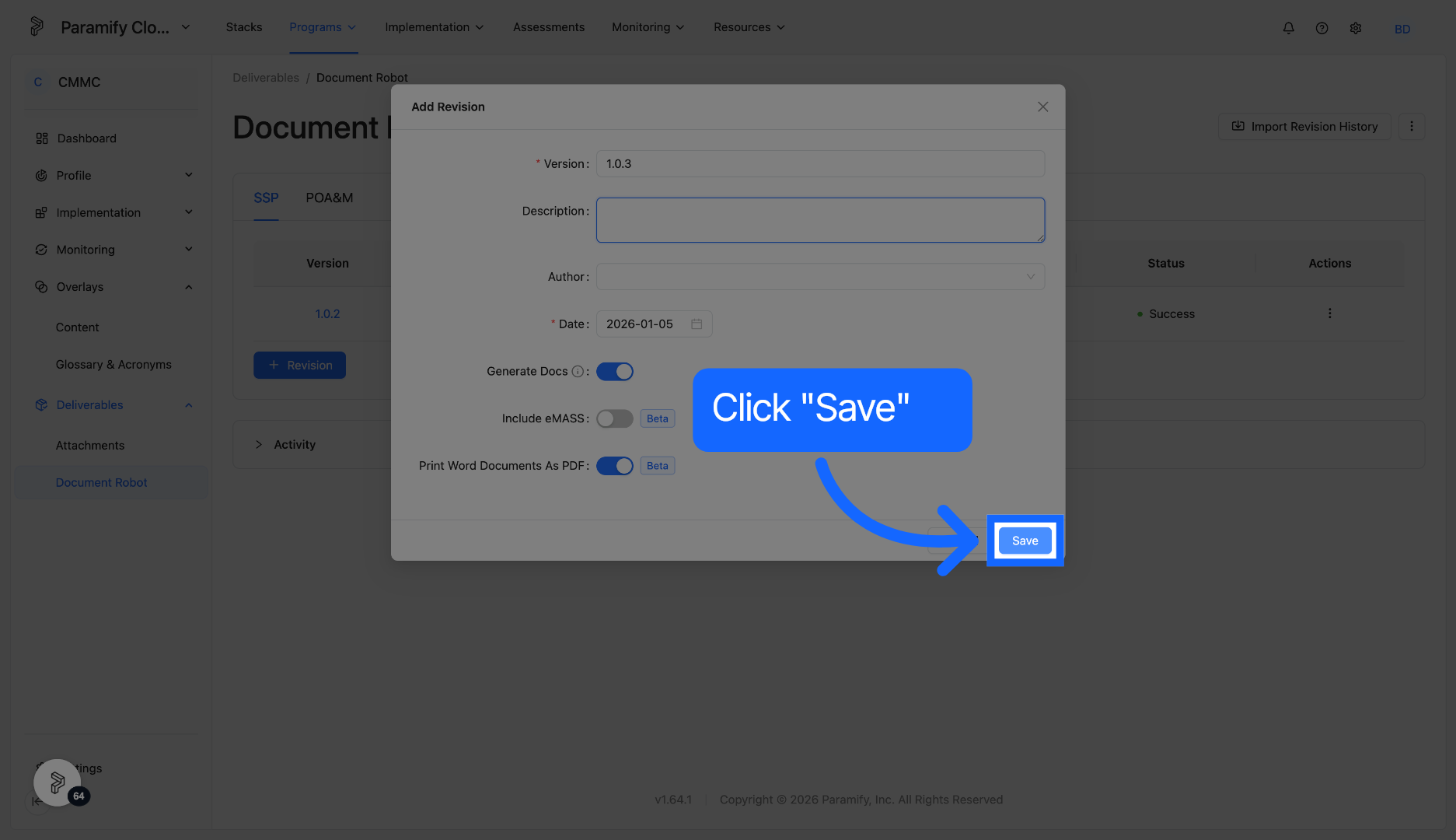
30. Save Changes
Click Save to apply version name and options.
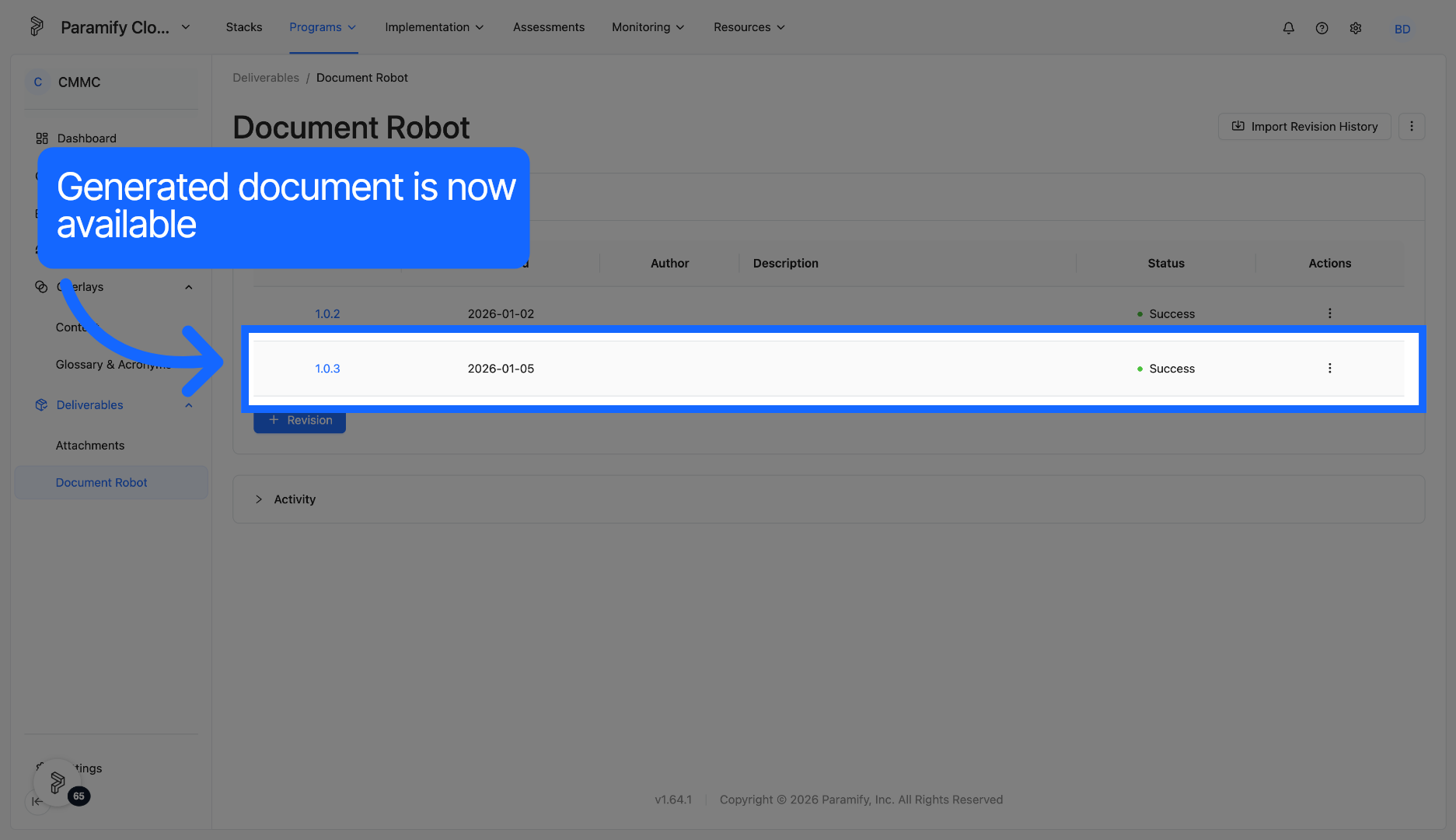
31. Download Document Revision
Click the link to download the generated custom procedures contained in your ATO Package.
Congratulations, you have now created narratives in order to generate procedures elements and generate a necessary compliance document.
Comments
0 comments
Please sign in to leave a comment.