
In this guide, we will walk you through the steps to create an API Key in the Paramify application.
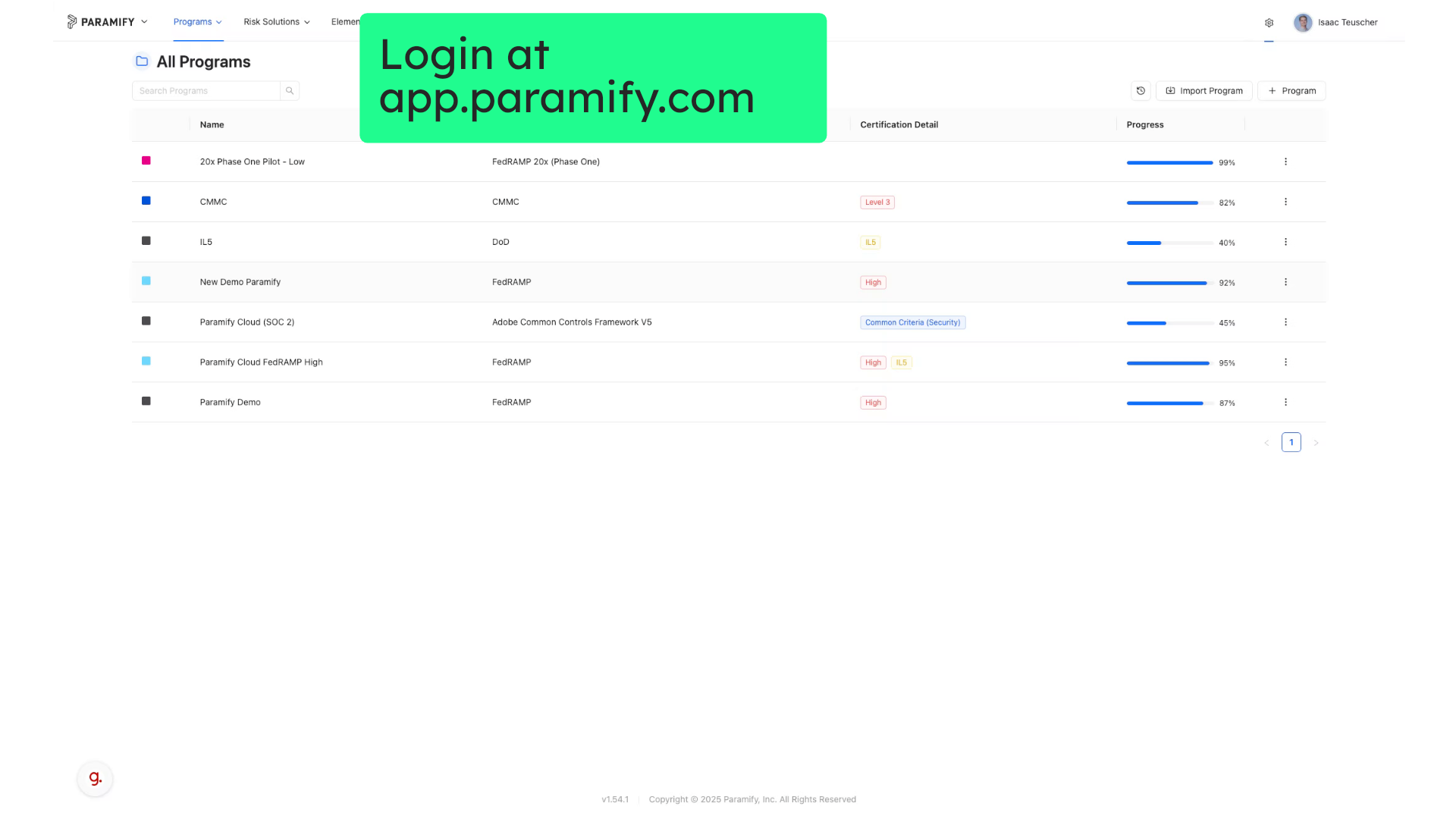
1. Login to Paramify
Go to app.paramify.com and login.
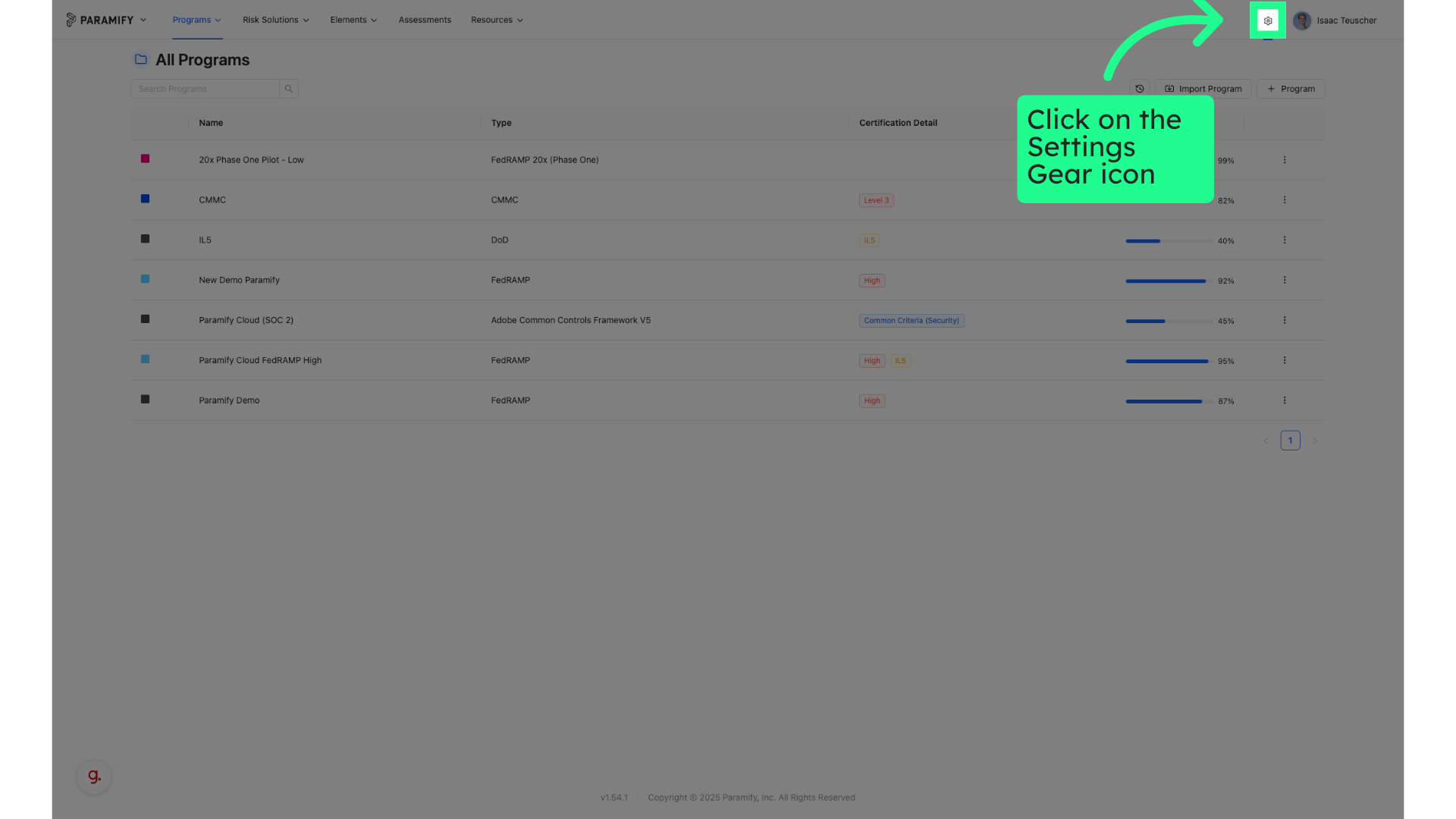
2. Click on the Settings Gear icon
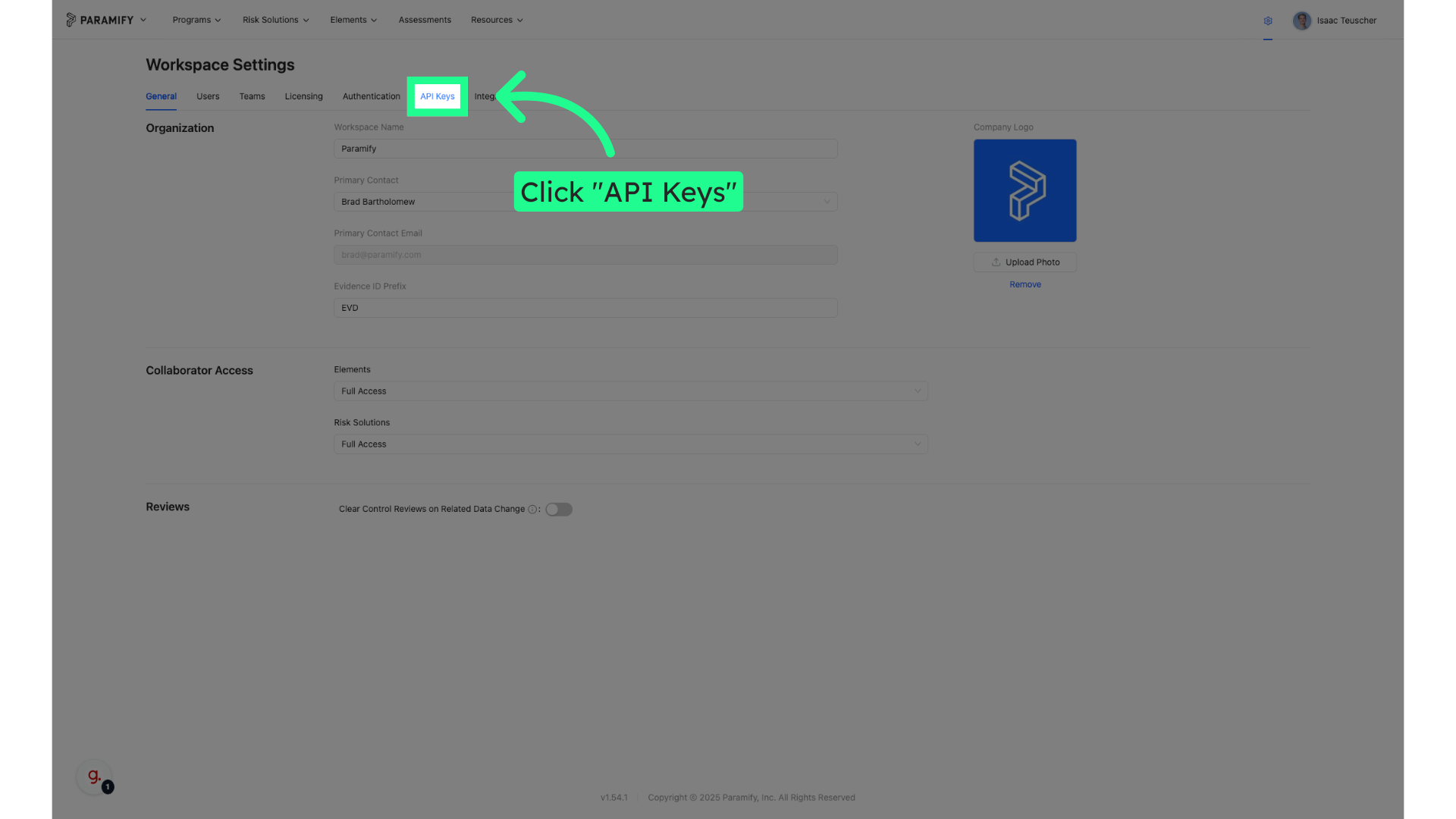
3. Click "API Keys"
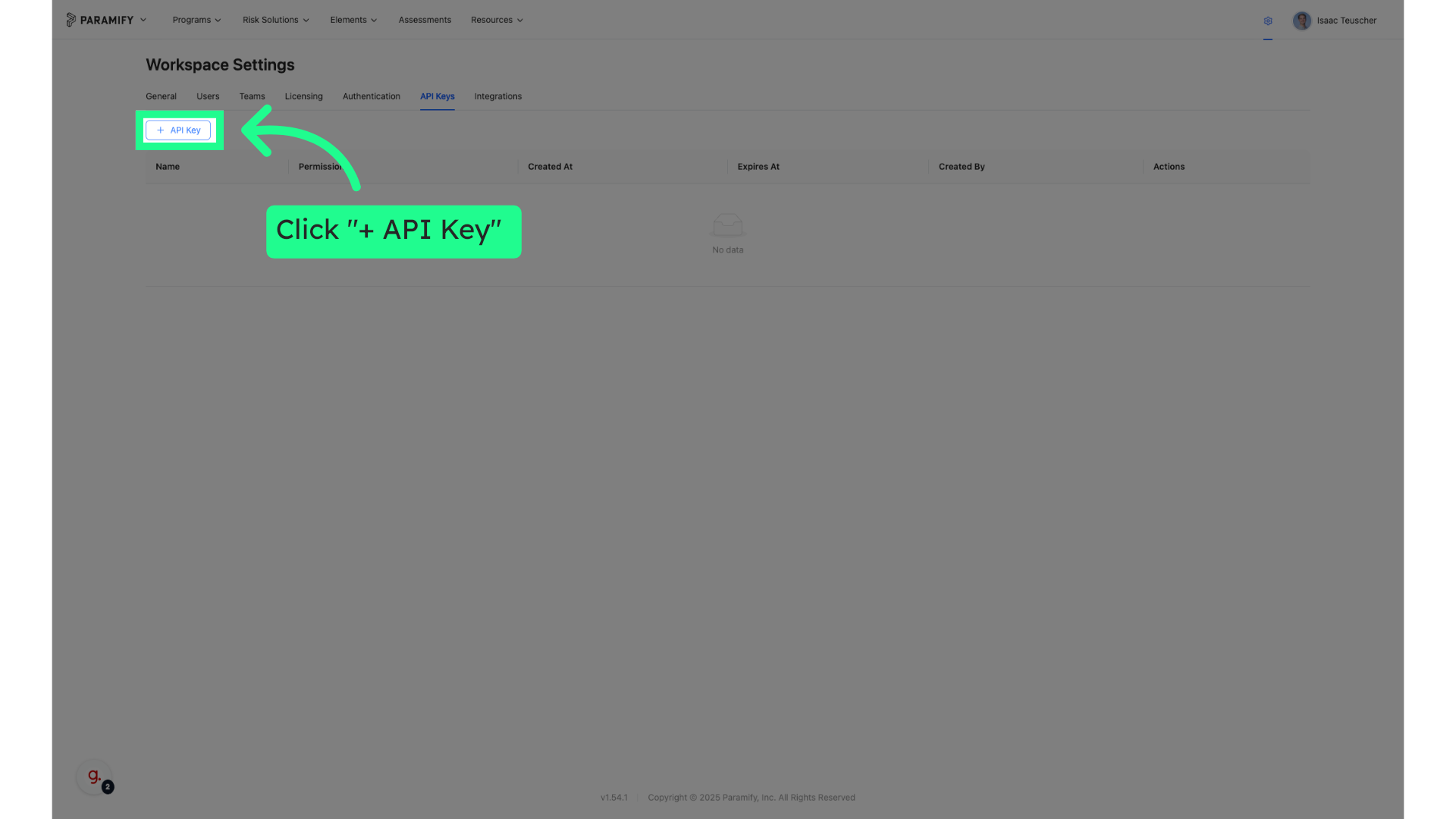
4. Click "+ API Key"
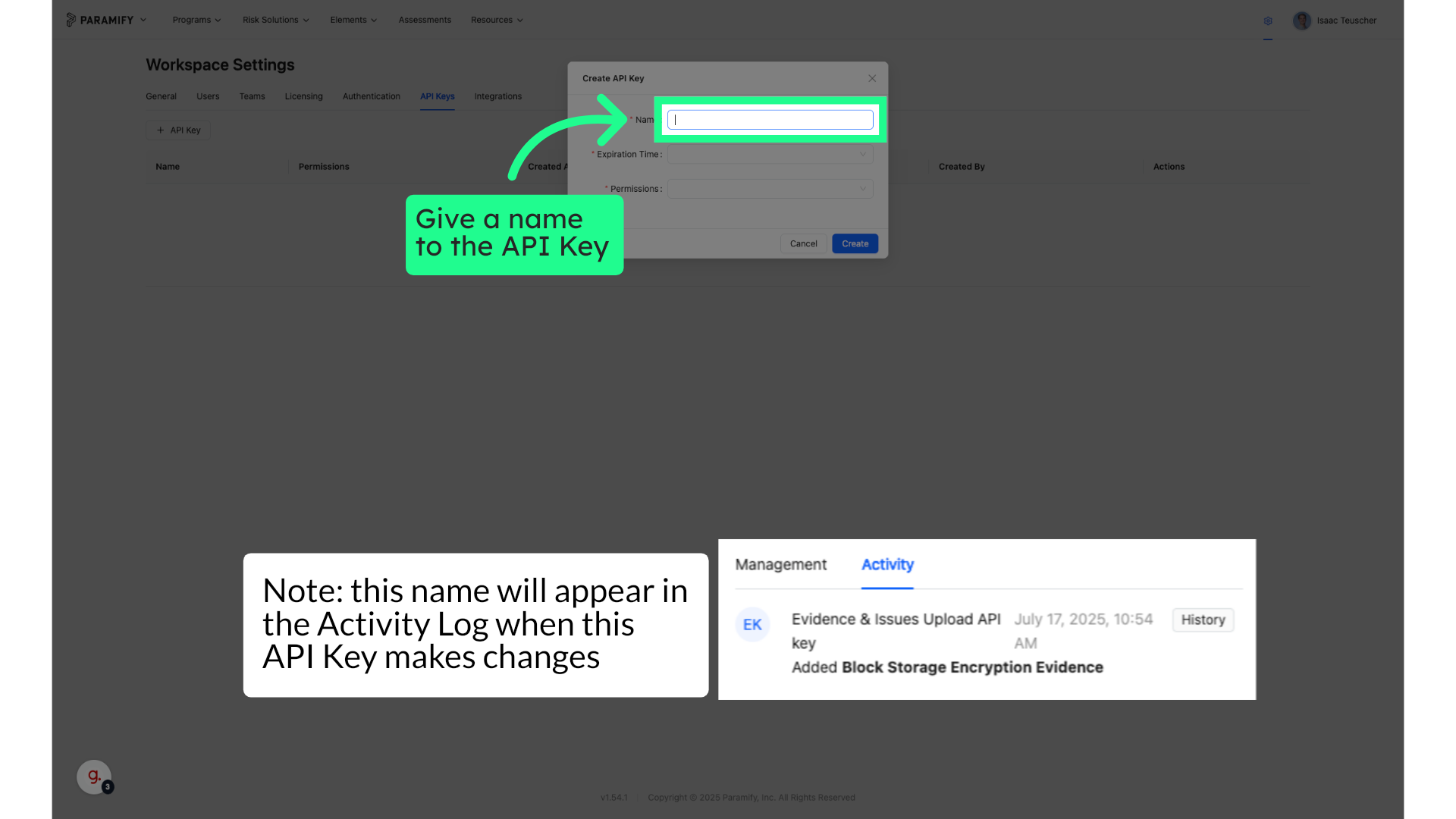
5. Give a name to the API Key
Select the "Name" option
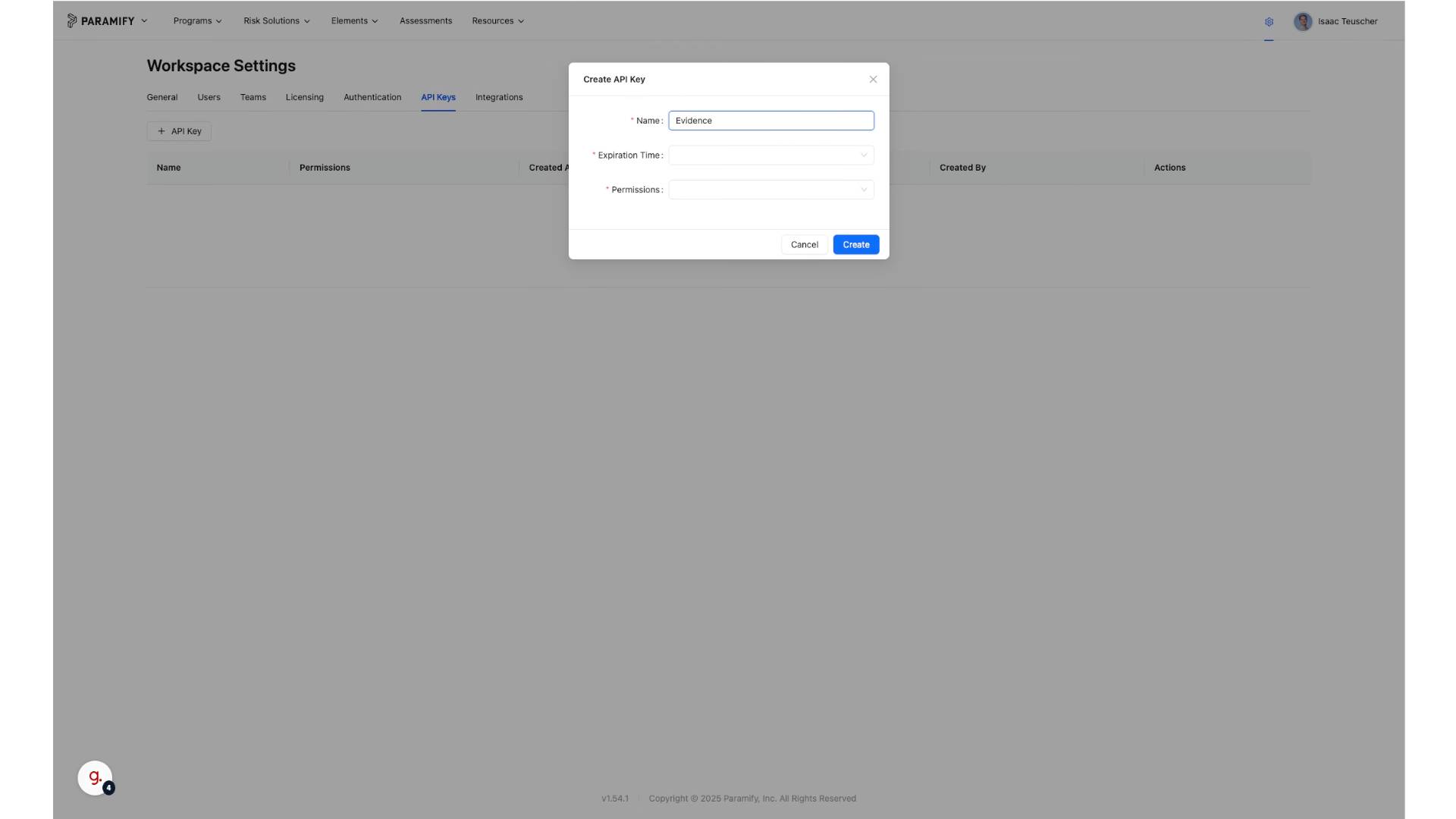
6. For example "Evidence Upload API Key"
Fill in "Evidence Upload API Key"
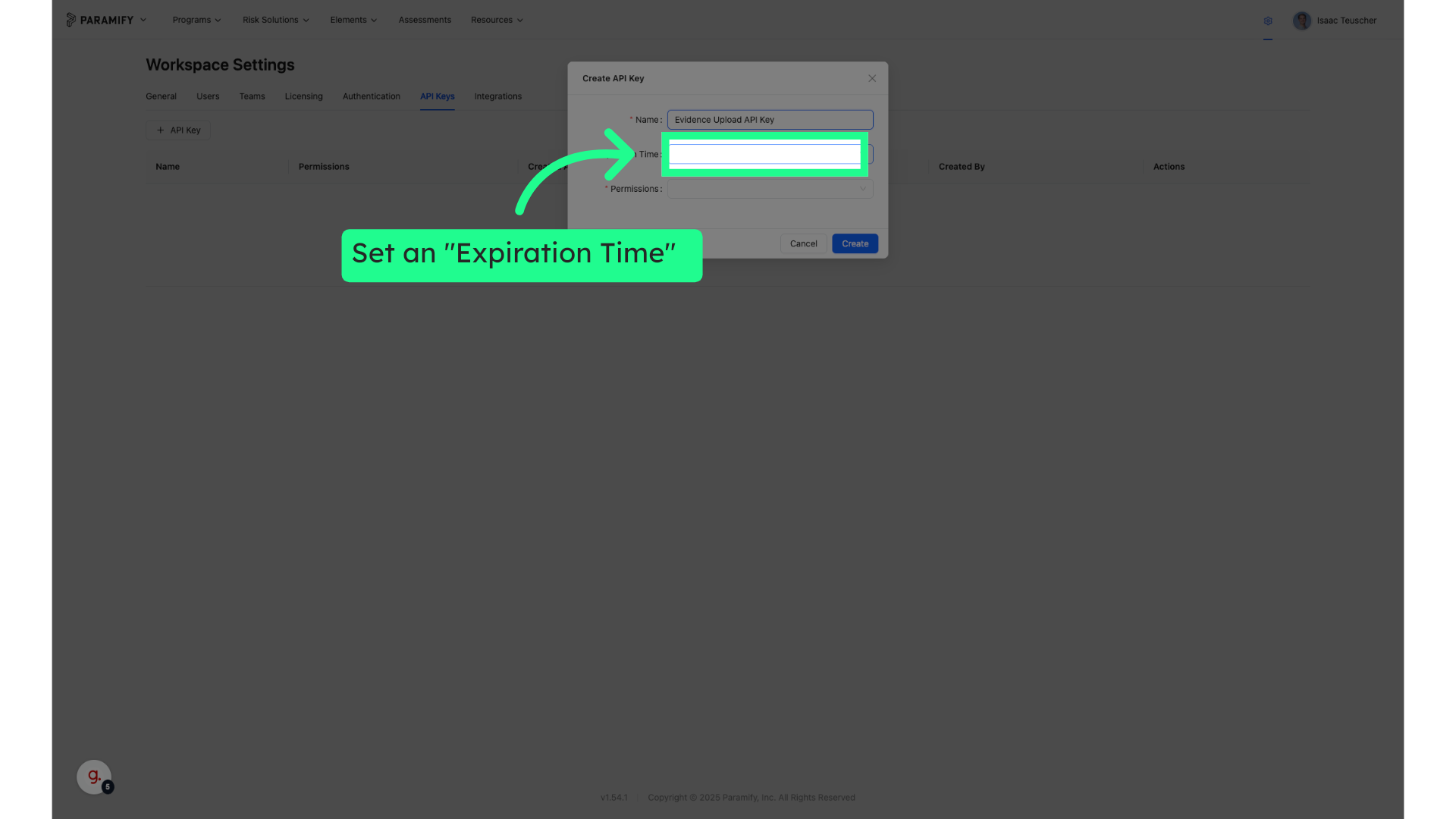
7. Set an "Expiration Time" for the API Key
Choose the "Expiration Time" option
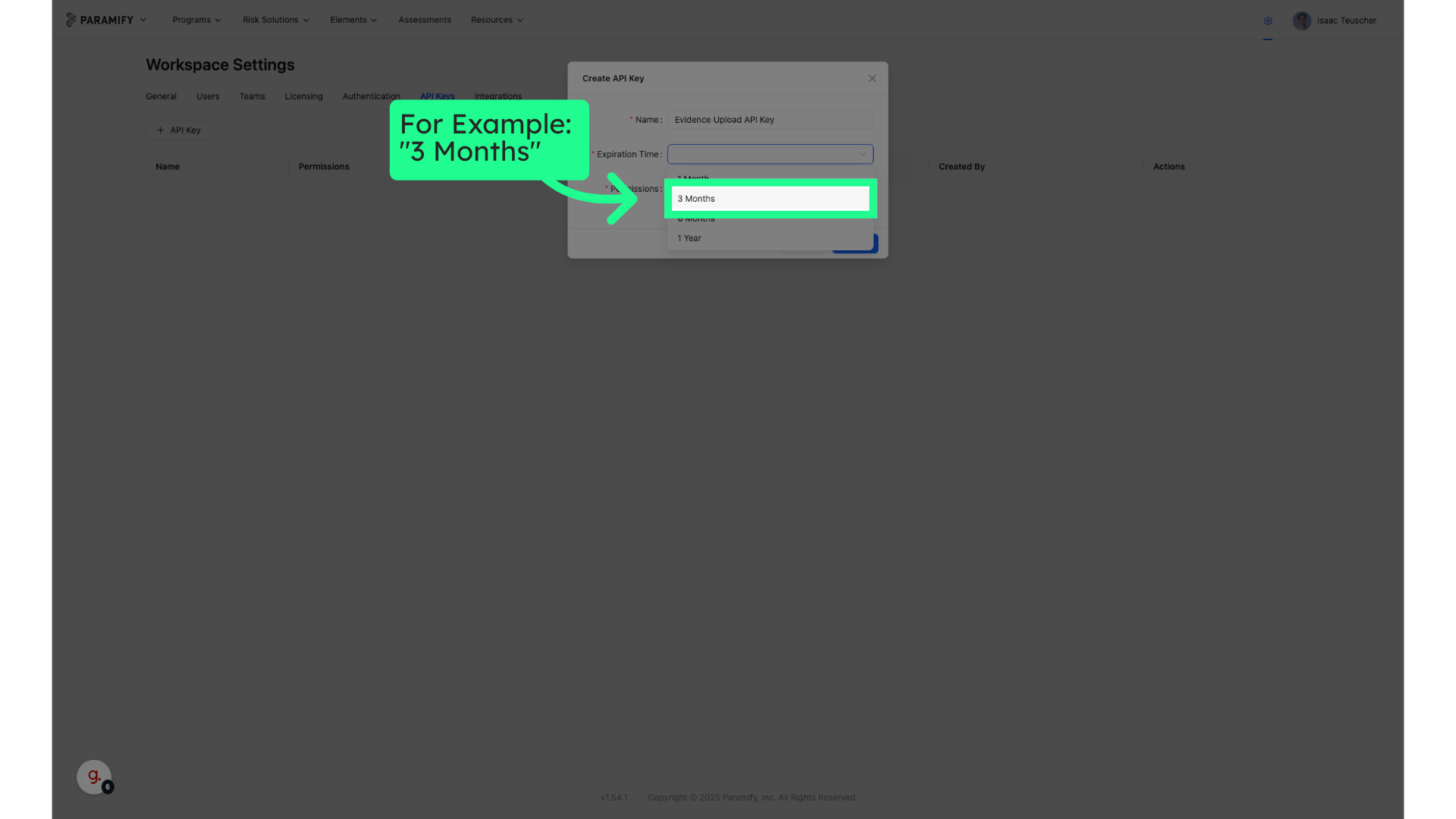
8. For Example: "3 Months"
Choose your desired expiration time
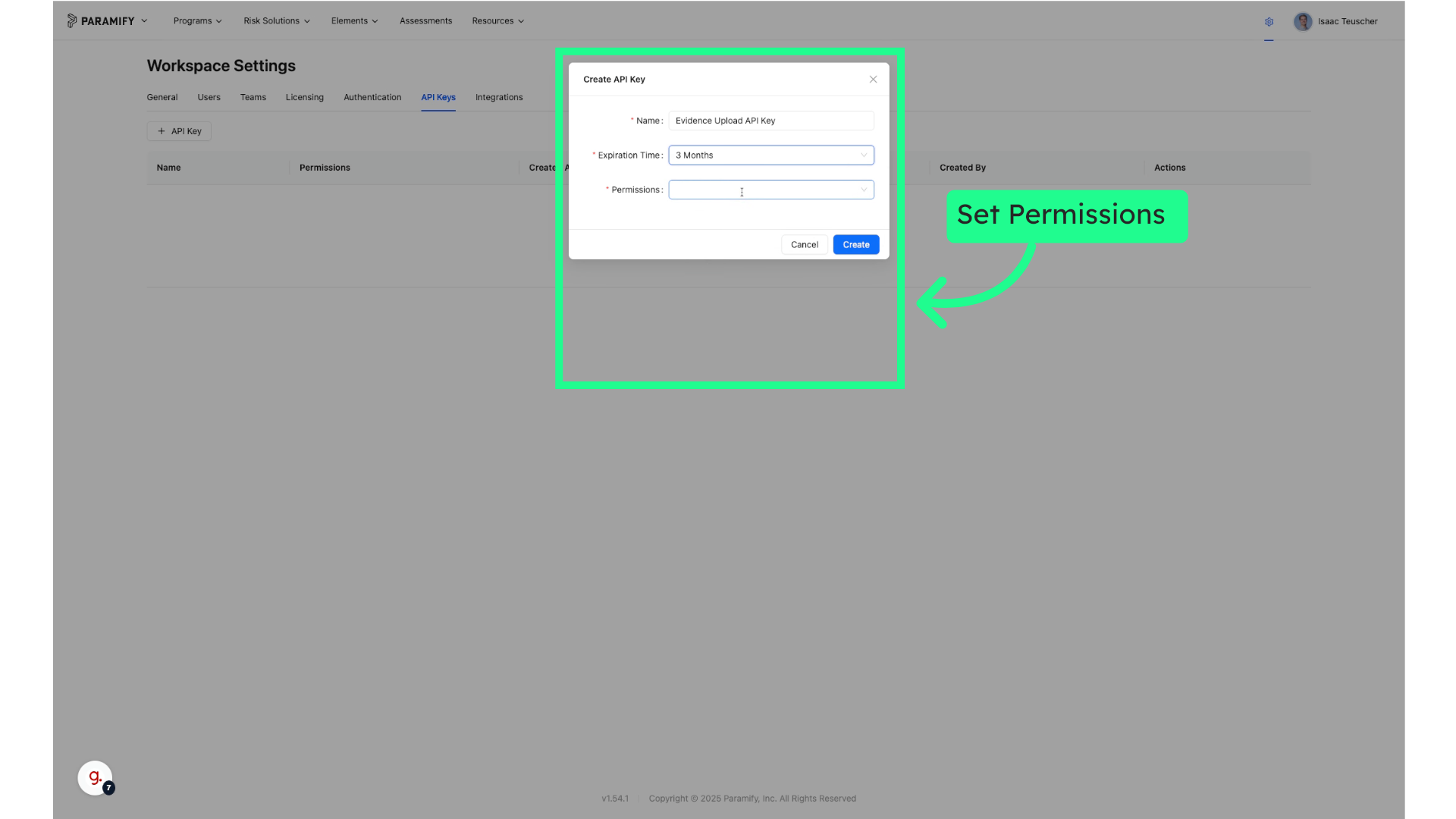
9. Choose granular permissions for the API key
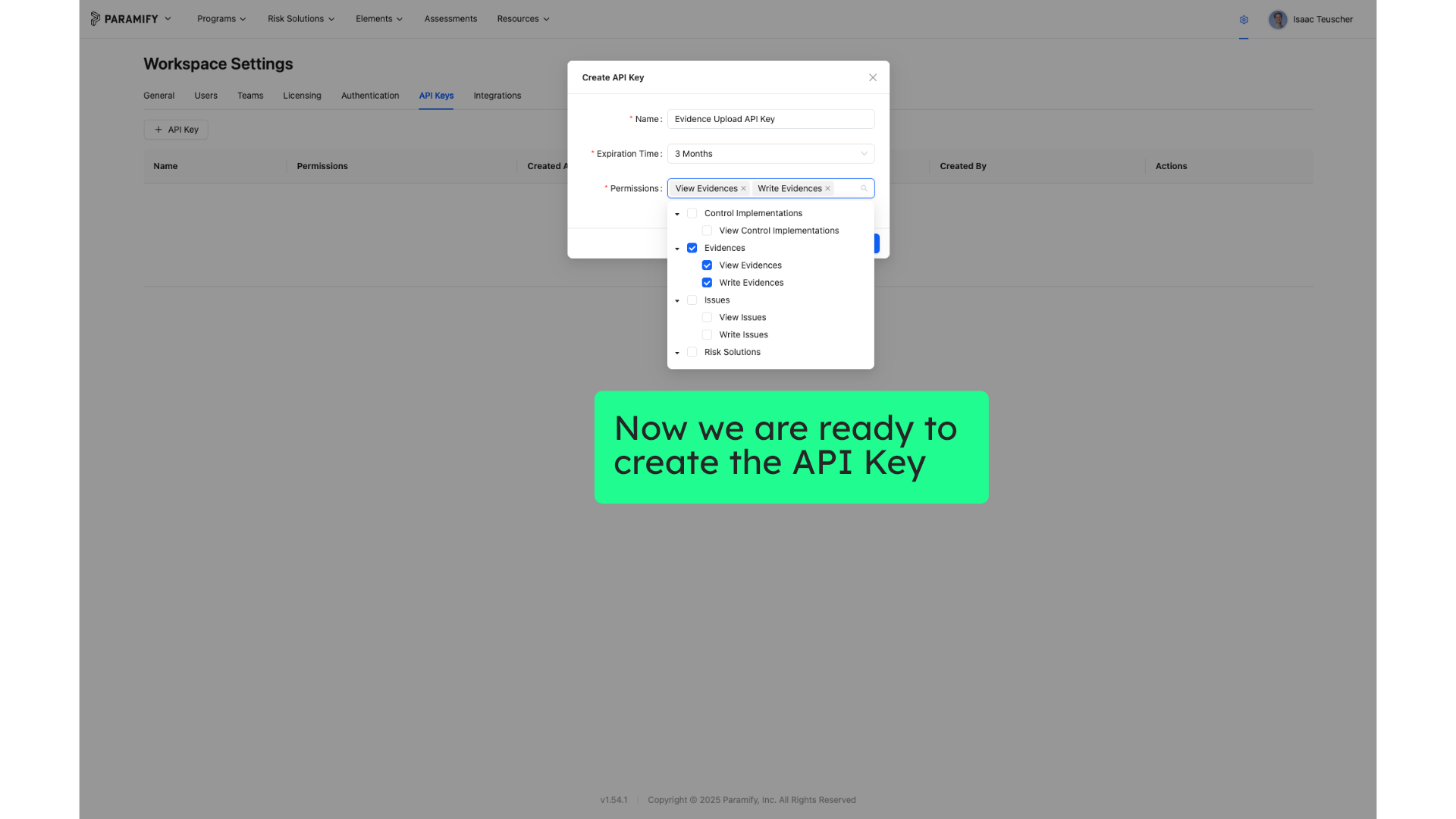
Click the desired permissions
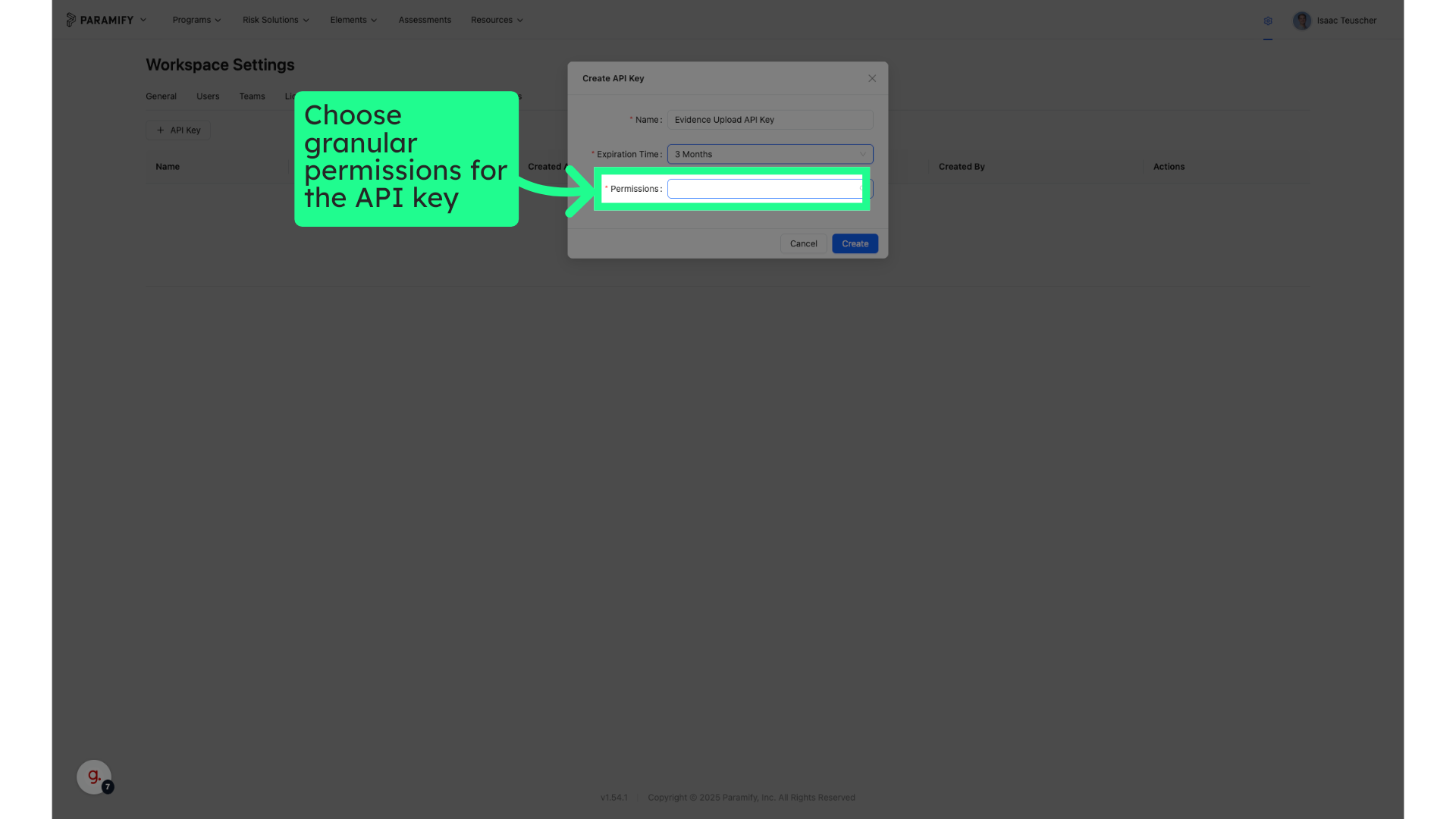
10. Permissions for API Key
11. Now we are ready to create the API Key
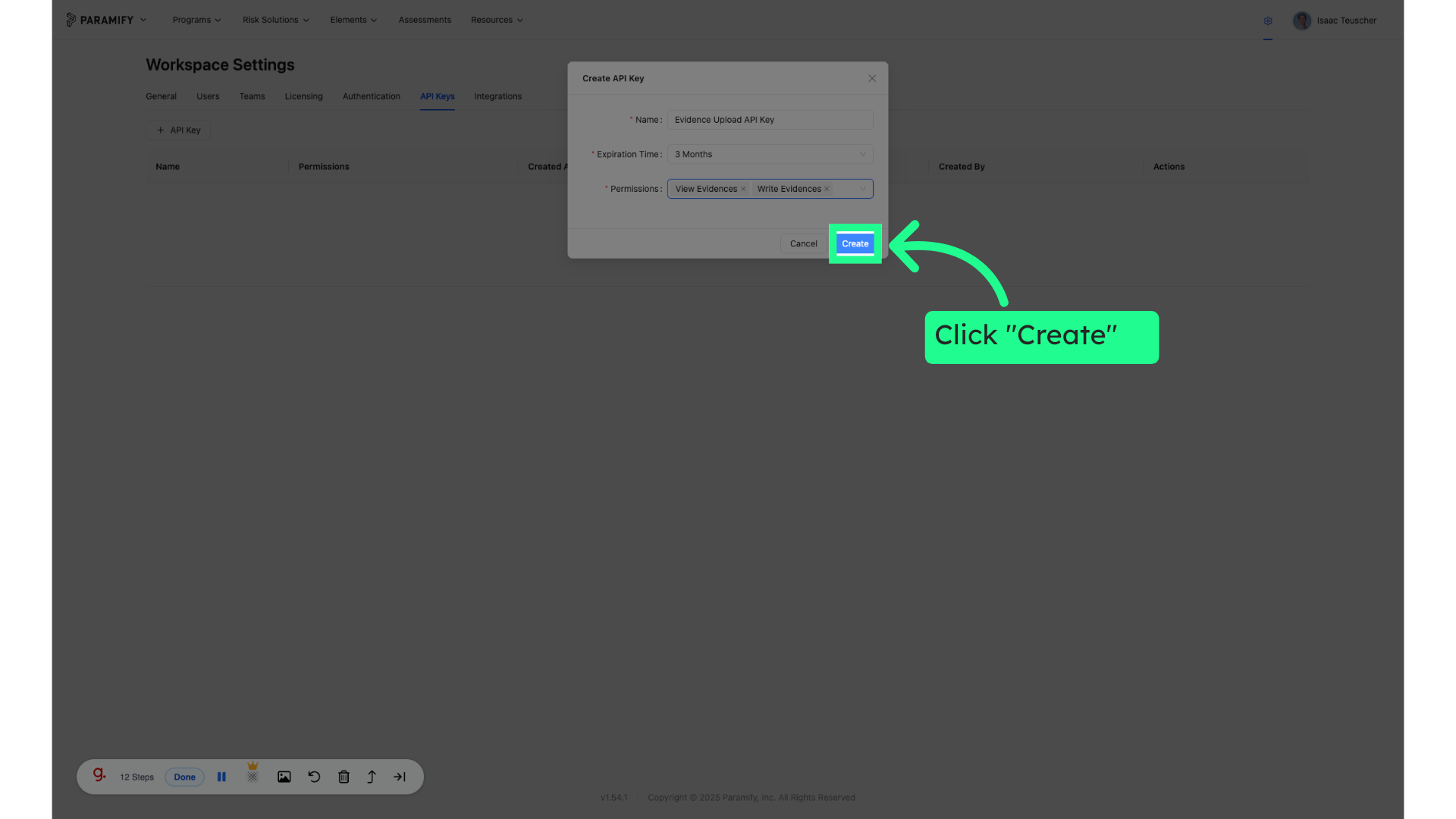
12. Click "Create"
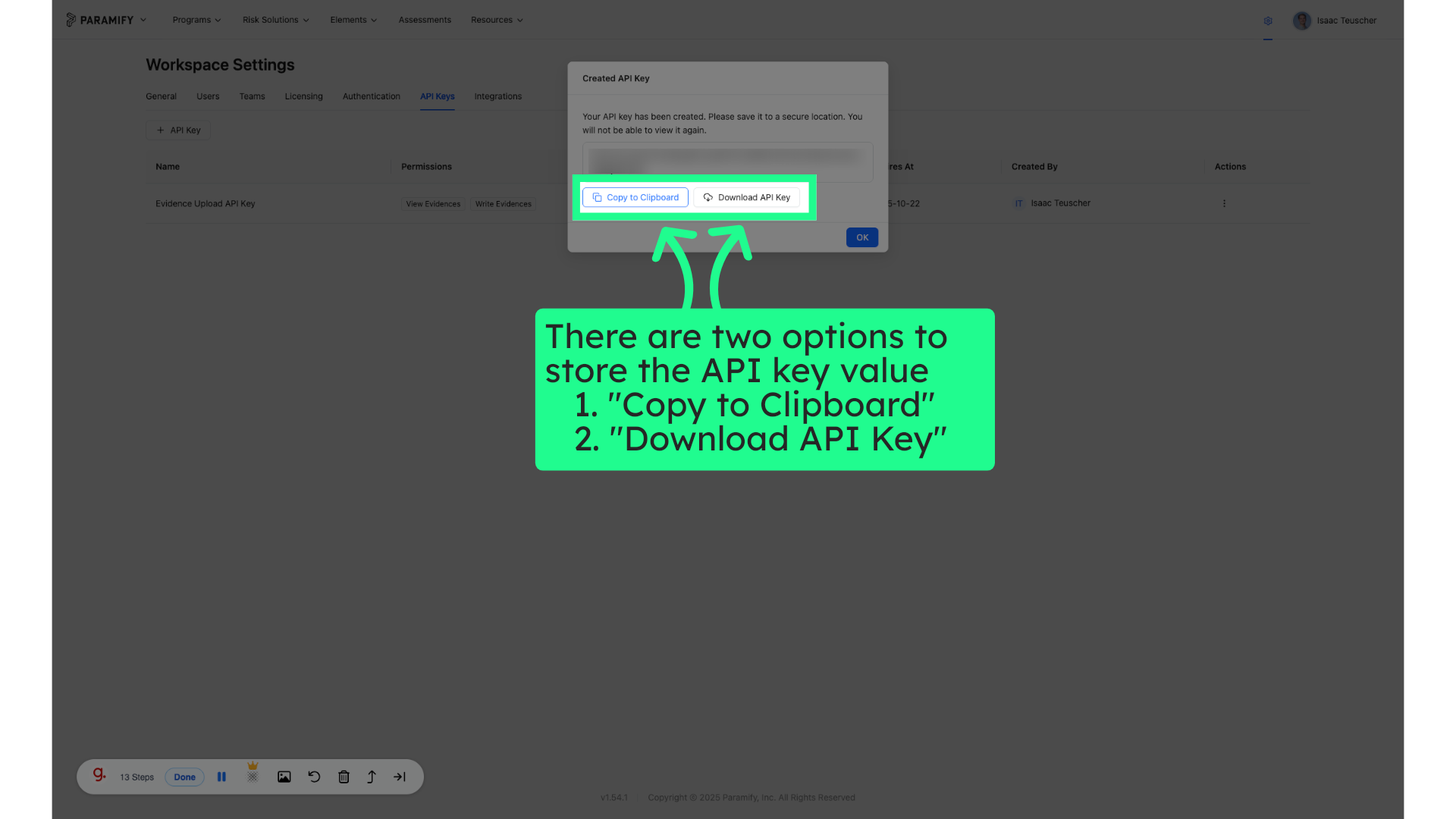
13. There are two options to store the API key value: "Copy to Clipboard" or "Download API Key"
Click on "Copy to Clipboard" or "Download API Key" then save the API Key in a secure place
14. Once your API key is safely stored, Click "OK"
Select the "OK" button once your API Key is stored.
Deleting an API Key

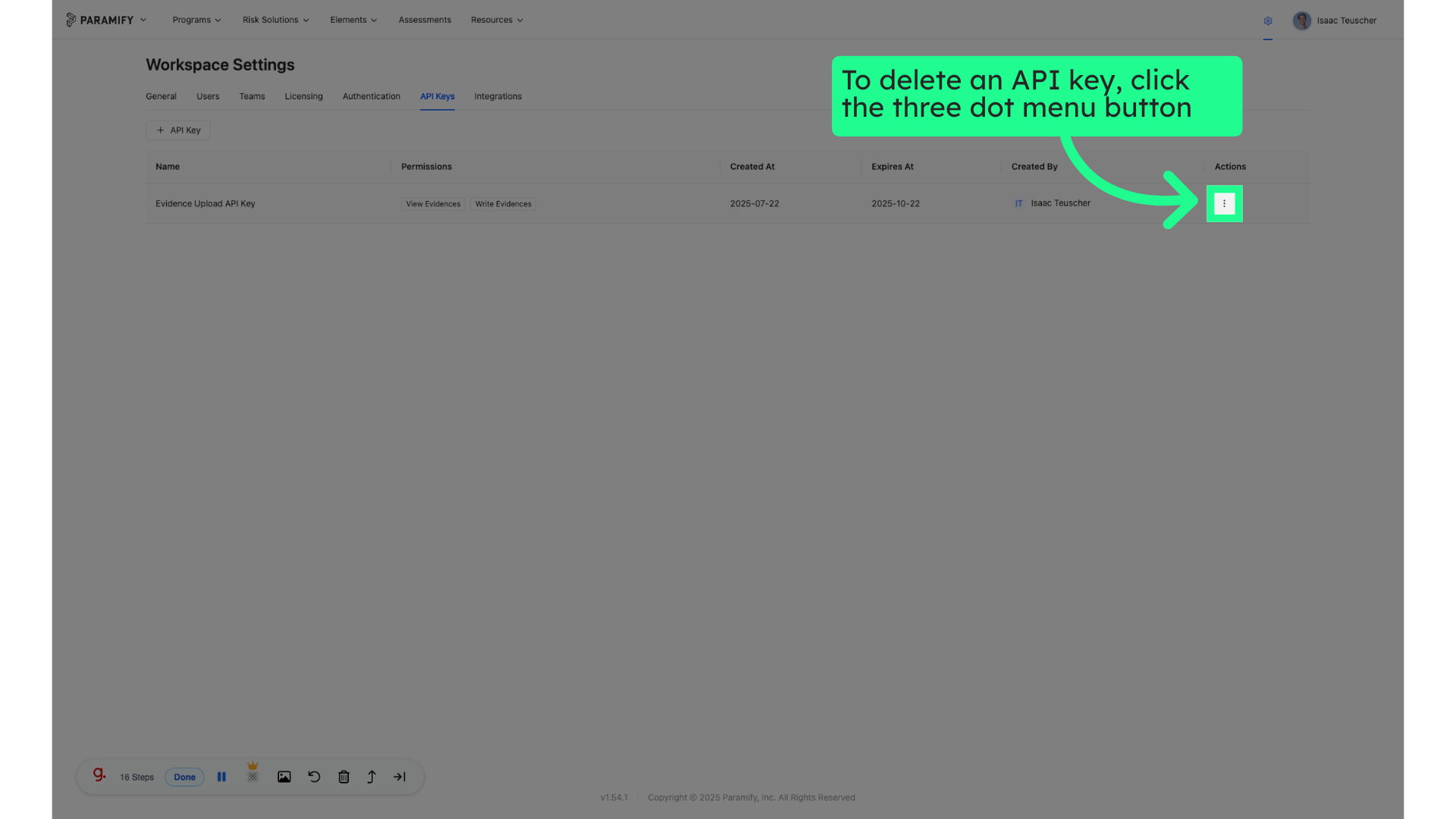
1. To delete an API key, click the three dot menu button
Select the three dots menu button on the right side.
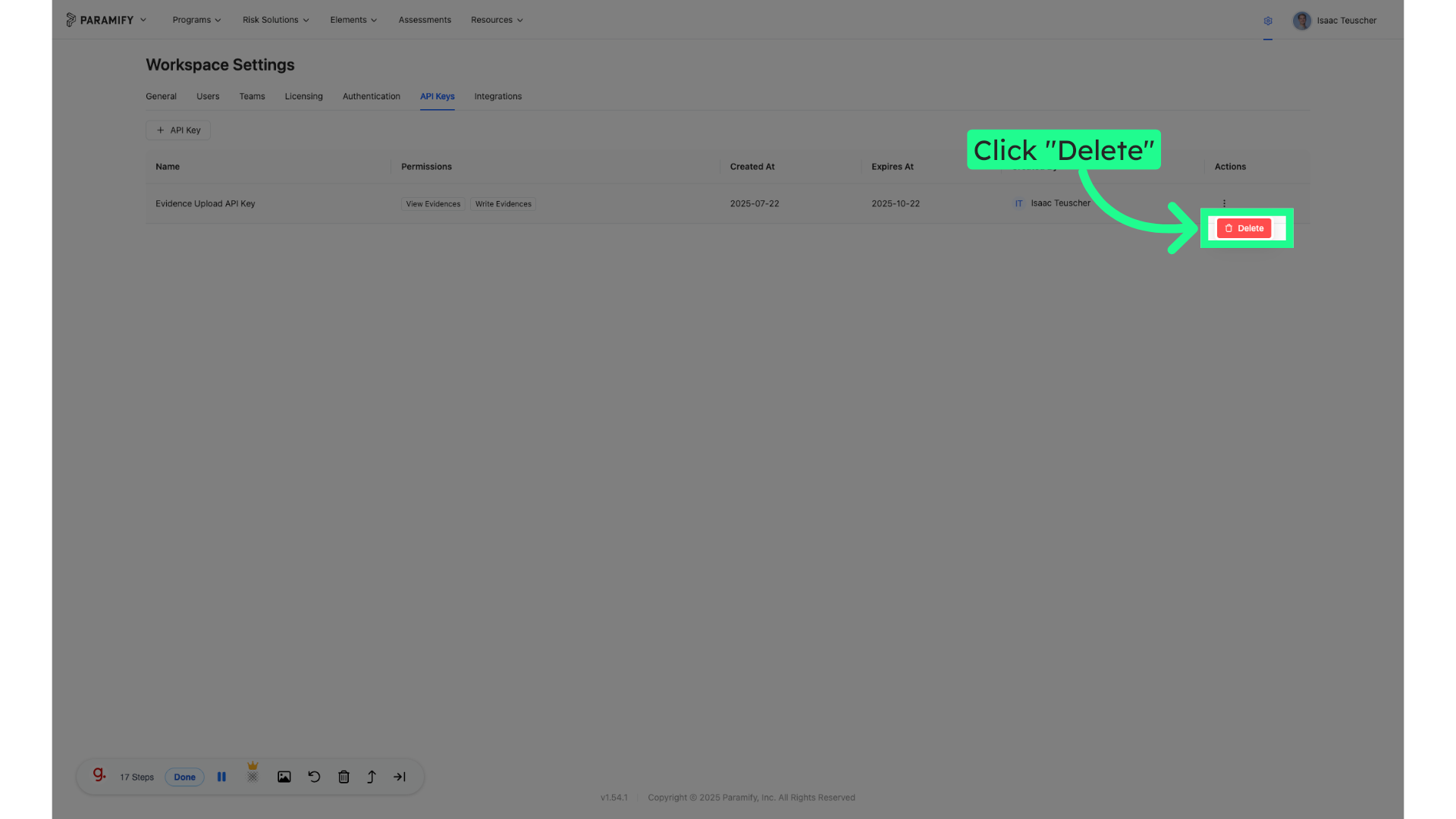
2. Click "Delete"
Choose the "Delete" option
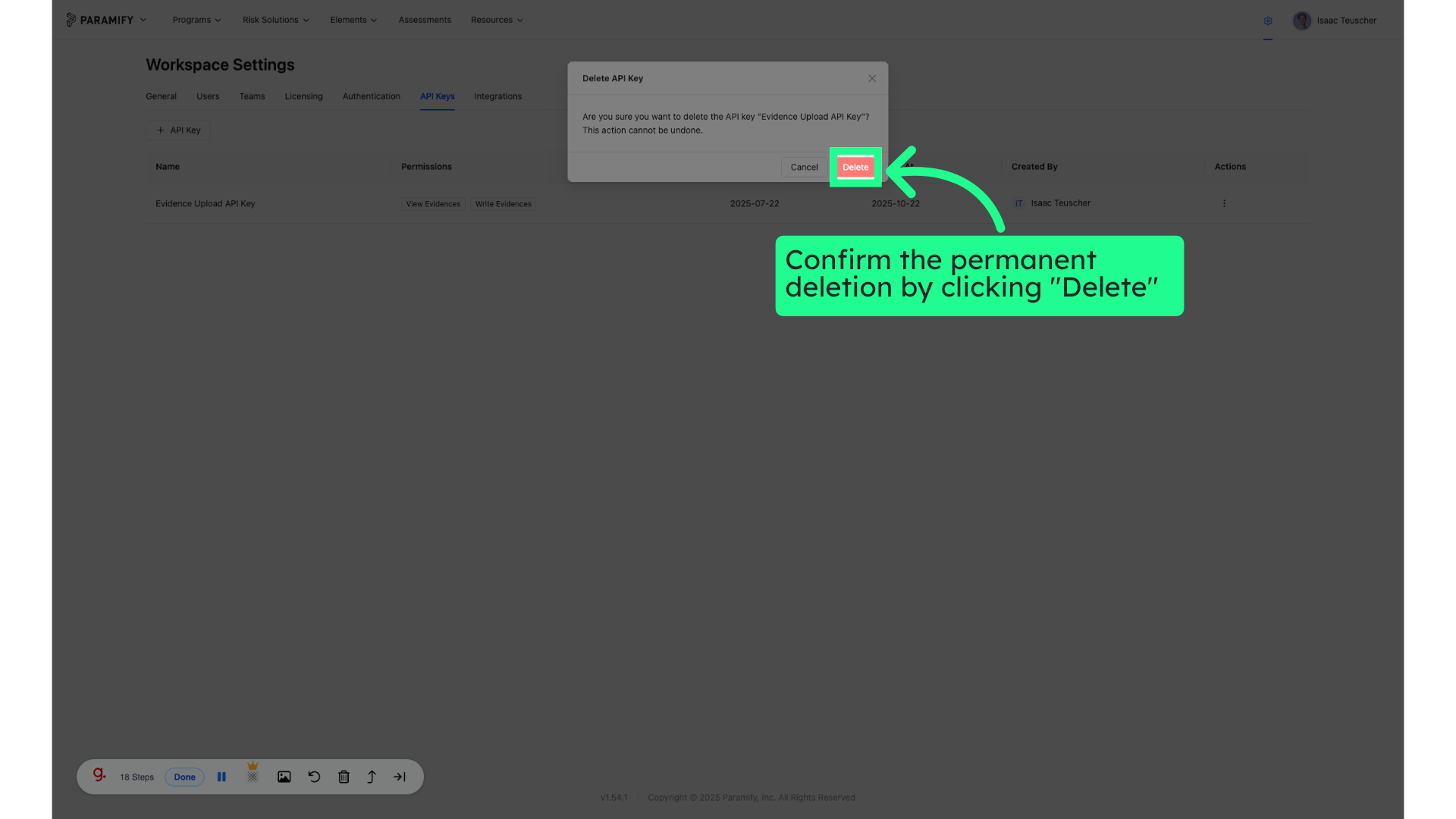
3. Confirm the permanent deletion by clicking "Delete"
Click on the "Delete" field
This guide covered the steps to Create a Paramify API Key in Paramify.
Comments
0 comments
Please sign in to leave a comment.