
This article explains how to view, edit, and filter PAIN Rating values for Issues in the Paramify Dashboard.
To learn more about PAIN Ratings, watch this video: FedRAMP PAIN Ratings overview.
How to view PAIN Ratings
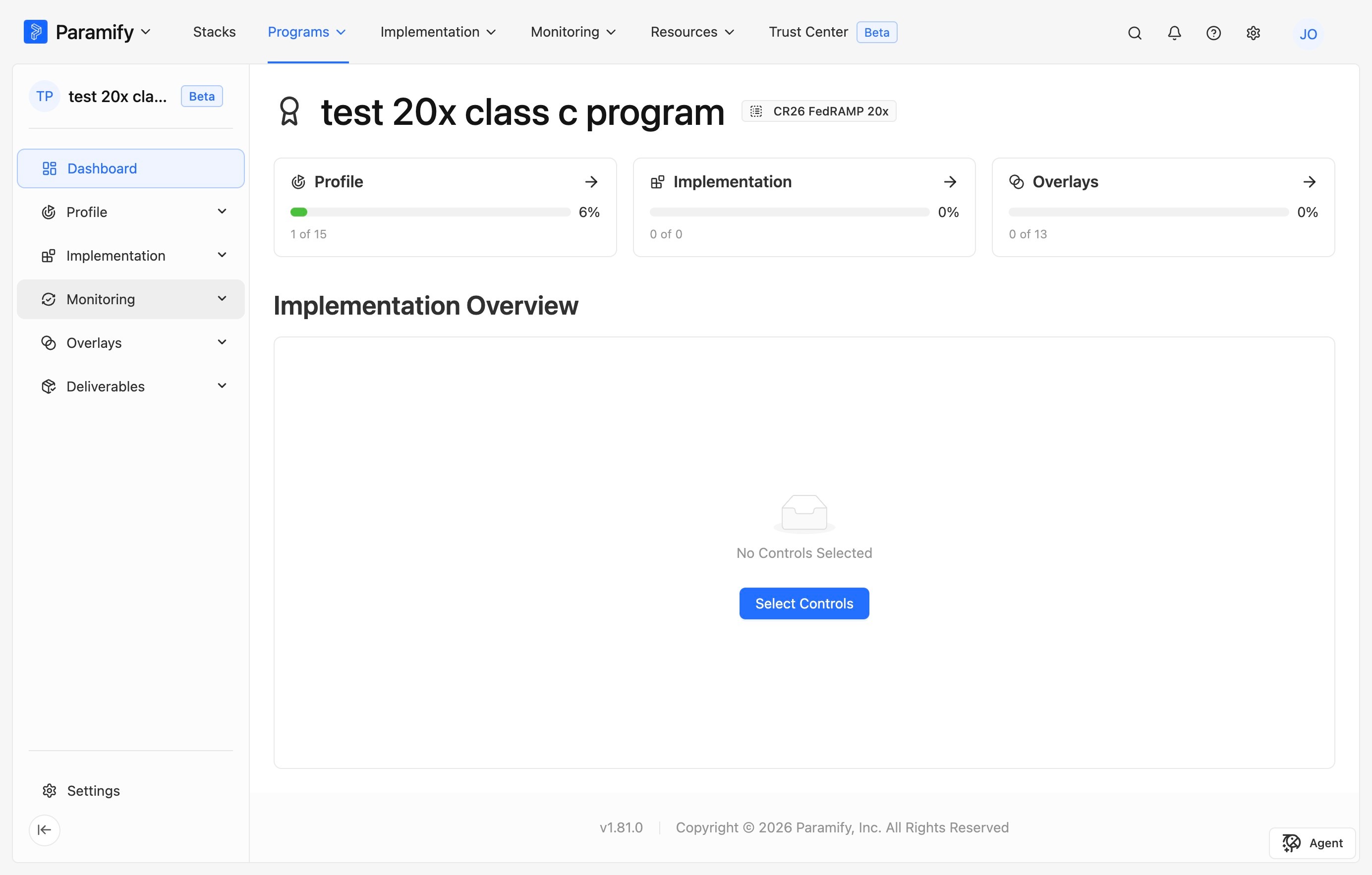
1. Select the Program
In the Workspace, select the desired Program.
2. Open the Issues list
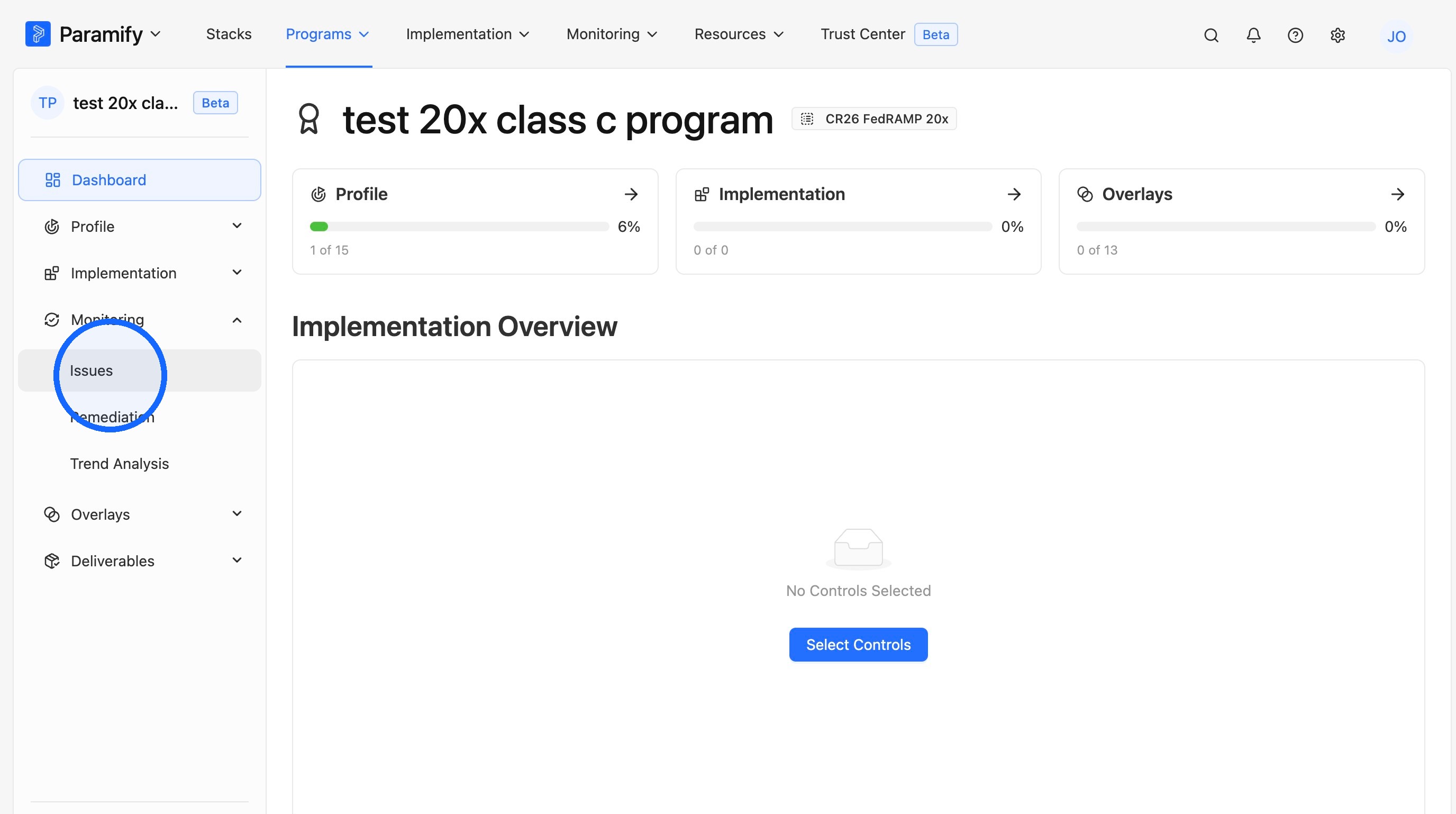
Open Monitoring and select Issues.
TIP
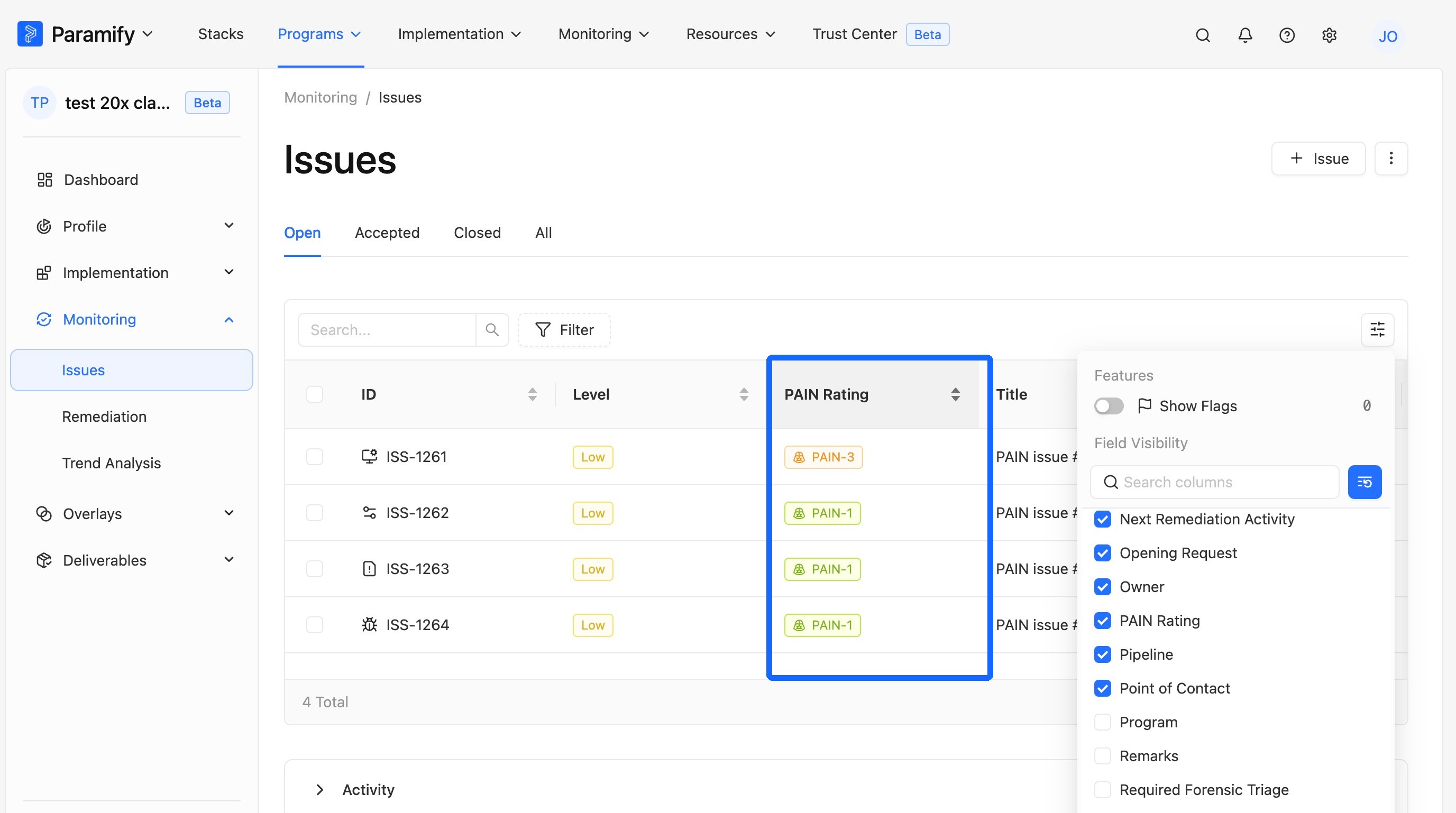
PAIN Ratings are automatically available for all Issues. If the PAIN Rating column is not visible, enable it in the column selector as shown in the next steps.
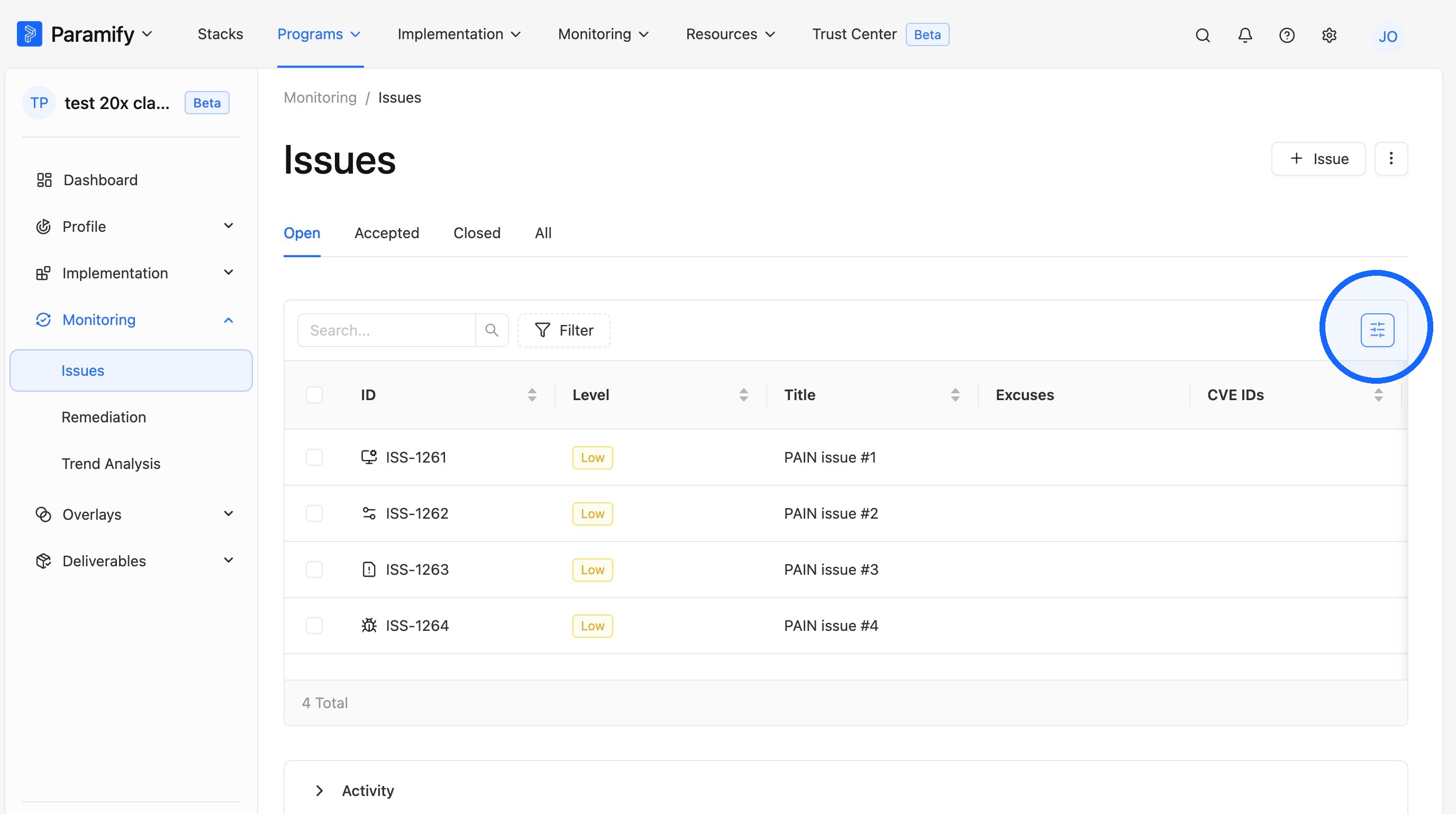
3. Open the column selector
Click the column selector above the Issues list.
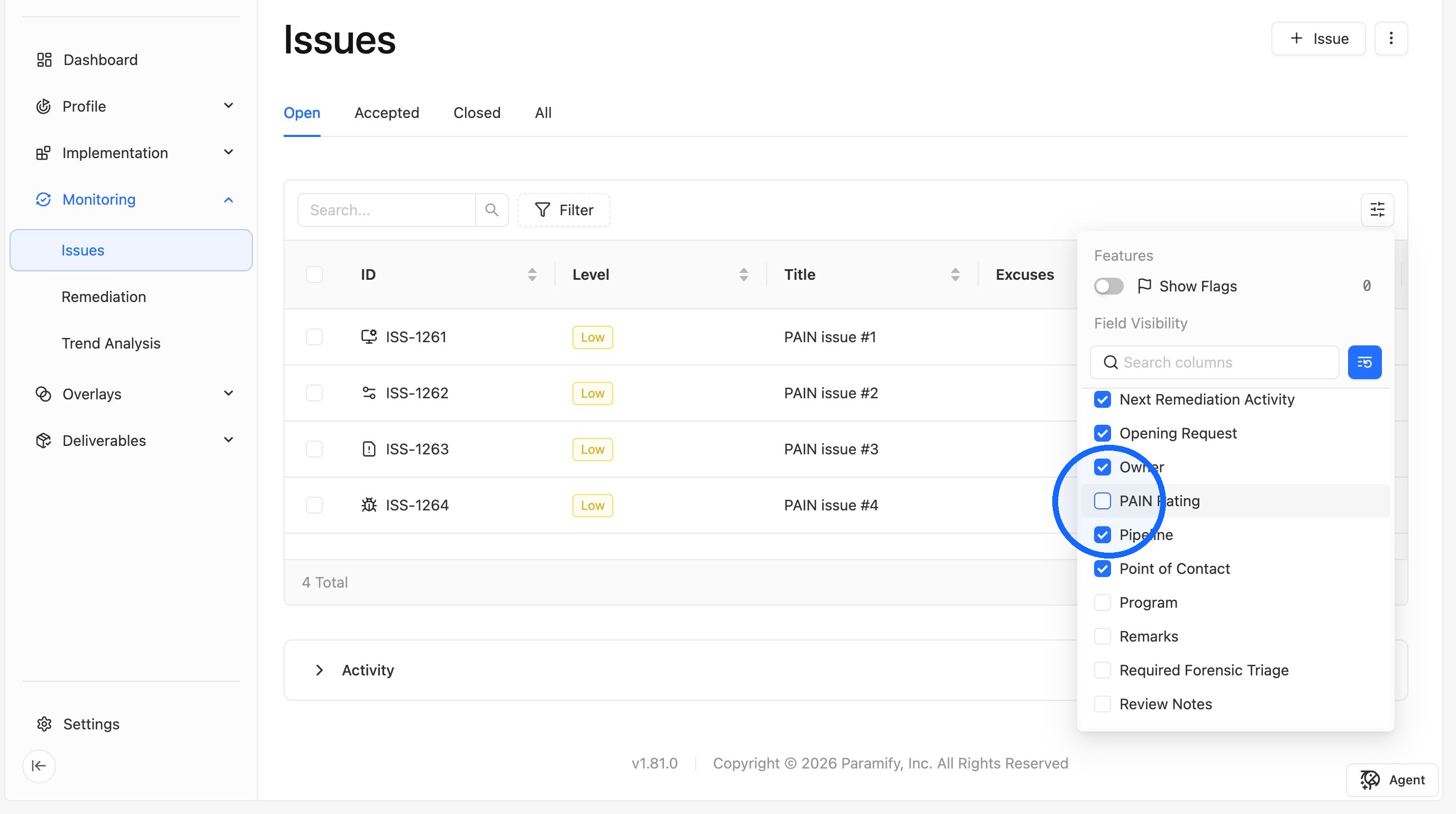
4. Enable the PAIN Rating field
Click the PAIN Rating field.
5. Review the PAIN Rating column
The PAIN Rating column is now visible in the Issues list.
Editing PAIN Ratings
TIP
The PAIN Rating value for each Issue can be edited manually, either individually per-issue or in bulk.
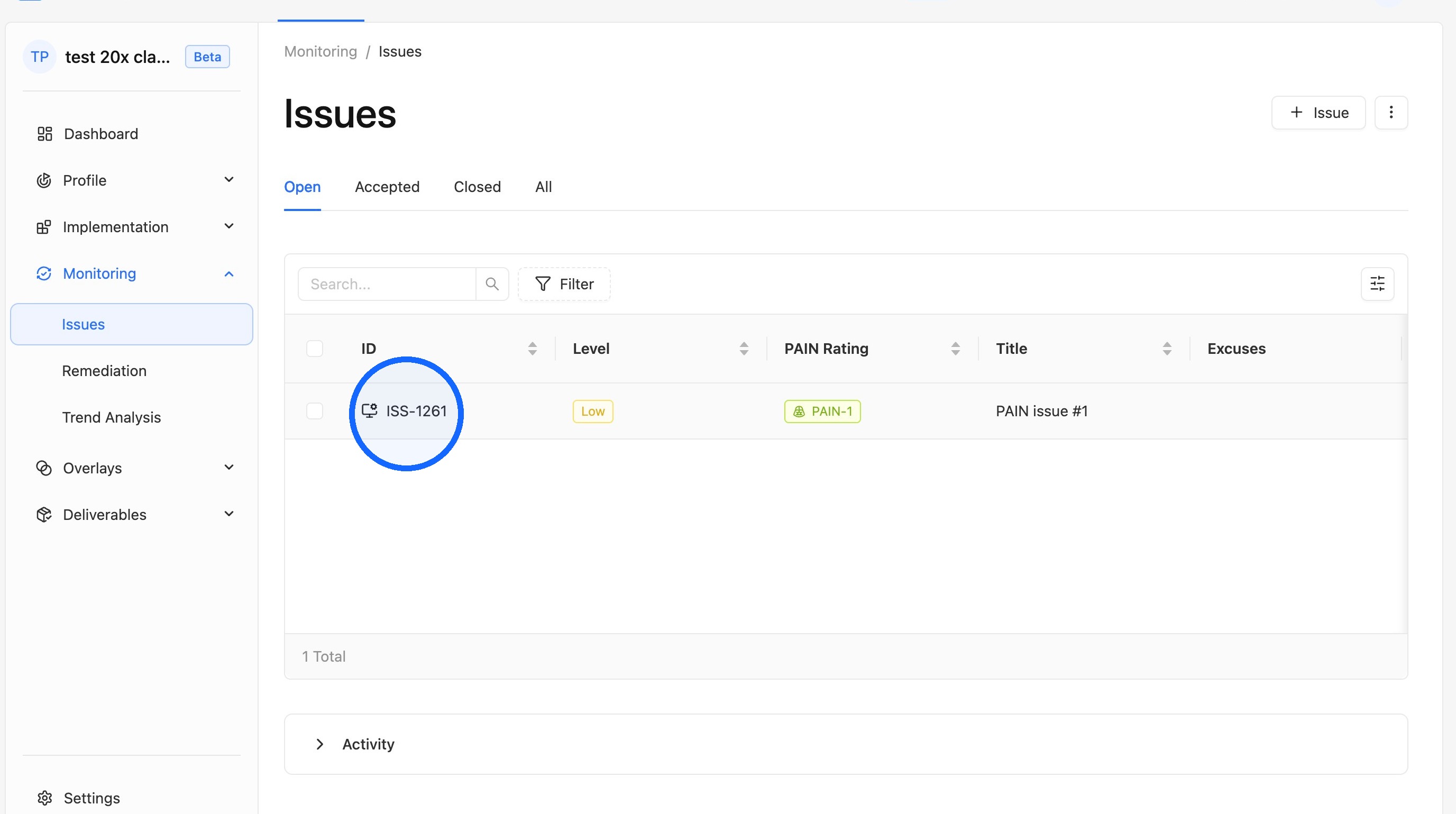
1. Open the Issue
Click the Issue you want to edit.
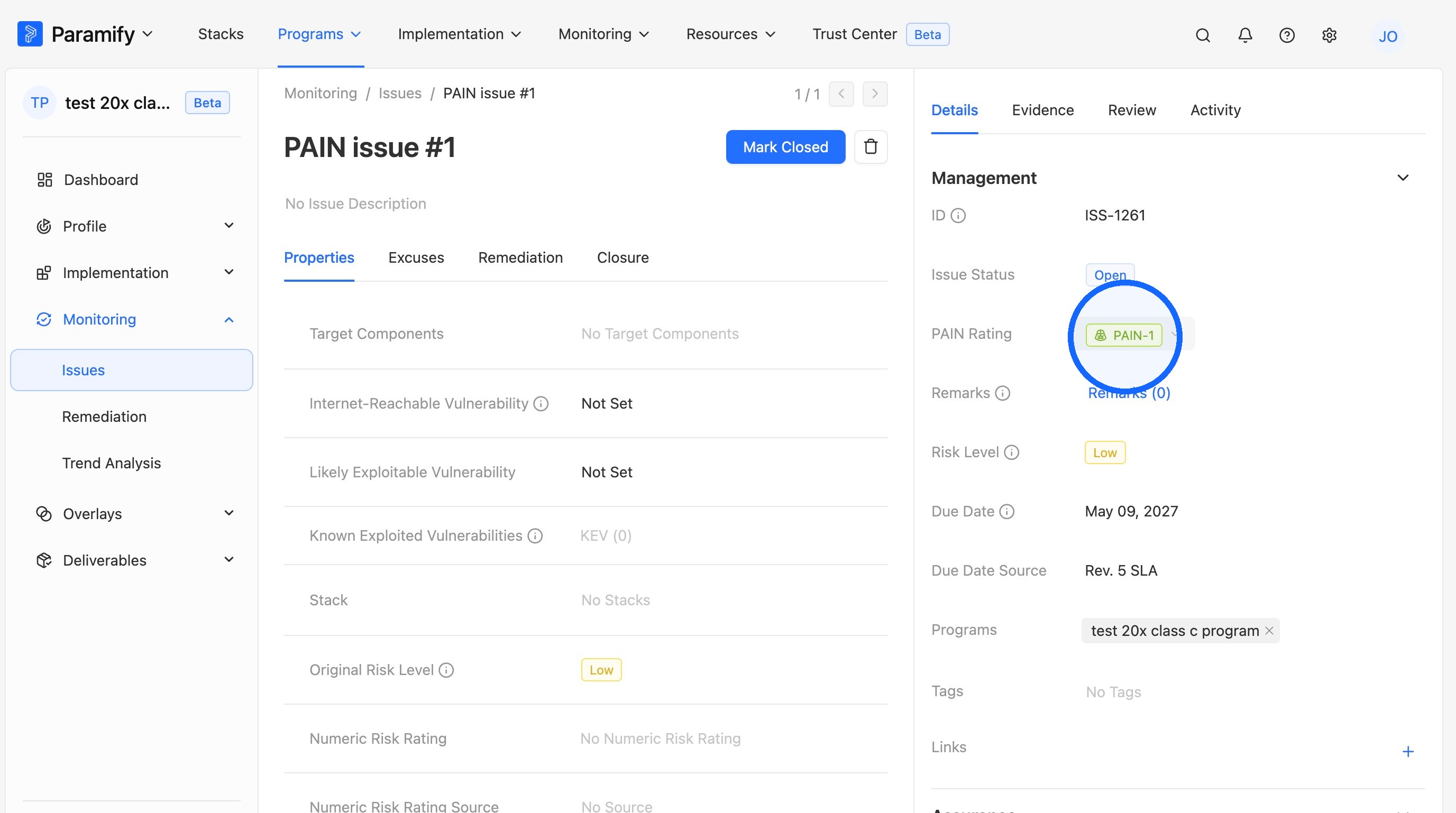
2. Click the PAIN Rating field
On the right-side panel, click PAIN Rating.
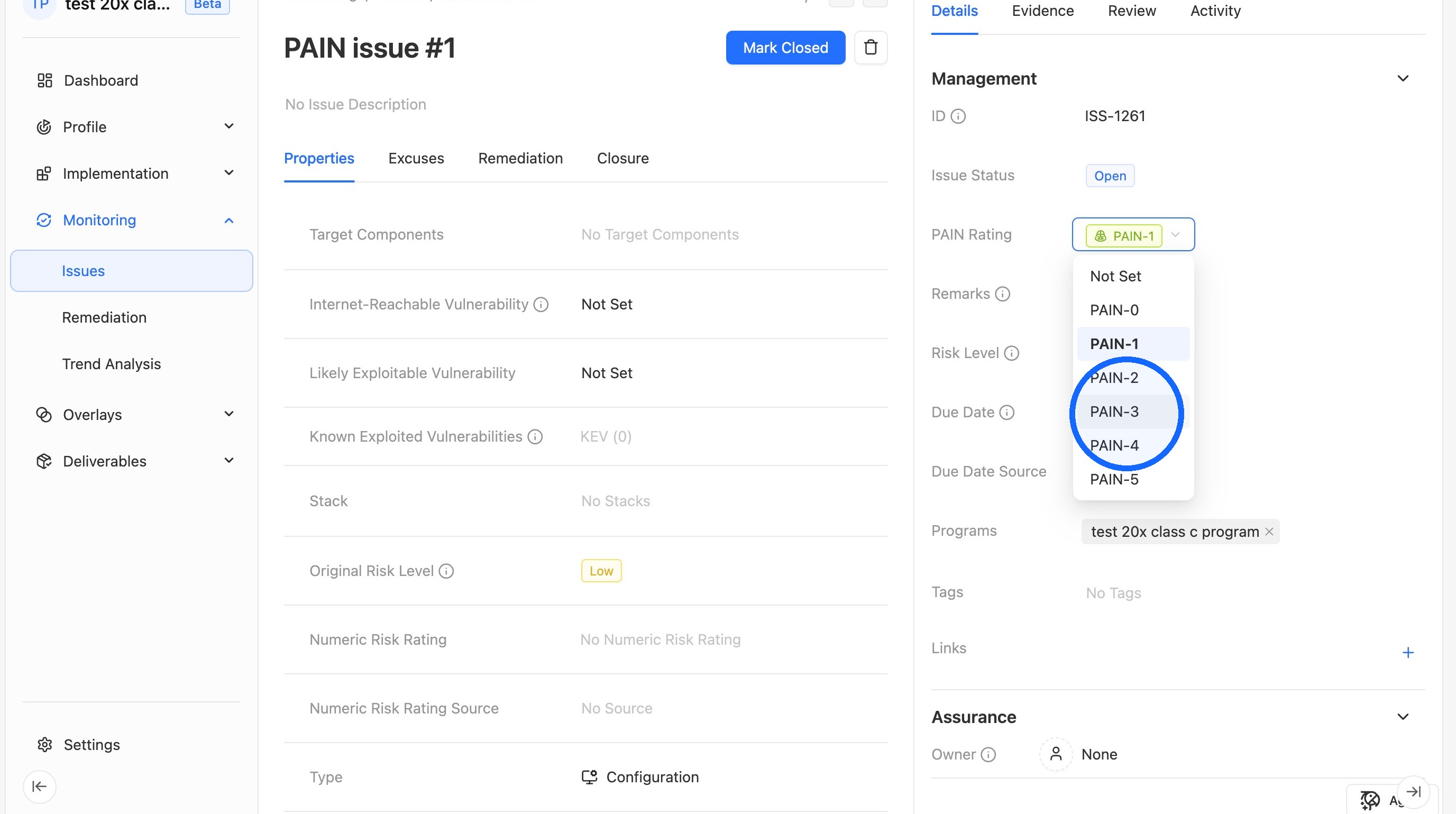
3. Select a new value
Select a different PAIN Rating value from the list.
TIP
PAIN Ratings can also be updated in bulk.
4. Select the Issues to update
Check all the Issues that need to be edited.
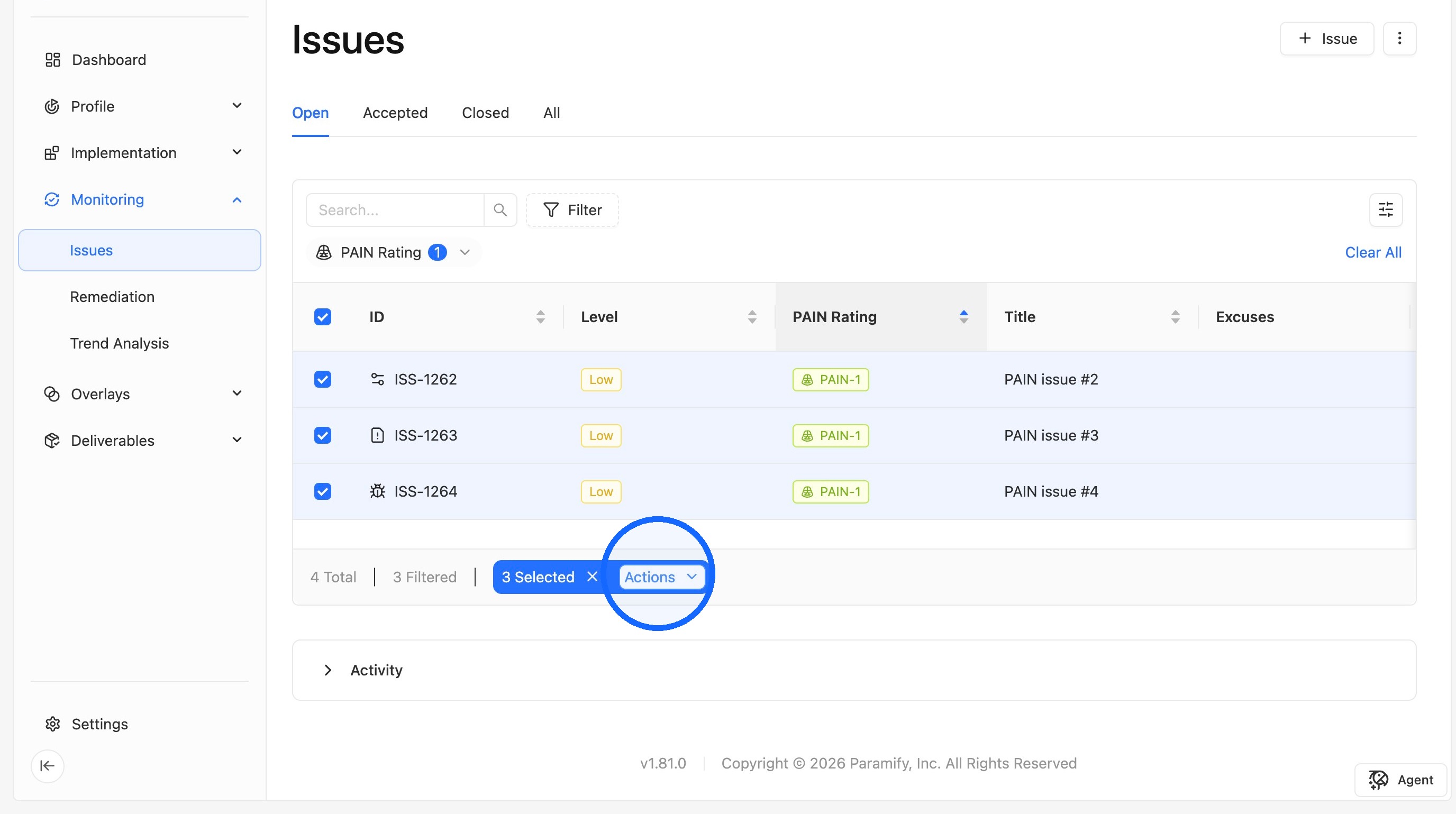
5. Open the bulk Actions menu
In the bulk options bar highlighted in blue, click Actions.
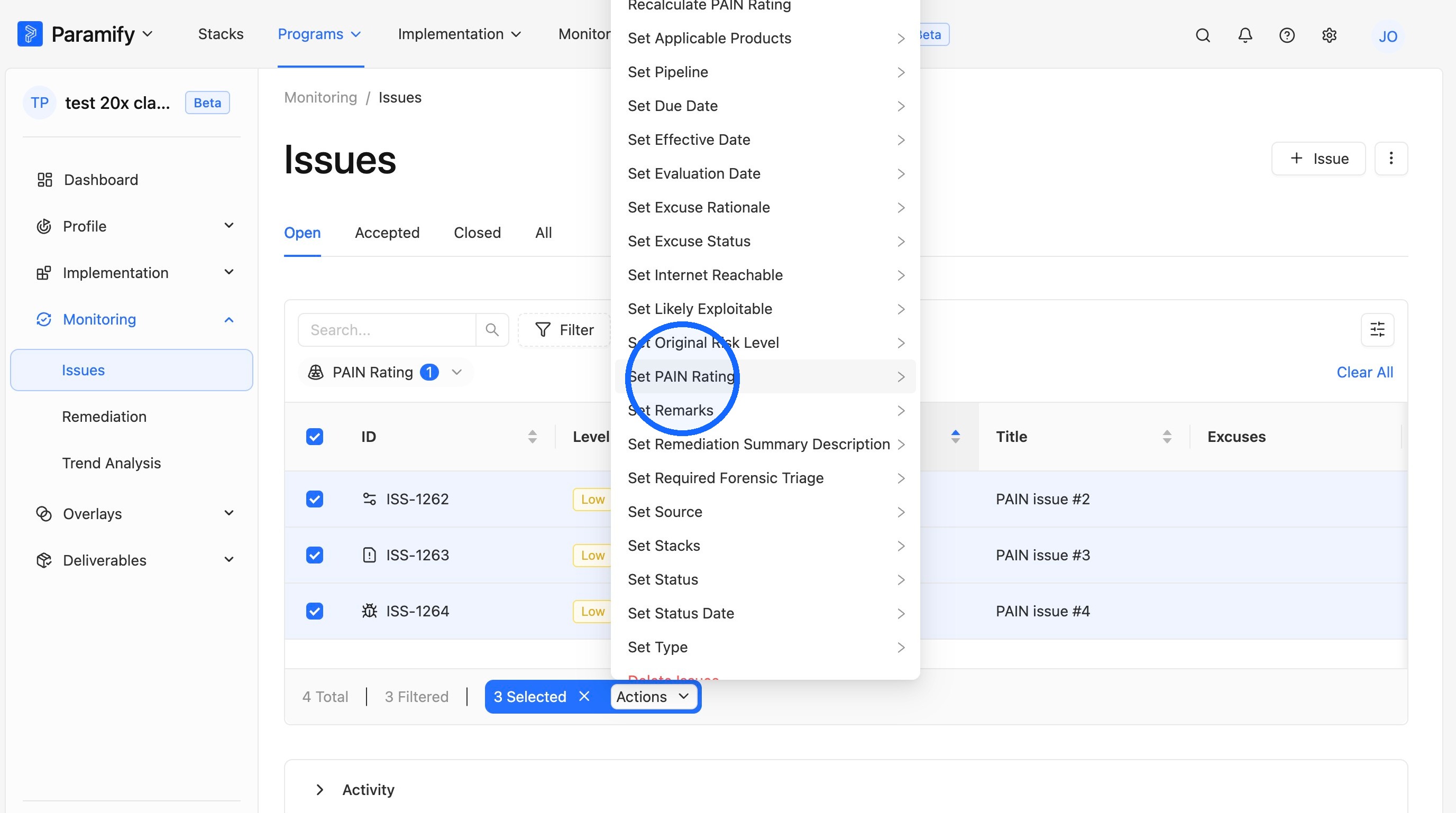
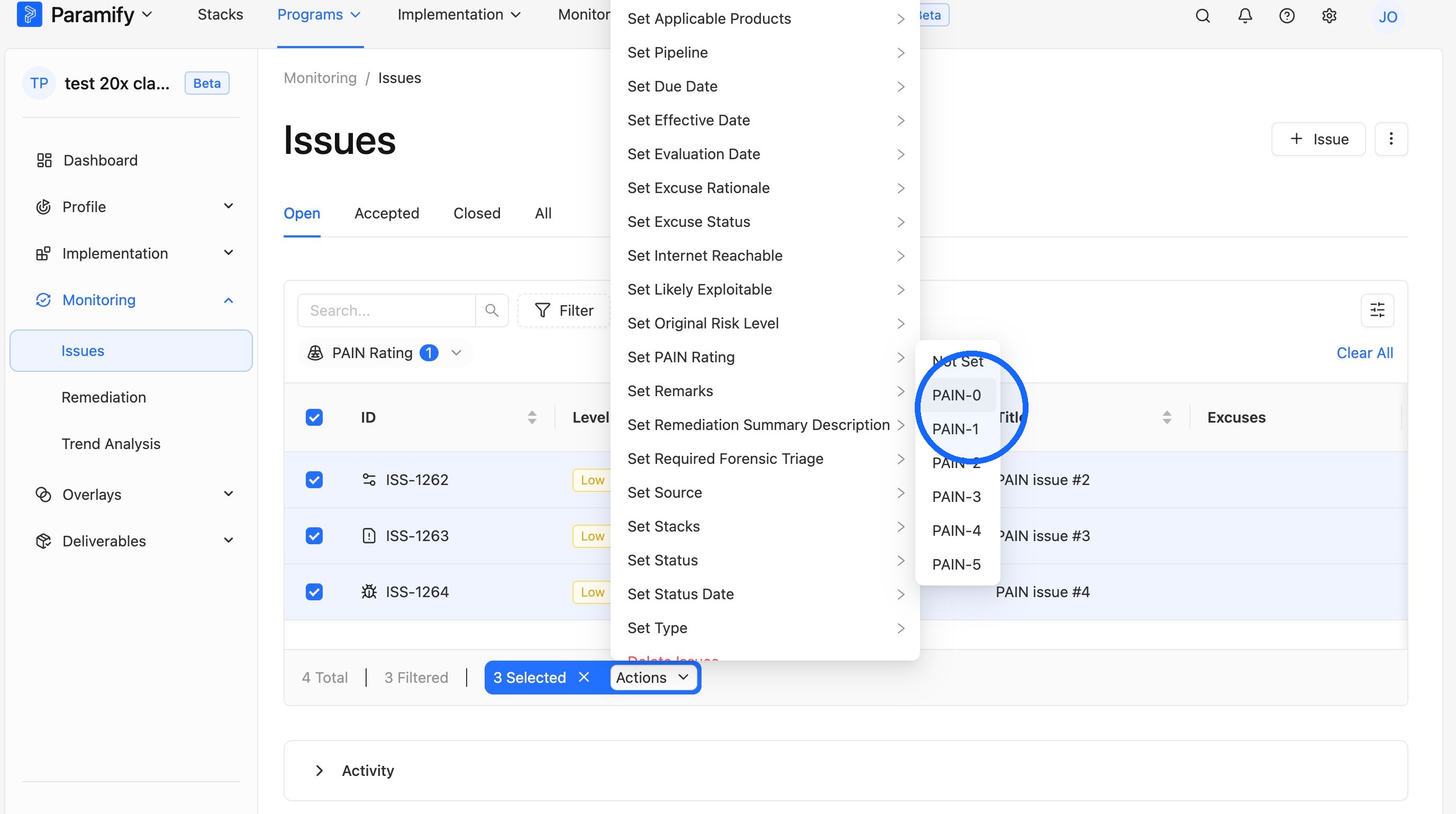
6. Choose Set PAIN Rating
Click Set PAIN Rating and select the new value.
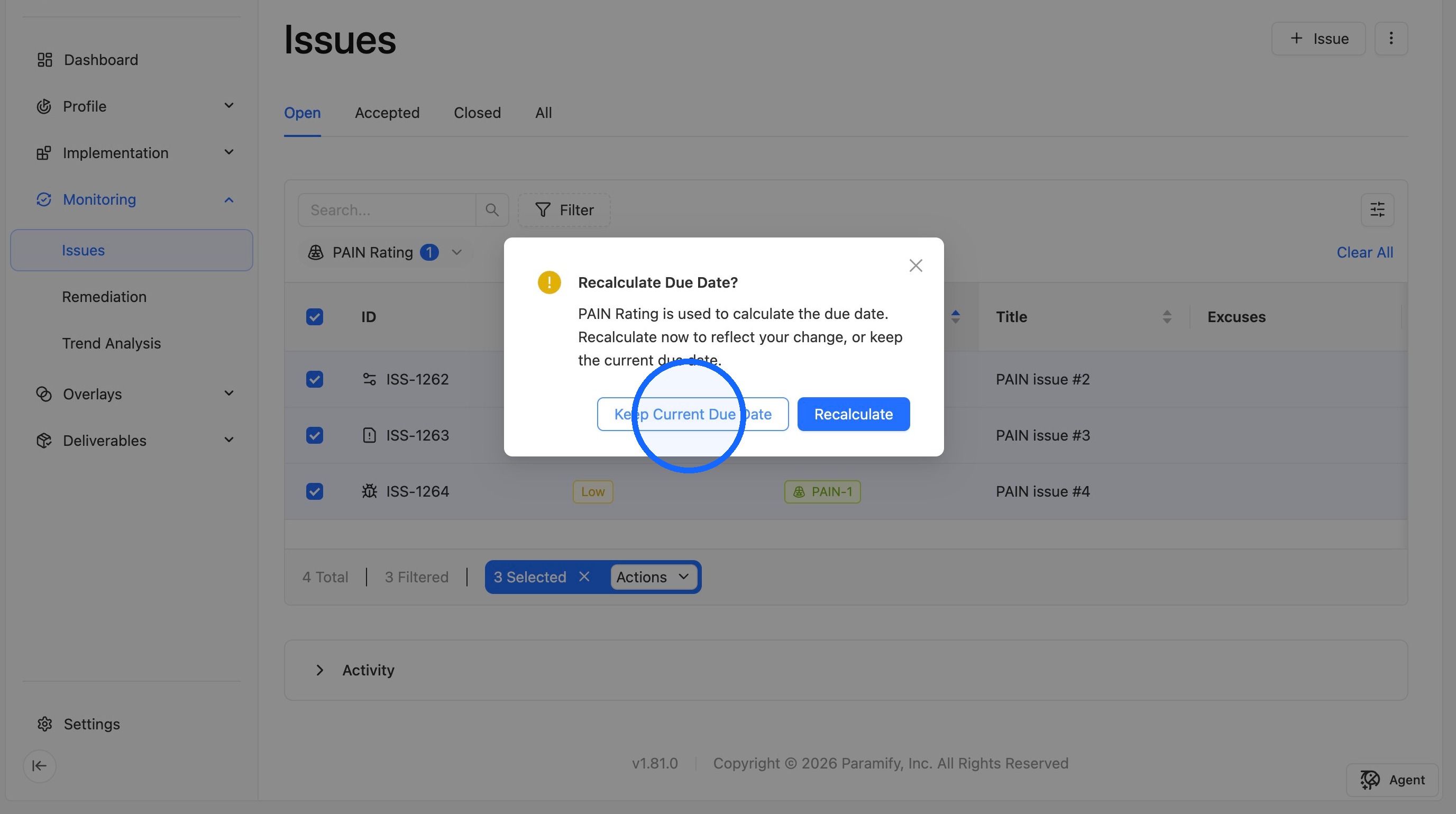
7. Choose how to handle the due date
Choose between keeping the current due date or recalculating it.
TIP
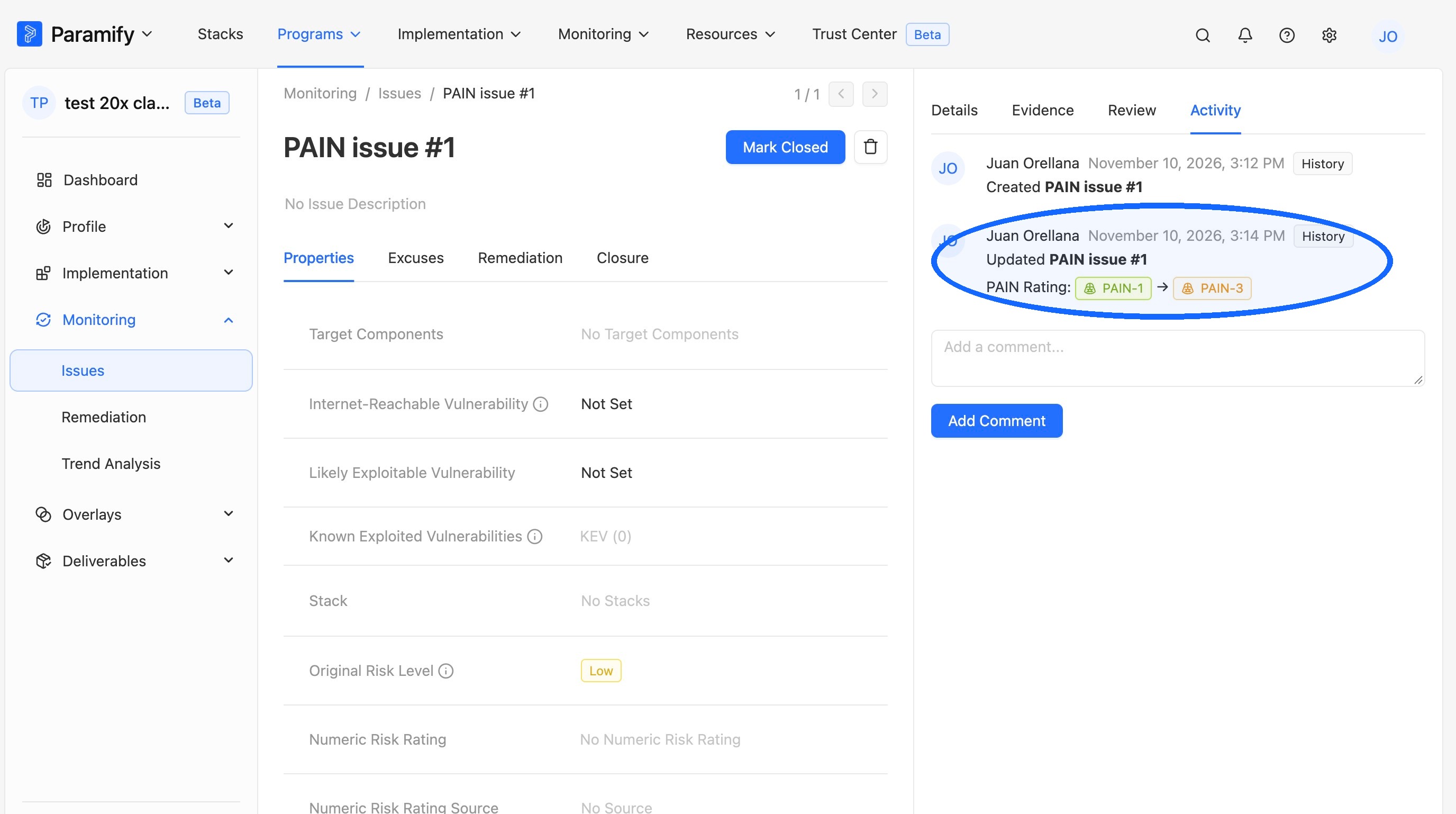
The Activity tab keeps a record of the change history for PAIN Rating values.
8. Select the Issue to inspect
Click the Issue whose PAIN Rating history you want to review.
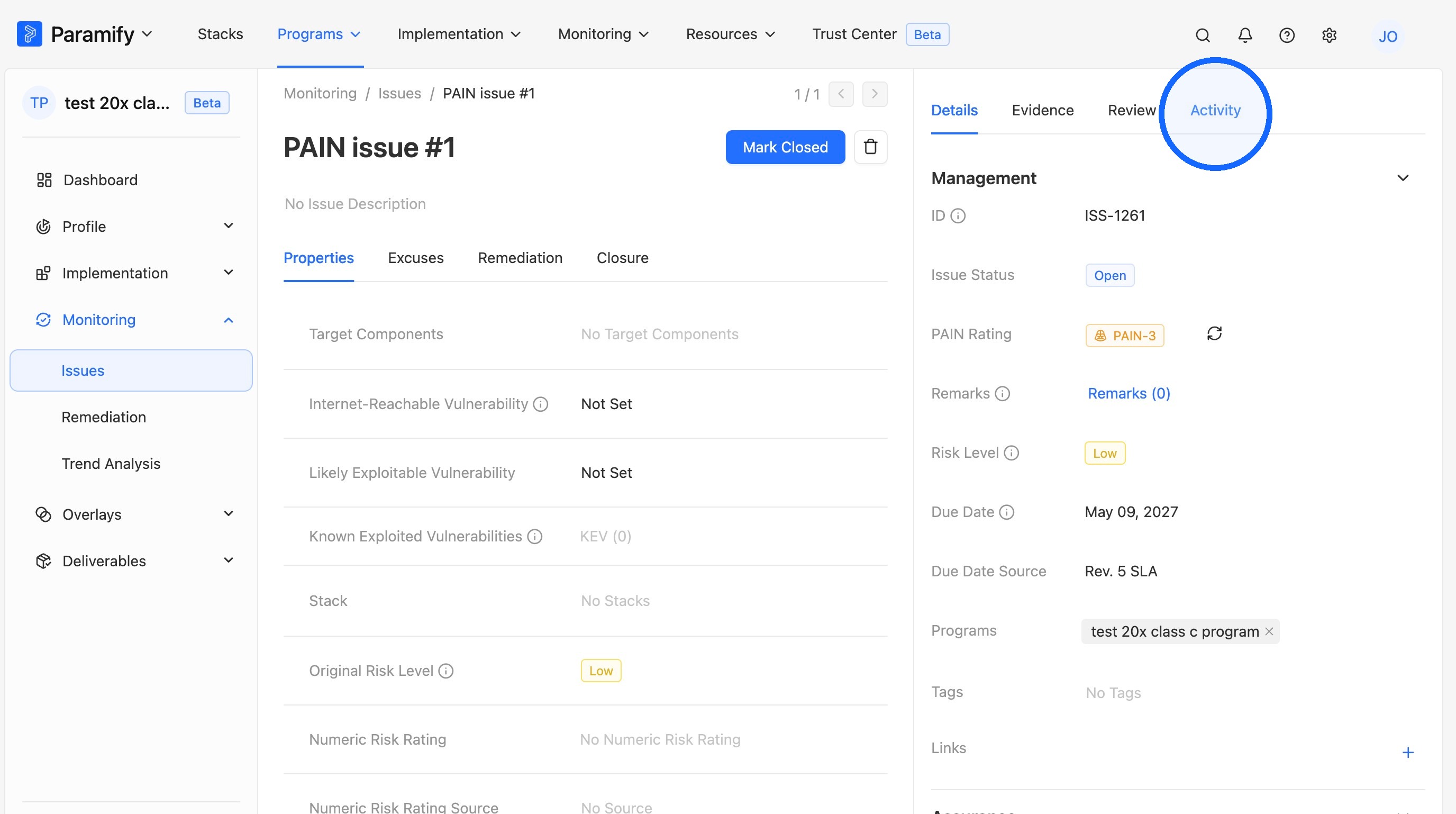
9. Open the Activity tab
On the right-side panel, click the Activity tab.
Filter the Issue list
TIP
Issues can be filtered by PAIN Rating value.
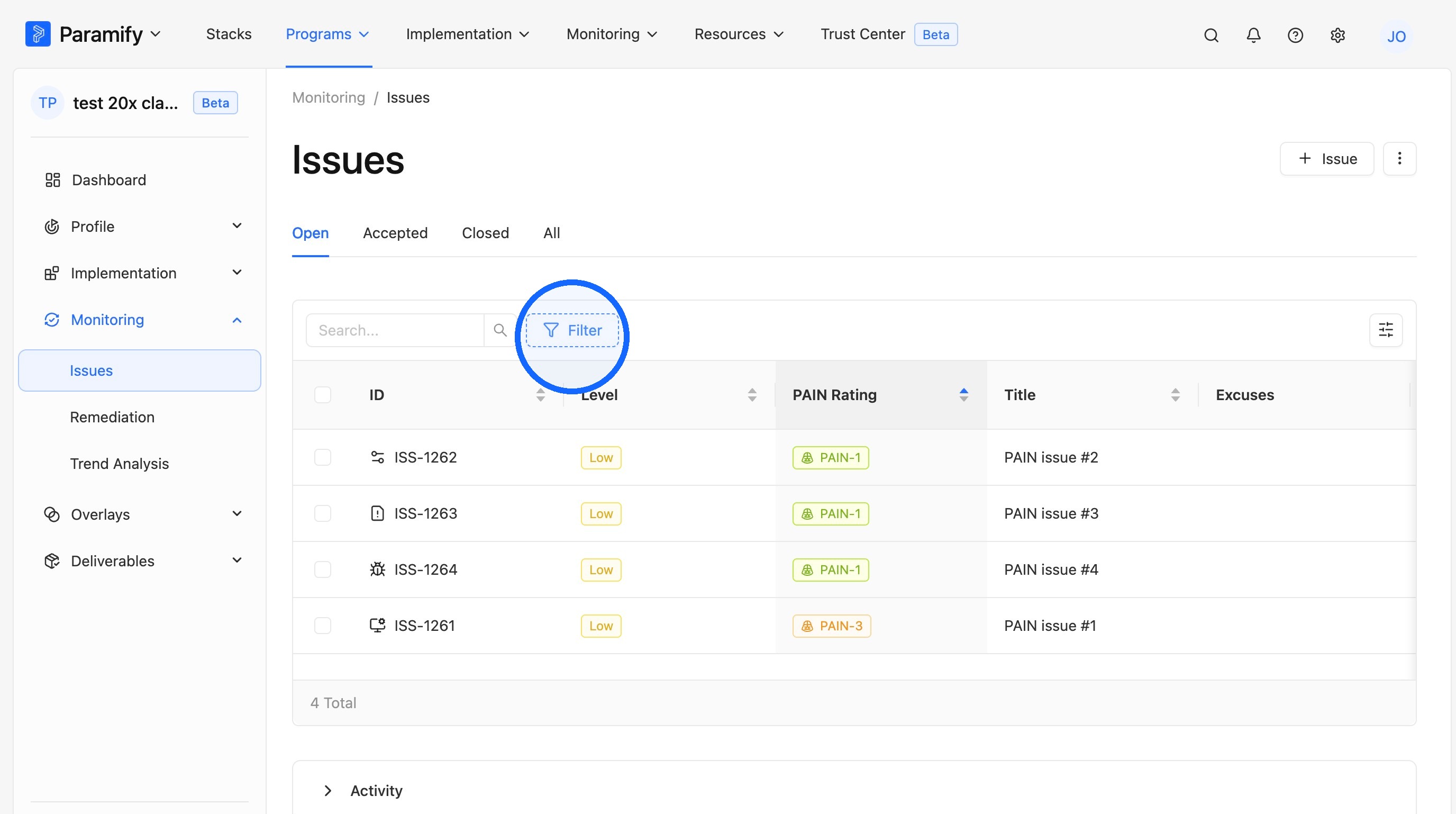
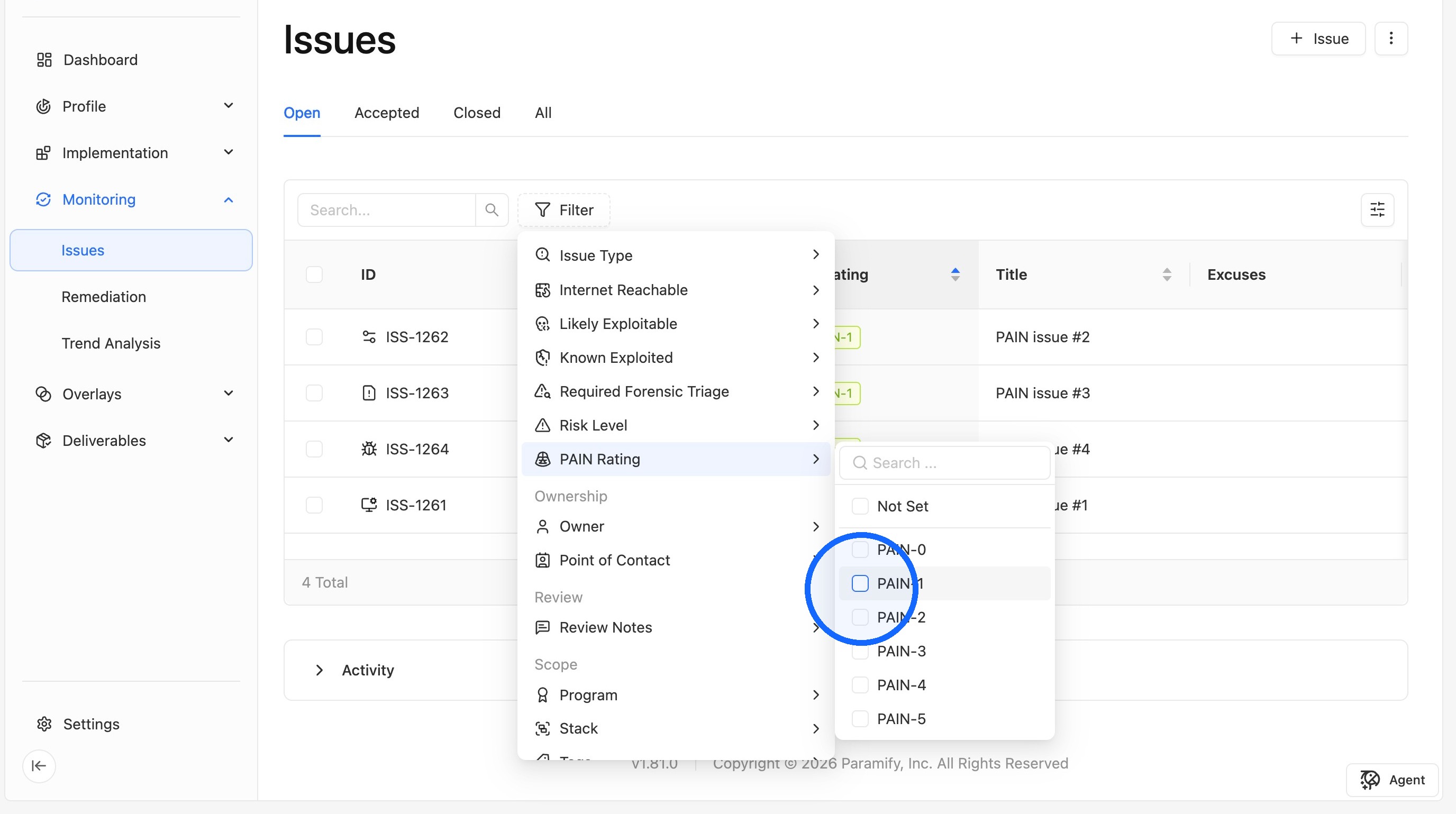
1. Open the filters
Click the Filter button.
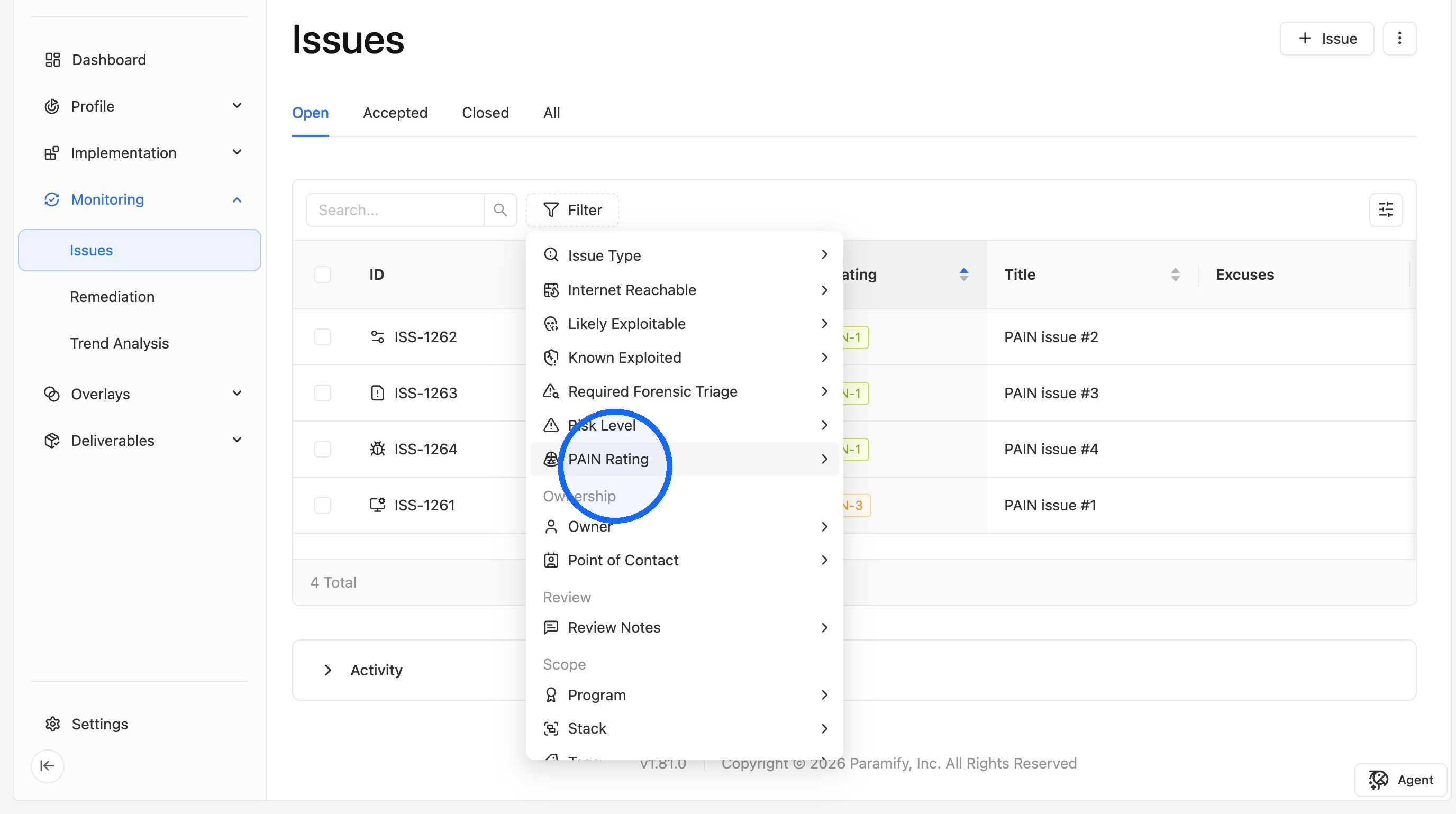
2. Select PAIN Rating
Select PAIN Rating from the filter options.
3. Choose the values to filter by
Select one or more PAIN Rating values.
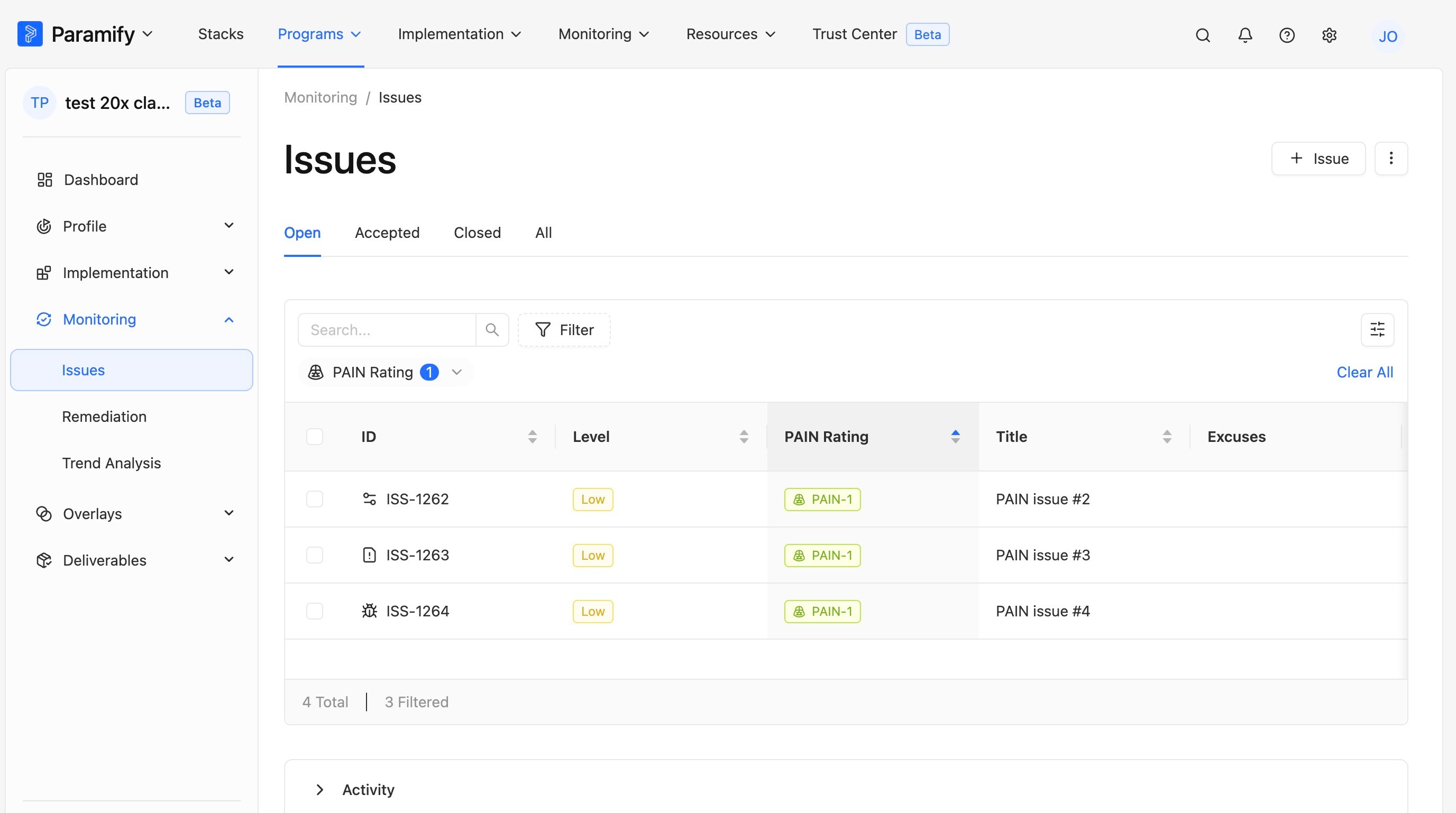
4. Review the filtered list
The Issues list now shows only Issues with the selected PAIN Rating values.
Comments
0 comments
Please sign in to leave a comment.