
Custom tags let you attach freeform labels to items across your Paramify workspace. Use tags to group work by initiative, distribute tasks across your team, or filter any list view by arbitrary criteria.
Tags are shared workspace-wide: any tag created by one user is visible and usable by everyone else on the team.
Supported types of data
Custom tags can be applied to the following data types:
- Elements
- Risk Solutions
- Solution Capabilities
- Issues
- Remediation Activities
- Evidence Sets
- Validators
- Control Implementations
- Content
Add tags to a component
Tags are added from the detail panel of any supported item.
1. Open the item's detail panel
Click the item you want to tag to open its side detail panel.
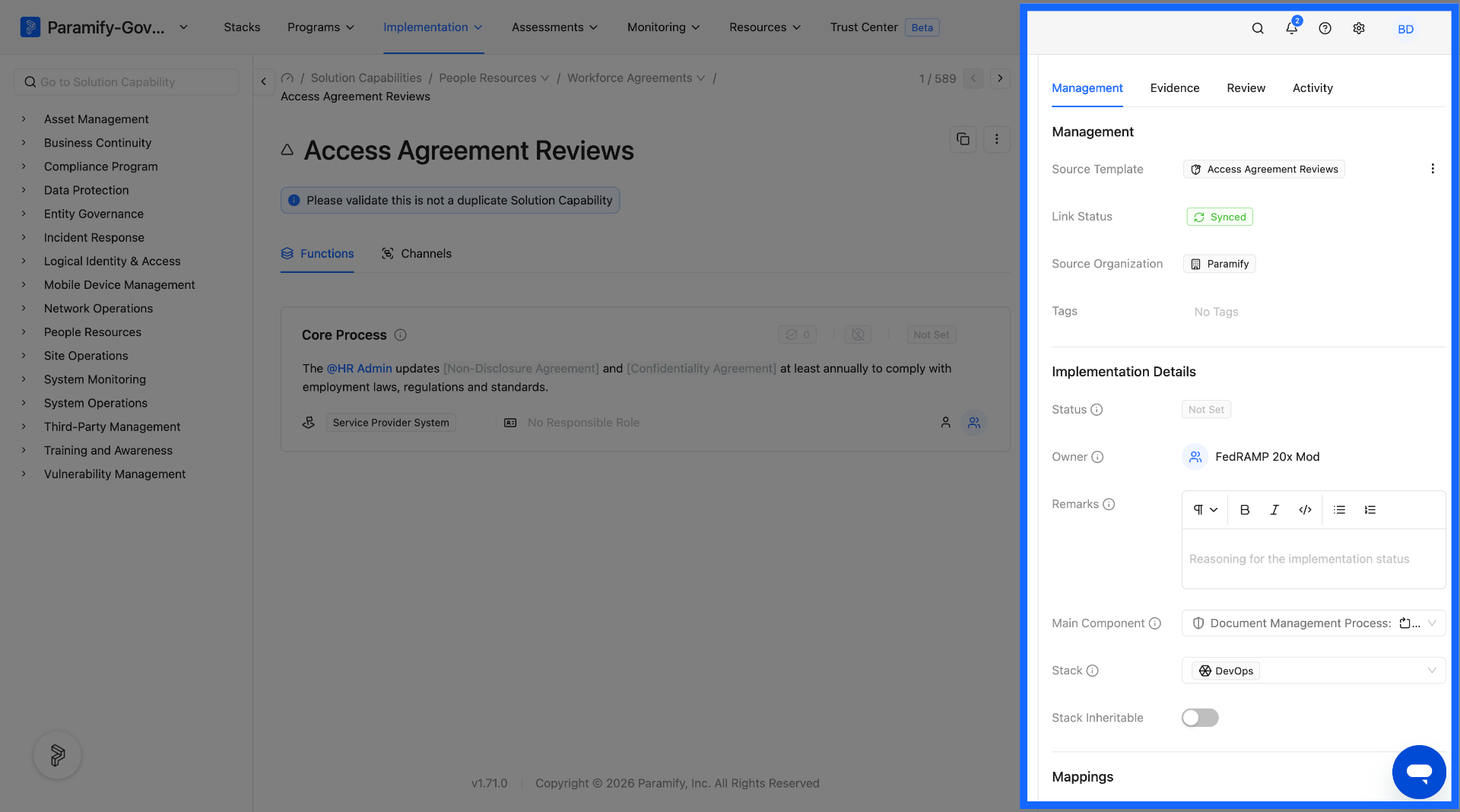
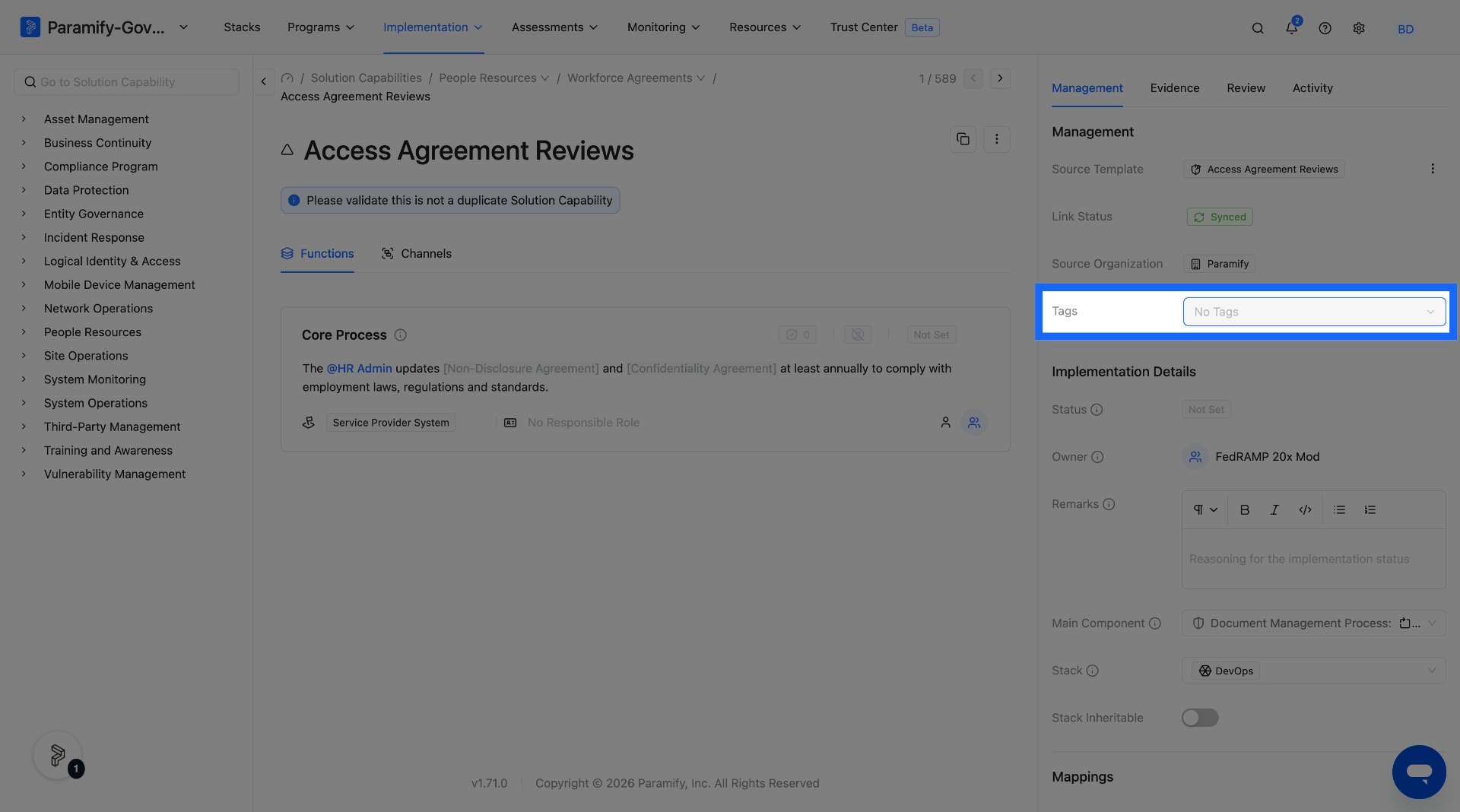
2. Click the Tags field
Locate the Tags field in the detail panel and click it to open the tag dropdown.
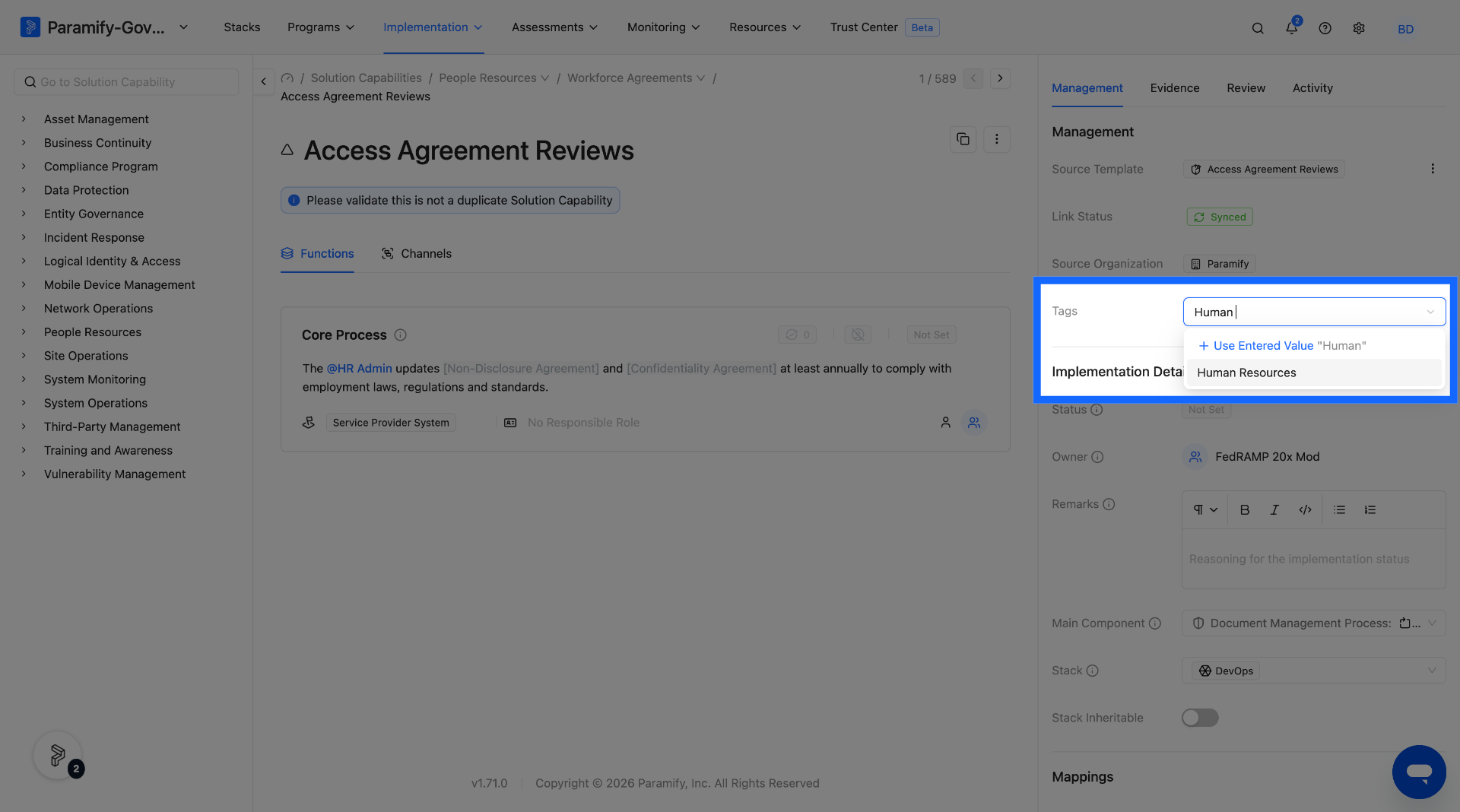
3. Select an existing tag or create a new one
Type to filter the list of existing workspace tags. To apply an existing tag, click it in the dropdown. To create a new tag, type the label and select Create new tag [your text] from the top of the dropdown.
NOTE
A tag created on any data type (e.g. an Element) immediately becomes available when tagging any other data type (e.g. an Issue). Tags are always workspace-wide.
4. Apply additional tags
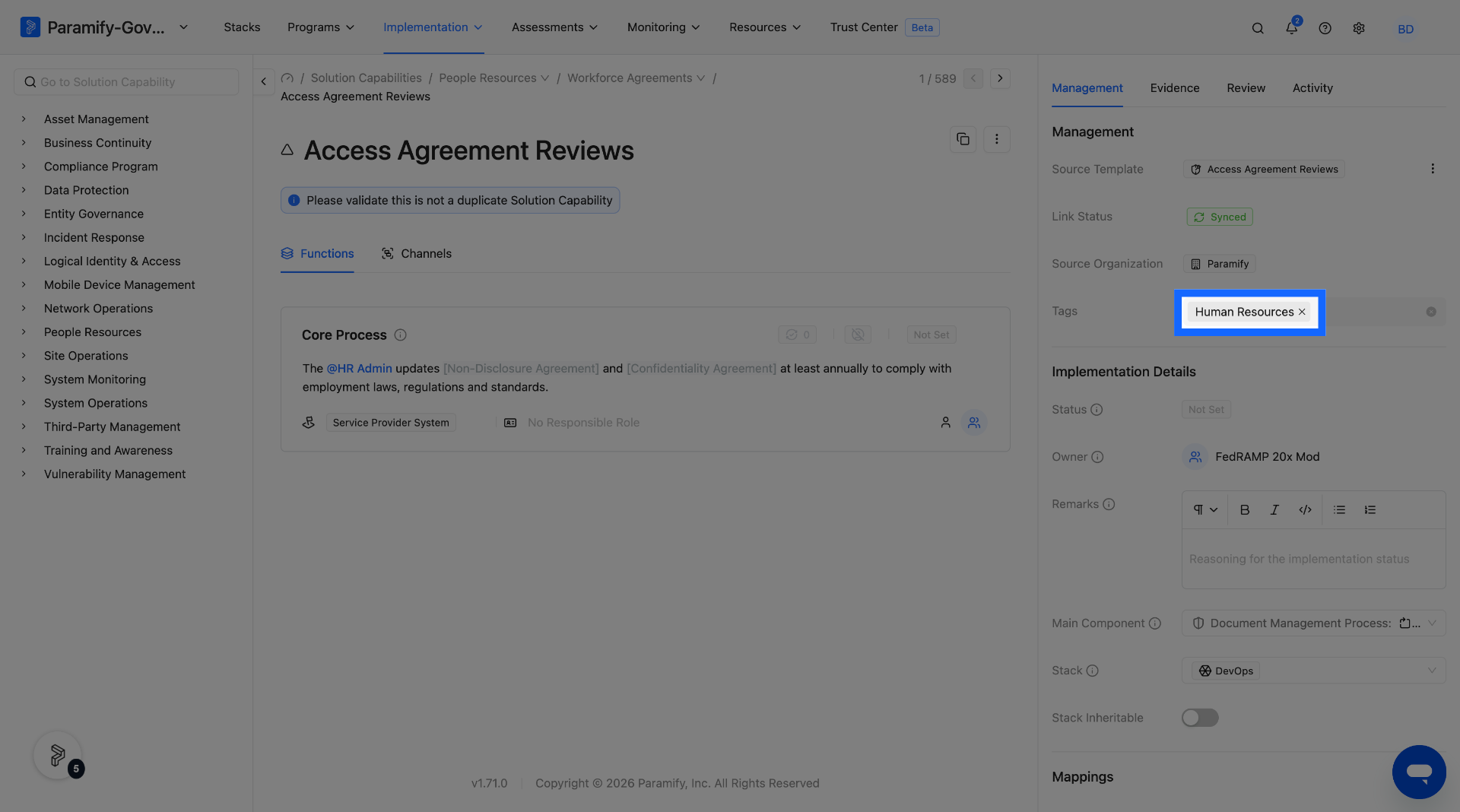
The input remains active after each tag is applied — continue typing to add more tags to the same item.
Remove a tag
To remove a tag, click the × icon on the tag in the detail panel. The tag is removed from that item only — it remains available in the workspace for other items.
Filter list views by tag
Every supported list view includes a tag filter. Use it to narrow the list to items that match specific tags.
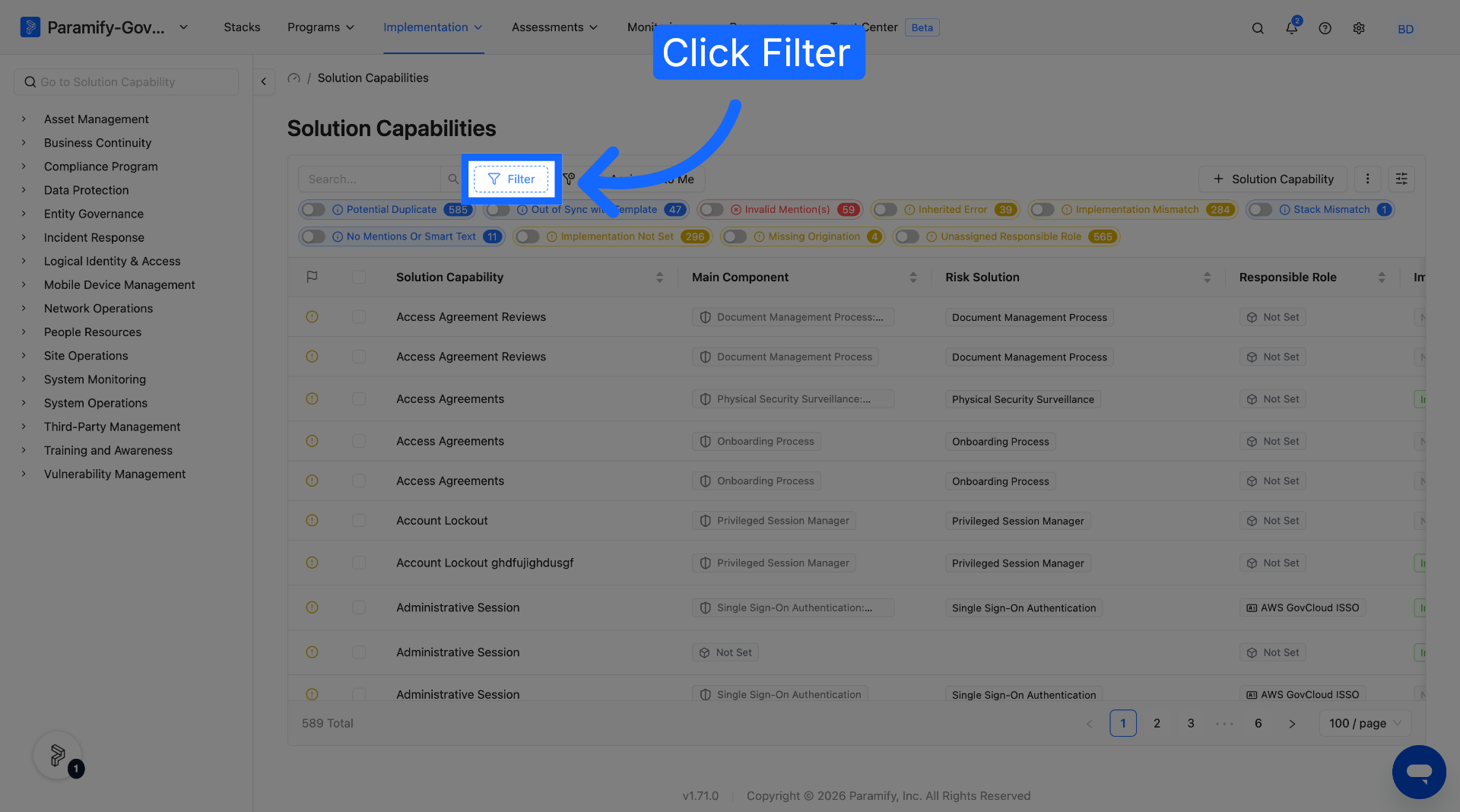
1. Open the filter options on a list view
Navigate to the list view for any supported data type and open the filter controls.
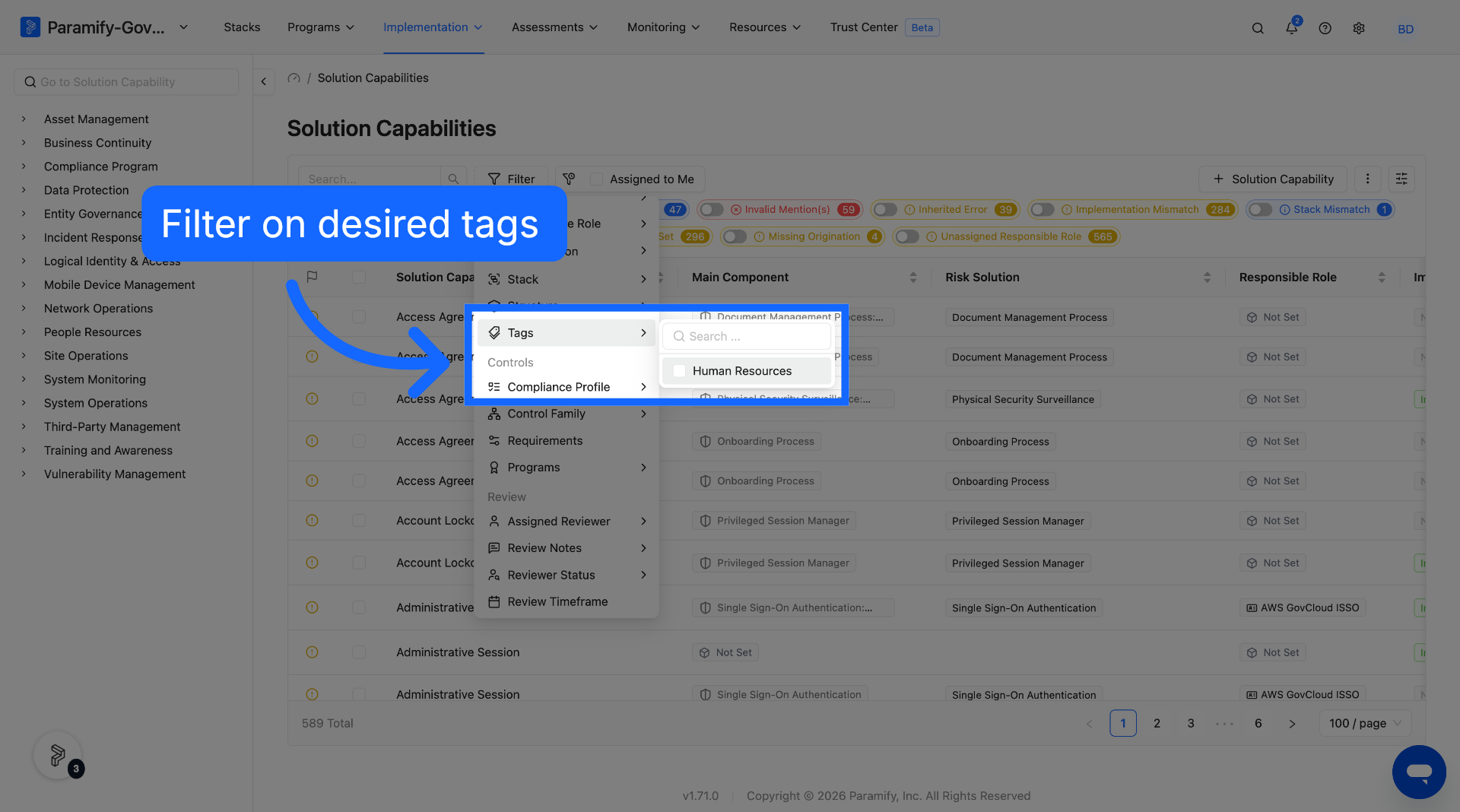
2. Select one or more tags
Choose the tags you want to filter by. You can select multiple tags at once.
MULTI-TAG FILTERING
When multiple tags are selected, the filter uses AND logic — only items that have all of the selected tags applied will appear in the results.
Comments
0 comments
Please sign in to leave a comment.