
The Changes feature lets you manage and document significant changes to your system’s security, from initial proposal through completion. Each change starts as proposed and captures key details like dates, reason for change, and customer impact. Changes can be linked to Issues, Controls, and Remediation Activities, giving a clear view of everything a change will affect.
Create a Proposed Change
1. Open Changes
In the Program, open Implementation and select Changes.
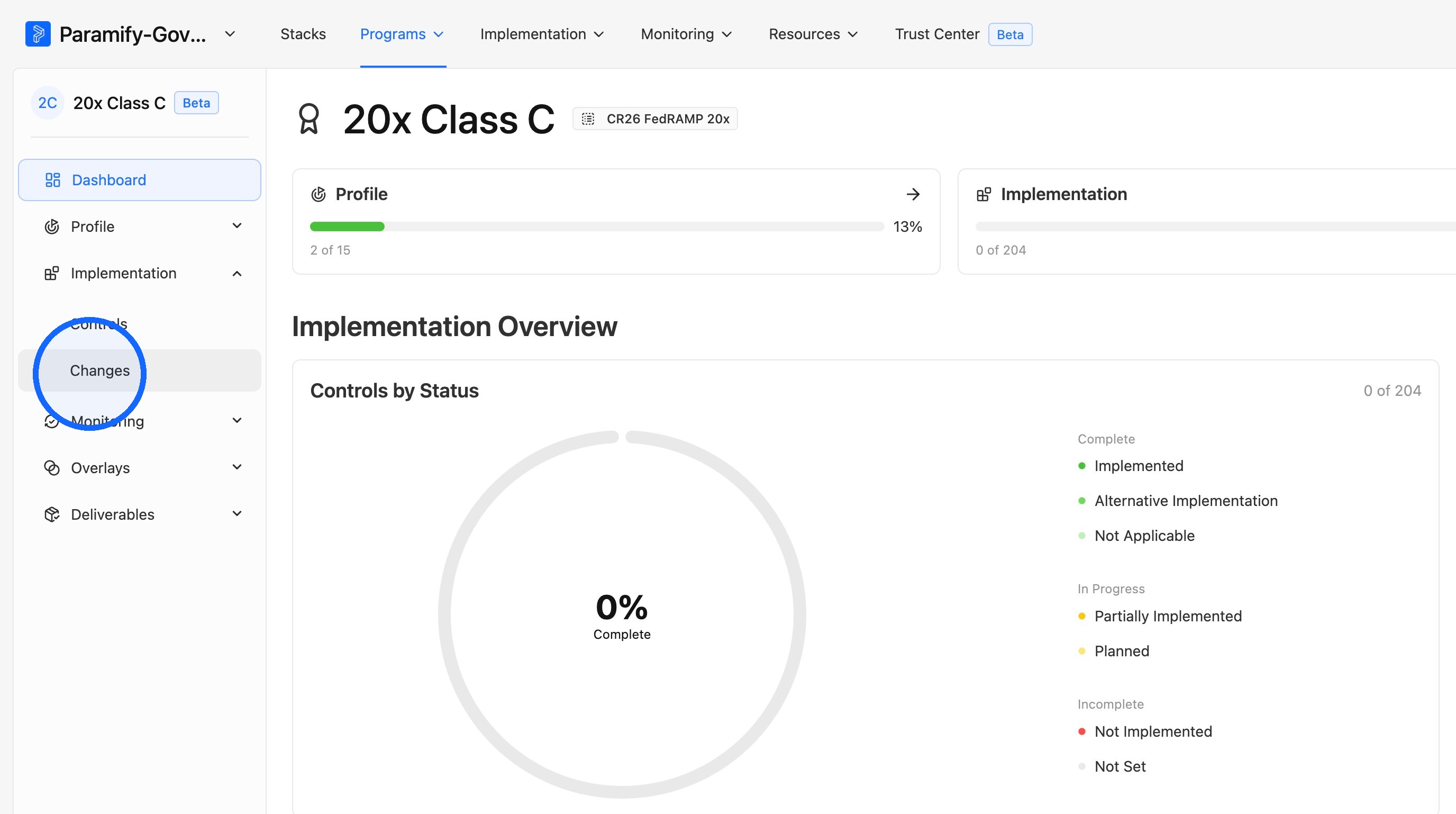
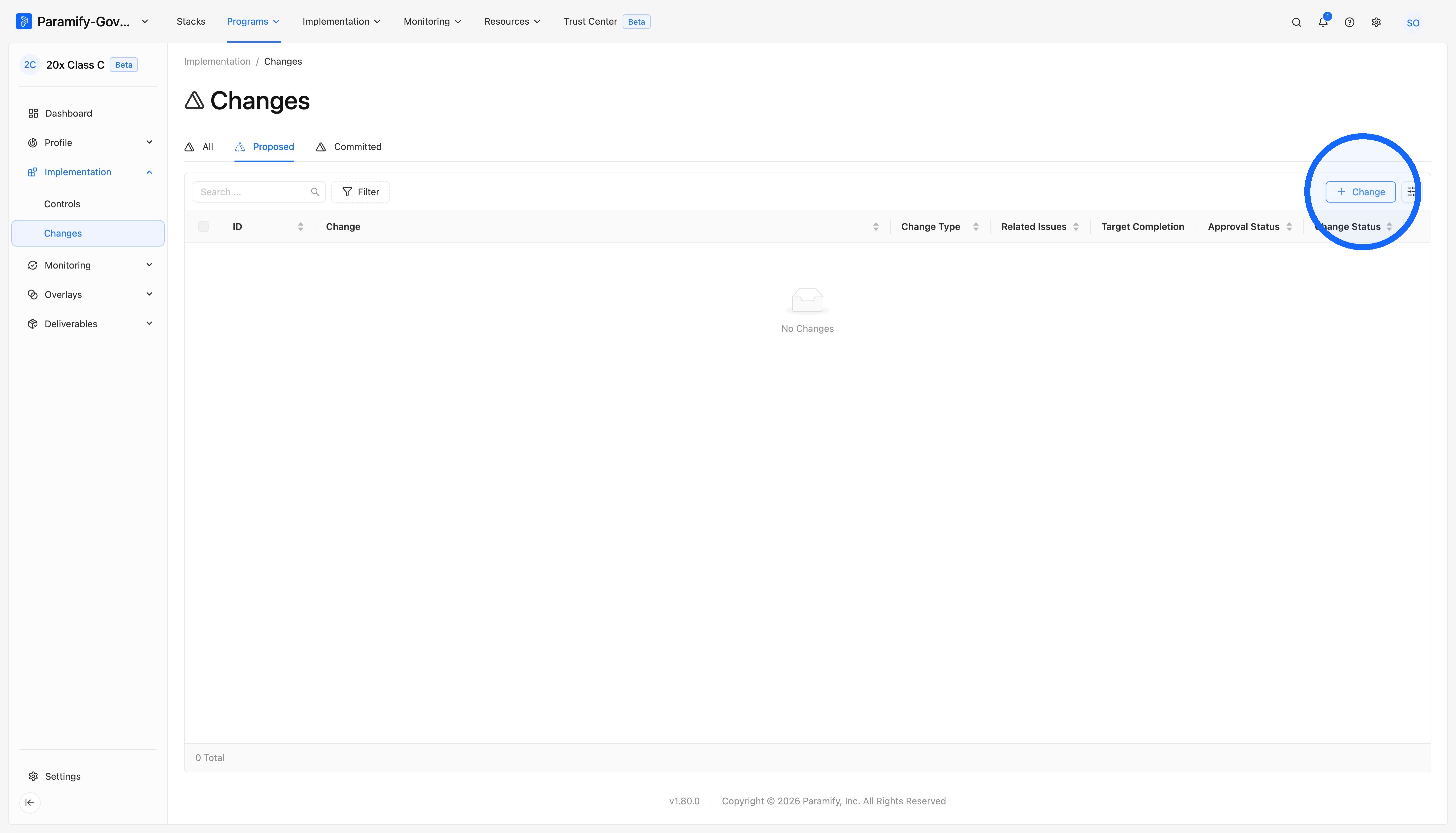
2. Add a proposed change
On the Proposed Changes page, click + Change.
3. Fill out the form
Complete the fields in the form that appears.
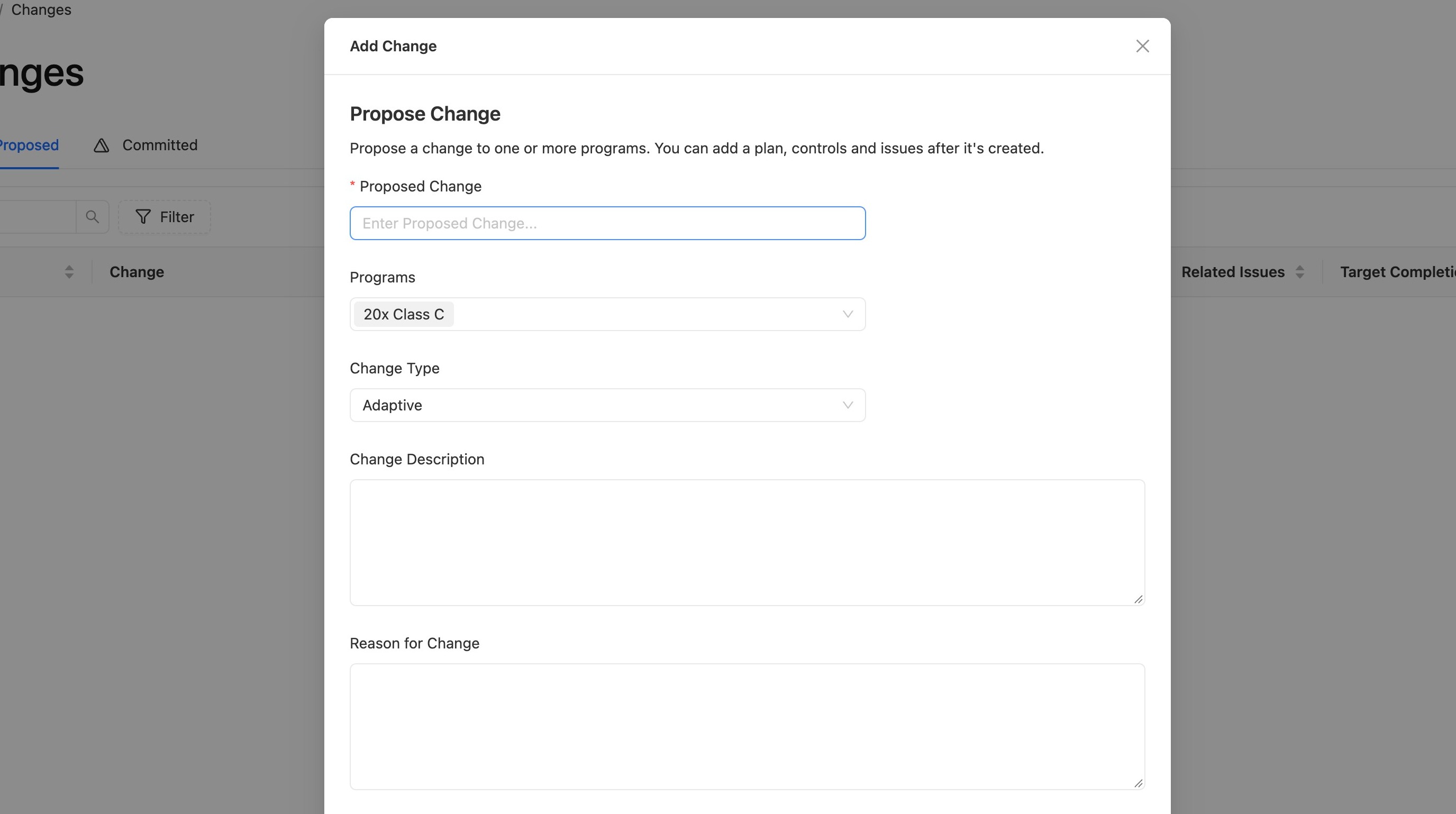
TIP: CHANGE TYPE
Adaptive changes adjust existing components, like a version upgrade, and agencies are notified after the change. Transformative changes add, replace, or remove major components, like moving to a new database service, and agencies must be notified in advance (per FedRAMP rules SCN-TRF-NIP, SCN-TRF-NFP, SCN-TRF-NAF, and SCN-TRF-NAV).
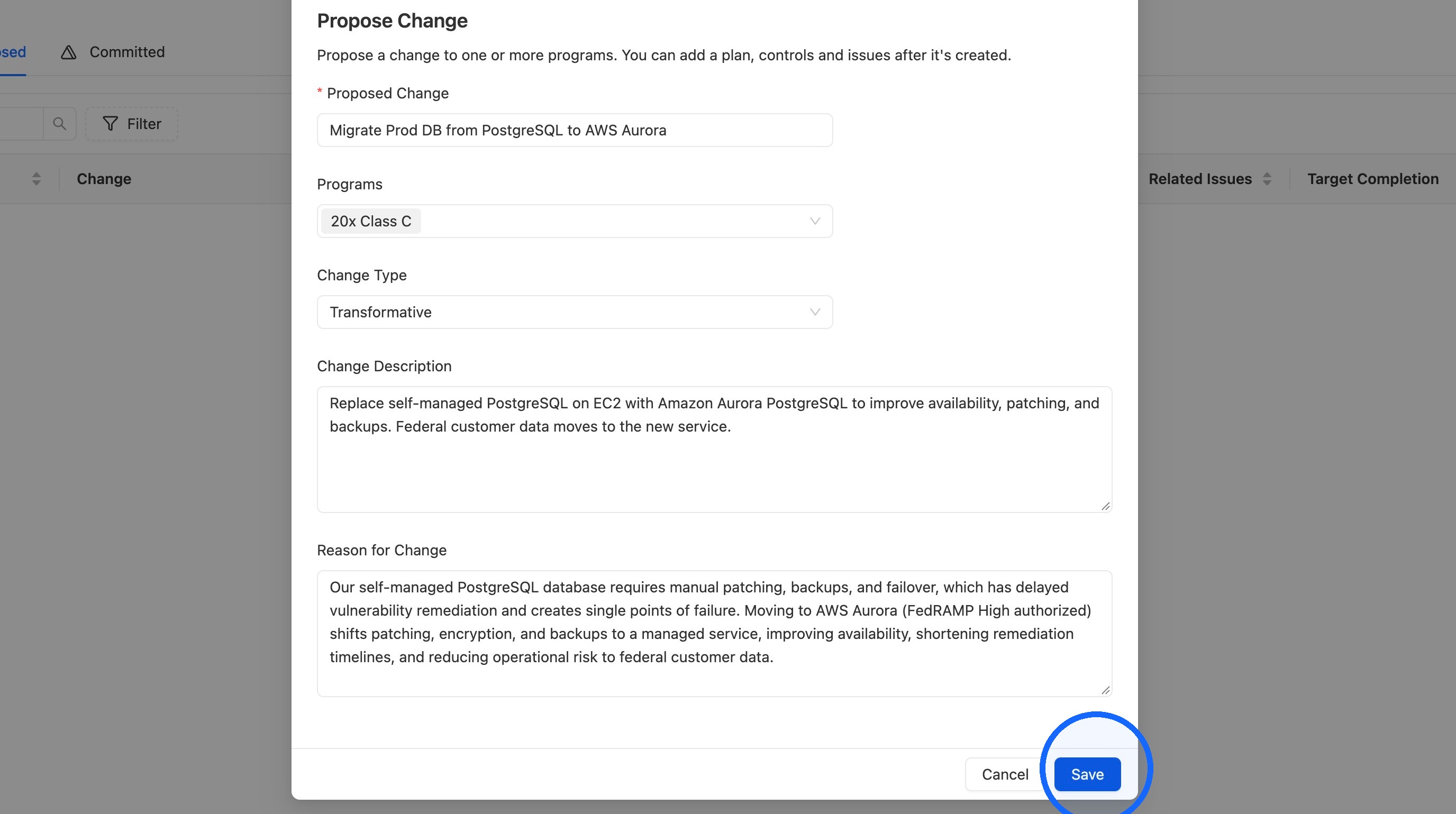
4. Save the proposed change
Click Save to create the proposed change.
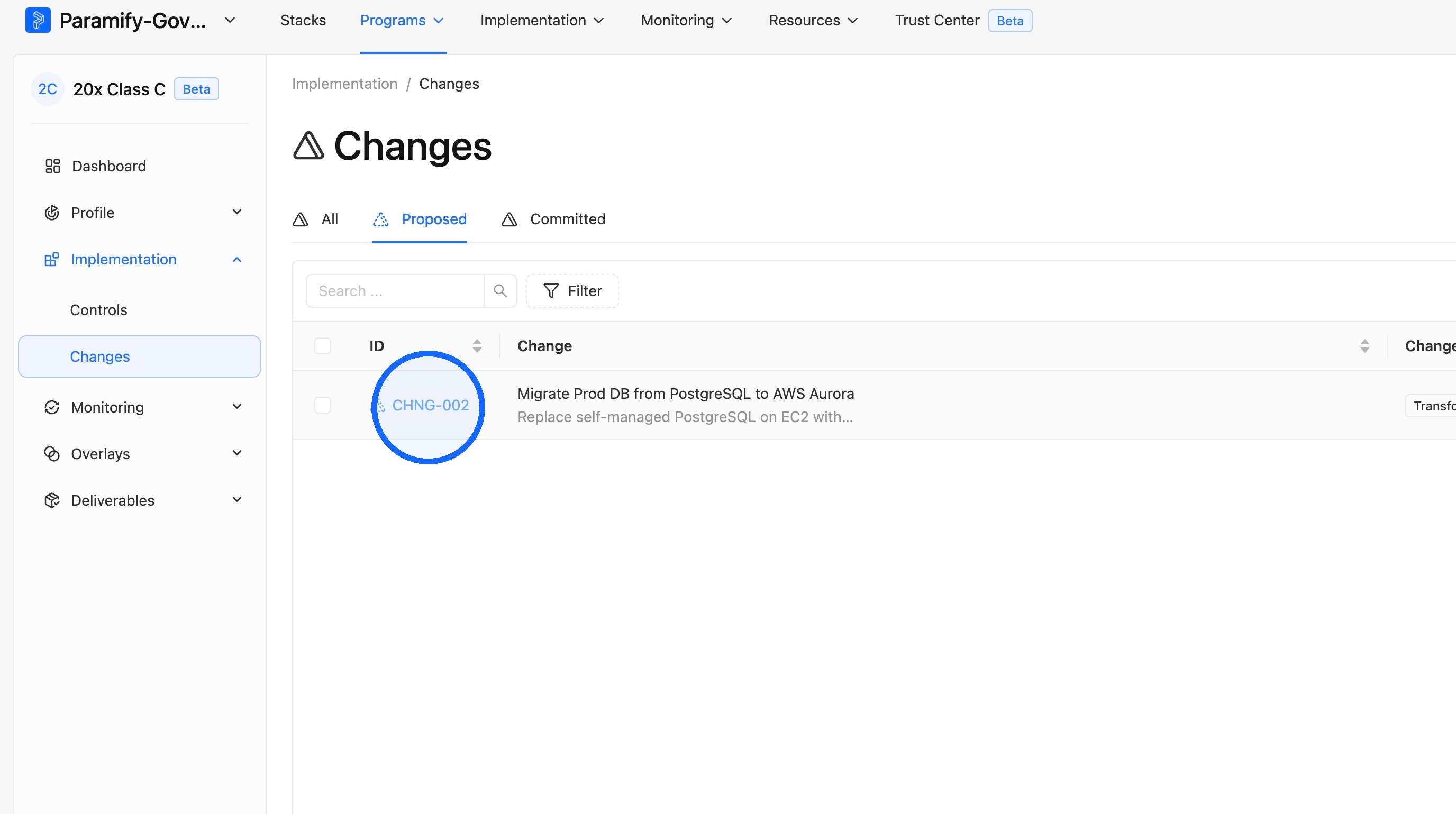
5. Open the proposed change
Select the proposed change you created to open it.
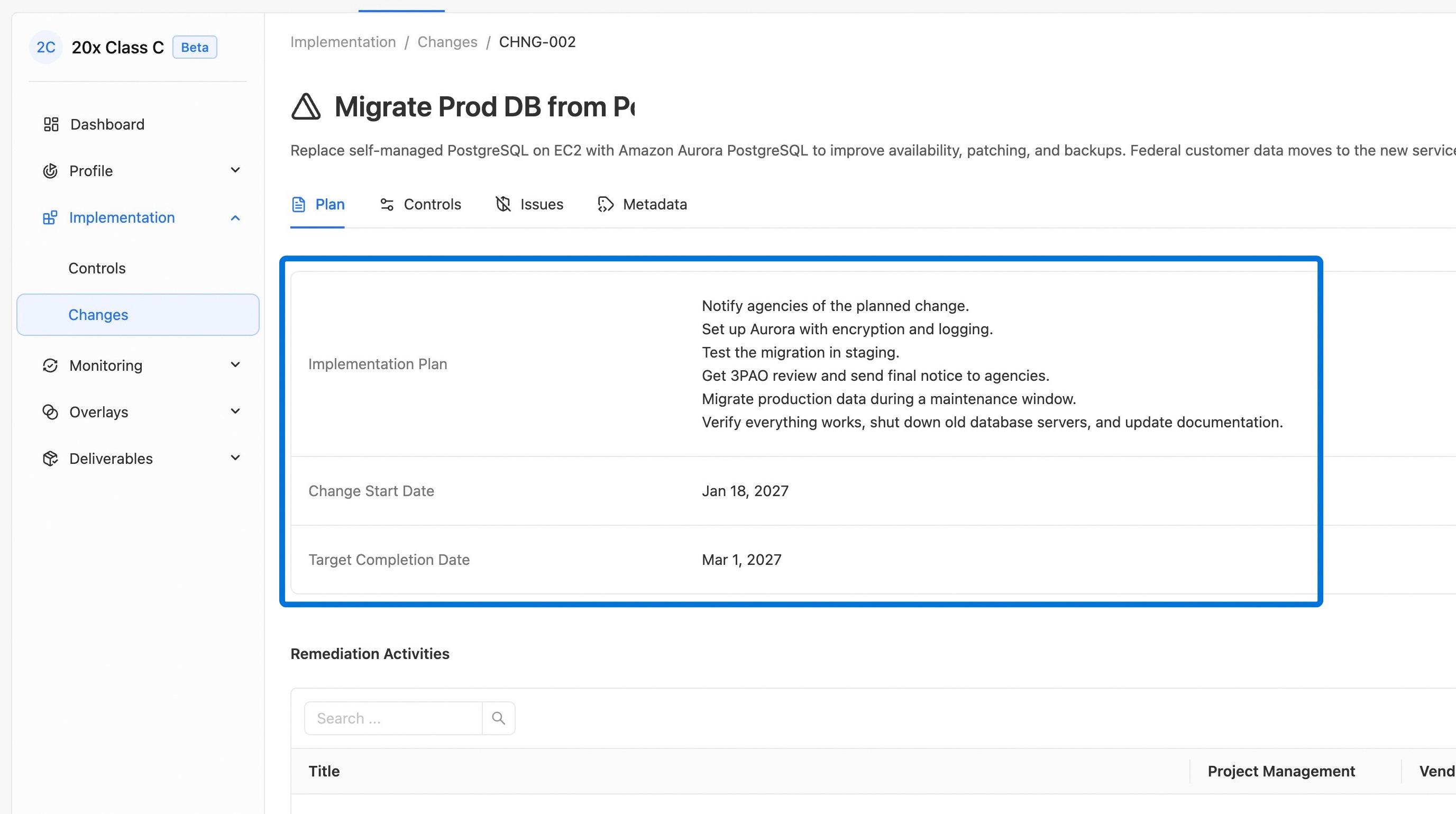
Add Proposed Change Details
1. Enter the plan details and dates
Fill in the initial plan details and dates for the change.
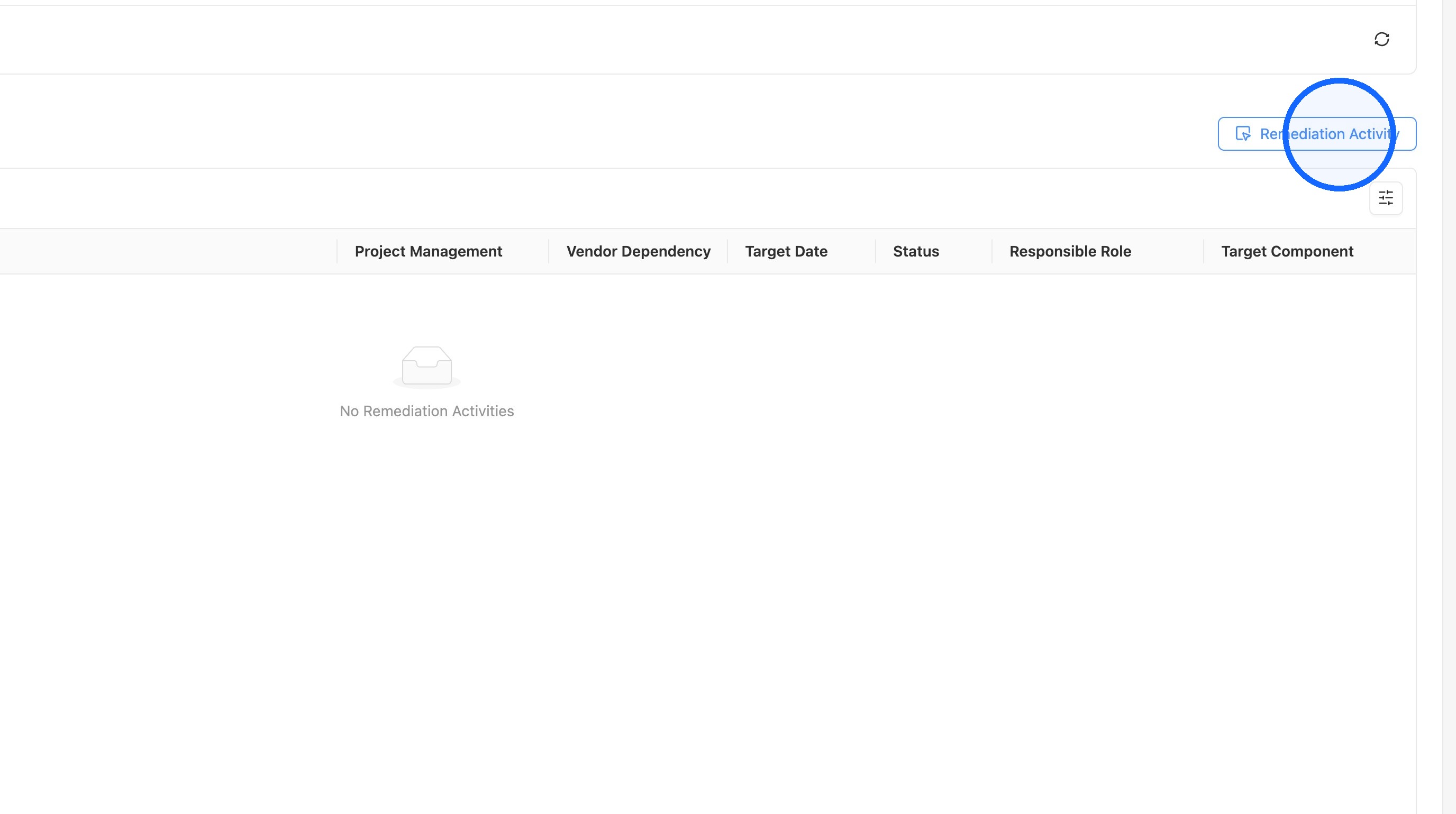
2. Open the Remediation Activity selection
Scroll down and open the Remediation Activity selection.
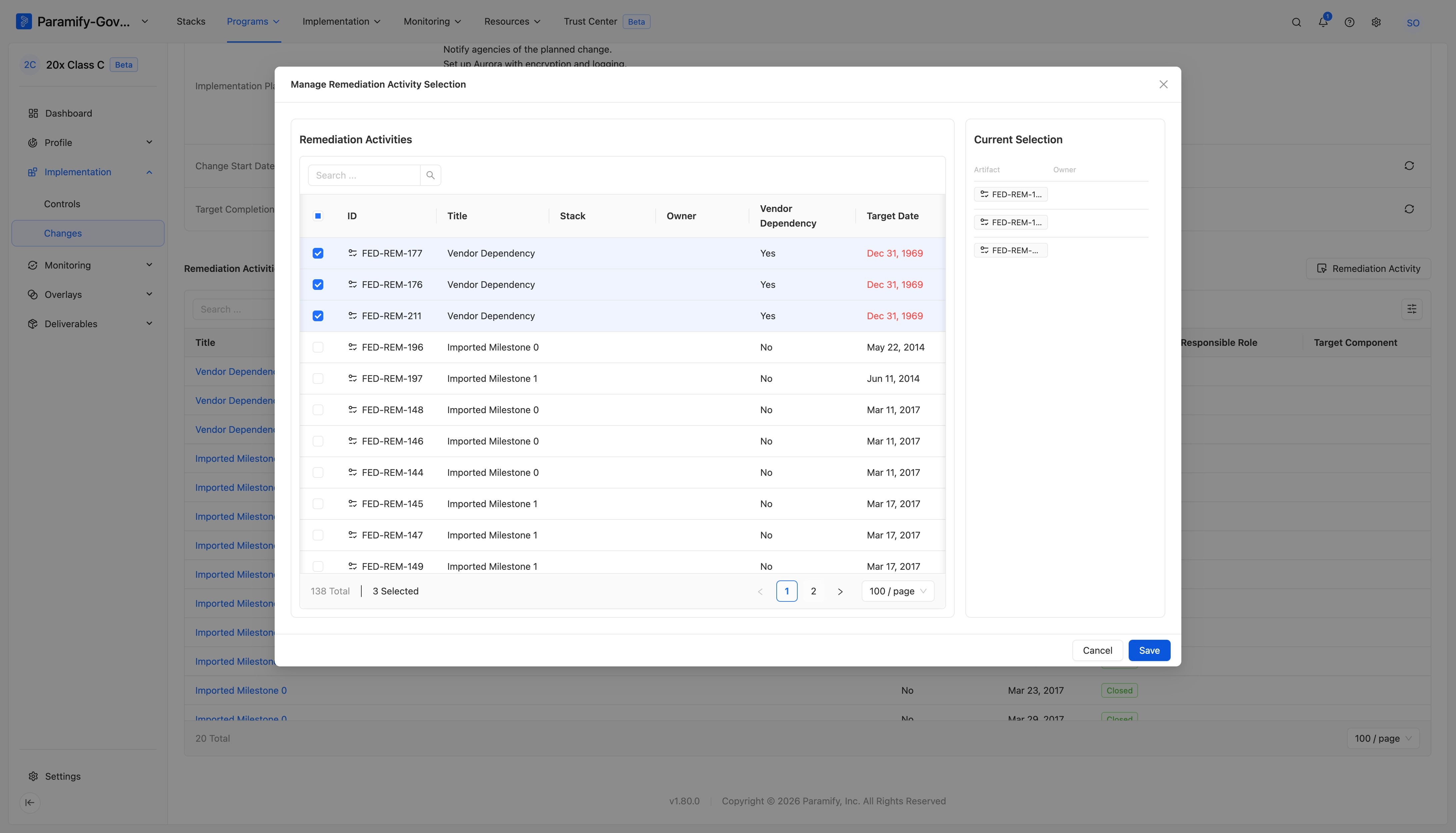
3. Link Remediation Activities
Select the Remediation Activities associated with this change and click Save.
4. Open the Controls tab
Click the Controls tab.
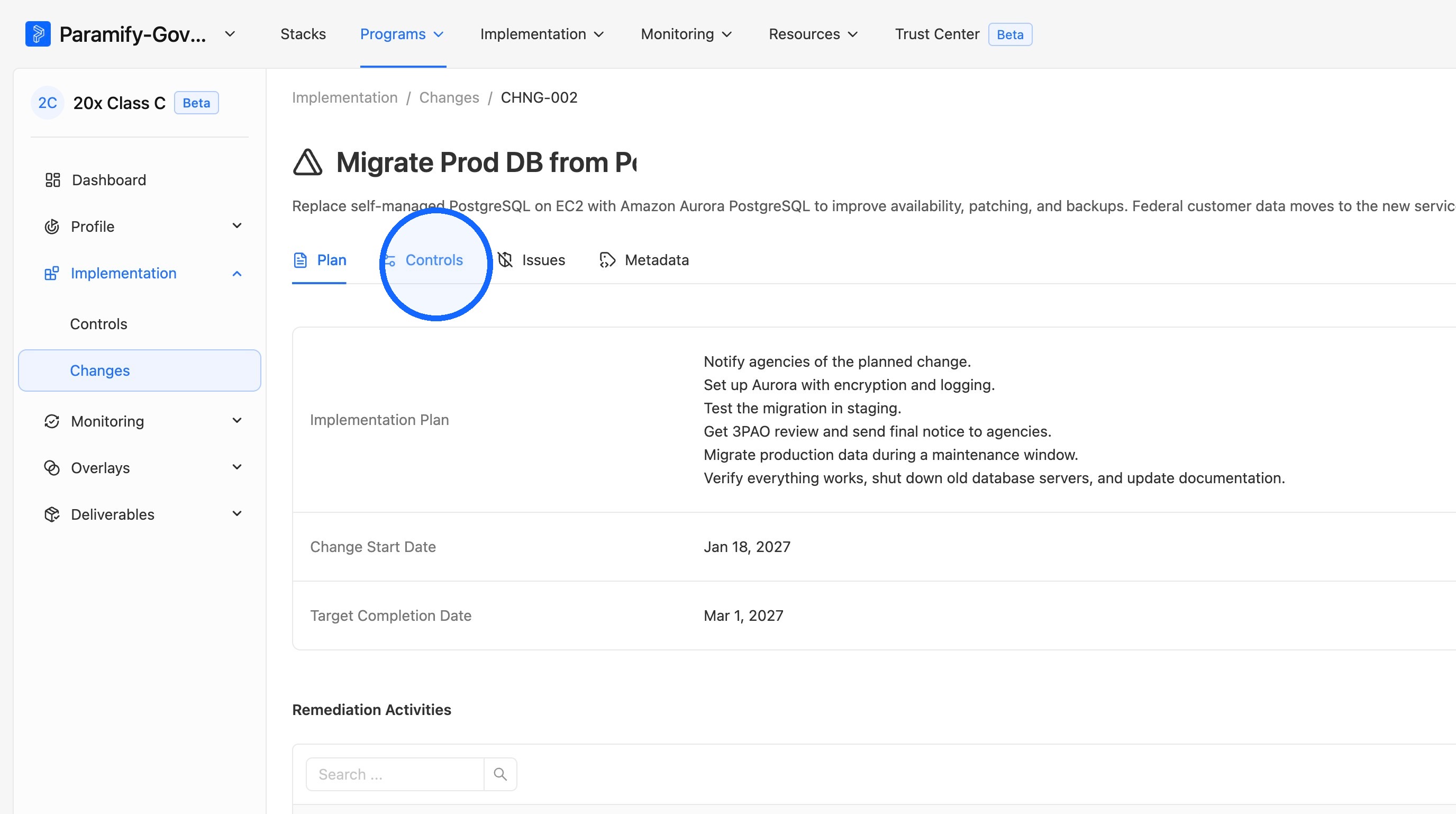
5. Open the Controls selection
Open the Controls selection.
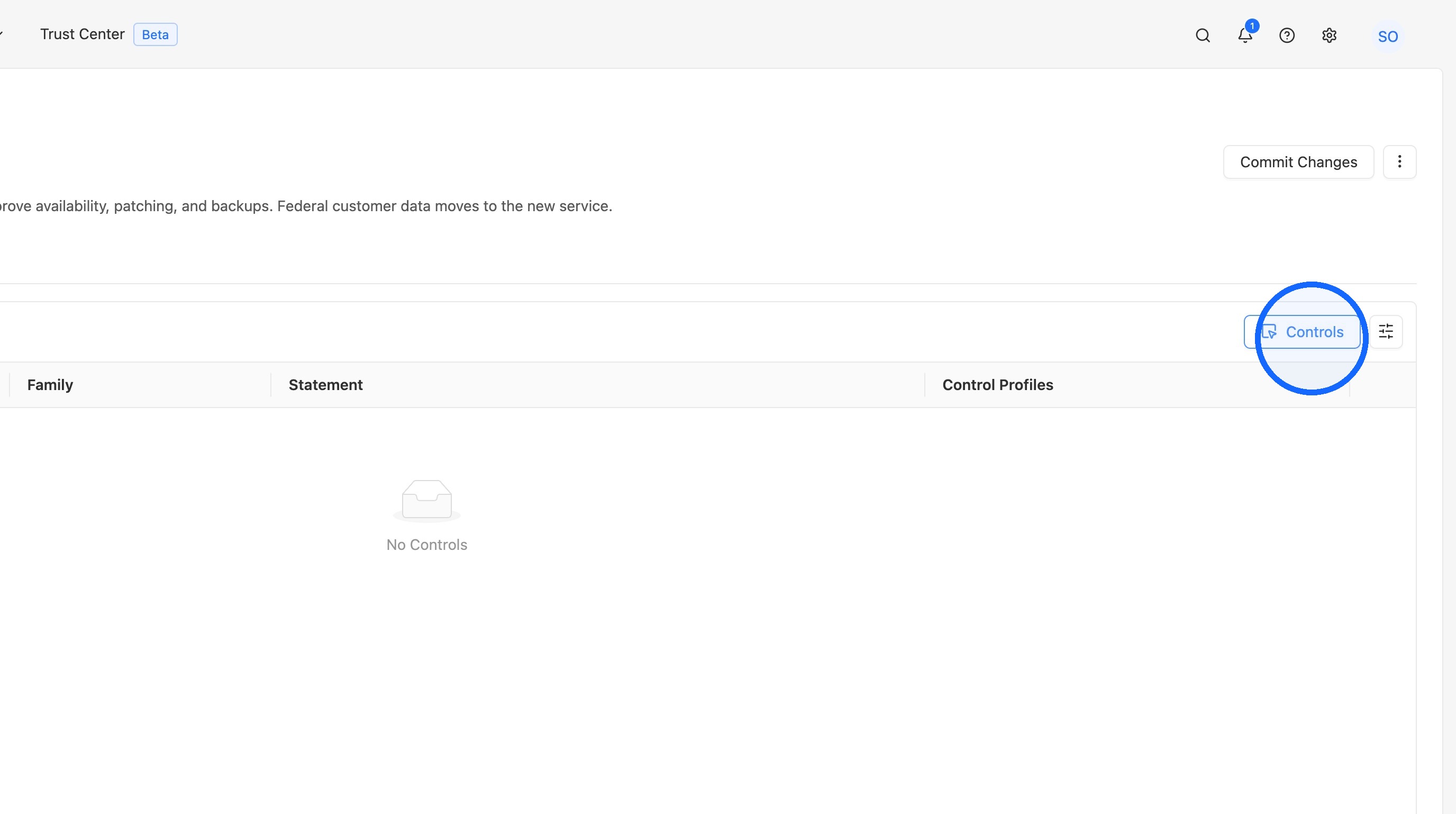
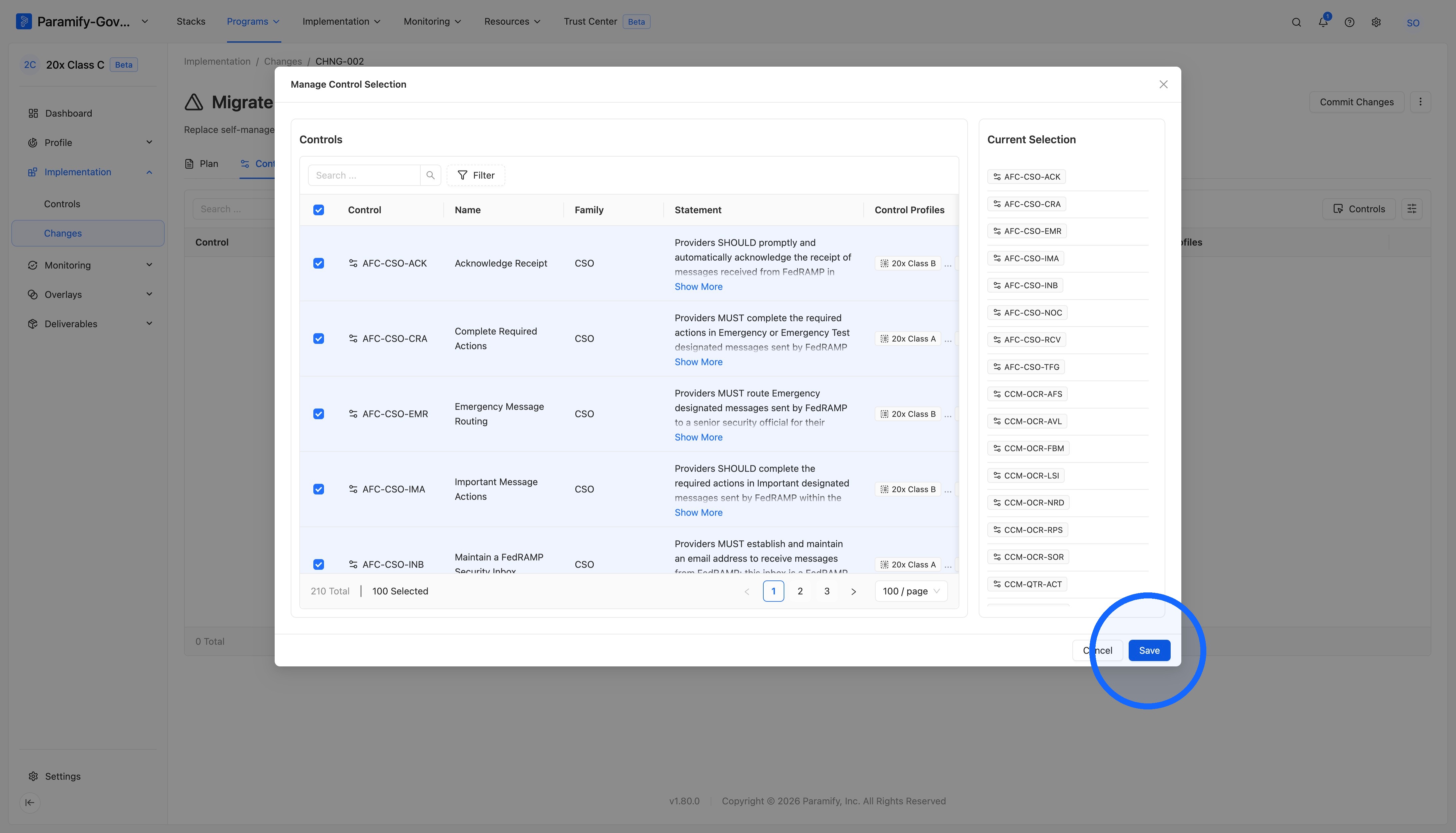
6. Link Controls
Select any relevant Controls and click Save.
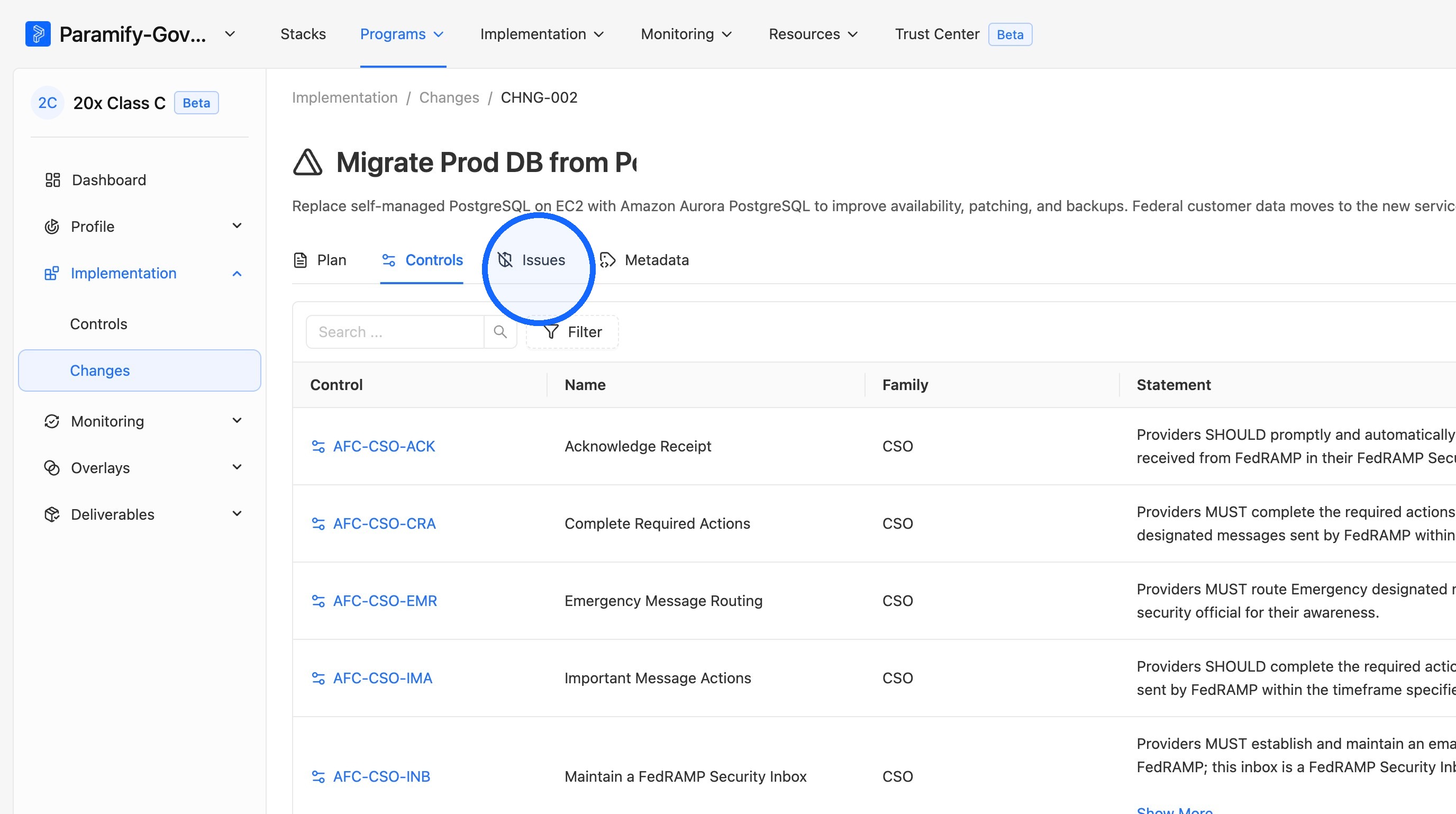
7. Open the Issues tab
Click the Issues tab.
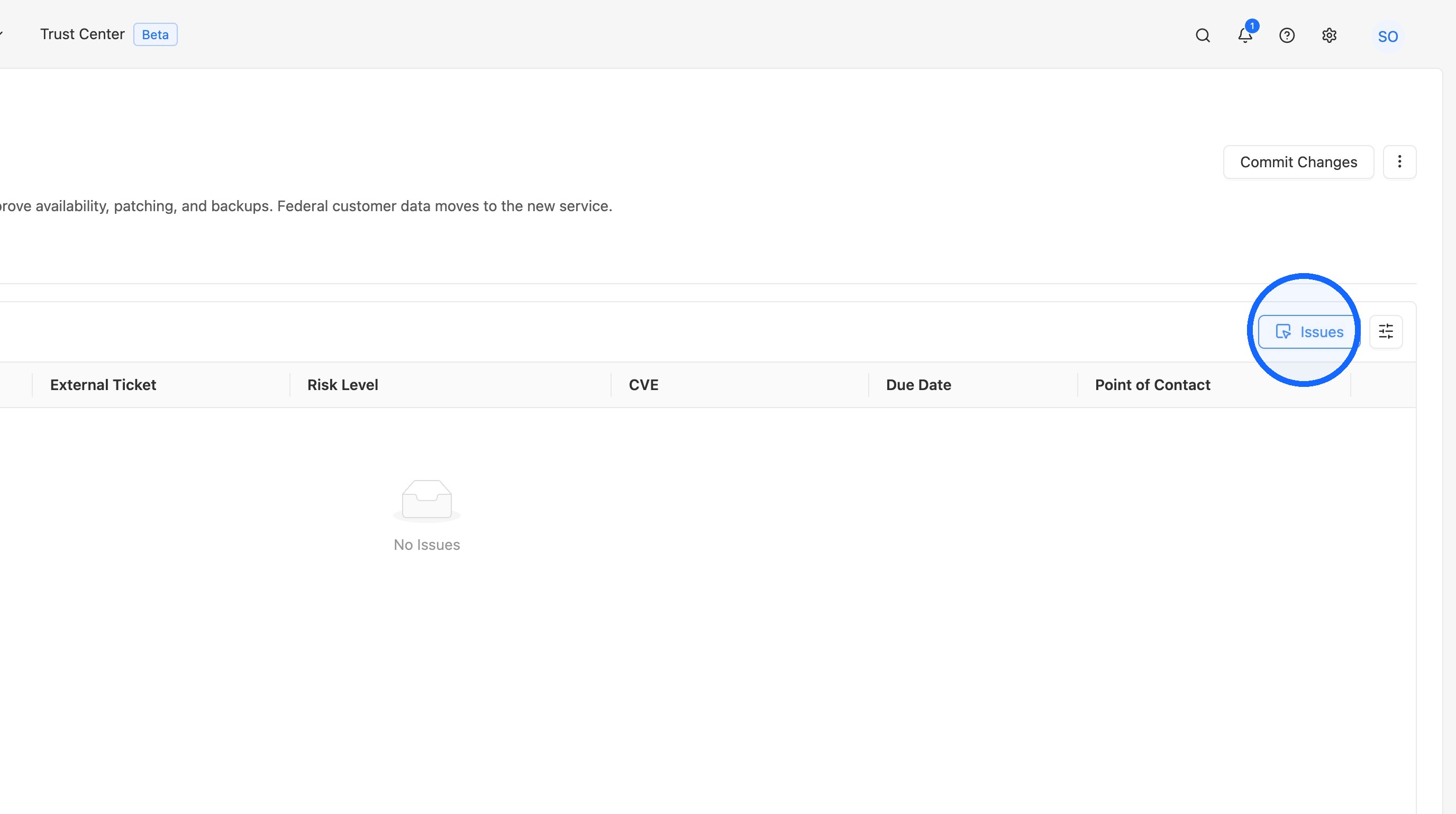
8. Open the Issues selection
Open the Issues selection.
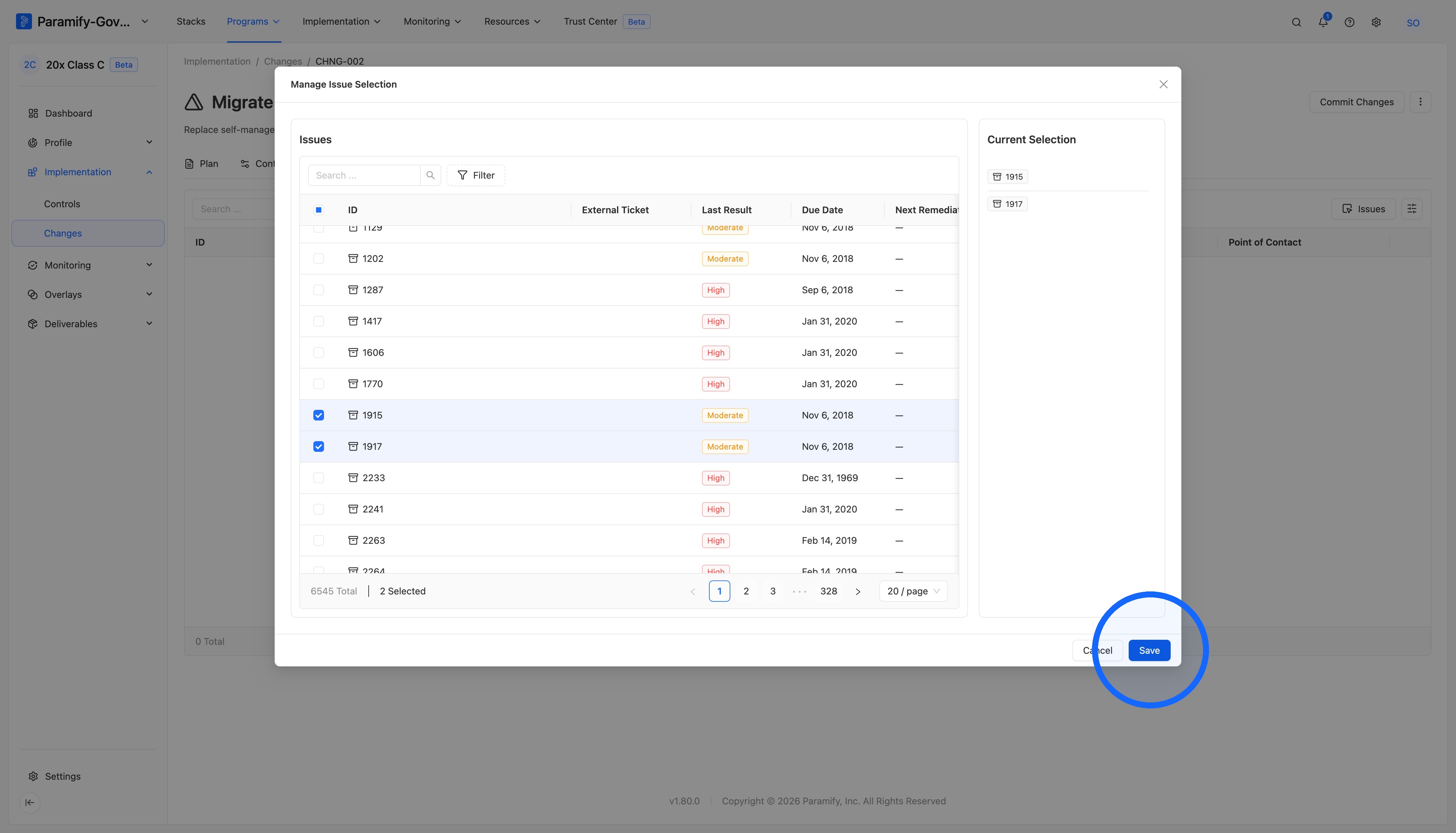
9. Link Issues
Select the relevant Issues and click Save.
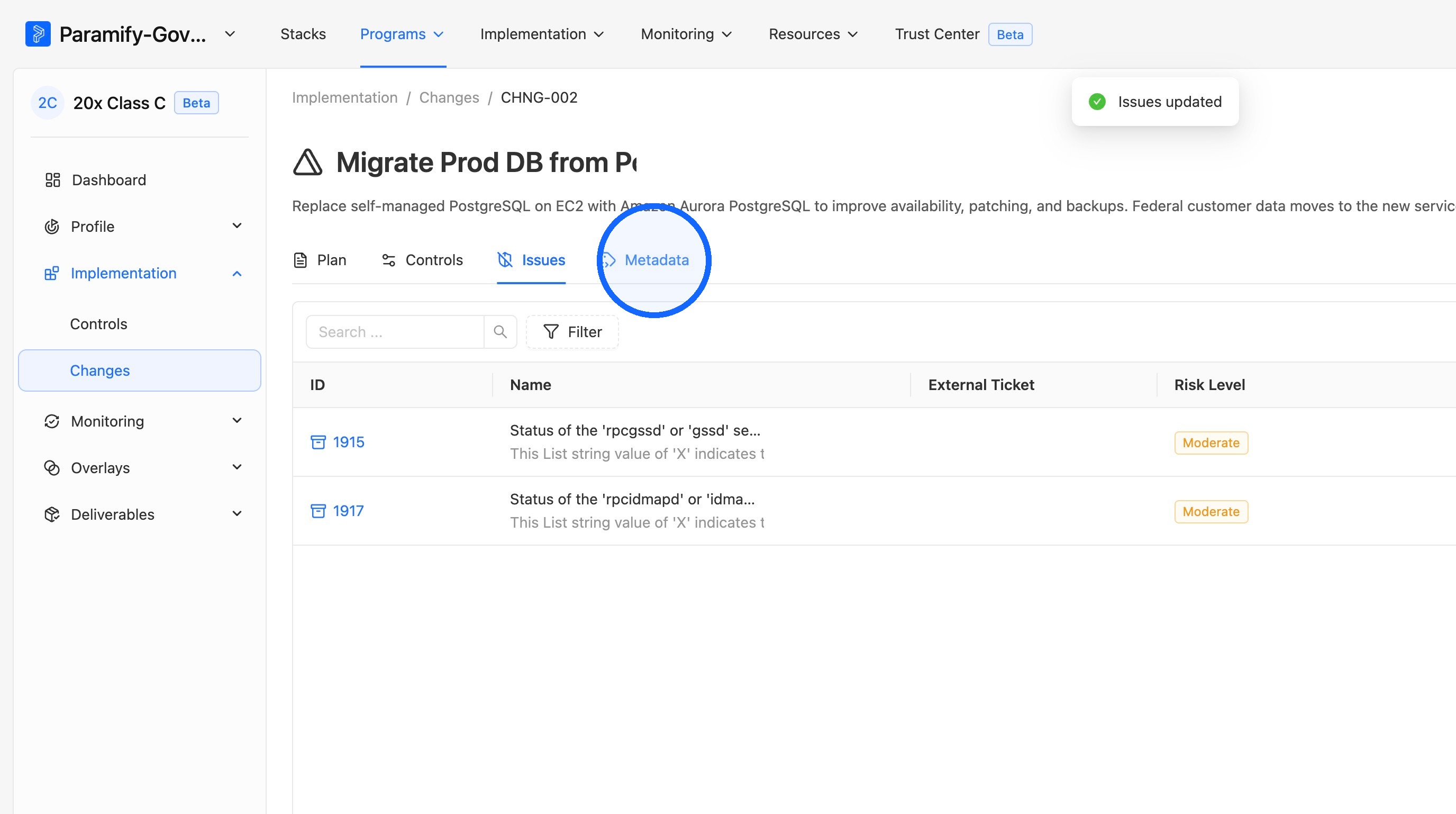
10. Open the Metadata tab
Click the Metadata tab.
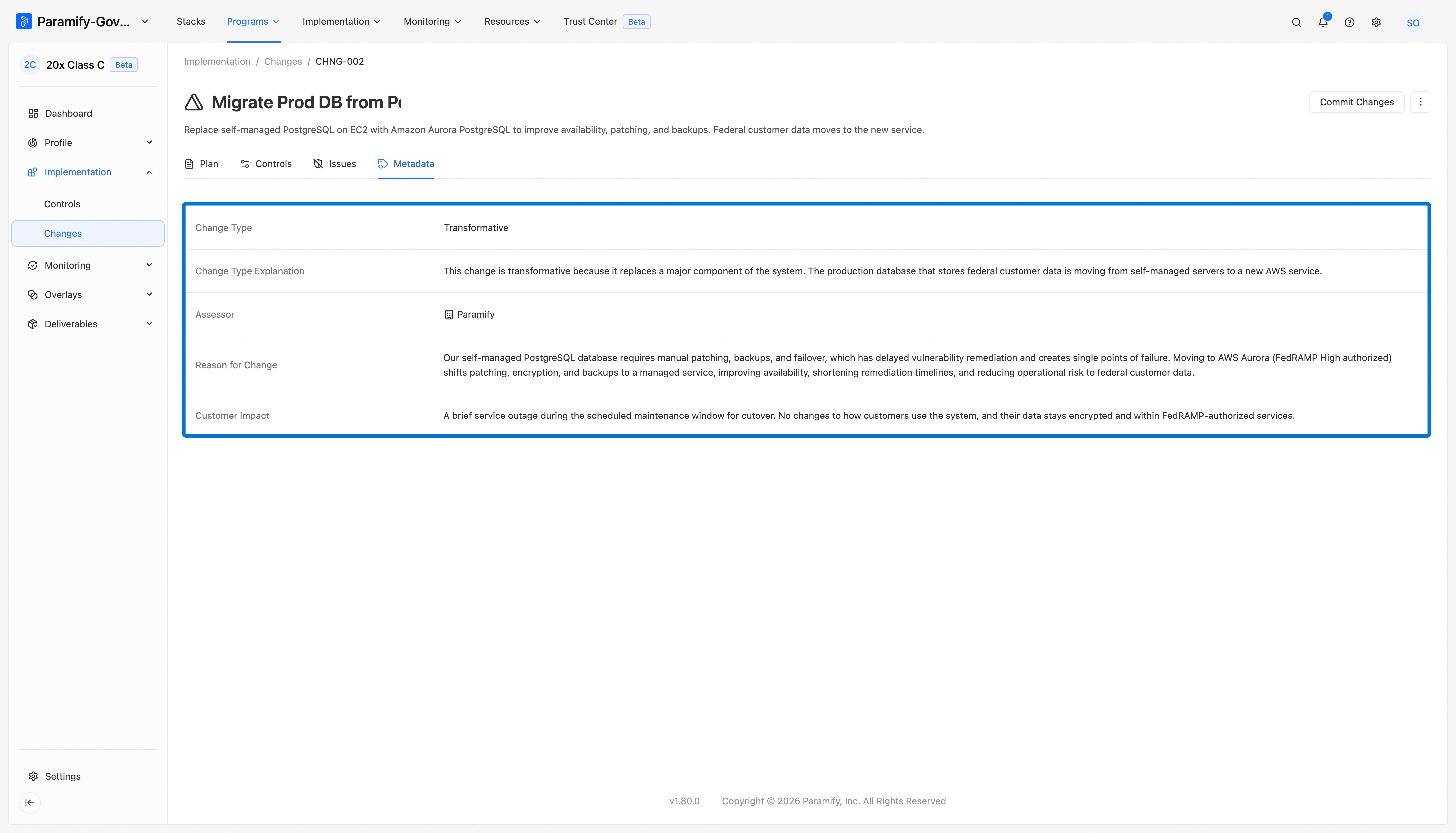
11. Complete the metadata
Fill in any empty Metadata fields.
Committing Changes
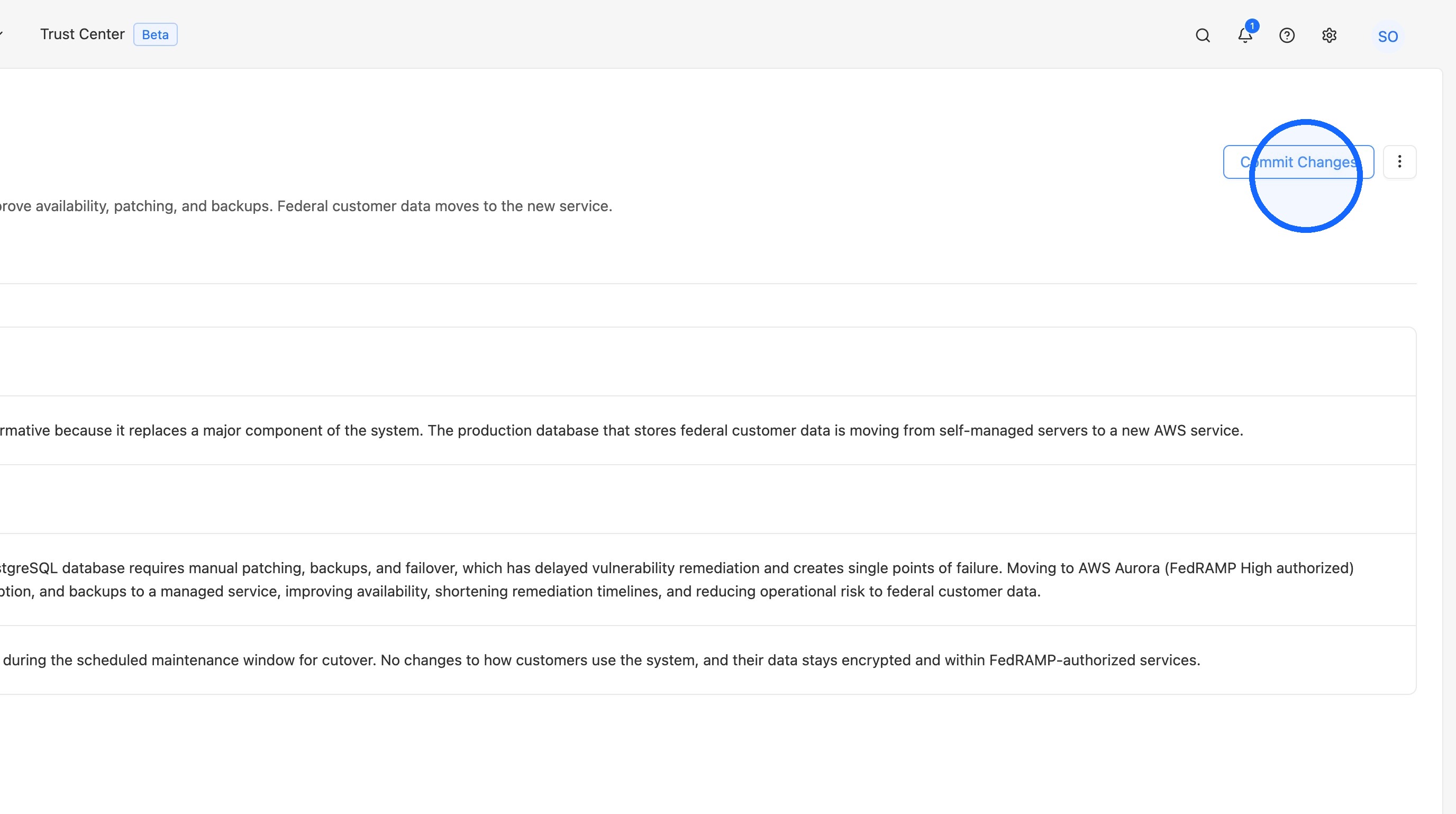
1. Commit the change
Click Commit Changes to move the change from proposed to committed.
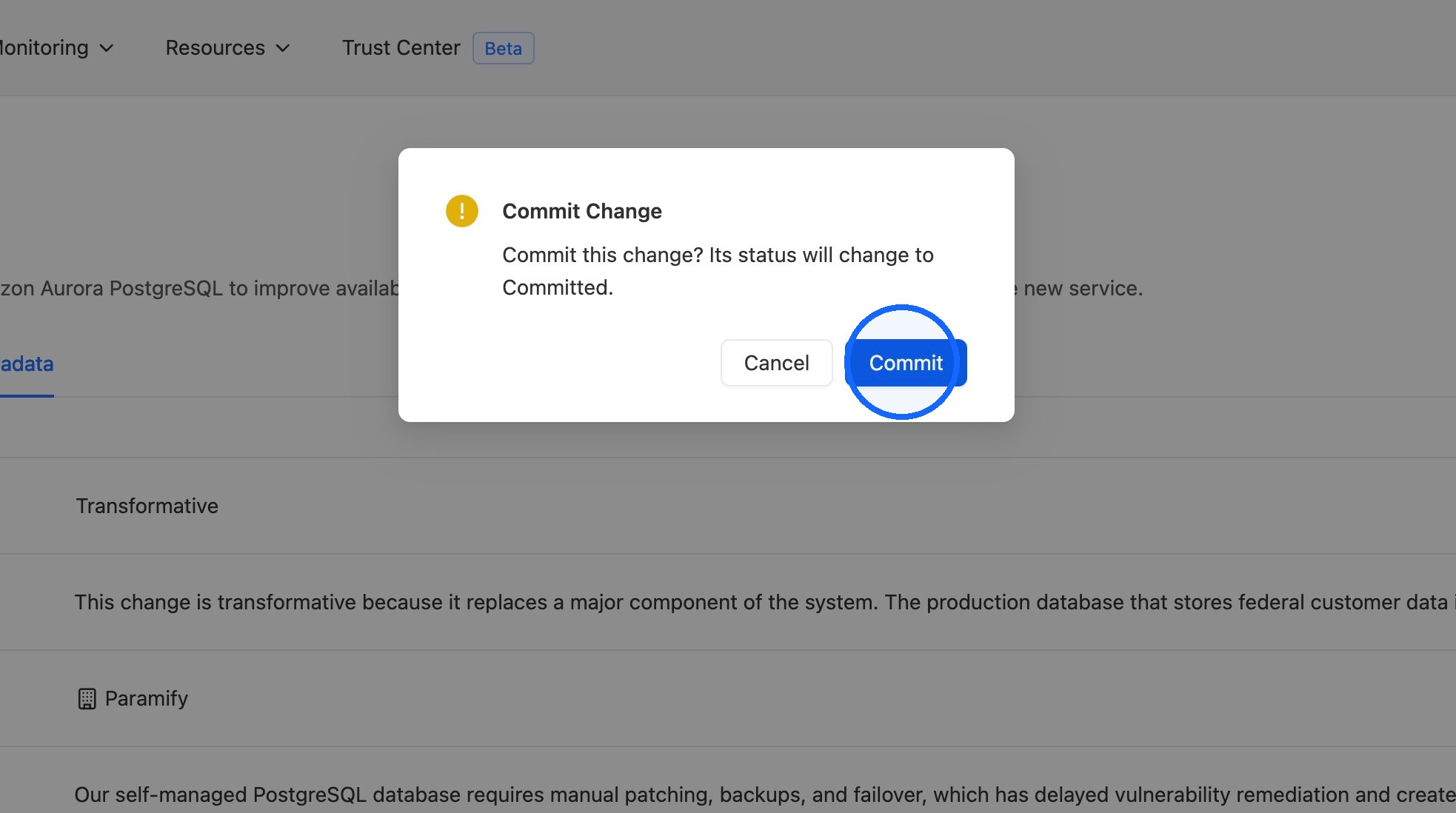
2. Confirm the commit
Click to confirm the commit in the dialog that appears.
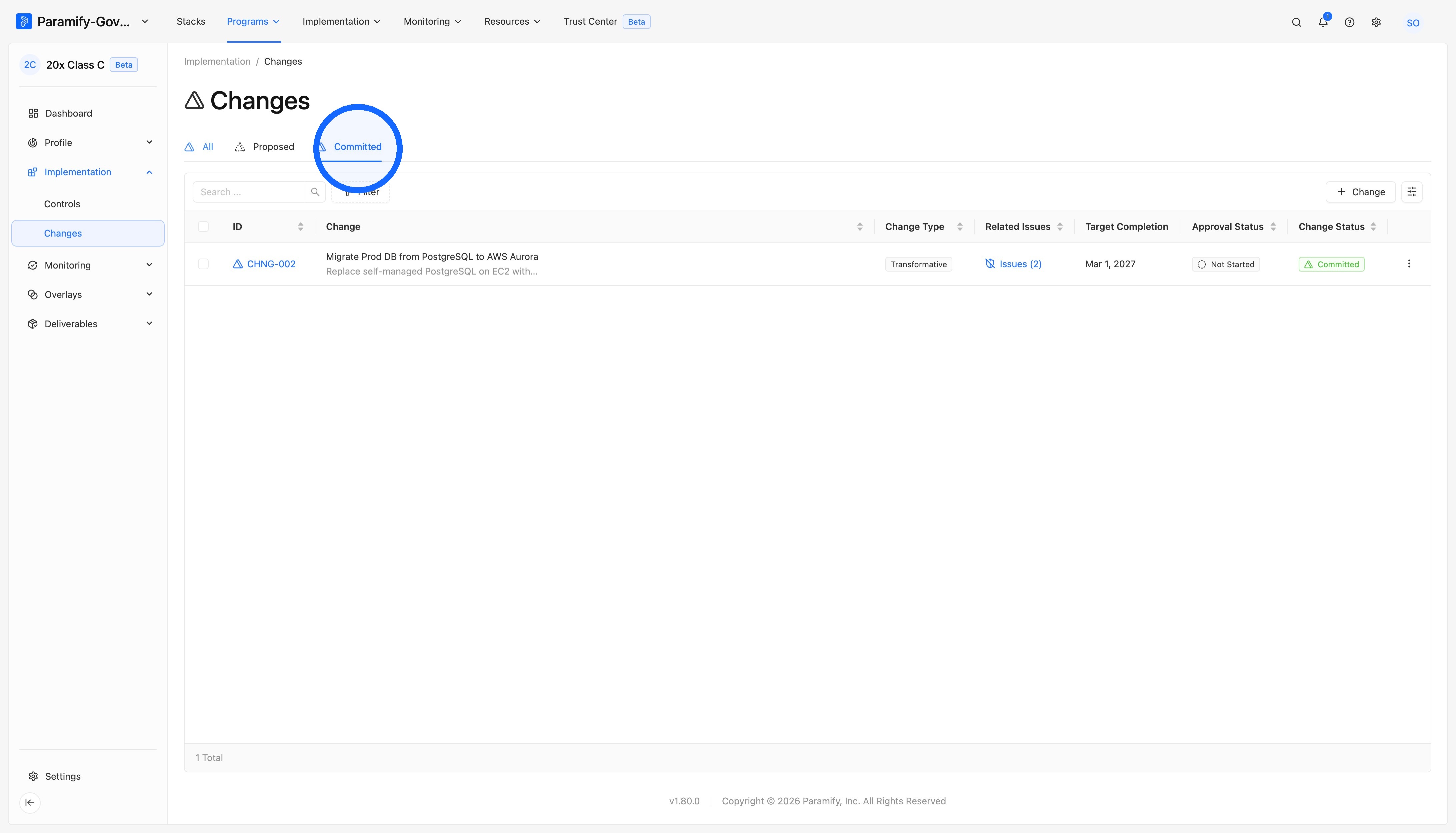
3. View the committed change
The change now appears in the Committed tab.
NOTE
The Committed, Proposed, and All tabs each offer filtering, bulk actions, and an Approval Status field.
Comments
0 comments
Please sign in to leave a comment.