
Teams in Paramify let you organize Users, assign a Point of Contact, and keep team details accurate. This article walks through creating a team, adding members, assigning roles, and viewing or editing teams after they're created.
Create a team
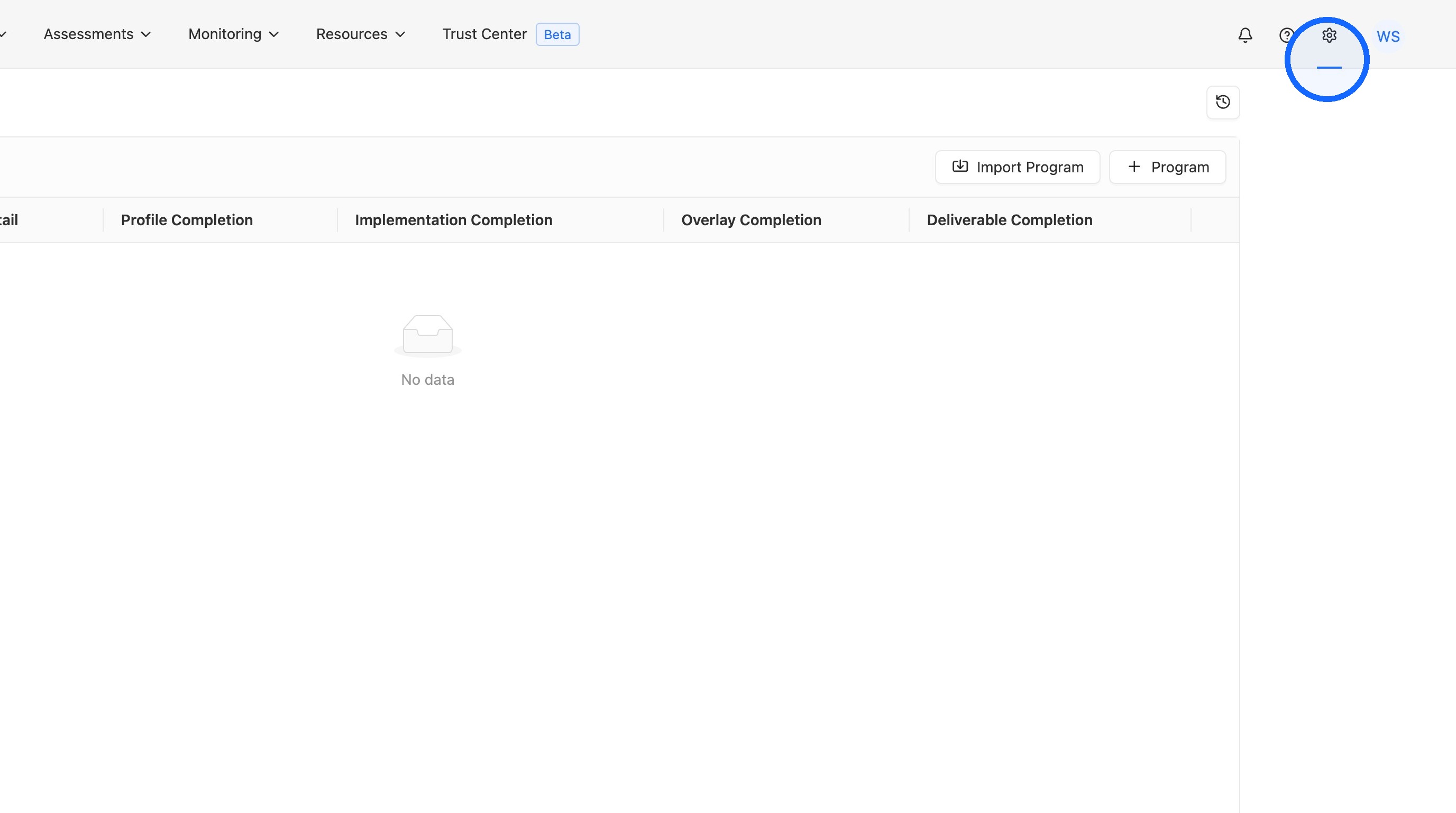
1. Open Workspace Settings
In your Paramify workspace, open Workspace Settings from the navigation menu.
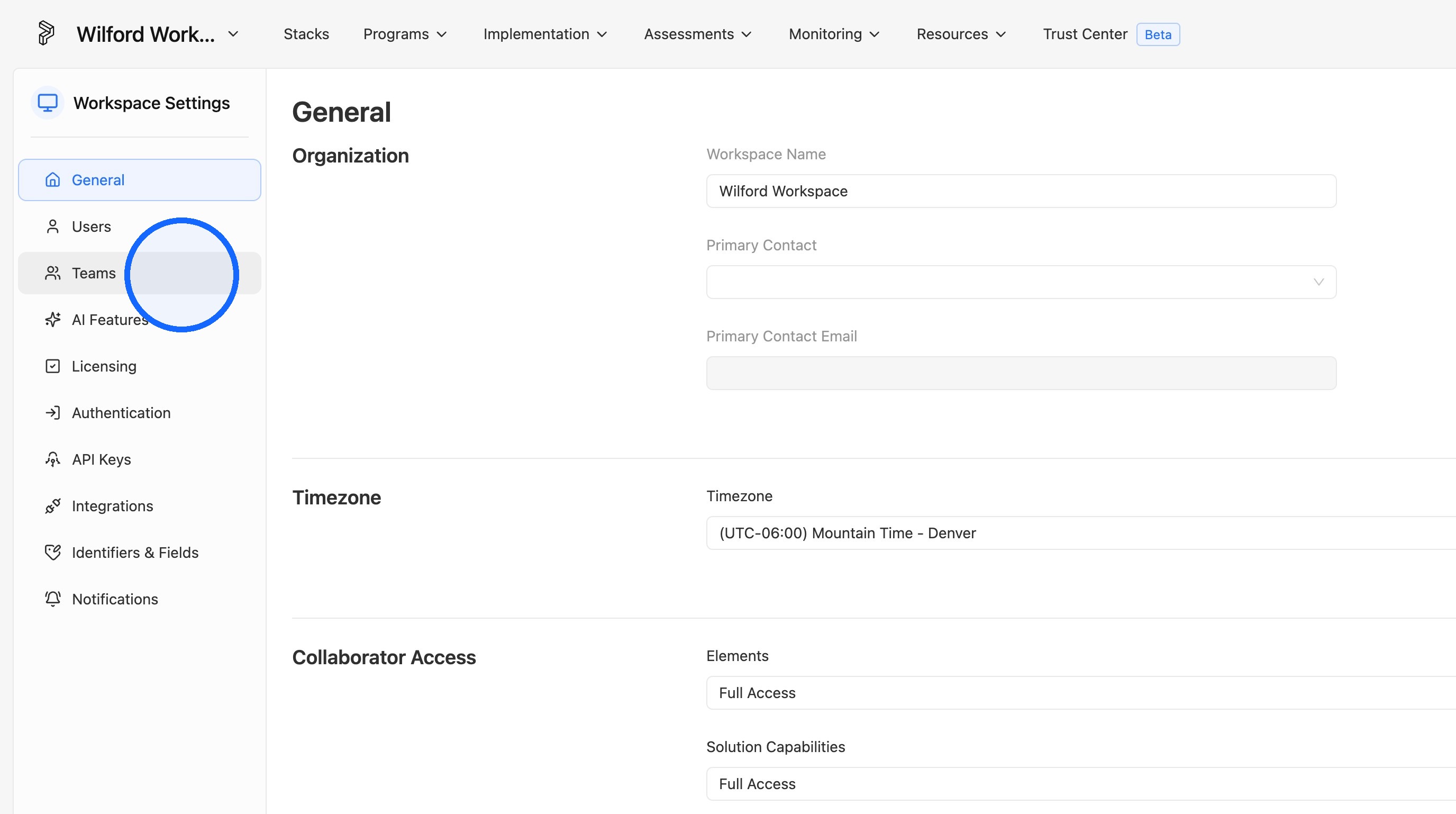
2. Click Teams
Click Teams to open the Teams page.
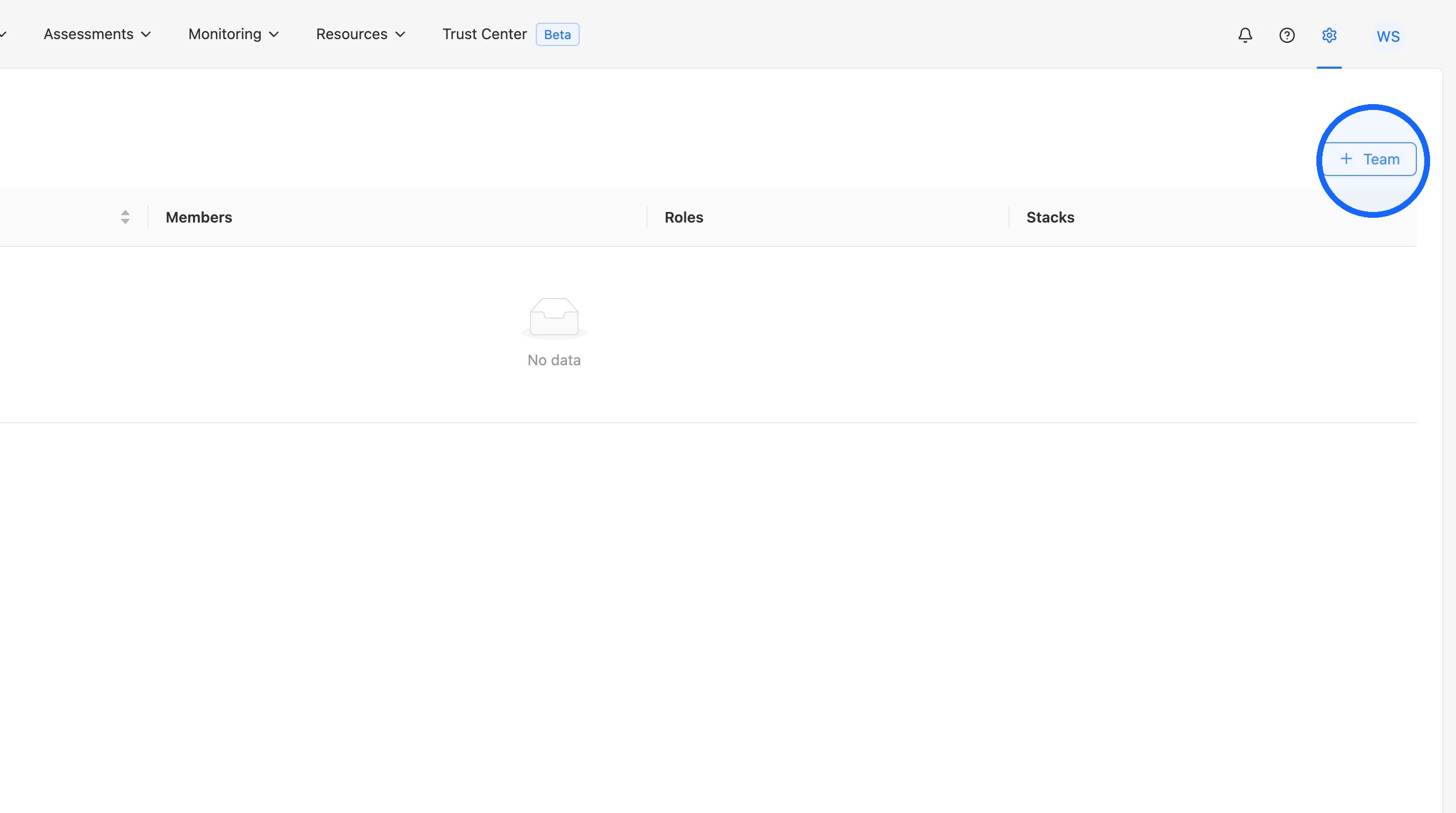
3. Click + Team
Click + Team to start creating a new team.
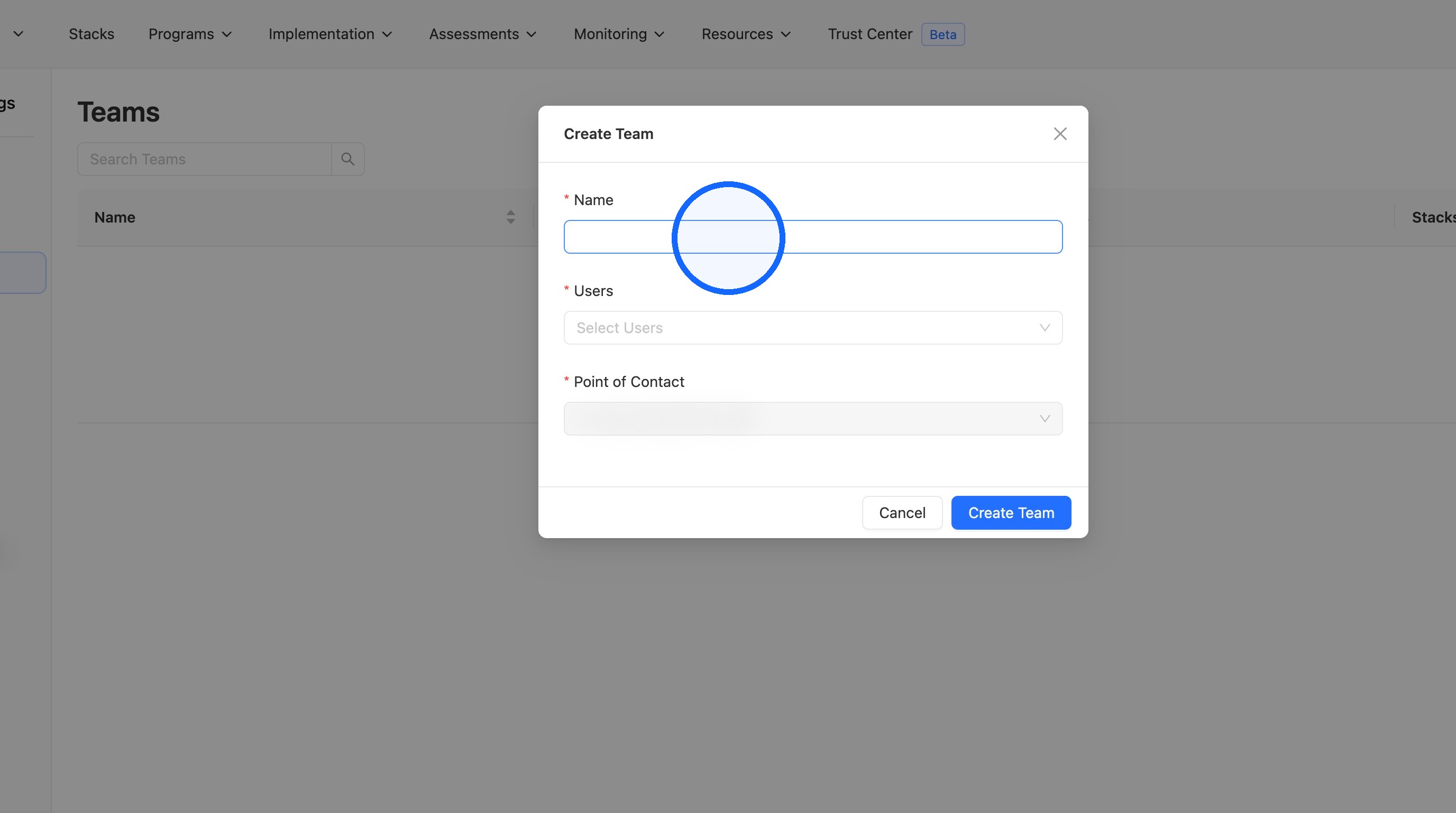
4. Enter a team name
Enter a name for the team.
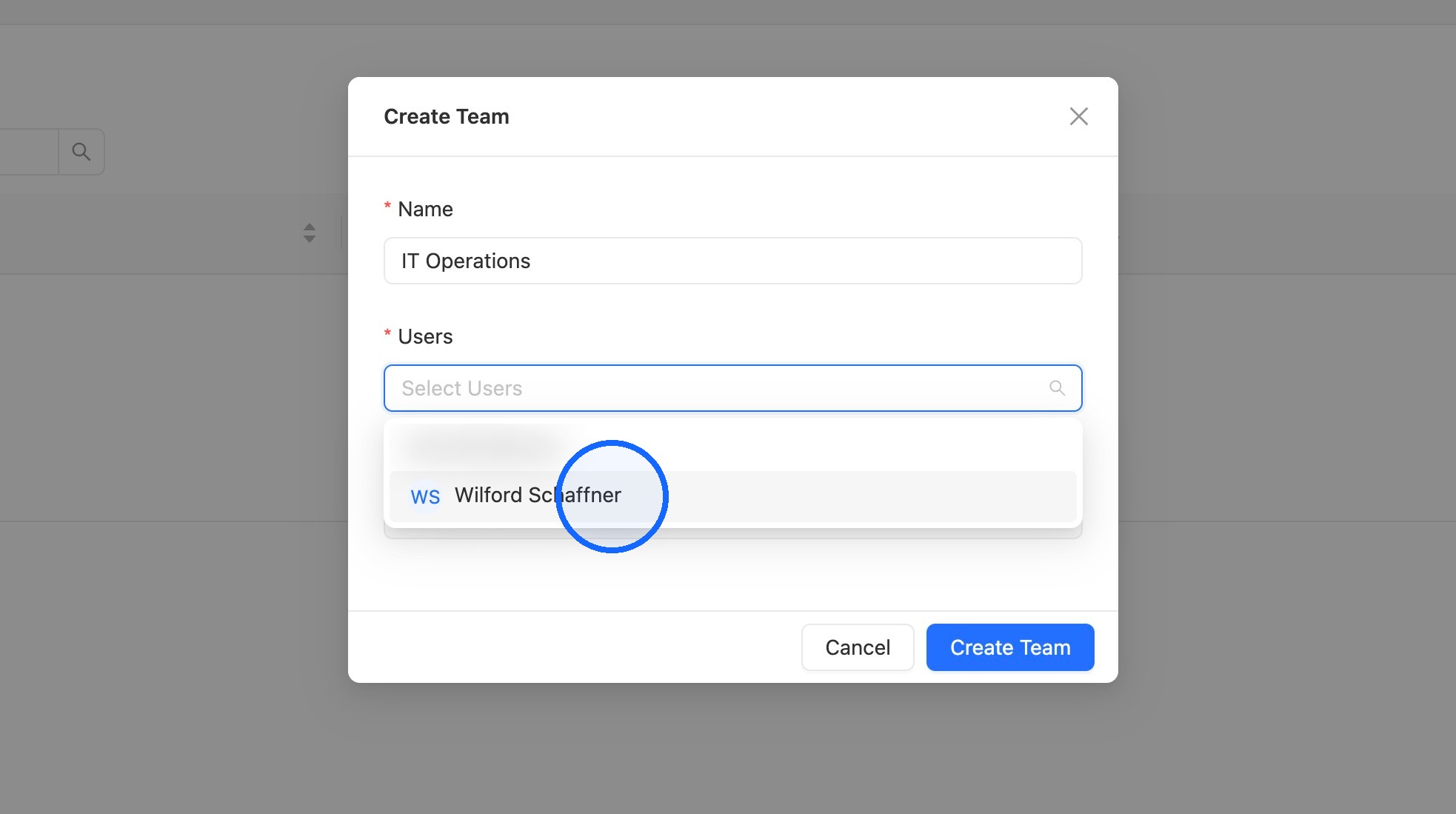
5. Select users to add to the team
Select the Users you want to add as members of the team.
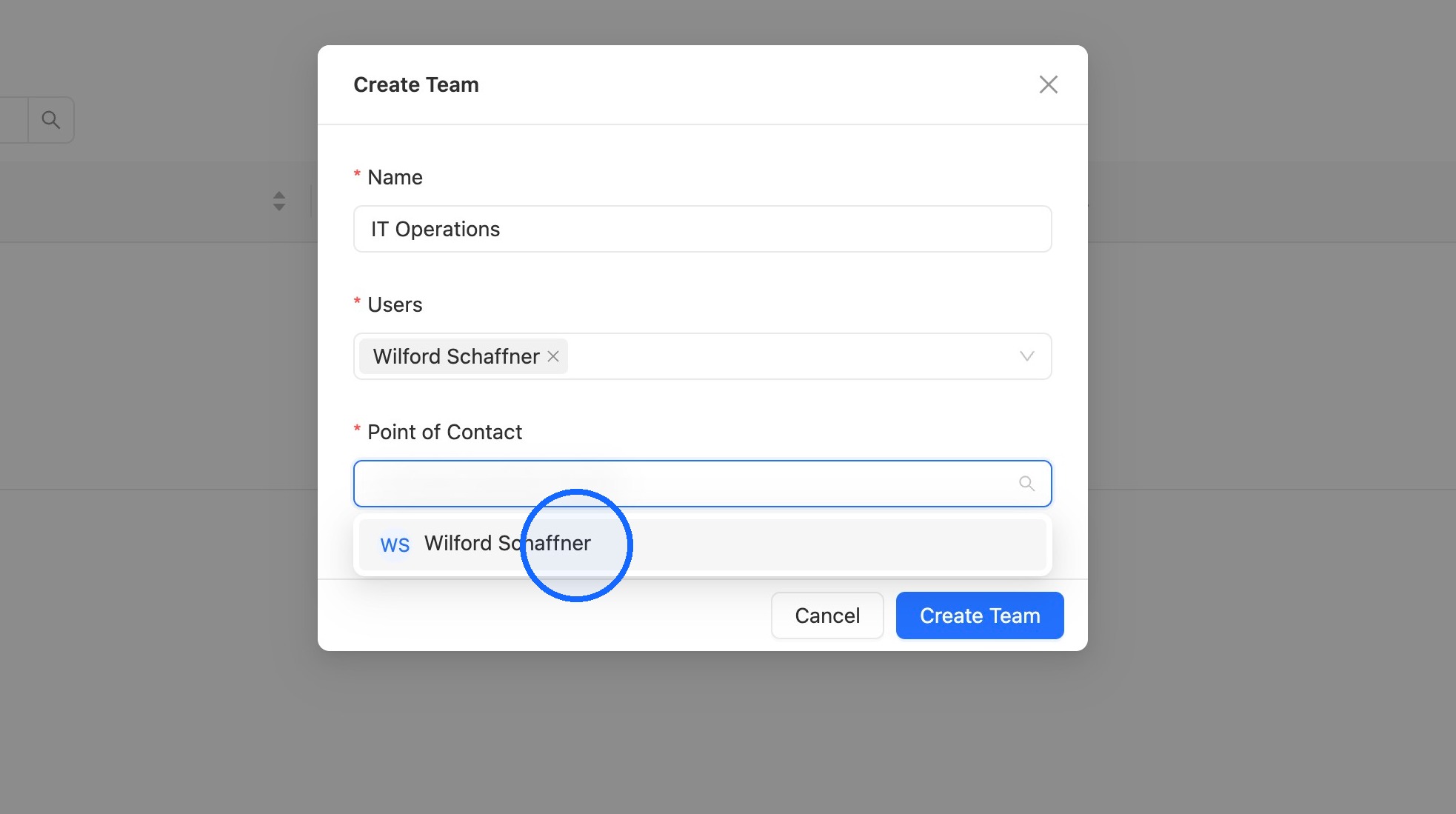
6. Select a point of contact
Select a Point of Contact for the team.
TIP
When assigning Users or a Point of Contact to a team, only Paramify Users are assignable — not "Person" type elements. Learn more in Users and Teams.
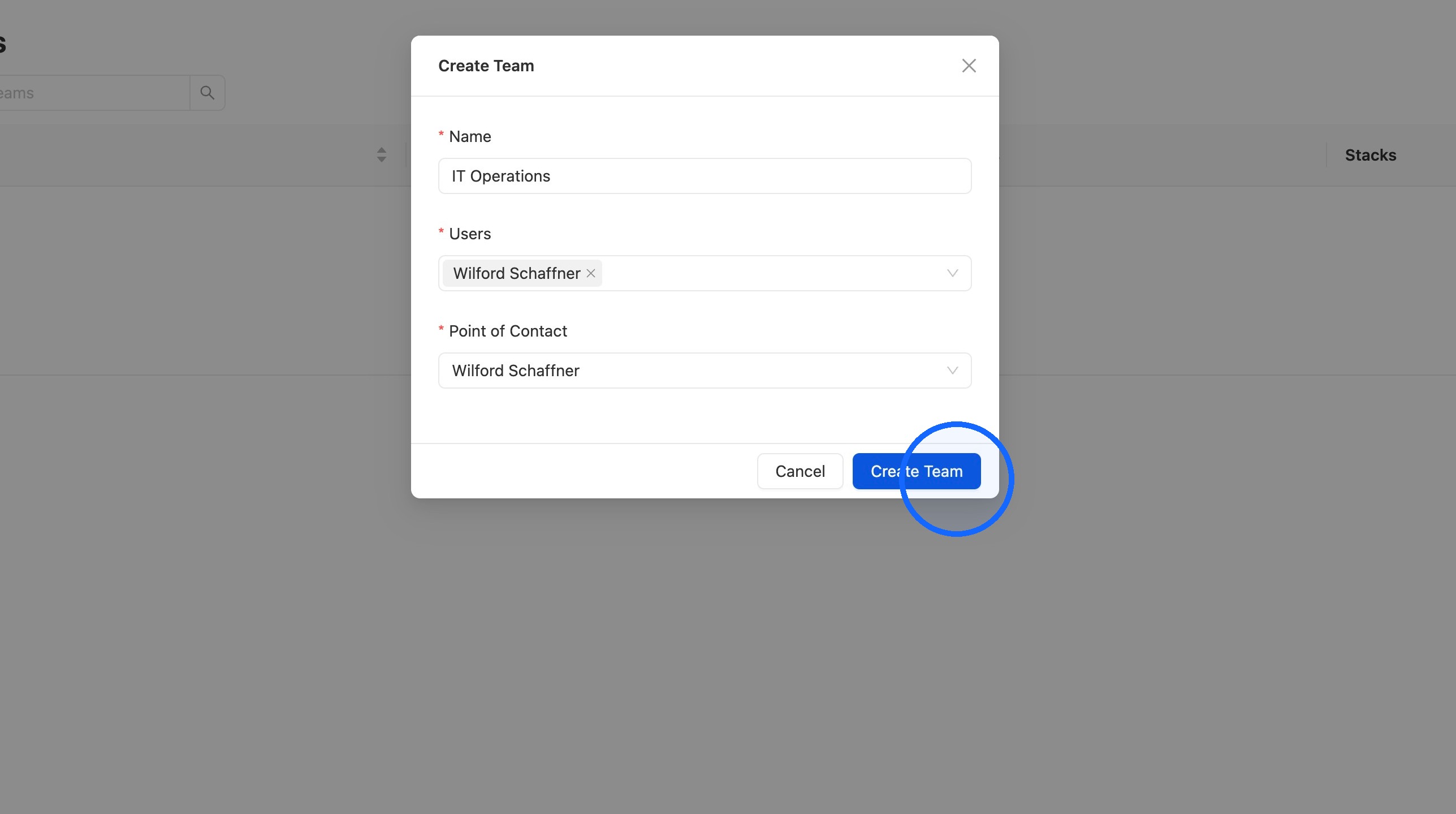
7. Verify and create the team
Review the team details, then click Create Team.
Assign roles to a team
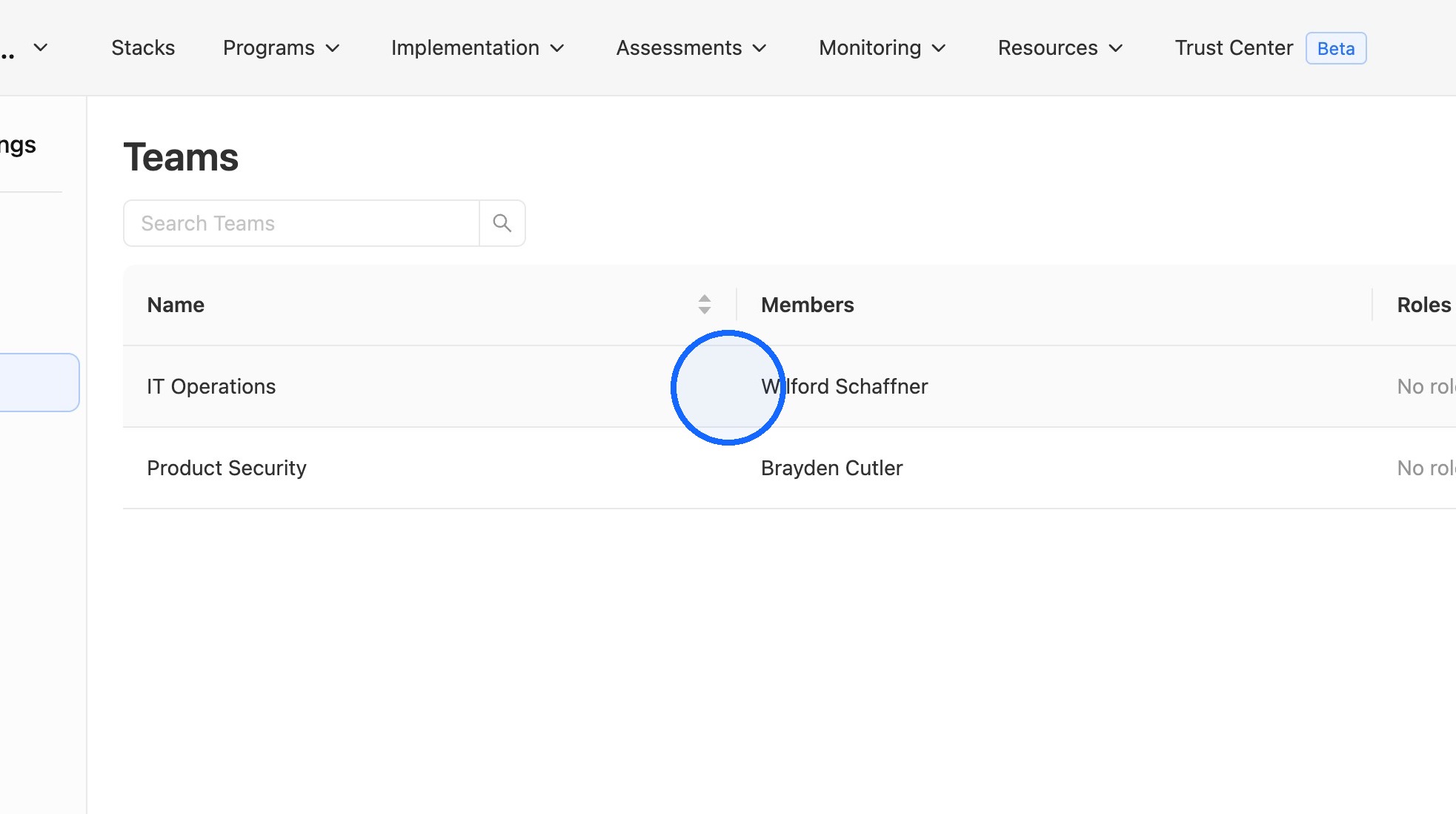
1. Open the new team
Click into the team you just created to open its detail page.
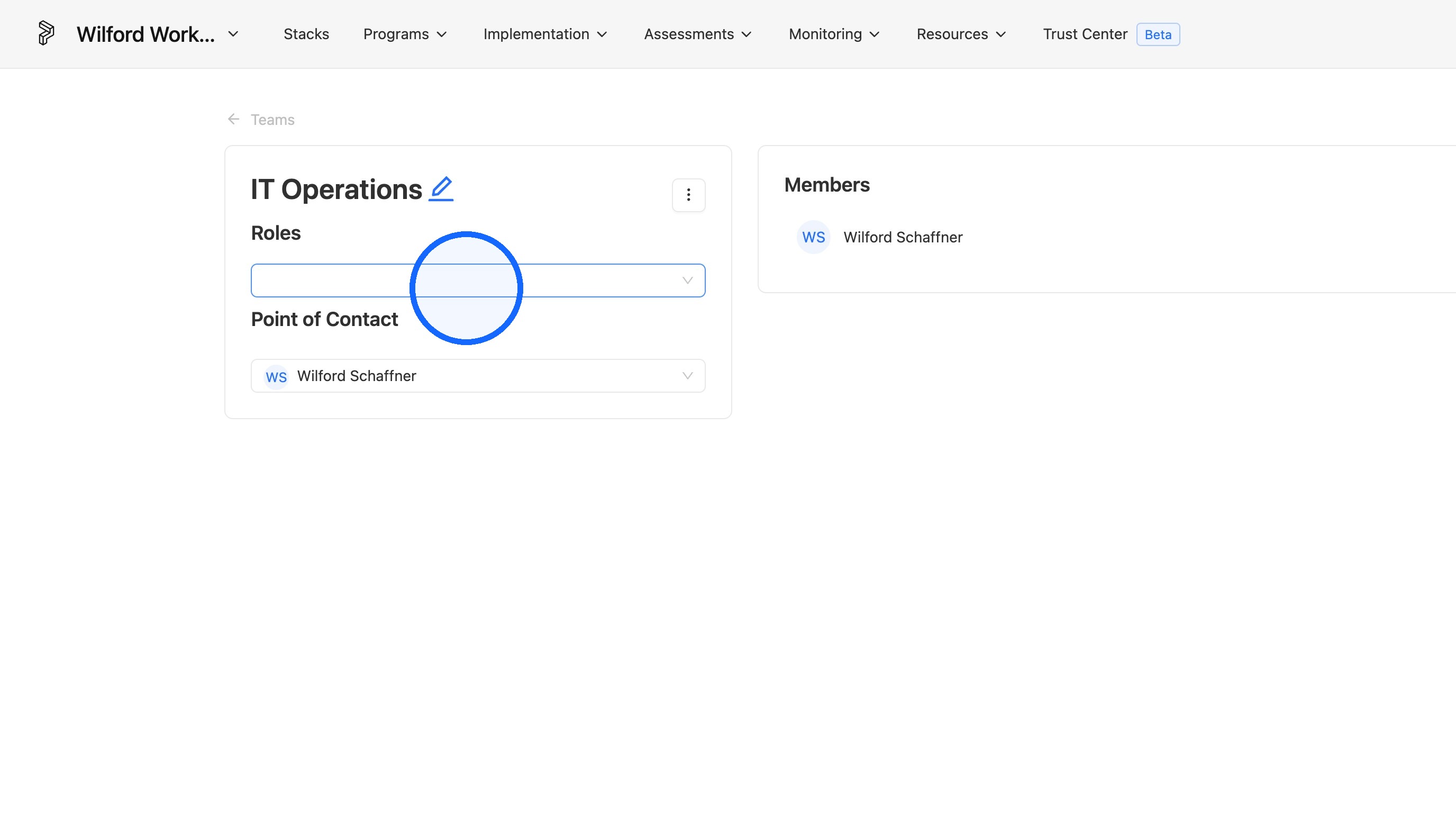
2. Open the Roles dropdown
Open the Roles dropdown on the team page.
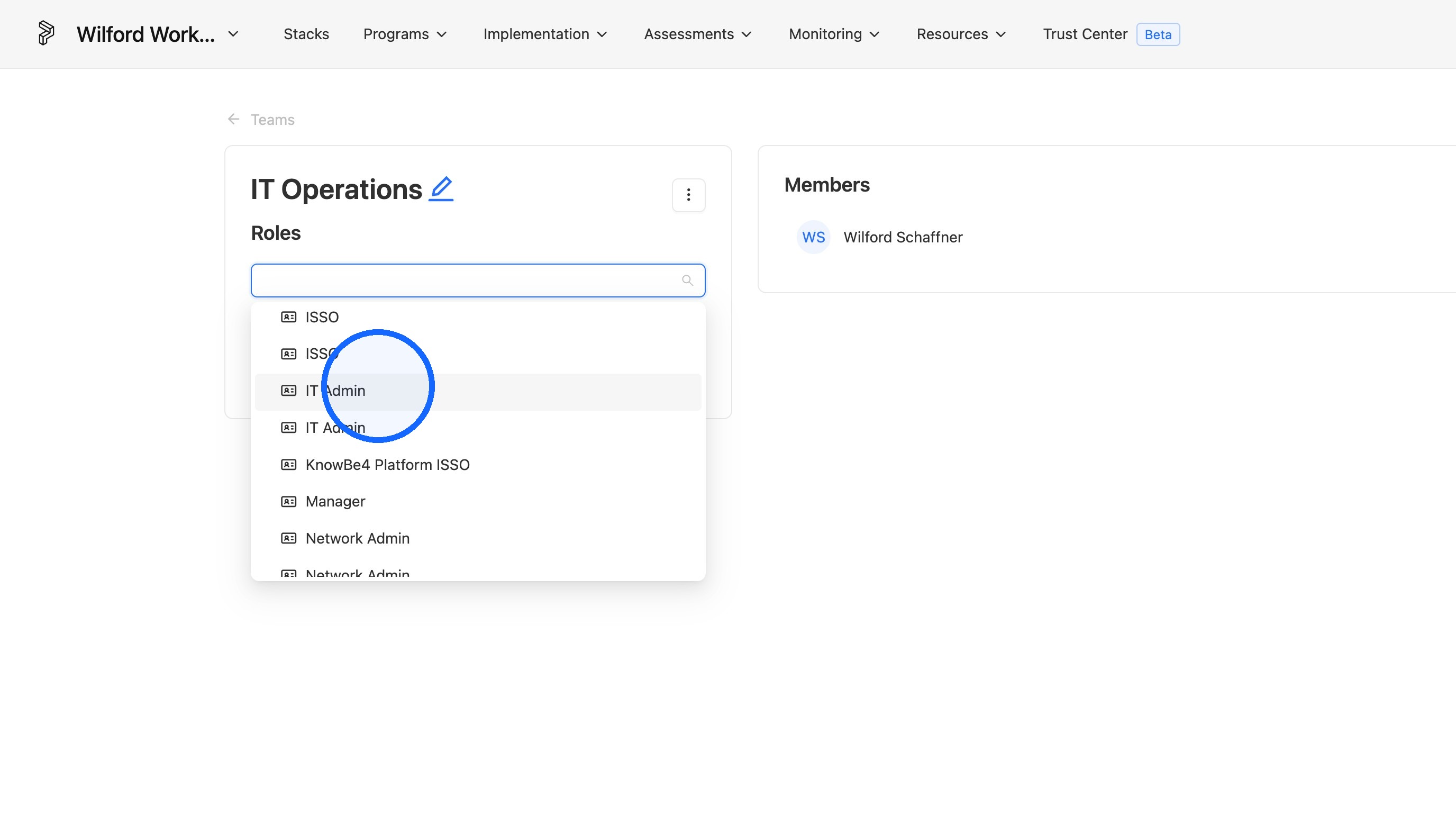
3. Assign roles to the team
Select the roles this team will be responsible for.
TIP
When you assign roles to a team, every user on that team inherits those roles. Only Role type elements are assignable here. Learn more in Users and Teams.
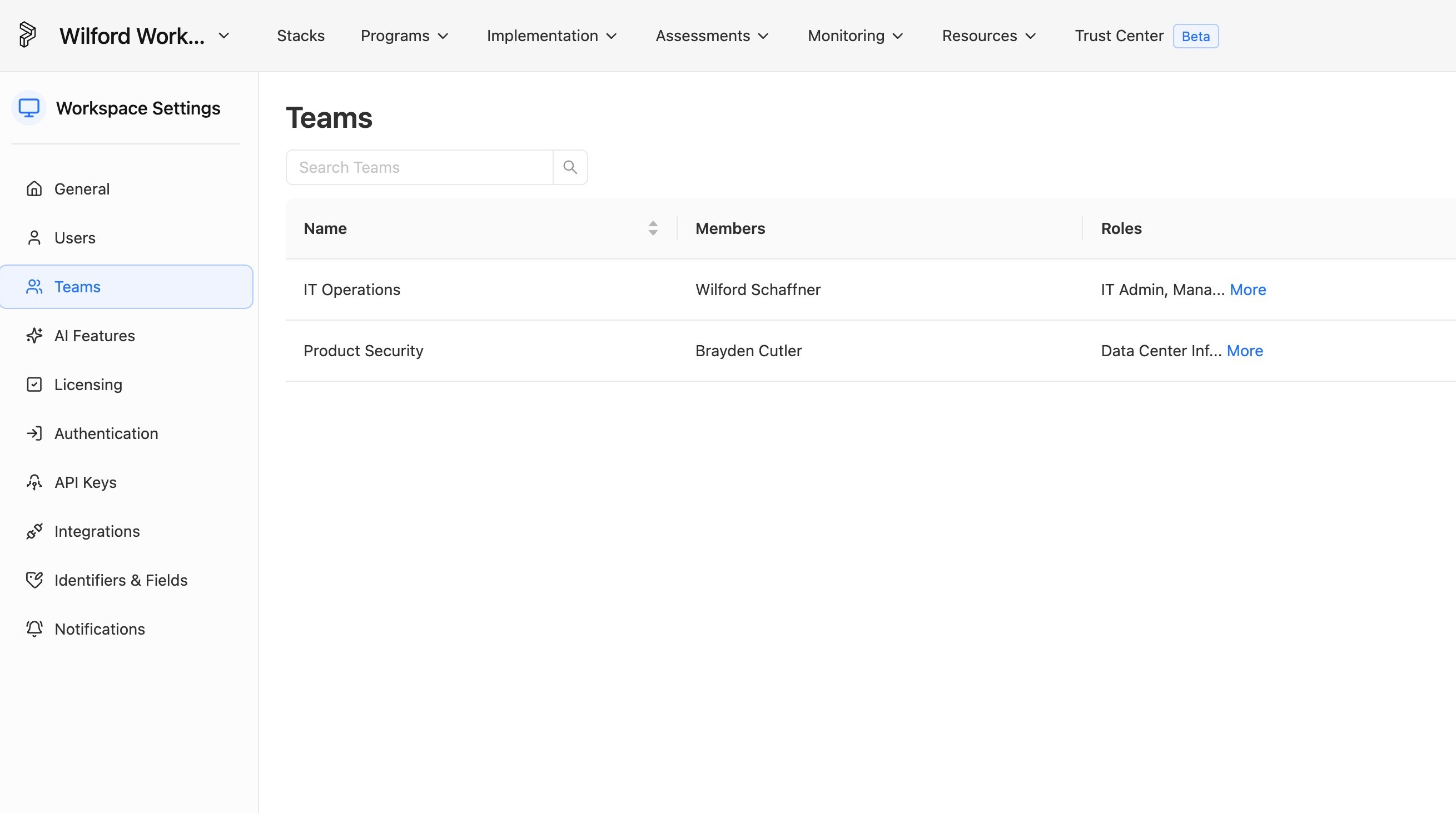
View or edit teams
Once you've added your teams, view or edit them anytime from the Teams page.
Comments
0 comments
Please sign in to leave a comment.