
In order to accurately assess the security posture of Saas products, government agencies must review security packages. This can be done though Paramify with the following walkthrough. All references are accurate as of Feb 18, 2026, and workflows or user views may change slightly.
1. Website Access
Navigate to app.paramify.com and login.
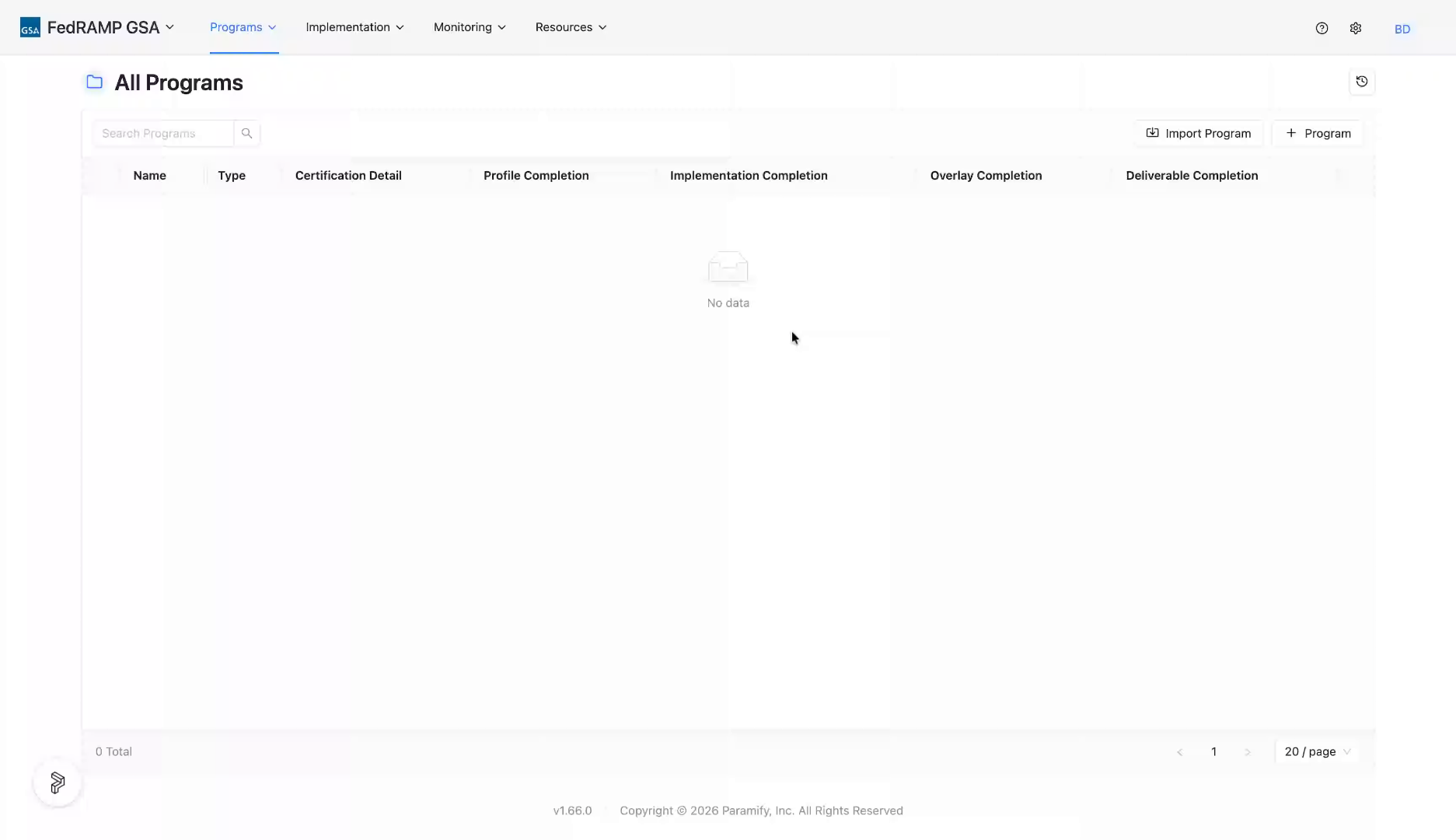
2. Select FedRAMP GSA Program
You will be added to a default home workspace. Select the FedRAMP GSA program to view what other workspaces you have access to.
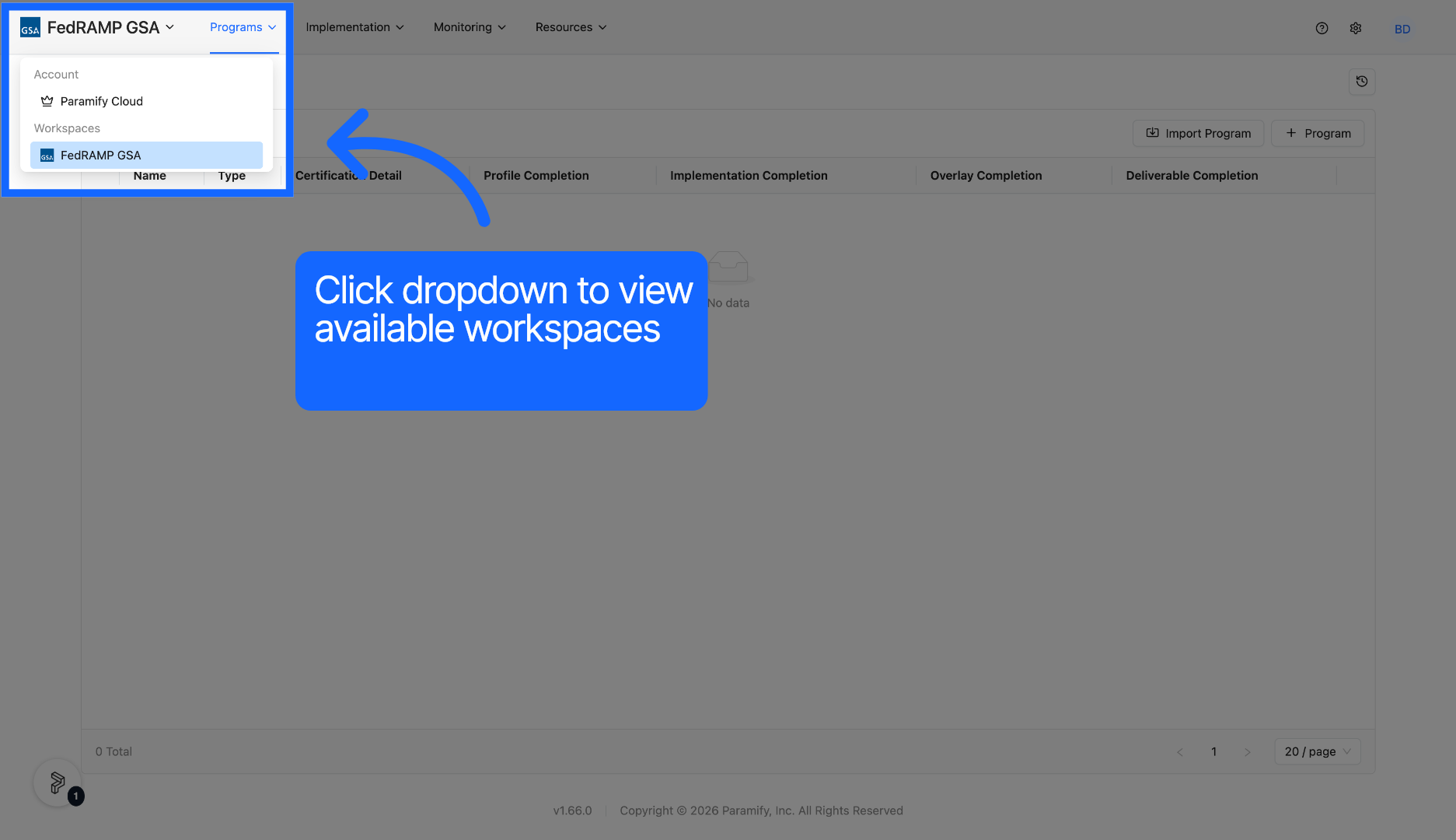
3. Open Workspace Settings
Open the workspace settings to manage general configurations and user permissions within the agency workspace.
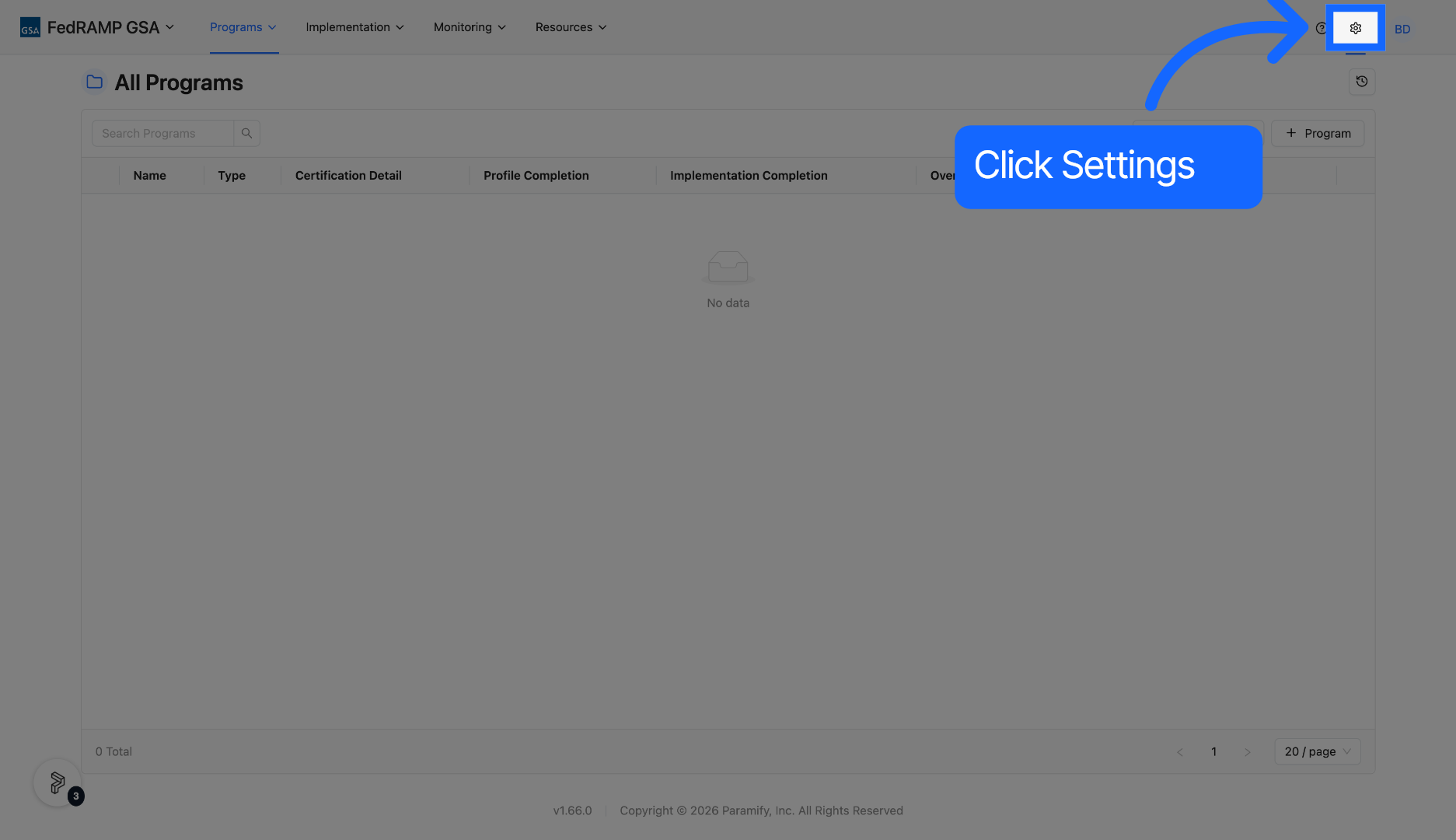
4. Navigate to Users Section
Navigate to the Users section where you can manage user accounts and access rights.
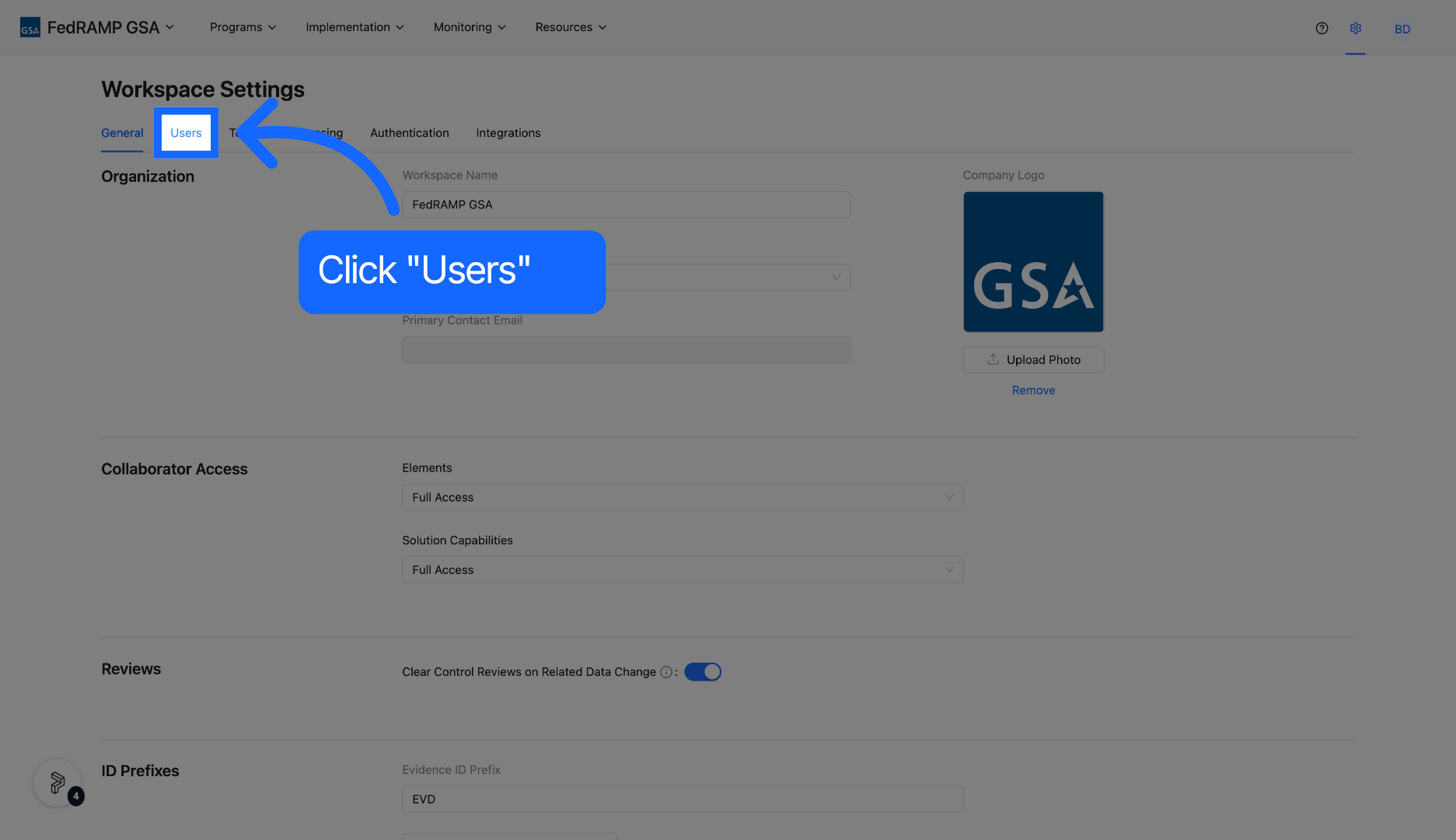
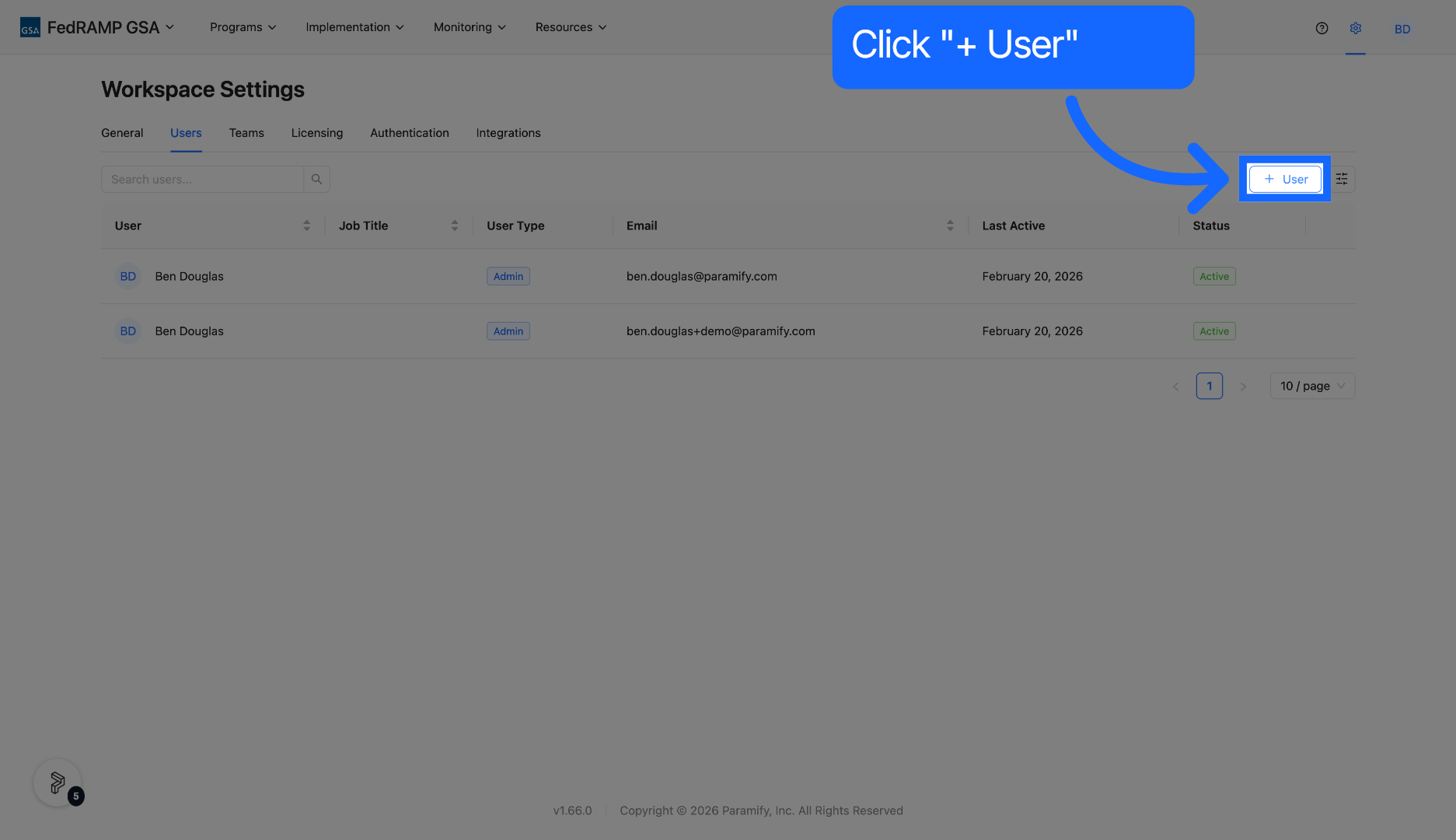
5. Access User Management
Click "+ user" to begin the process of adding as user.
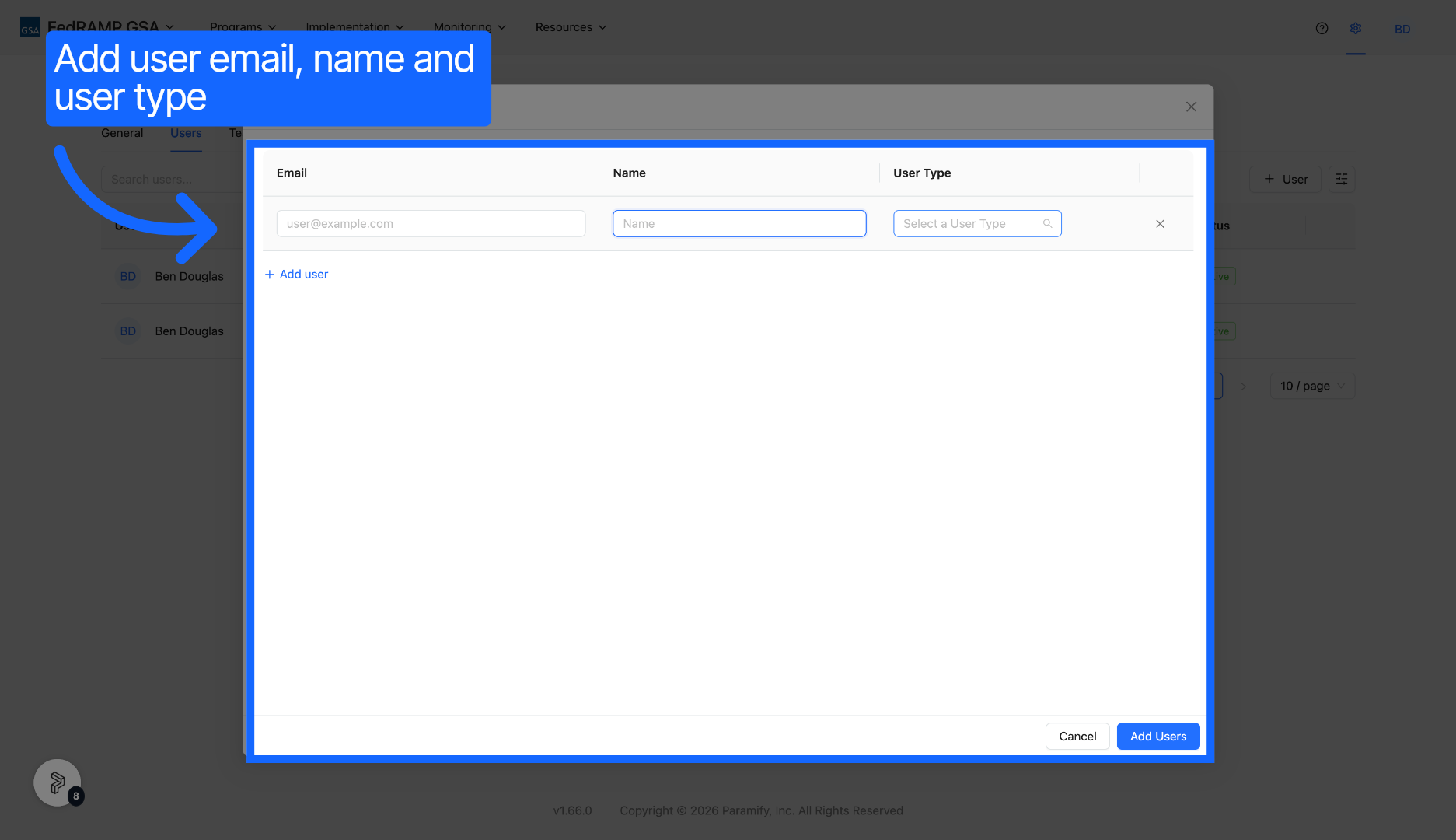
6. Open User Type Options
Open the user type dropdown to assign a user's email, name and user type within the workspace.
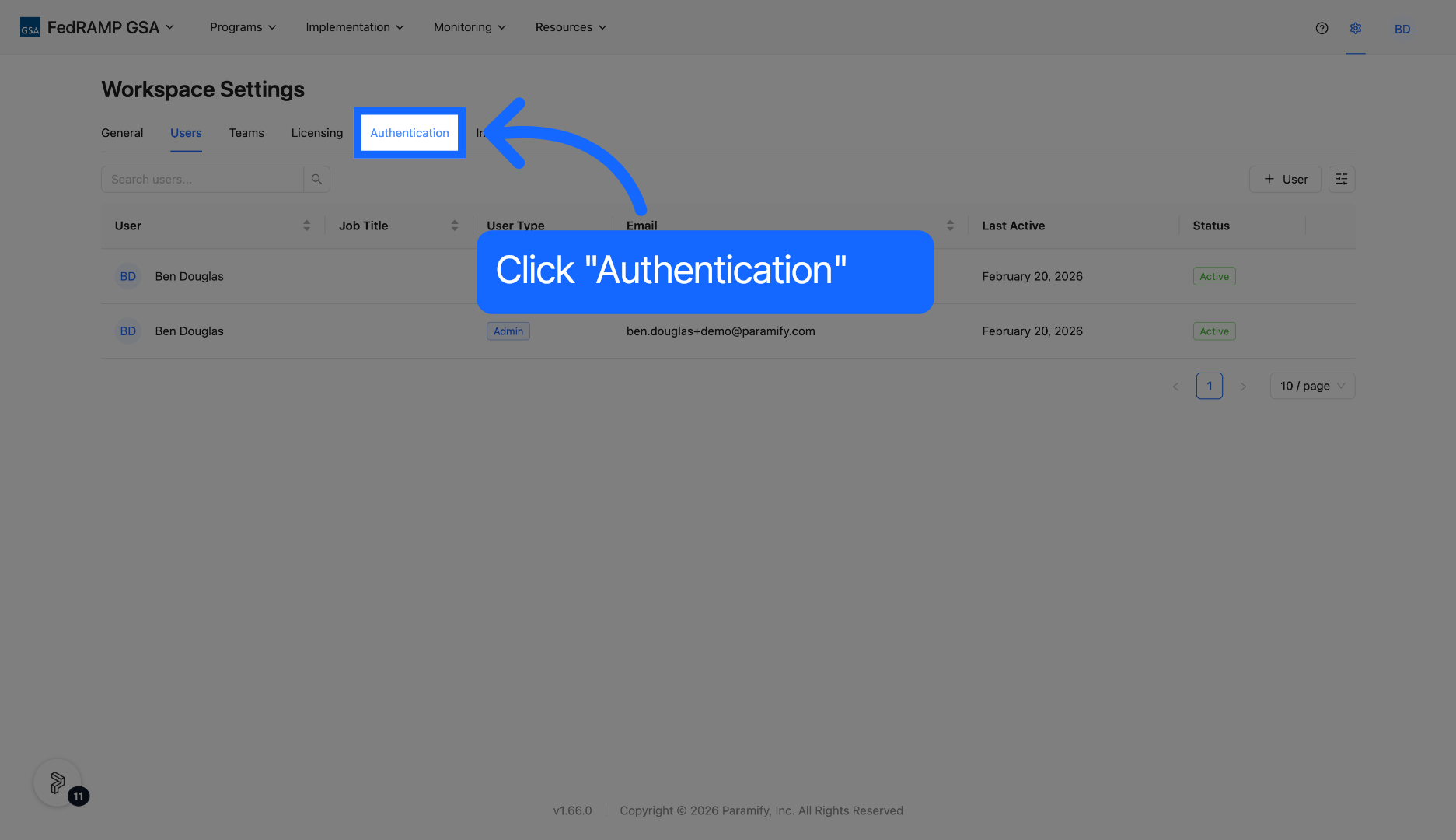
7. Access Authentication Settings
Access the authentication settings to configure login methods and security options for the workspace.
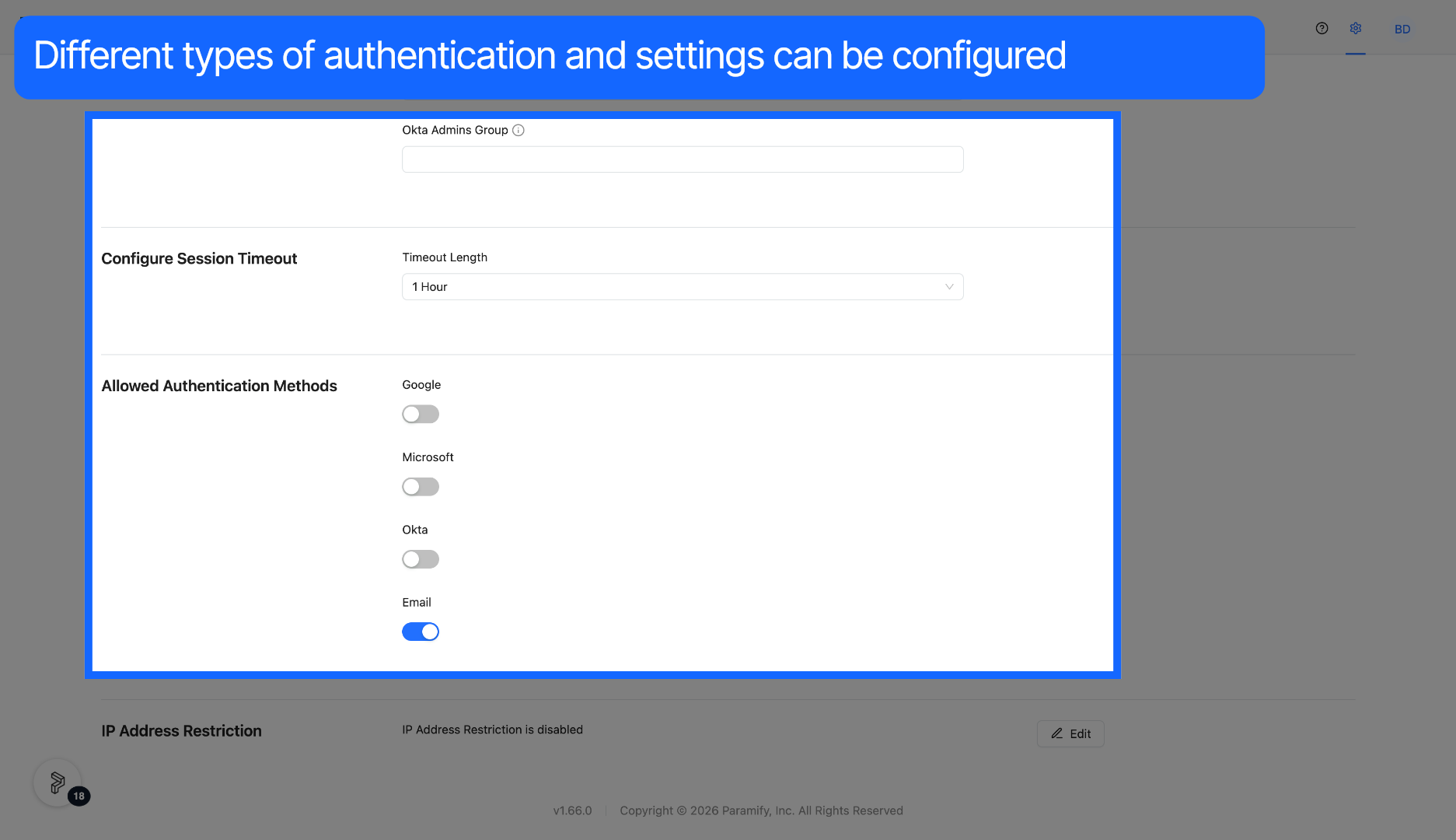
8. Check Authentication Methods
Multiple authentication types are available and can be changed at any time.
9. Workspace View
Once in a desired workspace, you will see all programs for that given workspace.
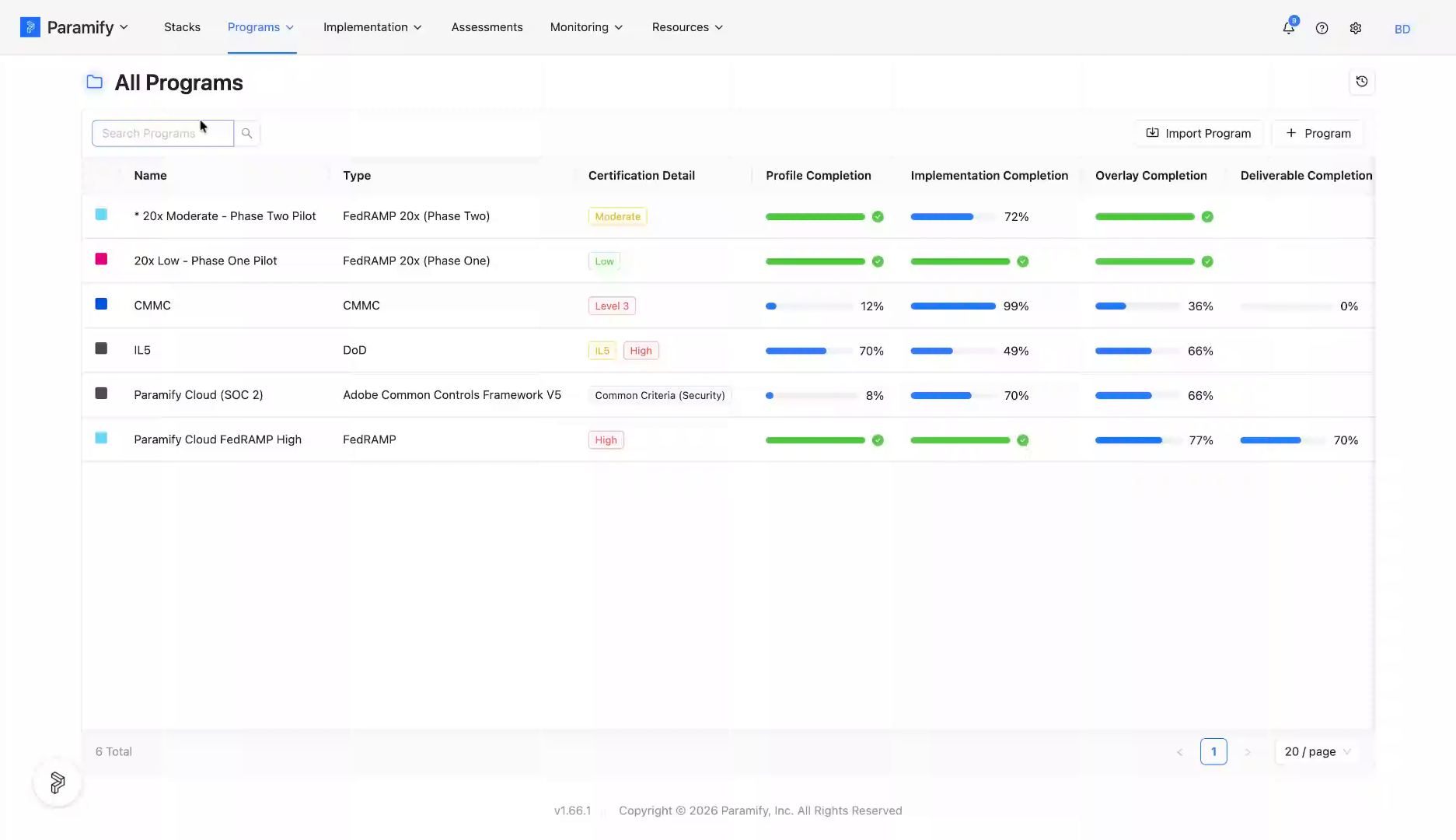
10. Select Assessments Section
Click the Assessments tab to access the list of assessments in the Paramify platform.
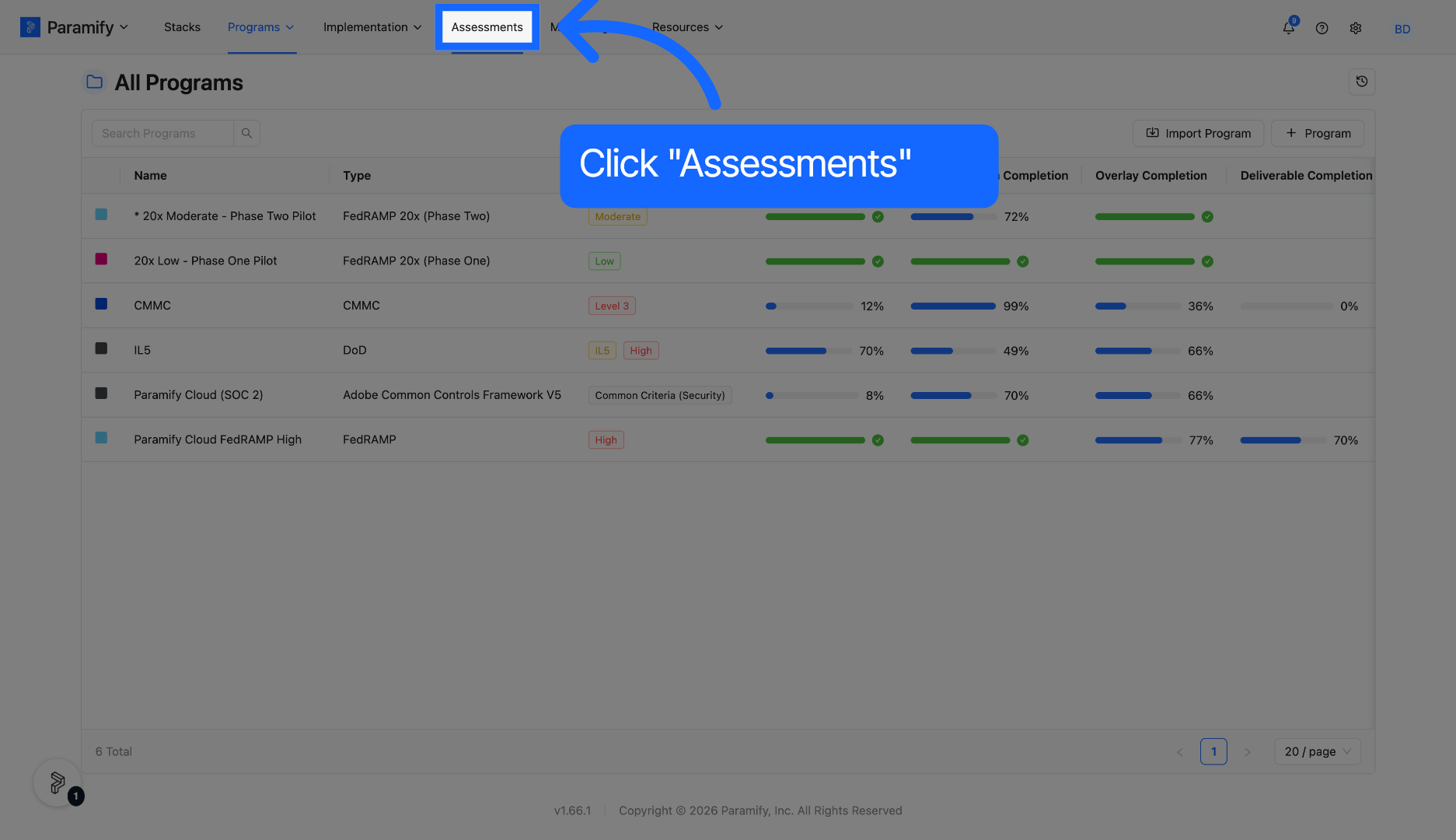
11. Access Audit Assessment
Select a desired audit assessment to begin reviewing the package.
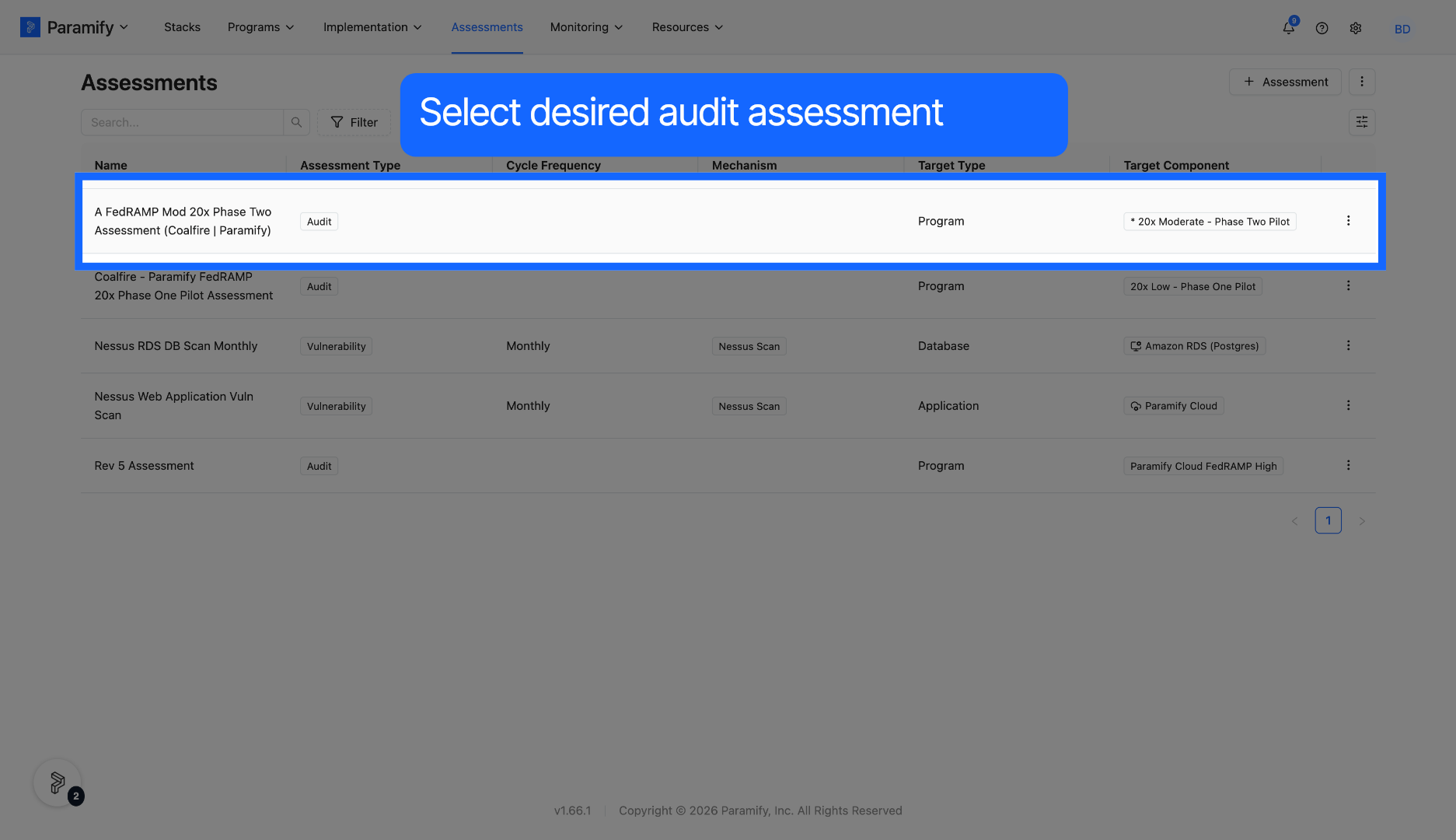
12. Open Assessment
The landing page for the audit assessment will begin with 0% assessment status. The Independent Assessor will have already assessed the package and the assessment status pertains to what percentage an agency has reviewed.
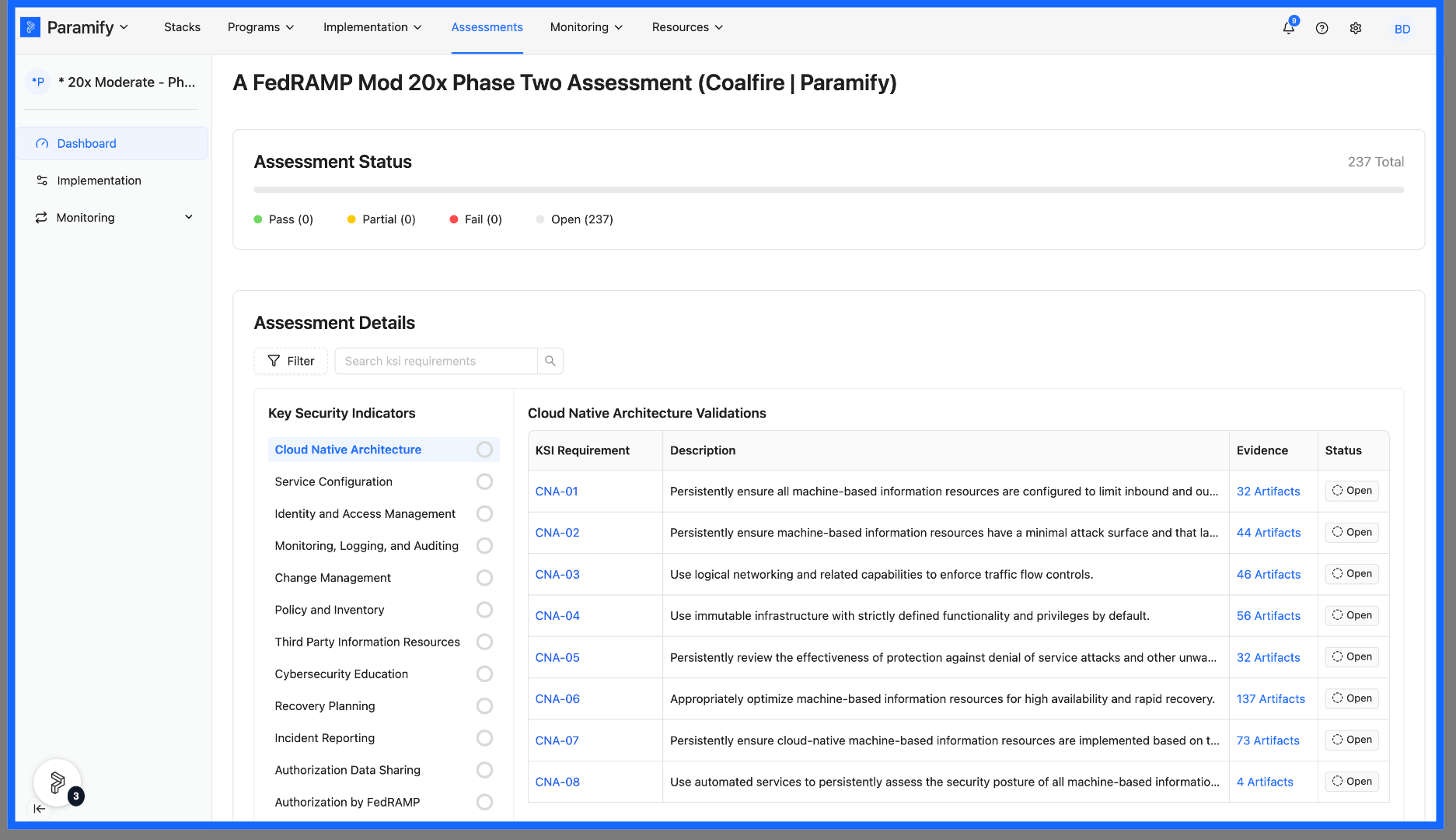
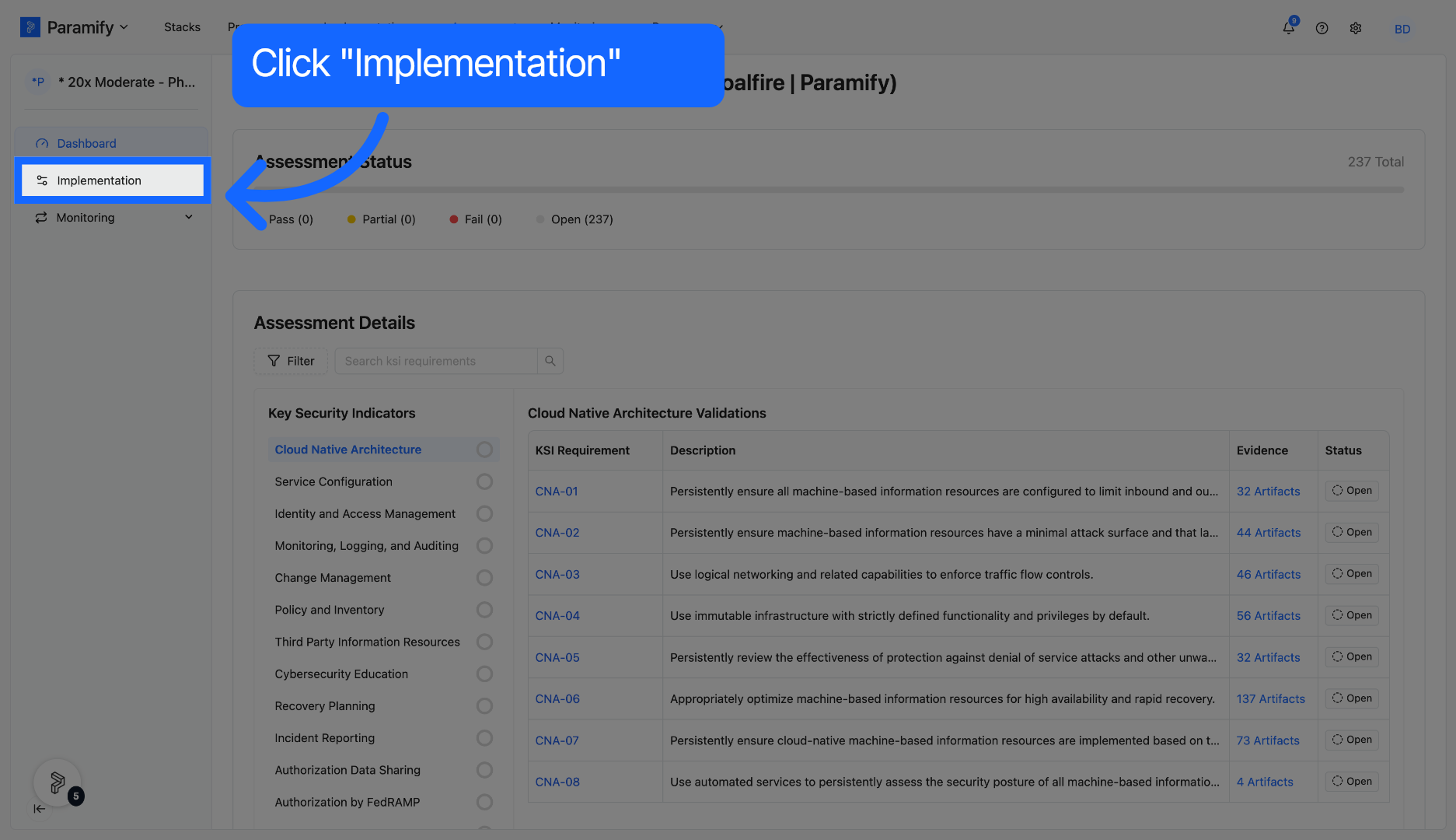
13. Select Implementation Tab
Click the Implementation tab to view KSI information
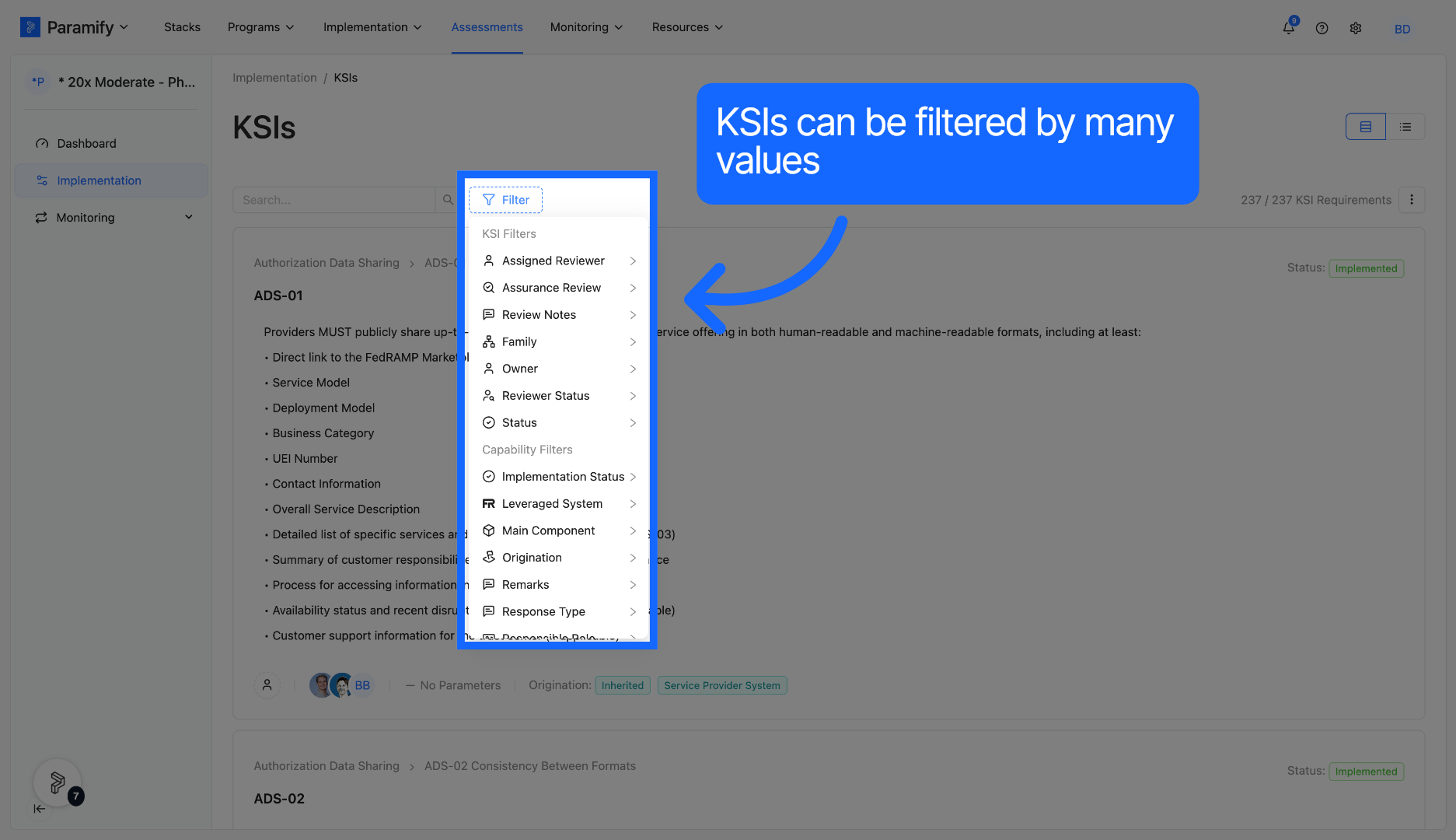
14. Options for filtering
KSIs can be searched for via a search bar, or filtered based on a variety of values.
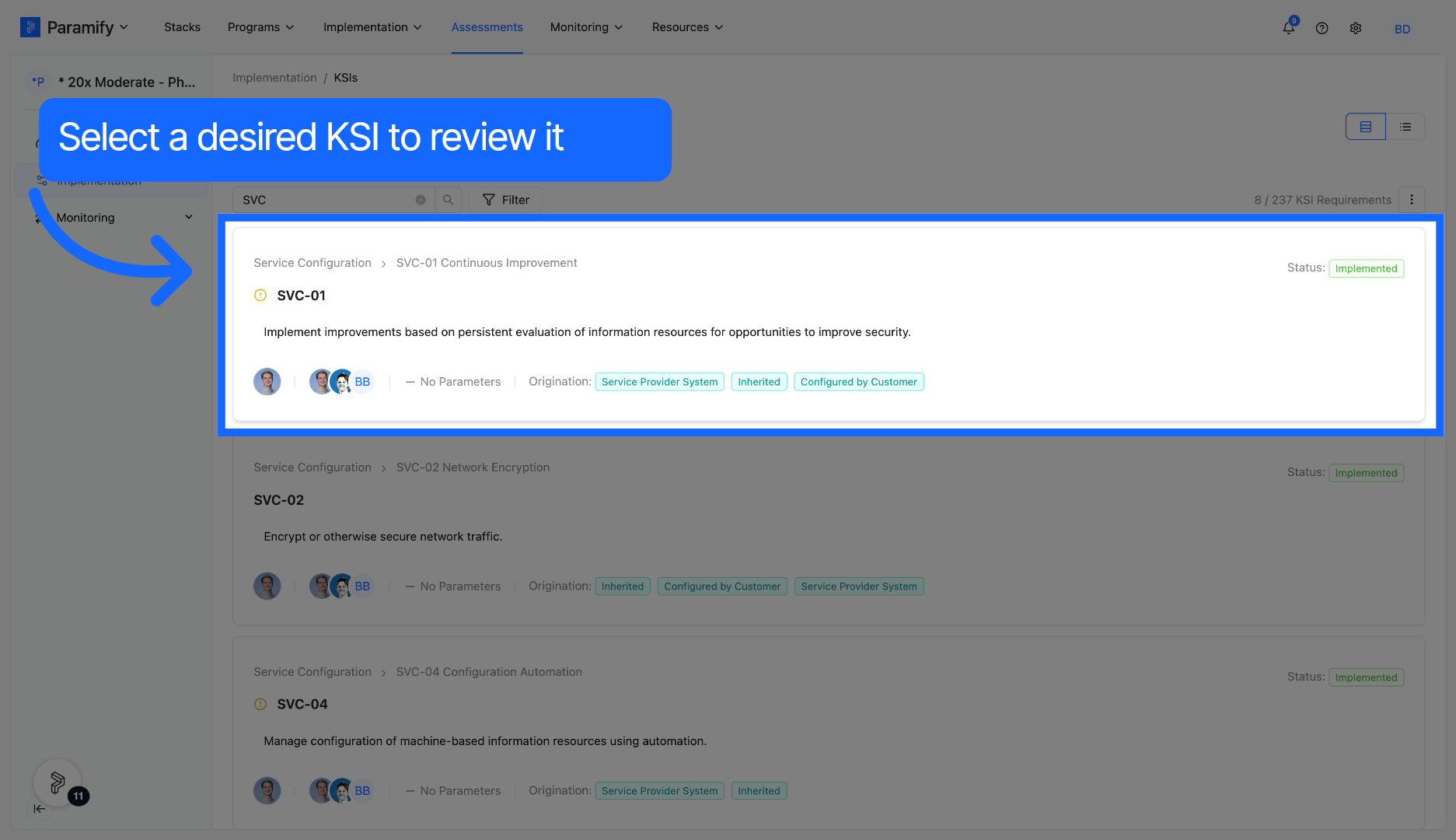
15. Select KSI
Select a KSI to review more details associated with it.
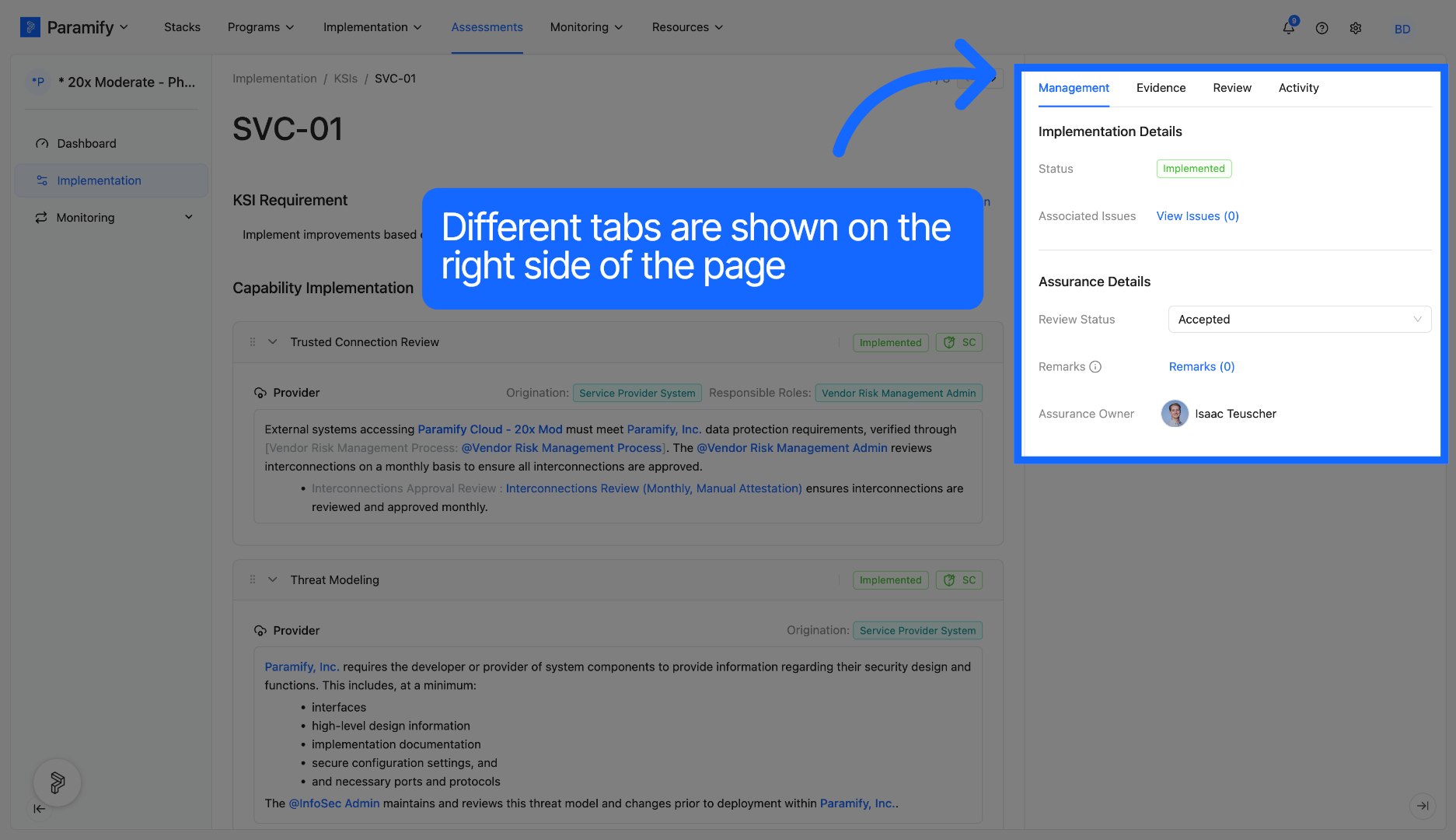
16. View KSI Details
Management, evidence, review, and activity details are available on the right side of the page.
17. Additional KSI information
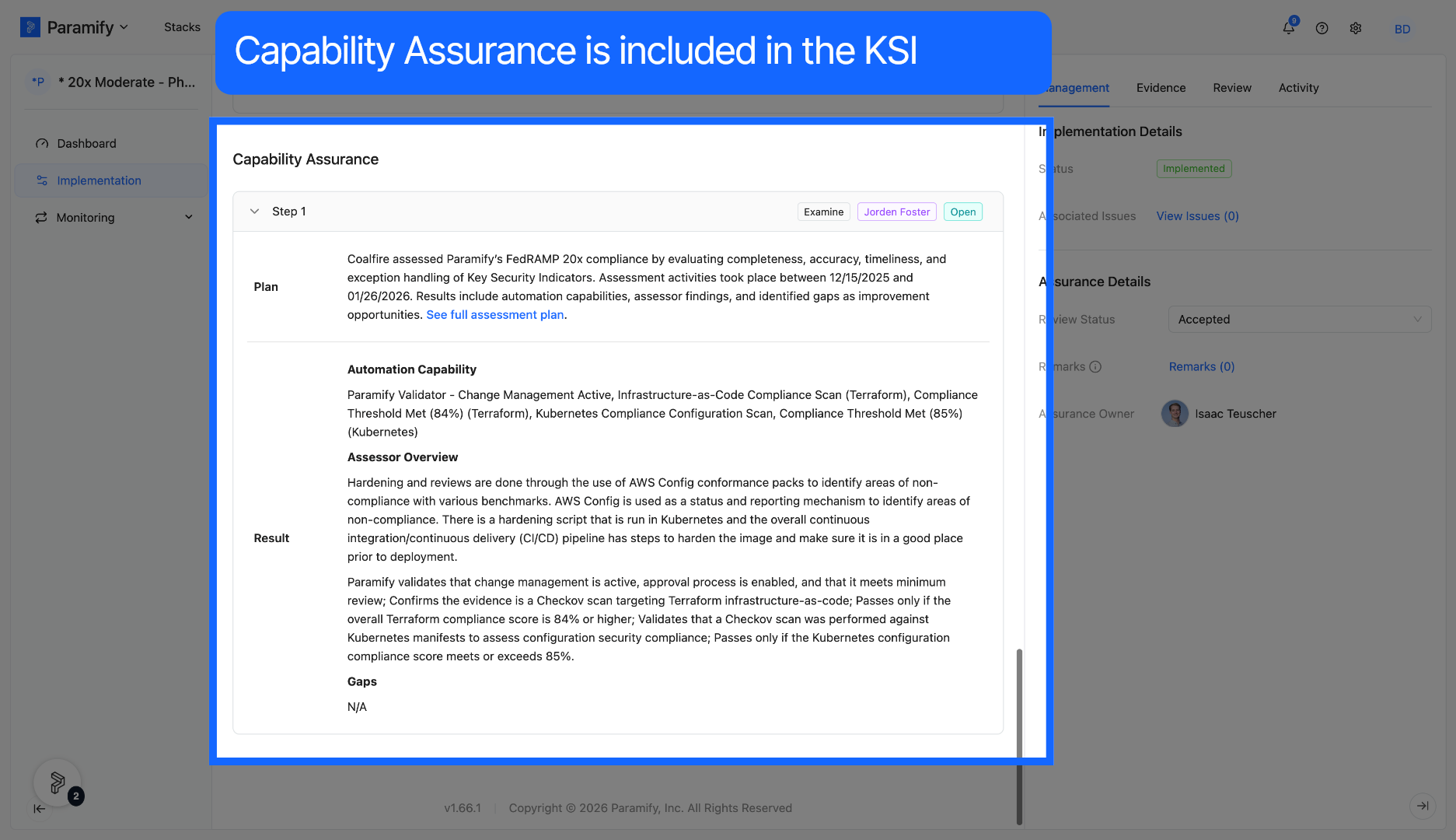
KSIs also include capability assurance information from the Independent Assessor, including any gaps identified.
18. KSI Information Continued
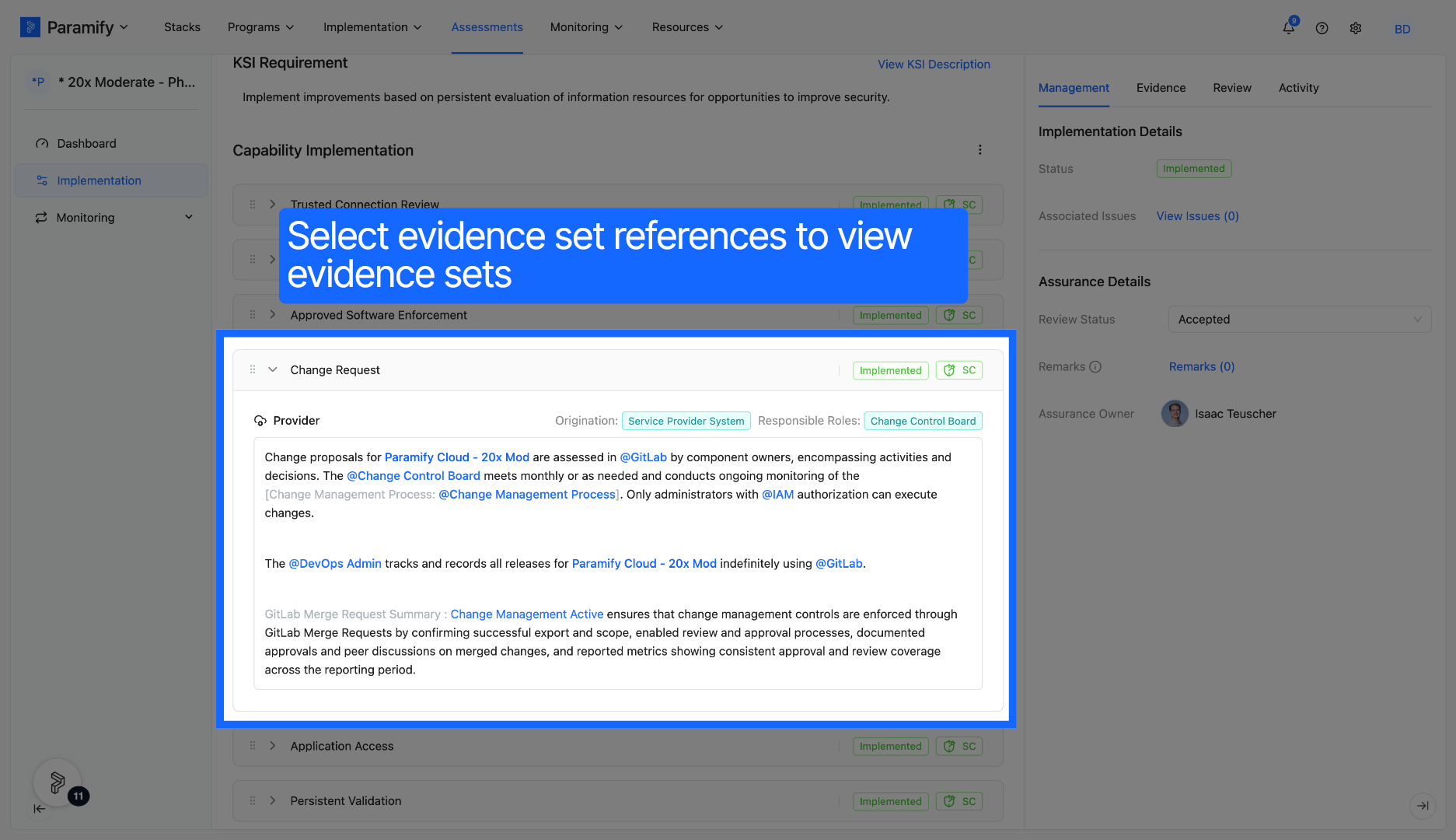
KSIs contain solution capabilities, which outline evidence sets. Evidence sets can be clicked on to view more details.
19. View Evidence Set Artifacts
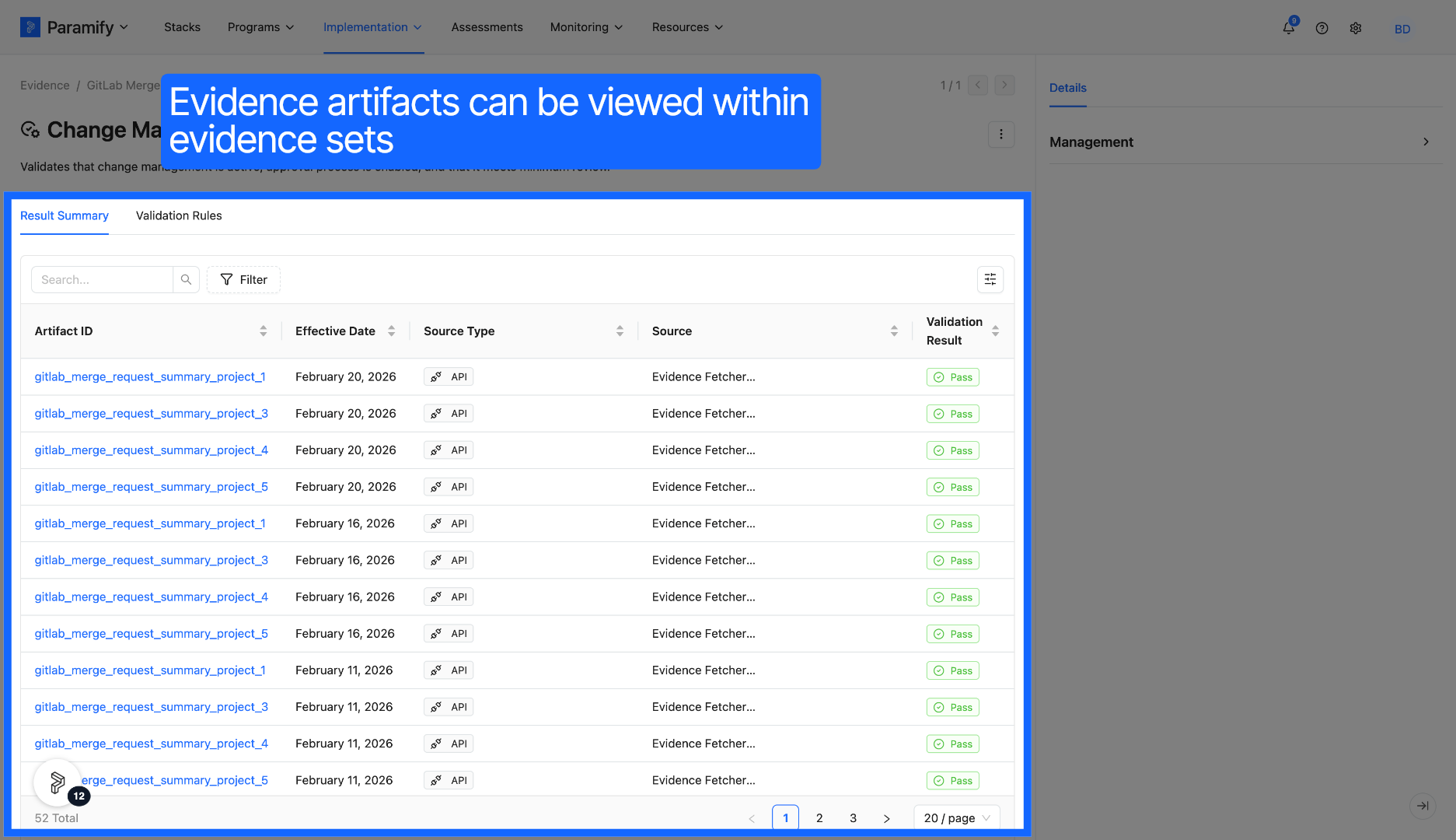
Evidence sets display a list of evidence artifacts that have been ingested into the app on a given cycle (3 days, once per quarter, etc). Evidence artifacts can be automatically validated on ingestion into Paramify.
20. Evidence Artifact Validation
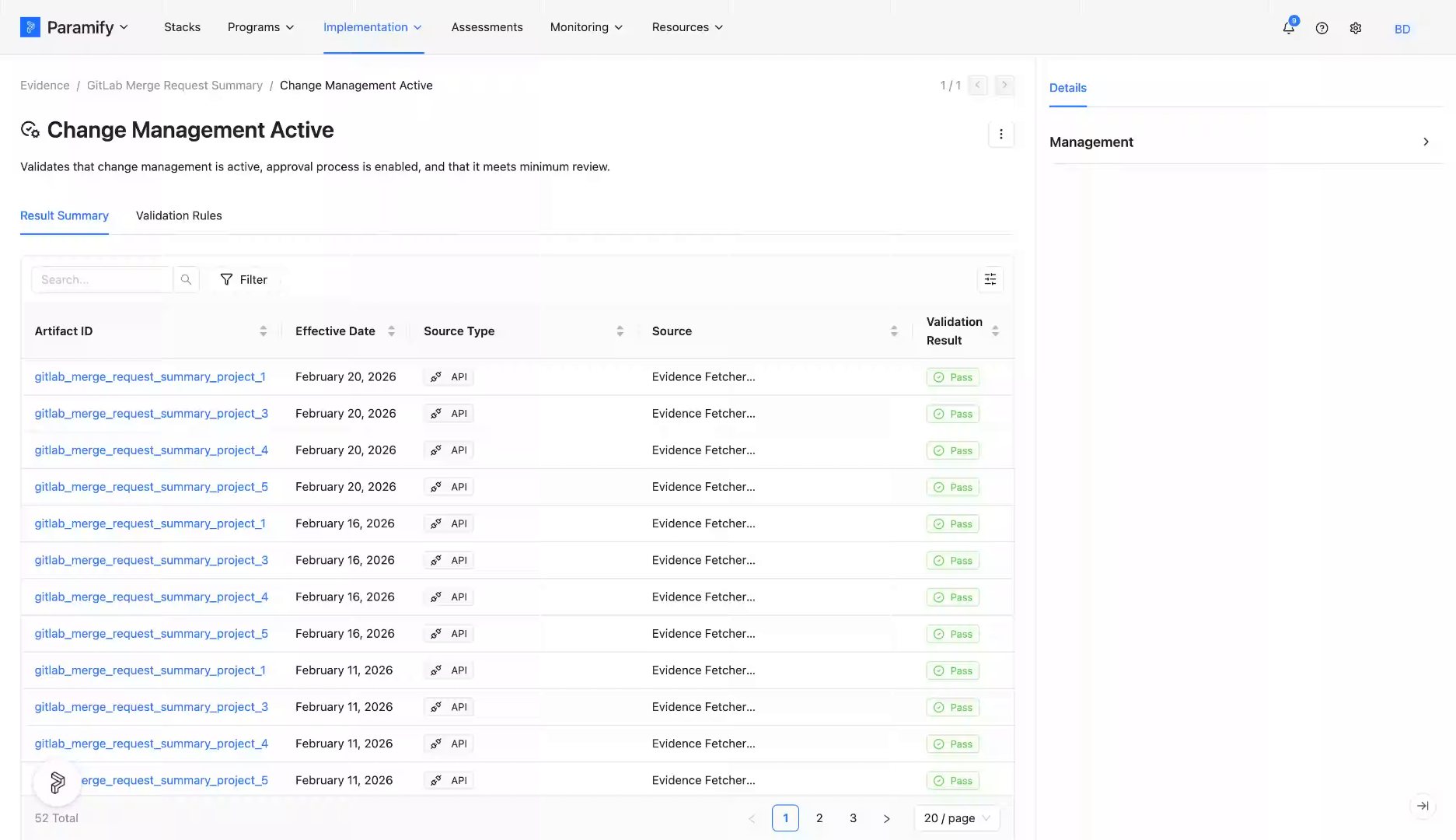
To learn more about evidence artifact validation, click on a desired artifact.
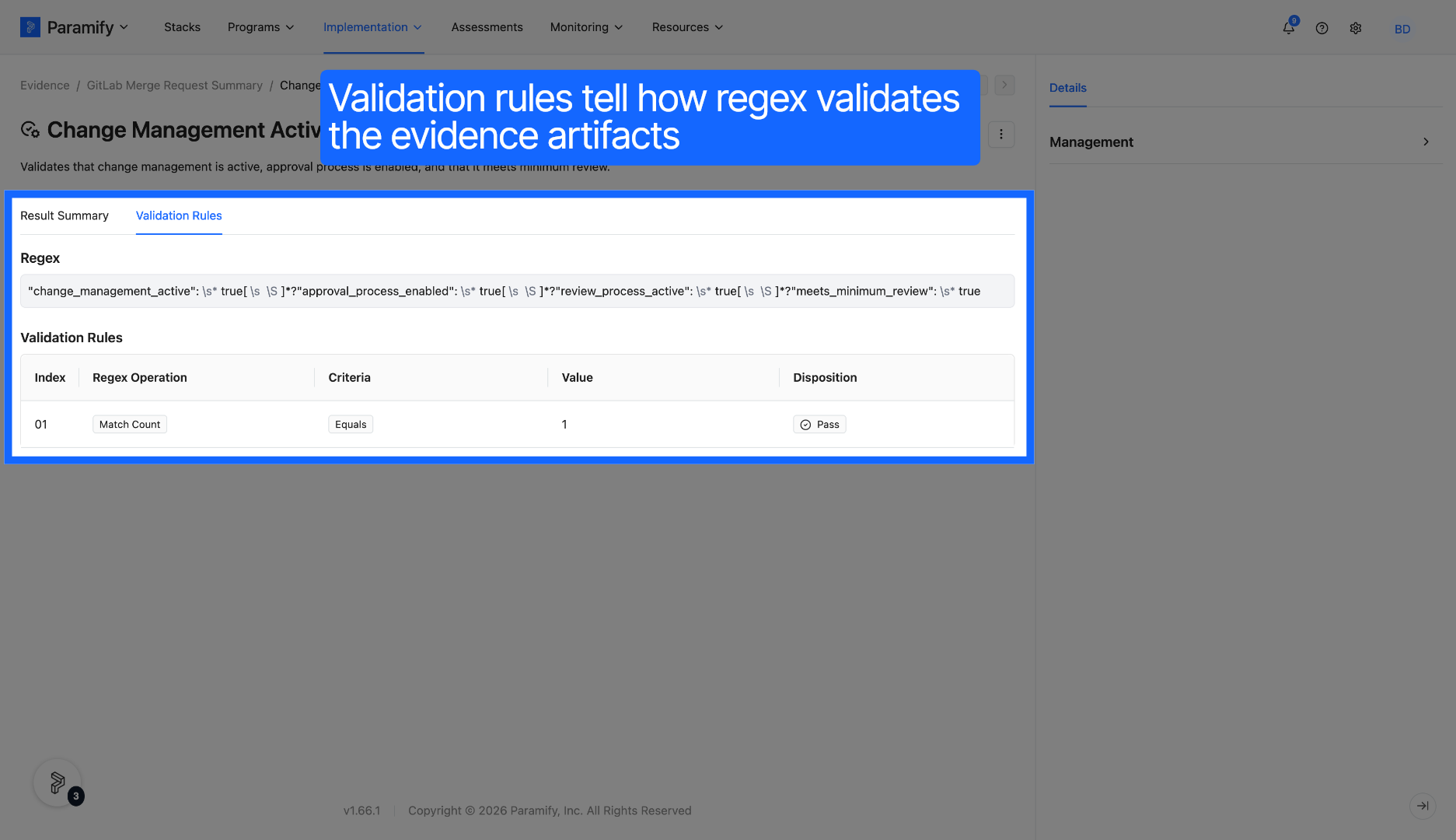
21. Validation rules
Validation rules explain how regular expressions validate the imported evidence artifacts. The Rules also outline what constitutes a pass or a fail in the artifact.
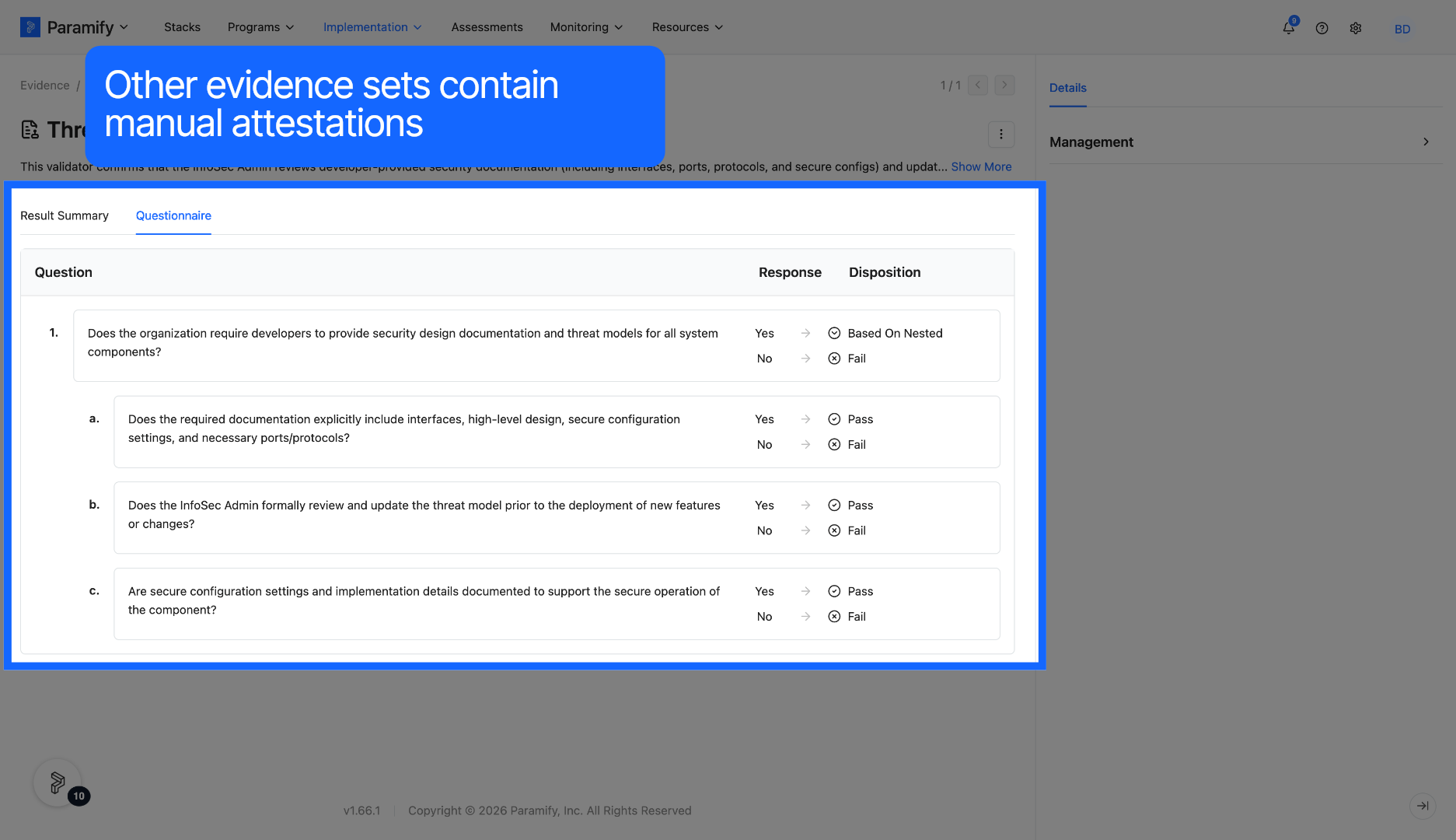
22. Other Types of Validation
Some evidence artifacts are manually validated instead of automatically validated. These artifacts will include a questionnaire that is answered quarterly to ensure compliance.
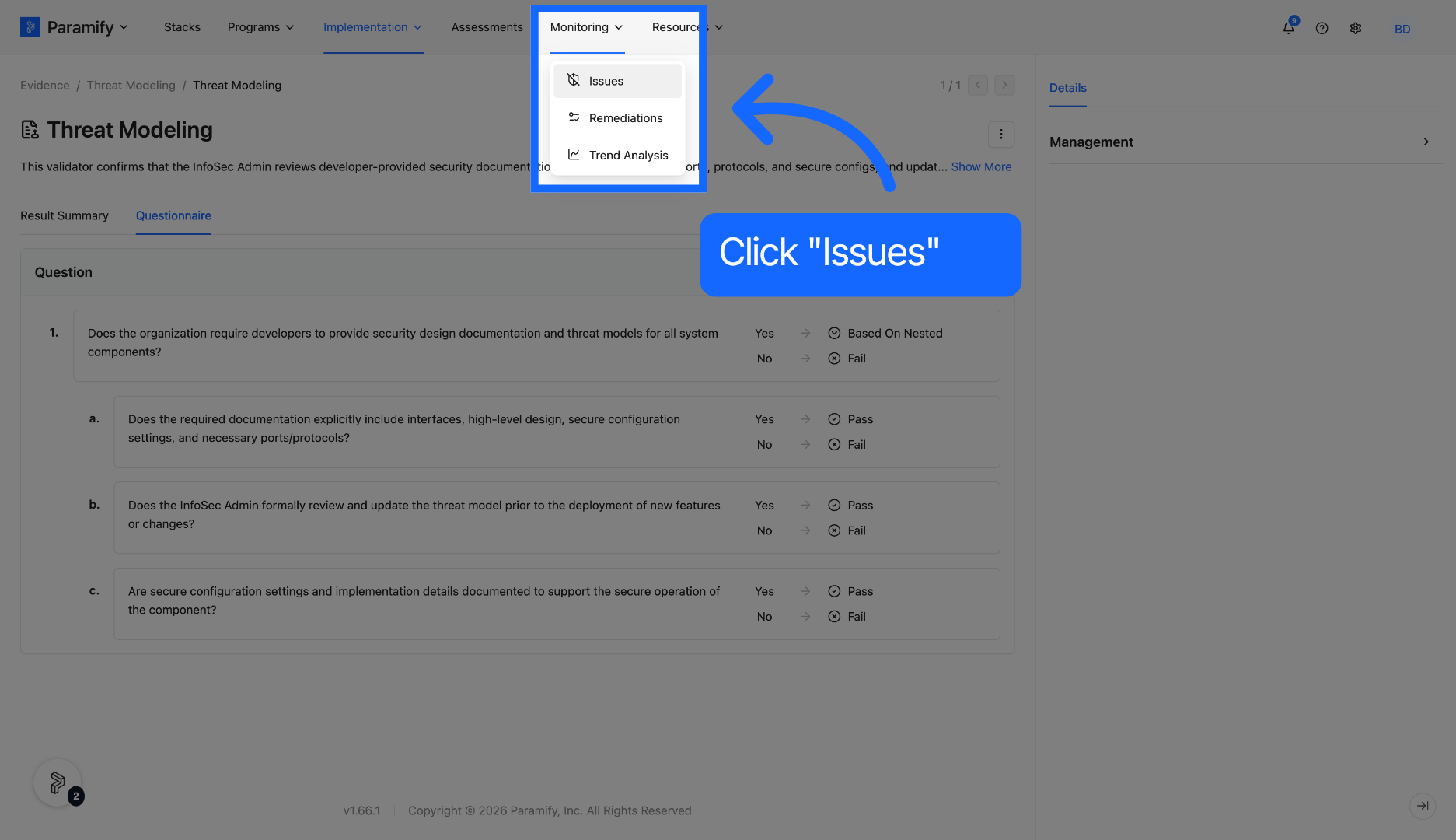
23. Open Issues Tab
Click the Issues tab within Monitoring to view the list of current issues detected in the package. Any validators that fail will automatically create issues.
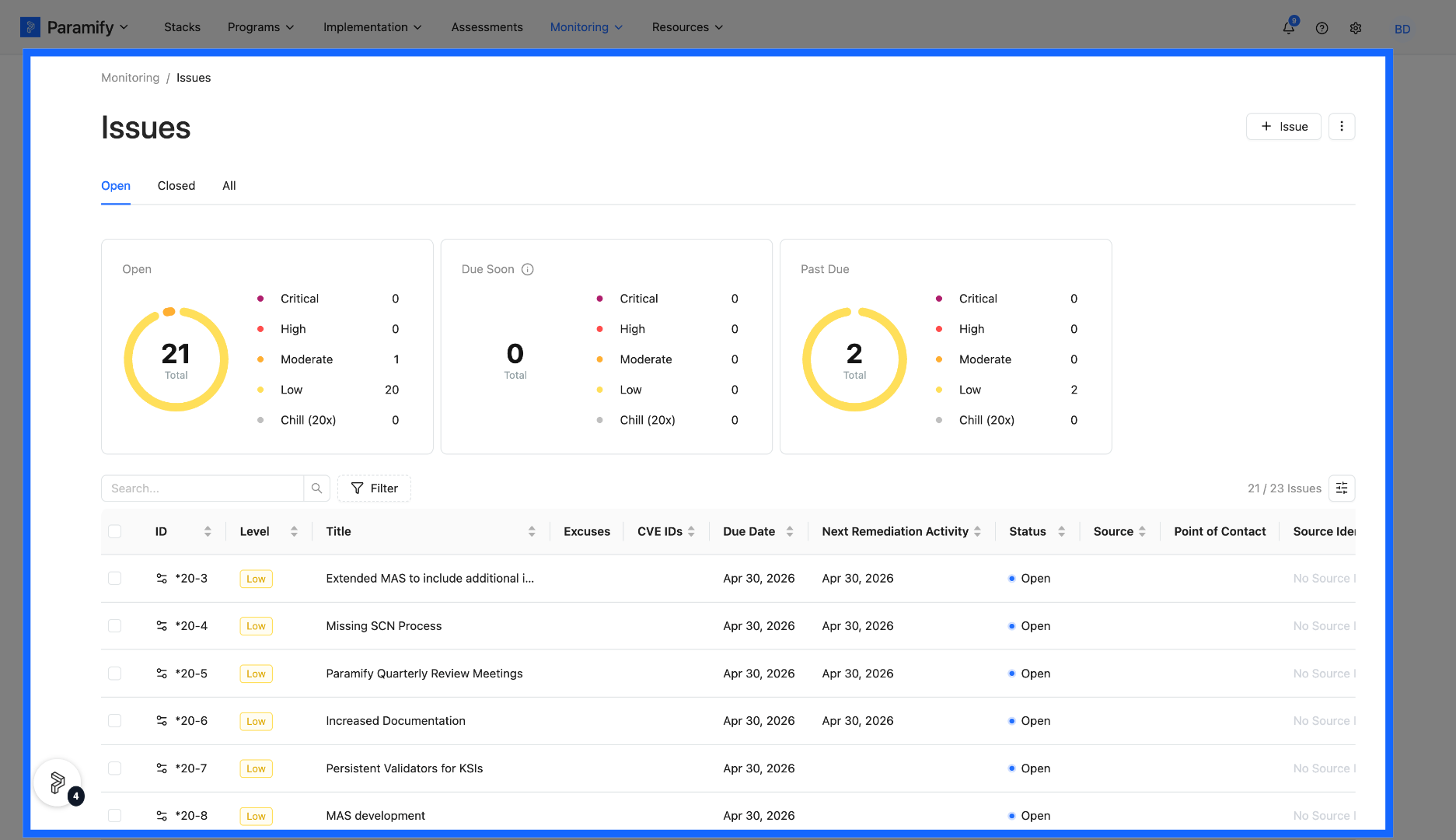
24. View Issues
Open issues, issues that are due soon, and pas due issues can be viewed.
25. Access Individual Issues
Select the individual issues to access more information about them.
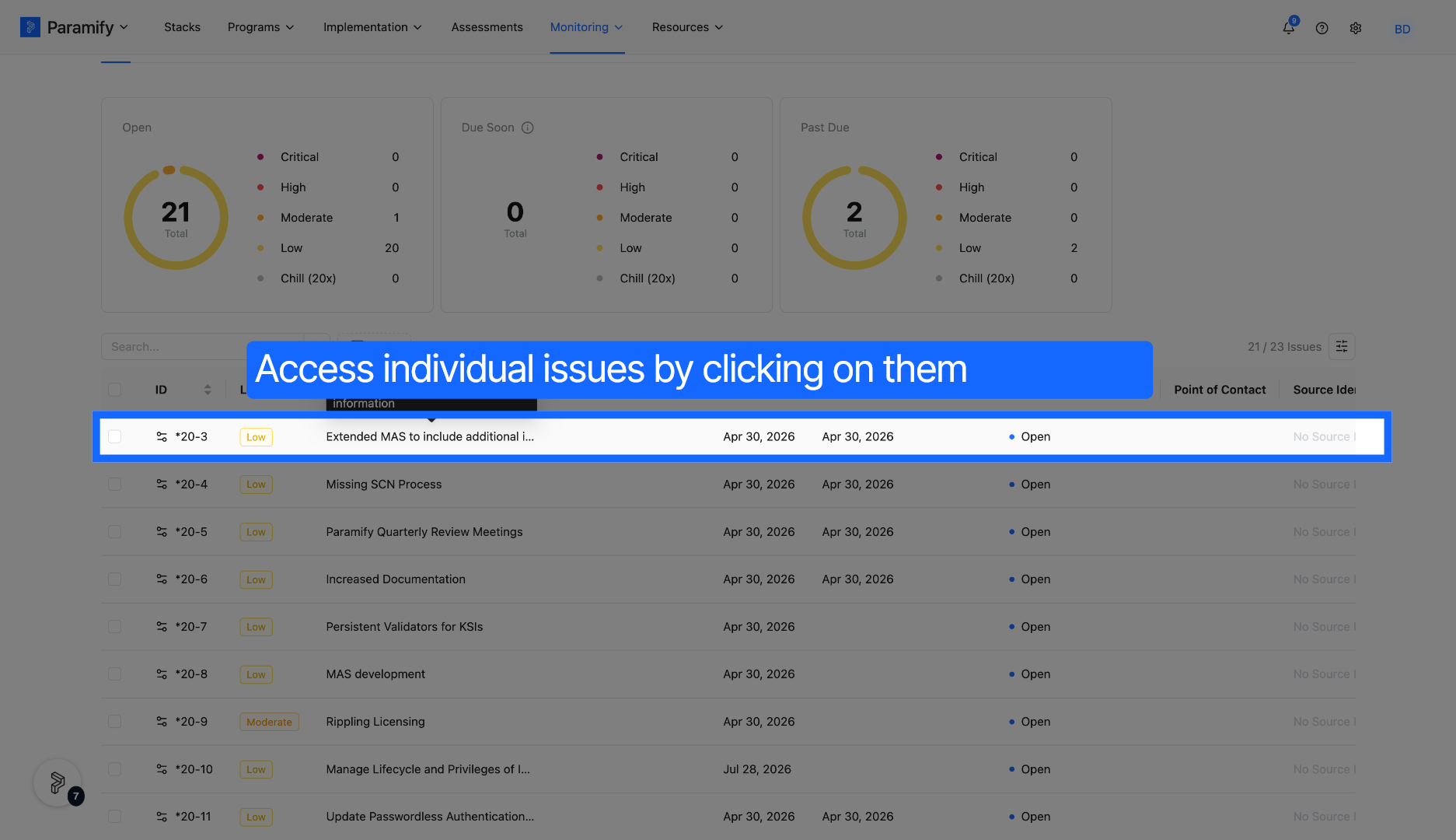
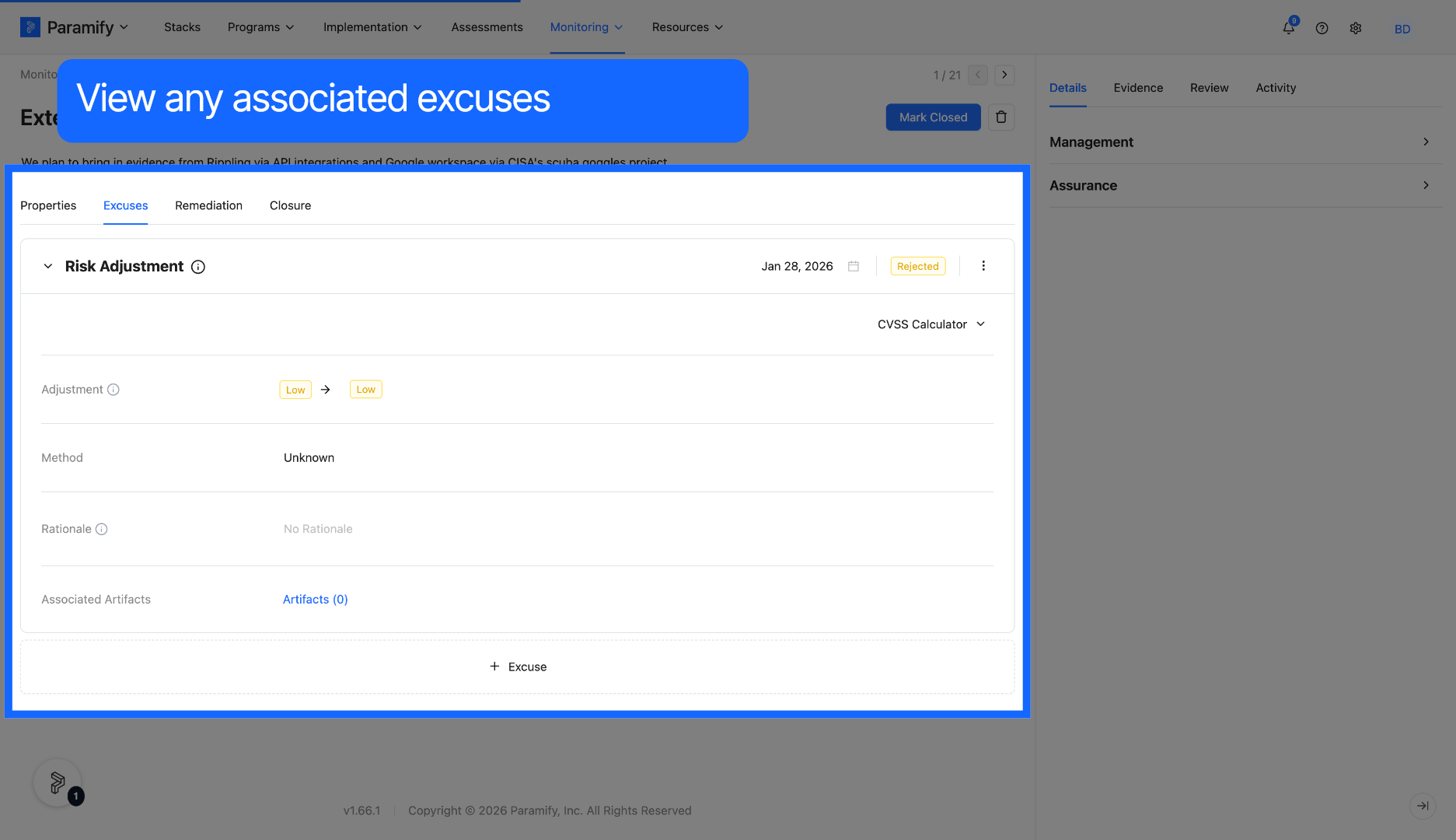
26. View Issues
View any excuses for a given issue within the Excuses tab.
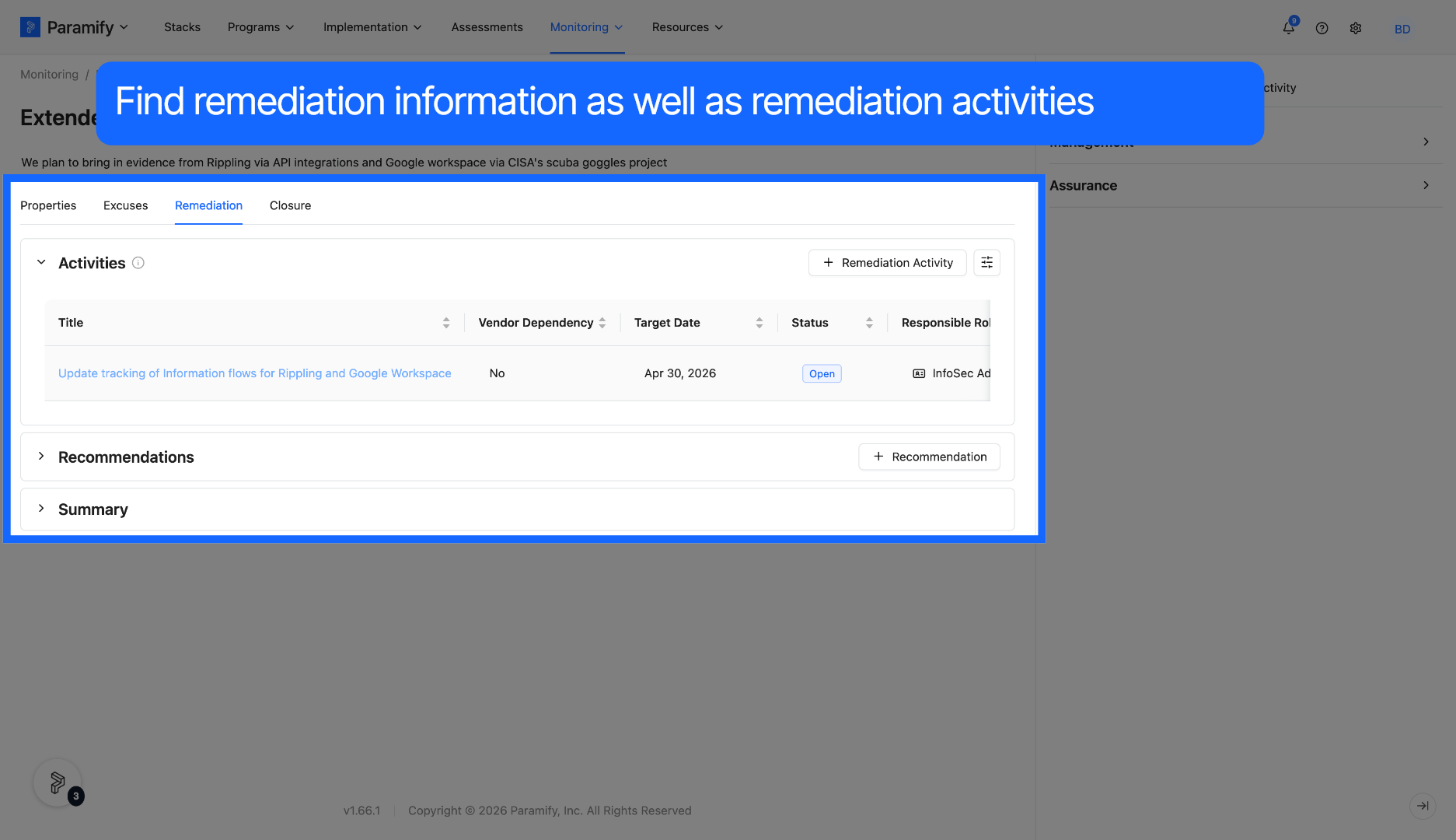
27. View Remediation
Click the remediation tab to learn more about remediation activities for the given issue.
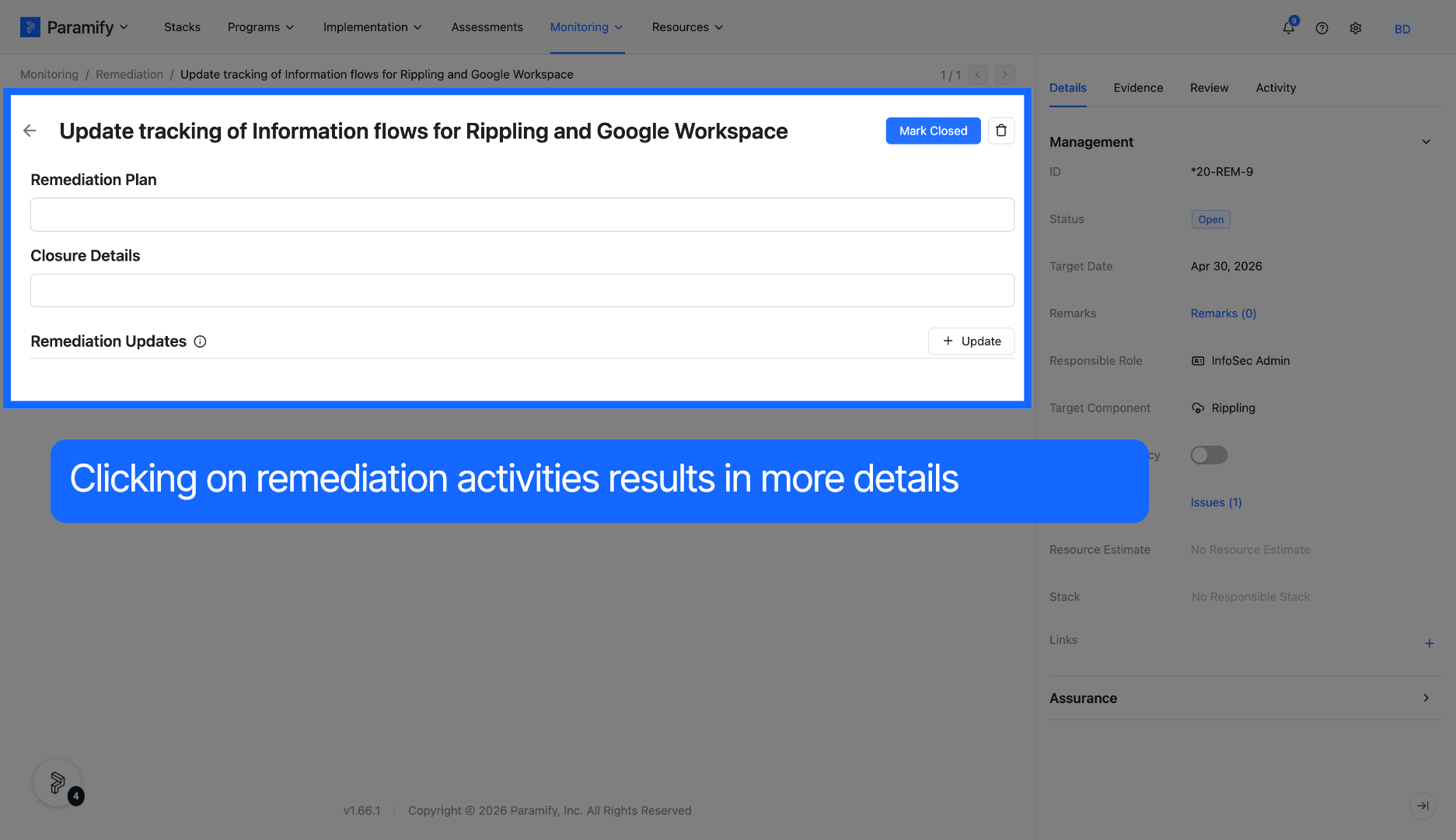
28. Access Remediation Activities
More information about the remediation activities can be found by selecting a given activity.
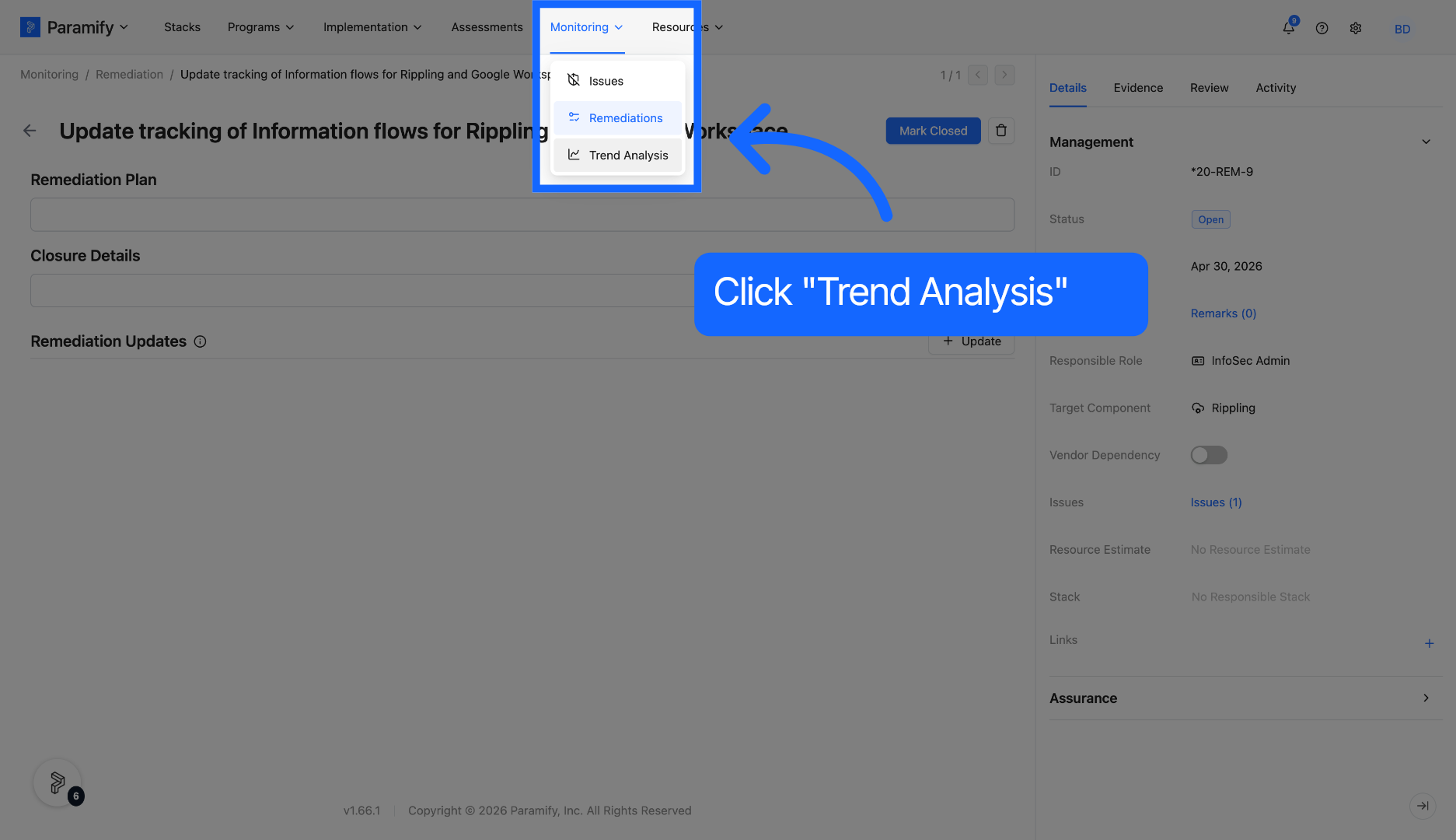
29. Open Trend Analysis
Click the Trend Analysis section to review trends and analyze issue progression over time.
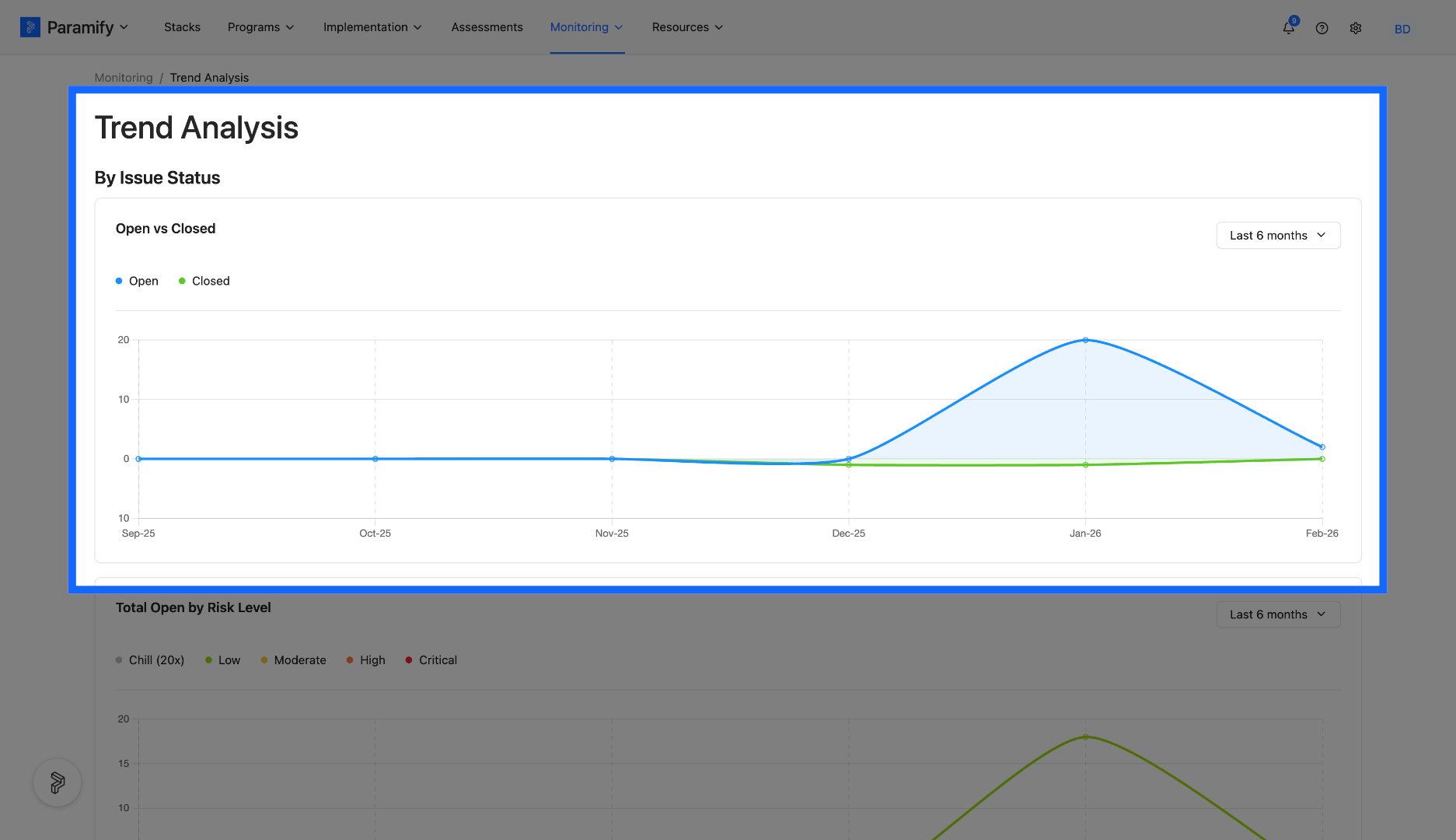
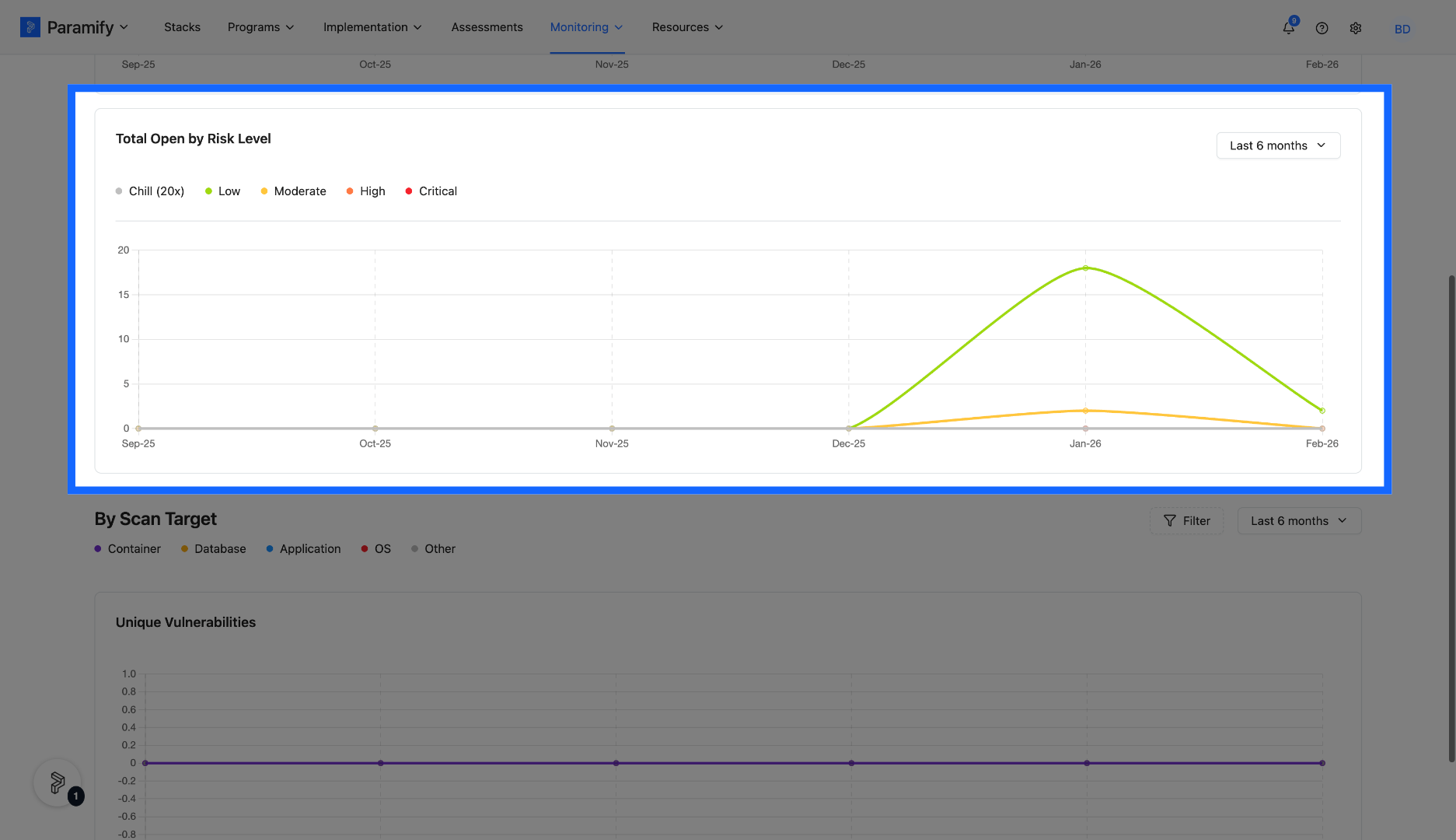
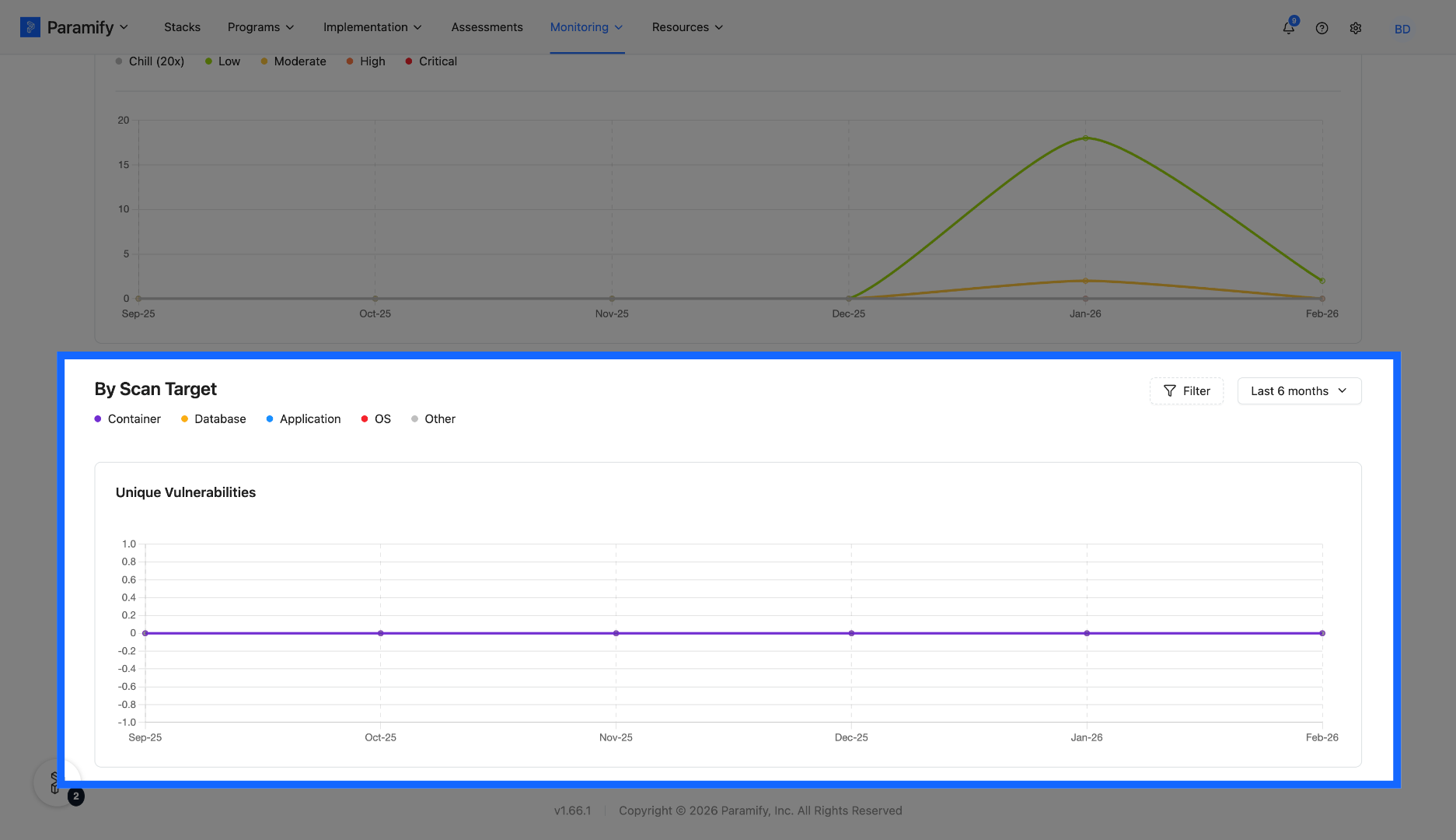
30. Trend Analysis Continued
The trend analysis section analyzed data based on open and close status, issue by risk level, and issue by scan target type.
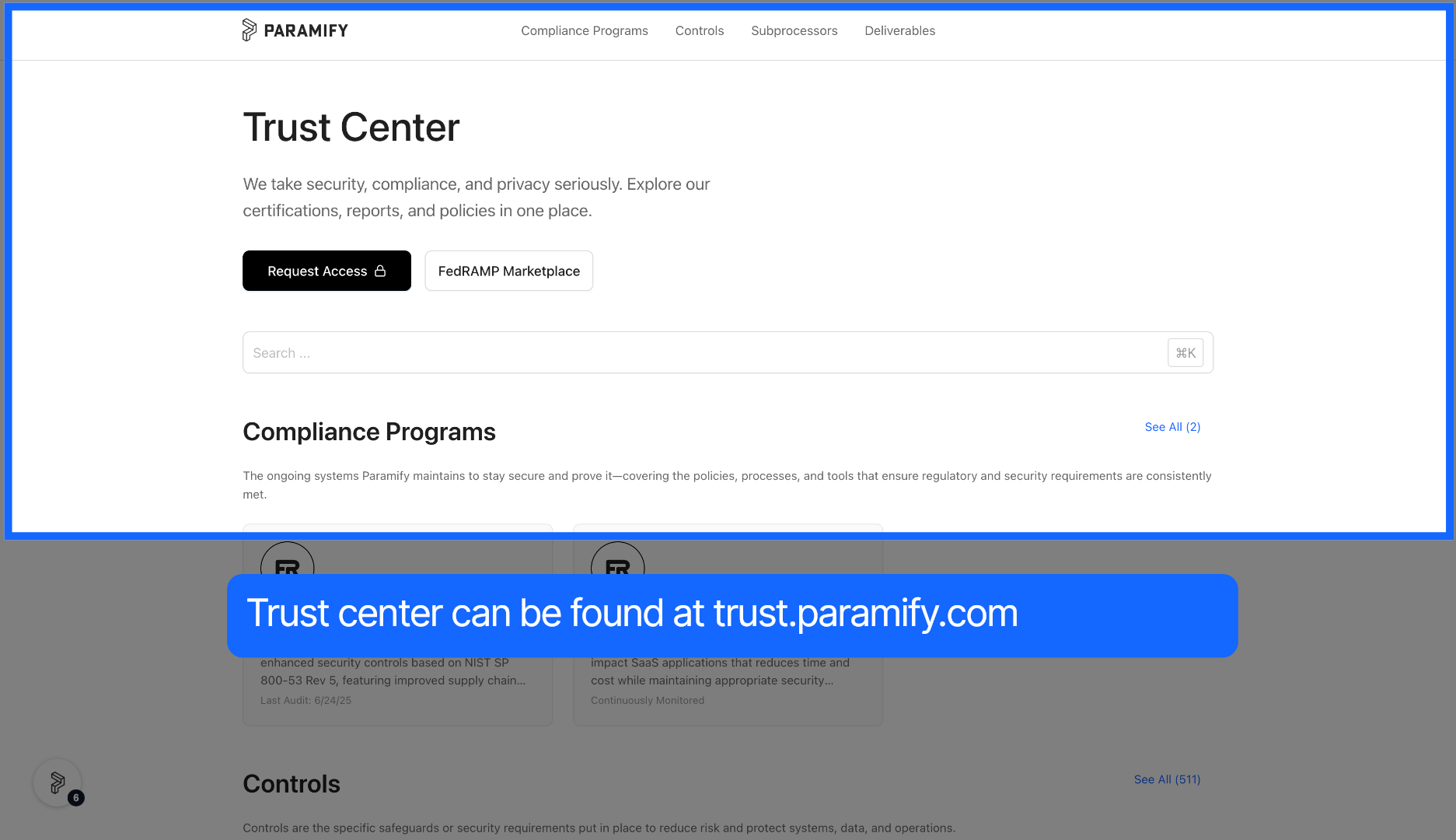
31. Explore Trust Center Resources
Paramify's trust center can be found at trust.paramify.com.
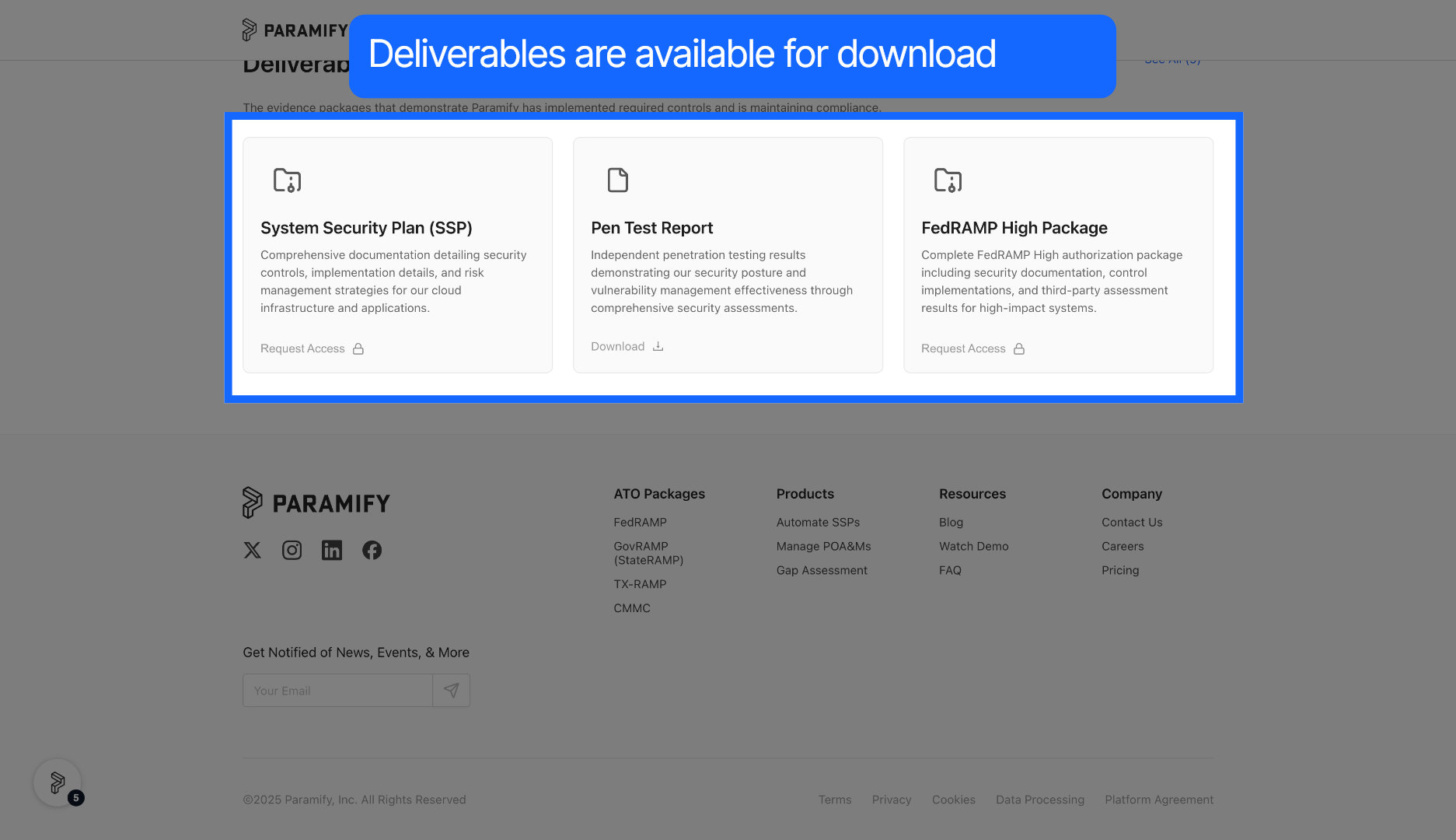
32. Accessing Deliverables
Available deliverables are on the trust center and available for download.
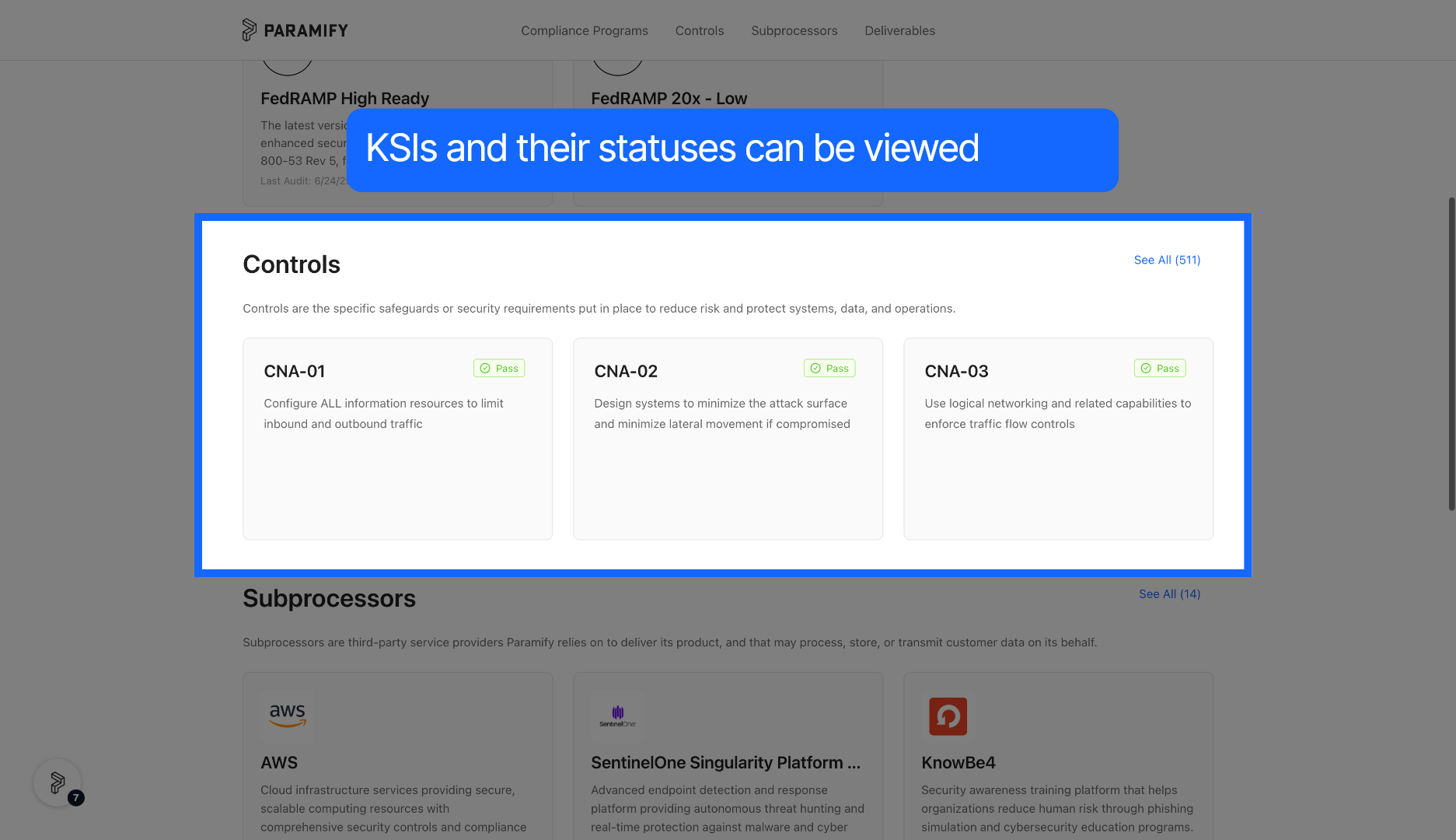
33. KSIs and Status
KSIs and their current status can be found on the trust center as well.
You have successfully navigated Paramify's application to complete an assessment or package review for a cloud service provider.
Comments
1 comment
This is great! Thanks for sharing
Please sign in to leave a comment.