
The FedRAMP Marketplace listing for your service is built from the Certification Package Overview (CPO) hosted in your Trust Center. The CPO is a JSON file that holds your listing details, such as the service description, website, logo, business category, certified services, and points of contact. To change any of these values on the Marketplace, you update the CPO in Paramify, generate a new revision, replace the existing CPO in your Trust Center, and publish.
Here is a video demonstration:
Update your CPO content
In the Paramify app, go to Programs and open your FedRAMP program.
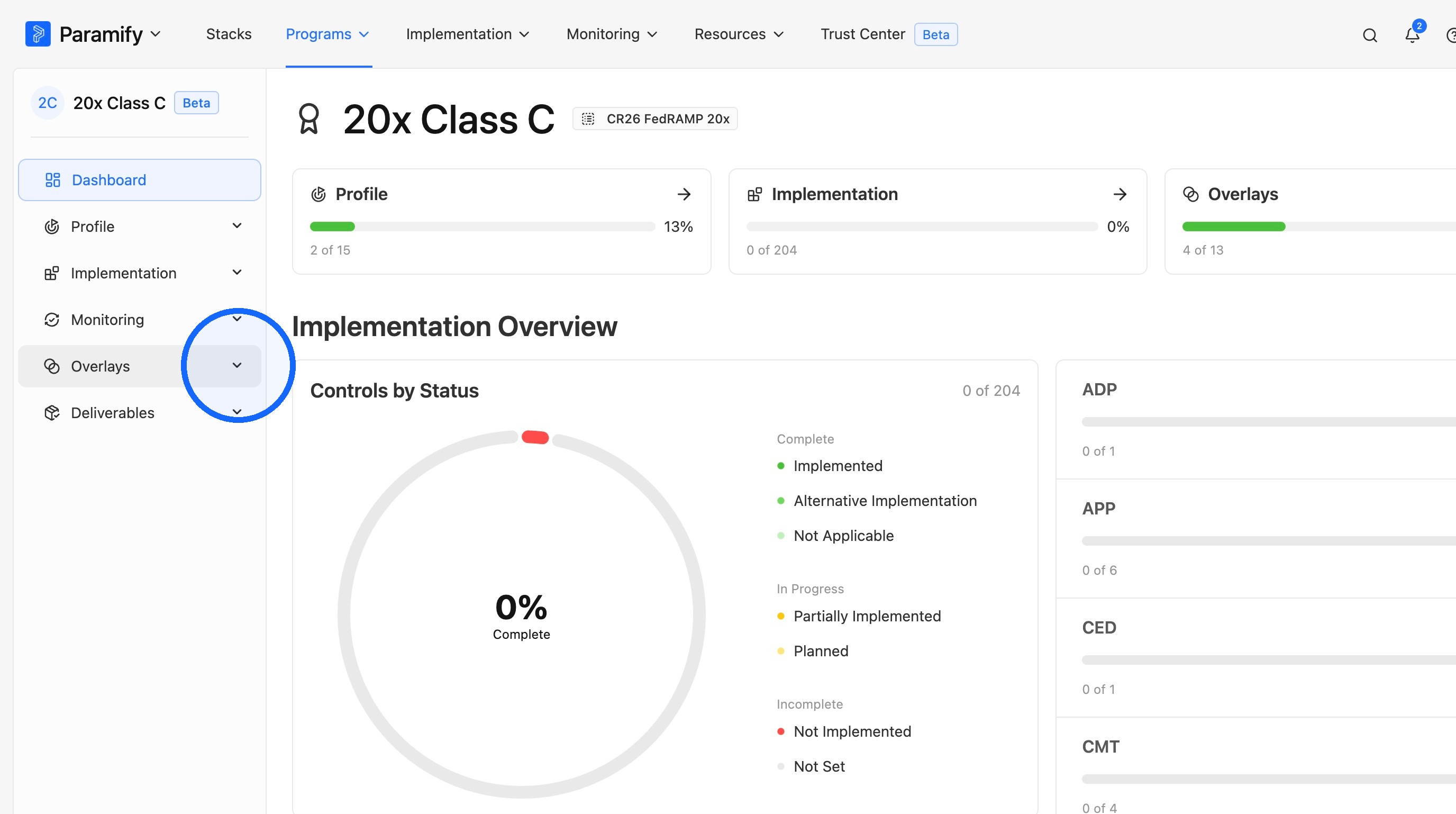
1. Open Overlays
Click Overlays in the left sidebar.
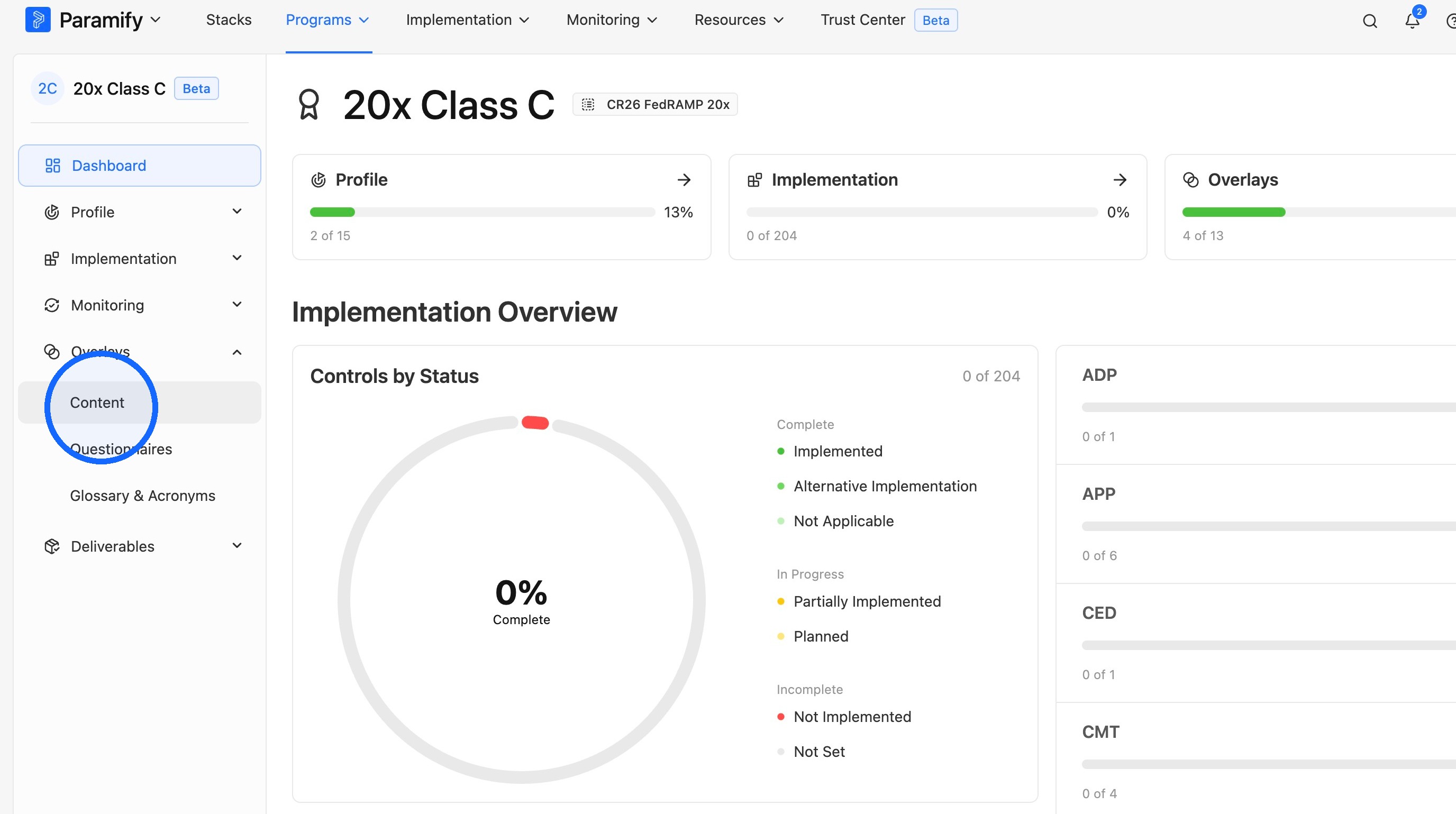
2. Open the Content tab
Click Content.
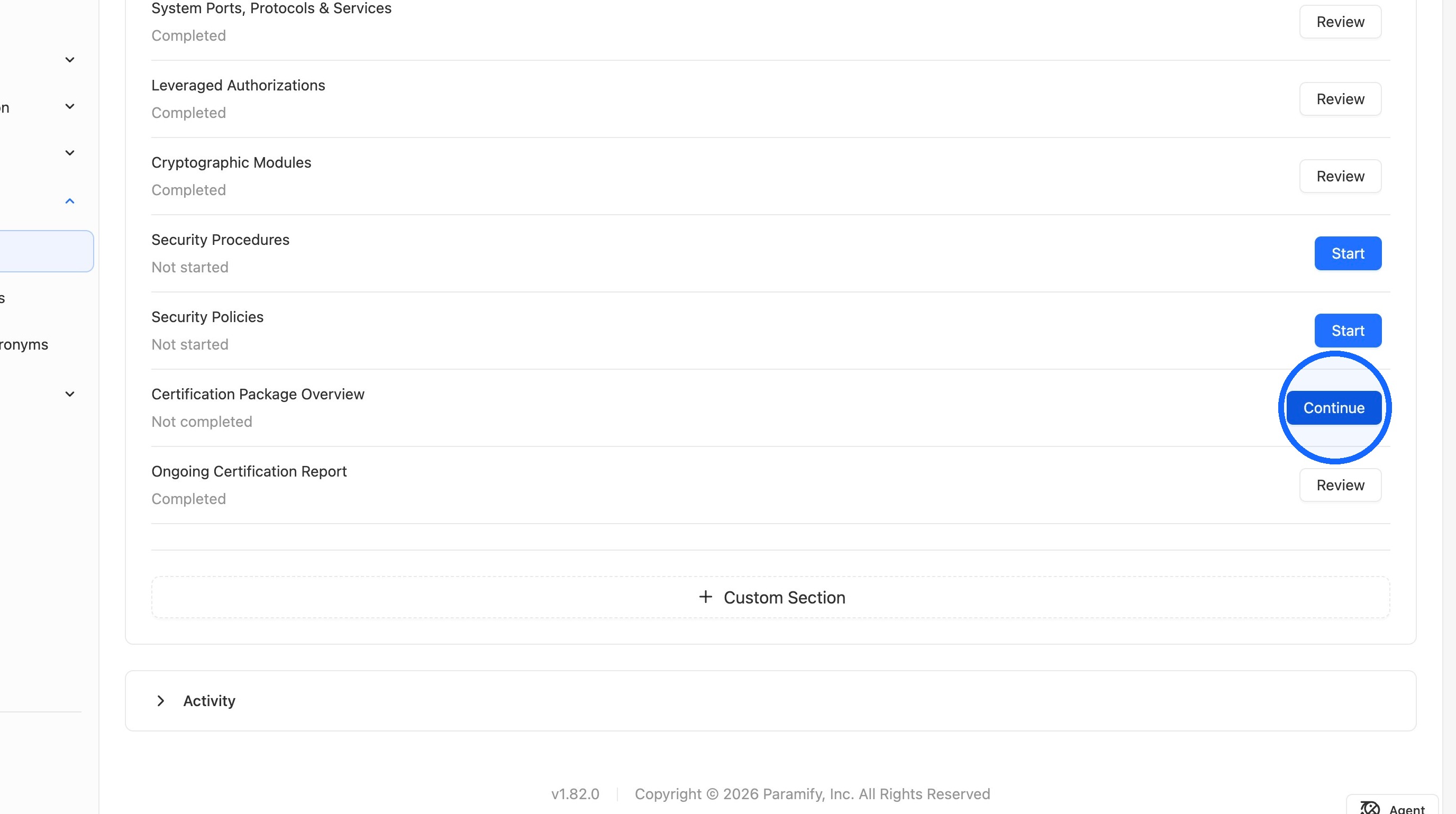
3. Continue to the Certification Package Overview
Scroll to the bottom of the page and click Continue for Certification Package Overview.
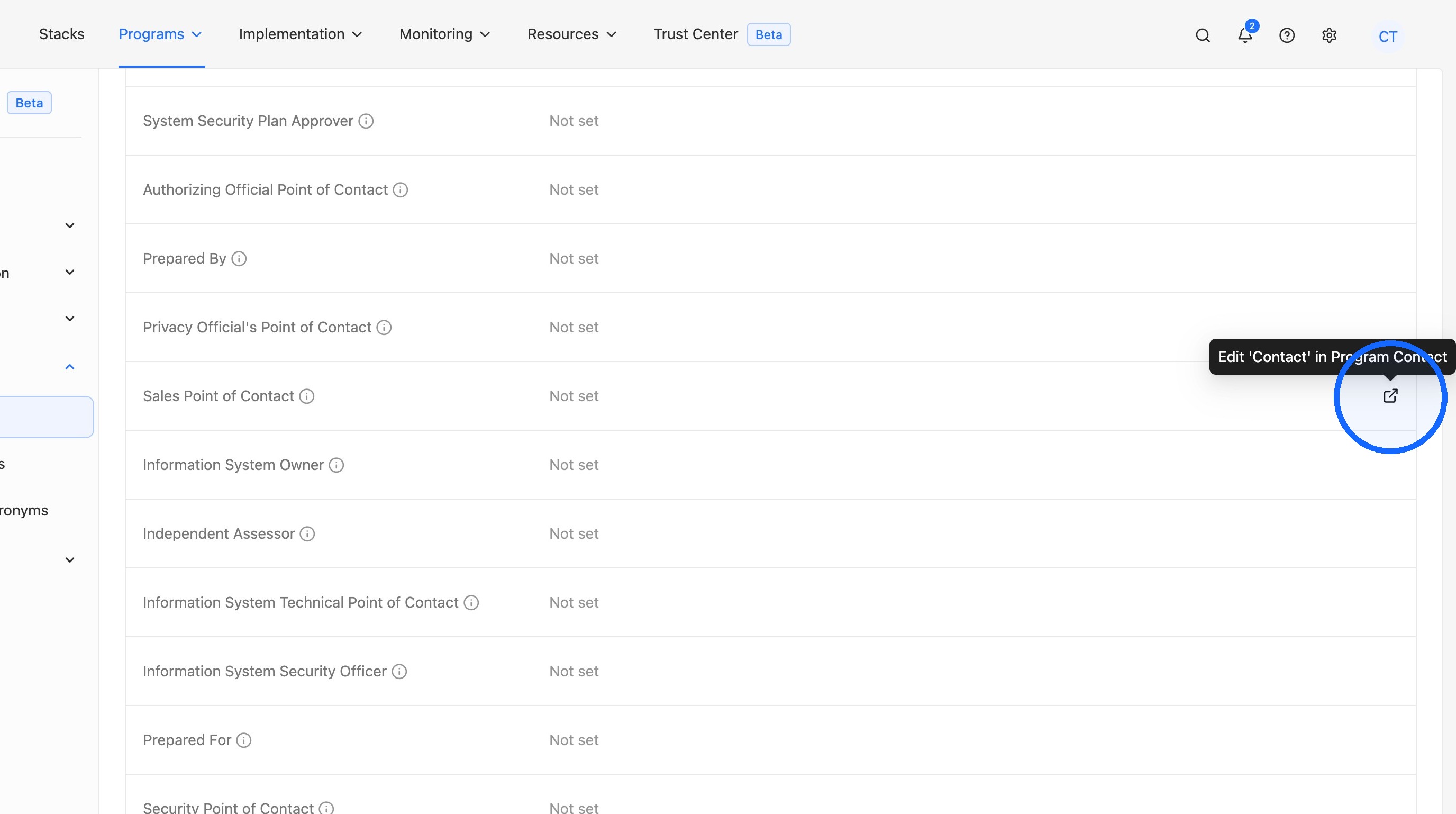
4. Edit your CPO values
Update the values you want to change on your Marketplace listing, such as the service description, logo, business category, or points of contact.
NOTE
Some fields, such as Logo URL, can be edited directly on this page. Others, such as Sales Point of Contact, are managed elsewhere in Paramify. For those fields, hover over the row and click the icon on the right side to go to where that value can be edited. Changes made there pull into the CPO automatically.
Generate a new CPO revision
Once your CPO content looks correct, create a new revision in Document Robot to generate an updated CPO file.
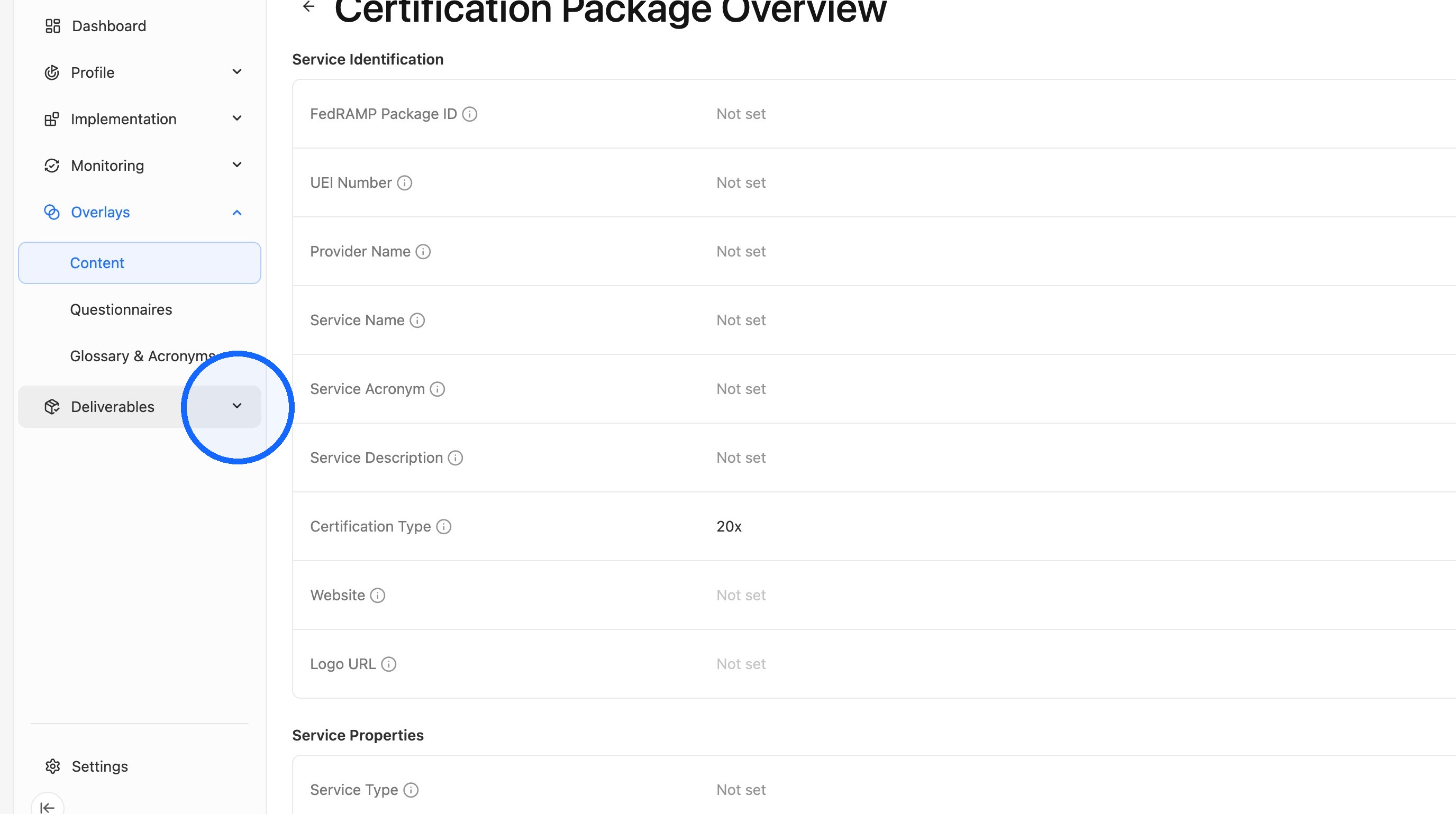
1. Open Deliverables
Click Deliverables in the program's left sidebar.
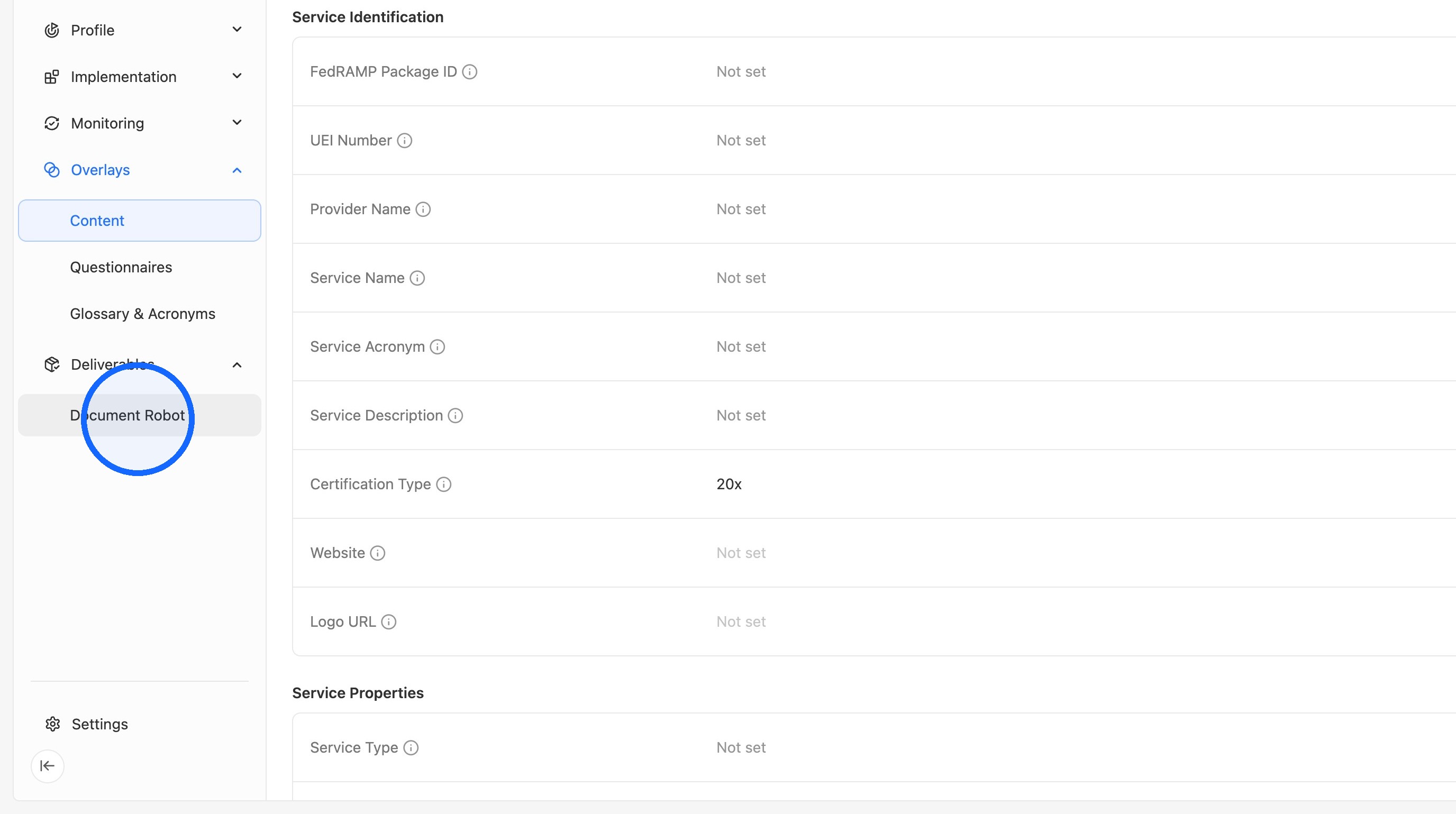
2. Open Document Robot
Click Document Robot.
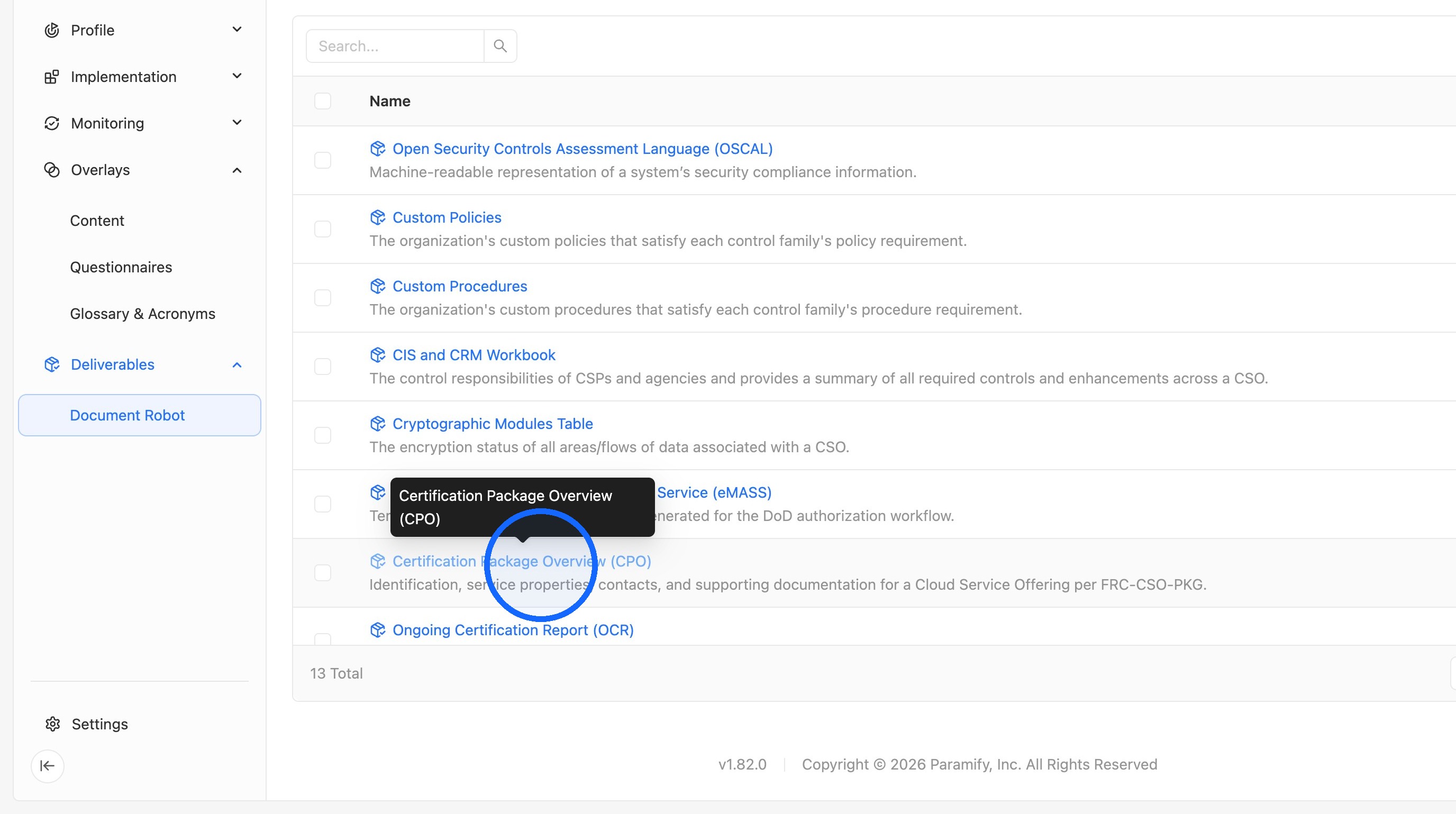
3. Select the Certification Package Overview
Click Certification Package Overview (CPO).
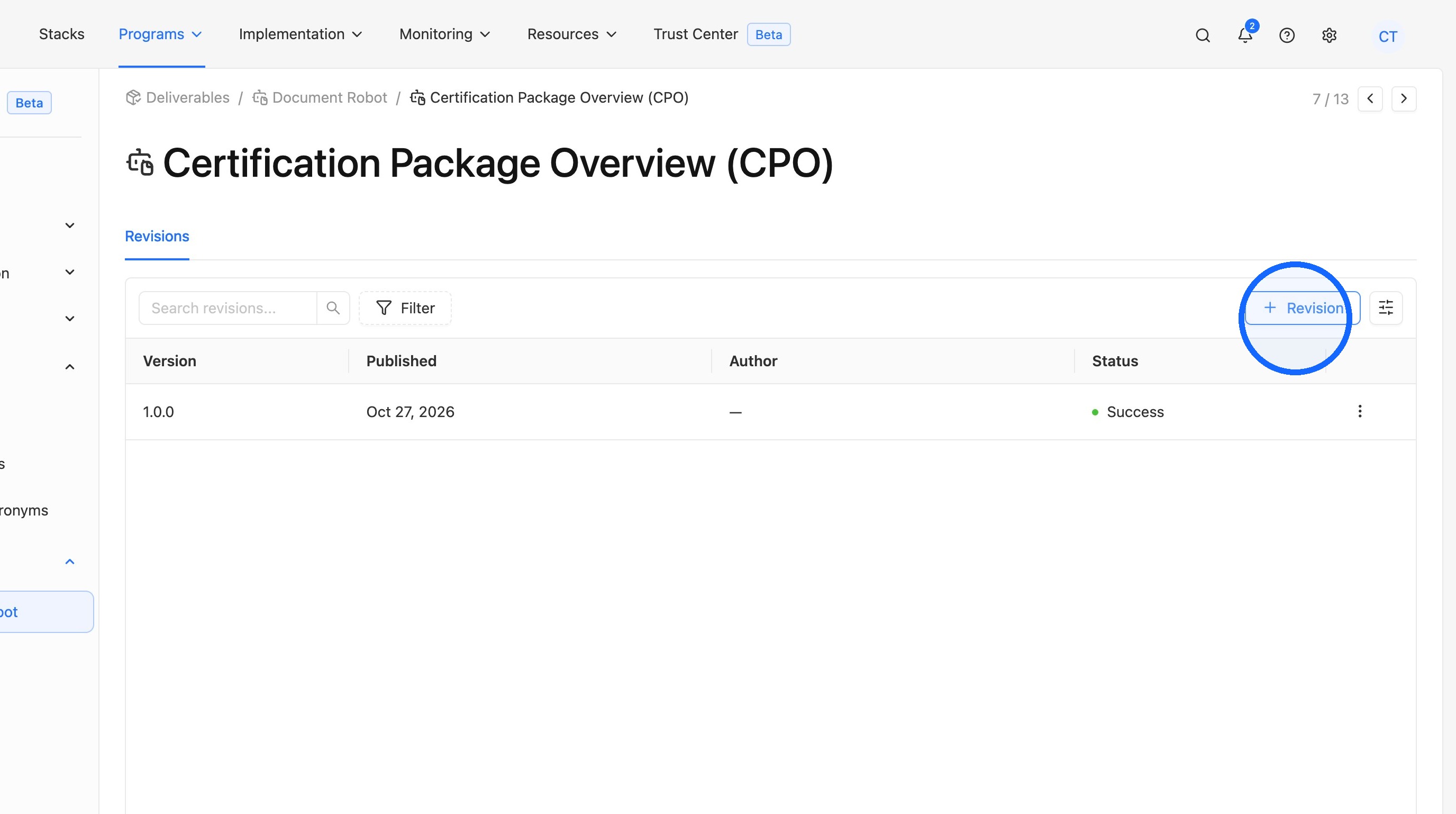
4. Add a revision
Click + Revision.
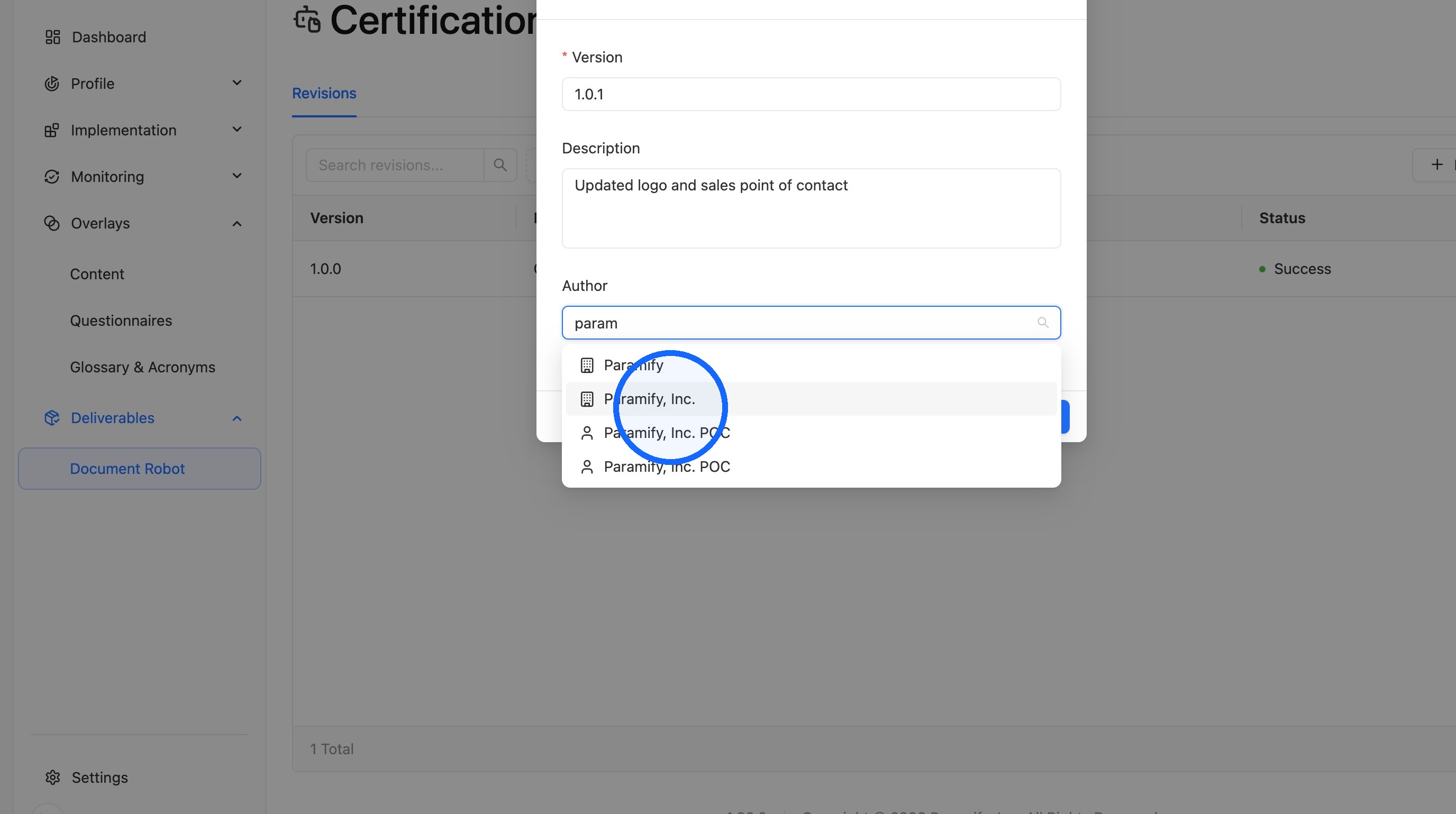
5. Fill out the revision form
Enter the next version number (for example, 1.0.2), a short description of what changed (for example, "Updated logo and sales contact"), and select your organization as the author.
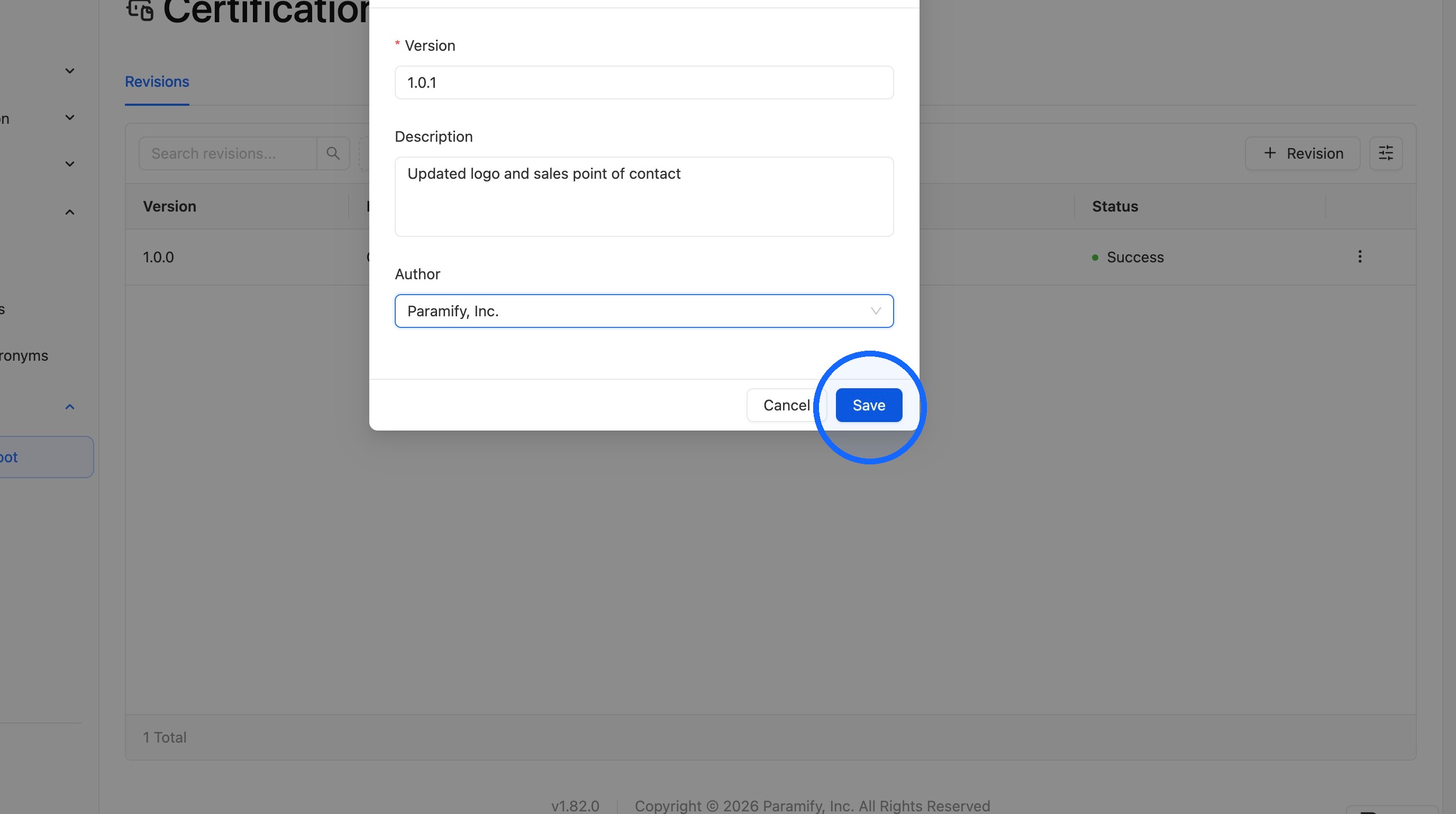
6. Save the revision
Click Save to generate the new CPO.
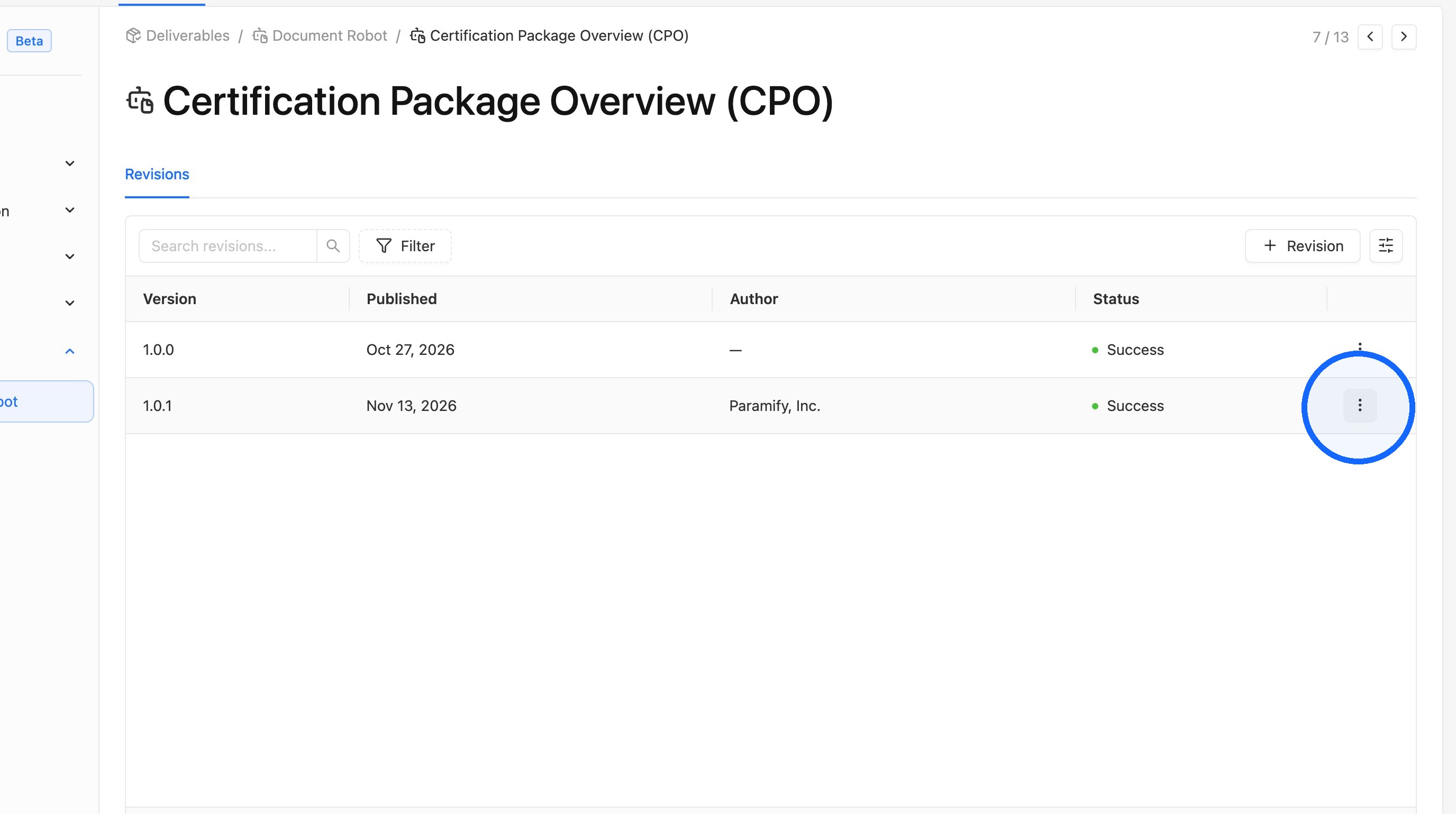
7. Open the revision options
Once the revision is generated, click the icon highlighted in the screenshot.
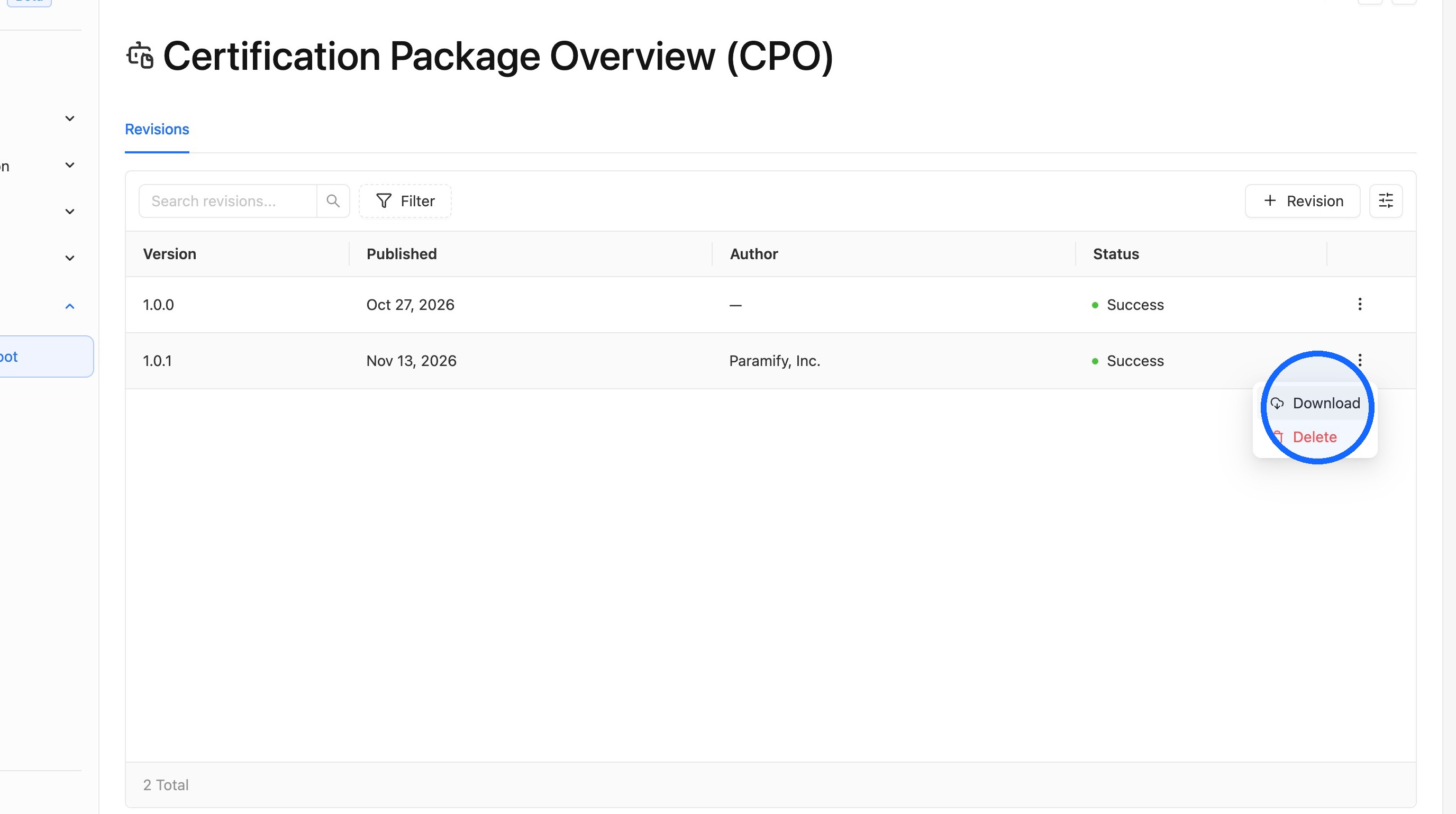
8. Download the new CPO file
Click Download to save the new CPO file to your computer.
TIP
Open the downloaded file to confirm your changes, such as the new logo URL and sales contact email, are included before uploading it to your Trust Center.
Replace the CPO in your Trust Center
1. Open Trust Center
Click Trust Center in the top navigation.
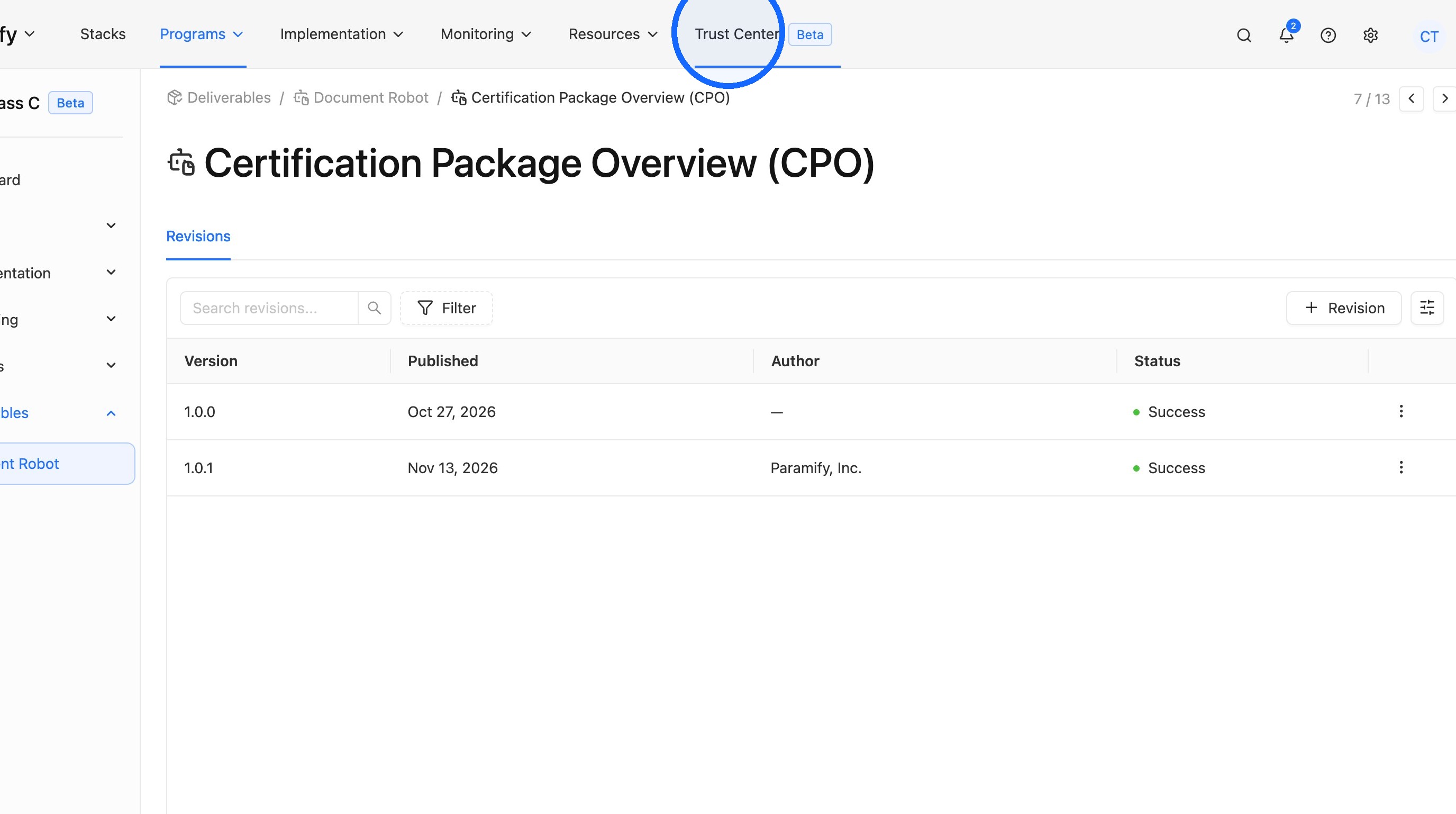
If your Trust Center hasn't been set up yet, see Managing Your Trust Center with Paramify.
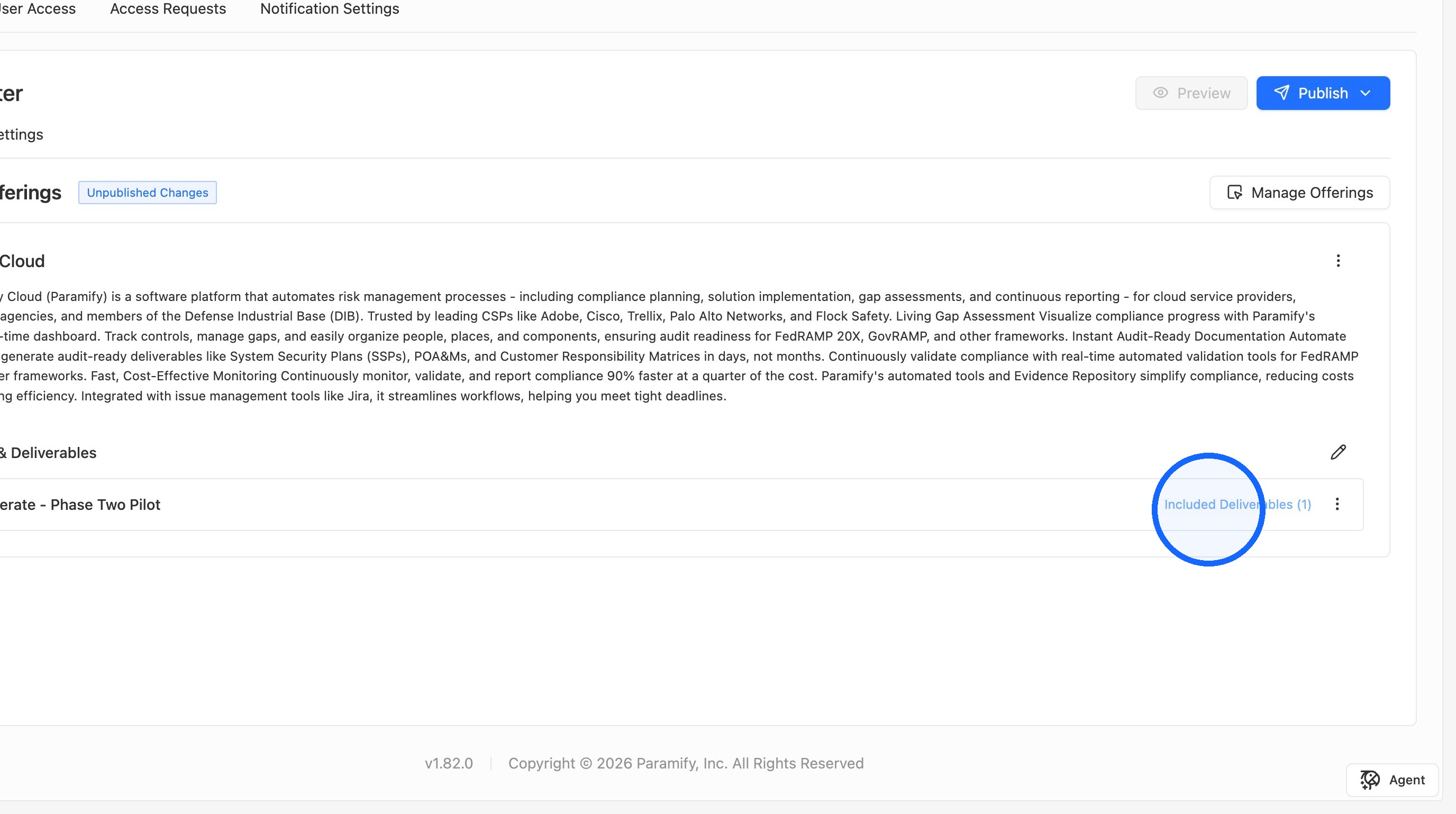
2. Open the program's included deliverables
Click Included Deliverables for your FedRAMP program.
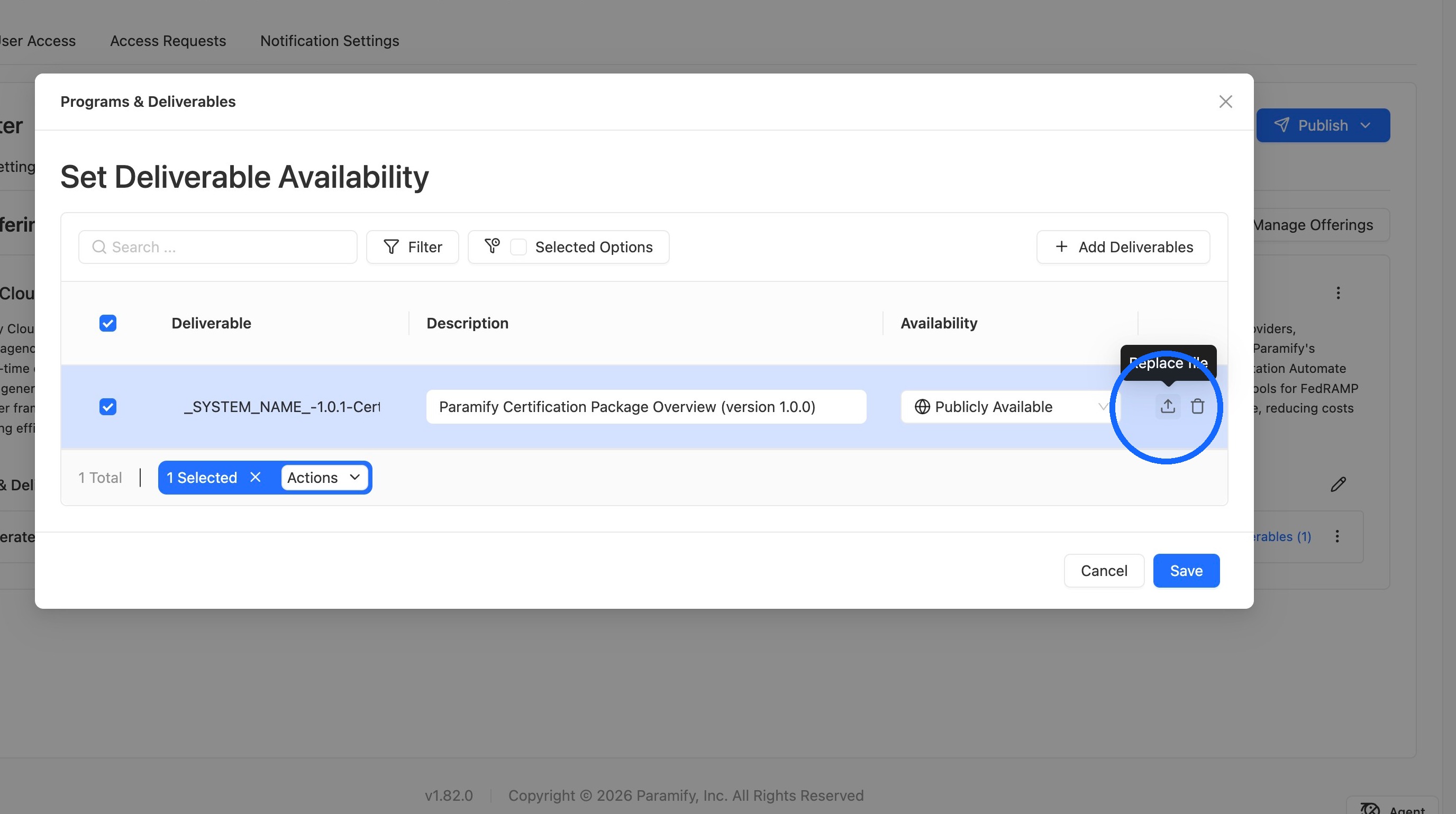
3. Replace the existing CPO file
Click Replace file for the existing Certification Package Overview, then select the CPO file you just downloaded.
IMPORTANT
Use Replace file rather than adding a new deliverable. The FedRAMP Marketplace points to the existing CPO deliverable, so a newly uploaded deliverable will not update your Marketplace listing.
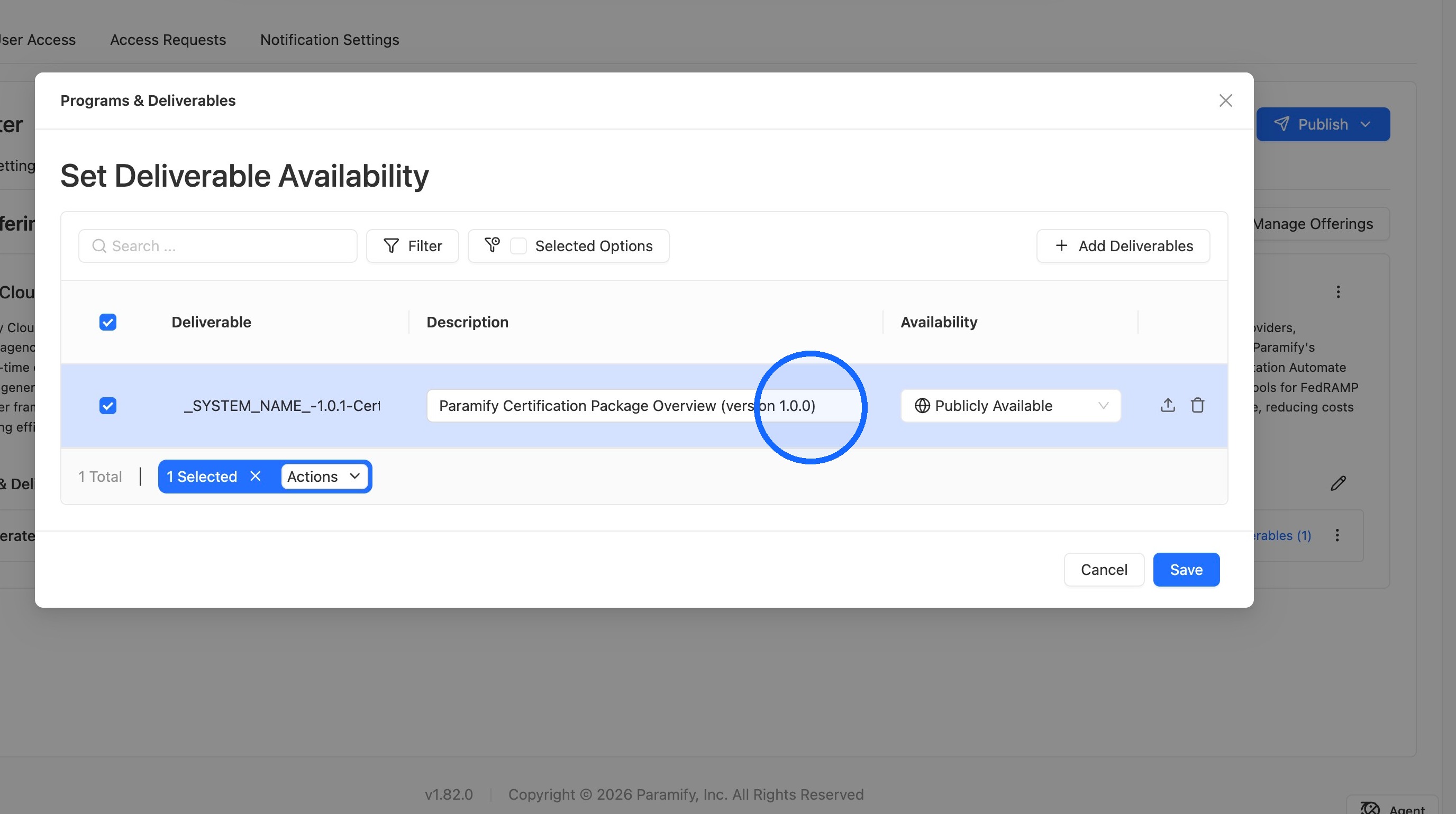
4. Update the version description
Update the description to match the new version number (for example, 1.0.2).
5. Save your changes
Click Save.
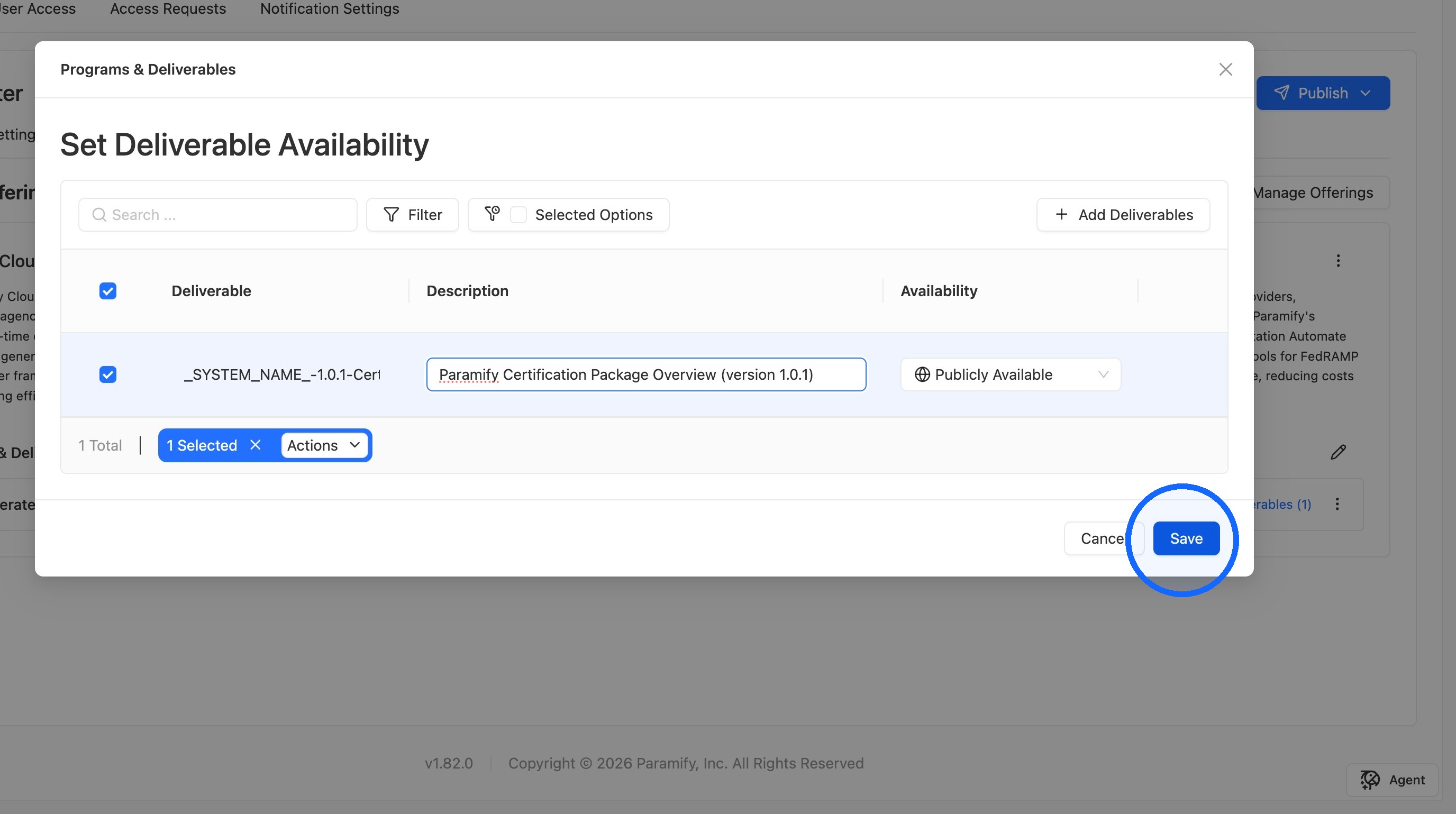
NOTE
Saving replaces the file, but the change is not live until you publish your Trust Center.
Publish your Trust Center
1. Publish
When everything looks correct, click Publish to make the new CPO live on your Trust Center.
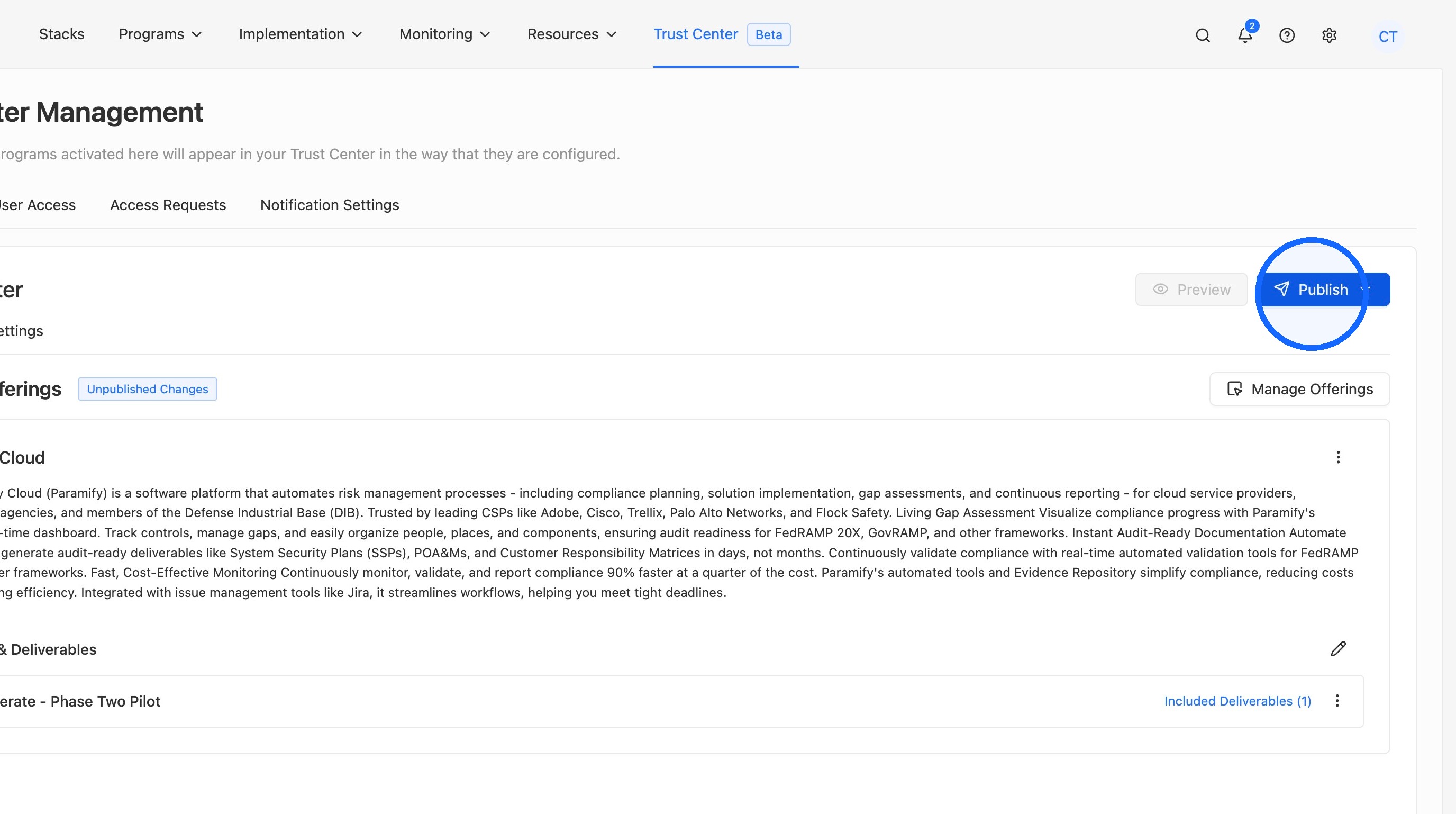
2. Verify the update
Open your public Trust Center and go to its deliverables. The Certification Package Overview should show the new version number. You can download it to confirm it contains your updated values.
Getting the changes to the FedRAMP Marketplace
FedRAMP will automatically pull the updates in your certification package overview the next time they do a deployment of the FedRAMP Marketplace website. This takes somewhere between 1 - 3 days, typically. You do not need to resubmit a form to FedRAMP if you are only updating the CPO and the CPO link on your trust center has not changed. Wait about 3 days and then check the FedRAMP Marketplace to ensure your updates are reflected!
Comments
0 comments
Please sign in to leave a comment.