
The Dynamic Configuration field is a field you can set on Elements of the Component type. It indicates whether a Component’s settings or code can change during operation. Components set to True fall under FedRAMP’s “Likely to Drift” category, which requires a weekly scan cadence. This guide shows you how to set a Component’s Dynamic Configuration field or use the Set Dynamic Configuration bulk action to set this value on multiple Components at once.
Edit an Individual Component
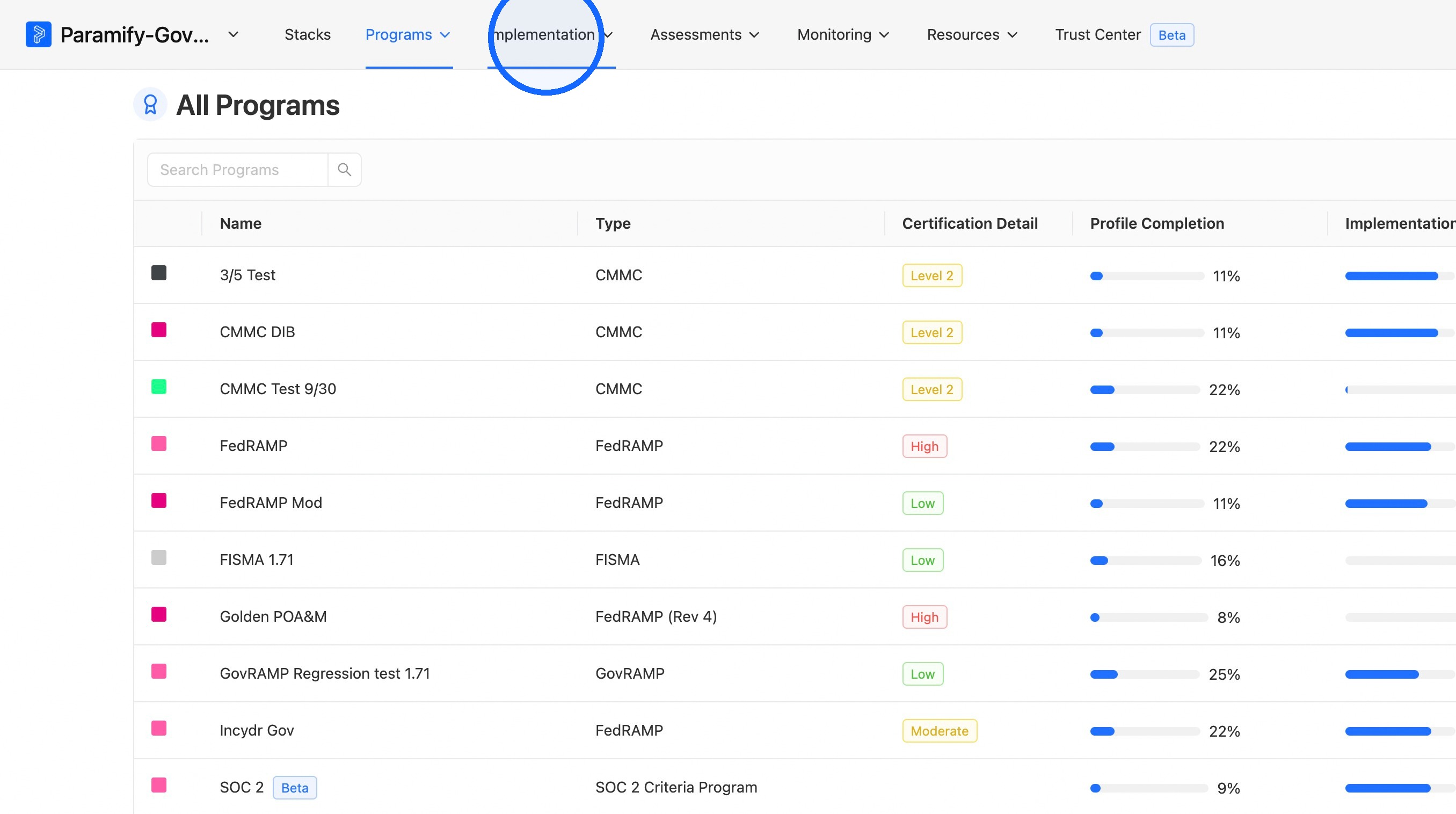
1. Open Implementation
Click Implementation in the navigation menu.
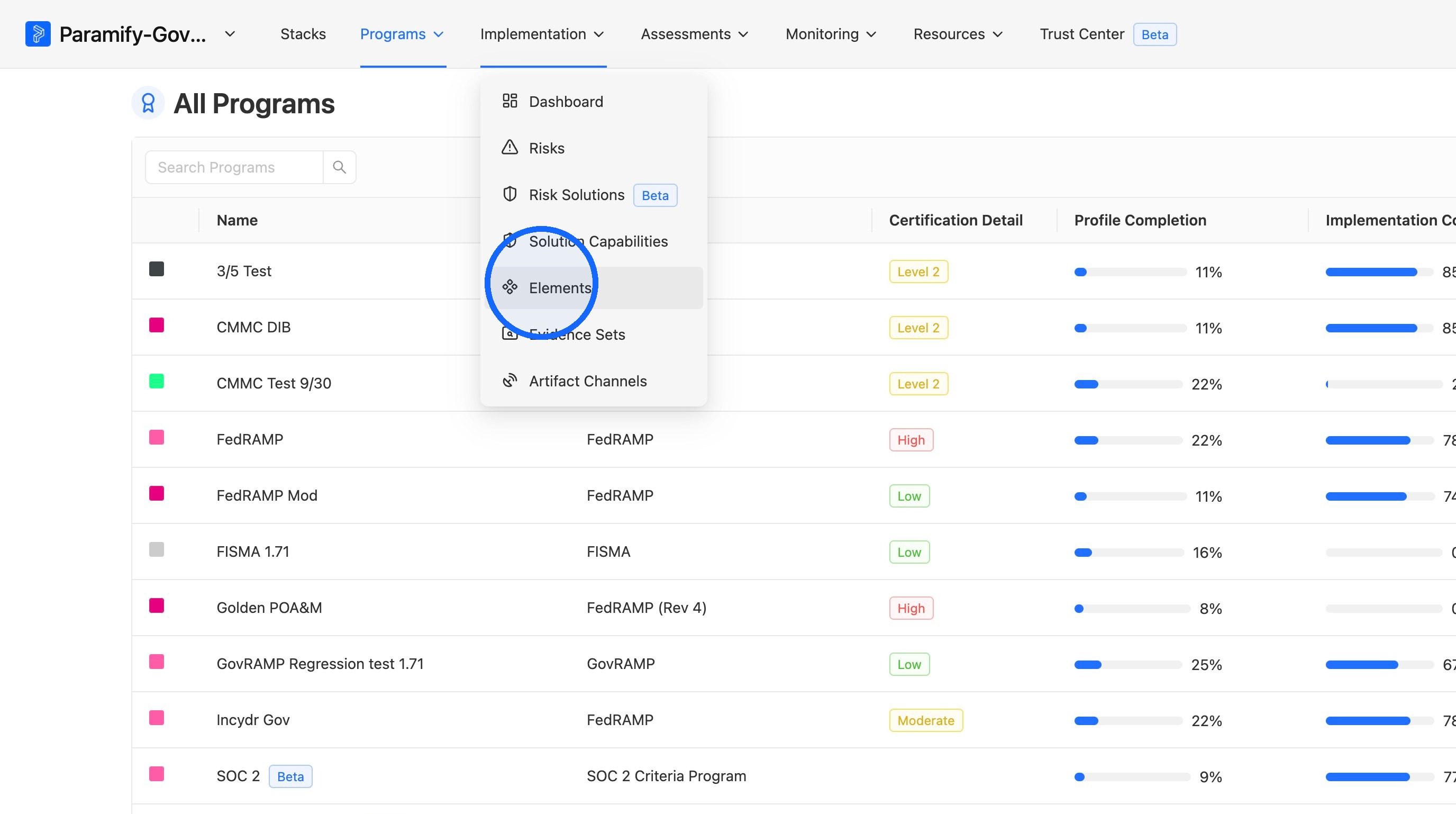
2. Open Elements
Click Elements.
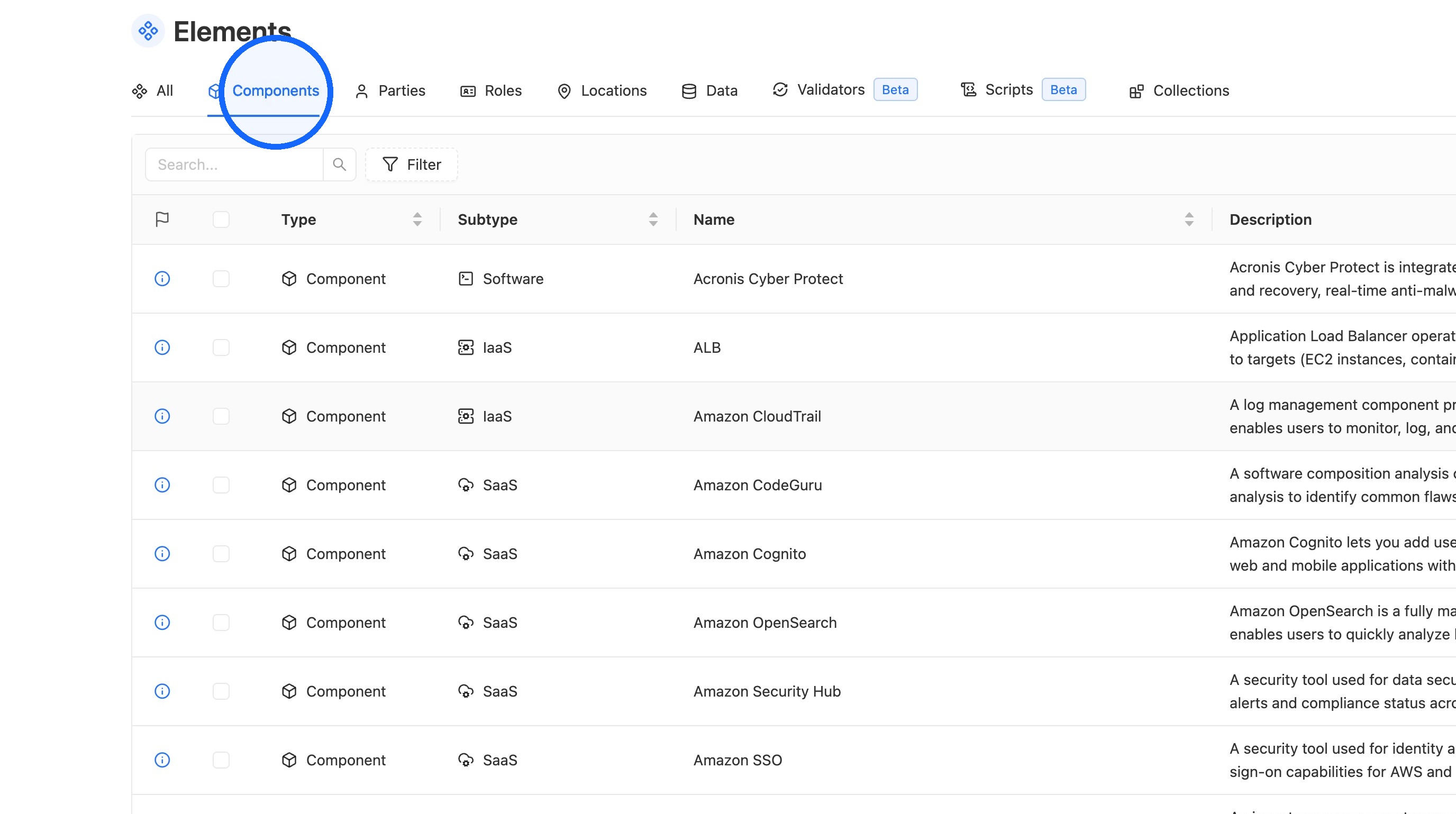
3. Open the Components tab
Click the Components tab.
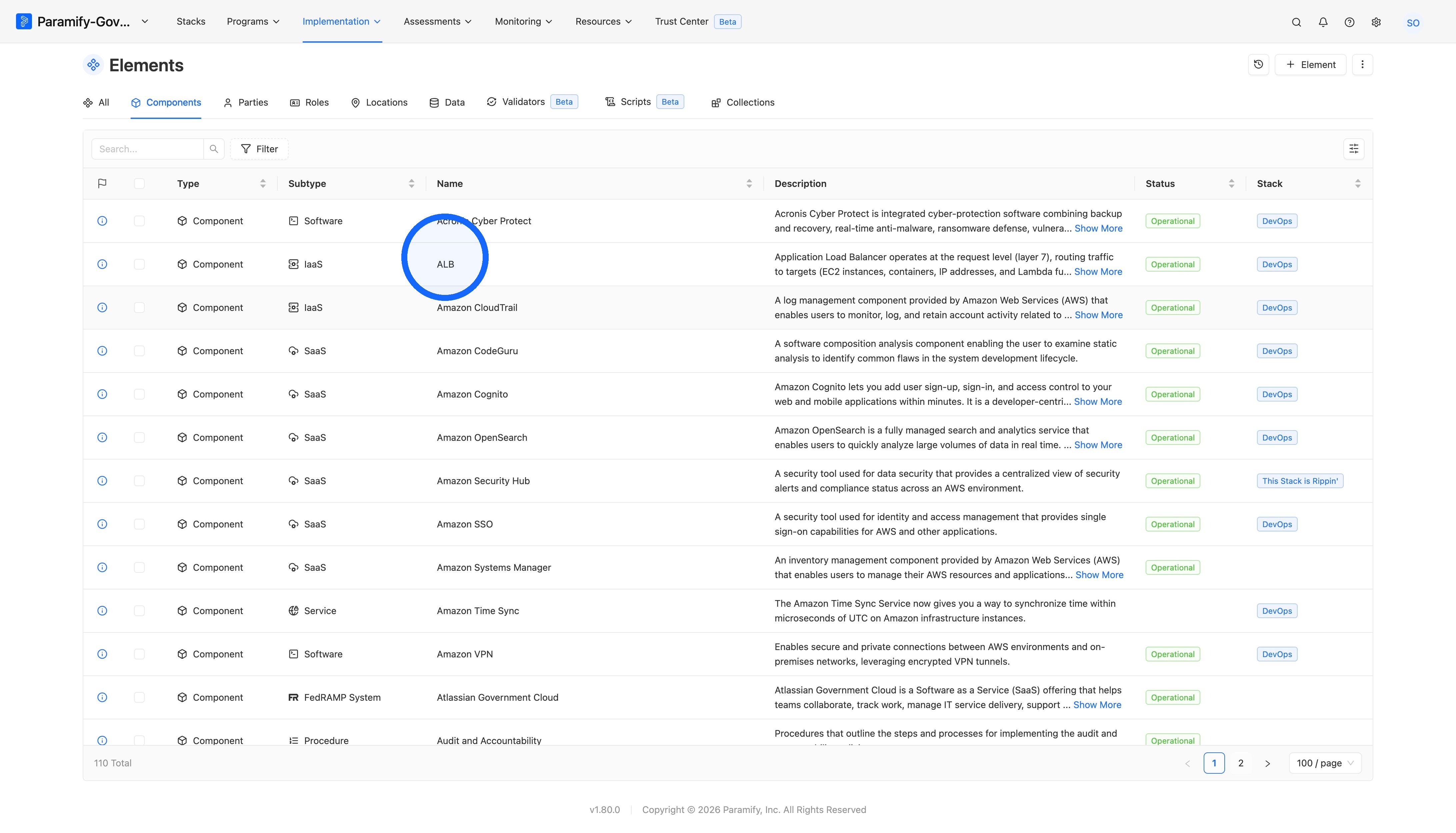
4. Select a Component
Click the Component you want to edit.
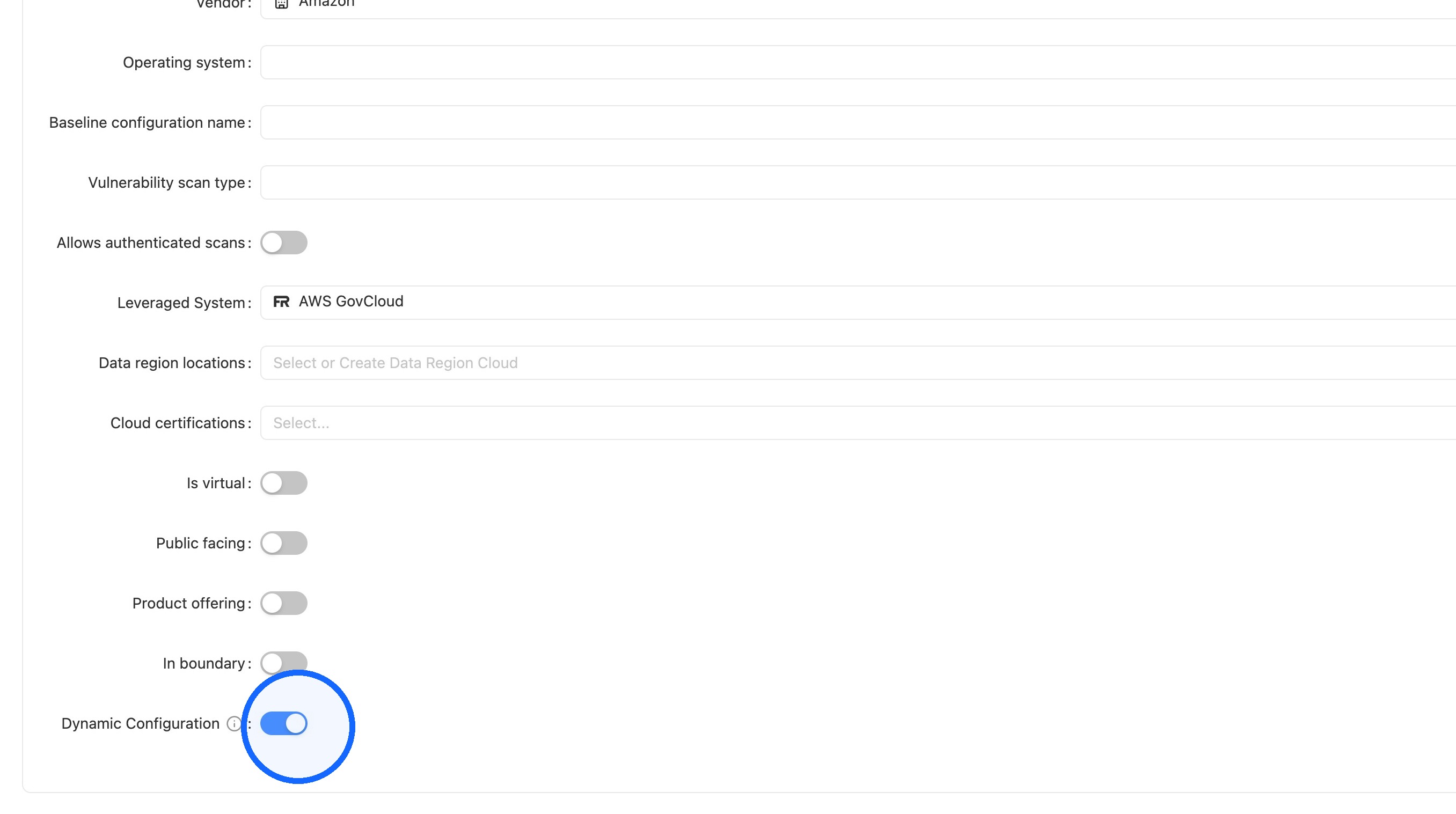
5. Set Dynamic Configuration to True
Scroll to the bottom of the Component and set the Dynamic Configuration boolean to True.
TIP
Set Dynamic Configuration to True if the Component’s settings or code can change while it’s running, such as a server that auto-scales or a resource whose settings are adjusted directly in a console. Set it to False if the Component’s configuration only changes through a controlled process, such as an infrastructure-as-code tool like Terraform.
Edit Multiple Components
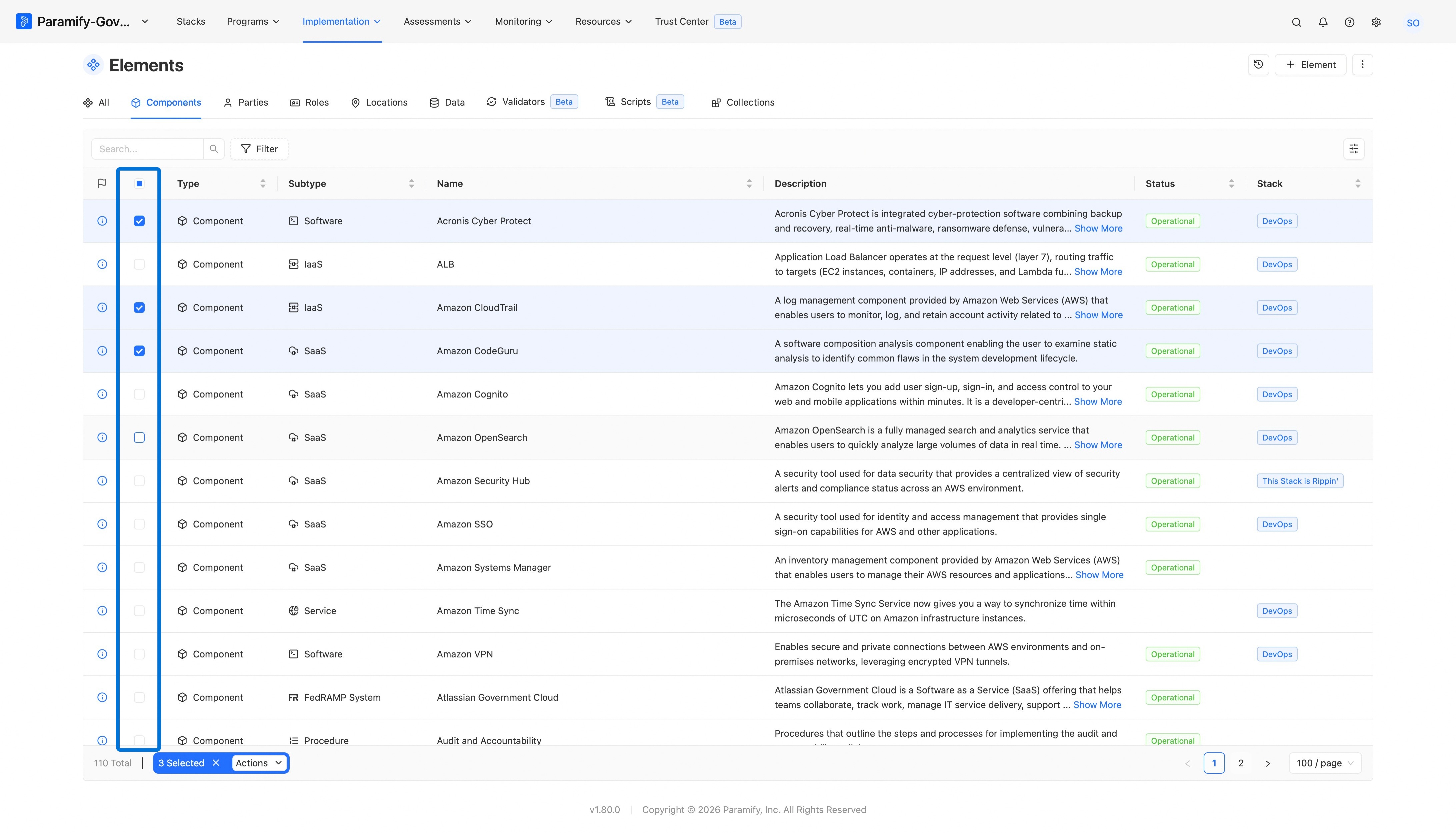
1. Select the Components
Return to the Elements page and select all the Components you want to update.
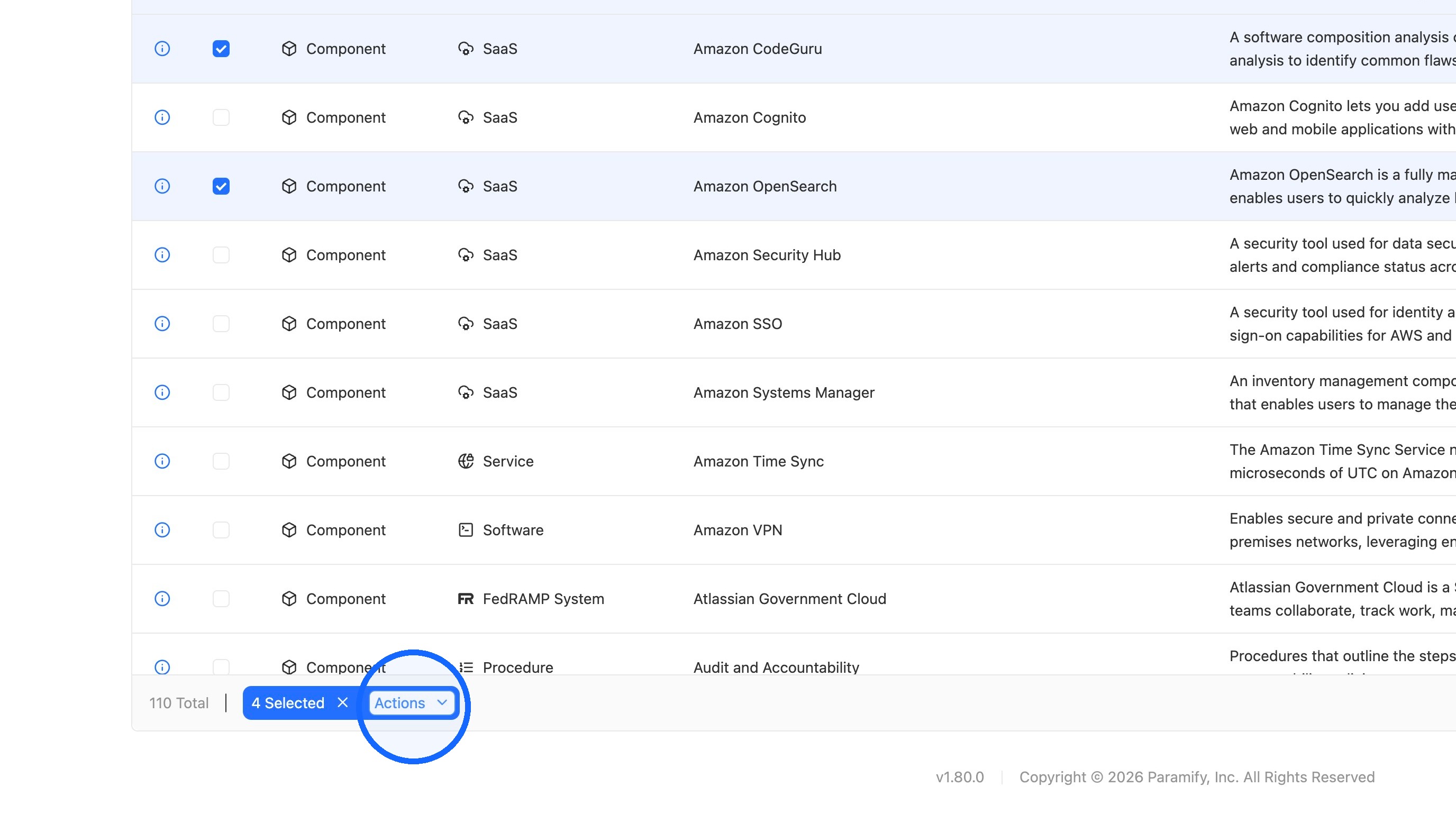
2. Open Actions
Click Actions.
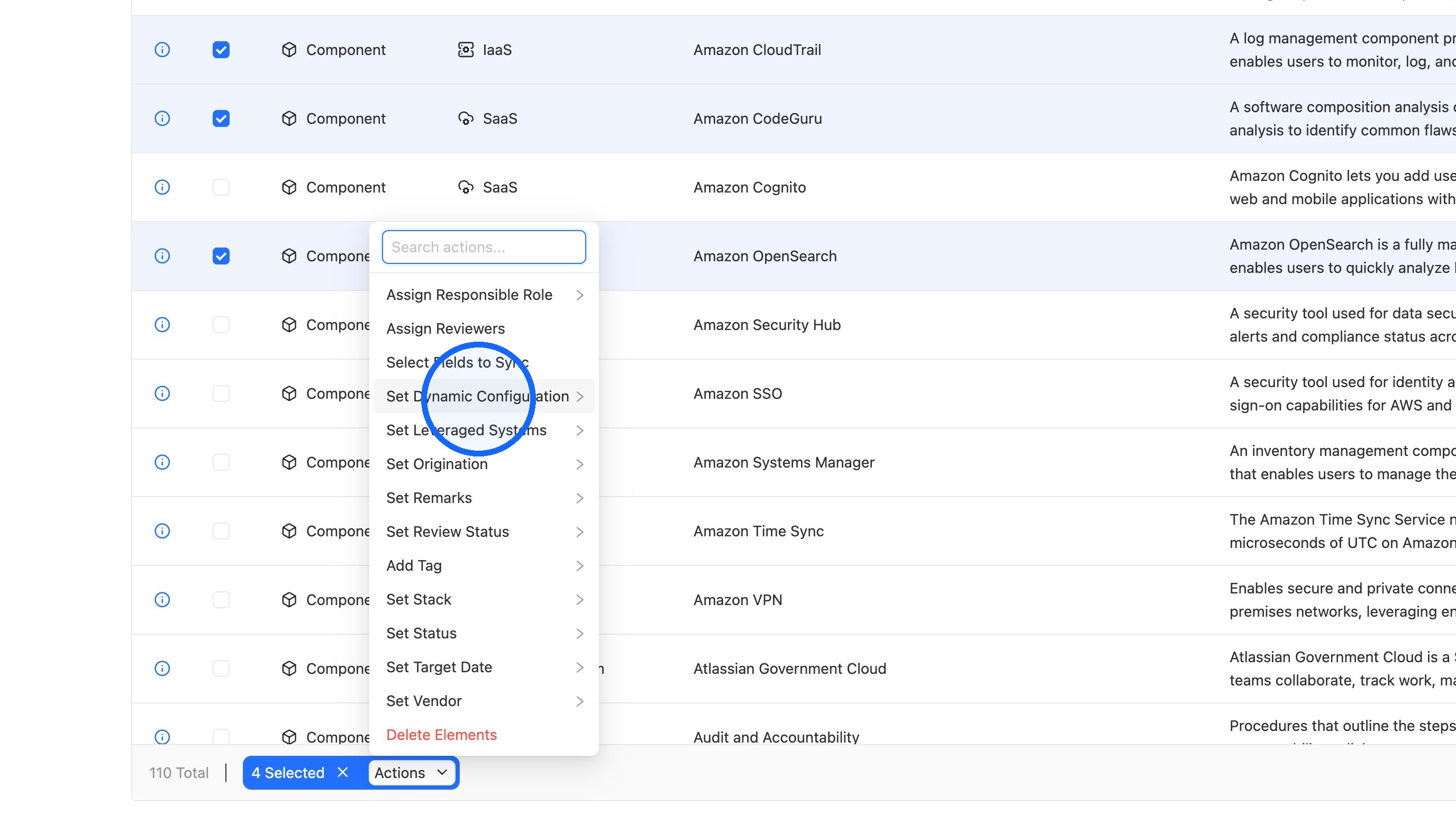
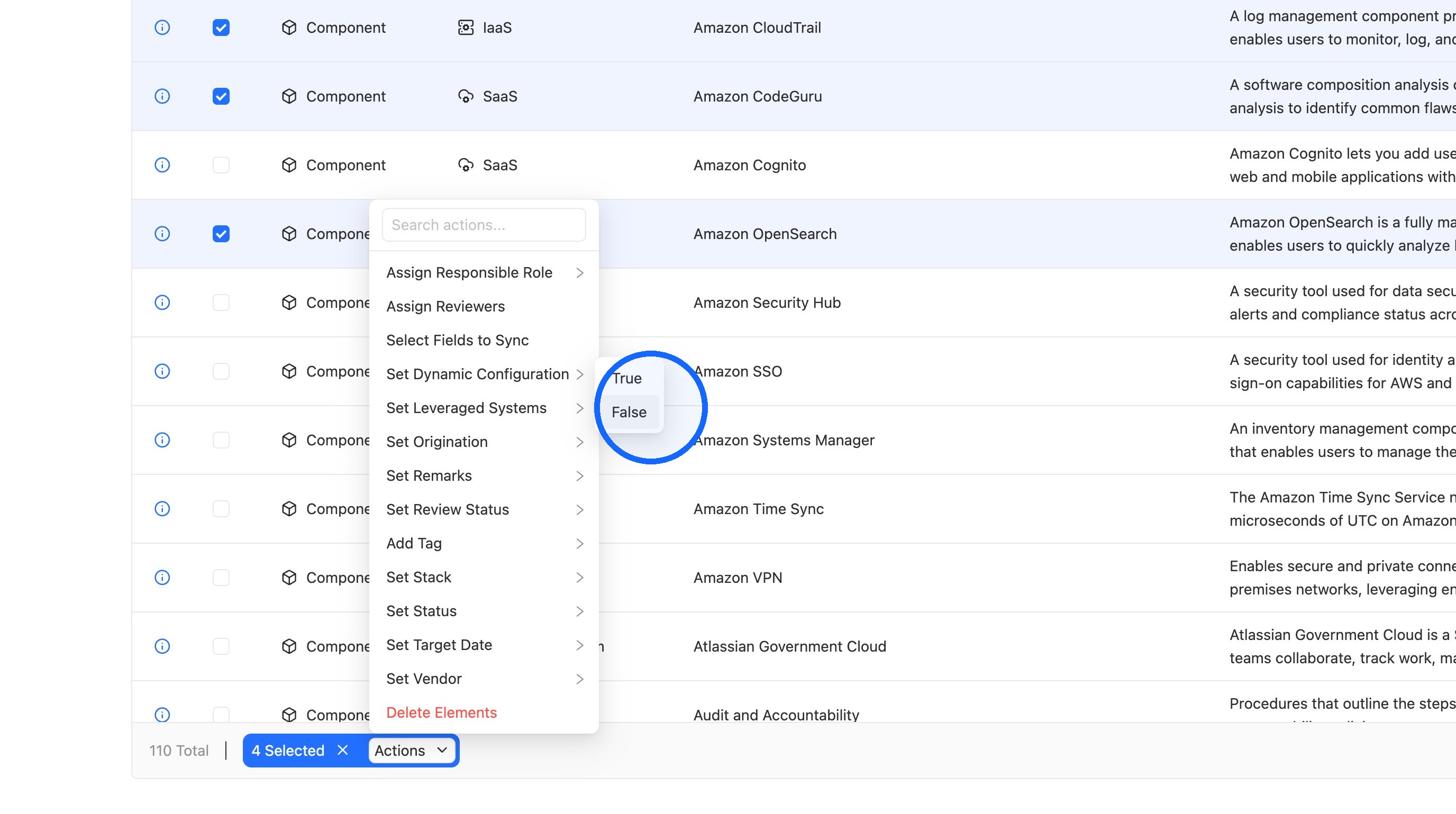
3. Choose Set Dynamic Configuration
Click Set Dynamic Configuration.
4. Choose True or False
Click True or False to apply the value to all selected Components.
TIP
The Set Dynamic Configuration bulk action does not sync Components with their account-level templates. To choose which fields to sync, use the Select Fields to Sync bulk action instead. See Picky Syncing: Bulk Apply for Setting Which Fields to Sync.
Comments
0 comments
Please sign in to leave a comment.