
Managing user access is easy in Paramify. This guide walks you through the new Viewer user type, a read-only role designed for external reviewers or collaborators who need visibility into your program without the ability to make changes. You'll learn how to assign user types in workspace settings, invite new users via email, and use the review controls available to Viewer-type users, including marking controls as reviewed, clearing review status, and leaving comments. Whether you're onboarding a client or an external auditor, this workflow gives you a safe, controlled way to share program data.
Assigning a Viewer User Type
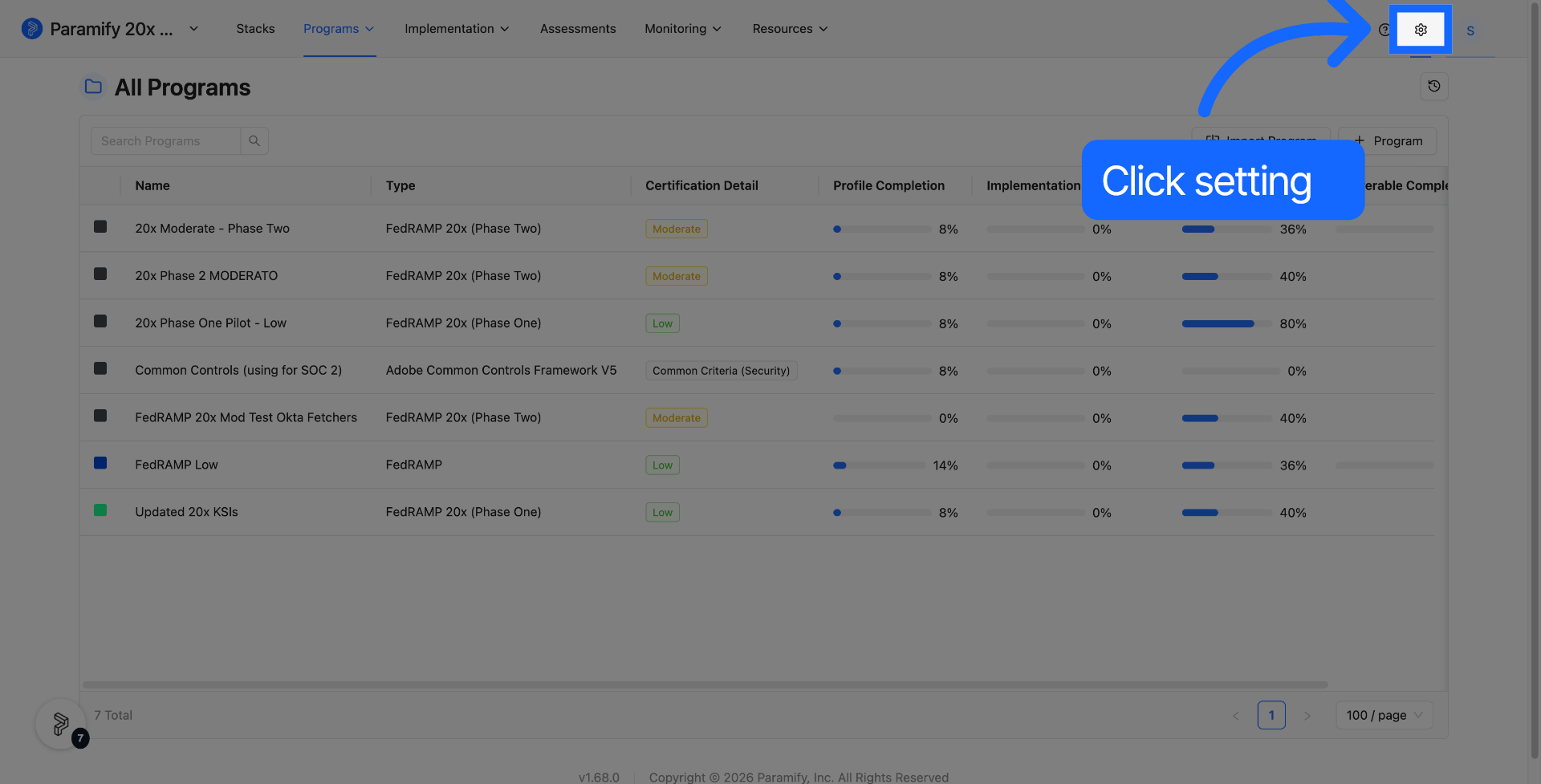
1. Click the settings button
Navigate to your workspace settings to begin managing user access.
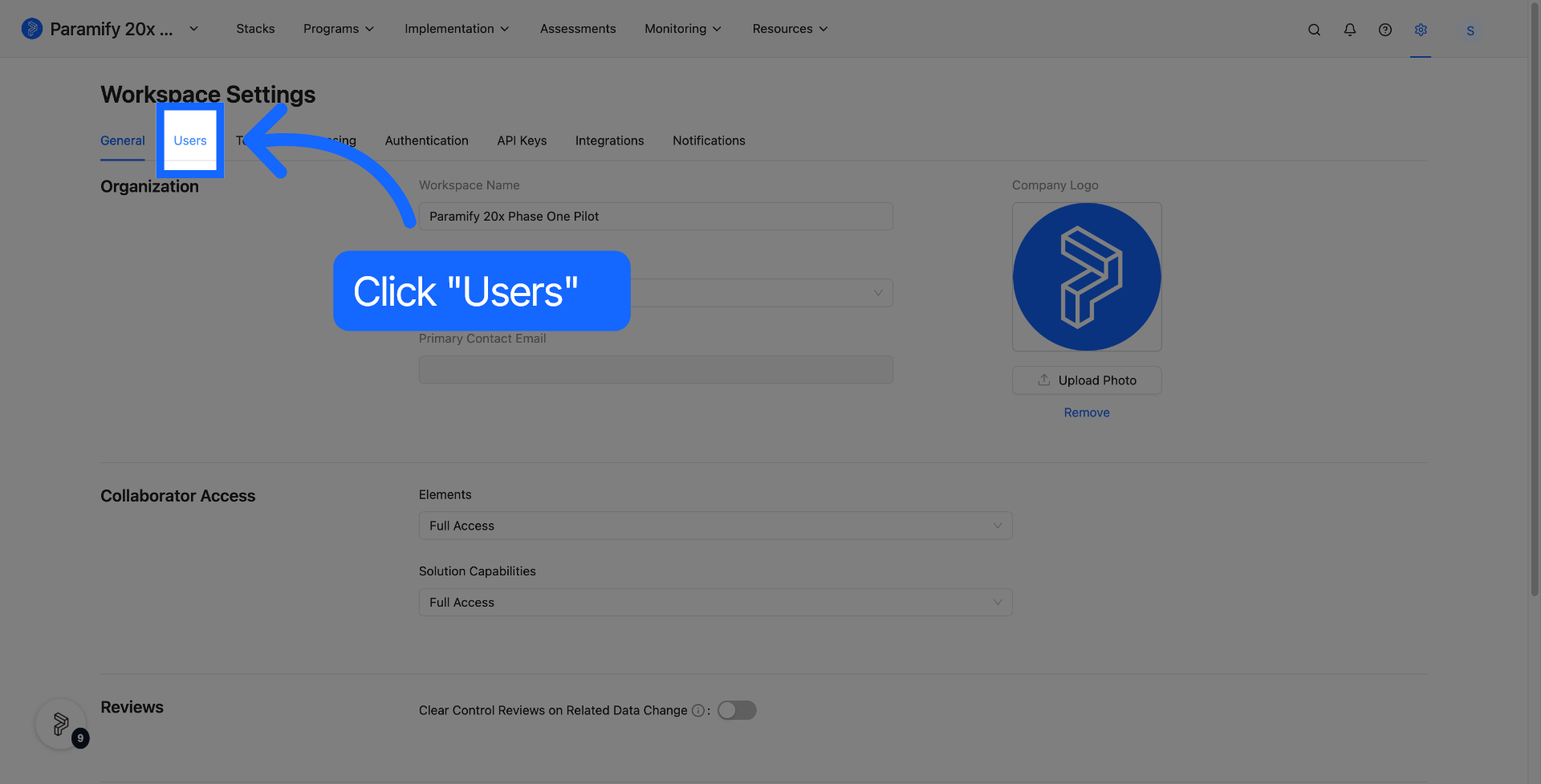
2. Click "Users" to open the user management settings within the workspace
This opens the full list of users and their assigned roles.
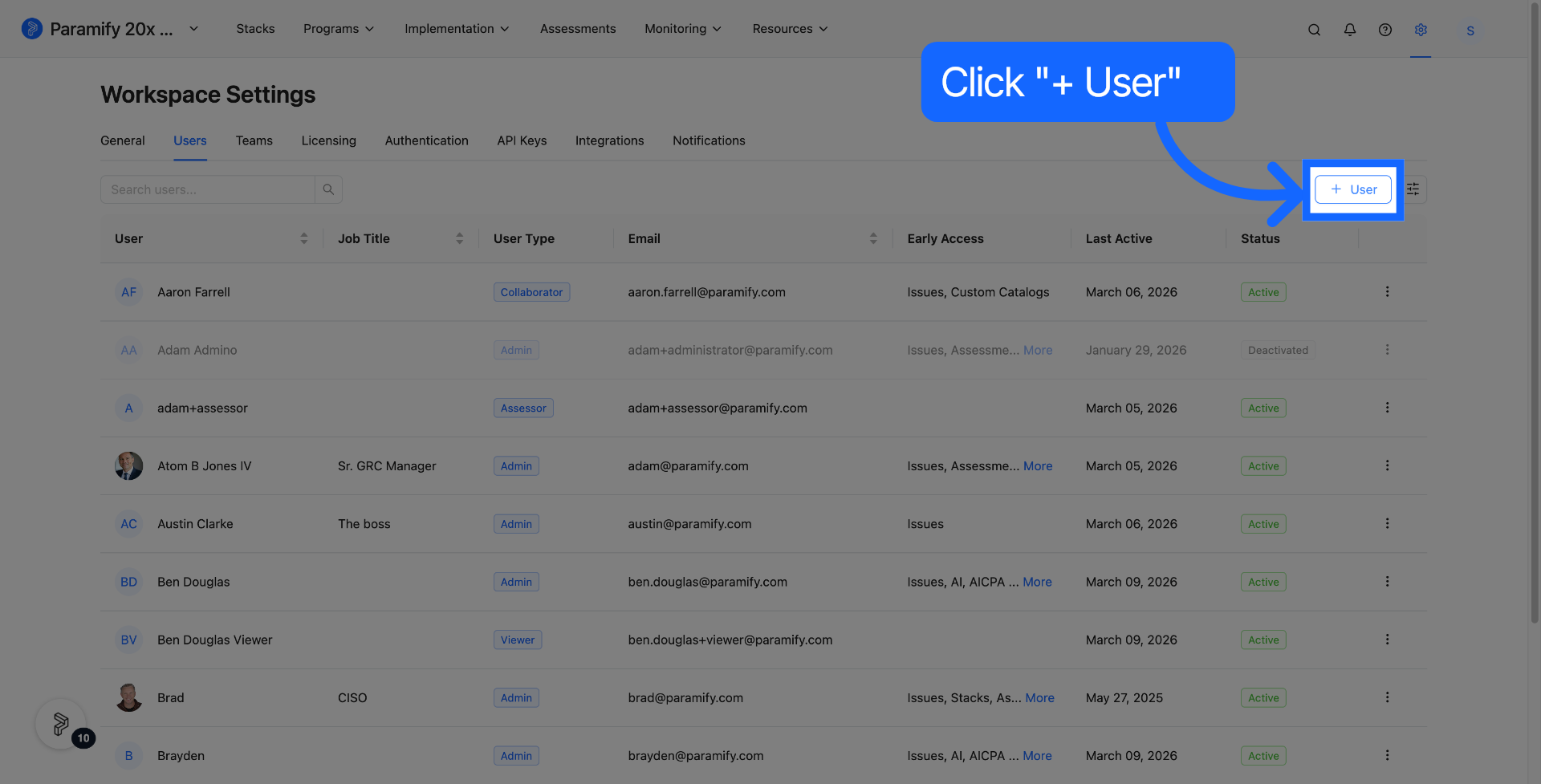
3. Click "+ User" to create a new user profile
This opens the new user creation form.
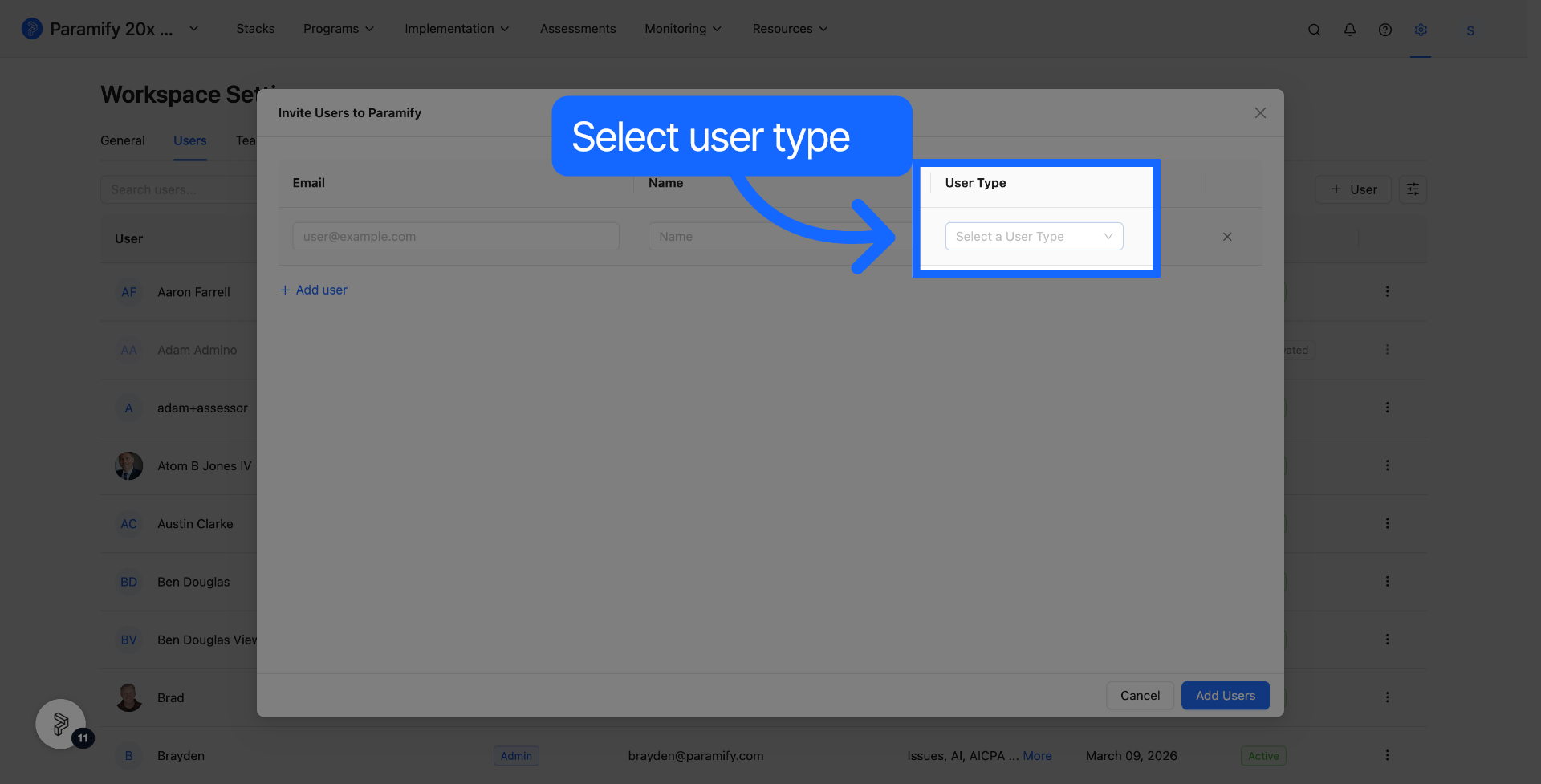
4. Click "Select a User Type" to view available user role options
A dropdown will appear showing all available roles in your workspace.
5. Click the Viewer option
Select Viewer to assign the read-only role to this user.
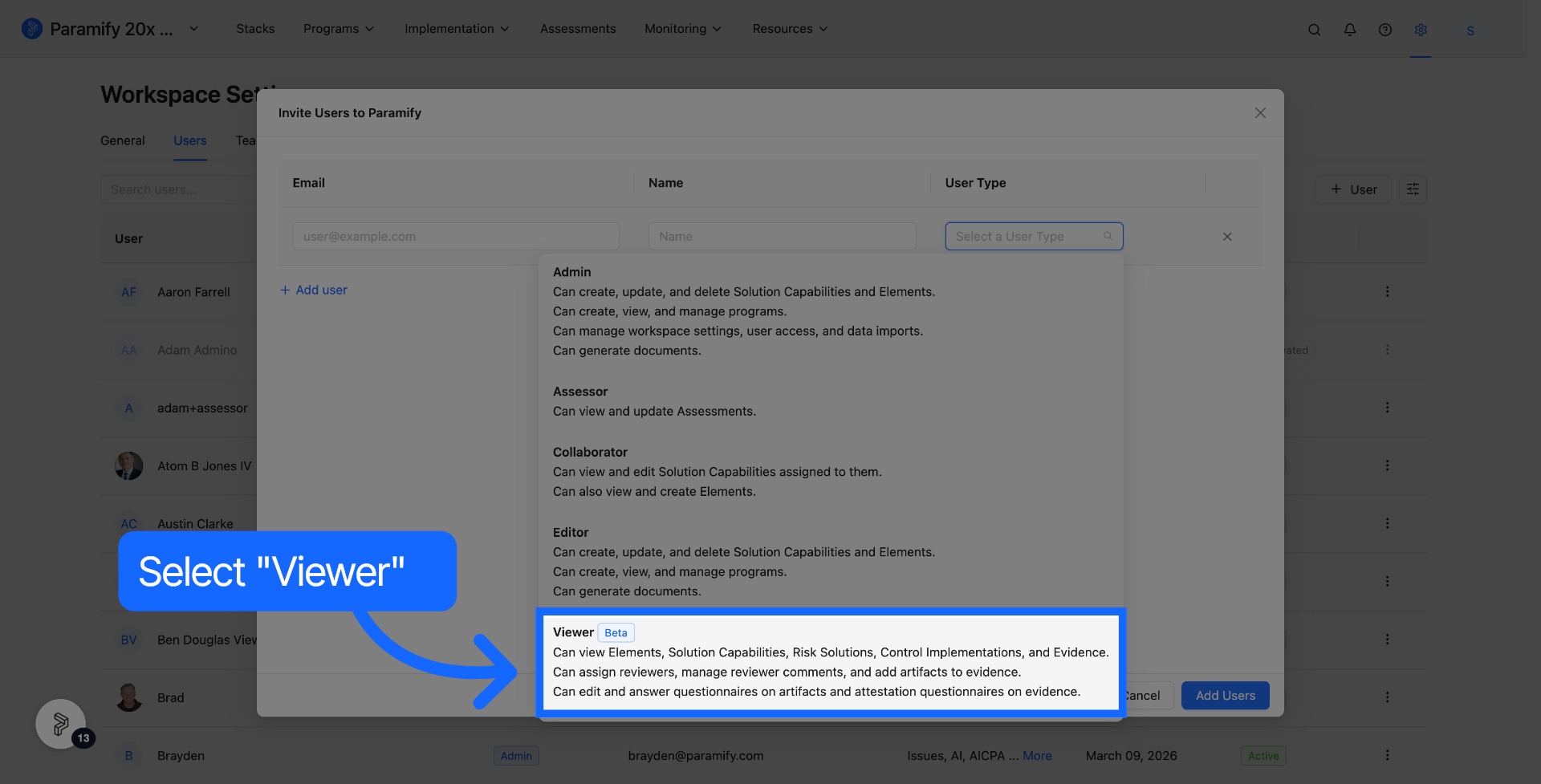
The table below summarizes all available user types and their permissions:
| User Type | Permissions |
|---|---|
| Admin | Create, Update, and Delete Solution Capabilities and Elements. Create, View and Manage Programs. Manage Workspace settings and user access. Use Data Import features. |
| Assessor | View and Update assessments. |
| Collaborator | View and edit Solution Capabilities assigned to them. View and create Elements. |
| Editor | Create, Update, and Delete Solution Capabilities and Elements. Create, View and Manage Programs. |
| Reviewer | View programs and controls. Mark controls as reviewed, clear review status, request changes, and update reviewer assignments. |
| Viewer | Can view Elements, Solution Capabilities, Risk Solutions, Control Implementations, and Evidence. Can assign reviewers, manage reviewer comments, and add artifacts to evidence. Can edit and answer questionnaires on artifacts and attestation questionnaires on evidence. |
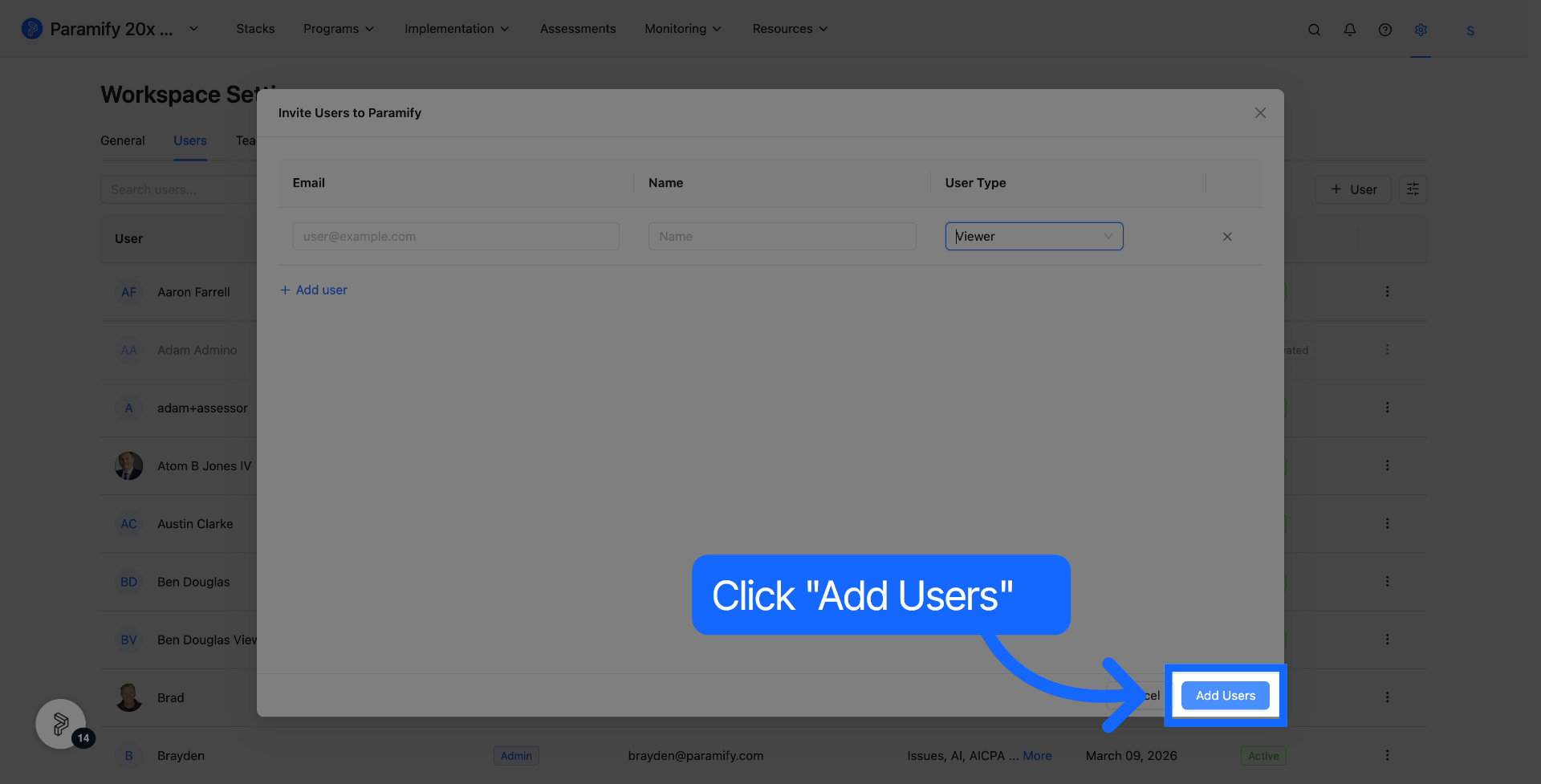
6. Click "Add Users" to begin adding new users to the workspace
Make sure to enter the user's email and name before continuing.
Inviting a New User
Once a user has been added to a workspace with Viewer access, they simply need to login.
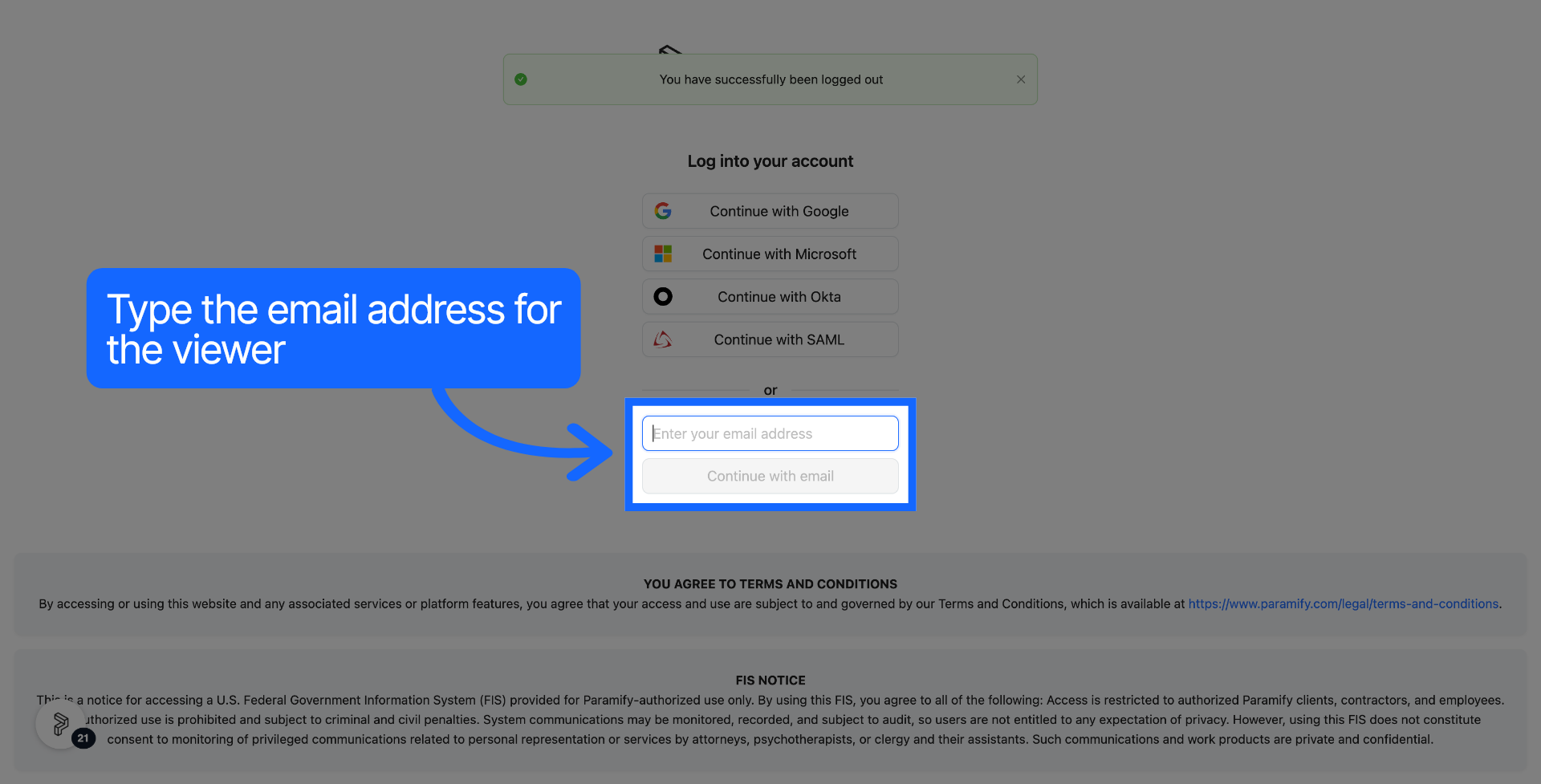
7. Click "Continue with email" to proceed with logging in via email
The new user will receive an invitation link at the email address you provided.
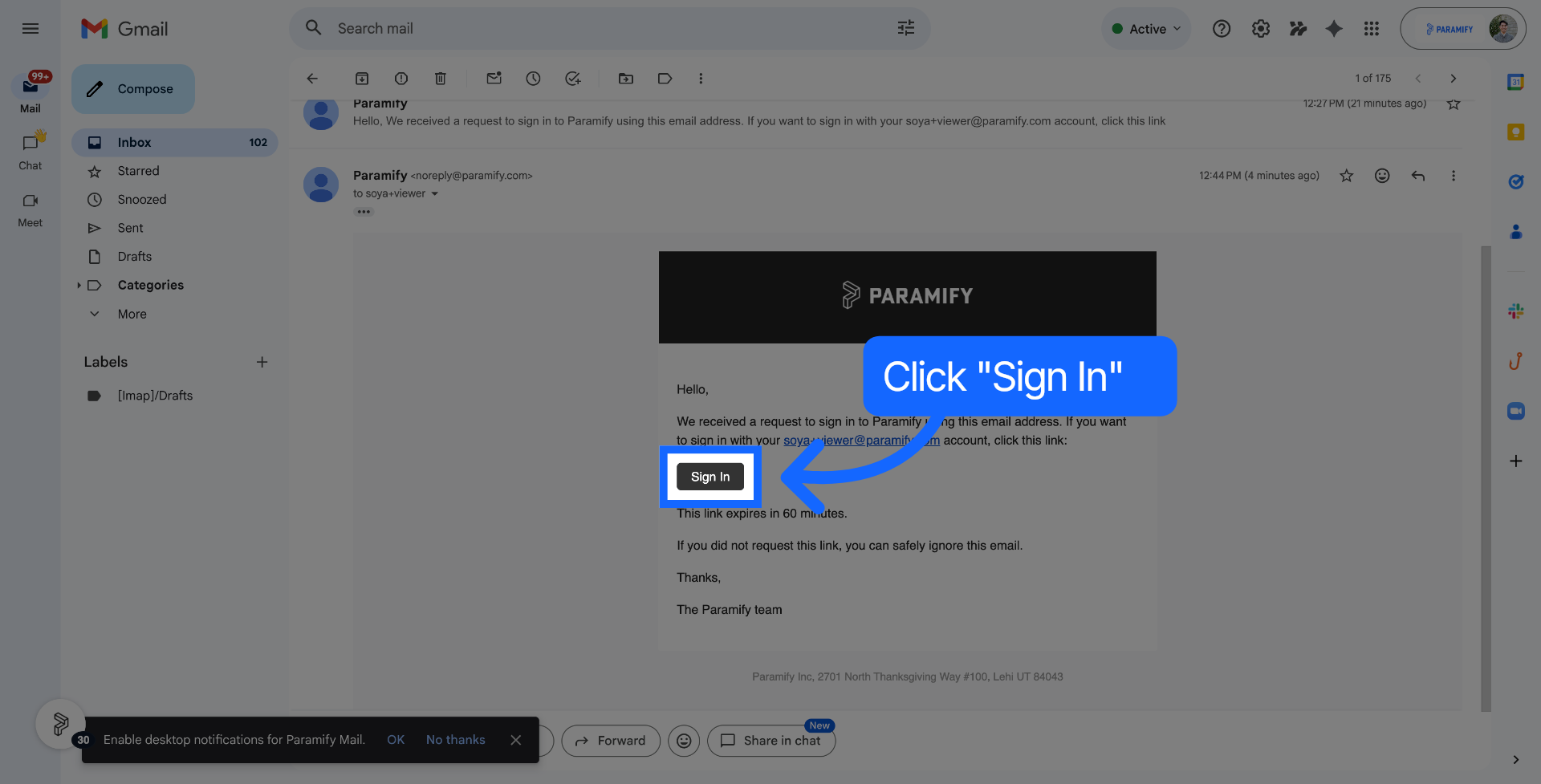
8. Check your email and click "Sign In" to complete the sign-in process from your email link
The user clicks the link in the invitation email to authenticate and access the workspace.
9. Viewers can only see the Programs and implementation sections
Once signed in, the Viewer will have a limited navigation menu reflecting their read-only access.
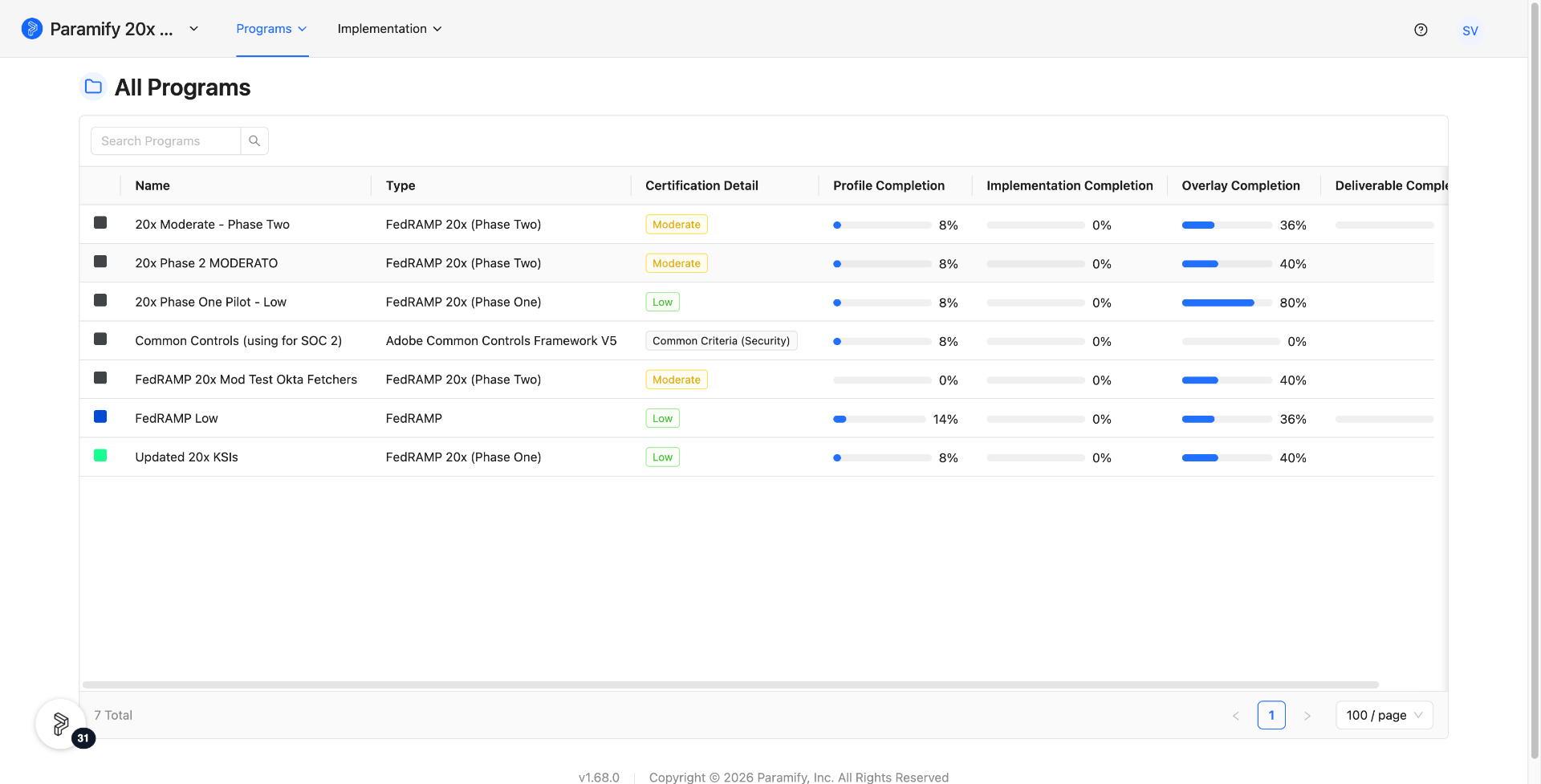
Navigating as a Viewer
Viewer users have limited capabilities compared to collaborator or admin users. aside from viewing pages in the app, Viewer users can edit review status, add review comments, and add reviewers to KSIs or controls.
10. Select a program and click a KSI
From the Programs section, open any program and select a Key Security Indicator to review its details.
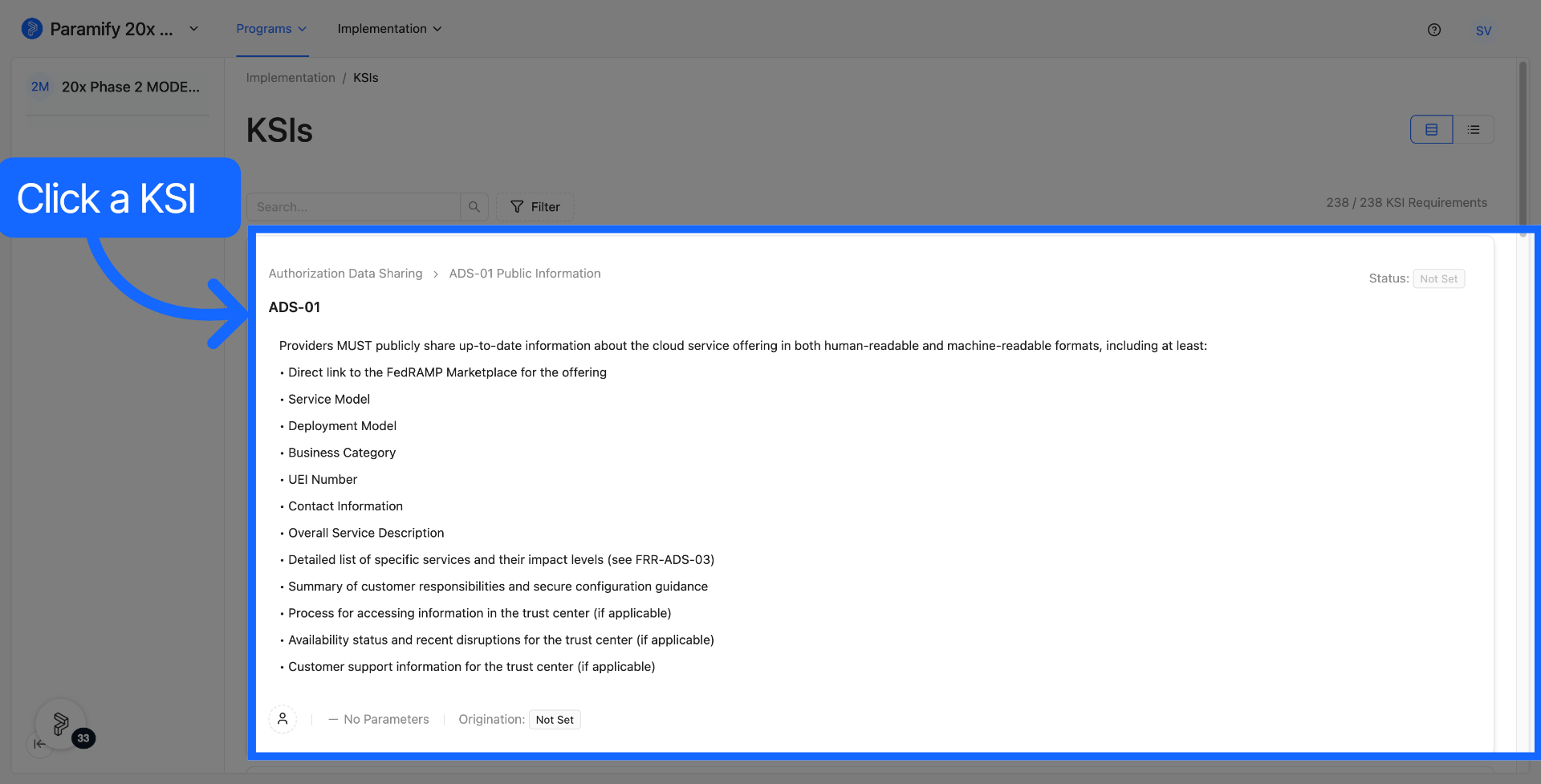
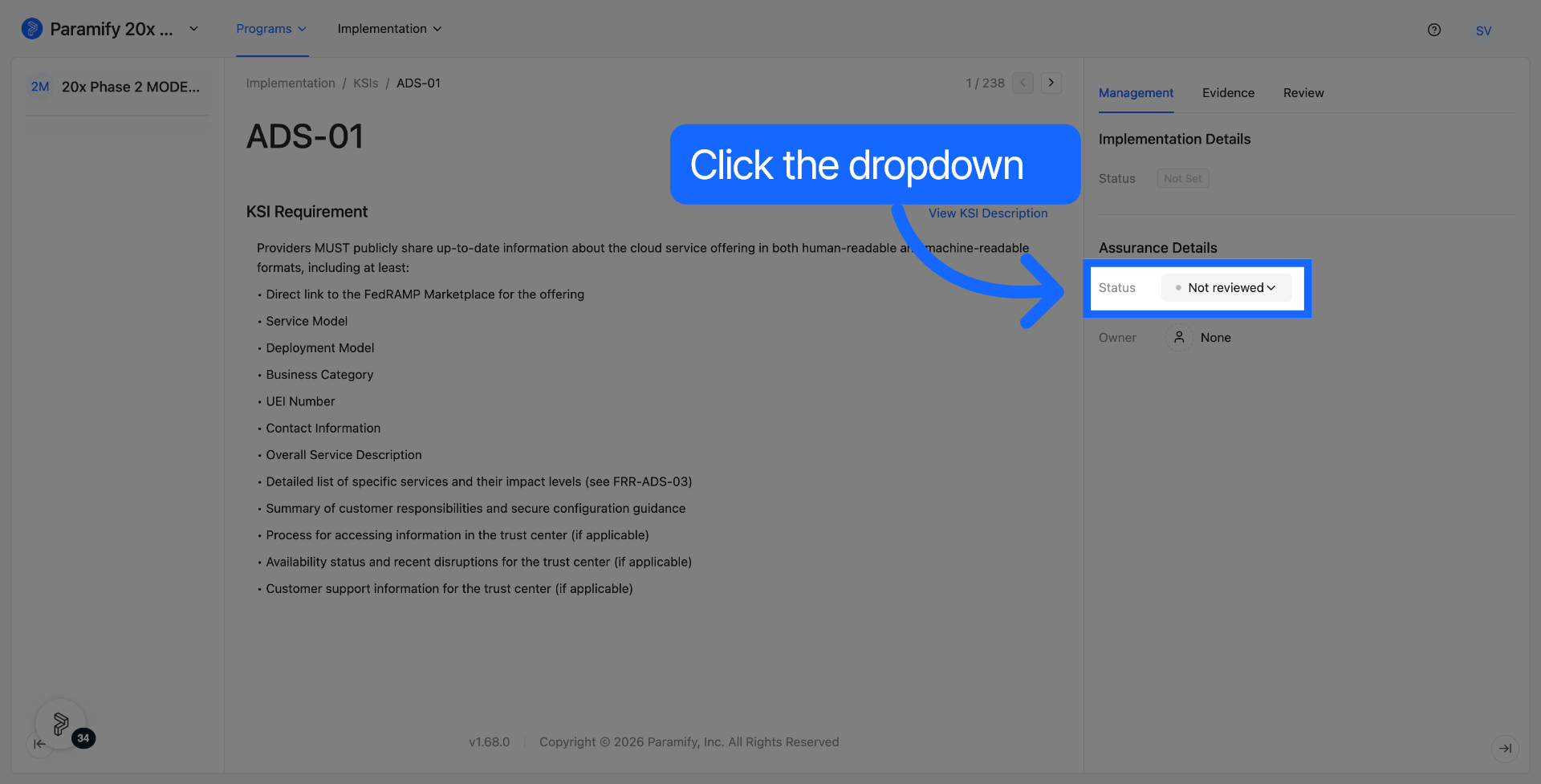
Managing Review Status
11. Click "Not reviewed" to change the current review status of program controls
This opens the review status menu for the selected control.
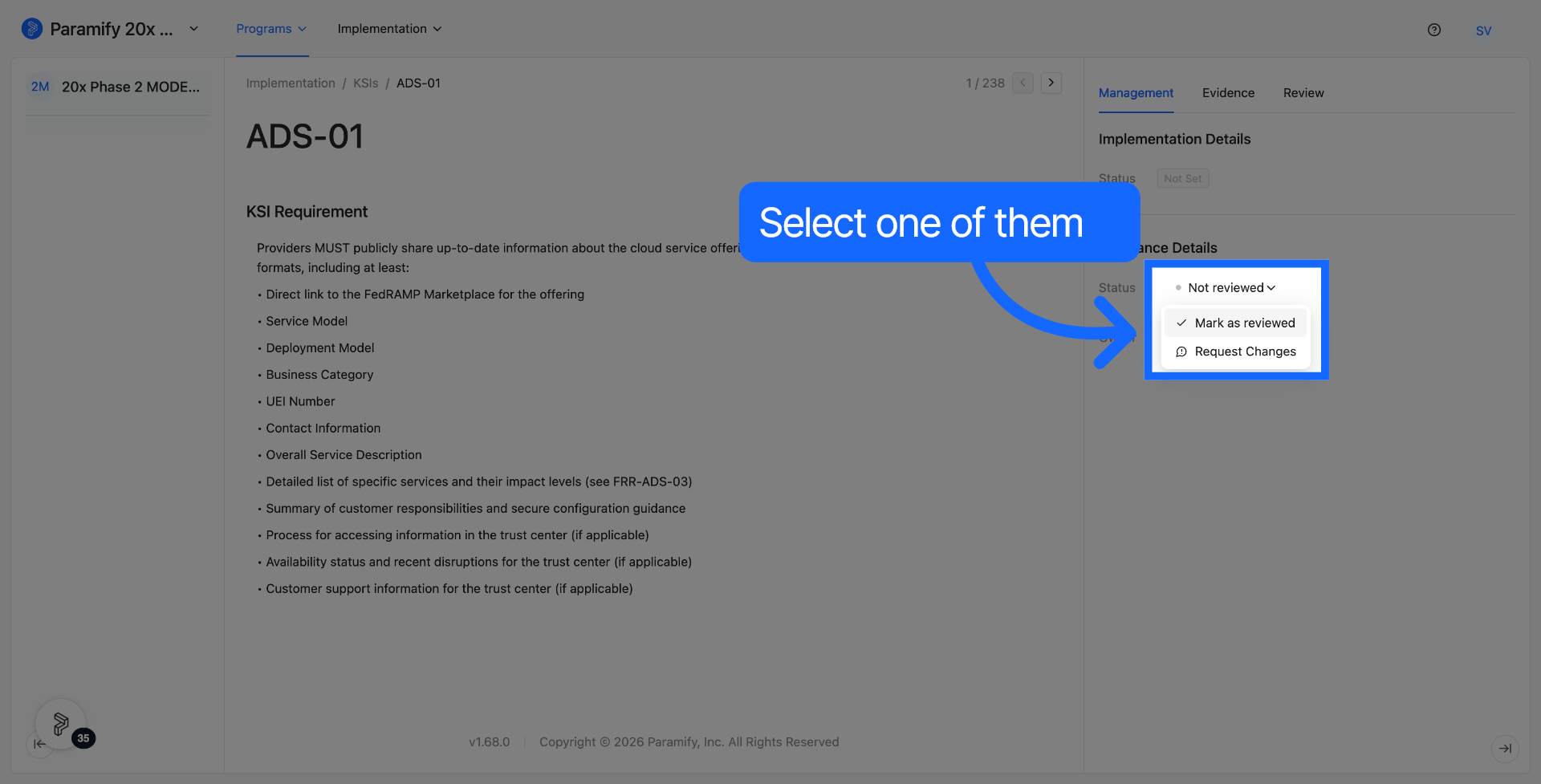
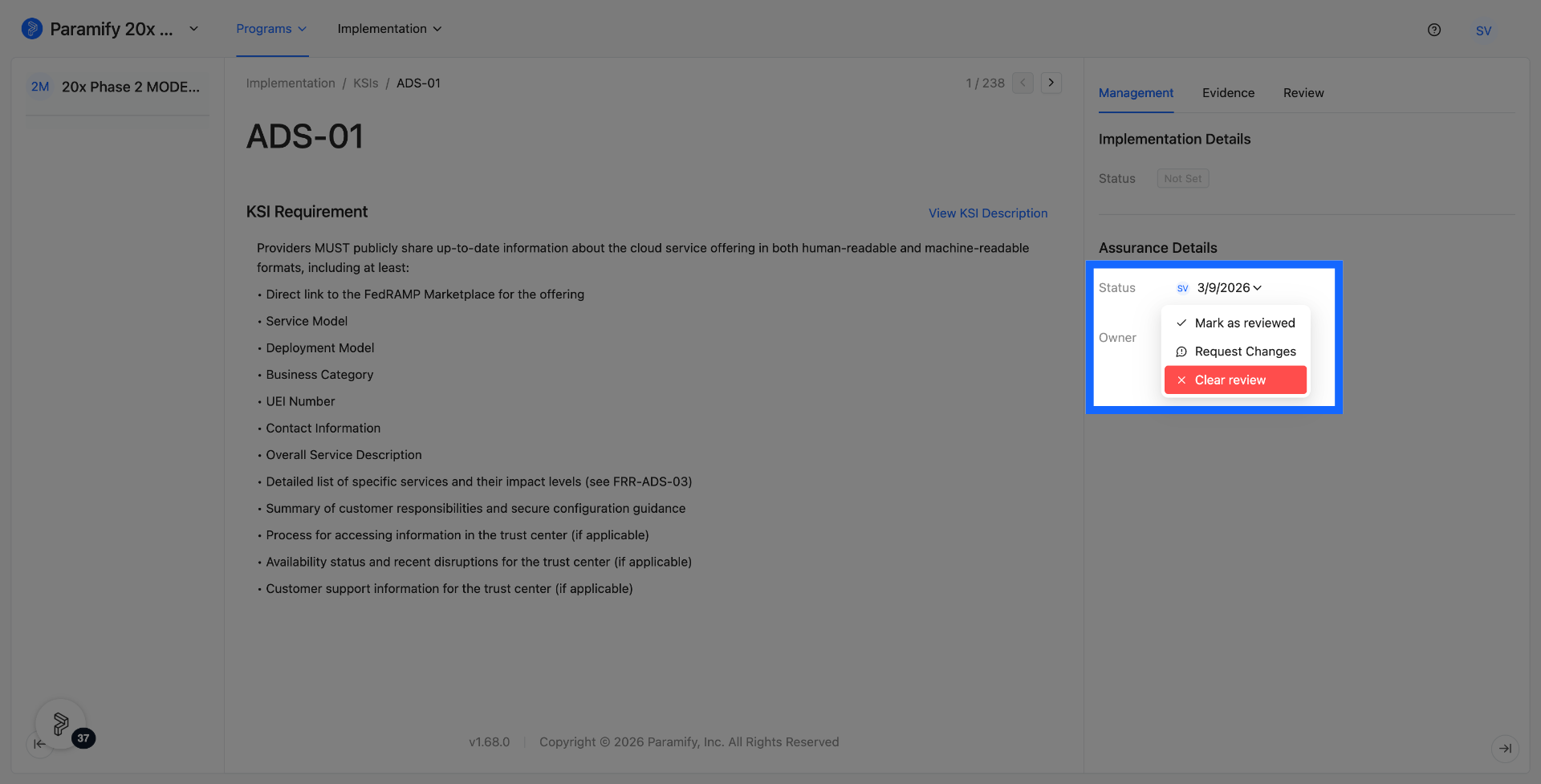
12. Click "Mark as reviewed" or "Request Changes" to update the status of the selected control
Choose the appropriate action based on your assessment of the control.
13. (Optional) Remove the current review status from the control by clicking "Clear review"
This resets the control back to an unreviewed state.
Adding Review Comments
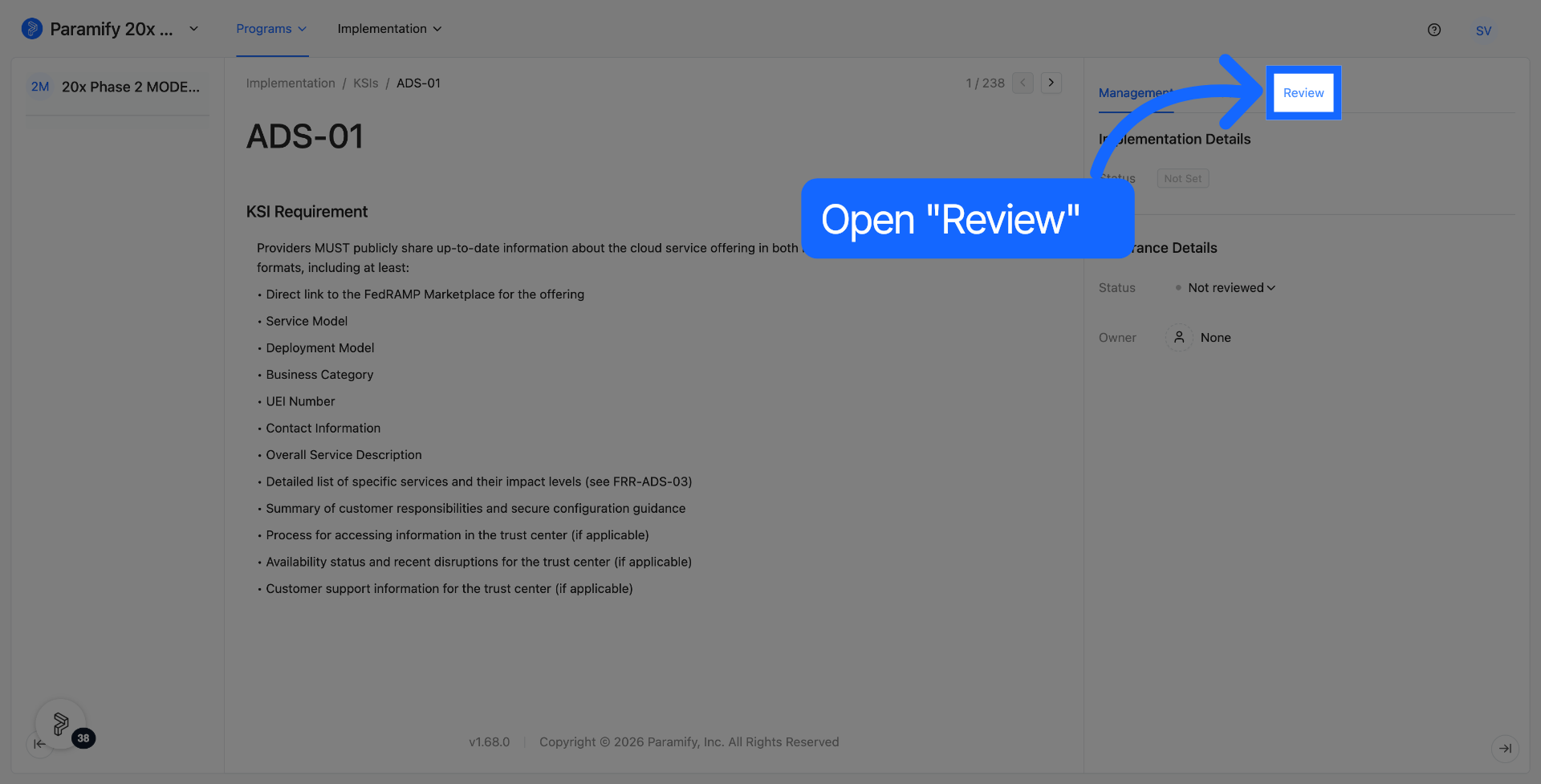
14. Click "Review" to access the review section for program controls
This opens the review panel where you can view and add comments.
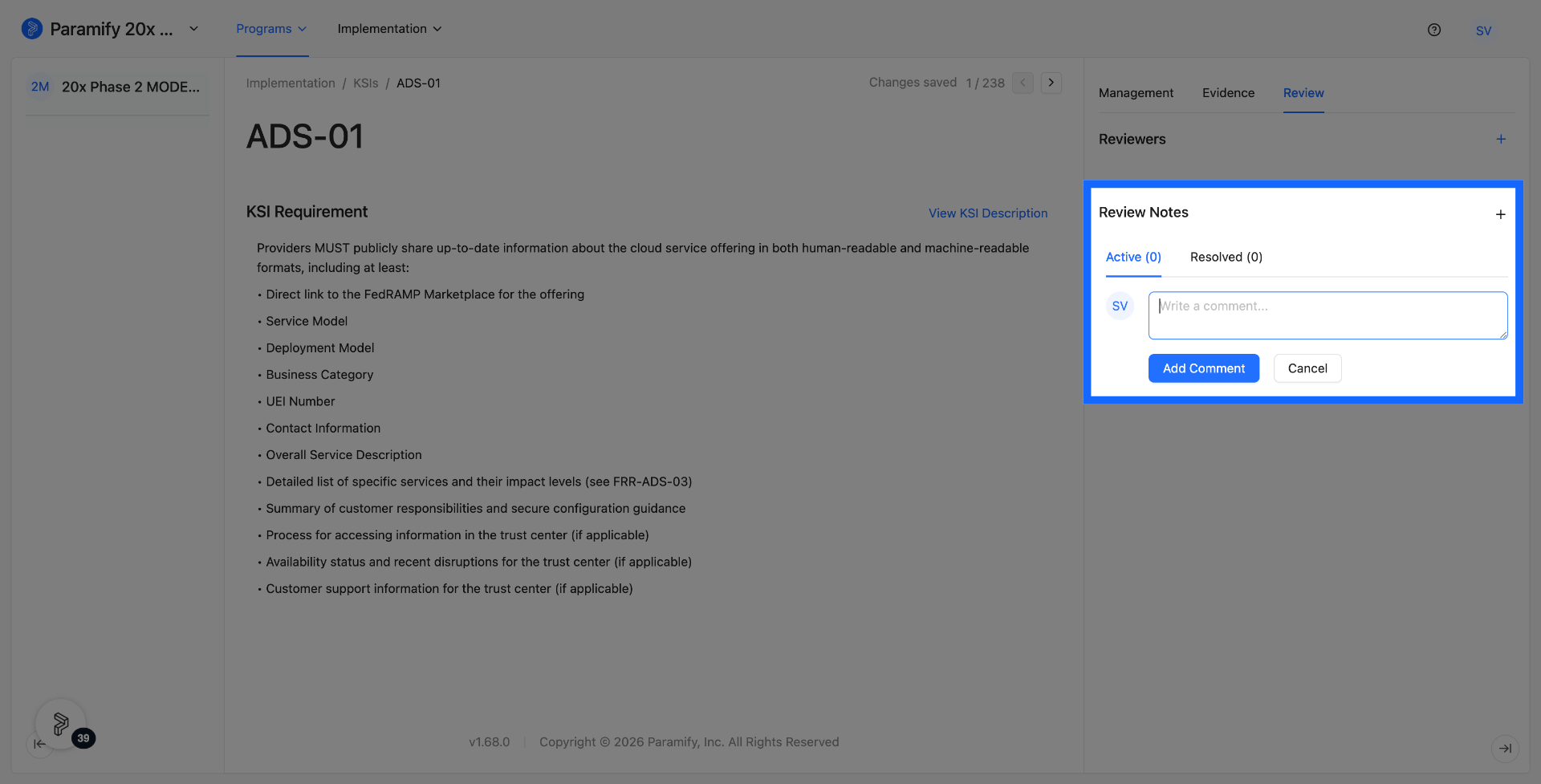
15. Click "+" to begin adding your review comments
Type your feedback or observations in the comment field that appears.
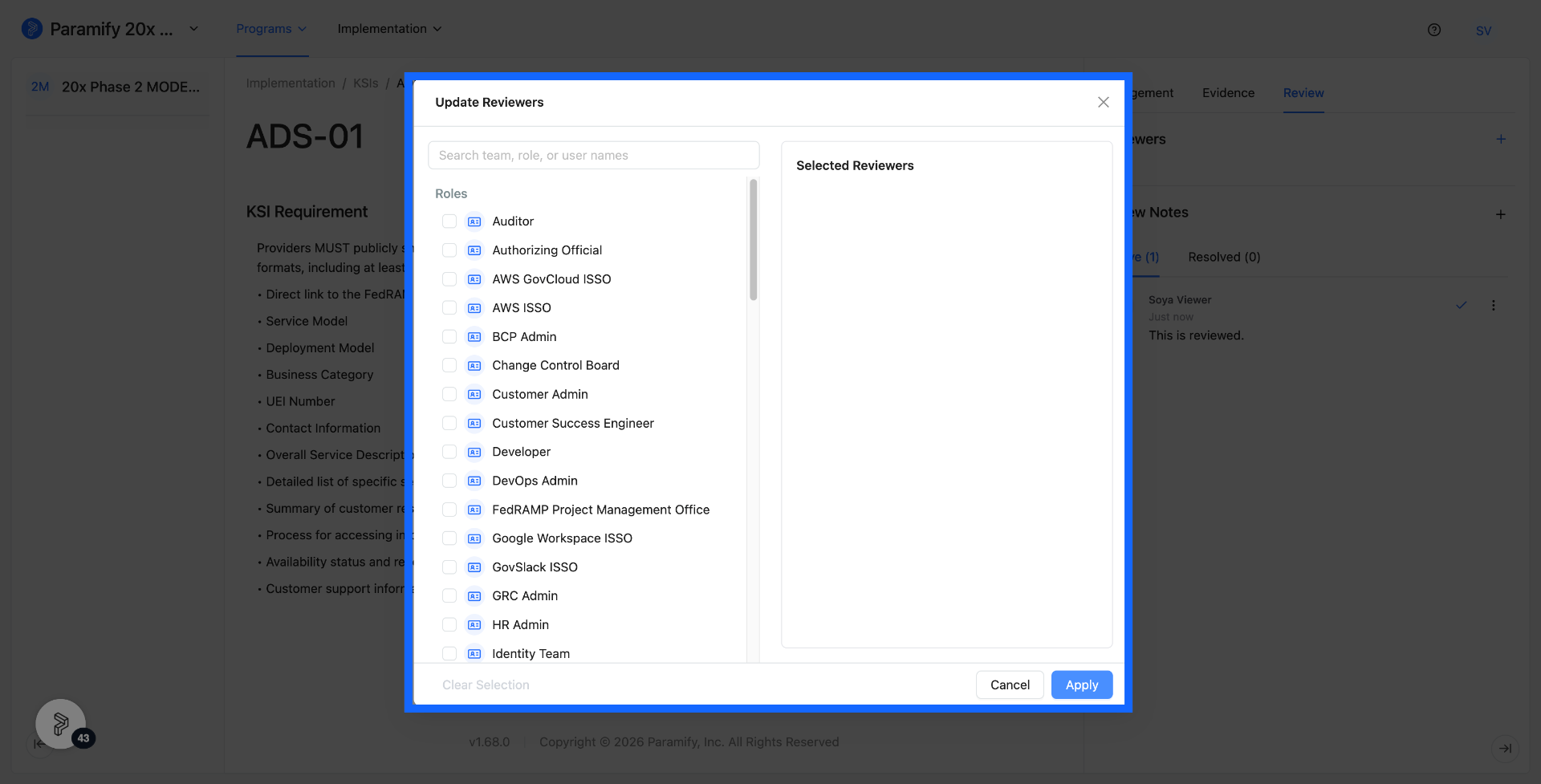
Updating Reviewers
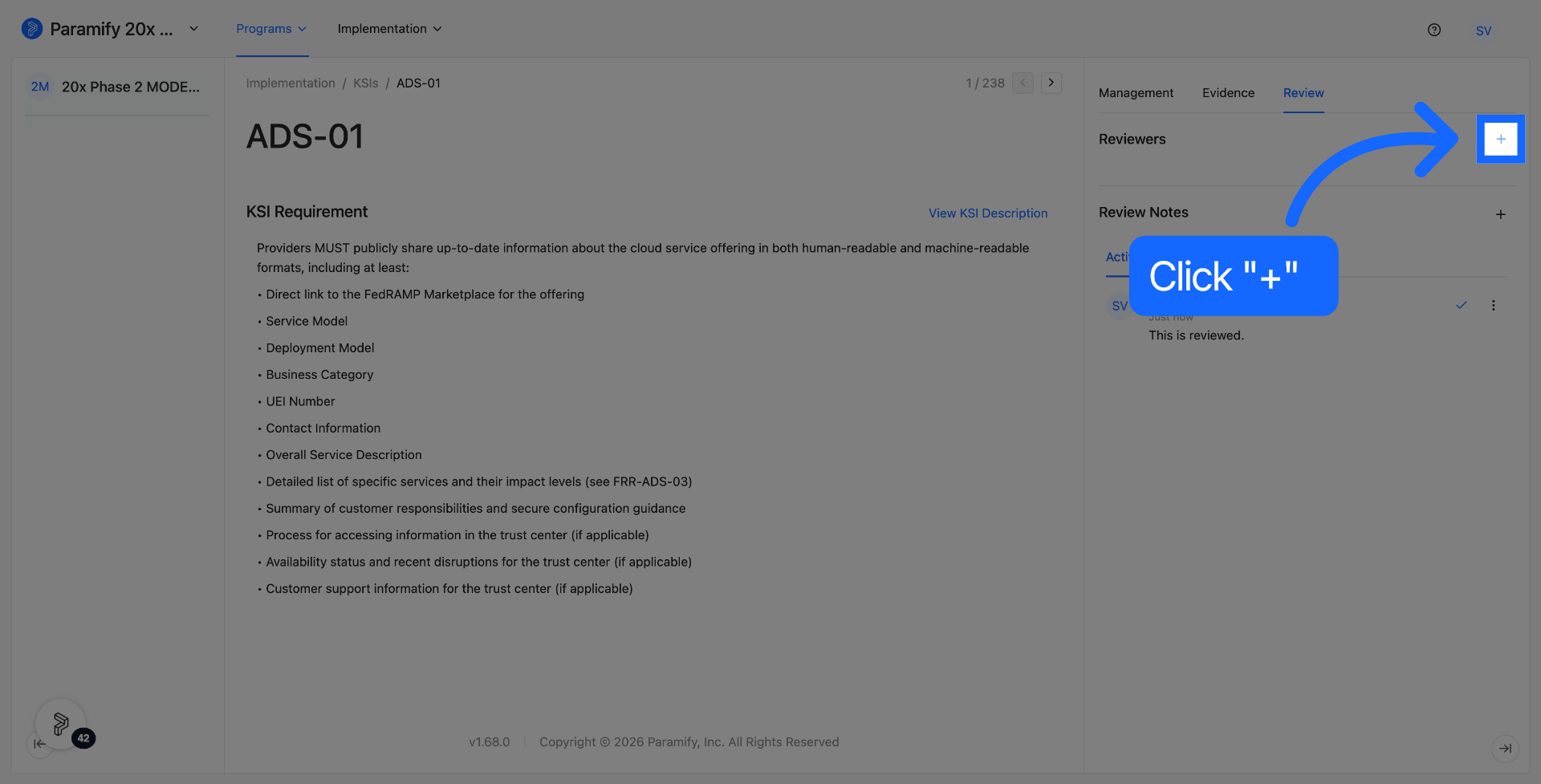
16. Click the "+" button to update reviewers
This opens the reviewer assignment panel for the selected control.
17. Select the roles to update reviewers and click "Apply" to save all changes made to the program controls
Your reviewer assignments will be saved and reflected immediately across the program.
Comments
0 comments
Please sign in to leave a comment.