
Overview
Once information types and security objectives have been set, applicable controls for the program can be selected.
Control Parameters
After controls are selected, configuring policy parameters in Paramify is simple. Within the Implementation Controls page, click on a parameter to adjust its settings.
Our OSCAL-based system simplifies the following:
- setting parameters, whether they require select-many, radio-select, or fill-in options
- completing incomplete settings
The platform makes it easy to automatically match security objective parameter settings and a straightforward option to import your existing parameters.
Configure Control Parameters
This tutorial guides you through configuring control parameters within the Paramify application. Navigate to the Controls page within your program by going to Implementation > Controls.
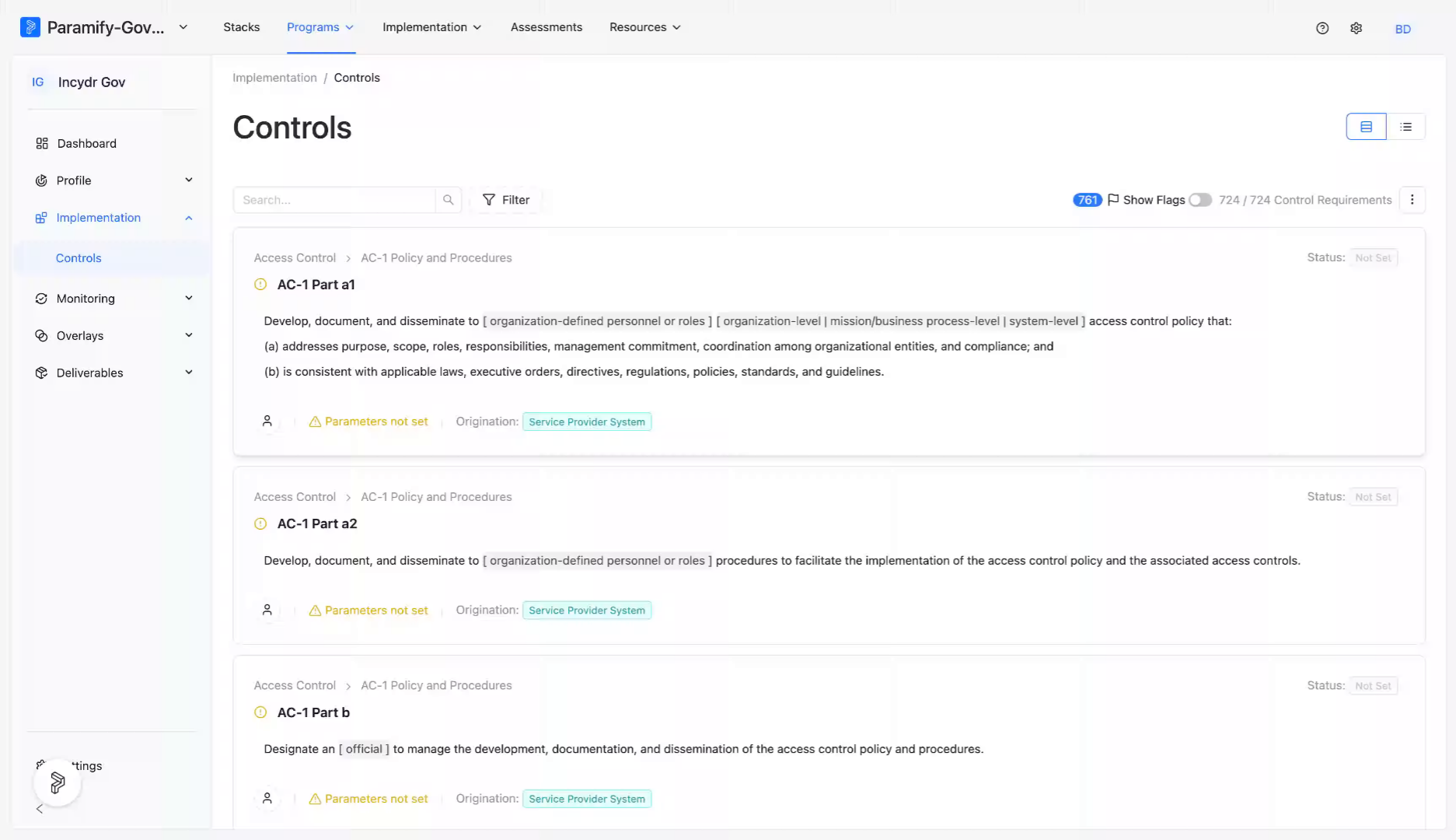
Click on a parameter to adjust its settings.
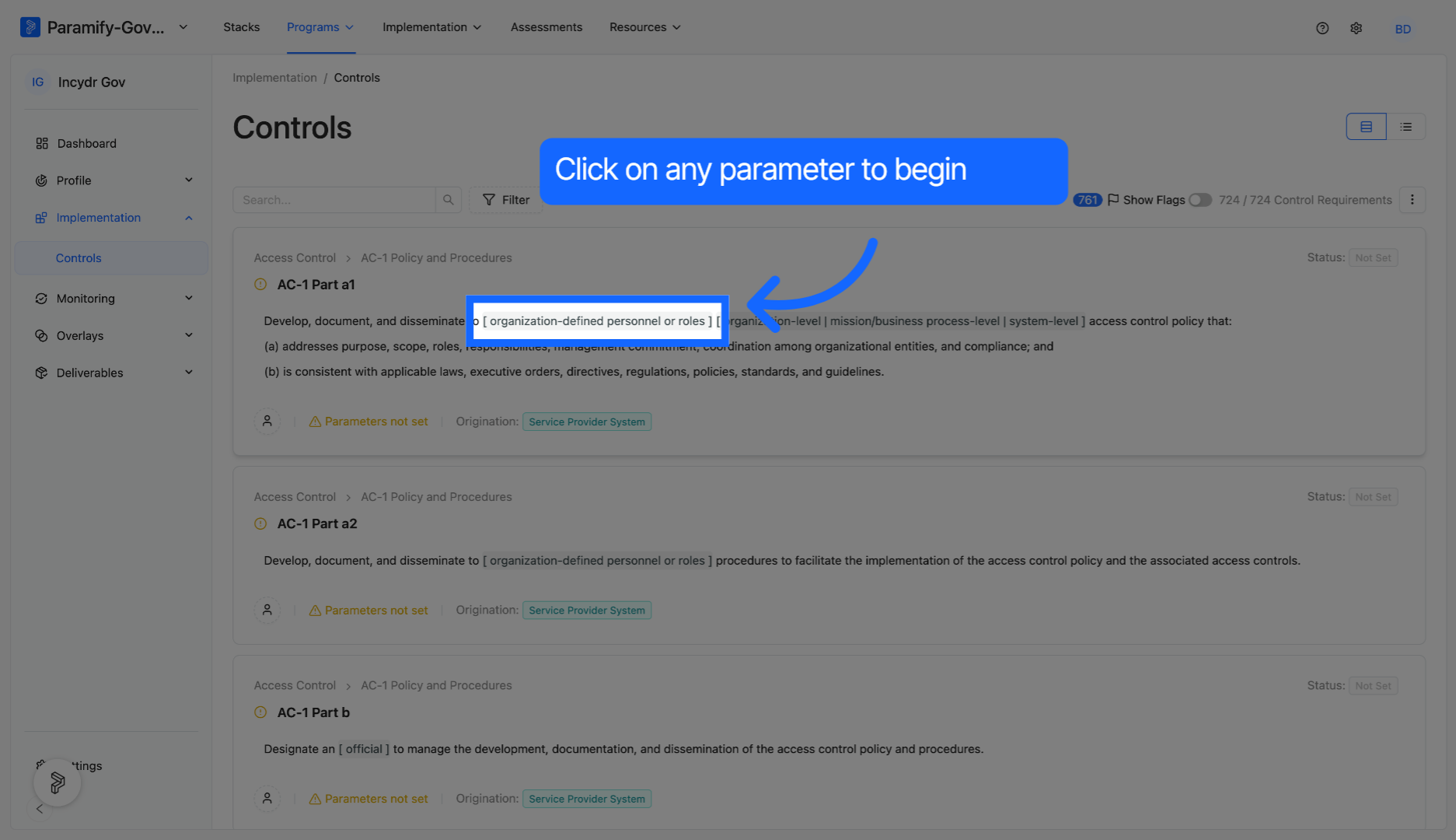
Click Advanced to open the advanced configuration options.
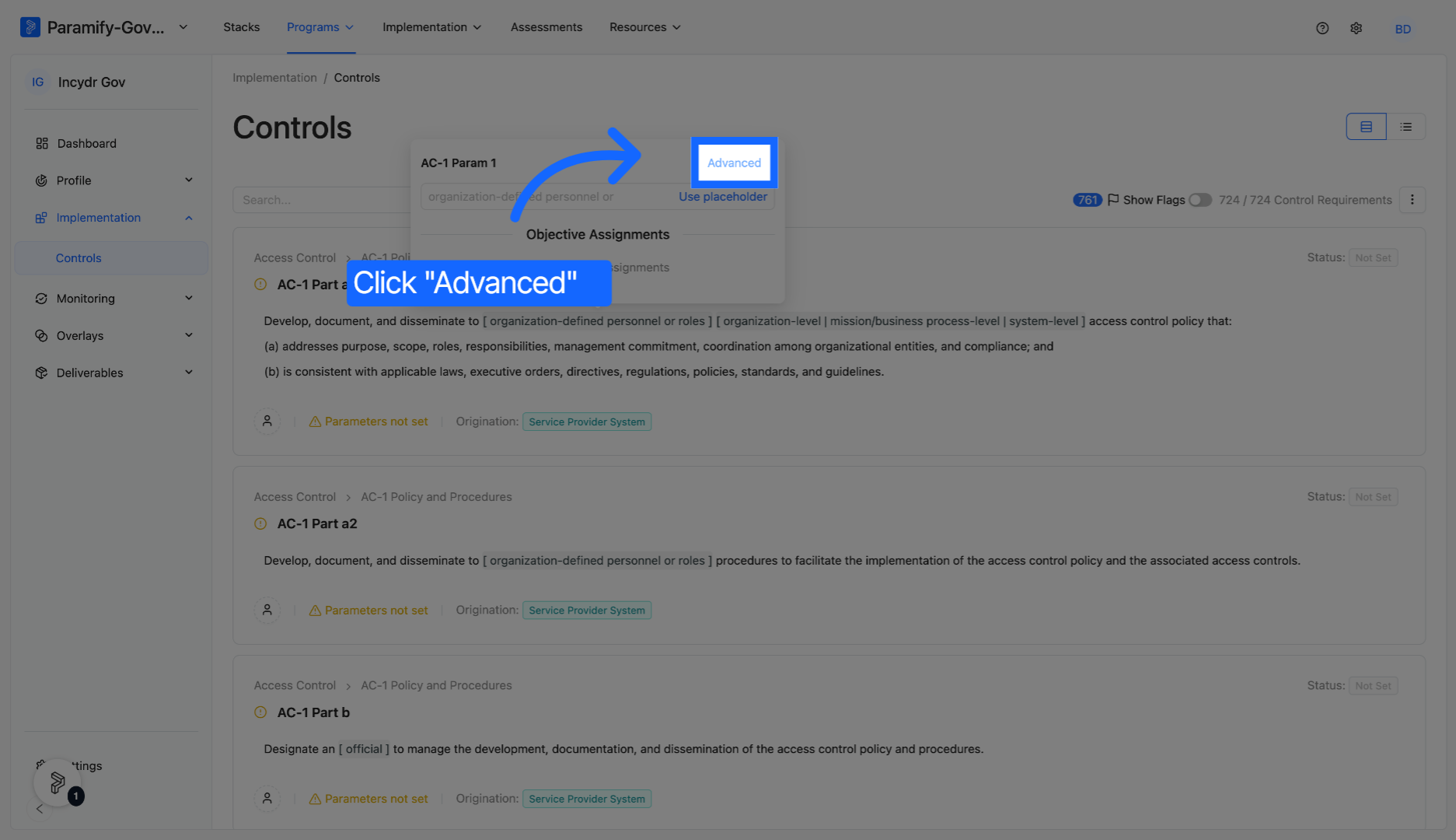
Paramify simplifies the process by allowing you to adjust options within the parameter whether it be select-many, radio-select, etc.
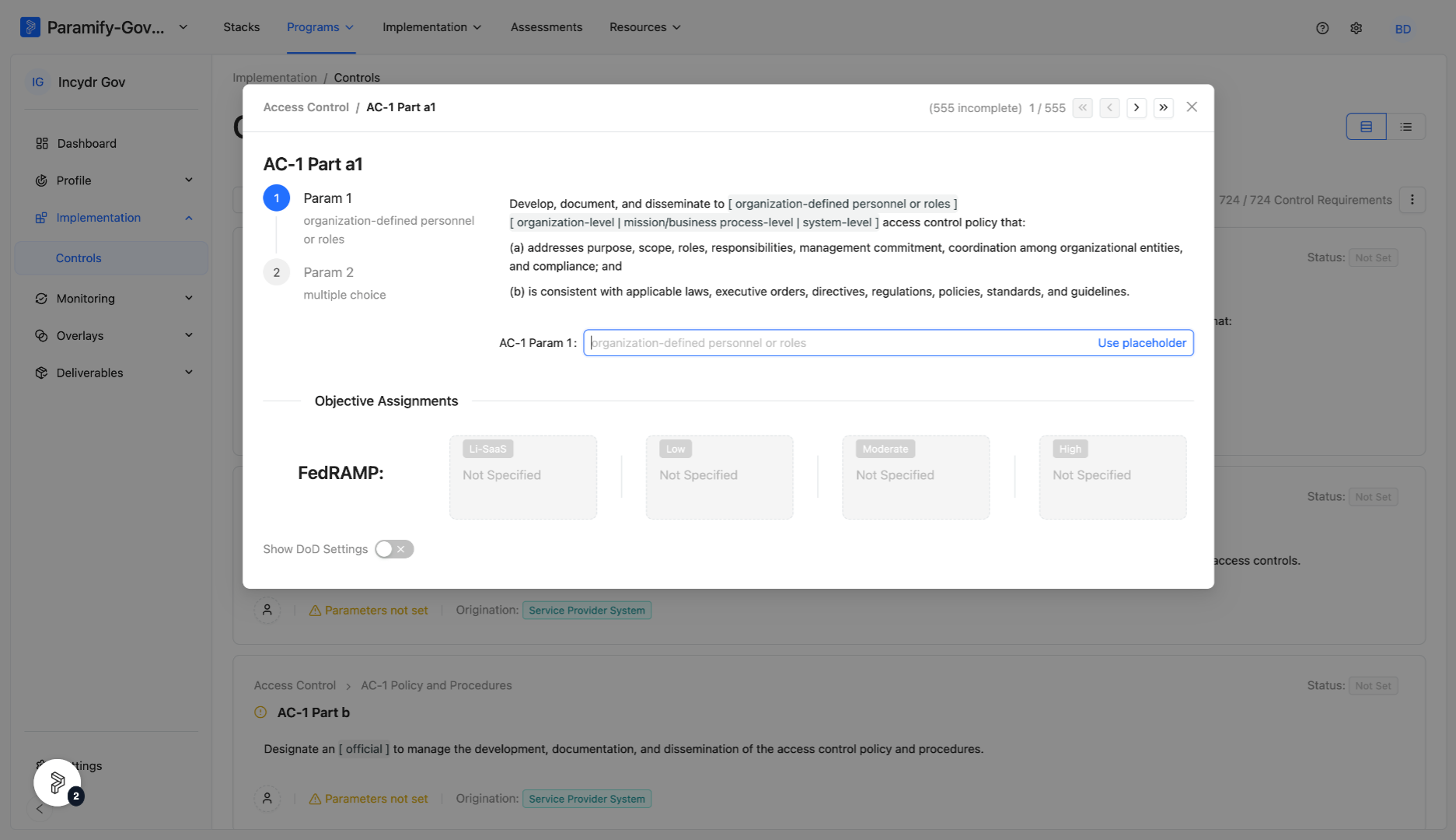
Control Parameters also allow you to complete any incomplete settings that may exist within the program.
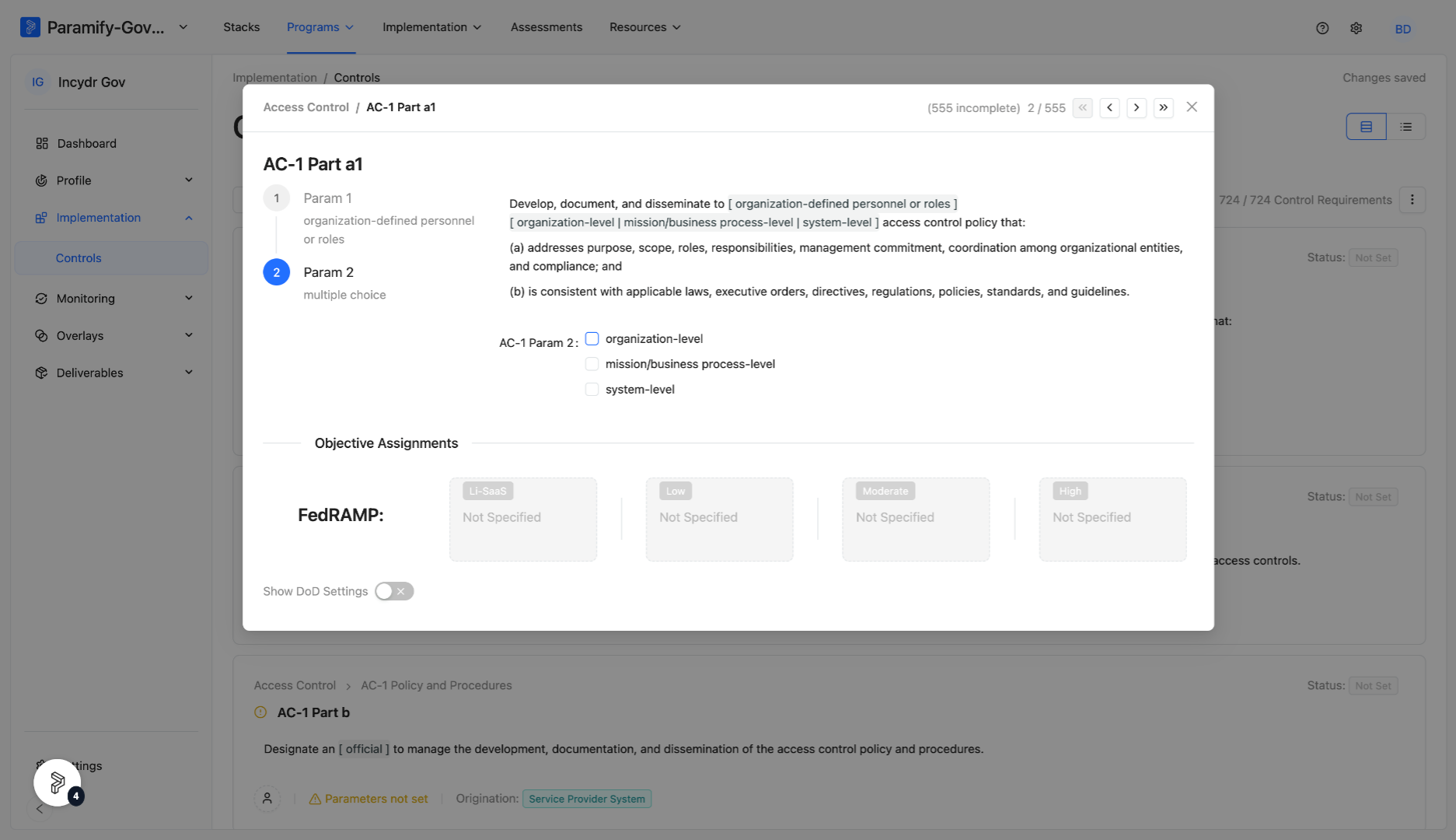
You have successfully configured control parameters. This setup ensures your parameters are tailored to your organizational needs.
Control Implementation Responses
Paramify manages control responses at the requirement level, i.e. part and subpart. Those responses can be provided as solution capabilities and/or custom responses. Custom responses are occasionally utilized by users that want to take advantage of our SSP ingestion features to leverage their existing SSP. For more information on differences between Solution Capabilities and custom responses and leveraging an existing SSP in Paramify, see Leveraging an existing SSP.
We encourage you to migrate to Solution Capabilities as soon as is feasible for you to maximize the following:
- Accuracy & Efficiency: Your security requirements grow with your organization. Responding one by one to individual requirements is tedious and inefficient, i.e. custom responses. A Solution Capability can map to multiple controls across any security catalog – allowing you to be flexible and agile as your security objectives increase with increased speed and accuracy.
-
Collaboration: Solution Capabilities provide a platform to drive shared risk adoption across the organization. Security becomes a collective organizational effort that’s not owned only by the GRC team
NOTE
Paramify has already established battle-tested Solution Capabilities to control requirement mappings that can be assigned as control responses with the click of a button.
Responsible roles, origination, and implementation status for a control requirement are defined on the Solution Capabilities and/or custom responses mapped to it.
Implementation Statuses
Implementation status for a control requirement is calculated based off of the lowest implementation status of all linked Solution Capabilities and/or custom responses for the given control requirement.
From highest to lowest implementation, the statuses are as follows:
- Implemented
- Planned
- Partially Implemented
- Alternative Implementation
- Not Implemented
- Not Applicable
- Not Set
Control Implementation Review
Paramify makes it really easy to assign and review the individual control implementations using the following workflow from the Control Implementation page list view.
Assign Control Owners or Responsible Roles
Navigate to Controls Section under Programs > Implementation > Controls.
- Click the Controls section to access control management features.
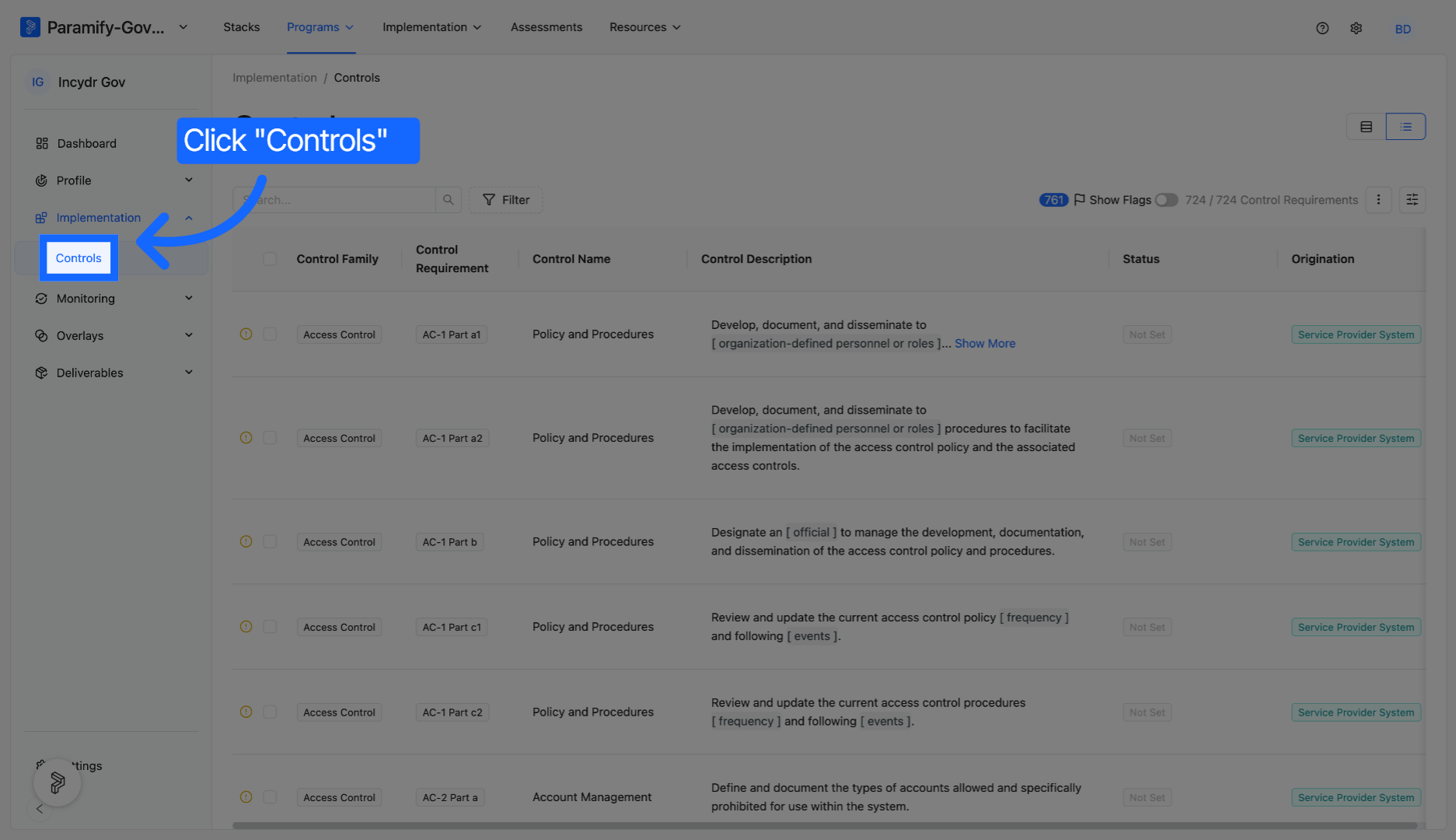
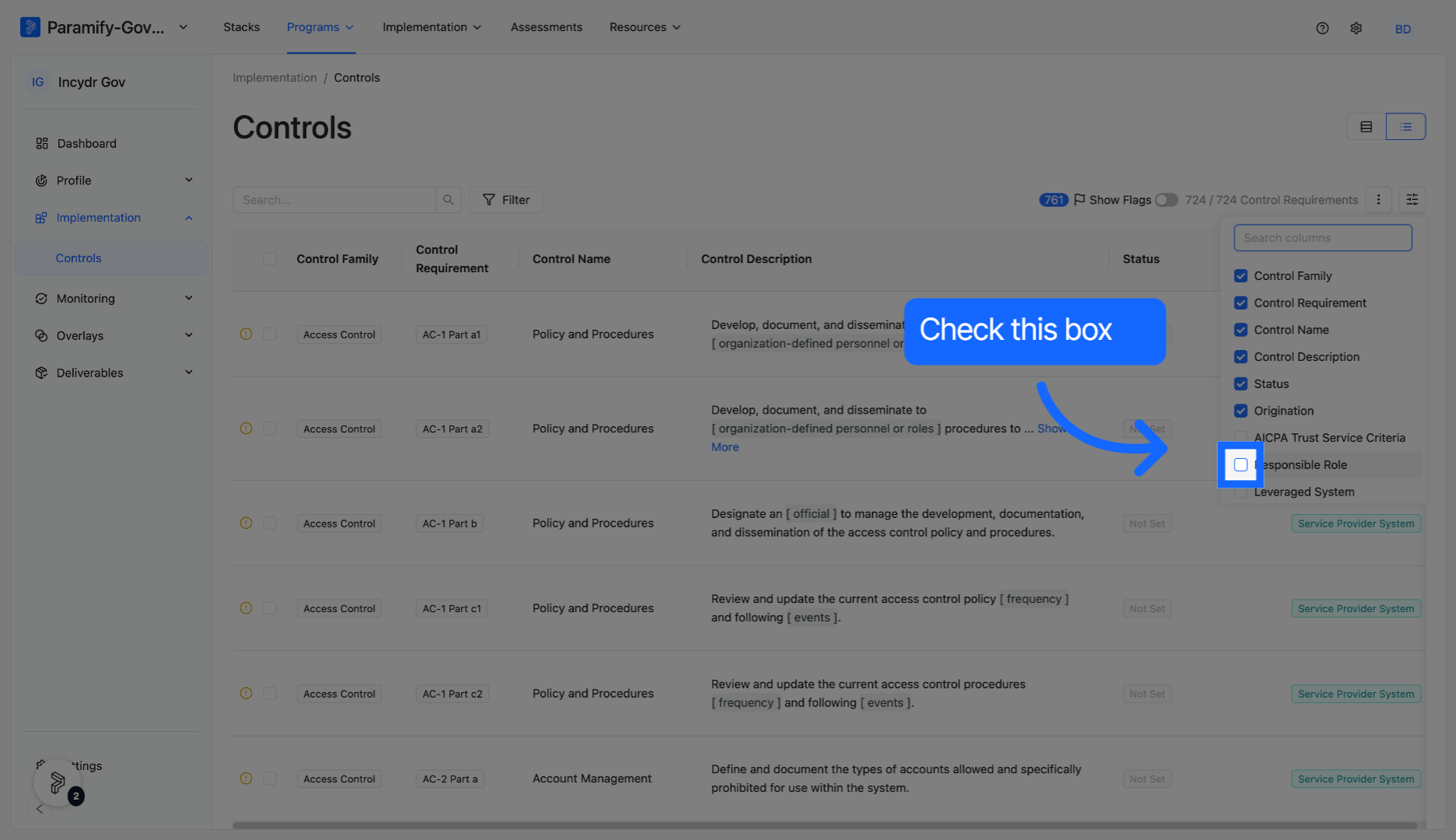
If Responsible Roles is not visible, it can be manually added.
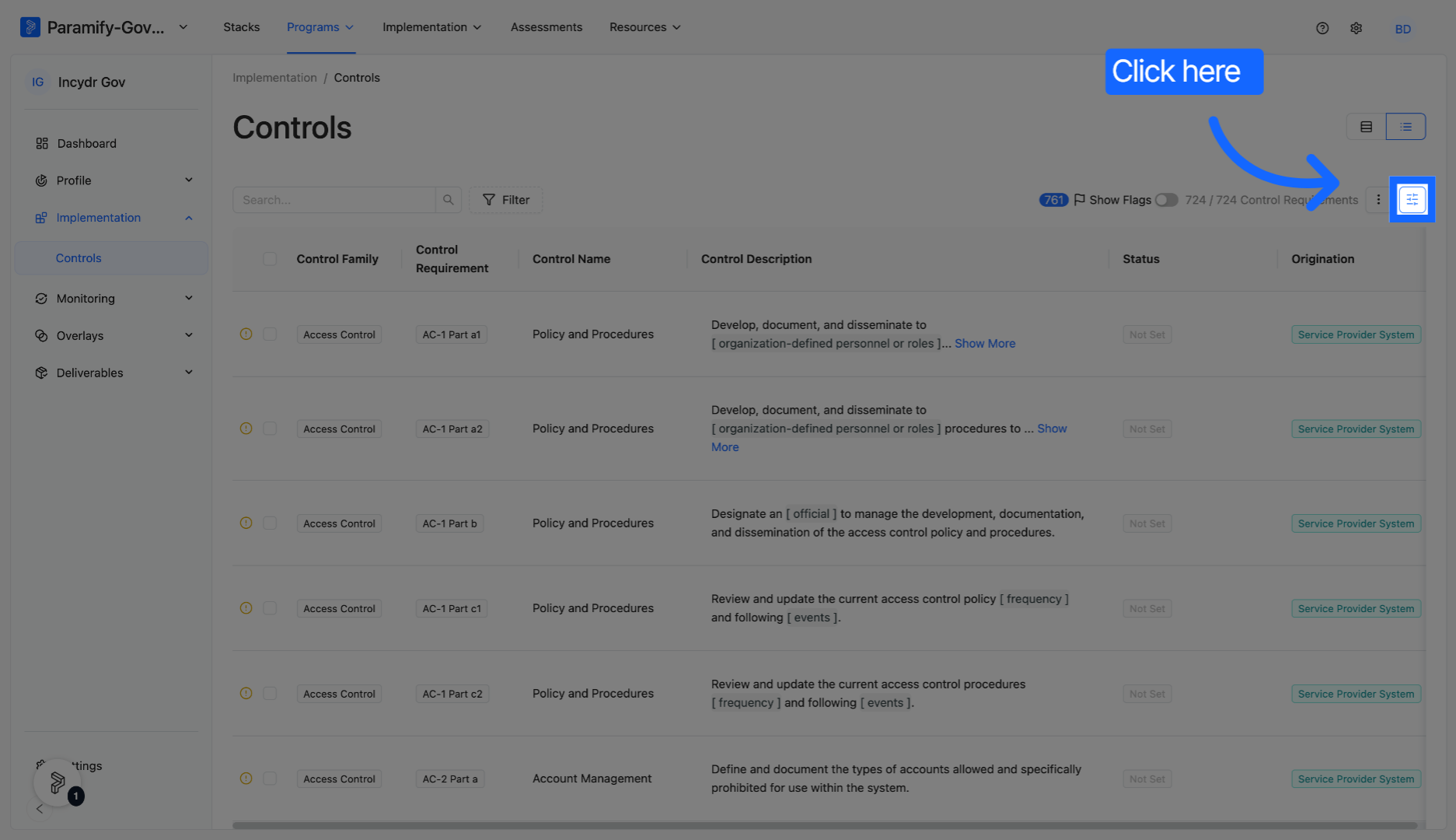
Check the box to manually show Responsible Roles.
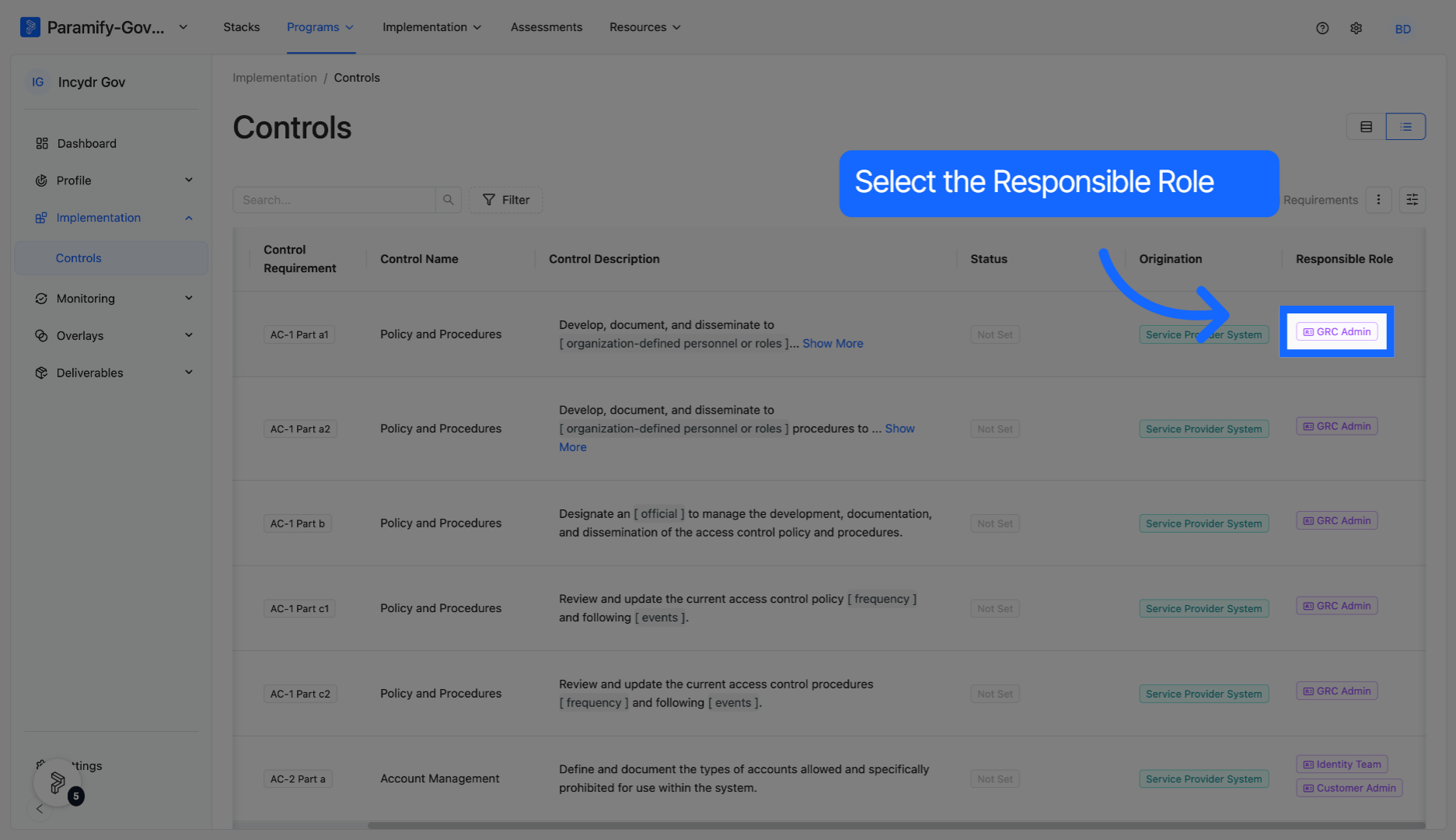
To edit the responsible role, select the control's Responsible Role.
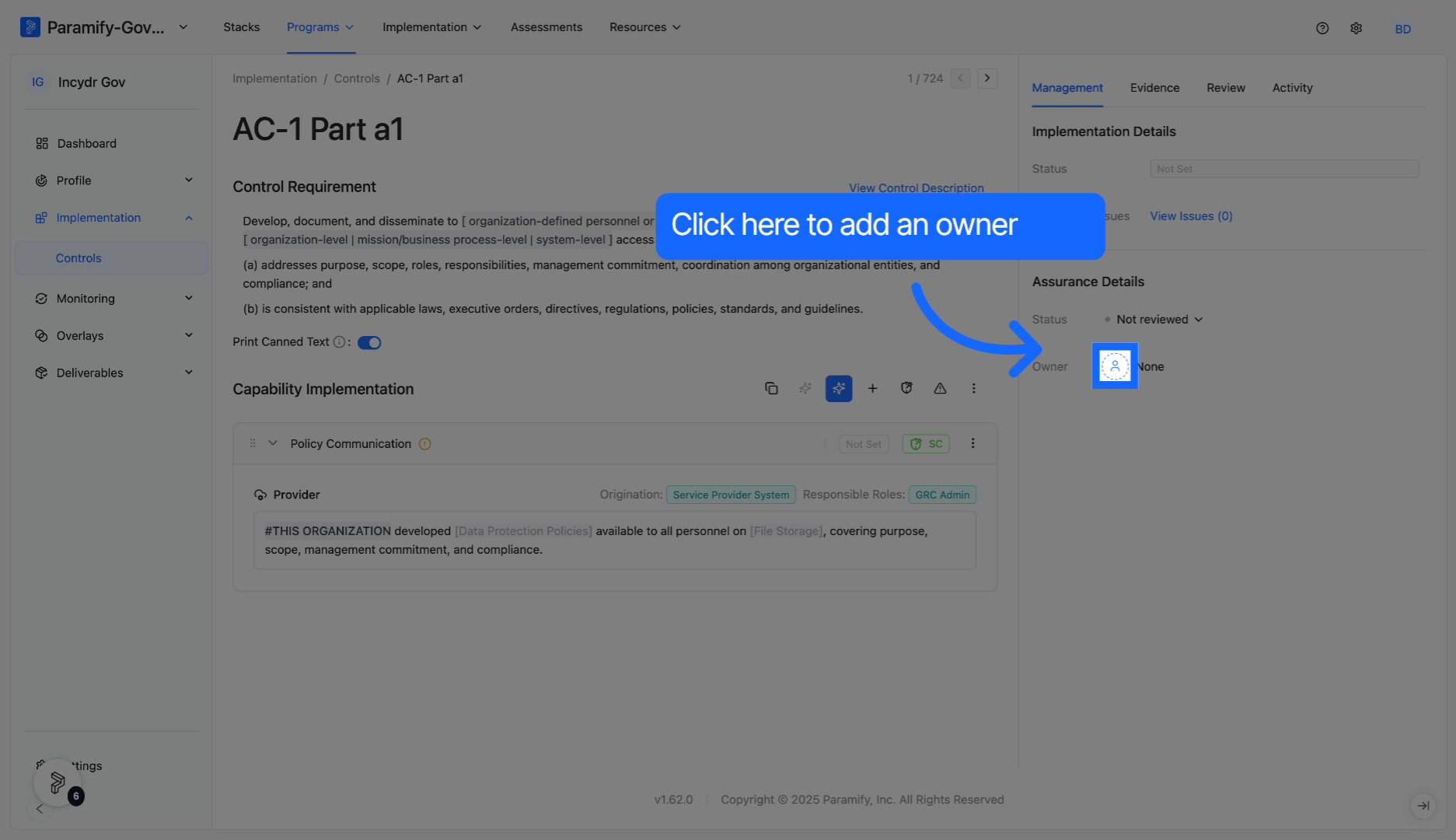
Select the icon to add an owner or user to the control.
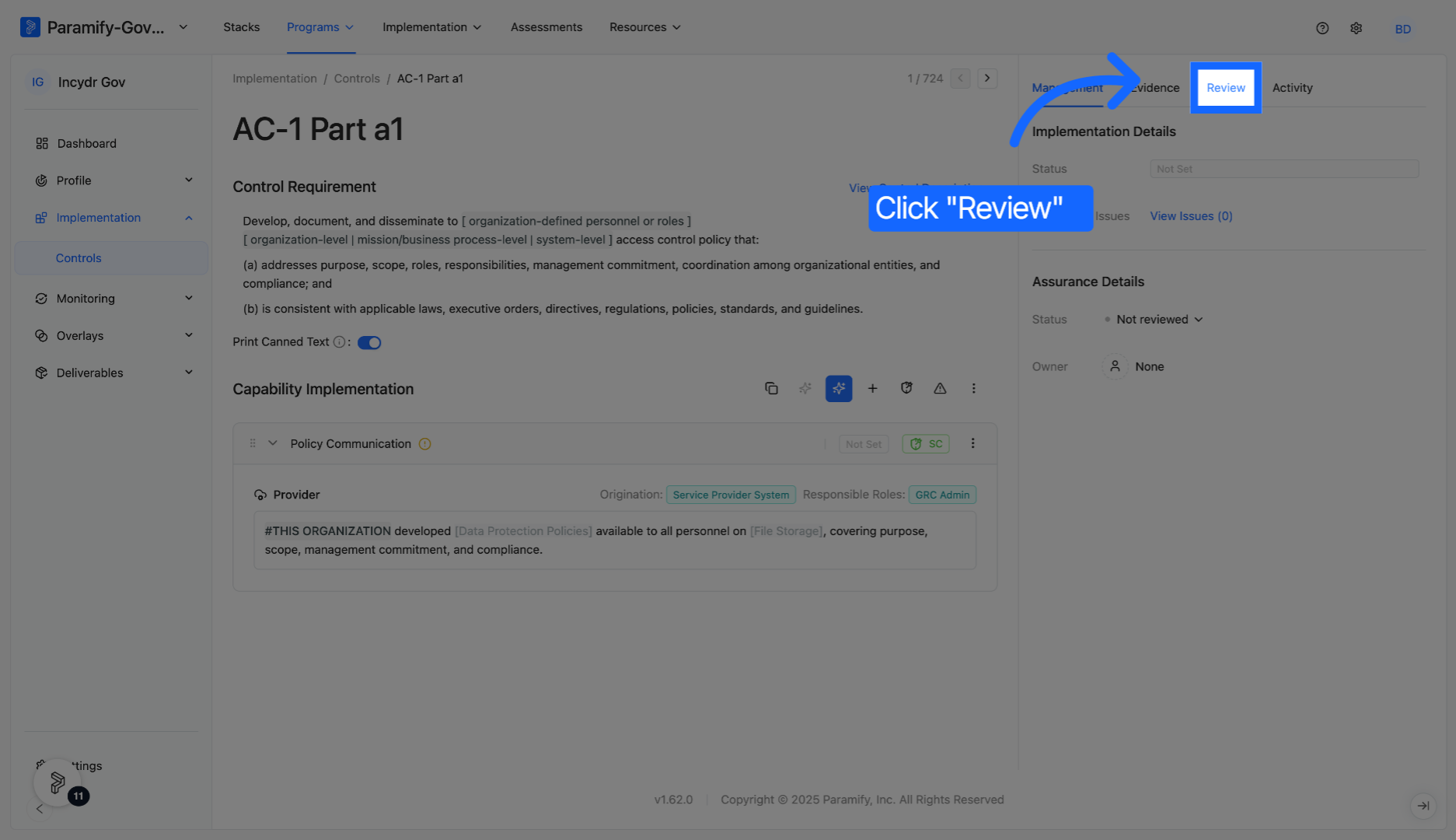
Assign Control Reviewers
Click the Review button to add a reviewer.
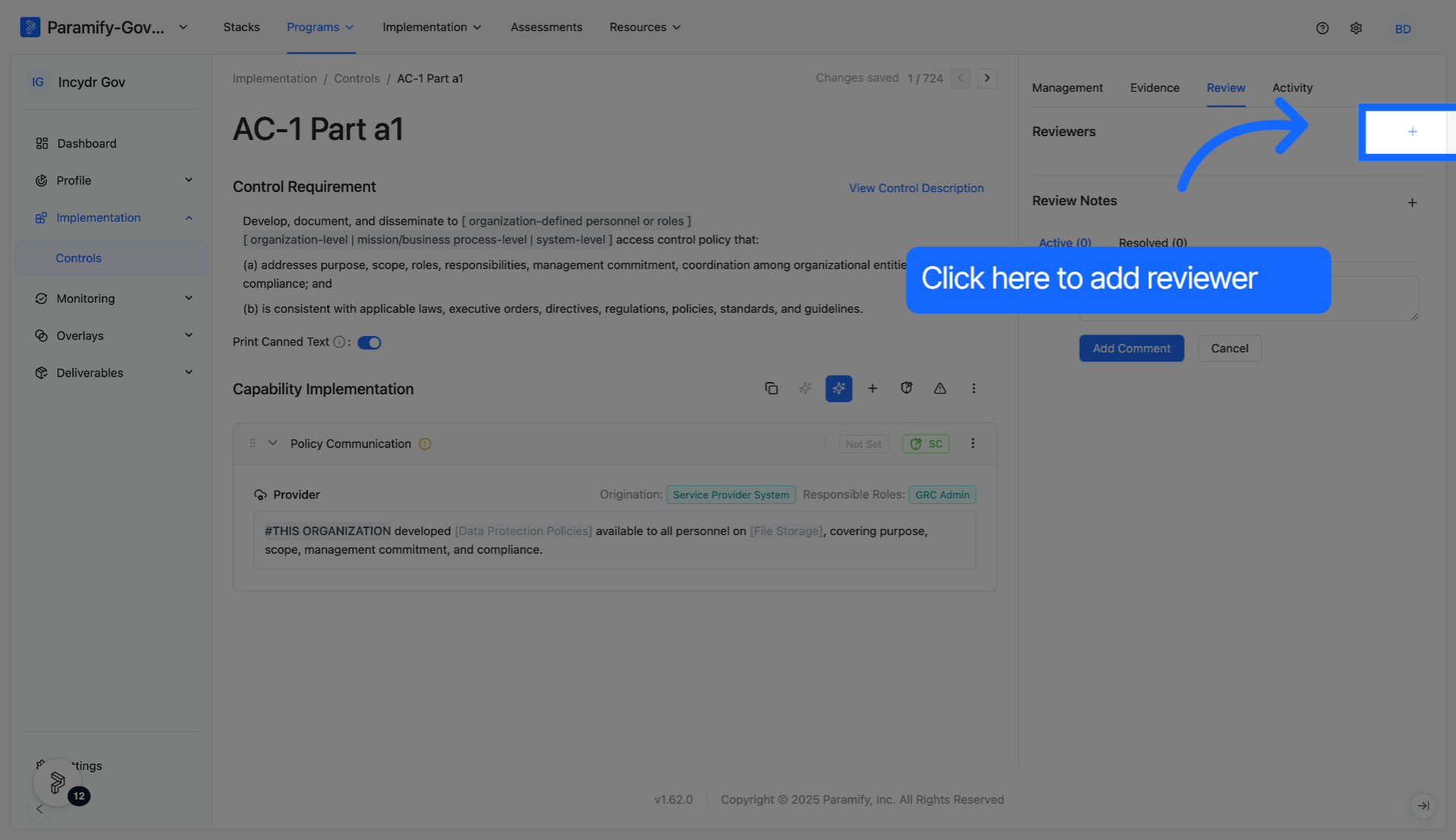
Select the '+' to add a reviewer to the control.
Select a reviewer from the list.
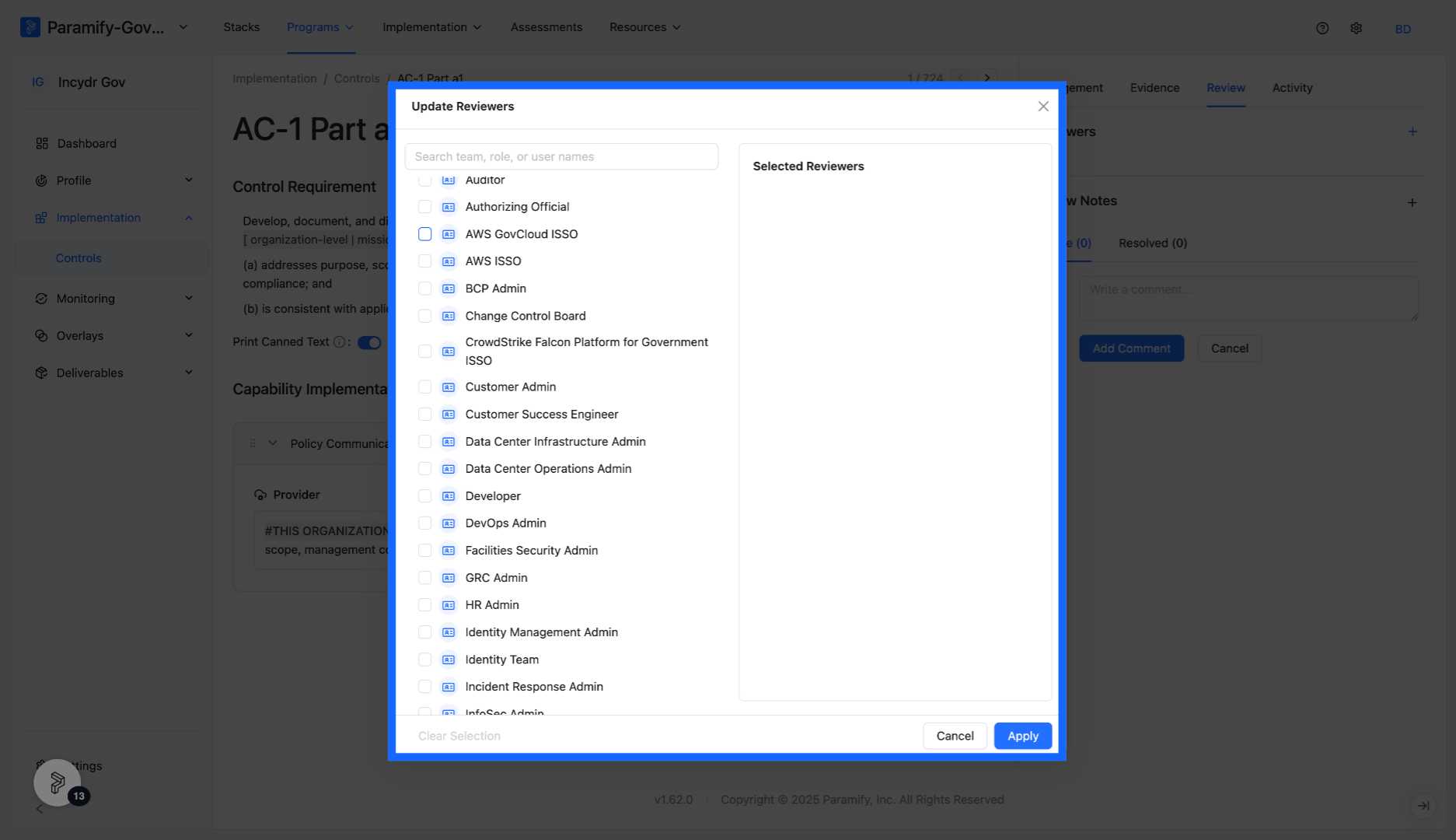
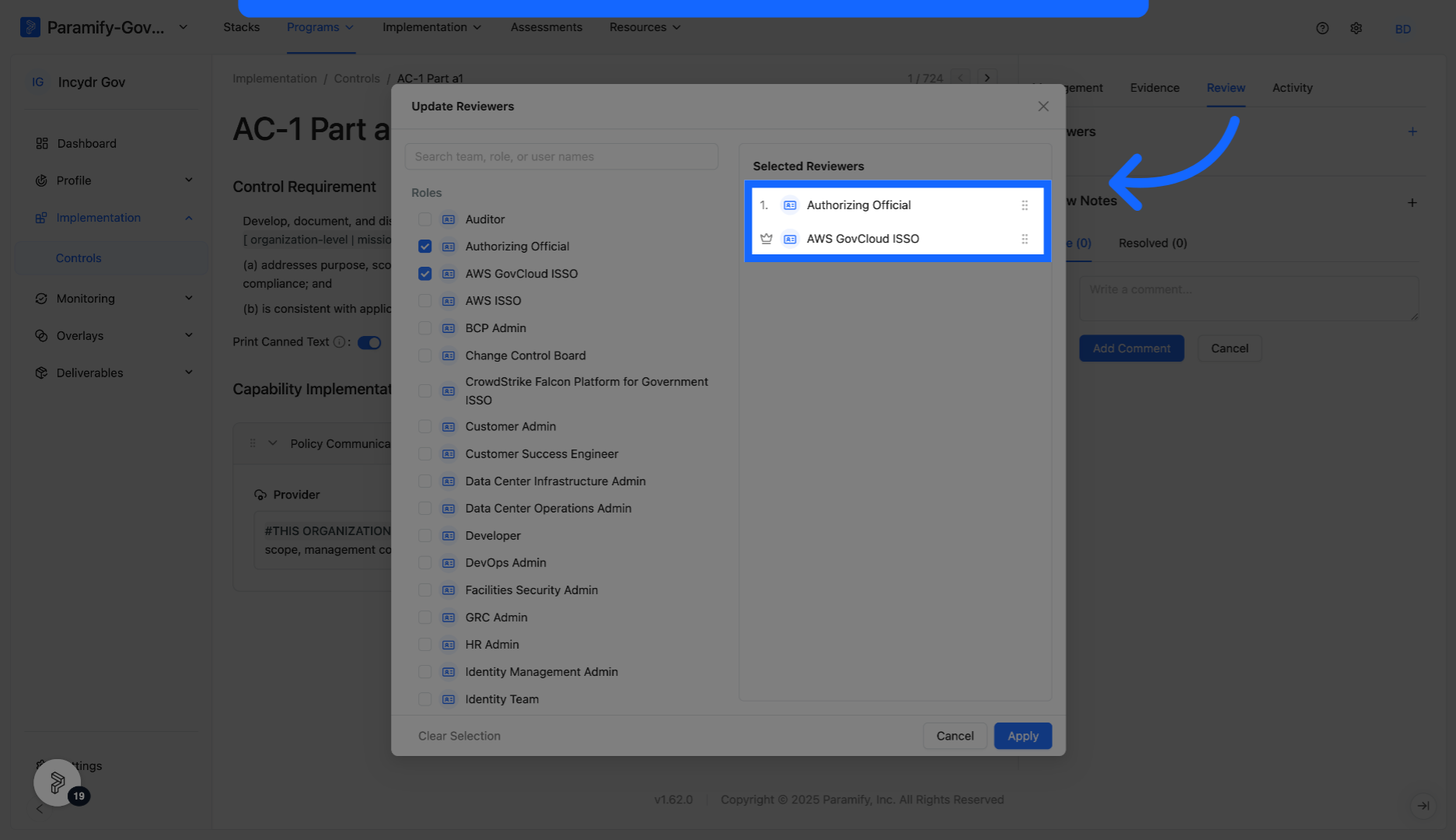
Multiple reviewers can be added if desired. The order of selected reviewers can also be altered.
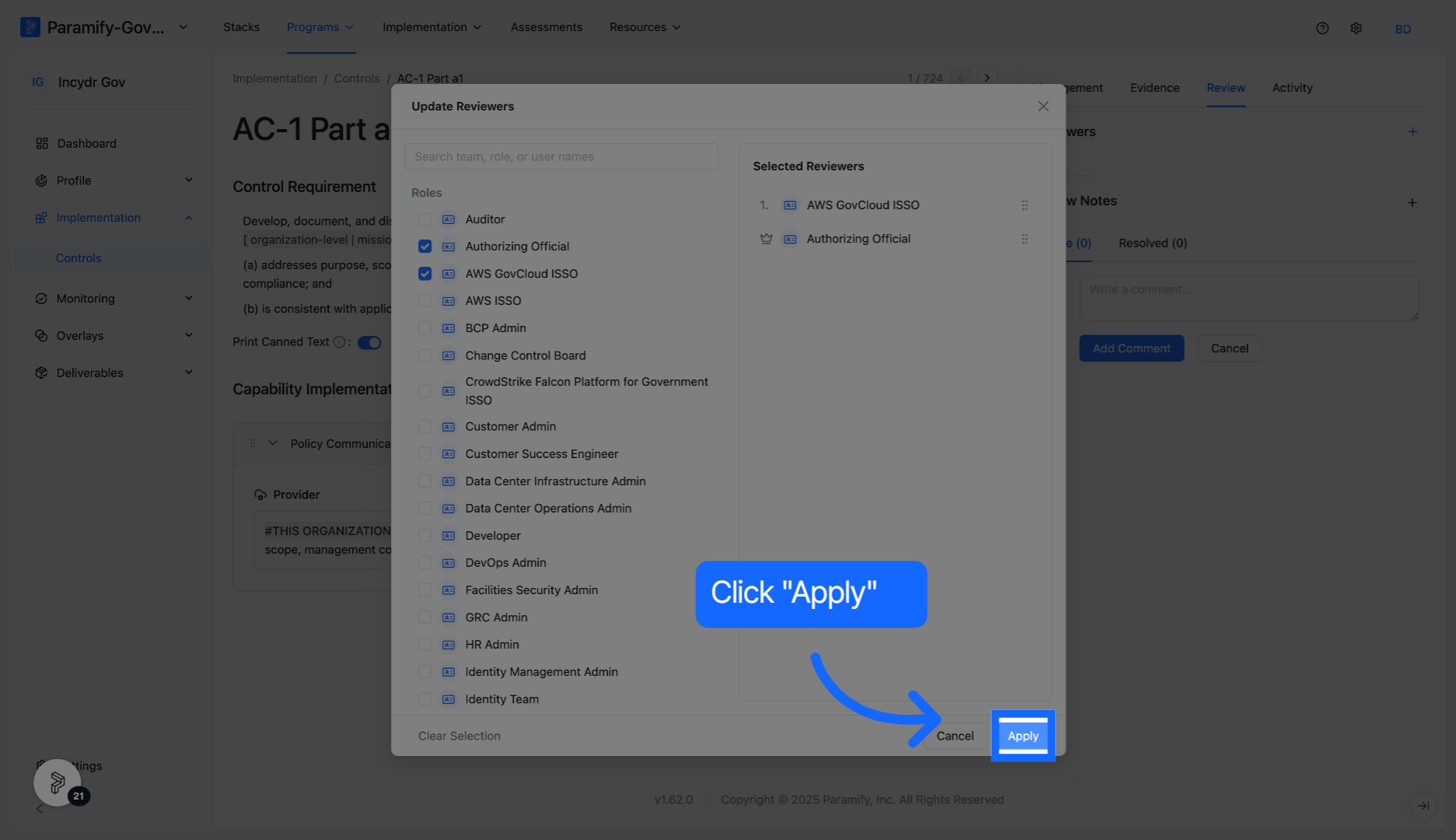
Click the Apply button to save and implement your selected reviewers.
Comments
0 comments
Please sign in to leave a comment.