
A Paramify program is typically a representation of a current or prospective ATO (Authority to Operate) package for a system. This tutorial will teach you how to create a Program in Paramify.
Creating a New Program
1. Navigate to the Programs page
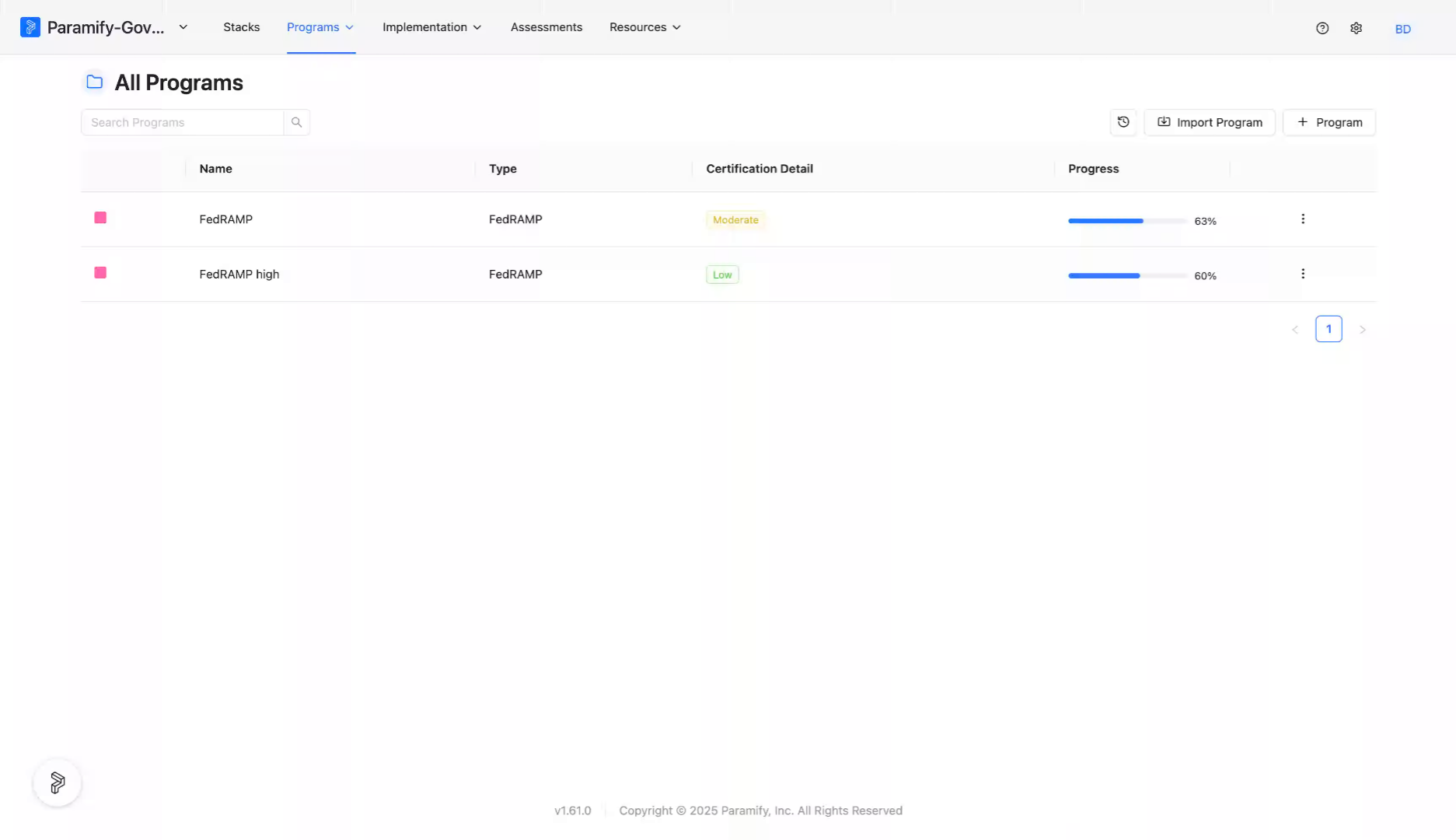
From the Paramify dashboard, navigate to the Programs page.
2. Click + Program
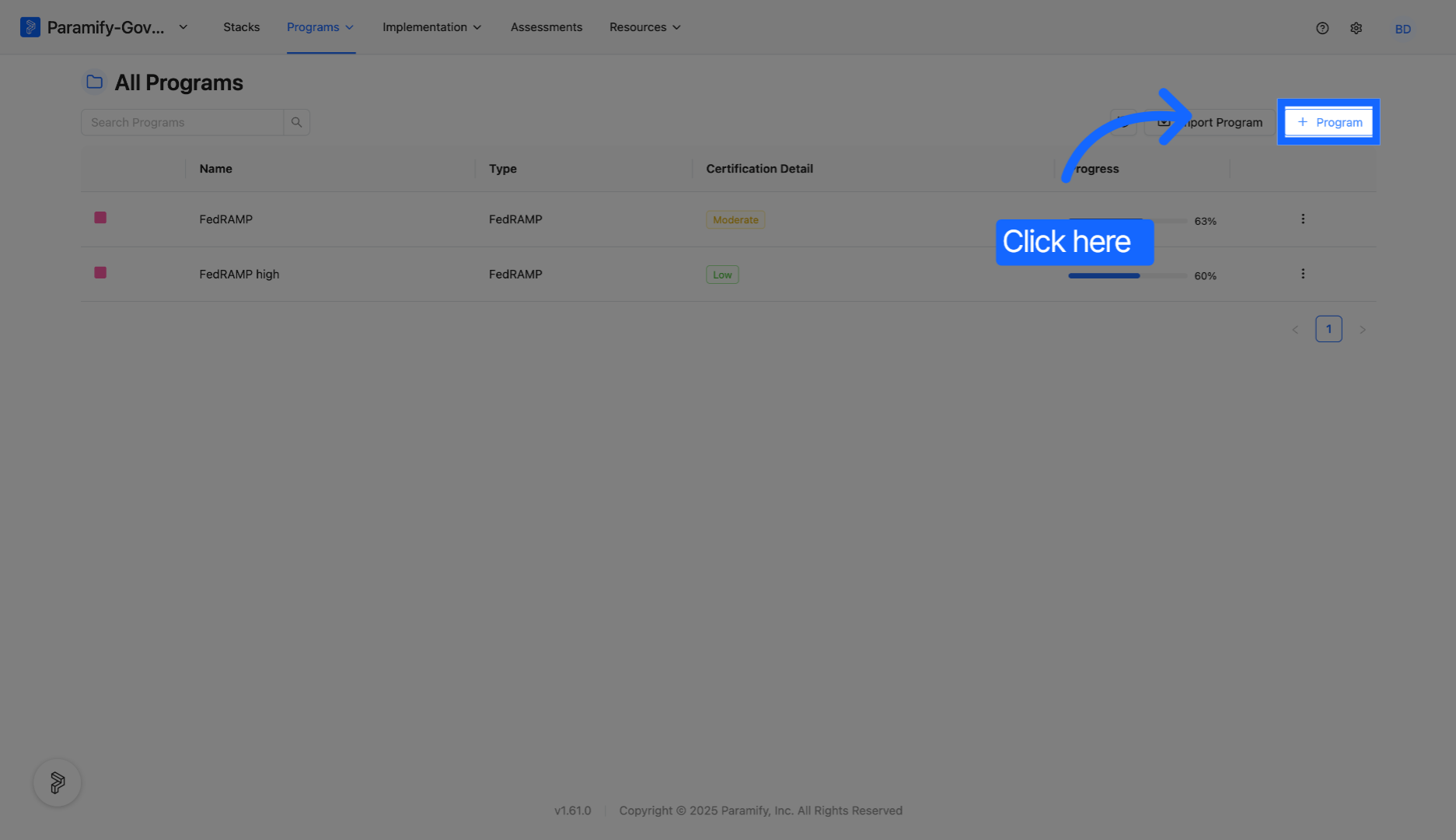
Click the "+ Program" button to start creating a new program in Paramify.
3. Enter the Program Name
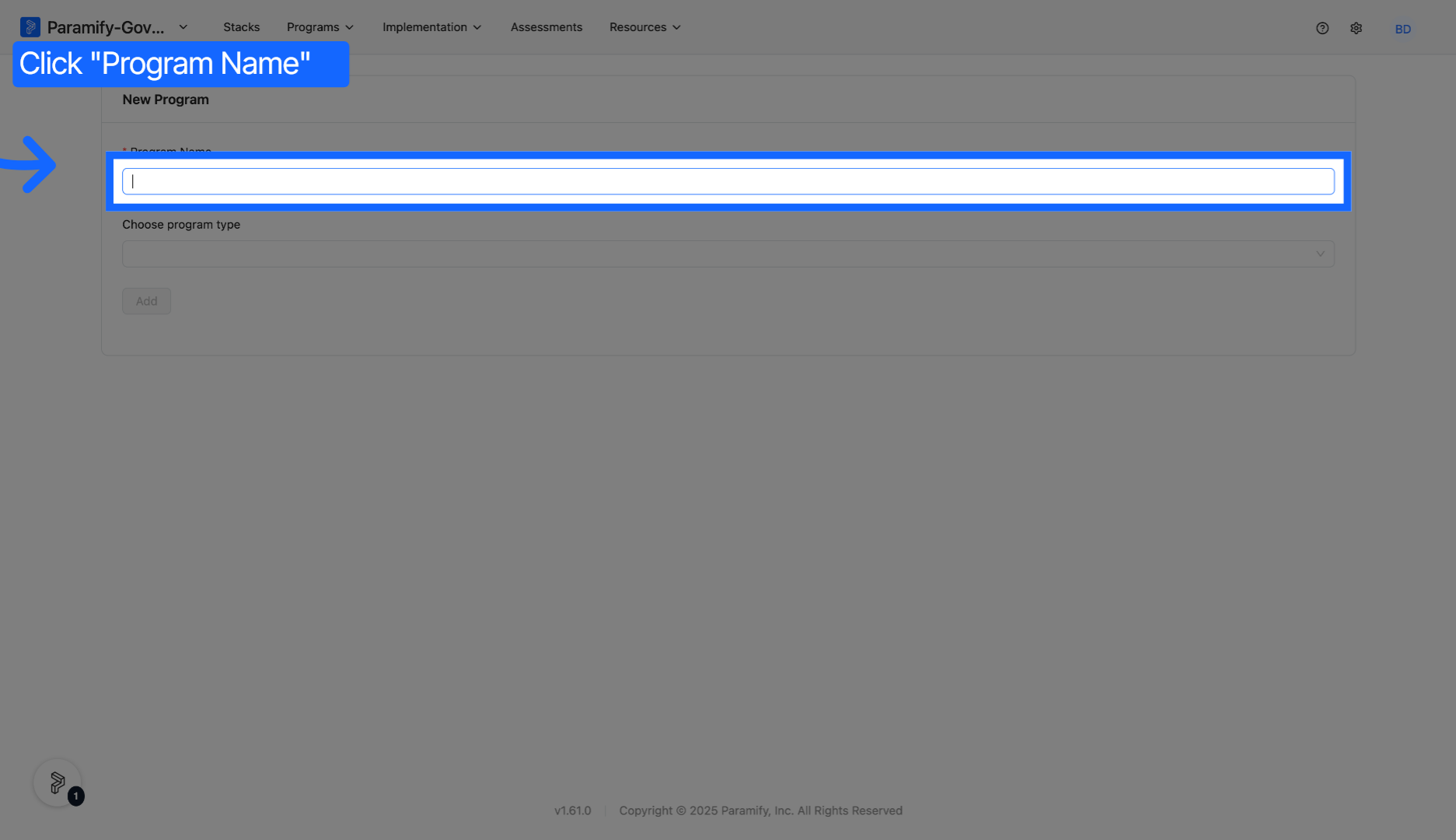
Click the Program Name field and enter a name to identify your new program.
4. Confirm the Program Name
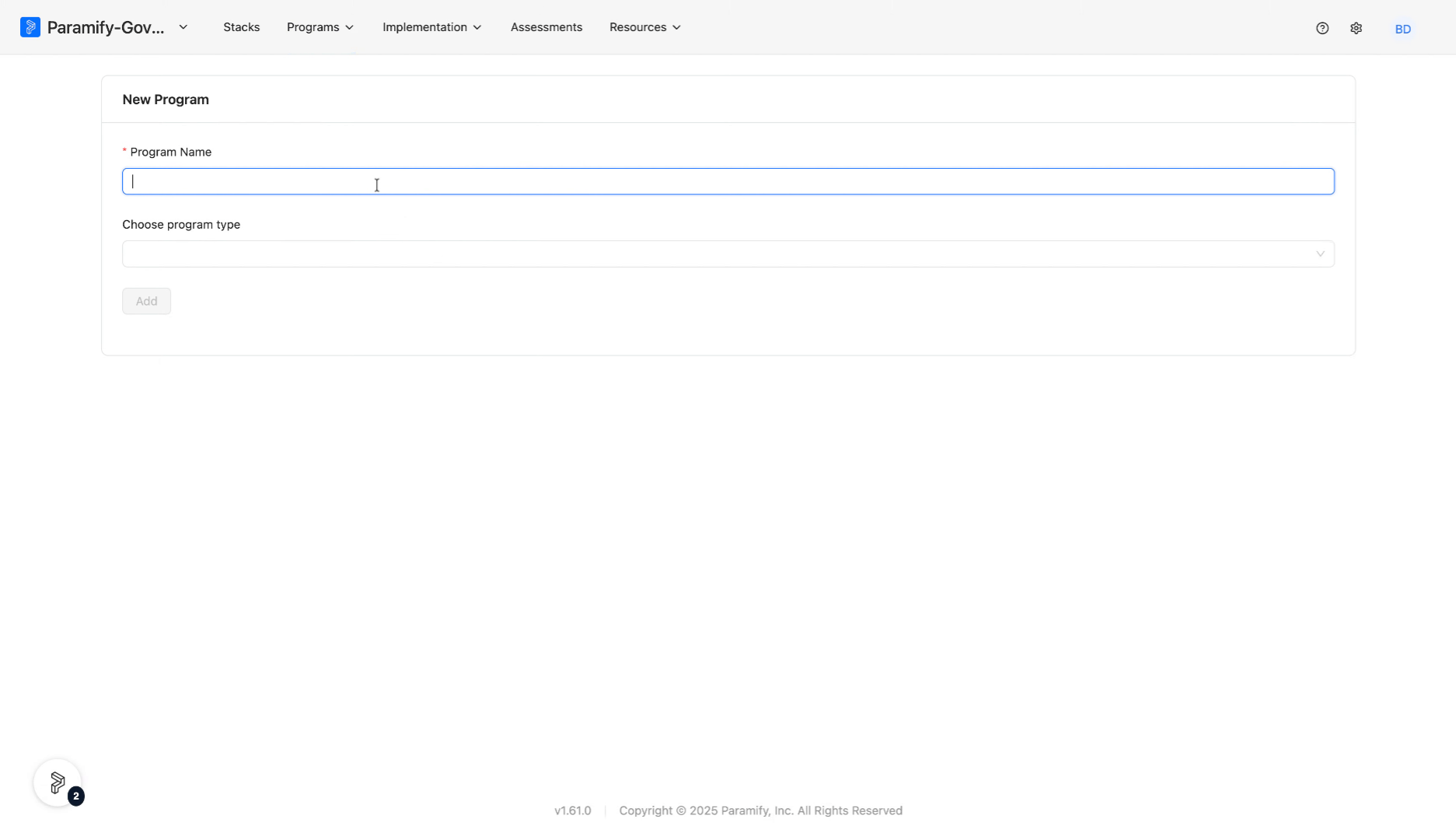
Enter your program name to identify it clearly within Paramify.
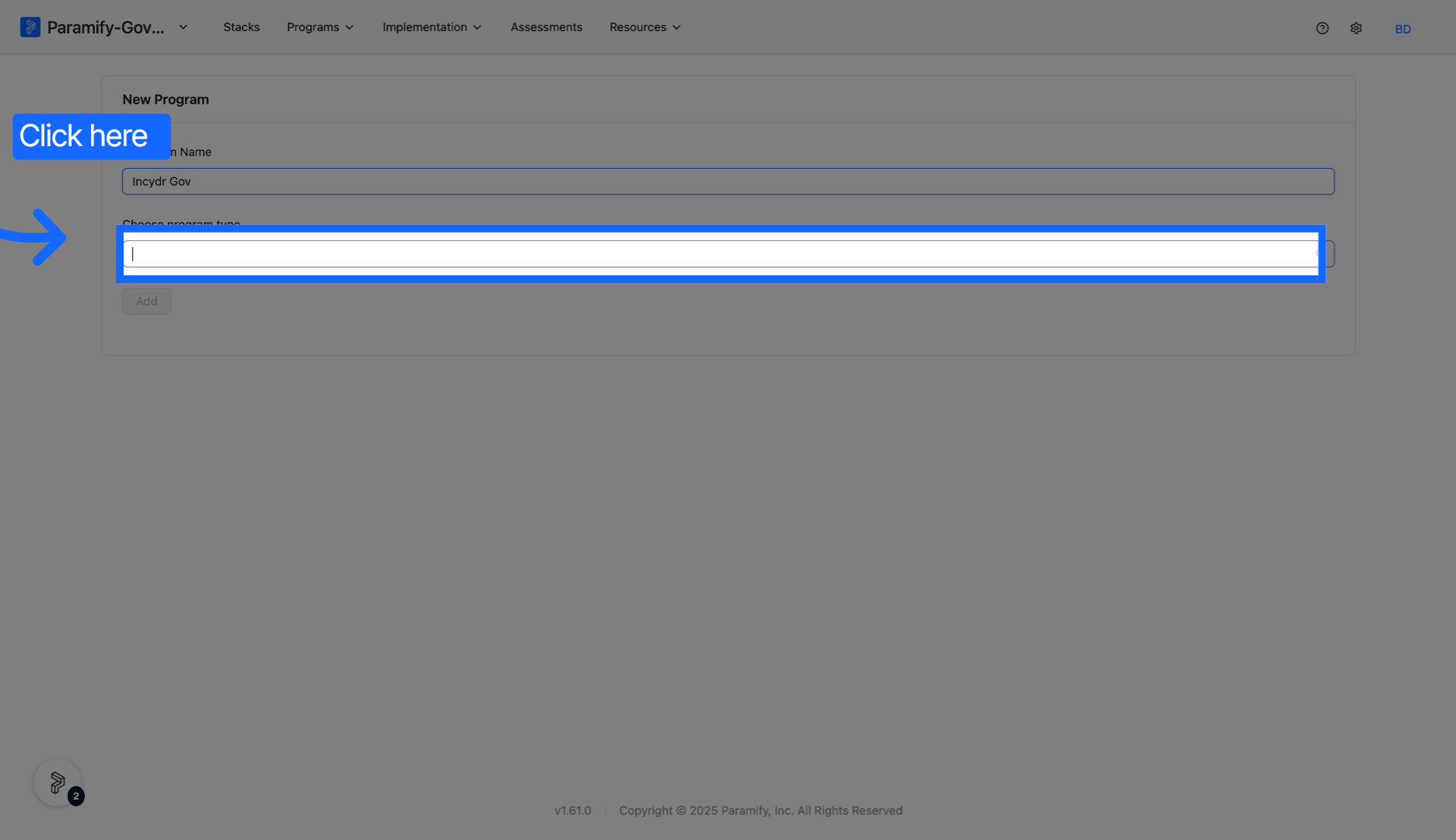
5. Open the Program Type dropdown
Click the Program Type dropdown to access options for the program type.
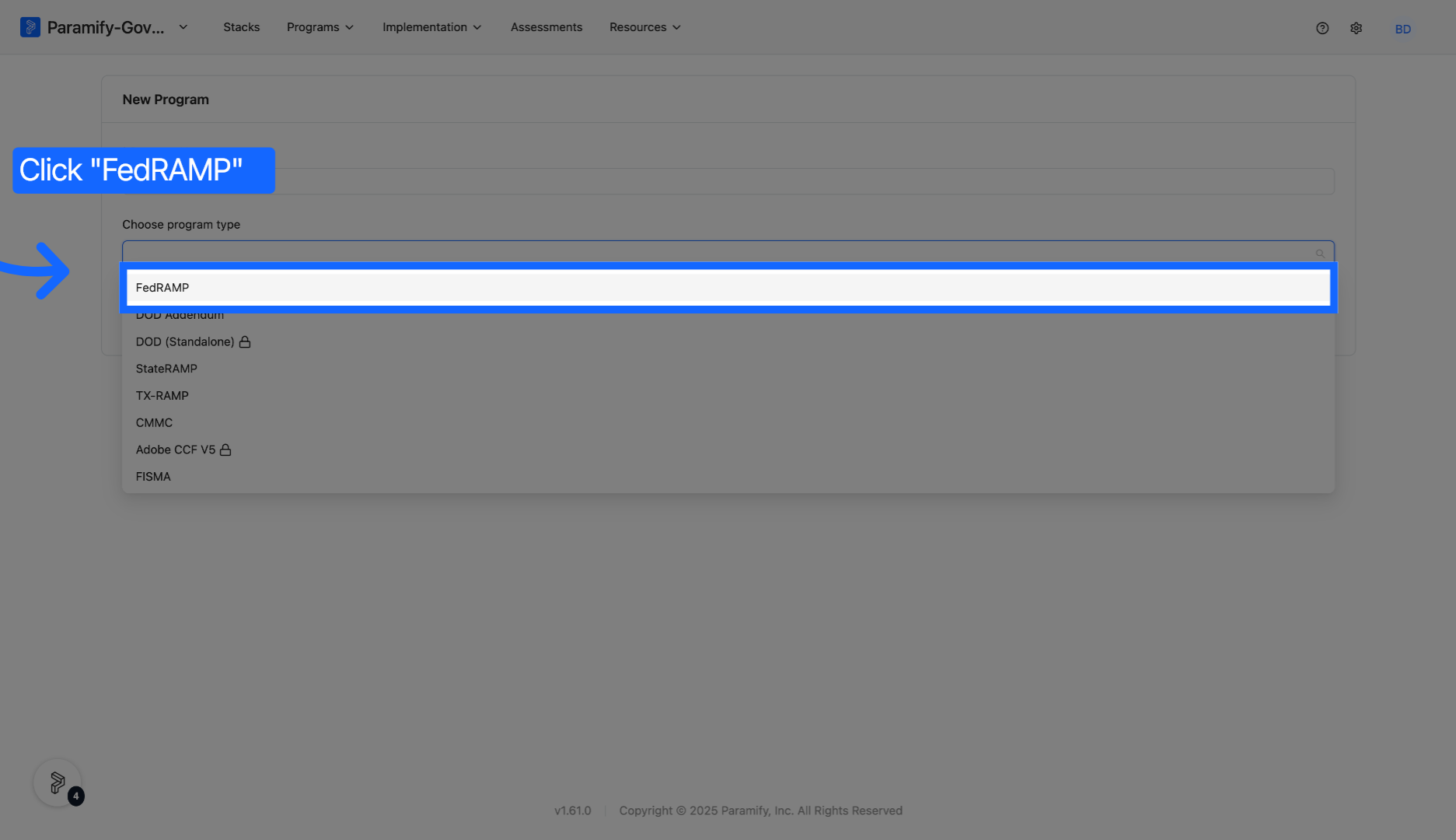
6. Select a Program Type
Select the desired program type. In this example, we will select "FedRAMP".
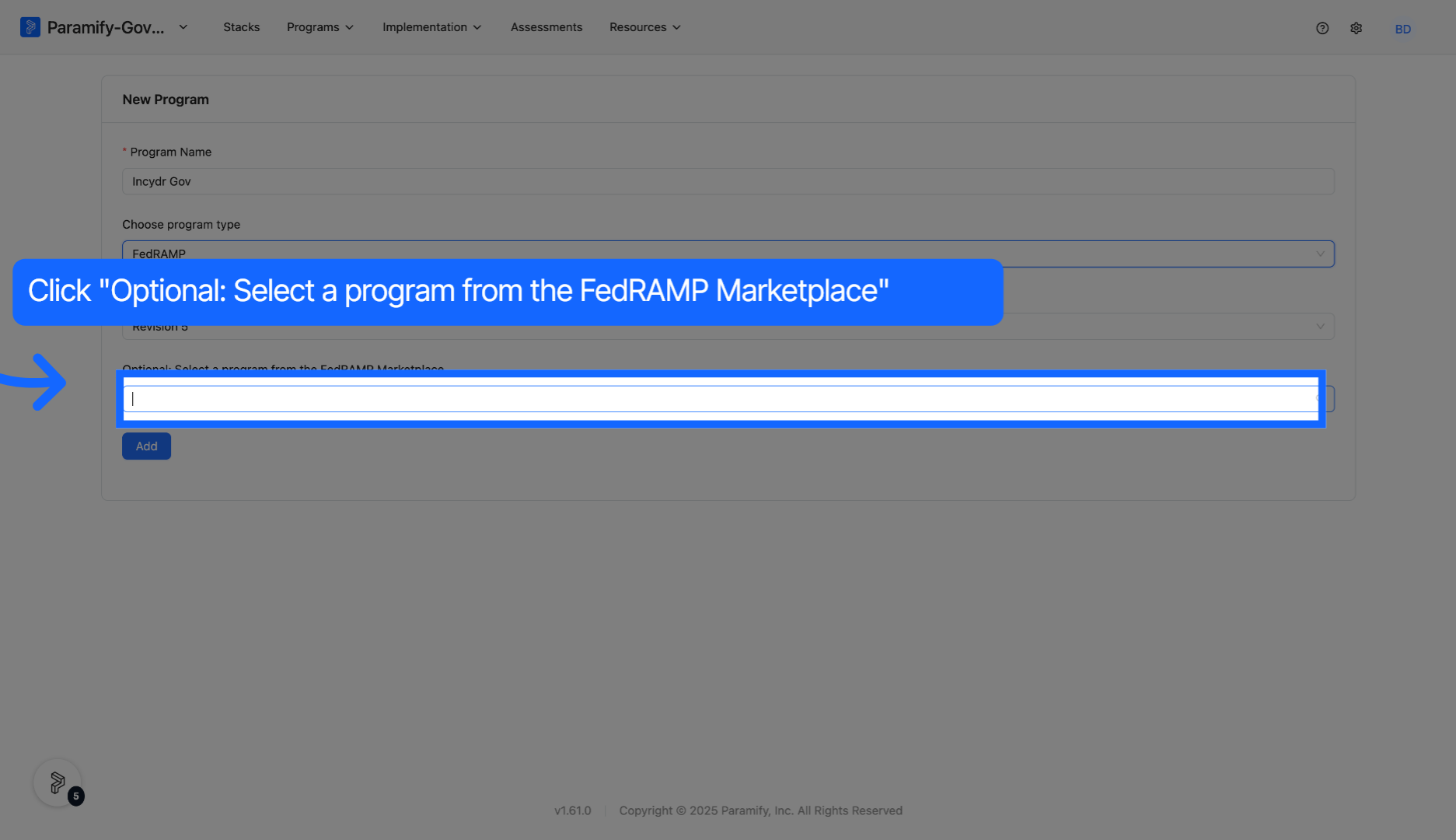
7. Select a program from the FedRAMP Marketplace
If desired, select a program from the FedRAMP Marketplace to choose a predefined program template.
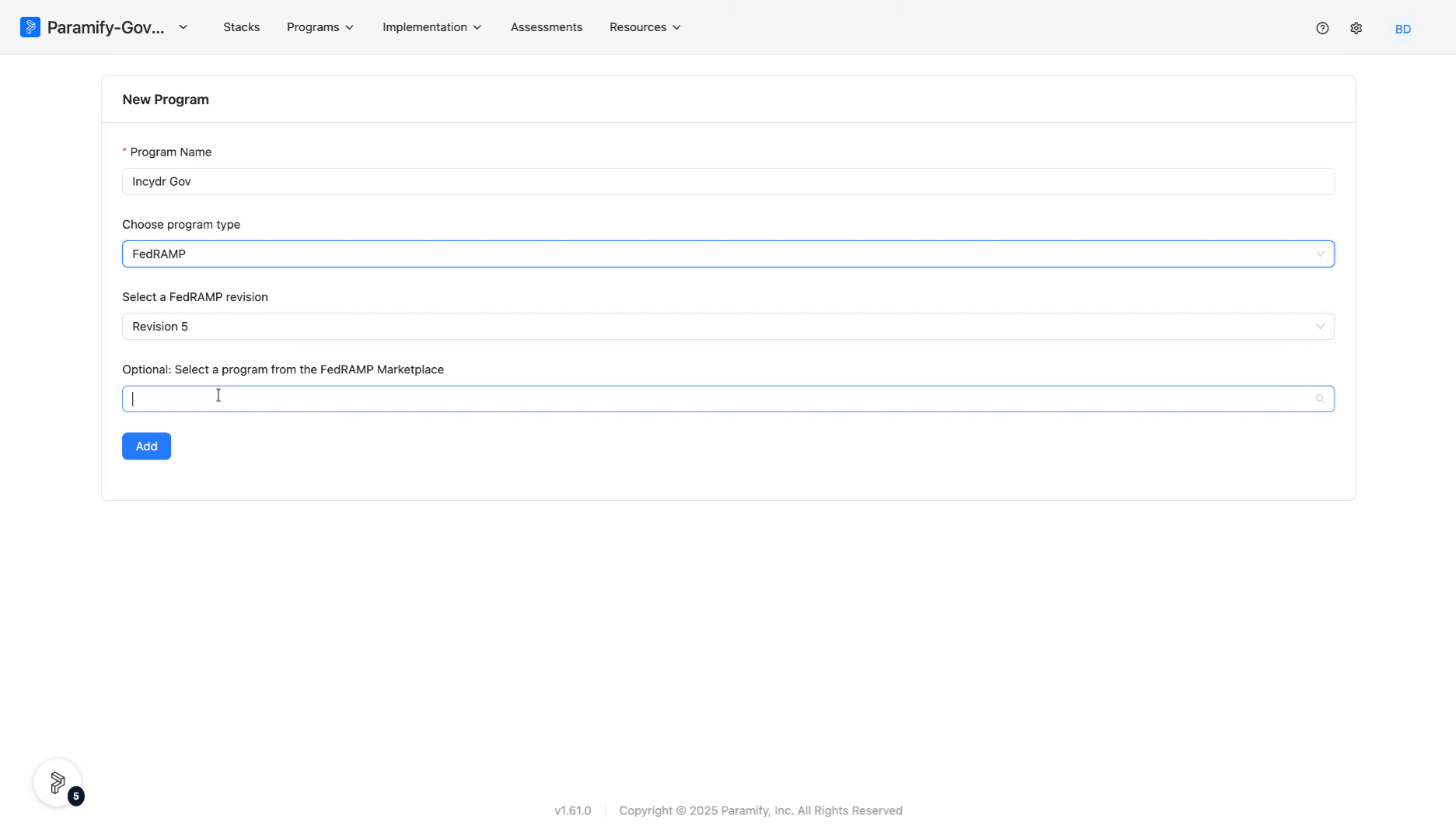
8. Search for a program template
Enter the program name to find the existing program template in the marketplace.
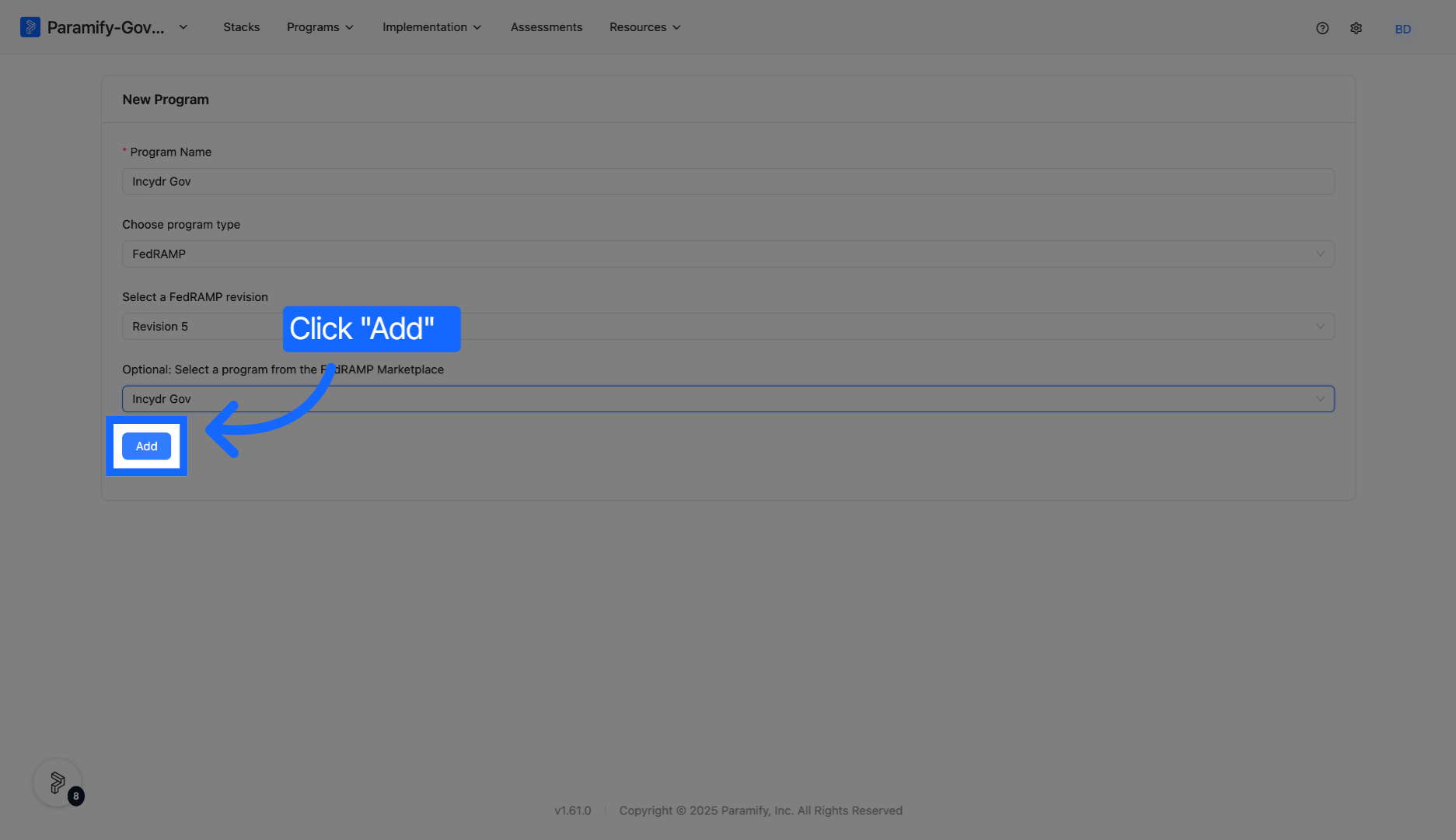
9. Add the program
Click the Add button to finalize and create your new program in Paramify.
10. View the created program
Your program dashboard will be created with prefilled metadata directly from the FedRAMP Marketplace.
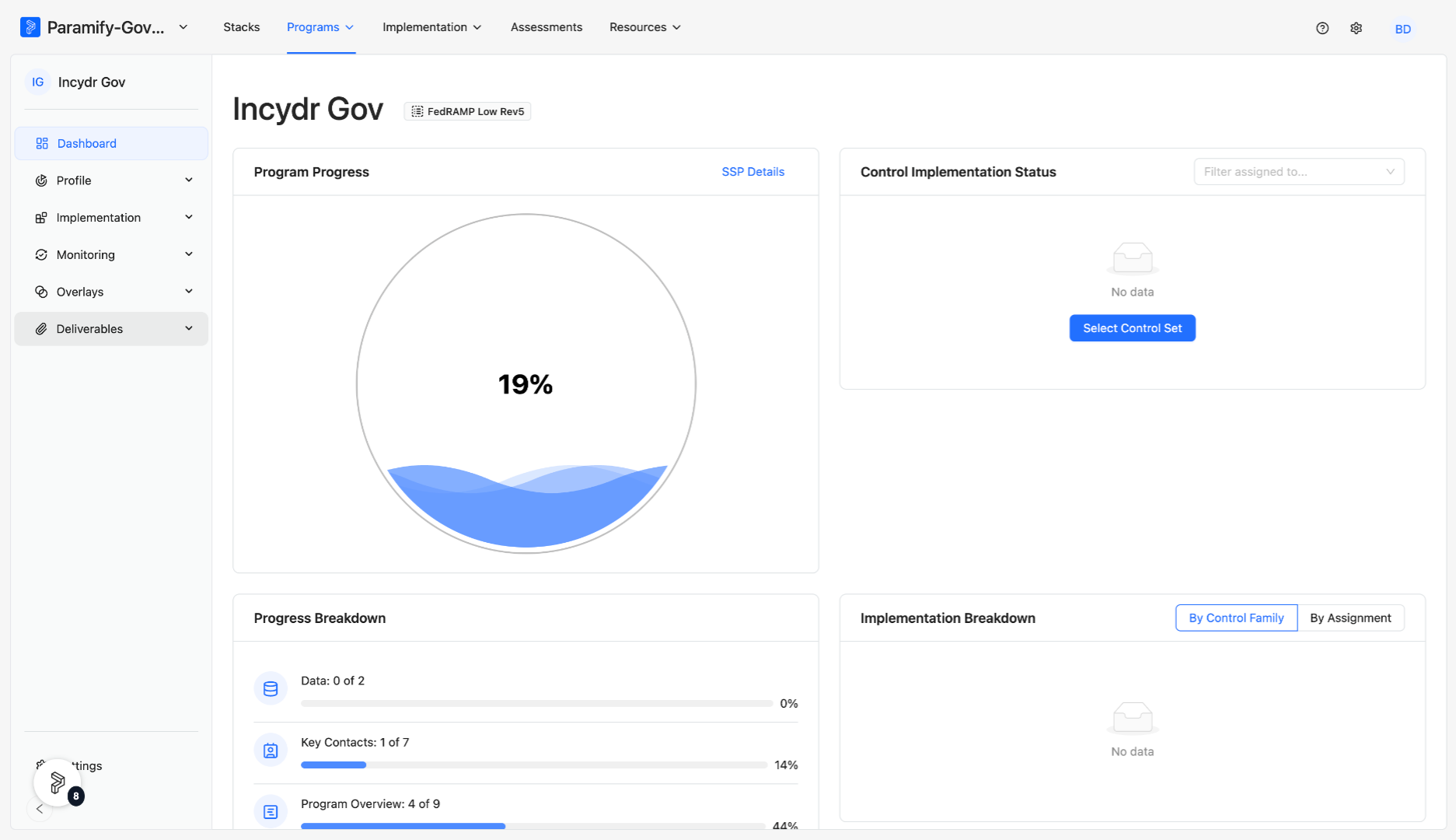
You have successfully created a program in Paramify. This setup ensures your program aligns with compliance requirements and is ready for further completion.
Create a Standalone DoD Program or a DoD Addendum to the FedRAMP SSP
If you are a Cloud Service Provider (CSP) pursuing a DoD ATO, you can create a DoD Addendum to the FedRAMP SSP. This allows you to reuse the FedRAMP SSP and add only the additional controls required for DoD.
You can create a DoD Addendum by selecting DoD Addendum as the program type as seen in step 6. Once DoD Addendum is selected for program type, you will be prompted to select a base program from a dropdown that will appear. You can also create a standalone DoD program.
Comments
0 comments
Please sign in to leave a comment.