
Issues and Remediations are crucial in Paramify. They help you track, manage, and resolve problems efficiently. Think of Issues as your to-do list of problems, and Remediation Activities as the action steps to fix them. This keeps your compliance process smooth, organized, and ensures nothing slips through the cracks. Issues are how POAM items are managed within Paramify.
They can now be managed and configured on the Workspace and Program level.
Imagine you have multiple Programs in your Workspace. You now have the option to view all of the Issues and Remediation Activities associated to your entire Workspace, or for a specific Program within your Workspace.
Workspace Level:
Program Level:
Issue Management
How to Create an Issue and Assign Multiple Programs
Here is a quick guide on how to Create an Issue and Assign Multiple Programs to it.
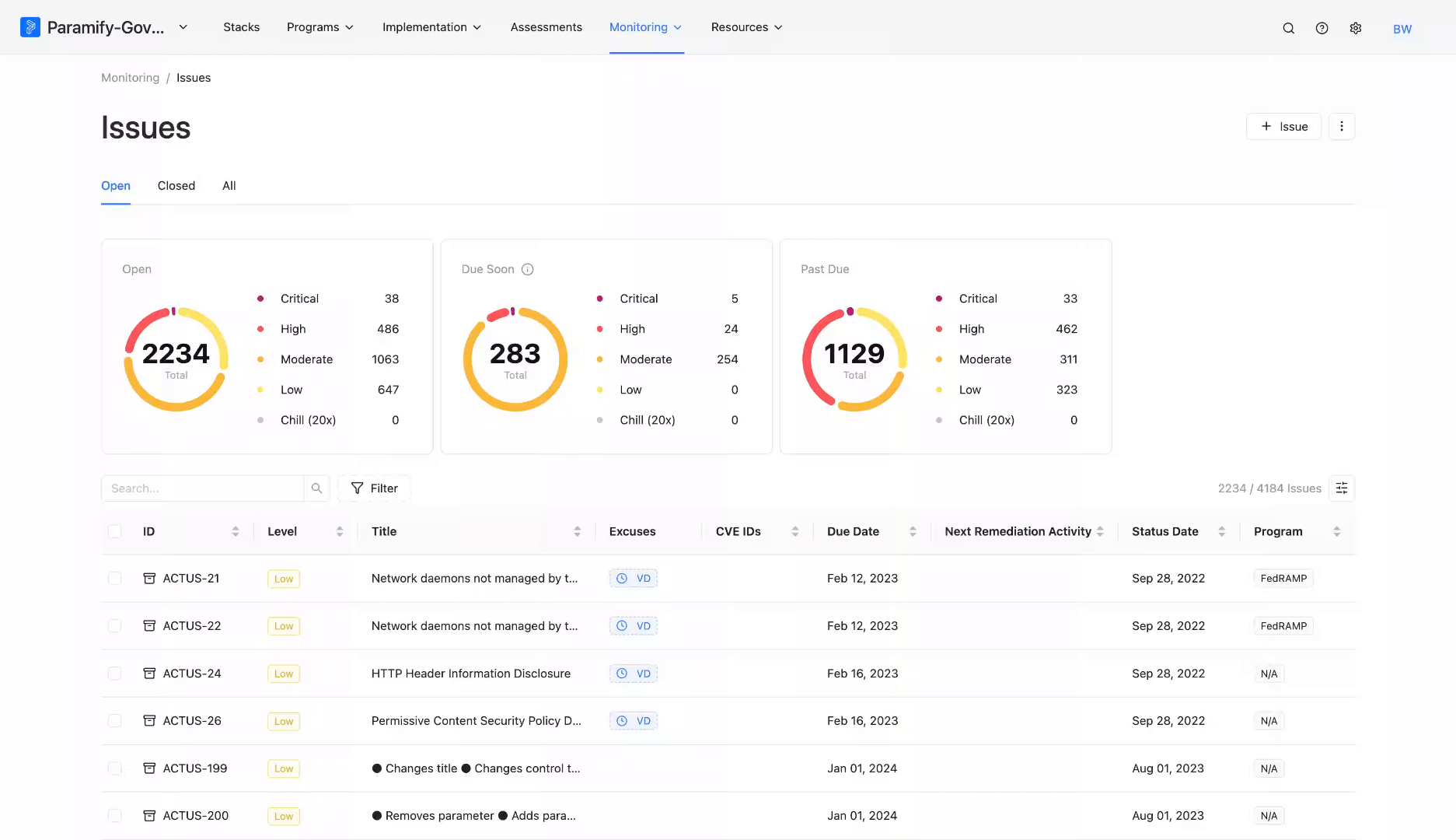
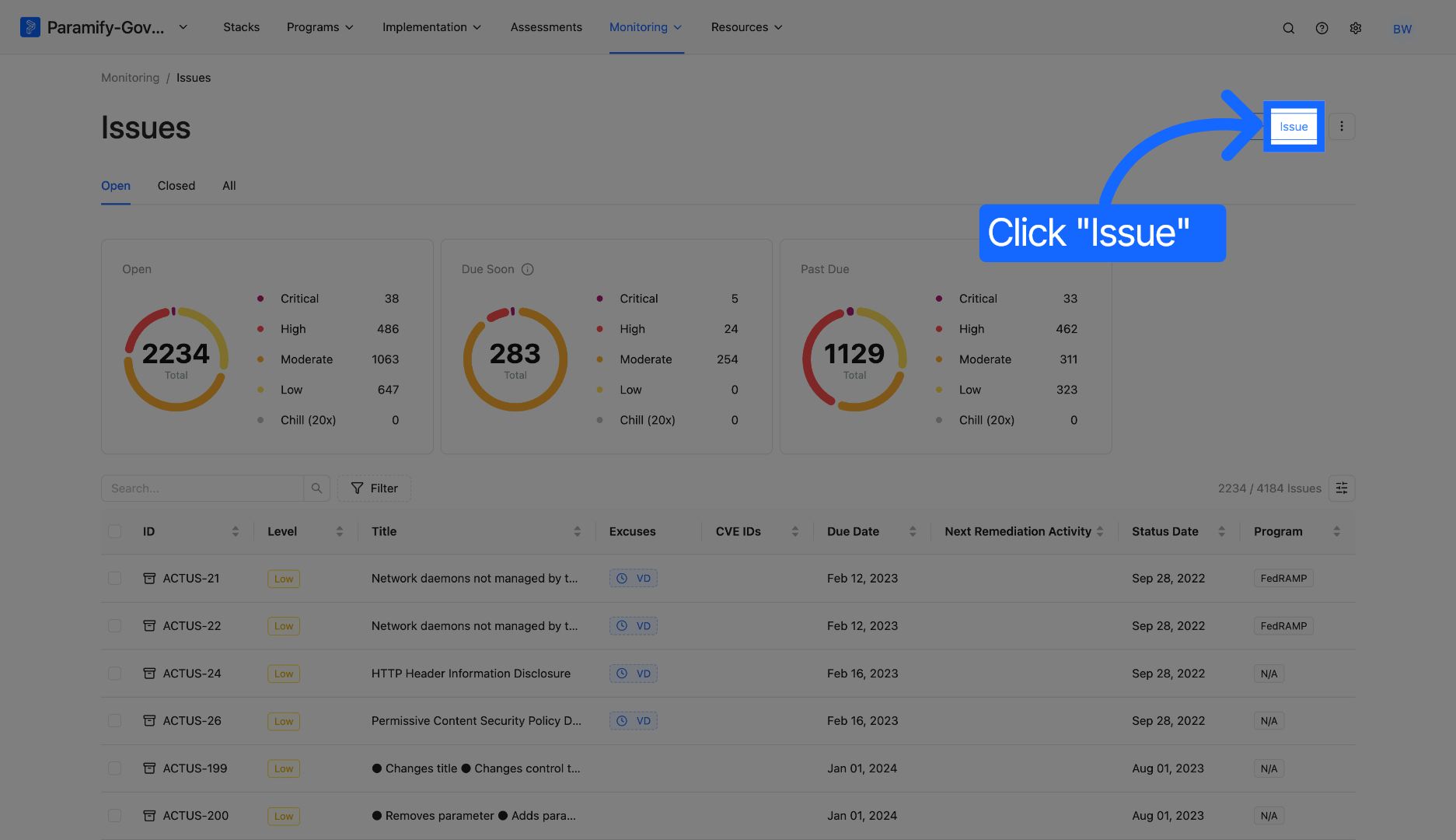
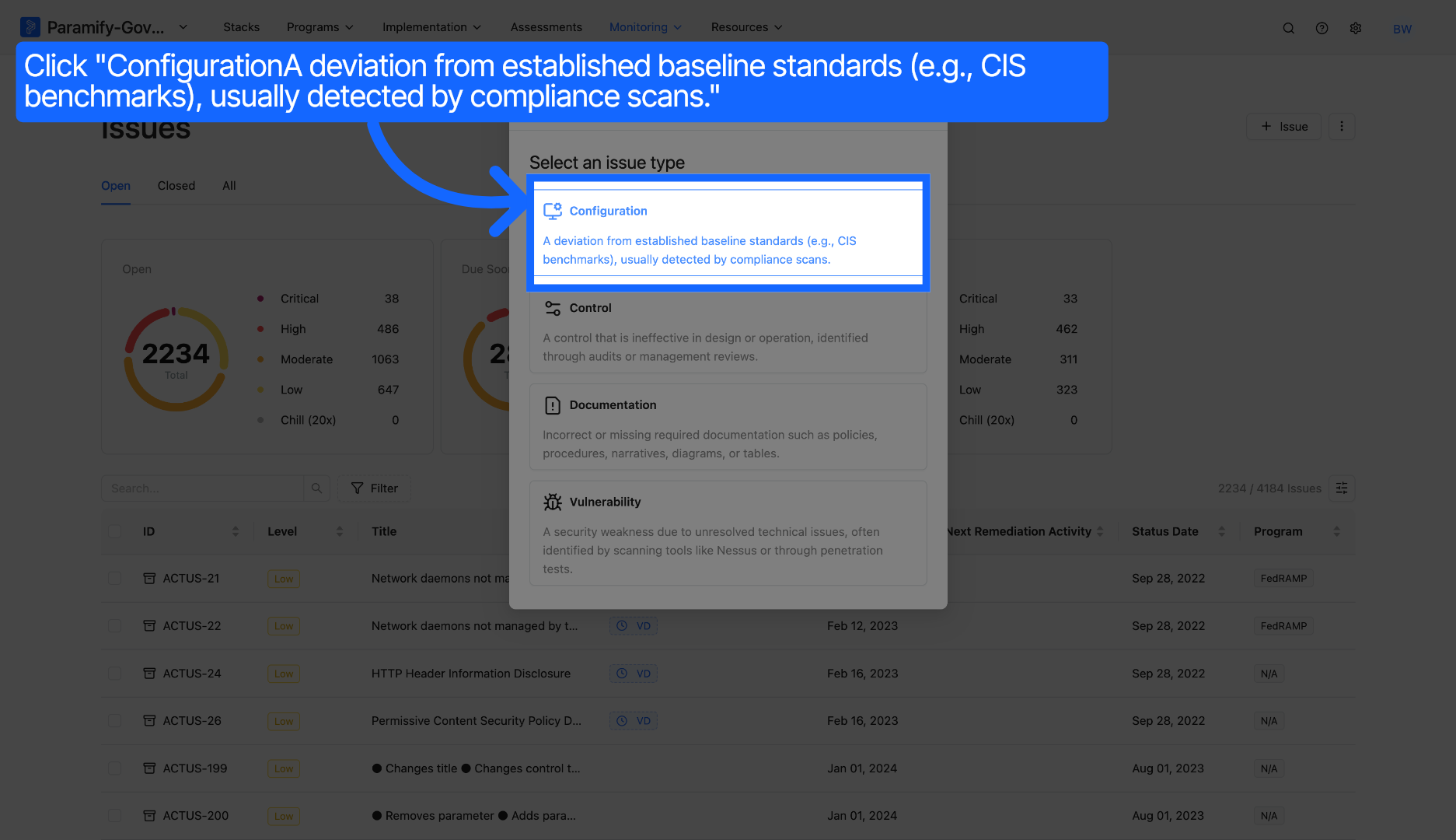
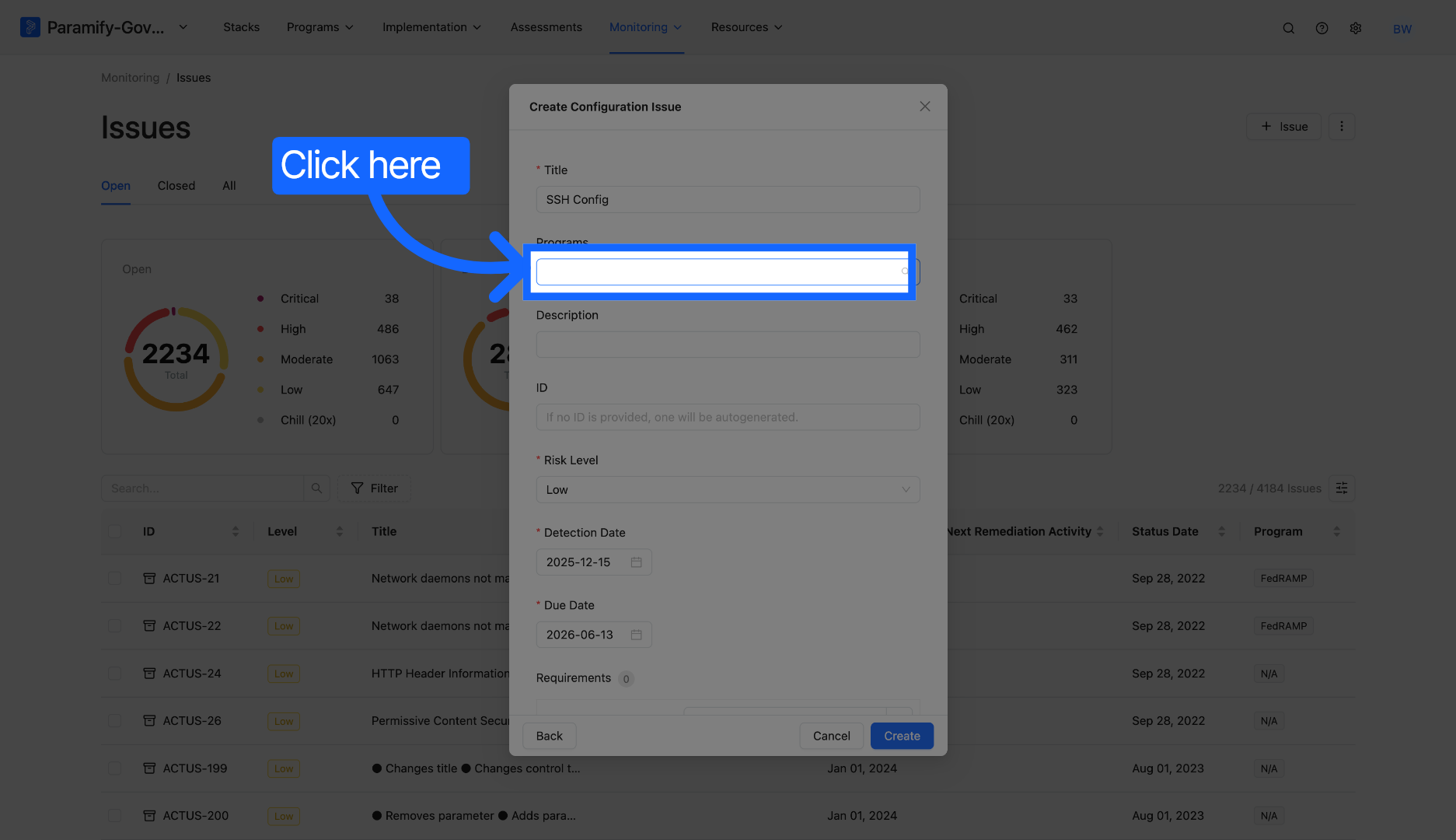
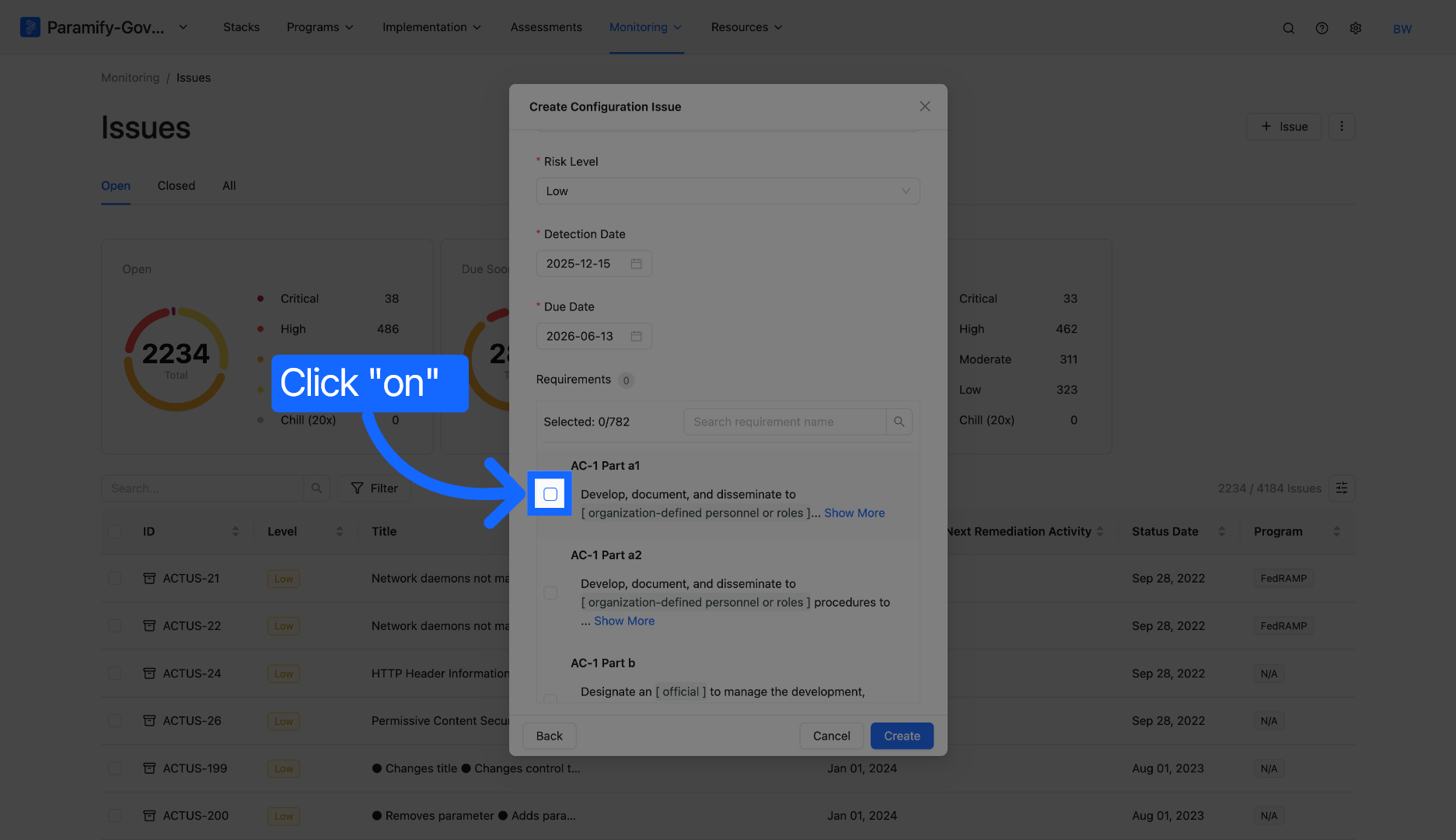
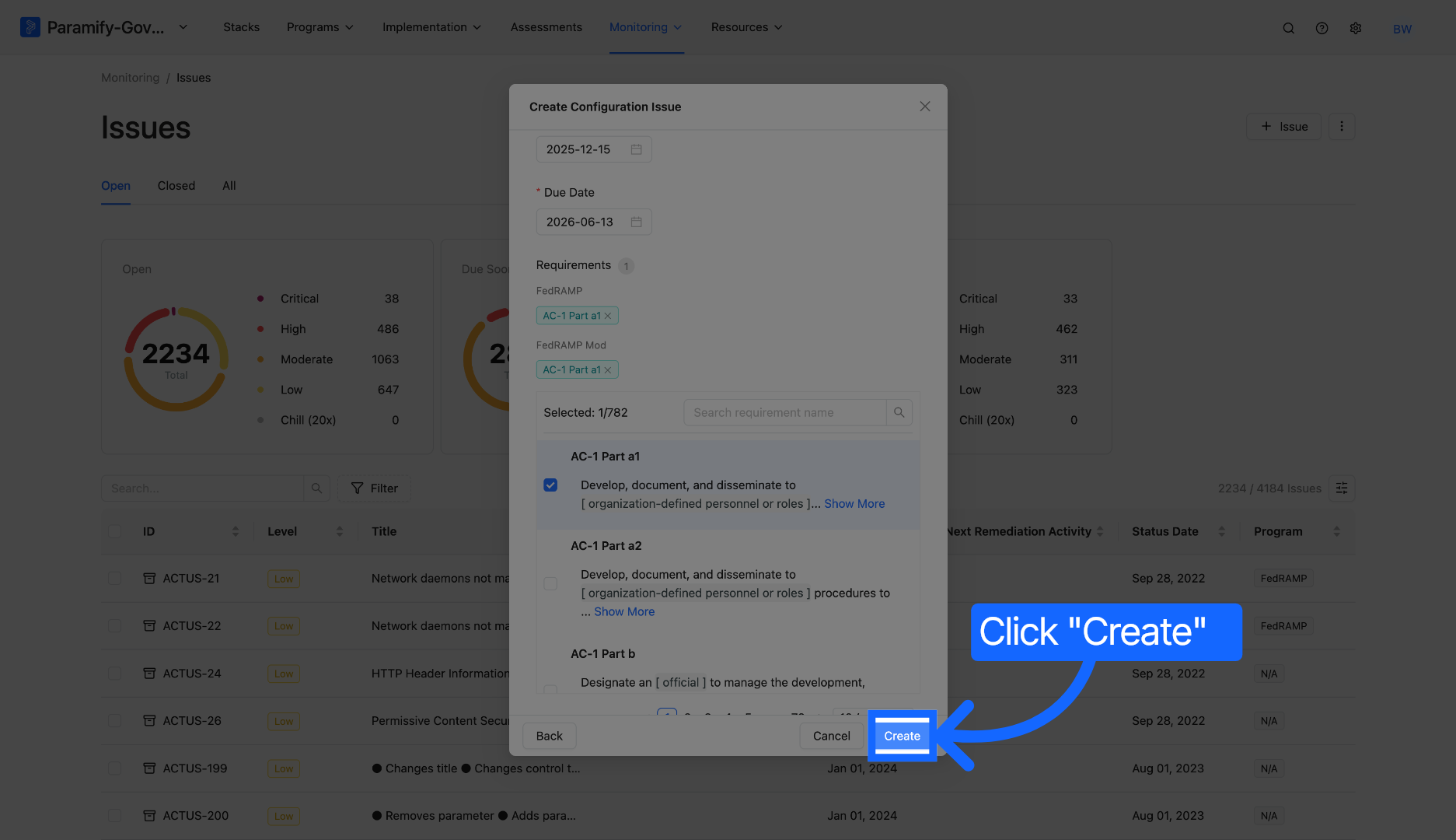
You can also change the associated Programs of any Issue after creating one. You can do this by going into an Issue and navigating to the "Management" section within the "Details" section.
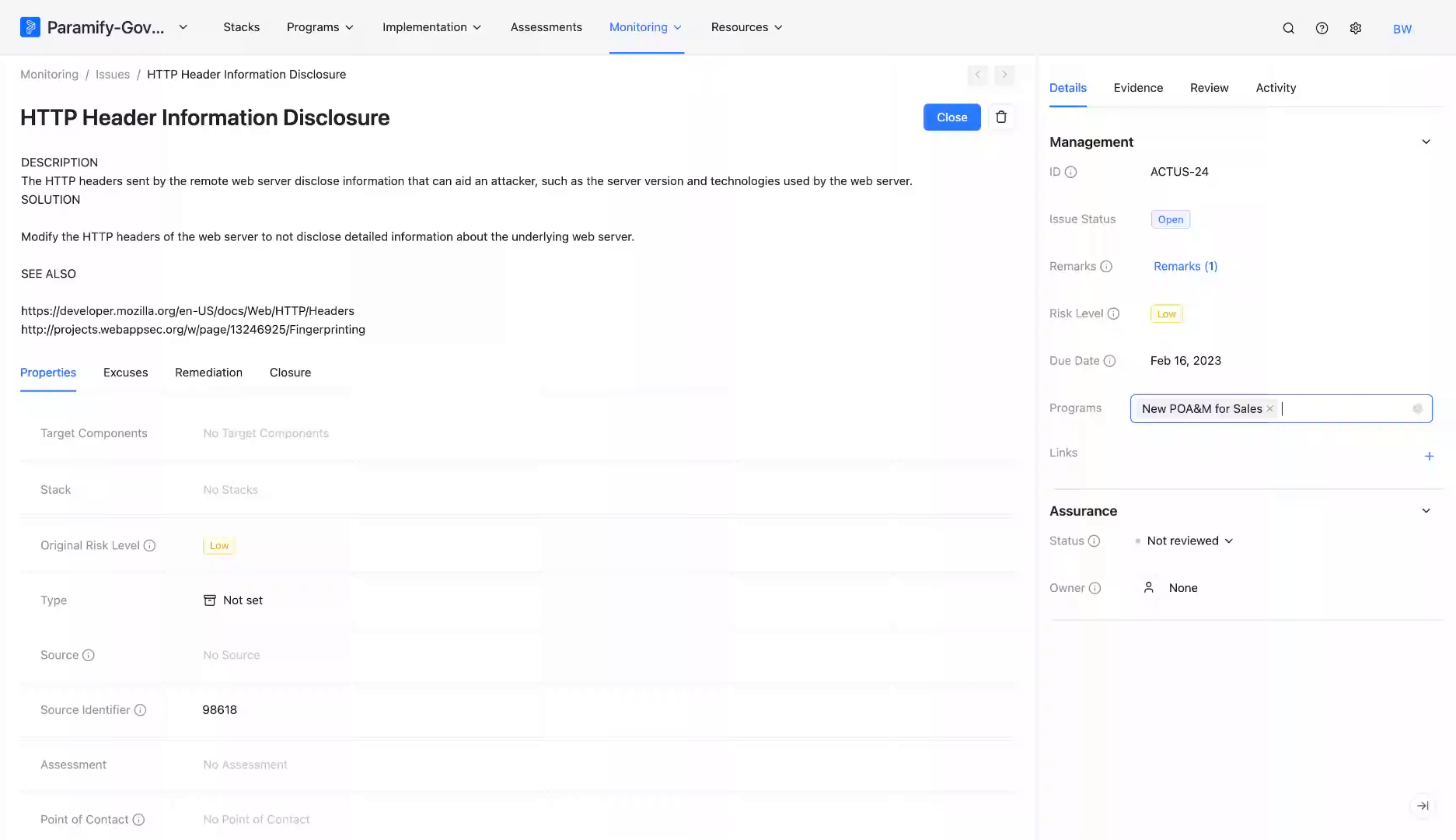
Assigning Multiple Issues to a Program
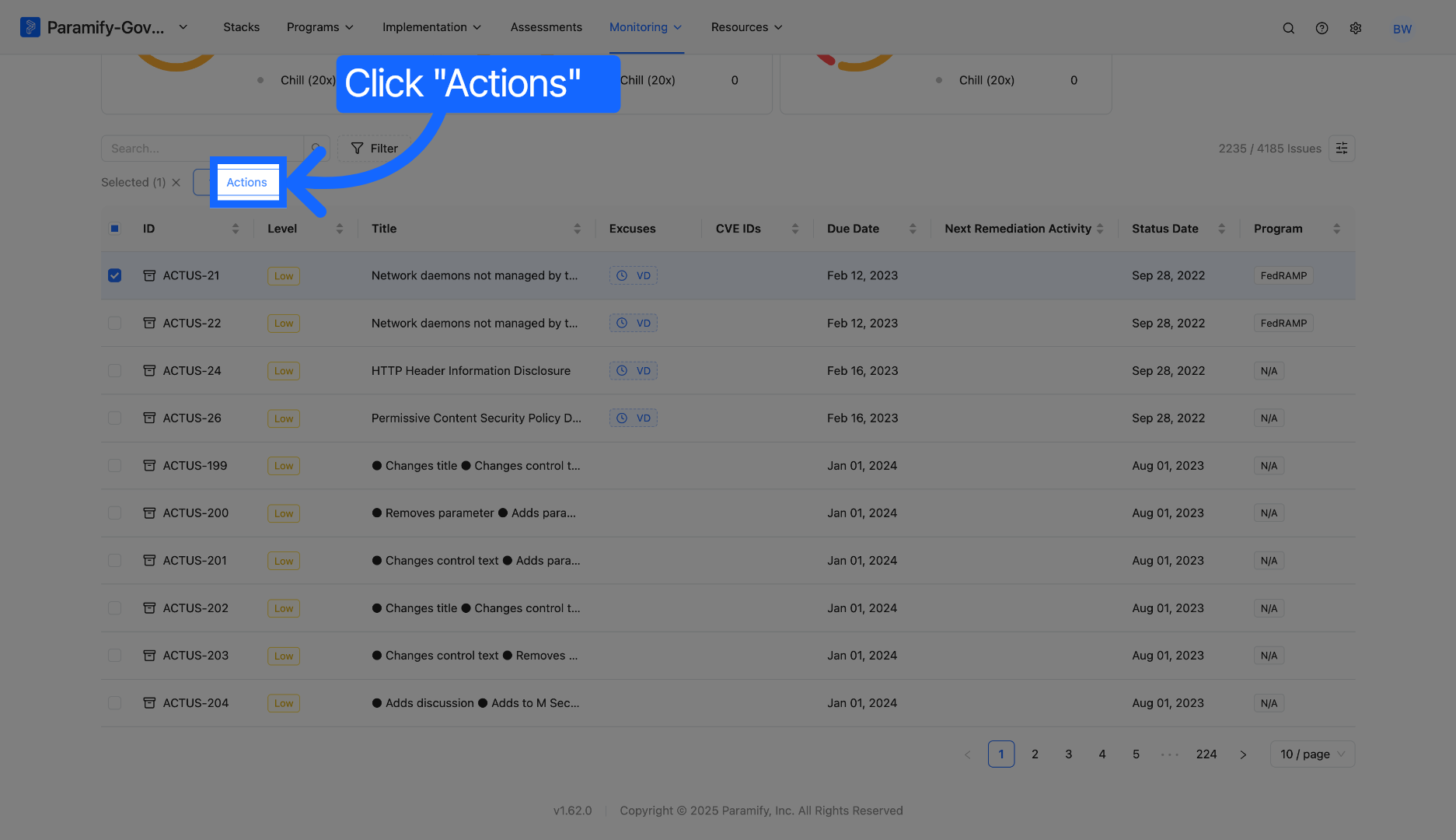
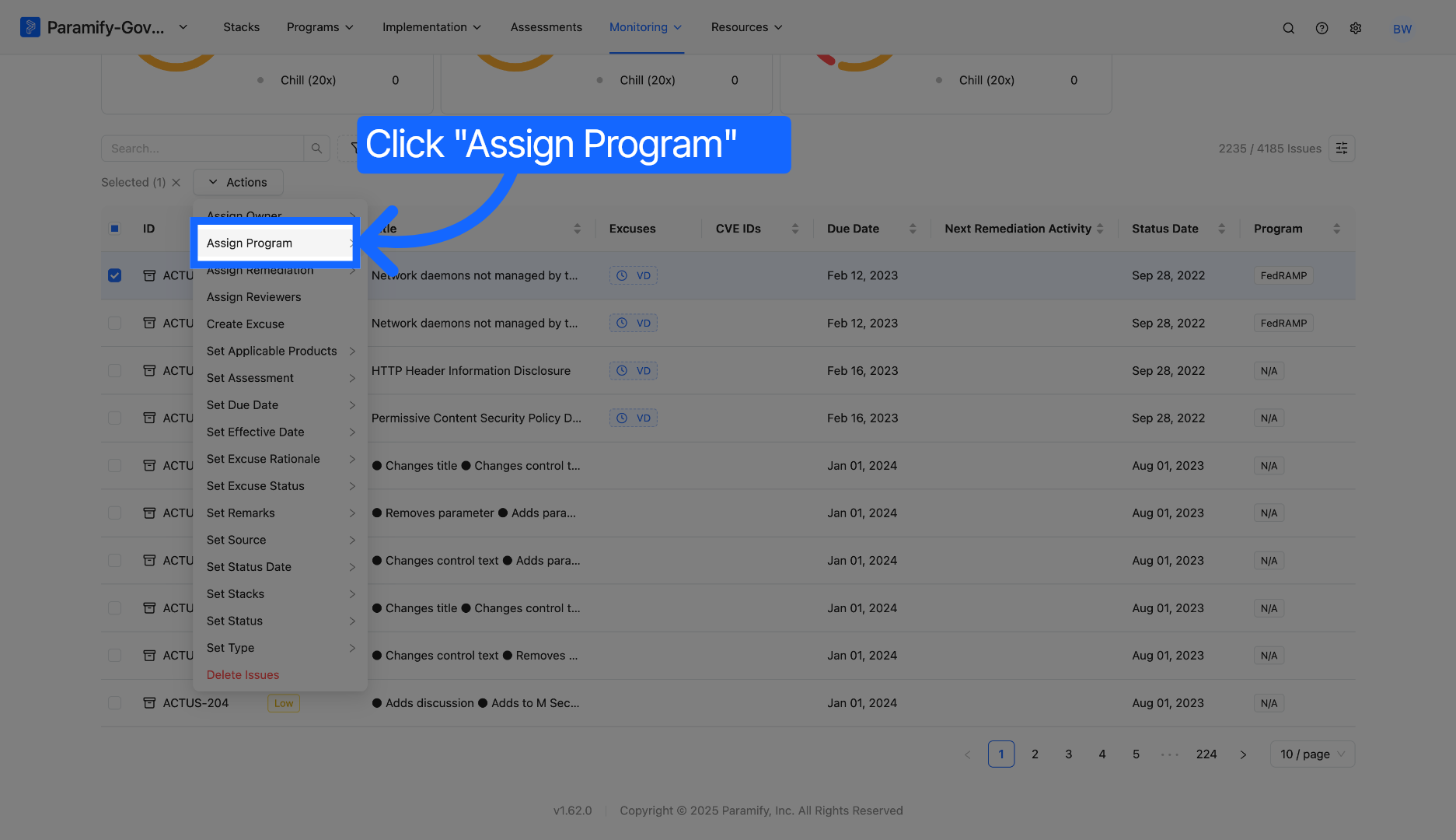
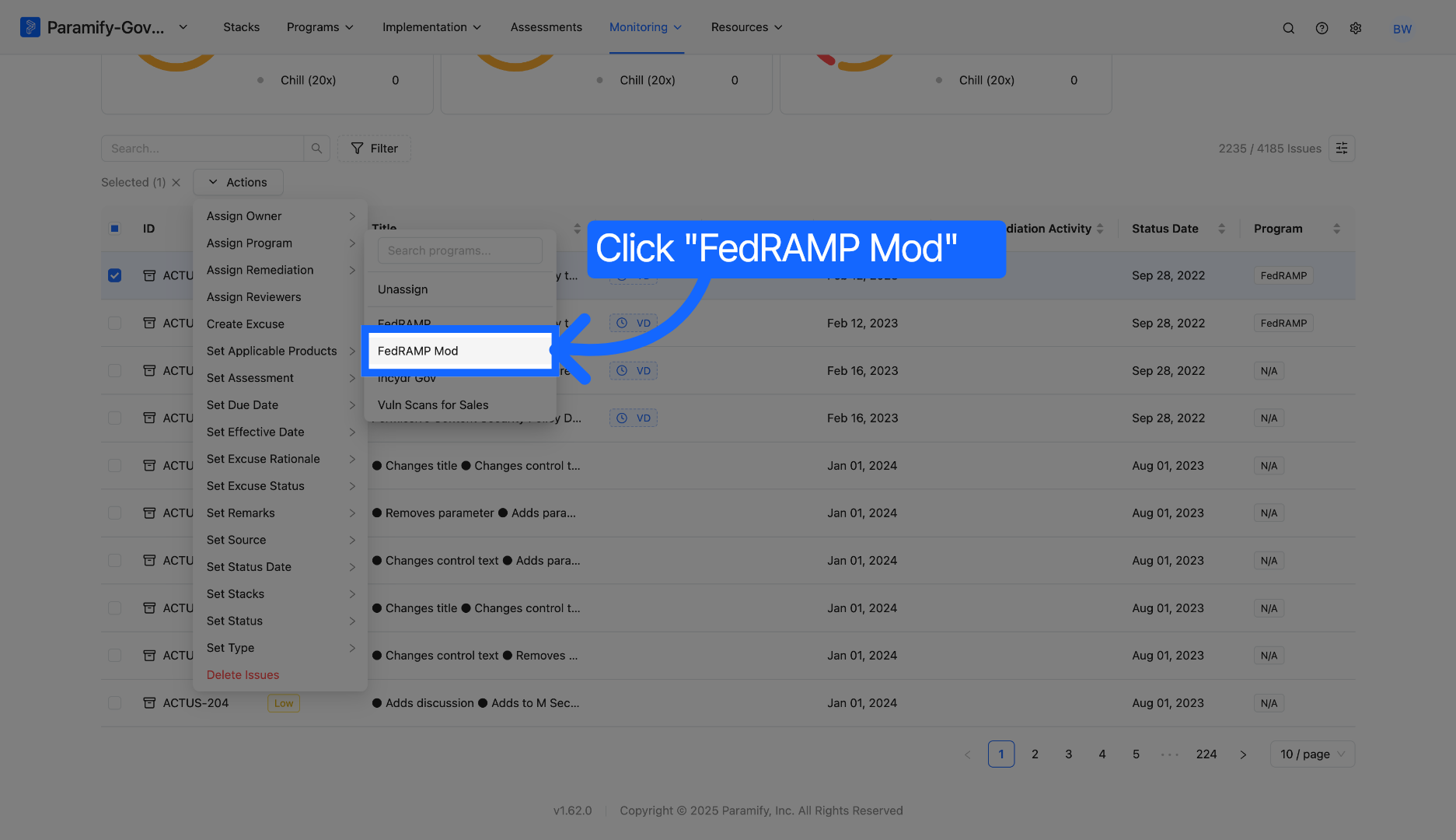
Remediation Activities
ID Prefixes
In the Workspace level settings, you can customize the ID prefixes for Evidence, Issues, and Remediations. The Evidence ID is universal to all Programs in the Workspace, so this will have the same prefix for all Evidence in all of the Programs.
To change the Issues and Remediation prefixes, you will first have to select the Program you want to configure. Once that is selected, then you can customize the prefix IDs.
(Example)
If I want to customize the prefix IDs for one of my Programs named "FedRAMP", I will select that as my Program. Then, I can make the prefix for Issues as "FED" and the prefix for Remediations as "FED-REM".
1. Navigate to the Workspace settings --> General, and scroll to the ID Prefixes section.
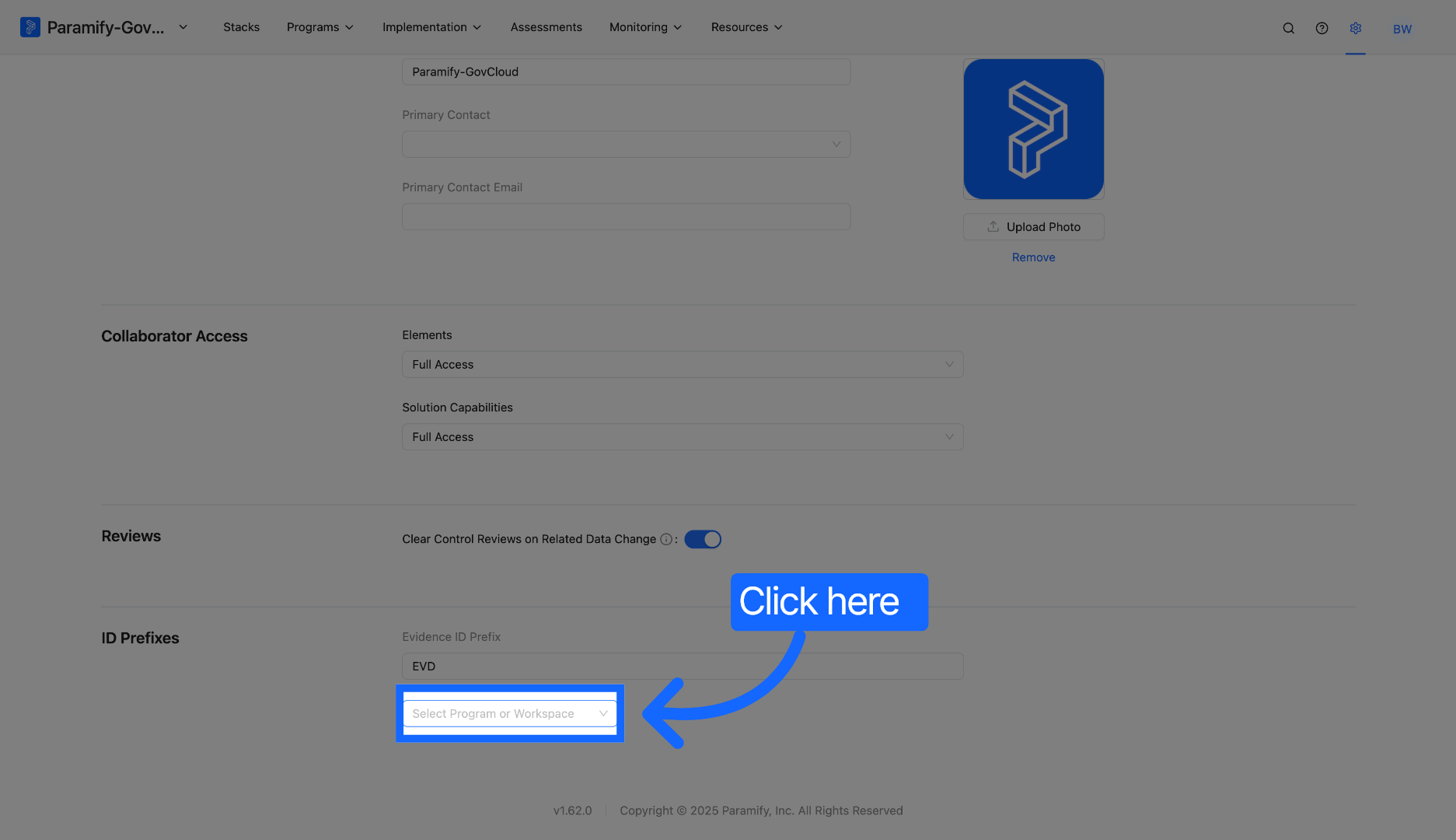
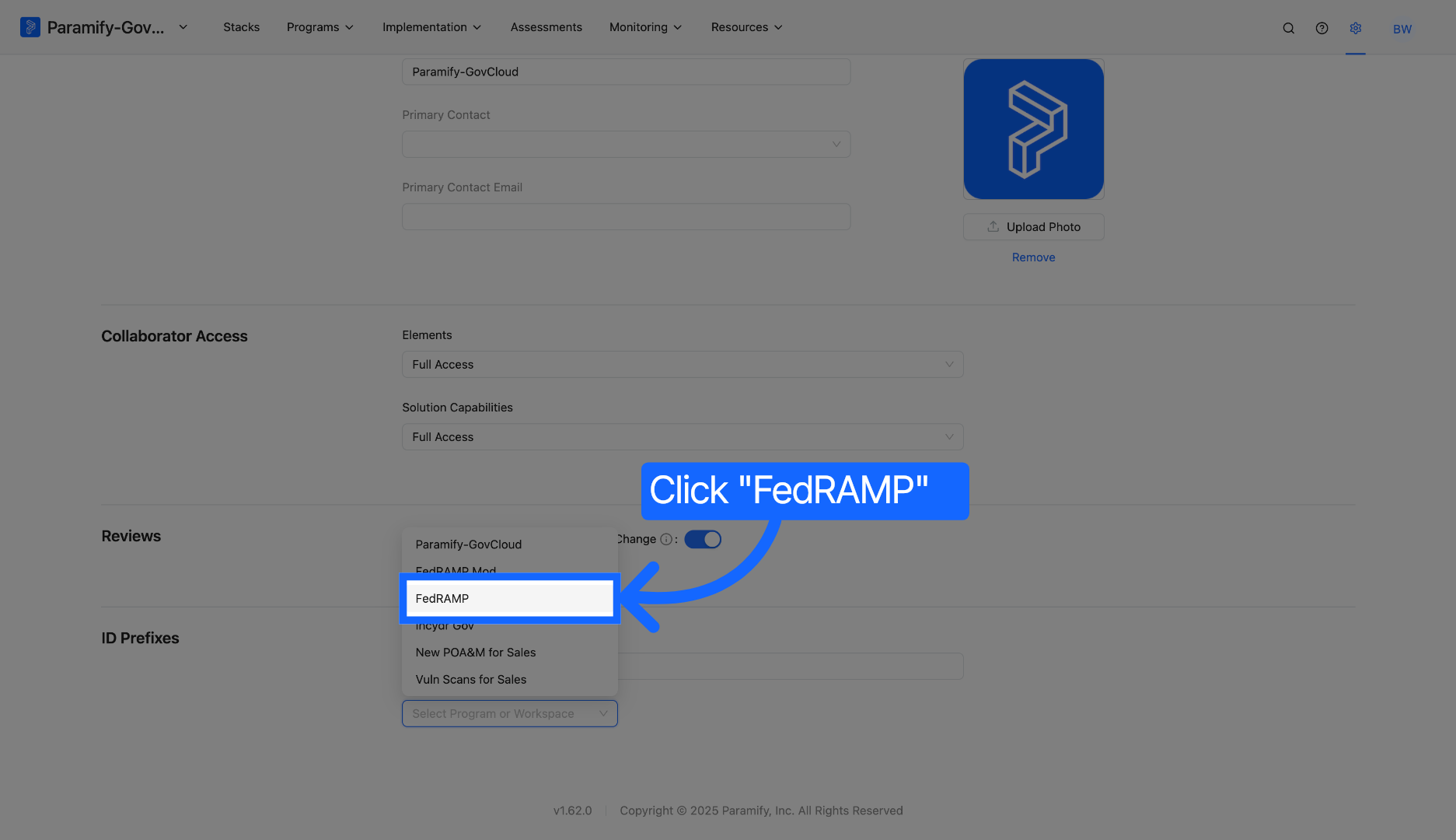
When you make a new Issue or Remediation in a Program, it will be named with the prefix ID following a "-" then a number incrementally. Using the example above, if you currently have 1000 Issues in a Program named "FedRAMP", the next new Issue will be named "FED-1001". The same goes for Remediations. If you currently have 1000 Remediations in the Program named "FedRAMP", the next new Remediation will be named "FED-REM-1001".
One thing worth noticing is that if you delete all of the 1000 Issues or Remediations and then make a new one, that new Issue or Remediation's ID will still use the incremented number. So the new Issue created after deleting the 1000 Issues will be named FED-1001, and so forth.
Remediation Toggle View
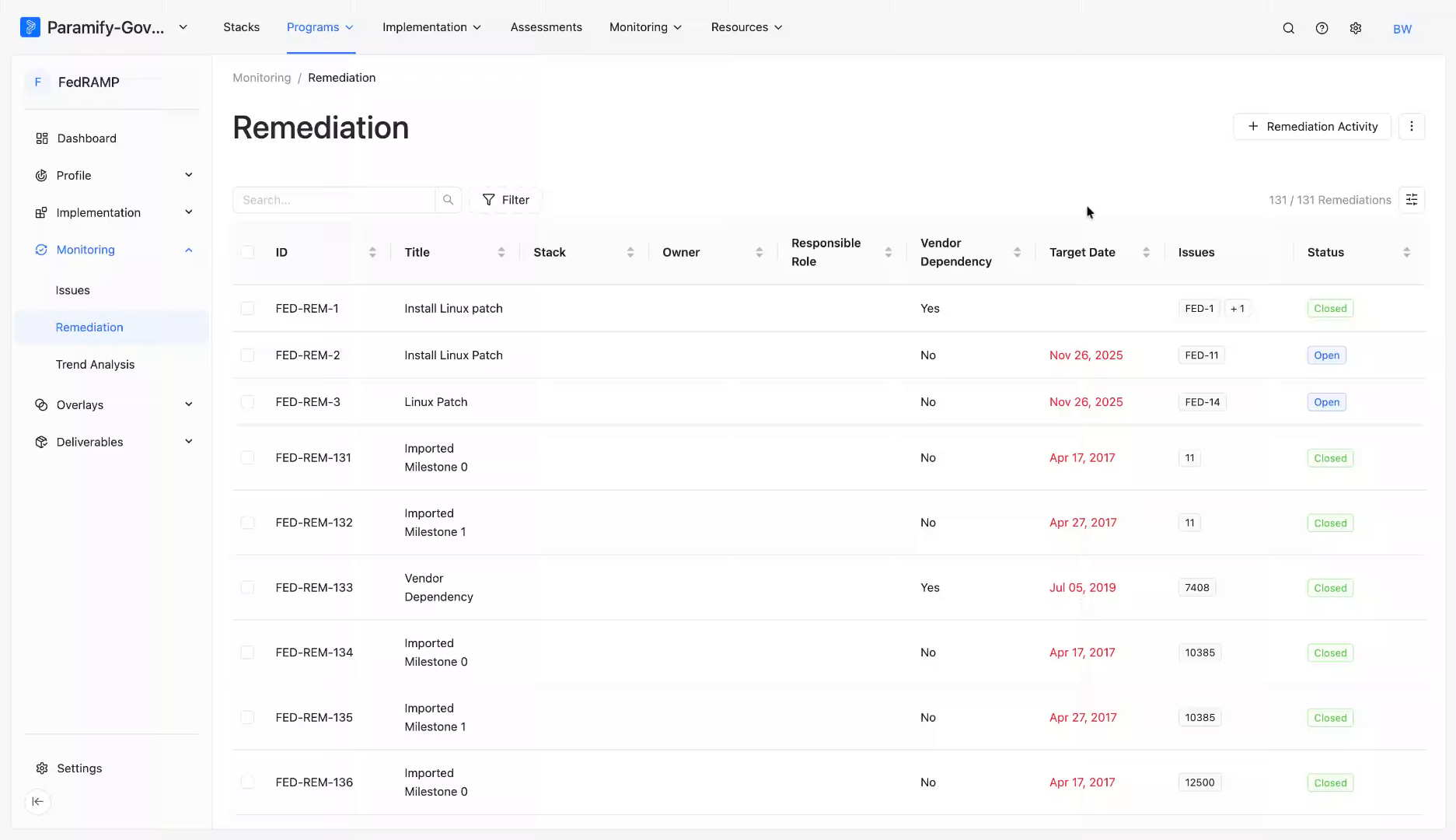
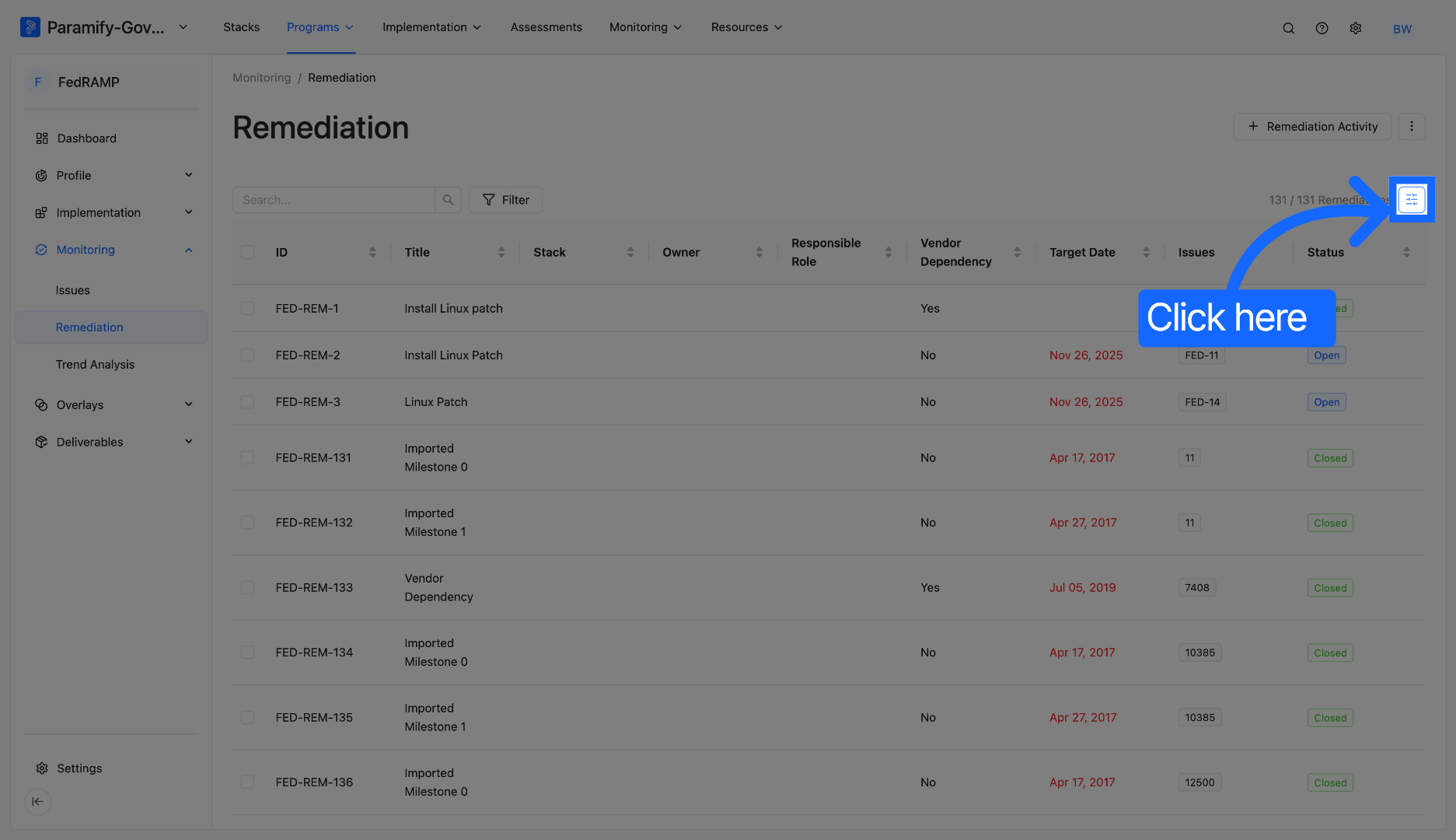
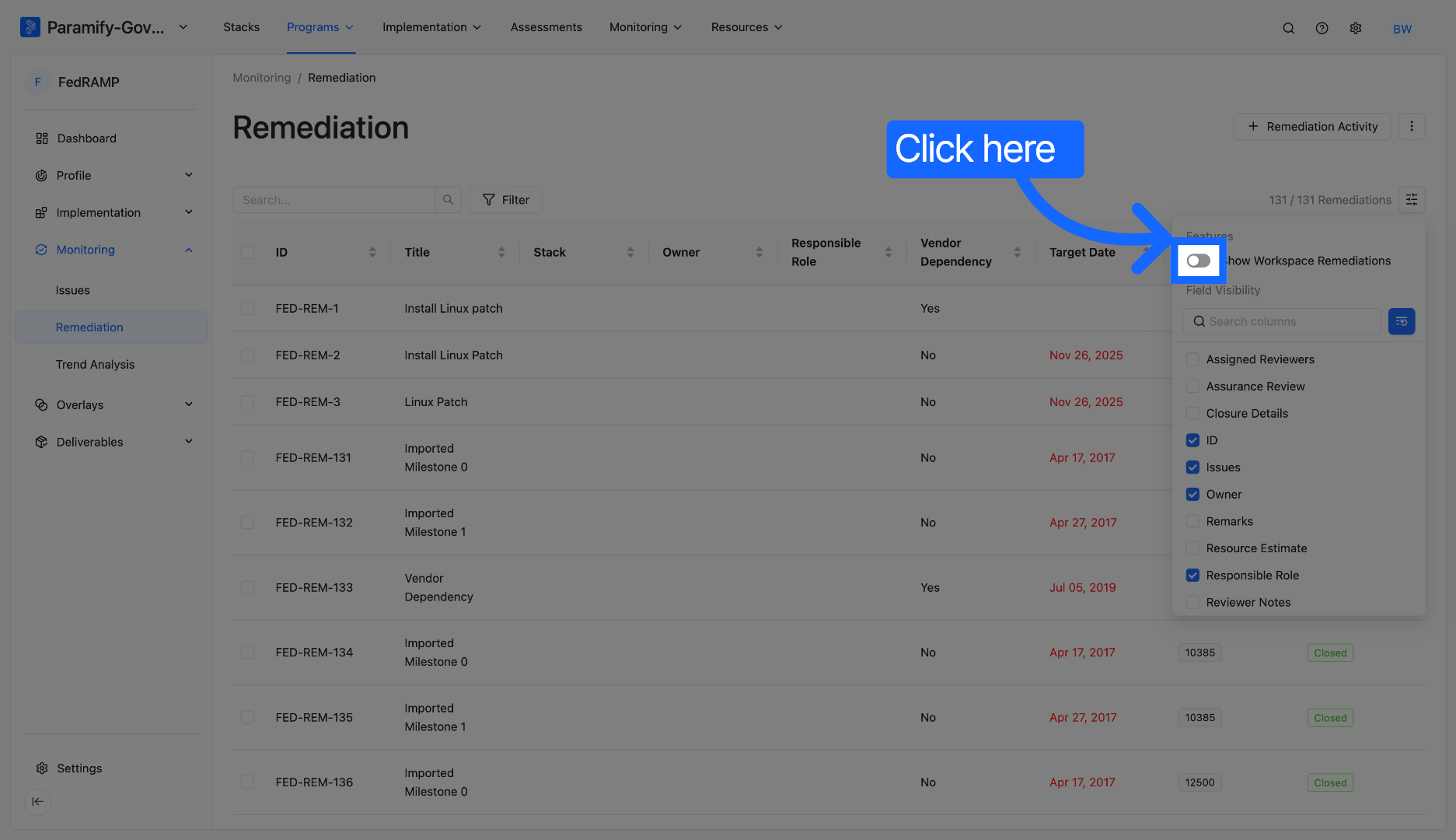
In the Remediation page within a Program, you can view all of the Remediations associated with the Program. From that same page, you can also view all of the Remediations associated with the whole Workspace. This can be done by turning on the "Show Workspace Remediation" toggle. This is helpful when you want to access, view, and configure the Remediations that are associated with other Programs without moving to the Workspace level page.
Below are the instructions on how to turn on the toggle.
Comments
0 comments
Please sign in to leave a comment.