
Paramify supports login SSO via Microsoft Entra.
As part of Microsoft Entra (aka Azure AD) you can setup an app registration for Paramify to support SSO. See other login methods on the Login Overview.
Configure in Paramify Cloud (SaaS)
If you are using Paramify Cloud (app.paramify.com), no app registration is required. By default, Microsoft SSO is already enabled for all new workspaces — your users can sign in with Continue with Microsoft on the Paramify login page without any additional configuration.
To manage which login methods are available, navigate to Workspace Settings (gear icon, top right), click the Authentication tab, and review the Allowed Authentication Methods section. Toggles save automatically.
NOTE
By default, all authentication methods are enabled. If you want to restrict how users can sign in — for example, to enforce Microsoft SSO only — make sure to toggle off any methods you don't want to allow.
Configure in Self-Hosted
For self-hosted deployments, you must first create an app registration in Microsoft Entra, then configure Paramify to use it.
Create an App Registration
- Go to entra.microsoft.com and sign in as at least a Cloud Application Administrator
- In the side navigation under Identity click on Applications then App registrations
- Click New registration near the top left:
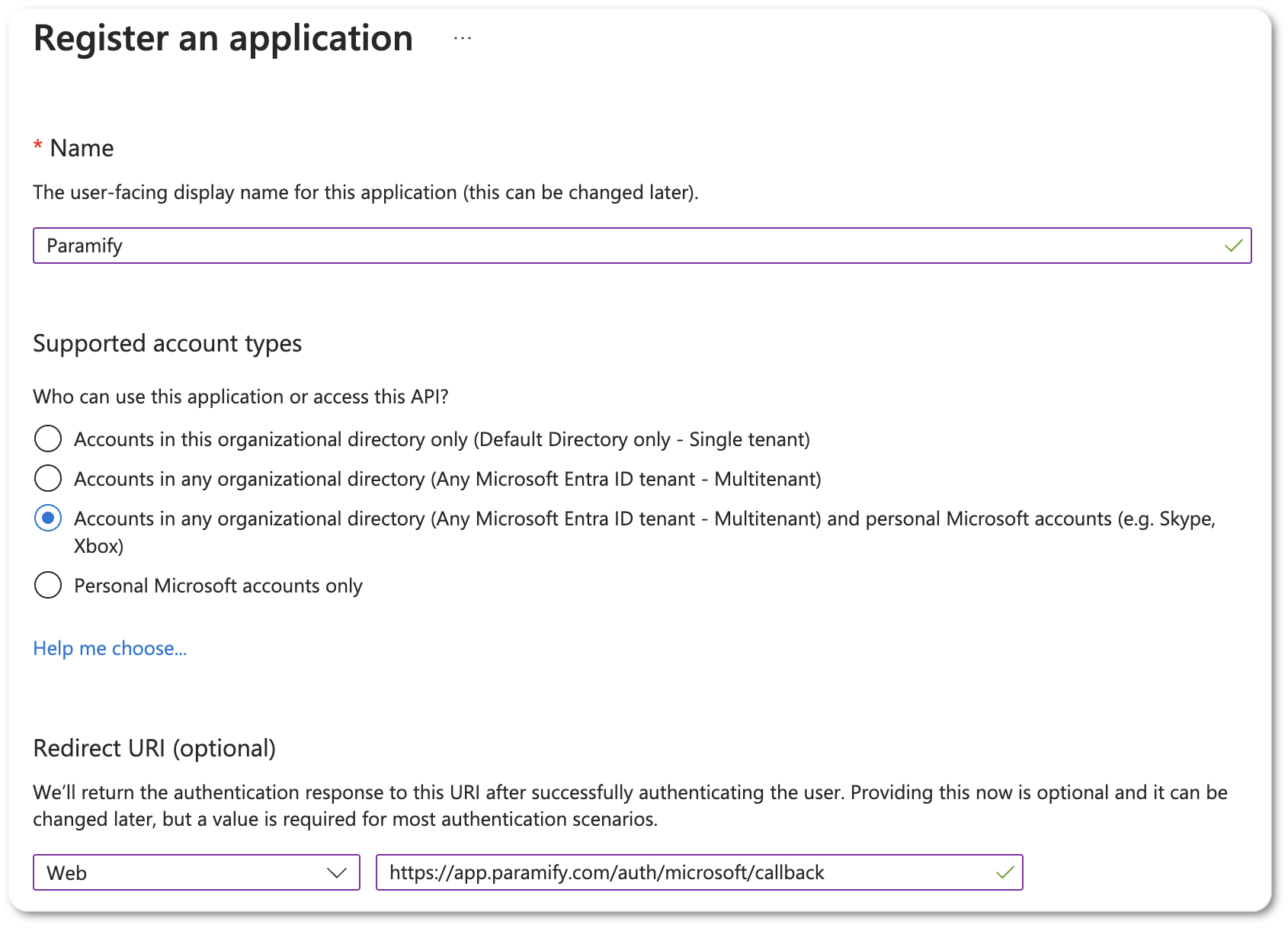
- Set the Redirect URI as Web and then the URL for where Paramify is installed, such as https://paramify.mycompany.com/auth/microsoft/callback (replacing with your domain)
- Click Register
- In the Overview copy the Application (client) ID, which is used for
Microsoft Client IDorAUTH_MICROSOFT_CLIENT_IDbelow - From the Overview click on Add a certificate or secret. Create a new client secret and make sure to copy the Value immediately — it is only visible at creation time. This secret goes into
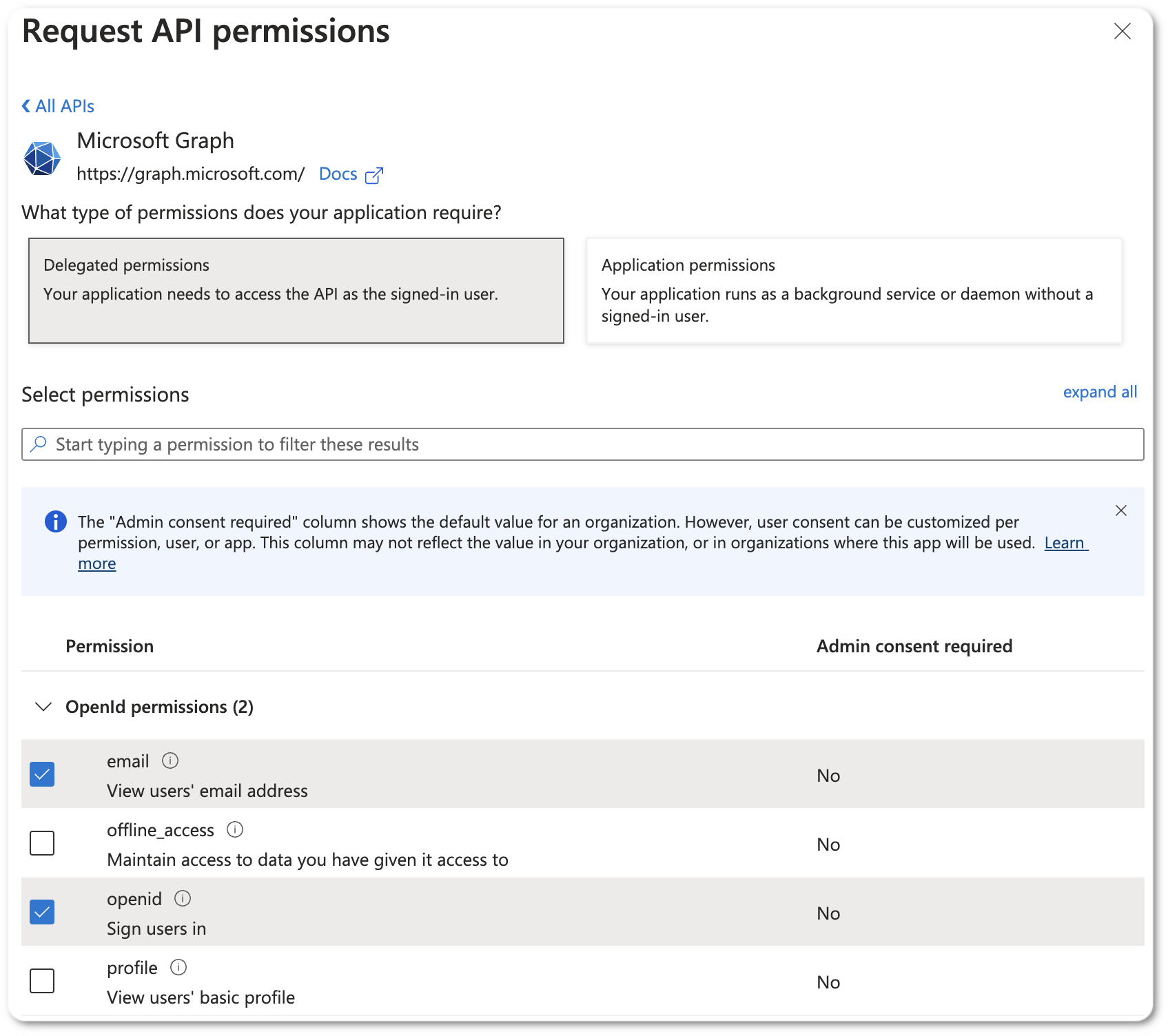
Microsoft Client SecretorAUTH_MICROSOFT_CLIENT_SECRETmentioned below - Go to the API permissions tab, click + Add a permission, select Microsoft Graph, then Delegated permissions, and add the email and openid permissions:
Apply Configuration
Once the app registration is created you can setup Paramify to use this with a few configuration options.
If you are using the Paramify Platform Installer then in the config GUI you can check the Enable Microsoft Login SSO box then enter the Microsoft Client ID and Microsoft Client Secret that you collected from the app registration above.
With a Helm-based install you can add the configuration options to your values.yaml in the configmaps.paramify.data section, similar to the following:
configmaps:
  paramify:
    data:
      AUTH_MICROSOFT_ENABLED: "true"
      AUTH_MICROSOFT_CLIENT_ID: "<client_id>"
      AUTH_MICROSOFT_CLIENT_SECRET: "<client_secret>"
Be sure to replace the client_id and client_secret with the respective values from the app registration above.
Comments
0 comments
Please sign in to leave a comment.